

Import customers
Move your existing customer base across in one go from Excel or CSV — including what to check before you start.
Already have your customers in Excel, in another booking system or in your accounting package? You do not have to retype them. The import wizard reads an Excel or CSV file, lets you decide which column belongs to which field, checks everything before anything is created, and then imports in one pass.
Preparing your file
Your file needs one row of column headers, and one row per customer beneath it. The headers can say whatever you like — you map them to the right fields yourself in step 2 — but recognisable names save work, because those get suggested automatically.
This file works without any changes:
| First name | Last name | Phone | Street | House number | Postal code | City | Customer type | Company name | |
|---|---|---|---|---|---|---|---|---|---|
| Sarah | Bennett | sarah@example.com | 07700900123 | Keizersgracht | 12 | 1015 CJ | Amsterdam | person | |
| info@oakbakery.com | 07700900456 | Oudegracht | 240 | 3511 NP | Utrecht | business | Oak Street Bakery |
The second row shows what a business customer looks like: no first or last name, but a company name.
The rules that actually stop an import:
- Accepted:
.xlsx,.xlsand.csv, up to 5 MB. - Only the first sheet of an Excel file is read. If your customers are on the second tab, the file will look empty.
- There must be at least one data row below the header row.
- Required per customer: a last name (private) or a company name (business). That is all.
Step by step
Upload your file
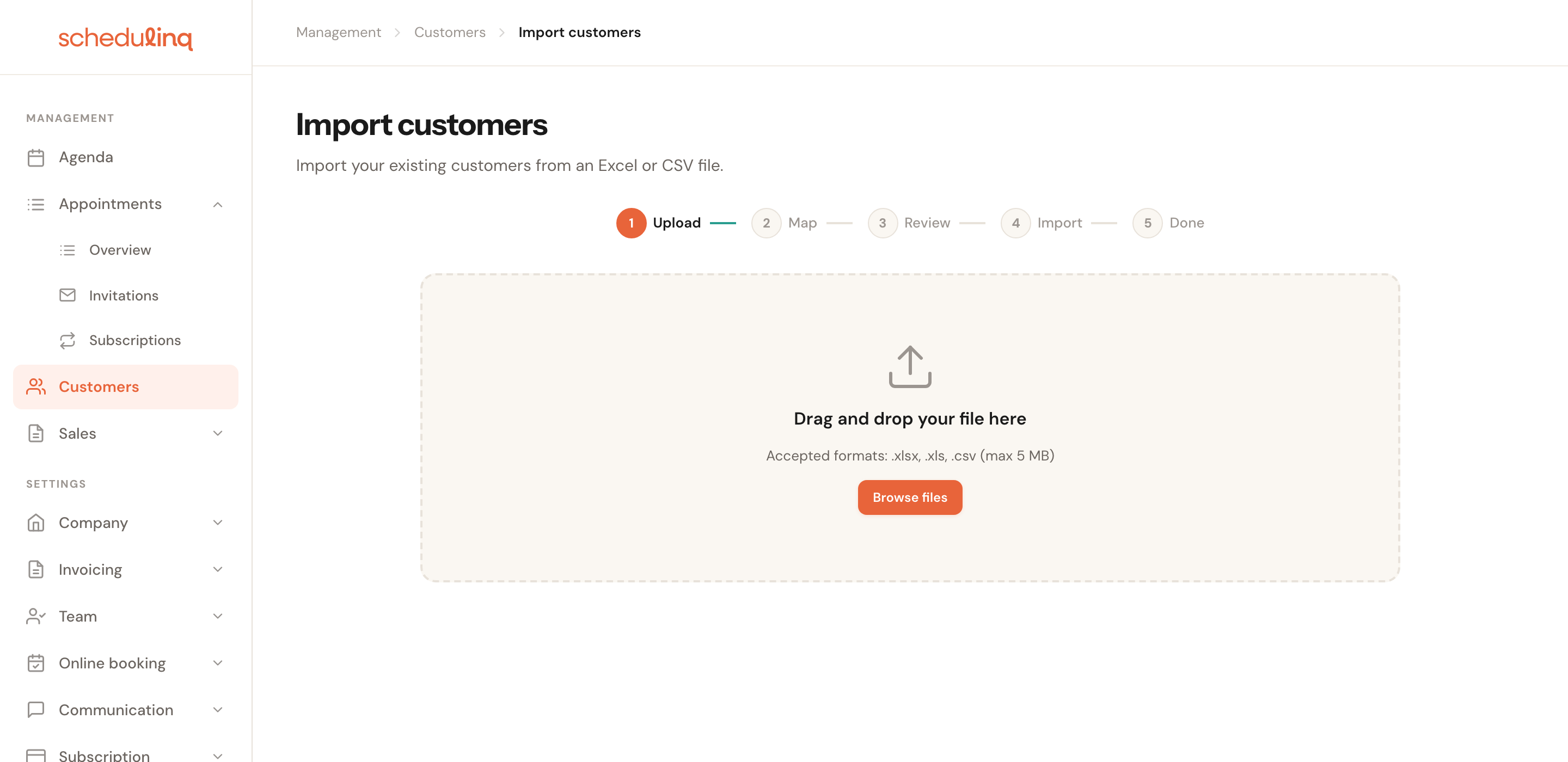
Go to Customers and choose Import. Drag your file onto the drop zone or click Browse files.
Map your columns
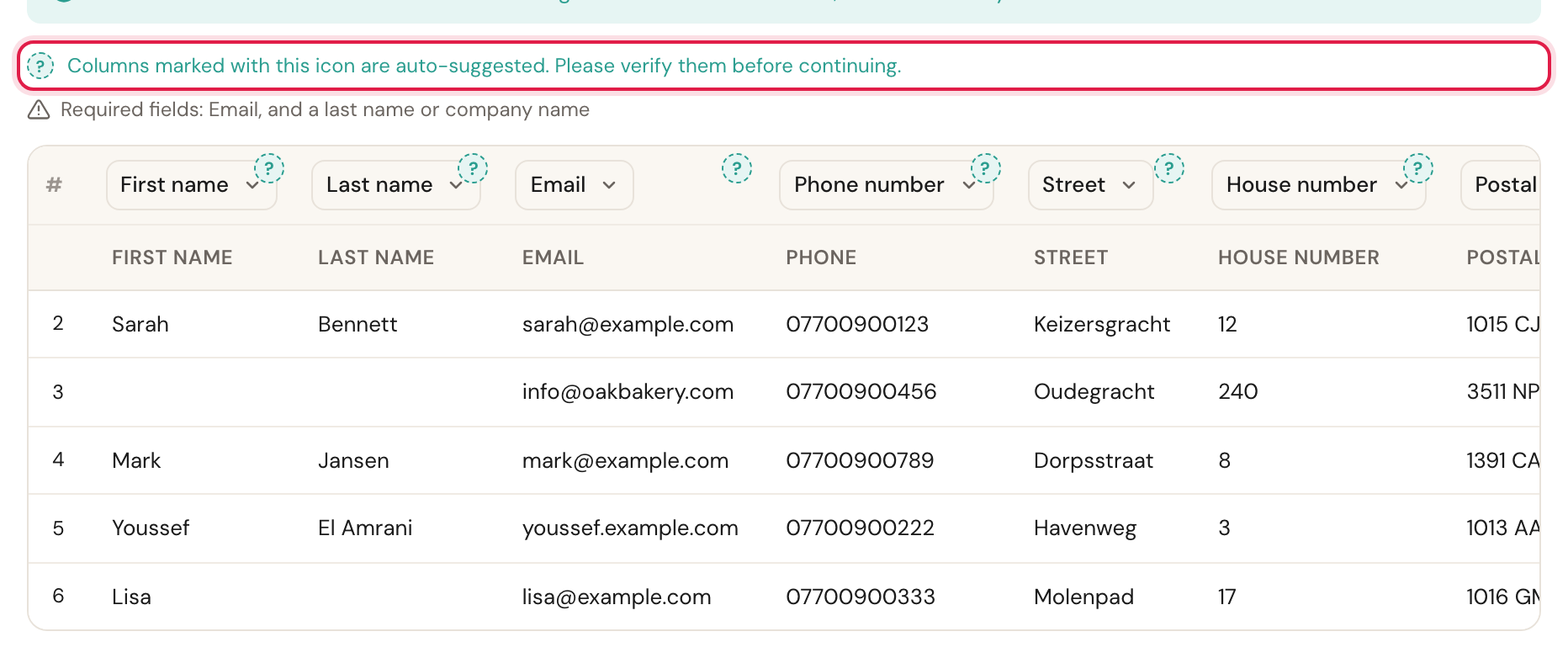
Above each column is a dropdown naming the field that column lands in. Schedulinq fills these in as best it can from your headers — you can spot those suggestions by the marker beside them.
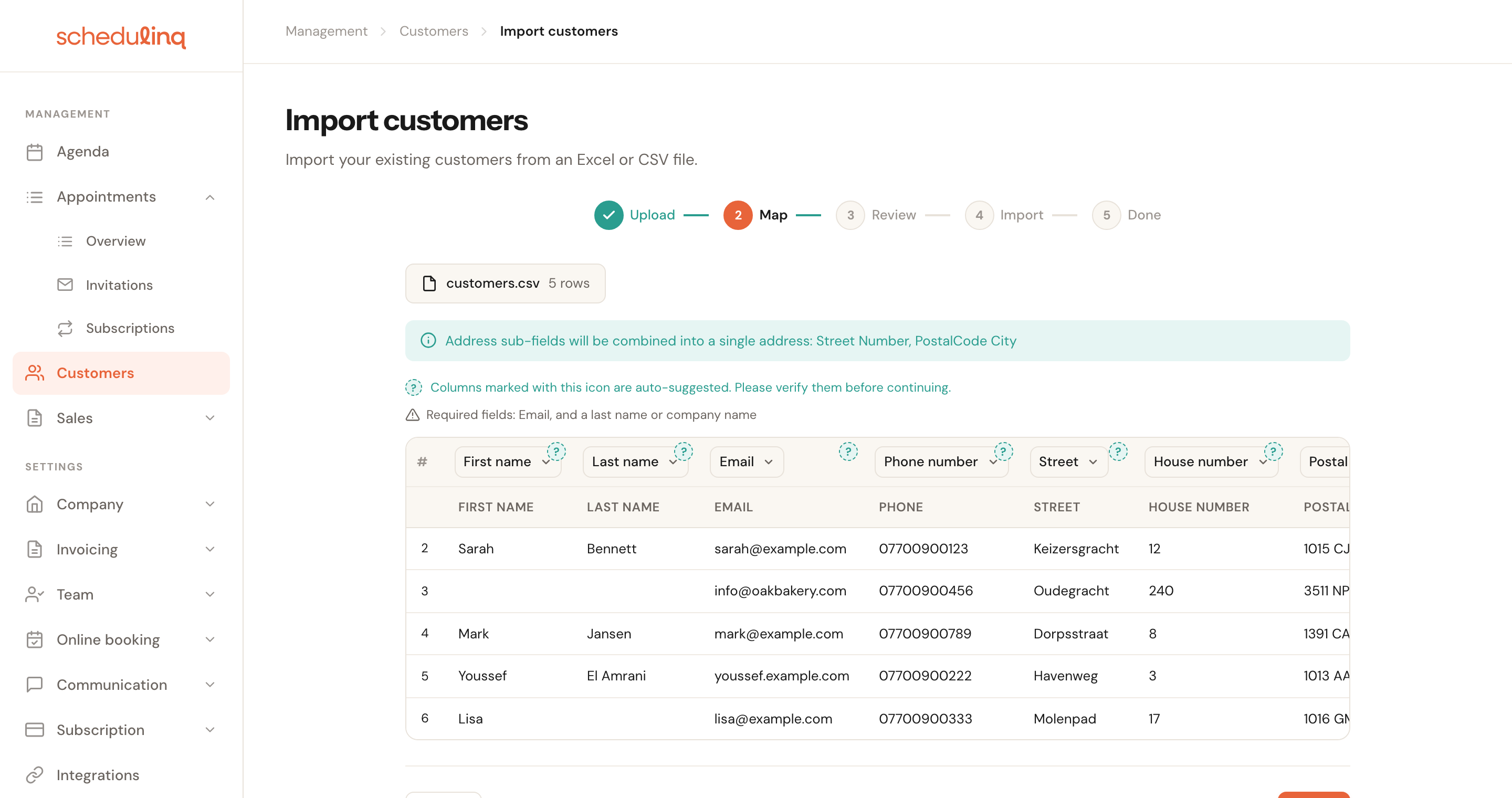
Check them. A wrong suggestion is the one mistake that goes through without any warning: the file imports neatly, it is just that your phone numbers end up in the house-number field. Set any column you do not need to Skip column.
Review what is wrong
Schedulinq now walks every row and splits them into two piles: rows that are ready, and rows with a problem.
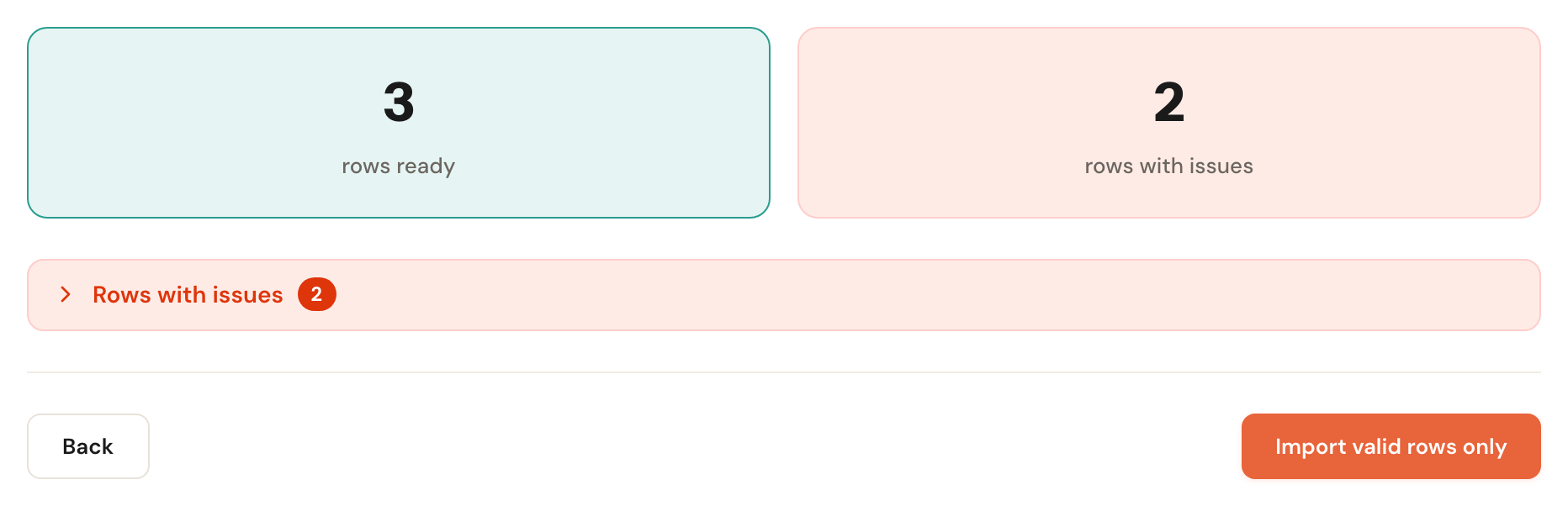
Expand Rows with issues to see exactly what is wrong. You get the row number, the customer, the field, the value that was there and what is wrong with it. The row number matches the row in your spreadsheet, so you can go straight to it.
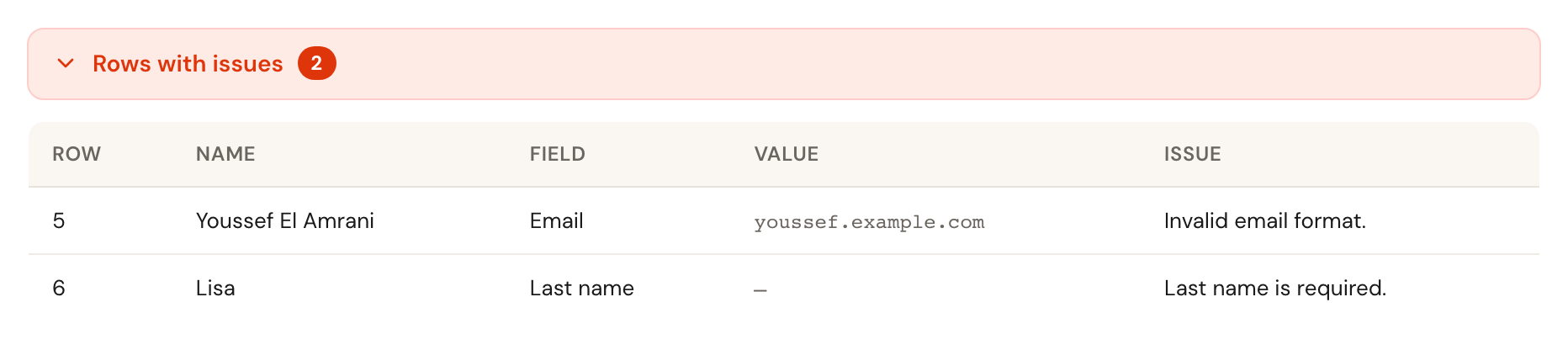
You now have two options. Back, and repair your file — or Import valid rows only, which skips the bad rows. Skipped rows are not lost, they are simply not created; you can supply them later in a second file.
Under the issues sits one box: Import rows whose e-mail address already belongs to a customer. Leave it unticked and those rows are skipped. What it is for is under Customers you already have.
Import
The import runs in blocks of 50 rows. On a large file you will see the progress climb. Do not close the tab while it runs.
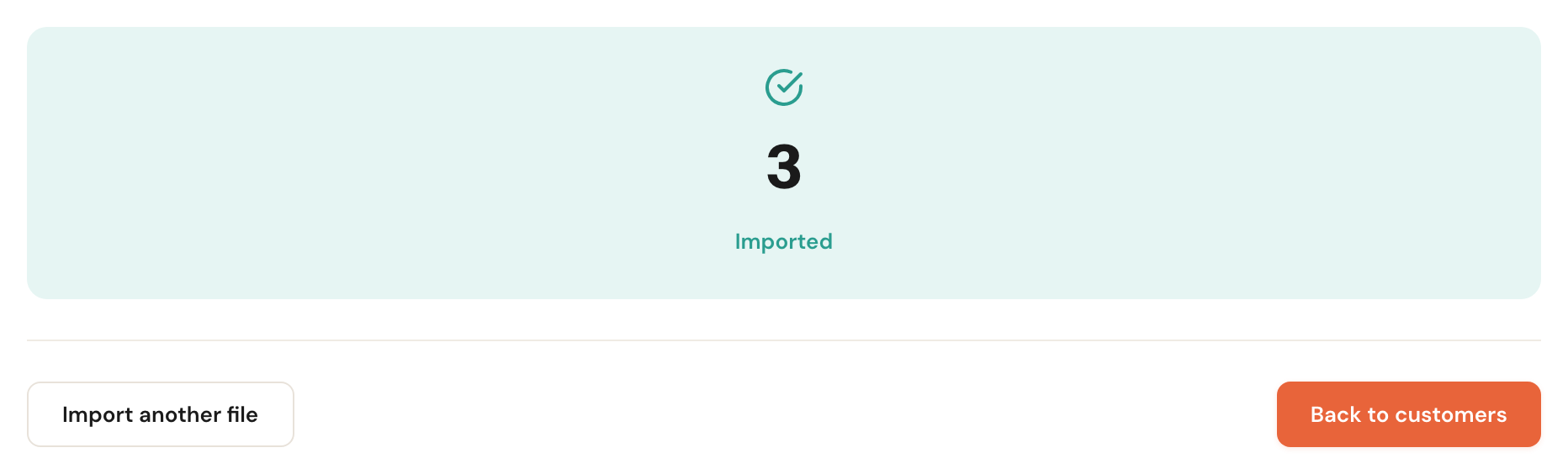
Afterwards you see how many customers were created. A row that was skipped because its e-mail address was already taken is counted under Duplicates; a row Schedulinq refused while importing — a VAT number in the wrong shape, say — under Errors. Open the list below them to see which rows those were. Click Back to customers to check the new customers straight away.
Customers you already have
Schedulinq recognises a customer you already have by one thing: the e-mail address. A row
whose e-mail address already belongs to one of your customers is not imported. It is skipped
and counted under Duplicates on the last screen. The same goes for a row whose address
already came up higher in the same file: the first one is imported, the rest are skipped.
Capitals make no difference — Sanne@Example.com and sanne@example.com are one address.
Import rows whose e-mail address already belongs to a customer
Default: offOn the review stepTick it and those rows are imported after all, each as a customer of its own.
Several customers can share one inbox: a family with one address, or one office address behind several companies. Their rows would otherwise be skipped. Leave it off for an ordinary import: then a file you import a second time does not give you every customer twice.
An import never changes a customer you already have: it only creates new ones.
The fields that need attention
Most columns speak for themselves. These decide whether your import does what you expect.
Last name or company name
RequiredEach customer needs exactly one name field: a last name for a private customer, a company name for a business one. A first name is optional.
If it is missing, that row appears under the issues and is skipped — the rest of your file goes through as normal.
Customer type
OptionalDecides which fields applyEnter person or business. individual, company and the Dutch particulier and
zakelijk are recognised too, and capitalisation does not matter.
This field decides which name is required. Leave the column out or blank and Schedulinq picks for you: if there is a company name it becomes a business customer, otherwise a private one. That is usually right, but a sole trader with no company name in the file becomes a private customer when you meant a business one. Fill the column in if the distinction matters for your invoices.
Address
OptionalTwo waysYou supply the address one of two ways: a single full address column, or separate columns
for street, house number, postal code and city. Street and house number may be separate —
they are joined into one line. A Country column may sit beside either, holding a country
name or a two-letter code such as NL. If that column is missing, or Schedulinq does not
recognise the country, the address is saved without a country; the row is not refused for
it. The address lands on the customer record as the customer's own address, the one the
invoice goes to as well.
The two ways are mutually exclusive. Map a column to Full address and Schedulinq releases the separate address columns automatically, and the other way round. That is not a fault: it stops the same address being written twice. An address is never required — customers who always come to you do not need one.
An empty email field is fine. A filled one has to be a real address — name@domain.com.
A typo such as a missing @ is exactly what the review step catches, and that is worth
having: a customer with a broken e-mail address never receives a confirmation, and you only
find out when they phone.
Phone country code
OptionalNeeded to read local numbersA two-letter country code such as NL or BE, in a column of its own beside the phone
number. With it, a local number such as 0612345678 is saved as an international number,
+31612345678 — the way the customer form saves it too. Without it, every number is saved
exactly as it is in your file.
Most files hold numbers the way you dial them, without +31. The country code tells
Schedulinq which country they belong to. Write it in letters: +31 is not a country code
here. A number that cannot be read with the code it is given, or that has a letter in it,
is refused, and that row is listed under Errors after the import.
Language
OptionalBlank: your company's languageThe language this customer is written to in, as a two-letter code: nl, en, de, fr.
Leave the column out or a cell blank and the customer gets your company's language.
Confirmations and reminders go out in this language. If all your customers speak the language your company works in, you do not need the column at all.
Inactive
OptionalBlank: activeMarks customers you no longer serve, so they come across as Inactive straight away.
ja, x, 1, true and yes all count as inactive (and a few more); anything else, and
an empty cell, counts as active.
An inactive customer cannot book online, and your customer list only shows them once you switch its filter to Inactive. That way your former customers come along with their details without cluttering the list you work from. See The customer record.
Business details
OptionalBusiness customersVAT number, Chamber of Commerce number and the contact person's first and last name (Contact person first name, Contact person last name) each have a column of their own.
For a business customer the first and last name columns become the contact person anyway;
separate contact person columns take precedence when both are filled. A VAT number has to
start with a two-letter country code, as in NL123456789B01 — spaces, dots and hyphens do
not matter. A row with a VAT number in another shape is listed under Errors after the
import.
If you have created custom fields for customers, those appear in the dropdown too and you can map a column to them just the same.
When something goes wrong
There are duplicates in my file. Rows with the same e-mail address are imported once: the first one goes in, the others are counted under Duplicates. Rows without an e-mail address are all created, so deduplicate those beforehand, in your spreadsheet.
The import stops half way. Whatever was already imported stays. Each customer is created individually, so a failure further down does not roll back the earlier rows. Import the same file again and the rows that came through are skipped as duplicates — but only the ones with an e-mail address. Remove the imported rows without one from your file first, otherwise you get those customers twice.
I mapped something wrongly and already imported. There is no undo. You will have to delete the created customers by hand. This is why it is worth practising with a small file first.
Frequently asked questions
Will an export from my accounting package work? Usually, as long as you save it as CSV or Excel. You do not need to rename the columns — you do that in step 2.
My file looks empty. Only the first sheet of an Excel file is read. If your list is on another tab, move it to the front or save that tab separately as CSV.
Are existing customers updated? No. An import only ever creates new customers and never touches existing ones. A row with the e-mail address of a customer you already have is skipped, not merged.
Can I import another file later? Yes, as often as you like. Rows whose e-mail address is already in Schedulinq are skipped; customers without an e-mail address are created again.