

The customer record
Everything about one customer on one screen — appointments, subscriptions, objects, notes and details. The screen you open when someone phones.
The customer record is the screen you open when a customer phones. Everything you need at that moment is on it: when they are next in, what happened last time, what you agreed, and whether their details are still right.
Open it by clicking a row in Customers.
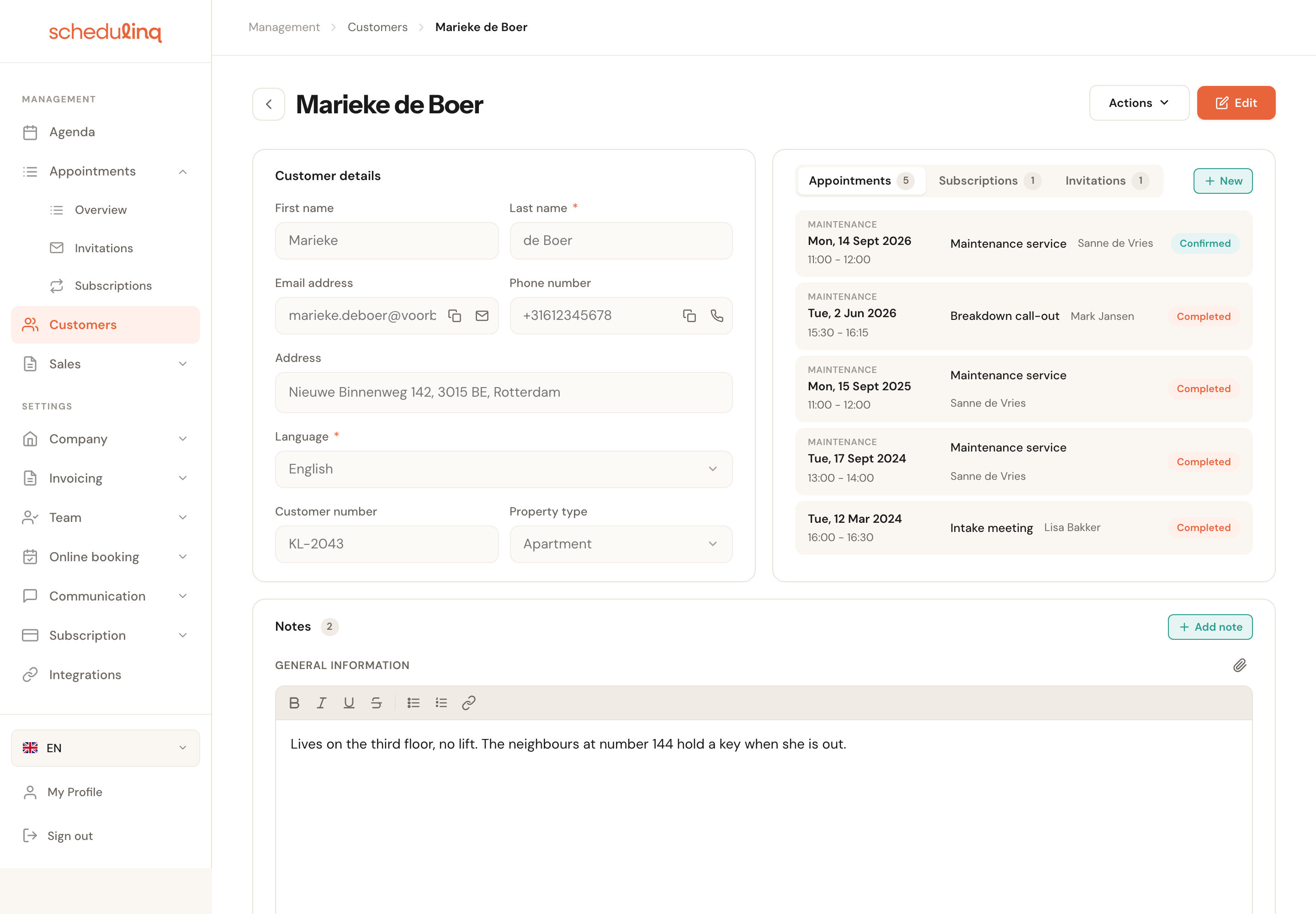
Three blocks: details on the left, activity on the right, the notes dossier underneath.
"When am I next in?"
The block at the top right answers that. It has three or four tabs, each with a counter so you can see at a glance whether anything is running.
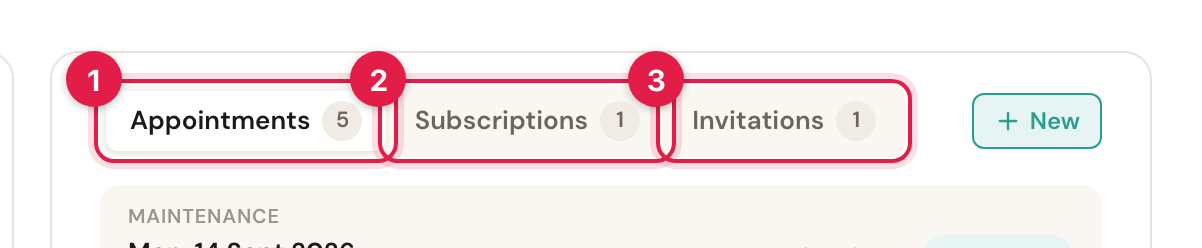
- Appointments — the whole history, five to a page, the latest date first. With several appointments still to come, the next one is therefore not at the top: the one furthest ahead is.
- Subscriptions — running series, such as a yearly maintenance visit.
- Invitations — invitations that let the customer pick a time themselves, and that are still open.
- Objects — what this customer owns that you work on: a horse, a car, a boiler. This tab only appears when your company has set up object types (or the customer already has objects). If your company has given them a name of its own, such as Horses, the tab is called that. See Customer objects.
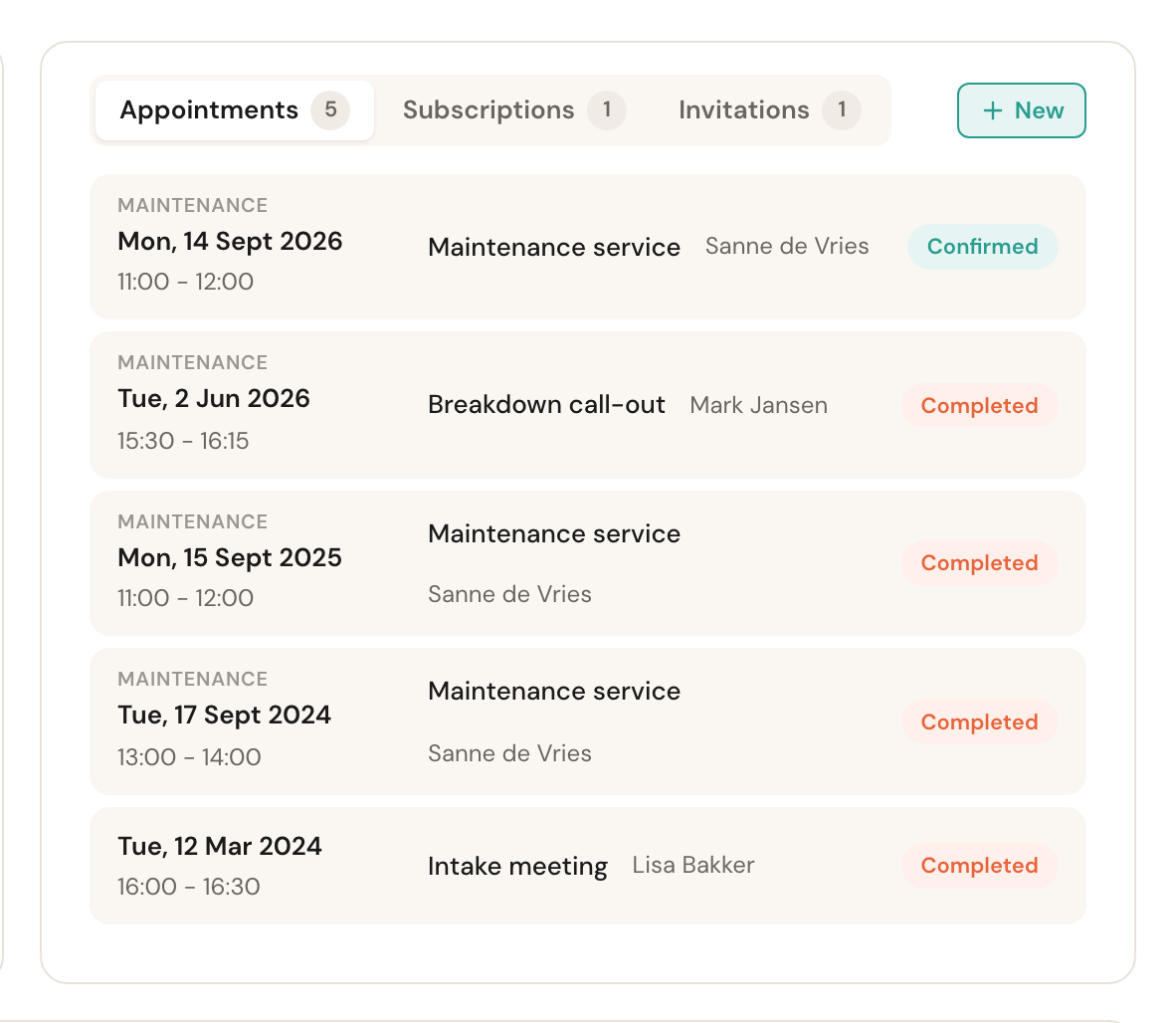
Click a row to open that appointment. When an appointment is for one of the customer's objects, its name follows the service: Maintenance service · Loft boiler. A video or phone call carries the same camera or handset icon as the calendar before the service's name — on the appointments, the invitations and the subscriptions.
Under the tabs sits the New button, which creates something for this customer straight away. It follows the open tab: on Appointments it creates an appointment, on Subscriptions a subscription, on Invitations an invitation and on Objects an object. On Appointments, Find options sits beside it: it opens the planner for this customer, with the best times to visit — see Find appointment options. If your role cannot create something, the button is not there.
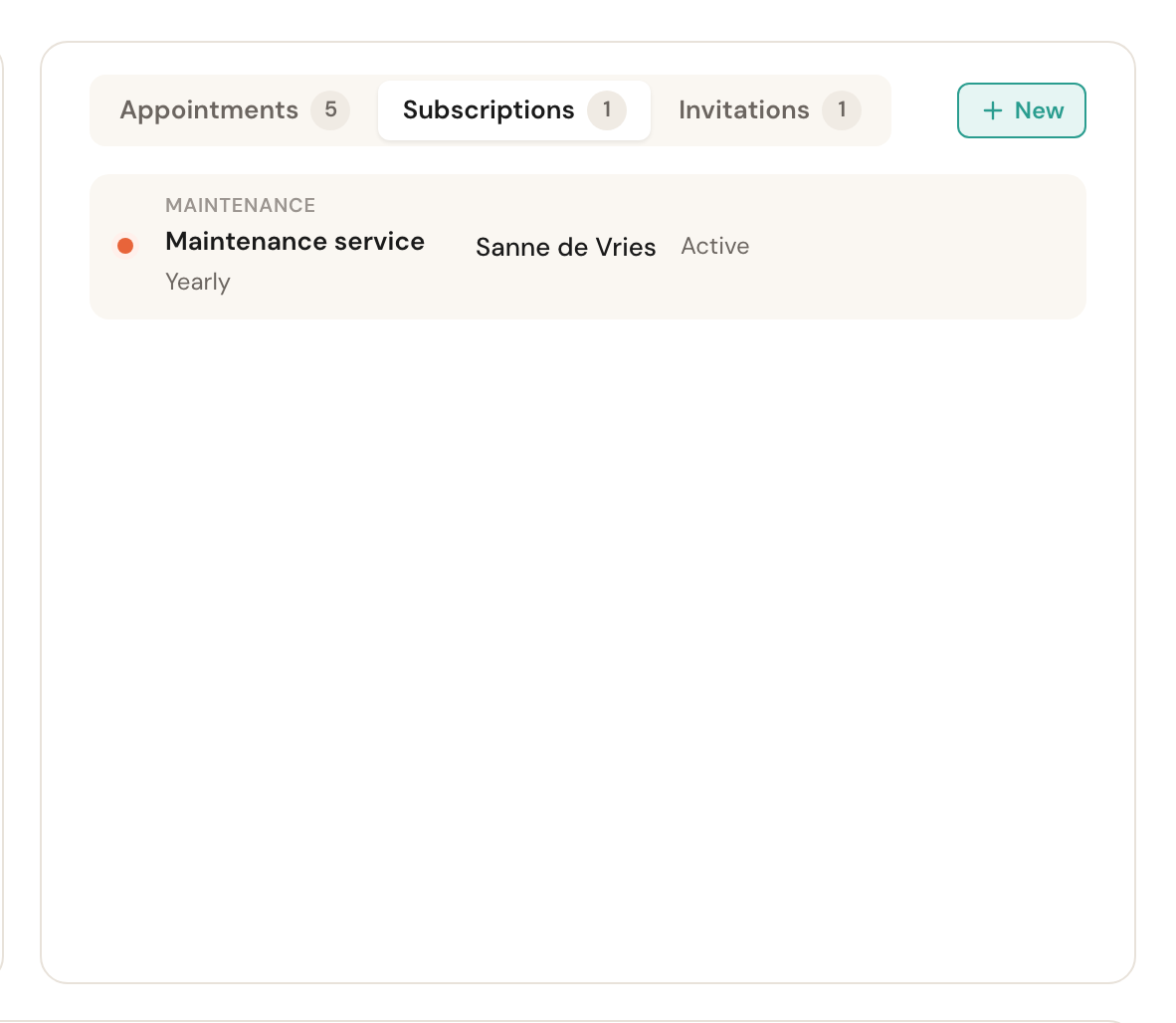
Only running subscriptions appear here. A stopped one disappears from the tab.
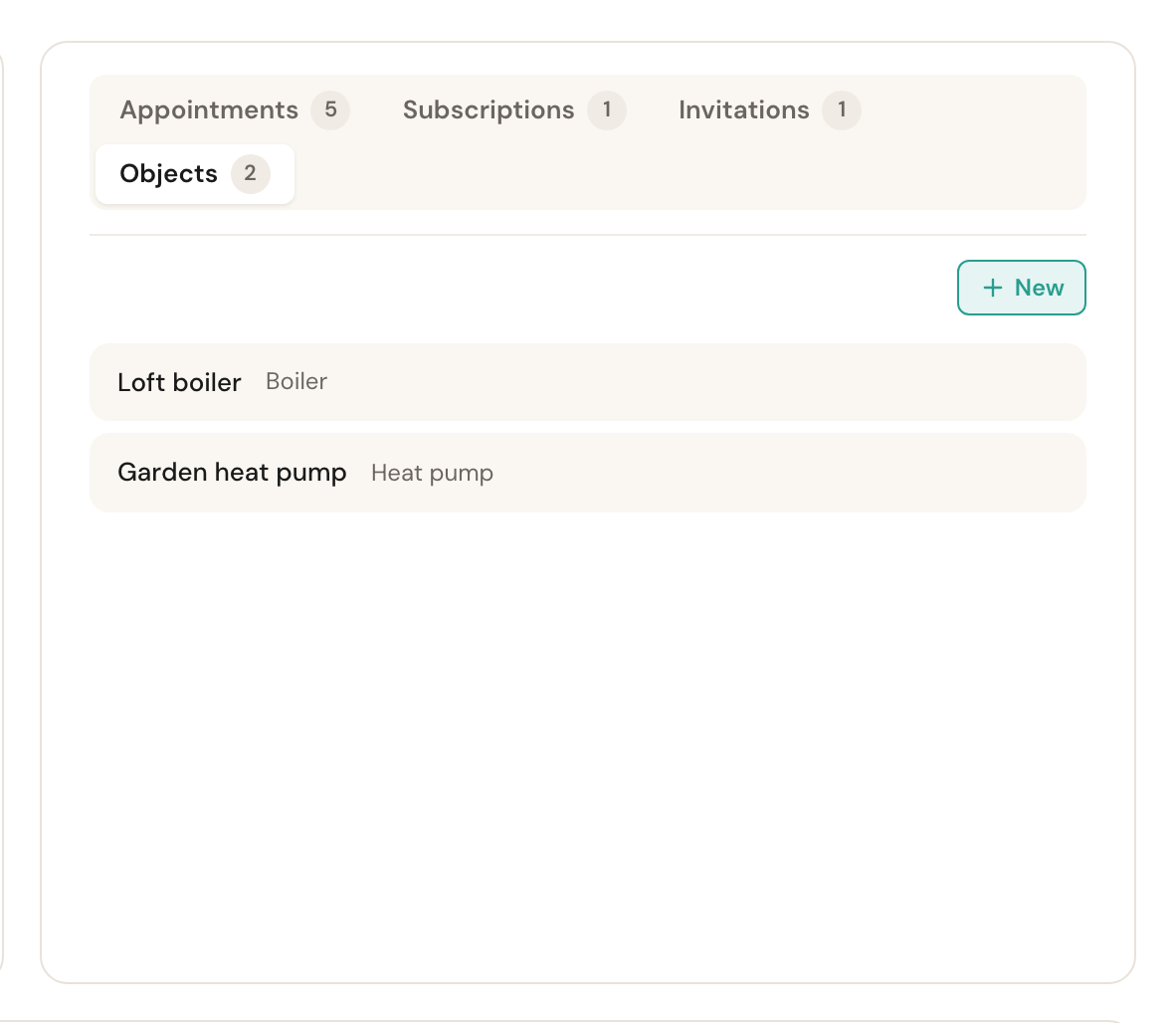
Each object with its type beside it. Click one to open the object's page.
"What did we agree again?"
The notes dossier sits at the bottom of the record. It holds two kinds of note, and the difference is worth knowing.
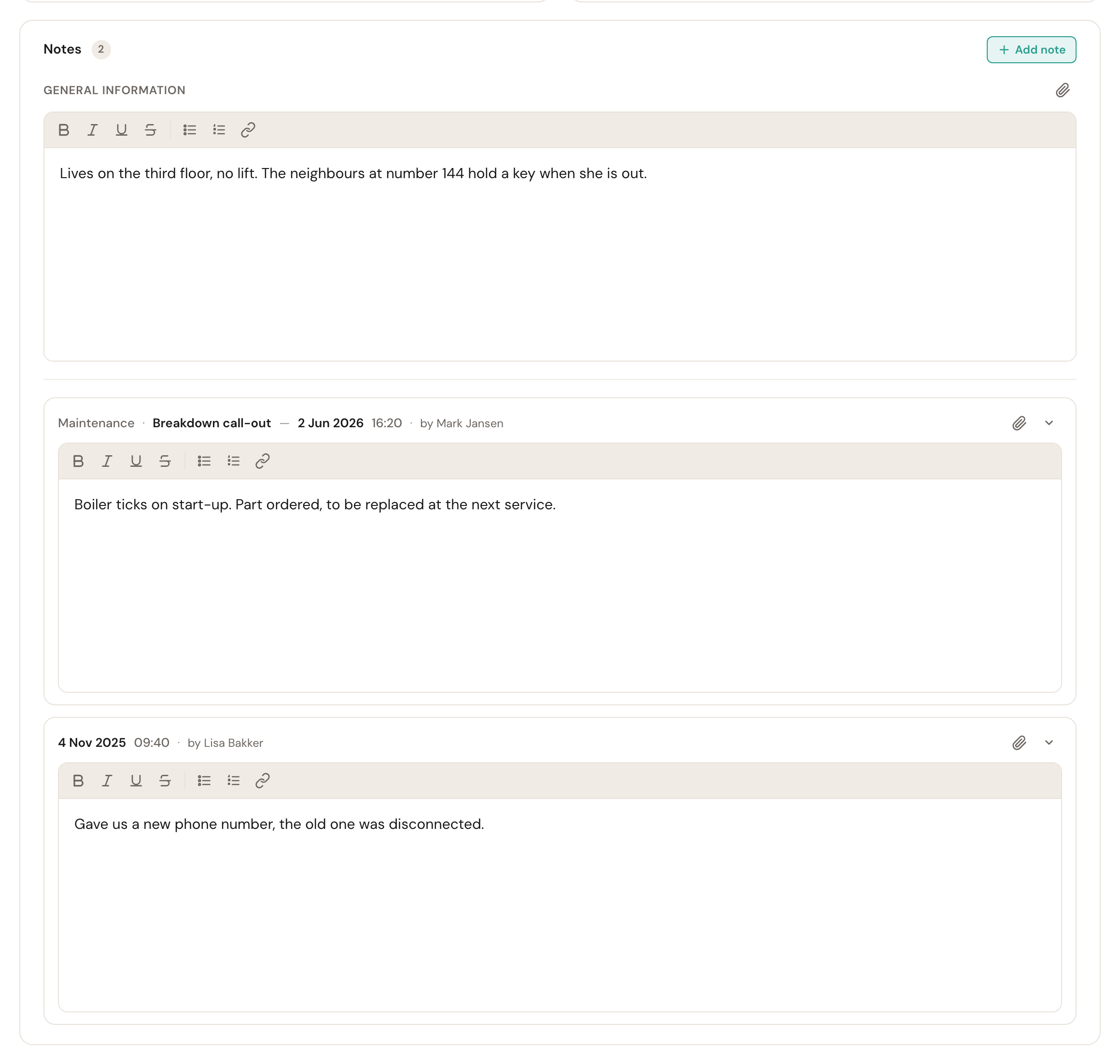
General information always stays at the top and belongs to the customer rather than to a particular day. This is the place for what every colleague should know before going out: where the key is, that there is a dog, that there is no lift.
Below it are dated notes, newest first — a log. A note made during a completed appointment appears here automatically with the name of that appointment above it, so you can see which visit something was spotted on. Its photos come along, and a note with a photo is here from the moment the photo was added. See Where the note ends up. When a note is about one of the customer's objects, the object's name is above it too, and the note's menu opens the object.
You type straight into a note; Add note starts a new one. Each dated note shows who wrote it, and the list shows five at a time.
- Text is kept when you click Save. The button appears under a note as soon as you change it. Nothing warns you when you leave the record: go to another screen without clicking Save and what you typed is gone.
- A photo is saved the moment you add it. The paperclip icon attaches one: JPEG, PNG, WebP or HEIC, up to 12 MB, at most 10 per note. Photos are kept as attachments rather than pasted into the text; click a file name to open it, and the cross removes it straight away. If Schedulinq refuses a photo, the reason appears under the note.
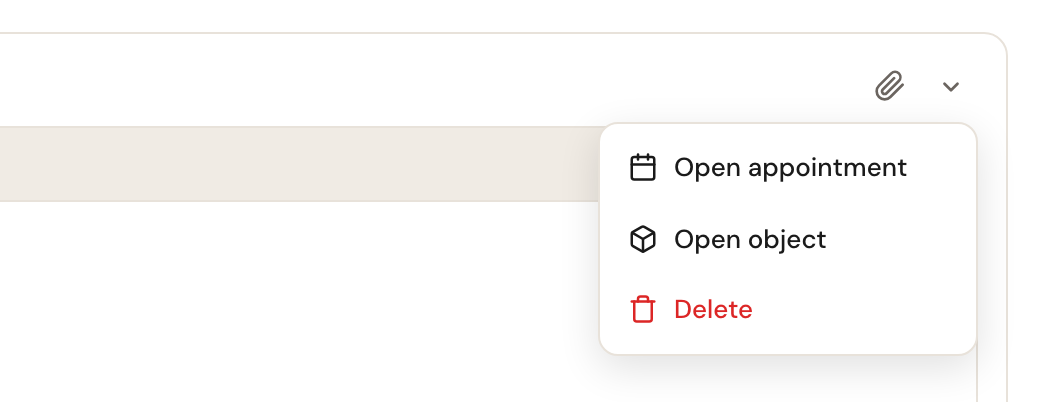
- A dated note has a menu behind the arrow at its top right: Open appointment for a note that came from an appointment, the object for a note about one, and Delete, which asks first.
Only a role with Edit on Customers can write in the dossier; anyone else can read it.
"Are my details still correct?"
The customer's details are on the left. The record opens read-only; click Edit at the top right to change something, then Save.
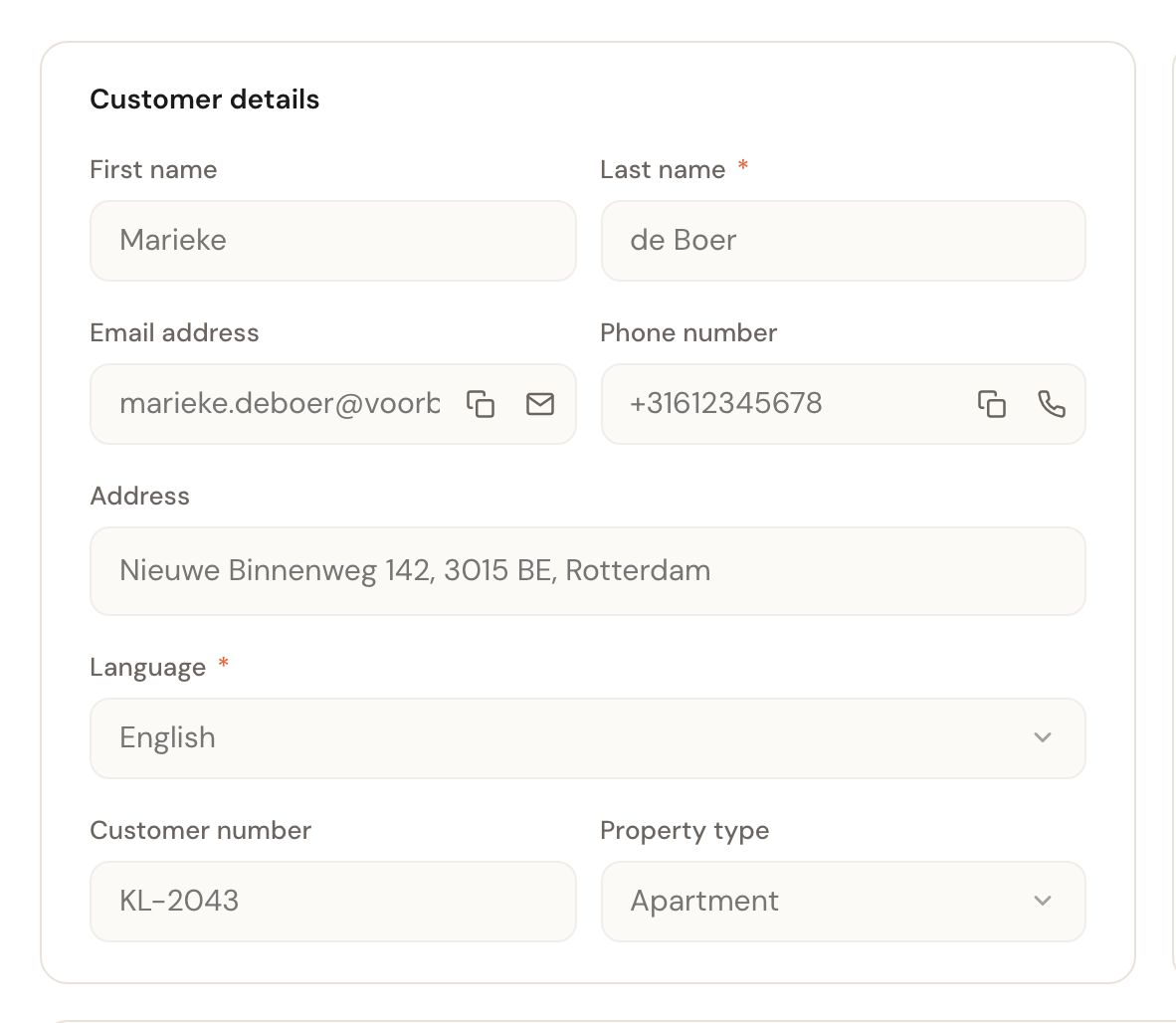
A few fields deserve a note.
Language
Sets the language of every emailThe language this customer receives confirmations and reminders in, and the language the booking page appears in for them.
This is separate from the language you use Schedulinq in. Set it wrong and everything still works — the customer simply gets all of it in a language they may not read.
Address
Billing addressThe customer's own address, where the invoice goes.
An appointment at the customer's has an address of its own. When you schedule something yourself, Schedulinq fills this address in as the appointment's address, but you can change it per appointment — for a second address, such as a holiday home. An online booking only fills this address in while it is still empty; an address already here only changes when you change it.
Private or business
Changes the fieldsFor a business customer the company name replaces the first and last name, and fields appear for the VAT number, chamber of commerce number and a contact person.
Those details end up on the invoice. A business customer without a VAT number on their record means an invoice missing a required detail later. With a VAT number in another EU country, the invoice is VAT reverse-charged.
Below the standard fields are the custom fields your company has set up — above, for example, Customer number and Property type. You decide which ones exist under Company → Custom fields.
If the customer has opted out of WhatsApp by replying STOP, that is shown at the bottom of the record. You cannot undo it for them: they opted out, and only they can opt back in.
Deactivating, merging or deleting a customer
All three live behind the Actions button at the top right, and they do very different things.
Each of them reaches every colleague's appointments with this customer, so the menu is there only for someone whose role has Edit on Customers with visibility All (and for admins). With Own, there is no Actions button; you can still edit the customer's contact details. See Roles and permissions.
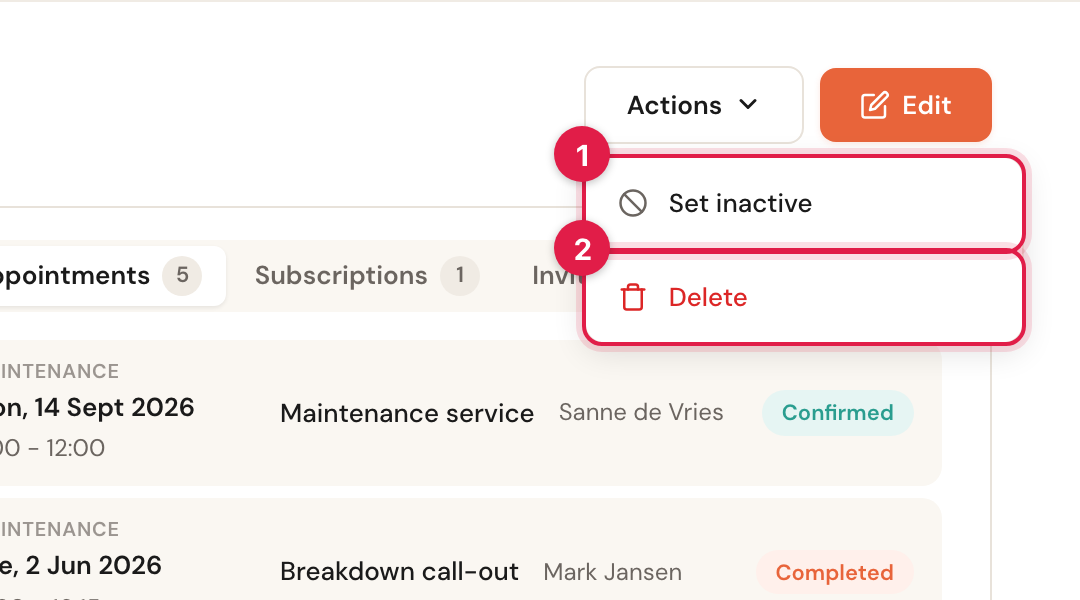
Deactivate
ReversibleThe customer can no longer book online. Everything else stays: existing appointments, subscriptions, notes and history. Your customer list shows active customers unless you set its filter to Inactive, so that is where you find them again; on the record an Inactive label sits next to the name. The same menu makes them active again.
This is what you want for a customer who is not coming for a while, or one you would rather schedule yourself. You lose nothing and you can undo it tomorrow.
Merge with another customer
Cannot be undoneTwo records for the same person become one. You pick the duplicate; everything attached to it moves to the record you are on.
Duplicates happen by themselves: someone books online with a private email address while they were already in your records under their work one. From then on their history is split across two records and Schedulinq emails the wrong one. How merging works is below, under Merging two customers.
Delete
Cannot be undone in the appThe customer disappears from your list. Their upcoming appointments are cancelled, and so are their running and paused subscriptions and their open invitations; the reminders those would have sent are cleared.
Use it only when the customer genuinely has to leave your records — at their own request, for instance. To pause someone temporarily, use Deactivate. If it is a duplicate record, use Merge instead: then you keep the history.
Schedulinq tells you what is about to happen first, including how many appointments are affected. Subscriptions and invitations are not counted there, but they are cancelled all the same:
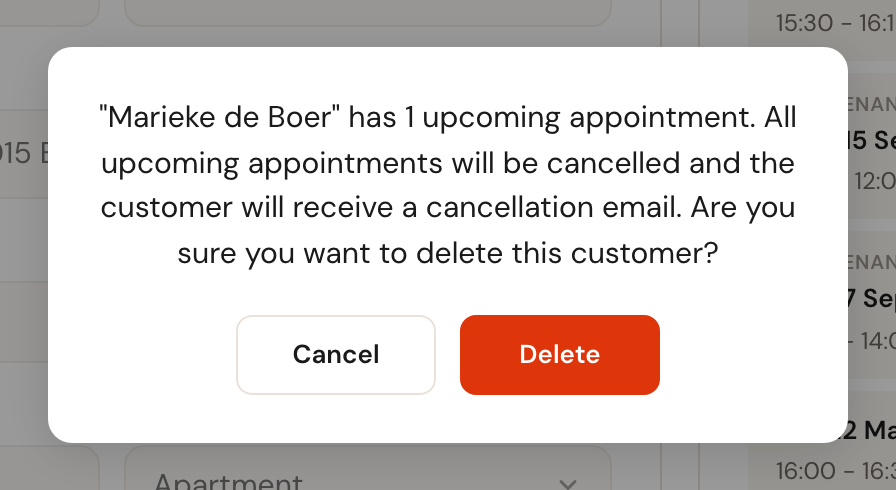
Completed appointments and invoices stay — they belong to your records and do not disappear with the customer. The history is kept, but the customer themselves cannot be restored from within the app afterwards.
Merging two customers
Open the record that should remain — usually the oldest one, with the most history — and choose Actions → Merge with another customer.
Pick the duplicate
Search by name, email address or phone number and pick the record that should be absorbed into this one. The customer you are on is not in the list: you cannot merge someone with themselves.
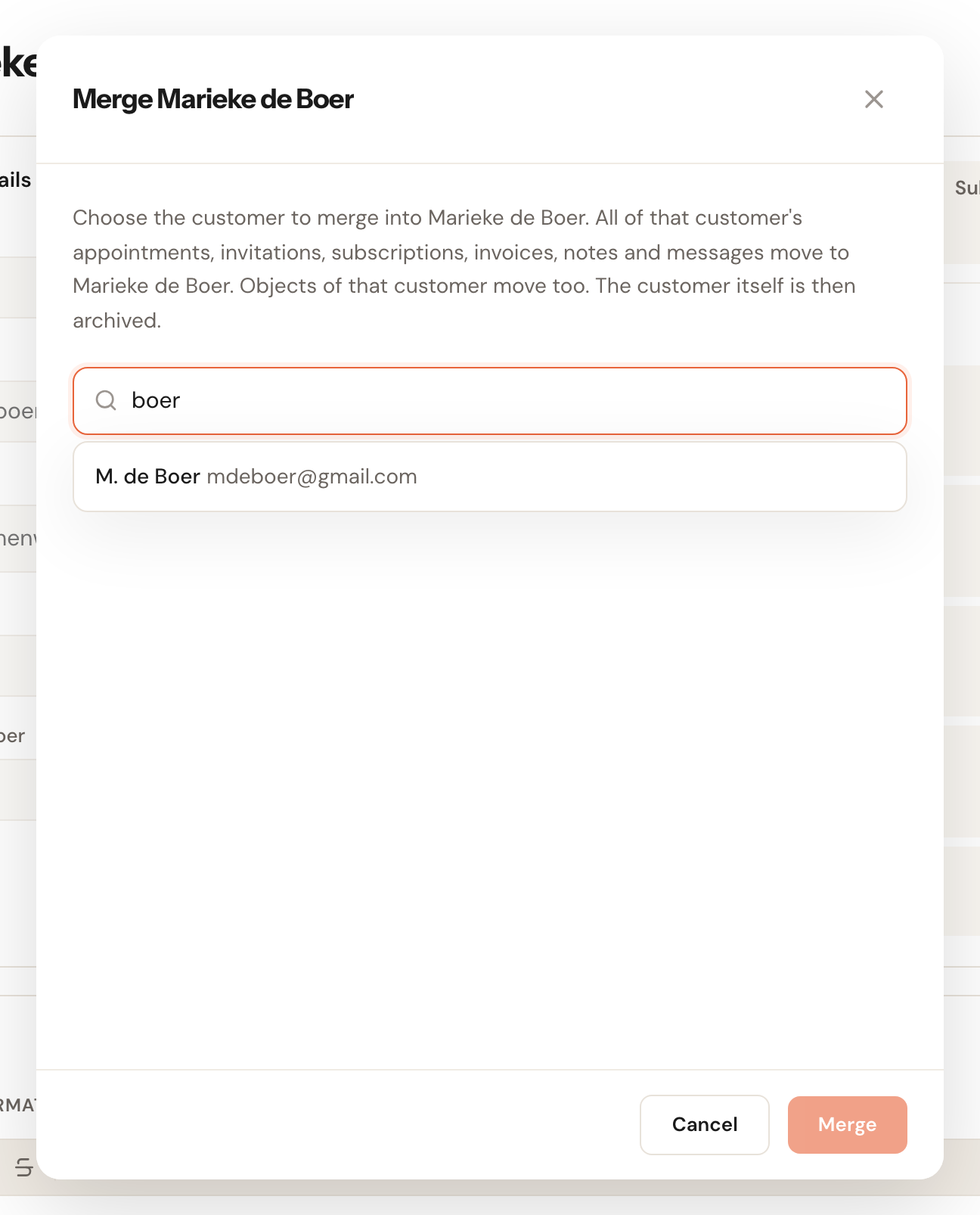
For each difference, choose which value stays
Schedulinq compares the two records and shows only the fields where both have filled in something different — two email addresses, say. On each row, click the value that should stay. A field that is empty on one record and filled on the other is taken over quietly; there is nothing to choose. For a multi-select or an attachments field there is a third option, Both: the values of the two customers are combined.
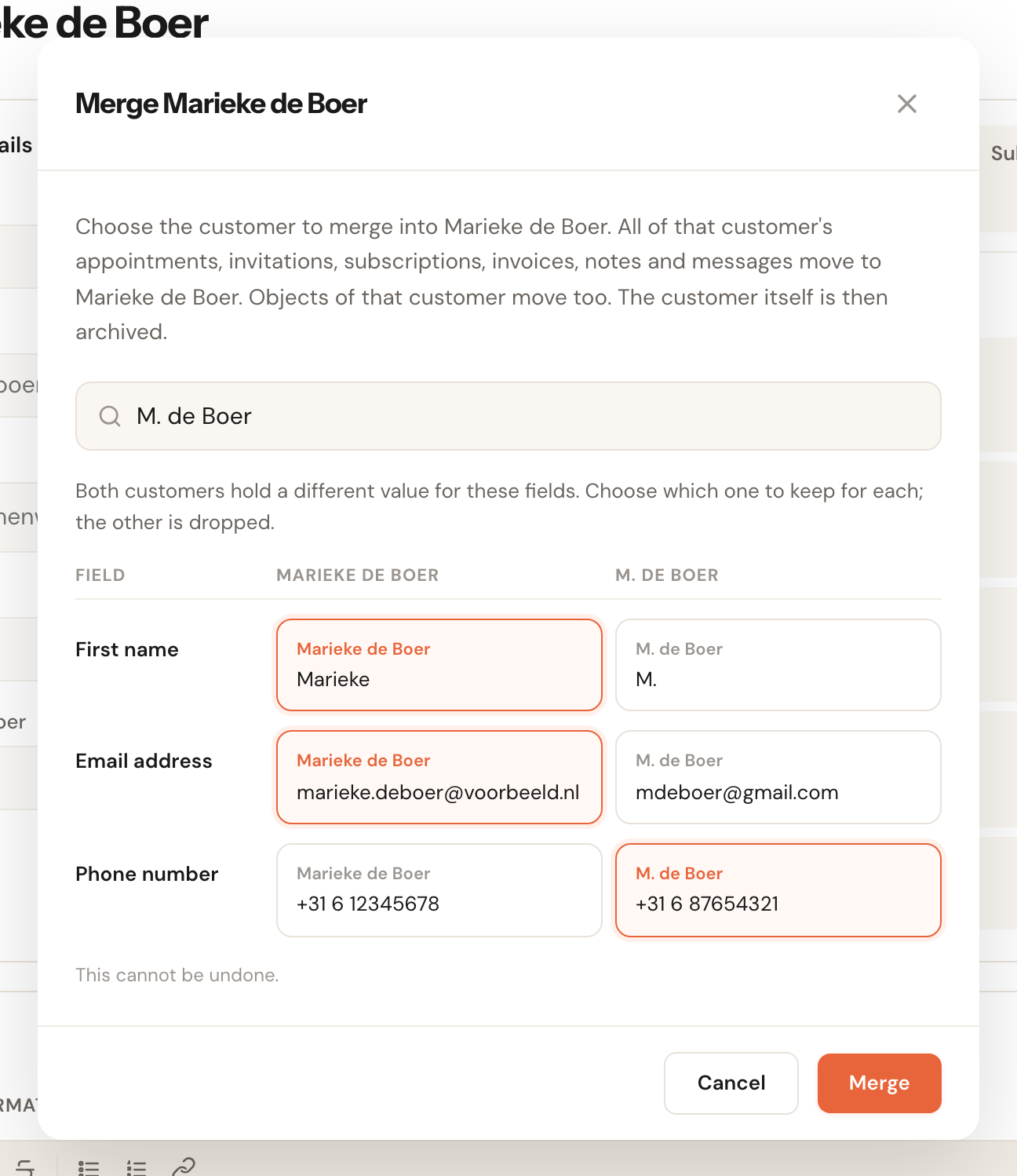
If one record is private and the other a business, Schedulinq first asks what the merged customer becomes; the fields below follow that choice.
Did someone change one of the two records while you were choosing? Then the merge does not go through: the comparison reloads, and you make your choices again.
Click Merge
All appointments, invitations, subscriptions, invoices, notes, messages and objects of the duplicate move to this record. The duplicate is archived. Anyone still holding an old link to it lands on the remaining record automatically, with a message saying why.
Frequently asked questions
An appointment I know exists is not in the list. The record shows only confirmed and completed appointments. If it was cancelled or is still pending, look for it in the appointments overview.
A team member with Own sees fewer appointments and notes on the same customer. That is on purpose. With visibility Own on Appointments, the record shows only the appointments that team member is on, and only the notes about those appointments. The general notes stay visible. This keeps one customer's work with several colleagues — a customer who deals with two colleagues for different services, for instance — apart.
I cannot see the Subscriptions tab. The tabs follow your permissions. If you see only one or two, your role has no access to the rest. An administrator can change that under Team → Roles.
Can the customer read my notes? No. The dossier stays inside Schedulinq. Only
an appointment's internal note can reach the customer, and only through a step you
gave {{notes}} yourself.
I merged two customers by accident. That cannot be undone from the app. Contact support: the details are not gone, they are now on one record.
I clicked Delete by accident. The confirmation always comes first — if you dismissed it with Cancel, nothing happened. If you confirmed, contact support: you cannot undo it from the app itself.