
Messages for video and phone appointments
A video call or a phone call needs different words from a visit. How to write a confirmation with the meeting link, a reminder just before the start, and what your customer gets while that link is not there yet.
Besides at the customer's address or at one of your locations, a service can take place as a video call or a phone call — see At the customer or on location. A confirmation saying we'll come to you at 12 High Street makes no sense for a Teams call. So a communication step can be written for one way an appointment takes place: the Where choice in the step editor.
If you only do visits, this page is not for you: the choice only appears once your services take place in more than one way.
What is already set up
Schedulinq sets up four e-mails to the customer for every organisation, so a booked call gets the right words straight away:
| Subject | Where | When |
|---|---|---|
| Your video call with … is confirmed | Video call | When appointment is created |
| Reminder: your video call tomorrow with … | Video call | Before appointment start — 1 day |
| Your phone call with … is confirmed | Phone call | When appointment is created |
| Reminder: your phone call tomorrow with … | Phone call | Before appointment start — 1 day |
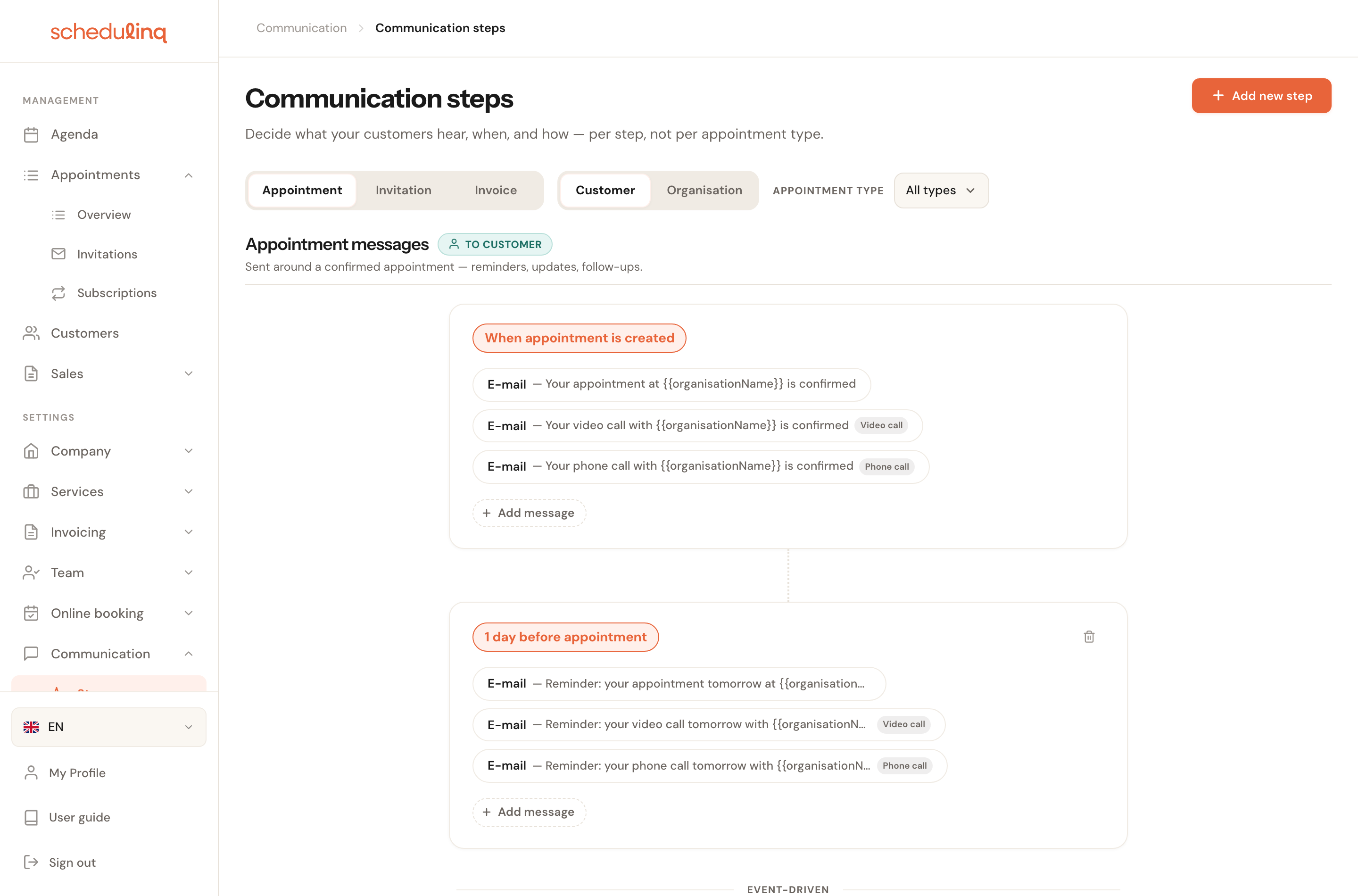
The video call mails have one button: the one to join the call. The Manage appointment button is left out, so your customer does not have to look for the right one when the time comes. The phone call mails have no join button and keep Manage appointment. Change them like any other step — see Edit a step.
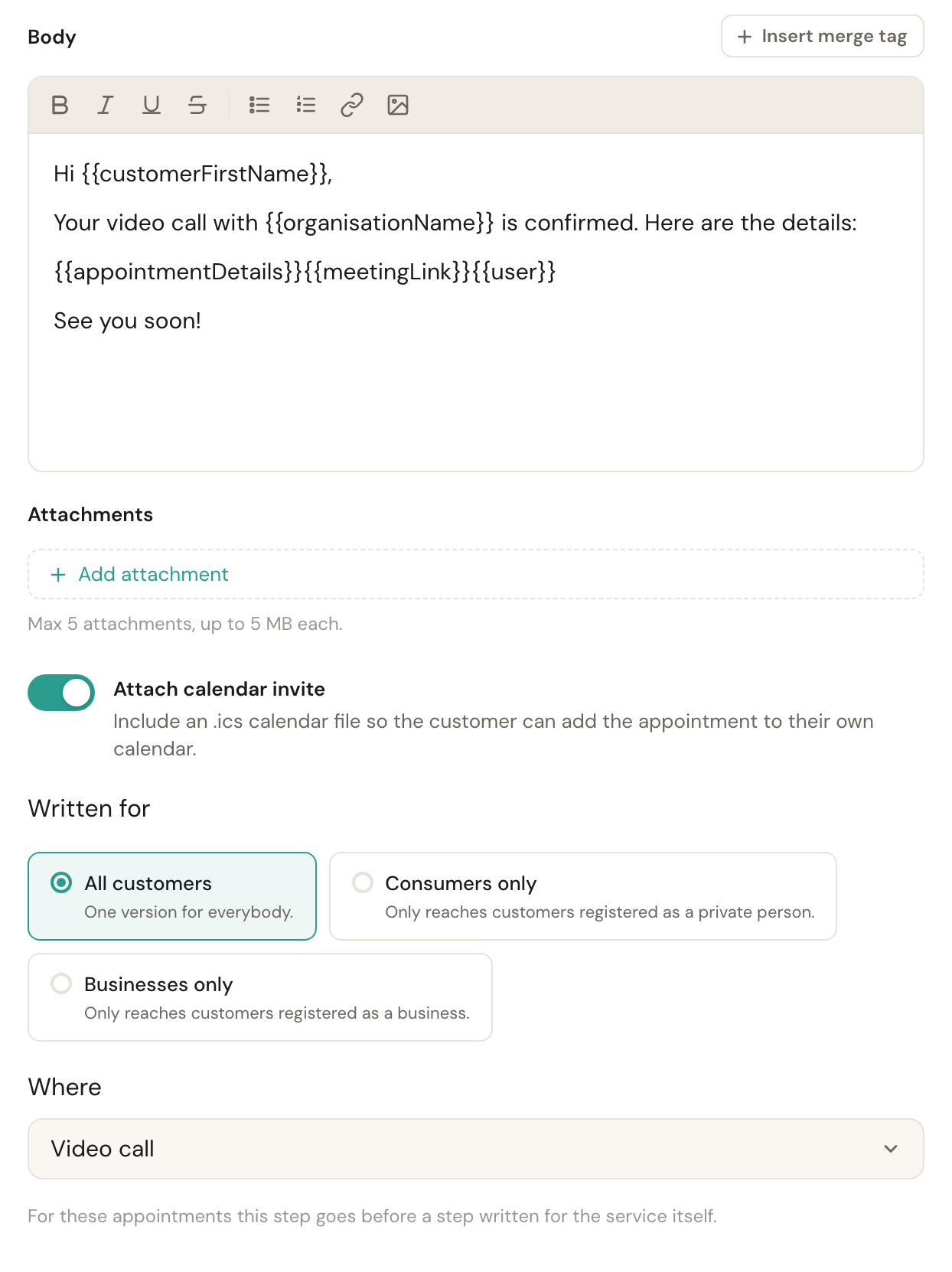
Where: a step for one way
Where
Default: Everywhere (visit or call)Everywhere (visit or call) sends the step for every appointment. Choose At the customer, At a location, Video call or Phone call and the step only applies to appointments that take place that way. The choice sits in the step editor, above Applies to.
A call and a visit are different appointments, even for the same service: for one you send a link, for the other an address. Without this choice you would have to create a second service for everything you offer both ways, only to send it another confirmation.
The choice only shows when your services take place in more than one way, or when the step is already written for one way. Invoice messages never have it: an invoice has no place.
Where comes first
When several steps apply at one moment, Schedulinq picks one, in this order:
- Where — a step for this way beats a step for everywhere.
- Applies to — then a step for this service beats a step for all services.
- Written for — only then does the kind of customer count.
So: if you have your own confirmation for the service Consultation ("we'll come to you") and the confirmation for video calls, a customer who books the consultation as a video call gets the video confirmation. The first rule wins, even though the service's step is more specific about the service. As soon as you choose a way, the editor says so itself: For these appointments this step goes before a step written for the service itself.
How the other two axes work is described in Who gets which message.
The meeting link
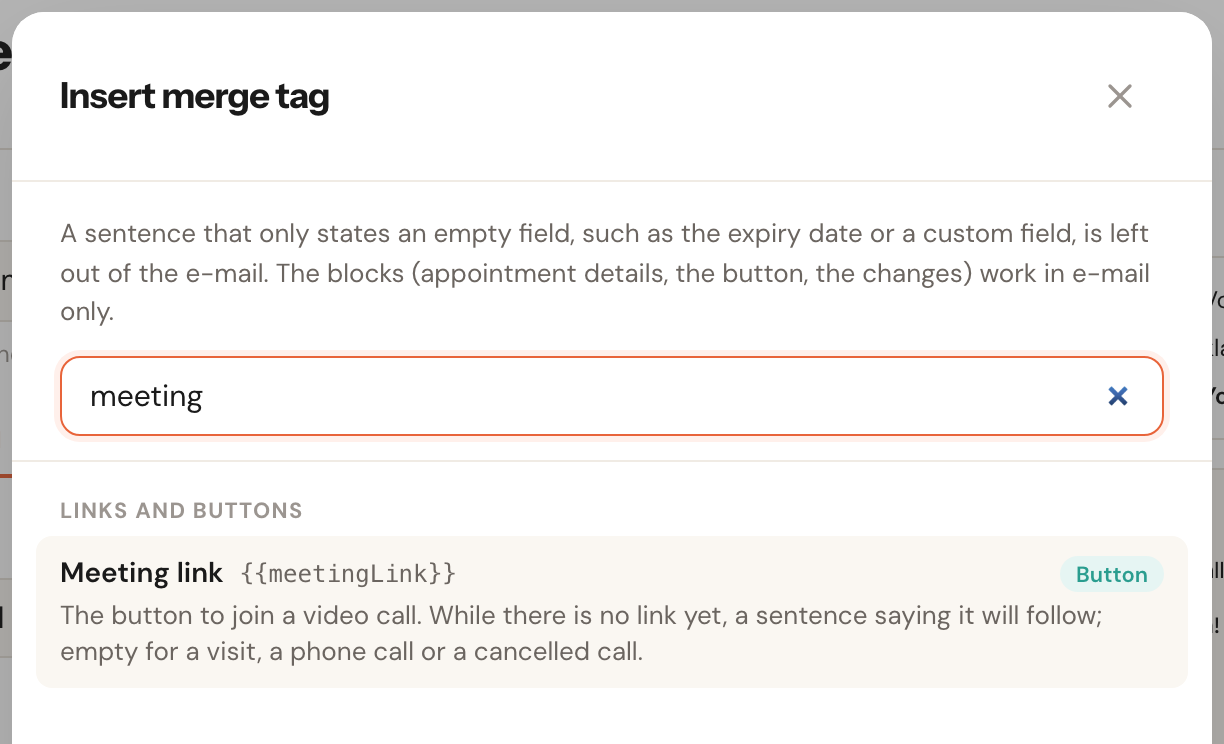
Put {{meetingLink}} in a message, through + Insert merge tag: Meeting link, with
the links and buttons. What it becomes:
- In an e-mail the button Join the call; in a text or WhatsApp message the link itself.
- While there is no link yet the sentence The link to the video call will follow in a separate message. — so your customer does not think there is no way in.
- For a visit, a phone call or a cancelled video call nothing.
The link comes from the calendar of the colleague who holds the call: Schedulinq makes a Google Meet or Teams meeting when it puts the appointment in that calendar. How to set that up is in Connect your calendar.
The appointment card ({{appointmentDetails}}) already names a call. A video call reads
Video call with Join via Microsoft Teams or Join via Google Meet under it — for a
link a colleague pasted, Join the video call. The link itself sits behind those words:
a Teams link is long enough to run over five lines otherwise. A phone call reads Phone
call — we will call you on and the customer's number. So messages about rescheduling,
editing or cancelling need no version of their own for calls.
While the link is not there yet
Making the meeting takes a moment. So:
- The confirmation waits up to two minutes for the link, as long as one of the appointment's colleagues has a calendar Schedulinq writes to. If it is still not there, the confirmation goes without it, with the sentence that it will follow.
- A message that has yet to go out gets the link after all. The reminder a day
ahead is planned at the booking, but it is written out again as soon as the link
exists — if it contains
{{meetingLink}}. So your customer gets it with the link, even when the confirmation did not have it yet. - If the customer already had a message about this appointment, Schedulinq sends the link after them: as your When appointment is edited message, with Link to the call as the change. That happens when the link arrives late, when you make a new one (Make a new link) or when a colleague pastes one (Use your own link). While their confirmation is still waiting, the link is simply in it.
A reminder just before the start
A reminder fifteen minutes ahead with the link in it is a step you add yourself:
Create a new step
Under Communication → Steps, with the appointments.
Choose the moment
When: Before appointment start, and 15 min under it.
Choose channel and recipient
E-mail, text message or WhatsApp, to the Customer.
Set Where to Video call
Otherwise the reminder also goes to customers you visit.
Write the message
For example: Your video call with
{{organisationName}}starts in fifteen minutes.{{meetingLink}}
Phone calls
For a phone call, you call the customer. The appointment card already says so: Phone
call — we will call you on and the customer's number, written the way you say it
(+31 6 12345678). That promise is only in messages to the customer, and only while the
call is on: a cancellation and the copies for your organisation and your team just name
the number. If you want the number in your own text too, use {{customerPhone}}.
That number is always there. For a phone call the booking page asks for the phone number, even if you hid that field on the details step or made it optional. An invitation for a phone call only asks when the customer has no number on file yet. A typed number fills in a missing one; a number already on file is only replaced when the customer has proved who they are, with a verification code or with the link from their invitation.
Times in your customer's time zone
A call takes place where your customer is. So the times of a video or phone call in
messages to the customer — {{startTime}}, {{appointmentDate}} and the appointment
card — are in the time zone they booked from, and the card names that time zone.
Messages to your own organisation and your team, and everything about visits, stay in
your company's time zone.
The time zone comes from the customer's browser, for a booking through your booking page or an invitation. A call that you or a colleague schedules yourselves is in your company's time zone.
Frequently asked questions
My customer got the visit confirmation for a video call. Check the timeline for a step labelled Video call at that moment. If you archived the video confirmation that was set up, Schedulinq falls back to the step for everywhere.
Can I make my own video confirmation for one service? Yes. Set Where to Video call and narrow Applies to to that service. That step is the most specific on both axes and wins.
The confirmation said the link would follow. Then there was no link within two minutes: the colleague has no connected calendar that can make meetings, or it took longer. As soon as the link exists, Schedulinq sends it with your edit message. If it does not come, because no calendar can make it, paste one on the appointment itself with Add link, or try again with Make the link — see A video call on the appointment.
Does the button work in a text message? A text or WhatsApp message holds the link itself, without a button. A text message part is 160 characters; a Google Meet link fits easily, a Teams link is some 250 characters long and fills more than one part on its own.