

Roles and permissions
Decide per team member what they may see and do — a role for the permissions, with a separate admin switch on top.
Every team member holds exactly one role. That role decides which parts of Schedulinq they can open, whether they may only look or also change things, and whether they see everything or only their own work.
Where you manage them
Go to Settings → Team → Roles. The page is admin-only: team members without the admin switch do not see the menu item at all.
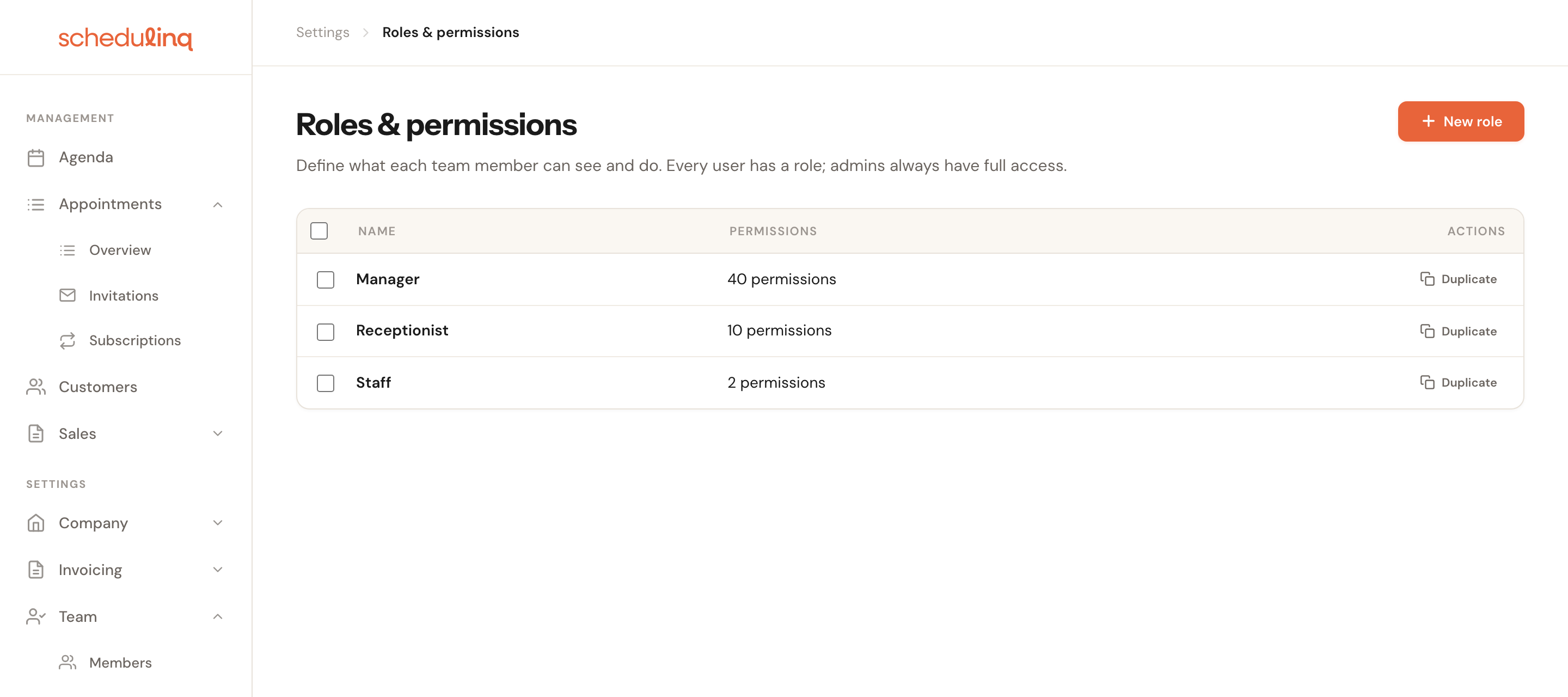
Each role shows how many individual permissions it carries. Duplicate starts a new role from an existing one — usually quicker than starting from nothing.
The two roles you already have
Every organisation starts with two roles. You can rename, change and delete them — they are ordinary roles, not fixed settings.
| Role | What it may do | Who it fits |
|---|---|---|
| Staff | View only: their own appointments and the customers attached to them. Nothing else. | The starting point for new team members |
| Manager | View and edit across day-to-day operations, plus team and user management. Sees everyone's work. | Someone who runs the floor |
Manager deliberately cannot reach your Schedulinq subscription, the integrations or the organisation settings. Those stay with admins.
Viewing and changing a role
Open the role
Click a row. The role opens read-only first, so you can read it through without changing anything by accident.
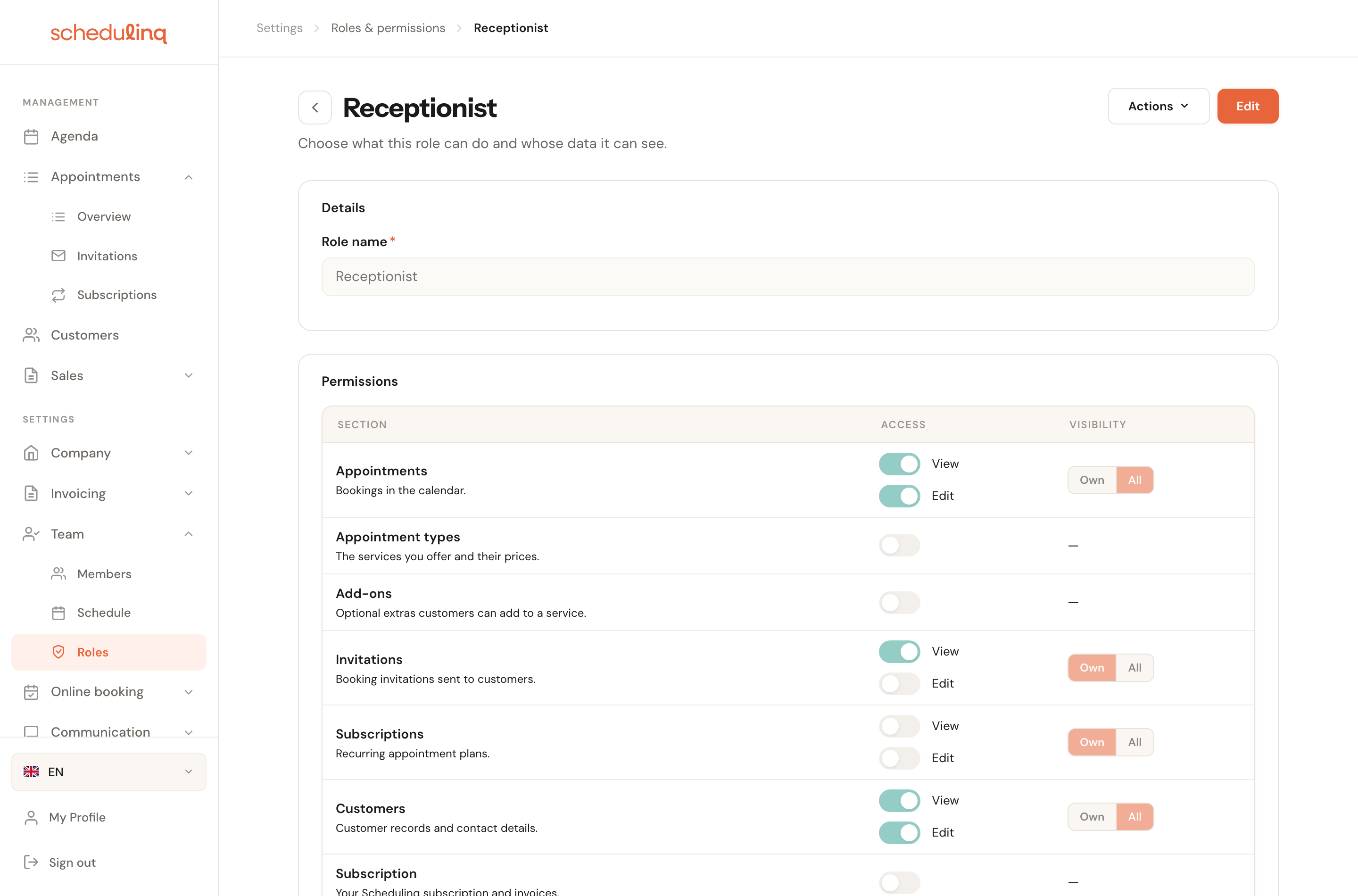
Click Edit
The switches become live. Actions → Delete removes the role; team members who held it will need a new one.
Give the role a recognisable name
The name is what your colleagues see in the team list. Describe the job, not the permissions: Receptionist reads better than View + customers.

Set the access per section
Work down the list and switch on what this role needs. Save when you are done.
The two columns: access and visibility
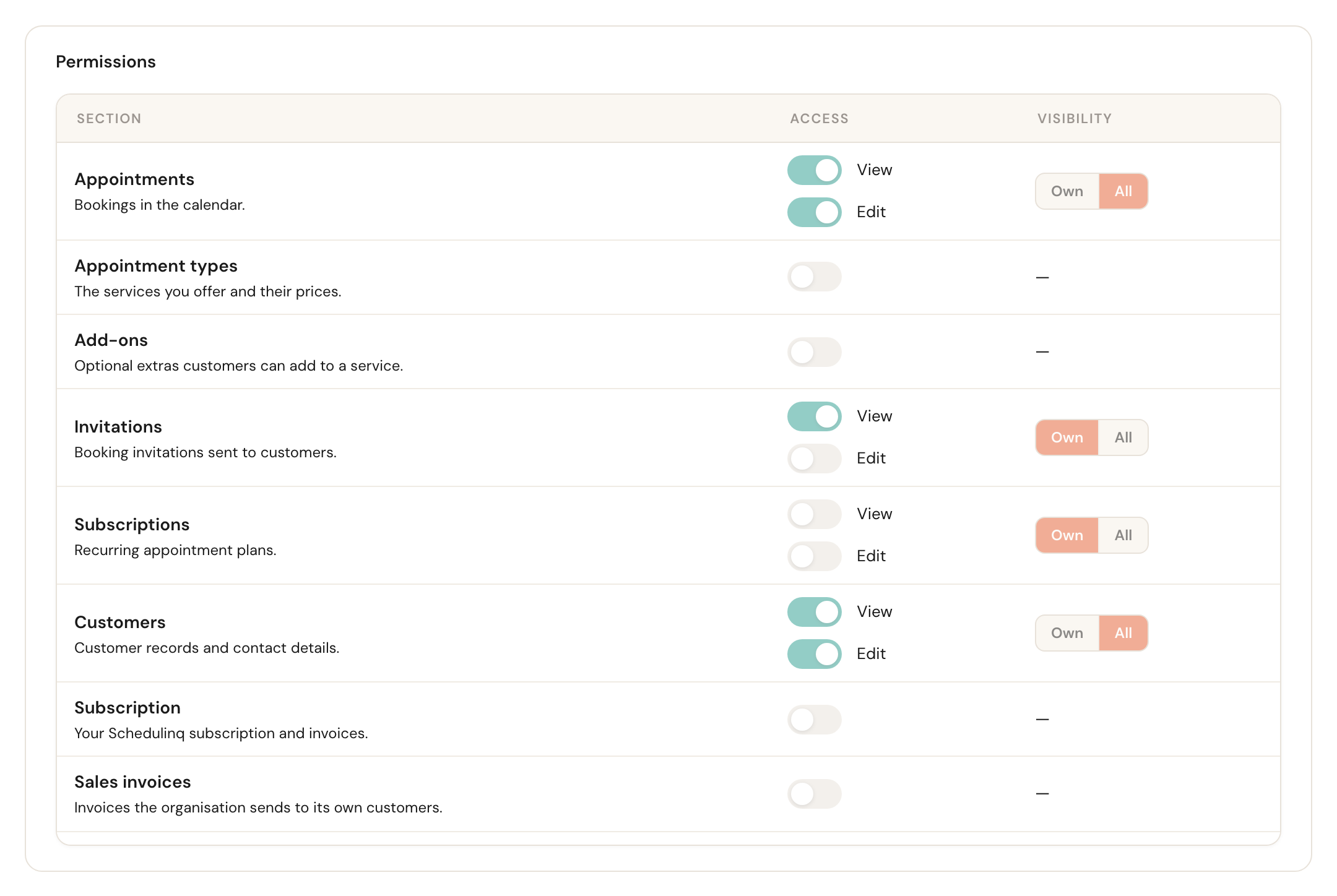
Access decides what someone may do. For most sections that is a single switch: on means view and edit. Four sections — appointments, invitations, subscriptions and customers — have two:
View
May open and read the records.
Switching View off switches Edit off with it. You cannot change what you are not allowed to see, so that combination does not exist.
Edit
May create, change and delete.
Edit switches View on by itself. Not the other way round: someone can follow along without being able to move an appointment — exactly what you want for a colleague who only needs to consult the calendar.
Visibility decides whose records they see, and appears only on those same four sections. The rest show a dash.

Own
Only what is assigned to this person.
This is what a hands-on team member usually needs: their own calendar, their own customers. It cuts noise and keeps customer data with the people who have something to do with it.
Own holds on a direct link too: someone else's appointment, invitation or subscription opens as "not found", and a customer record shows only the notes about appointments this person may see. Some actions reach every colleague's work and therefore need All: deactivating, reactivating, merging, archiving, restoring or deleting a customer needs All on Customers; inviting a customer for a colleague, or creating a subscription for one, needs All on Invitations or Subscriptions — with Own you pick only yourself.
All
Everything across the organisation.
Necessary for anyone who schedules on behalf of others — a receptionist or a planner cannot work from their own calendar alone.
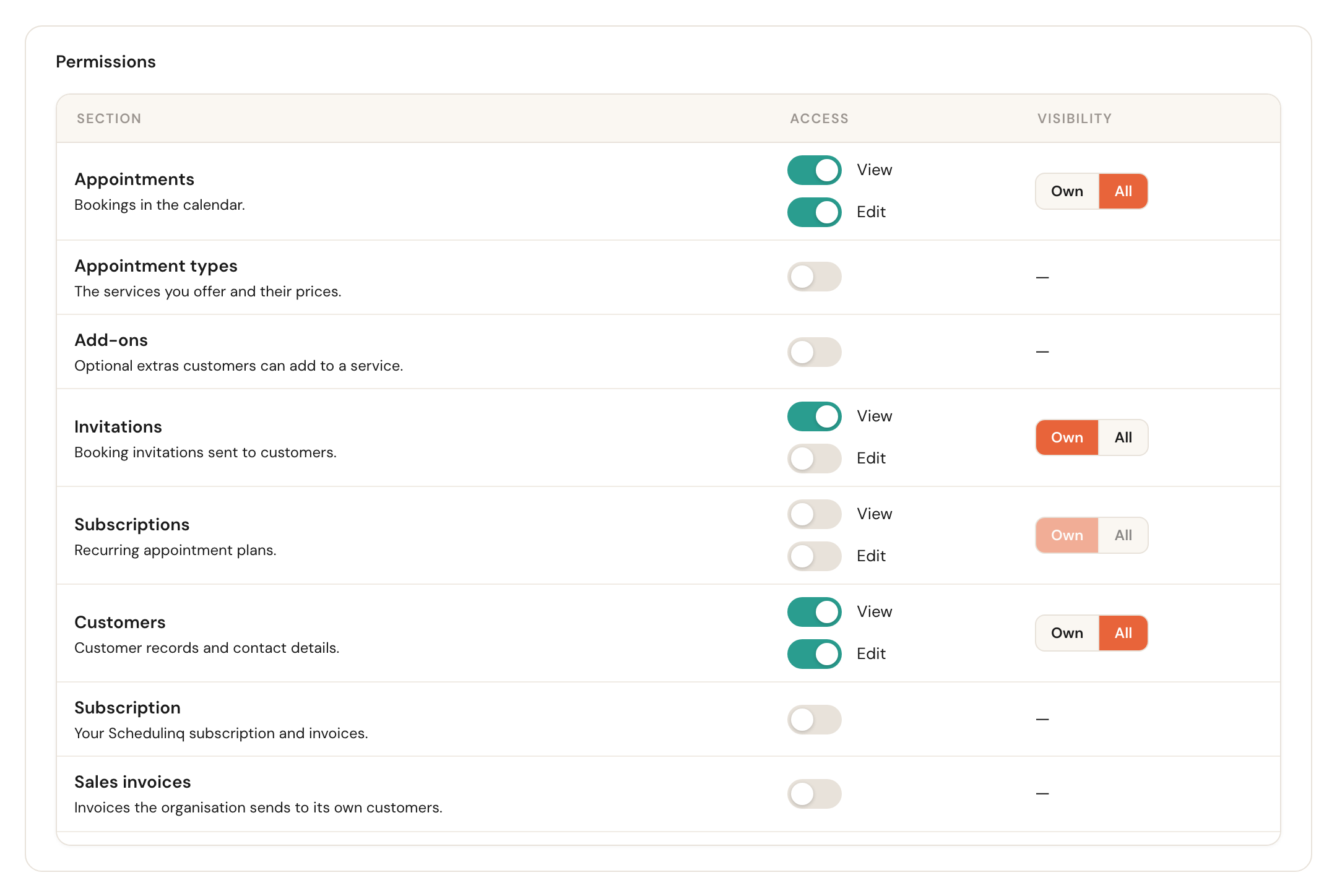
Every section at a glance
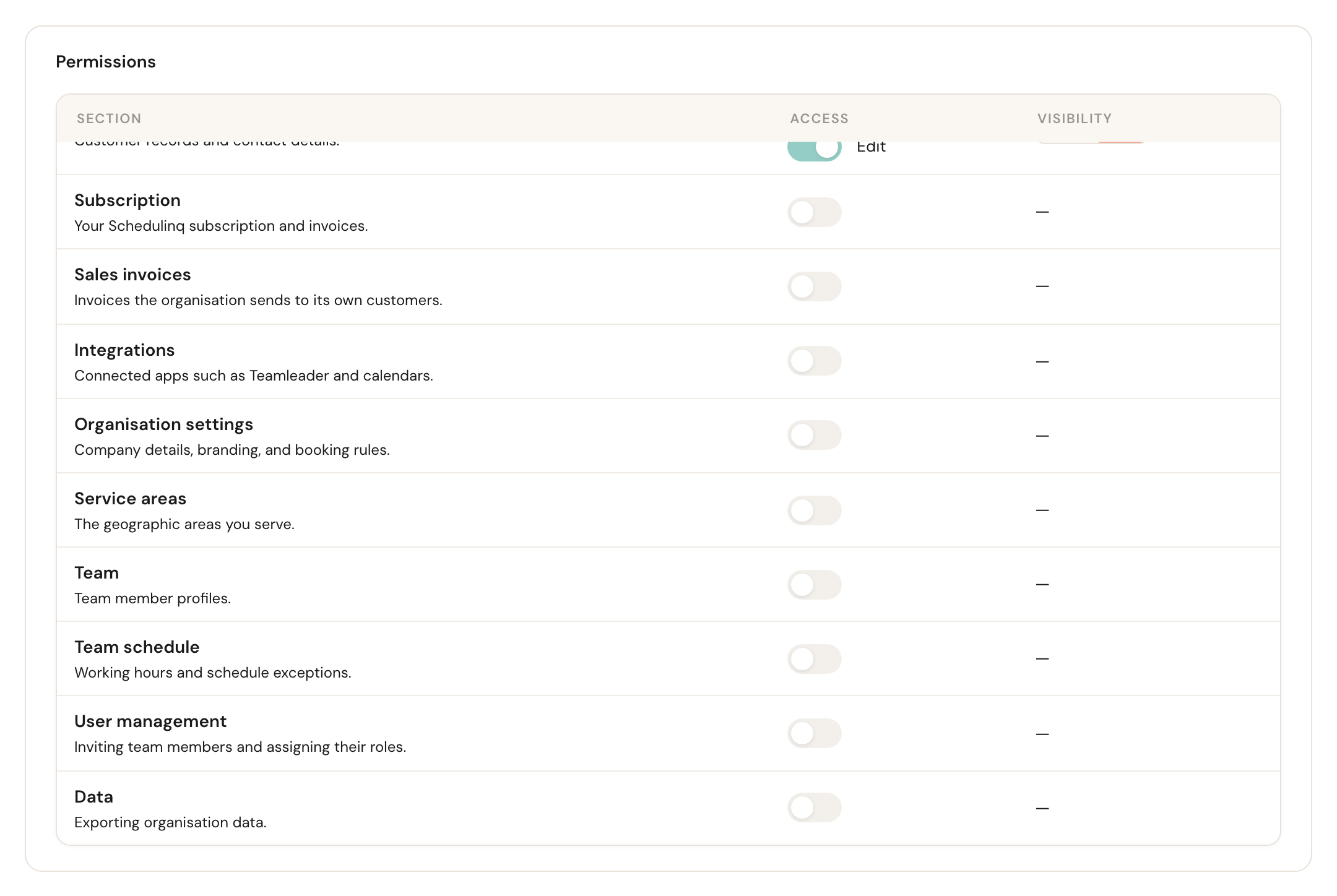
The list is longer than the screen — scroll inside the table for the rest.
| Section | What it covers | Own/All |
|---|---|---|
| Appointments | Bookings in the calendar | Yes |
| Appointment types | The services you offer and their prices | — |
| Add-ons | Optional extras customers can add to a service | — |
| Invitations | Booking invitations sent to customers | Yes |
| Subscriptions | Customers' recurring appointment plans | Yes |
| Customers | Customer records and contact details | Yes |
| Subscription | Your Schedulinq subscription and invoices | — |
| Sales invoices | Invoices you send to your own customers | — |
| Articles | The parts, products and travel costs that go on an invoice, the discounts on the booking page, and the gift vouchers | — |
| Integrations | Connected apps such as Teamleader and calendars | — |
| Organisation settings | Company details, branding and booking rules | — |
| Service areas | The areas you serve | — |
| Team | Team member profiles, including their extra fields | — |
| Team schedule | Working hours and schedule exceptions | — |
| User management | Inviting team members, assigning roles and filling in their extra fields | — |
Whoever can see the team can read the team members' extra fields; only user management can fill them in. Team is also what lets someone choose a colleague anywhere else — in the calendar, on an appointment, in the planner. Without it, those lists offer no other colleagues. The Integrations row covers Teamleader and calendars. It does not open Integrations → API: the API is for admins only.
What only an admin can do
An admin always holds every permission and always sees everything. On top of that, some work hangs off the admin switch and cannot be granted by any role:
- Creating, changing and deleting roles — this page itself.
- Turning the admin switch on or off for someone else.
- Deactivating another admin. Someone with only user management cannot do that.
- Managing the API under Integrations → API: its keys, its webhooks and its allowed return URLs. A key acts for the whole organisation, and a key that may invite team members also hands out roles.
Frequently asked questions
Someone is missing a button that I can see. Schedulinq hides what you are not allowed to use, so a missing button is almost always a missing permission. Check which role the person holds and whether the matching section is switched on.
Can I give someone two roles? No, exactly one. If you need a combination, duplicate the closest role and add what is missing.
I changed a role — when does my colleague notice? The next time they load the page or sign in again.
Can I delete a role that is in use? You will get a message that it failed. Assign those team members another role first.
Can someone get around it by pasting a link? No. Hiding is what you see on screen; the check happens on the server, including for a direct link.
A role that sees only its own appointments. When team members should each see only their own work — consultants or engineers who get their appointments from your CRM, for instance — give them a role with Appointments: View, Own and Customers switched off. With it they see their own appointments in the agenda and can open them. They cannot see anyone else's appointments, not even through a link, cannot open the customer list or a customer record, and cannot create or change appointments. How such team members are added from your CRM is in Colleagues.