

Communication settings
The settings that apply to every message — sender, internal addresses, quiet hours, and your numbers for SMS and WhatsApp.
Most of your communication is configured per step: which message goes out when lives with the step itself. This page holds what applies on top of that, to every message you send — who it comes from, where internal notifications land, and the hours when nothing may leave the building.
You will find it under Communication → Settings.
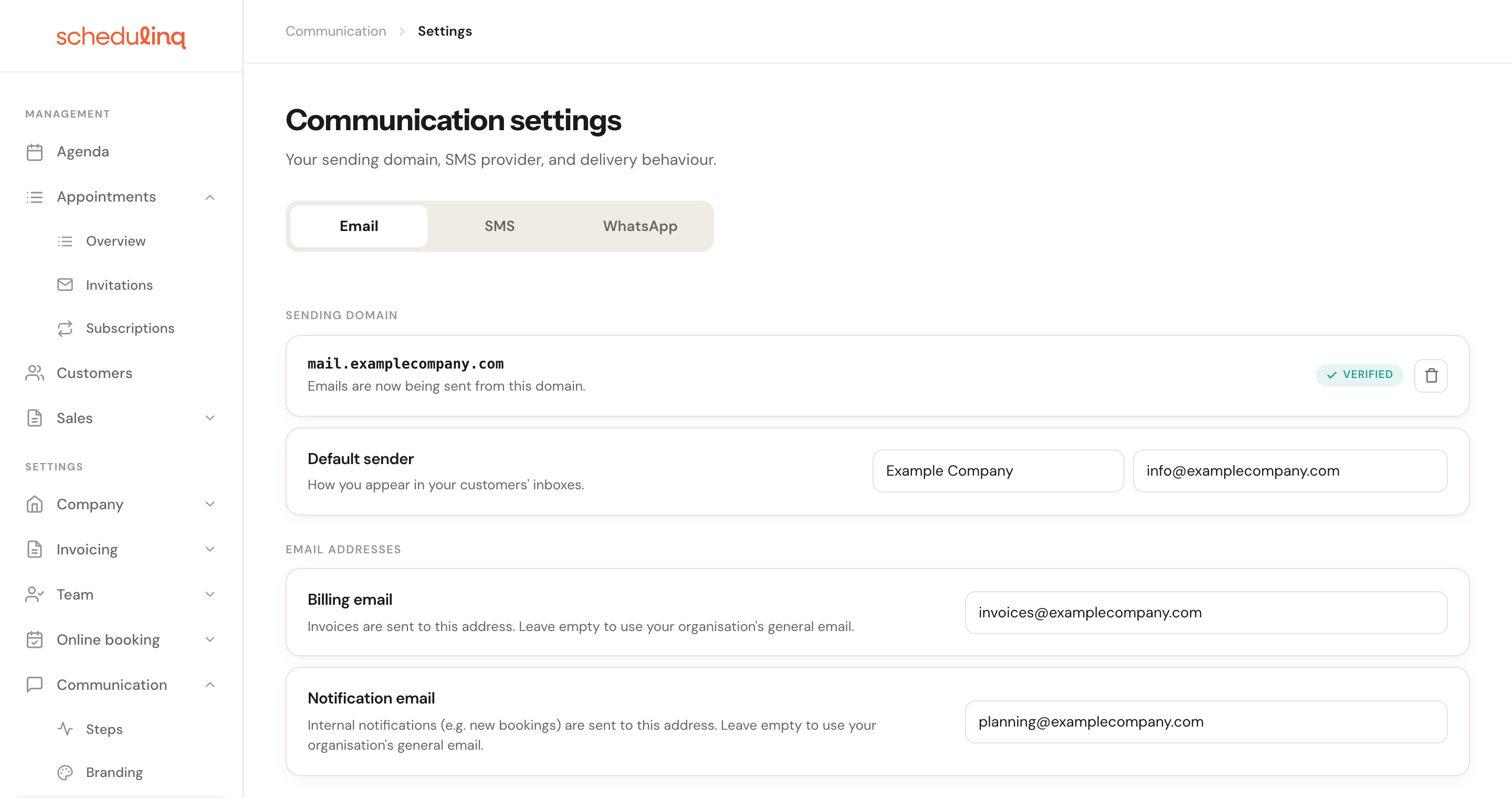
The page as it opens: the Email tab, with a sending domain that is already verified.
The three tabs
The page is split per channel. What you set on one tab has no effect on another.
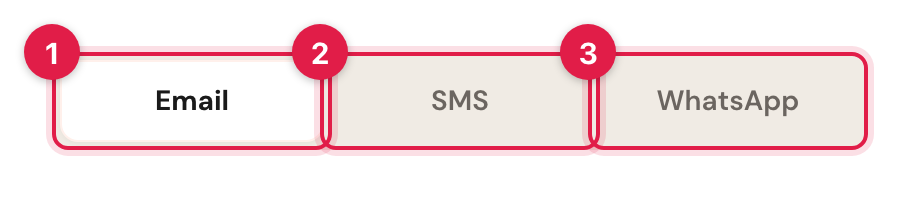
1 Email · 2 SMS · 3 WhatsApp

Email tab
Sending domain
By default we send your email from schedulinq.com. You can connect your own
domain instead, so that your customer sees mail.yourcompany.com in their inbox.
Connecting it is a job of its own — it needs DNS records added wherever your domain is hosted — so it has its own guide: Send from your own domain.

Here with a verified domain, which the note under the heading names. Without your own domain the note says the e-mails are sent from schedulinq.com.
Default sender
With or without your own domainTwo fields side by side. On the left the sender name — what your customer sees in their inbox. On the right the reply-to address: where a reply to your message ends up.
Both work without your own domain too: your e-mails then come from
schedulinq.com, under your sender name. Leave the sender name empty and your
organisation's name is used. Leave the reply-to empty and a reply goes to your
organisation's e-mail address — but with your own domain connected, it goes to
the address the e-mail is sent from, notifications@ on that domain, whatever
the note under the heading says. Fill in a reply-to address and you are sure.
Customers reply to a confirmation email more often than you would expect — to reschedule, or with a question. Without a reply-to, those replies land on an address nobody reads. Put the address where your post actually arrives, even if that is a different domain from the one you send from.
Email addresses
Two internal addresses. Both optional: leave them empty and we use your organisation's general email address.

Billing email
OptionalNot used yetMeant for the invoices you receive from Schedulinq — but today Schedulinq does not use it. Our invoices go to the e-mail address your organisation was registered with, whatever you enter here. You can always find them under Subscription → Invoices; see Invoices from Schedulinq.
If your bookkeeper should get them, give them access to that page instead: it is a permission of its own (Invoices), so they can collect the invoices without being able to change your subscription.

Notification email
OptionalWhere internal notifications go — the message telling you a new booking has come in, for example.
This is the side of your communication that goes to you, not to the customer. A shared planning address works better here than a personal one: notifications keep arriving when whoever normally reads them is away for a week.
Reviews

Review/feedback link
OptionalThe link to wherever customers can leave a review — your Google business page, for instance.
Filling this in does nothing on its own. It makes the {{reviewLink}} tag
available in your messages, which you then use in a step — usually one that goes
out after the appointment. Leave it empty and that tag has nothing to point at.
Sending behaviour

Quiet hours
Default: on, 21:00 → 08:00Pick a start and end time, or switch it off. A message to a customer that falls between those two times waits until the end time.
Some messages are never held back. Notifications to your organisation and your team go out straight away. So does every message about an appointment the customer booked themselves, on your booking page or through an invitation — its reminders included — and what goes out when a customer cancels or moves an appointment on their own manage page.
Reminders are scheduled ahead, so they can fall in the middle of the night. A 03:00 text about tomorrow afternoon's appointment makes nobody happy. The times apply in your organisation's timezone, not your customer's.
SMS tab

Notification phone number
OptionalThe number where you receive SMS notifications, for example when a new booking comes in. Leave it empty to use your organisation's phone number.
This is an inbound number, not a sender. Your customer never sees it. Put the number of whoever is on the planning desk that day.
A landline is accepted, but a mobile number is better: a landline only receives a text if your carrier reads it out to you.
WhatsApp tab
At the top of this tab sits the WhatsApp Business connection. Setting that up is a story of its own — it runs through Meta — and lives in Connect WhatsApp.
Below it are two settings that belong to this page.

WhatsApp number on your booking page
OptionalEnter a number here and a WhatsApp link appears on your booking page, letting a customer message you. Leave it empty to show no link.
This is entirely separate from the connection above. It is a link on a public page, not a sending channel — so you can switch it on without ever connecting WhatsApp Business. Useful when you simply want to be reachable on WhatsApp without sending messages through it.
The link sits in the side panel of your booking page, on every step. On the page a customer sees when a booking is not possible it is off by default — switch it on there under On every page where booking isn't possible, for the whole organisation or per location.

Fall back to SMS
After connecting onlyDefault: offWhen a WhatsApp message cannot be delivered — the customer has opted out, the template is not approved yet, or you have hit your limit — Schedulinq sends an SMS instead.
It is deliberately off: an SMS costs more than a WhatsApp message, so you opt in to paying for it. Turn it on for messages that genuinely have to arrive, such as a reminder shortly before the appointment. This card only appears once a WhatsApp number is connected.
Frequently asked questions
I changed something but Save stays greyed out. There is probably an invalid email address on the Email tab. The button is disabled on all tabs as long as one of the three address fields — reply-to, billing or notification — is not a valid address. On the SMS and WhatsApp tabs a notice names the field.
Do I need my own domain to set my sender name? No. The Default sender card
is always there. Without your own domain we send from schedulinq.com, under the
sender name you set.
Do quiet hours apply to my internal notifications too? No. Notifications to your organisation and your team are never held back, and neither are messages about an appointment the customer booked, cancelled or moved themselves. Quiet hours hold back the other messages to your customers.
Where do I set which message goes out when? Not here, but with the steps themselves, under Communication → Steps. This page only covers what applies to every message.
And the colours and logo in my emails? Those live under Communication → Branding. That is a separate page with deliberately separate settings: your email branding is independent of your booking page's.