

Duration and availability
How long a service takes, how much preparation time it needs, and which services you let customers book themselves.
Two settings on an appointment type together decide whether there is ever a time to pick: how long the service takes, and whether customers may book it themselves. They look small and they decide everything — a service with no duration appears nowhere, and a service left open when you would rather schedule it yourself produces appointments you cannot get to on time.
This page explains how a slot comes into being first, so you can see where those two settings bite, and then covers both.
How a slot comes into being
Schedulinq runs the same sequence for every booking page. The moment one step yields nothing, the times stop — the steps after it are not even considered.
Is the service in the catalogue at all?
An appointment type is only shown to customers when all three hold: Online booking is on, a duration is set, and at least one staff member is assigned. Miss one and the service does not exist for the customer.
Can anyone perform it?
Of the assigned staff, only the active ones remain. If the customer picks add-ons, one and the same person must be able to do the service and every add-on they chose.
Does the address fall inside your service area?
For work at the customer's address, anyone whose service area does not cover that address for this service drops out.
Does anyone have a roster block that fits this service?
There must be a roster block matching the appointment's workplace (at the customer, on location, video call or phone call) and the services that block is meant for. This is the step that most often goes wrong silently — see below.
Is anything left after the date rules?
Only here do your booking rules apply: whether today can be booked, how far ahead people may book, and which time off and existing appointments remove what is left.
Which services may customers book themselves?
This is the most important choice on this page, and you make it per service. Not everything you offer belongs on a booking page.
A service whose size you know in advance can sit open. A maintenance visit takes an hour, a quotation meeting at the customer's half an hour — a customer can pick a moment for those perfectly well.
A service whose size you only see once you are standing there cannot. An installation or a warranty check depends on what you find; you would rather schedule those yourself, or send the customer an invitation once you know how much time you need.
Setting the duration
Open the service and look at Duration. One of the buttons must be selected.
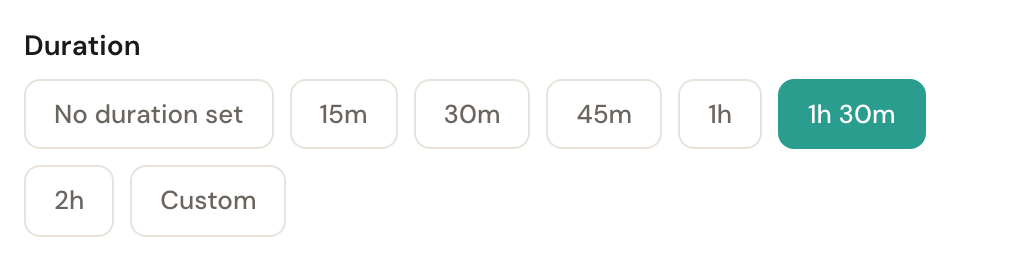
If No duration set is active, the service disappears from your booking page. That is deliberate — you use it for jobs whose length you only know after an intake — but it is also the most commonly missed cause.
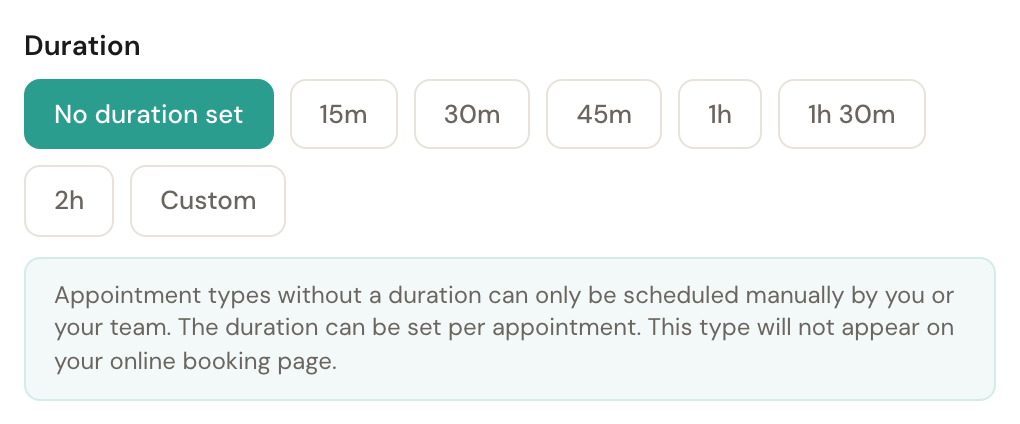
You schedule such a service yourself, with a length per appointment. When you search times for it with Find appointment options, or put it in a row of appointments or an invitation with several services, the length starts at half an hour, with This service has no fixed duration. Enter how long this appointment takes. underneath. Set it to the real length before you search or save.
The duration then decides how long the reserved block is. A two-hour service does not fit a roster block from 09:00 to 10:00: the block has to be long enough to hold the whole appointment, travel time included for work on location.
Preparation time
Appointment type → Duration has a Preparation time setting. It pushes the earliest bookable day forward, and it does so silently: there is no notice, the first few days are simply empty.
Preparation time
Default: noneThe minimum number of days ahead a customer has to book. Set to 3 days, someone booking today sees the first free time three days from now — even if your schedule is wide open this afternoon.
This applies to invitations too. Send a customer an invitation for an appointment type with three days of preparation time and they cannot pick anything in those first three days. Invitations skip the service-area check, but they do not skip preparation time.
No times showing?
If the duration is right and the service is open but your customer still sees nothing, it is no longer this page. Five filters can still remove every moment: who may do the service, who may do the chosen add-ons, who works at that location, who is scheduled, and who covers the address.
Work through them one at a time in No times are available. That page is built around the message your customer sees on screen, so you look up your own case directly.
Frequently asked questions
I checked everything and there is still nothing. Check whether your staff's calendars are simply full. The five steps above cover structural causes; a fully booked week also produces an empty page, but that one opens up again by itself.
Should I include travel time in the duration? No. For work at the customer's address Schedulinq adds travel time on top itself. The duration is the time you spend with the customer.
Someone is on the roster but gets no appointments. Check that this person is actually assigned to the service (the Assigned staff block in the appointment type). Being on the roster is not enough — the service has to know the person, and the roster block has to allow the service.
Still stuck? Work through the ready to go live checklist, or revisit creating an appointment type.