

Booking rules
Decide when customers may book, how far ahead, and until when they can cancel themselves — and recognise when one of those rules is emptying your booking page.
Your appointment types decide what a customer can book. This page decides when. Four settings between them cut pieces out of your booking page: today, the far future, and the stretch just before an appointment.
The awkward part: none of the four shows you what it did. You type a number, click Save, and the page confirms only that it saved — not that you have just removed the next three available times. So this guide starts with which symptom belongs to which rule.
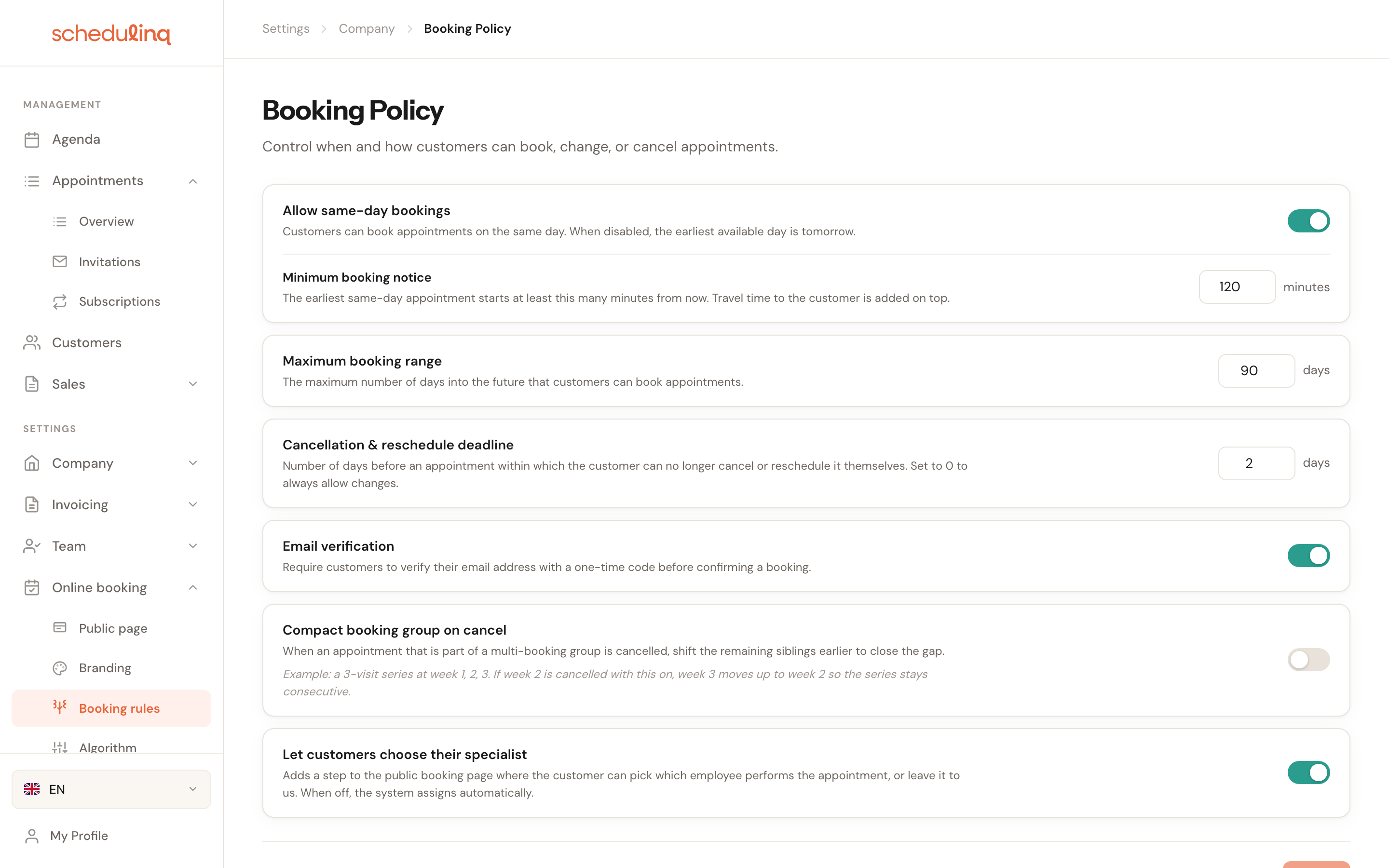
The first four settings decide when booking is allowed; the rest change how the booking page behaves.
Customers see no times? Start here
Work through this table before you touch the settings themselves. The symptom almost always names the rule responsible.
| What your customer sees | Likely cause | Where to fix it |
|---|---|---|
| Today is never available, tomorrow is | Allow same-day bookings is off | Turn it on |
| Today only opens up late in the afternoon | Minimum booking notice is high | Lower the number of minutes |
| Today stays empty even though same-day is on | A notice of 1440 minutes is a full day | Lower it substantially |
| Nothing selectable beyond a few weeks out | Maximum booking range is low | Raise the number of days |
| Customers phone to cancel instead of doing it themselves | Cancellation & reschedule deadline is high | Lower it, or set it to 0 |
| No times at all, in any week | This is not this page | See Duration and availability |
Same-day bookings

Allow same-day bookings
Default: offWith this off, the earliest bookable day is always tomorrow — however much room is left in today's calendar.
This is the bluntest of the rules: it removes an entire day in one click. Use it if you never want same-day work at all, and otherwise reach for the booking notice below, which controls the same thing far more precisely.
Minimum booking notice
0 – 1440 minutesOnly appears once Allow same-day bookings above is on — with no bookings today, there is nothing for a notice period to apply to.
The minimum number of minutes between now and the next bookable appointment. At 120 minutes an appointment ninety minutes from now is no longer offered; three hours from now is.
This is how you give yourself travel and preparation time without closing the day entirely. Work backwards from the point in the morning when you know what your day looks like: set it too low and something lands in your schedule that you cannot physically reach in time.

Maximum booking range

Maximum booking range
Default: 365 daysHow far ahead customers may look. At 90 days the calendar on your booking page runs three months out and then stops.
Keeping it short helps when your rota is not fixed far ahead — it avoids bookings you will have to move later. Too short works against you for services people plan well in advance. Pick the period you would genuinely commit to today.
Cancellation & reschedule deadline

Cancellation & reschedule deadline
Default: 1 day0 = always allowedThe number of days before an appointment within which the customer can no longer cancel or reschedule it themselves. At 2 days a customer can move things up to two days beforehand; after that only you can.
This trades your planning against your phone. The higher you set it, the fewer last-minute cancellations you absorb — and the more often customers ring you because they can no longer do it themselves. Set it to 0 if you would rather people cancel than simply not turn up.
Inside the deadline the customer's appointment page says "This appointment can no longer be changed online", with your phone number when you have one, and a Book another appointment button. You can reword that notice, show your e-mail address or WhatsApp beside the phone number, or add a button of your own — for the whole organisation or per location — under When booking isn't possible.
Email verification

Email verification
Recommended: onRequires a customer to confirm their email address with a one-time code before the booking is final.
This is the only brake on fake bookings. Without it anyone can book under any email address, including someone else's.
Switch it off and Schedulinq asks for confirmation first, naming two concrete risks. They are worth reading: the second is why this setting is on by default.
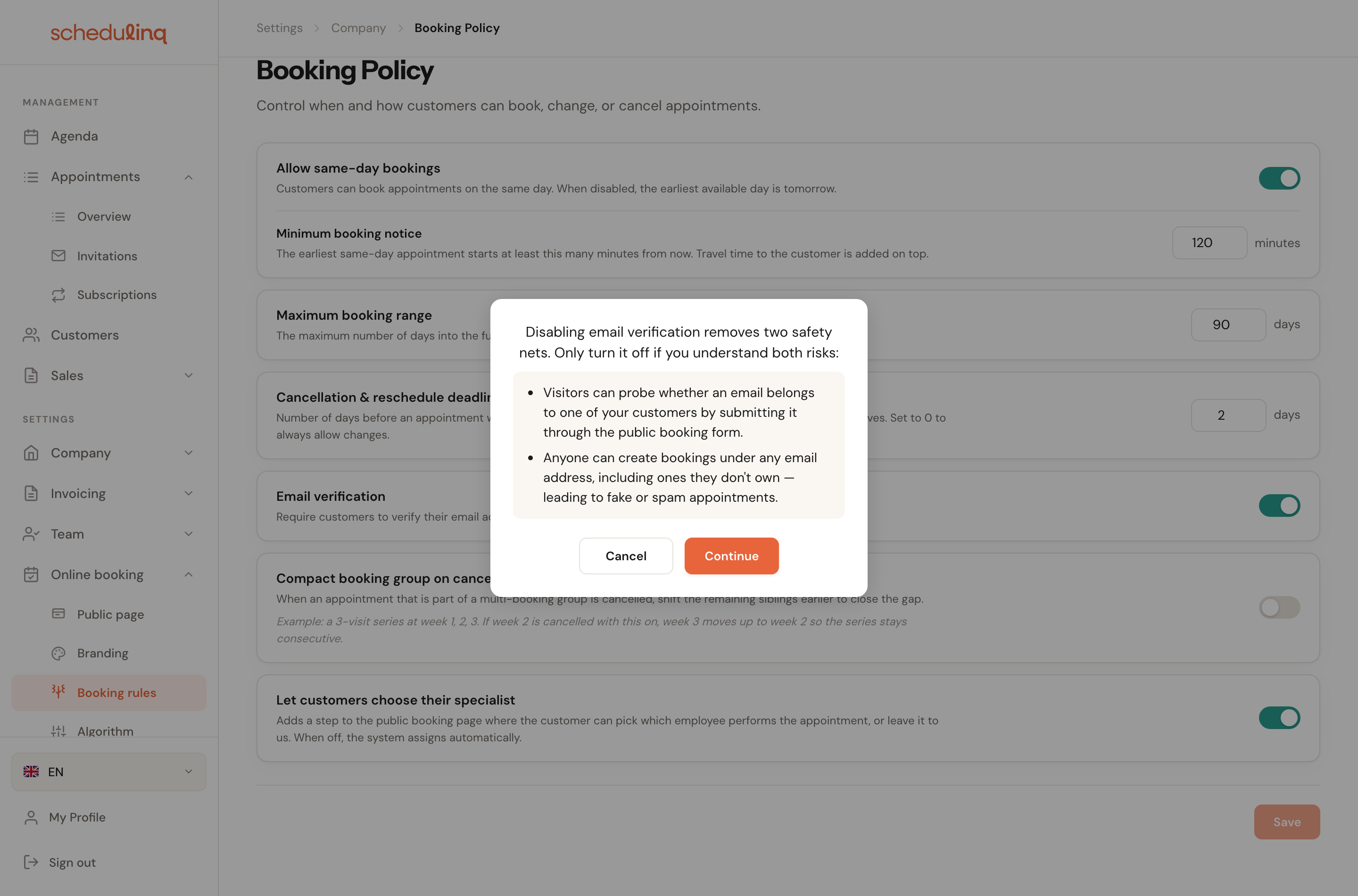
The remaining settings
Compact booking group on cancel
Default: onOnly relevant when one customer books several appointments in a row. If one is cancelled, the ones after it shift earlier so no gap is left. Only appointments on the same day shift; an appointment on another day stays where it is. When the appointments are at different addresses, Schedulinq keeps the drive from the new previous address free.
Useful for back-to-back blocks. Switch it off if your customers deliberately book at fixed moments — then a shifted appointment is more disruptive than a gap.

Let customers choose their specialist
Default: offAdds a step to the booking page where the customer picks who performs the appointment — or leaves it to Schedulinq.
Turn it on when customers have a standing preference. The cost is planning room: a customer who picks one person sees only that person's free moments, and therefore far fewer times.

Show recommended times
Default: onShows up to three times in the next four weeks that fit your schedule best above the calendar on your booking page, headed Recommended times — also for a customer who books through an invitation or reschedules an appointment. The customer takes one with a click, or simply picks in the calendar. What that looks like is under Recommended times above the calendar.
A customer who takes a recommended time fills your calendar where it suits you best; at the customer's address that means less driving. Switch it off if you would rather not steer customers anywhere: the calendar then looks exactly as it does without them.
Show an arrival window
Default: off0 to 240 minutes before and afterFor an appointment at their address, customers see a window instead of a single time. Fill in how many minutes before the start time a colleague may arrive at the earliest, and how many minutes after the start time at the latest. Under the boxes it says what the customer reads: An appointment at 11:10 reads to the customer as: between 10:40 and 11:40. Switching it on with zero and zero does not work; the card then says to choose at least one minute.
A customer who reads 11:10 counts on 11:10 — and a colleague on the road who runs ten minutes late is then ten minutes late. With a window they are simply on time. You and your team always see the exact time, and it only applies to appointments at the customer's address: at a location the customer is the one arriving, and a call starts when it starts.
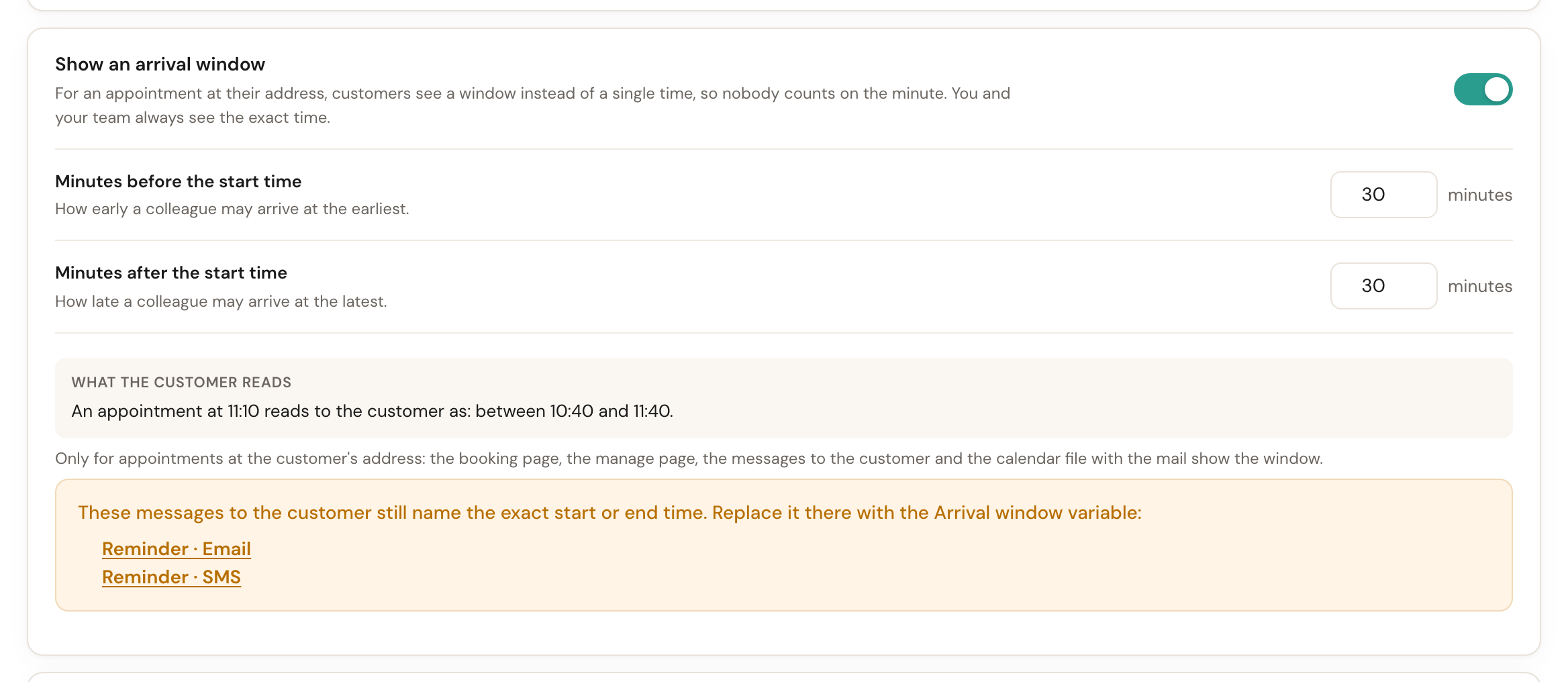
The window is on your booking page — with the times in the calendar, under the line that
each time is an arrival window, and on the confirm step — on the page where the customer
manages their appointment, in the calendar file with the mail, and in the messages to the
customer: the appointment card then says Date & arrival, and what changed names the
old and the new window. To use it in your own text, take the {{arrivalWindow}} merge tag
(Arrival window): between 10:40 and 11:40, or at 11:10 for an appointment without a
window.
Calls during a drive
Phone calls: offVideo calls: offMay a colleague take a call while driving between two appointments? There is a switch for Phone calls and one for Video calls. On: such a call can be scheduled automatically during the travel time between two appointments. Off: the call's time is not driving time.
Calling on a headset in the car is fine for some organisations, a video call is rarely held behind the wheel — which is why the two are separate. With a switch off, the drive between two visits has to fit in the time the call leaves: a call between two visits is only offered when the drive still fits around it, and neither is a visit the colleague would have to drive to during a call.
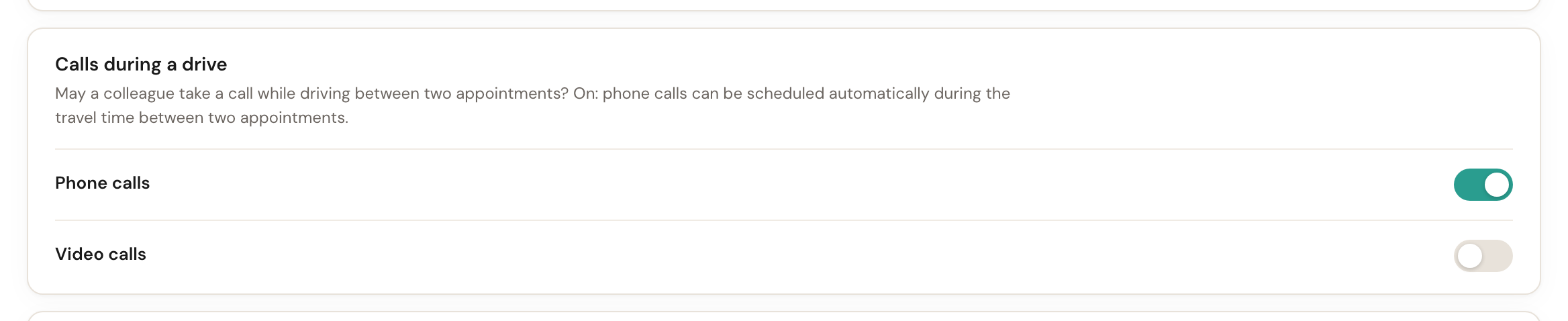
Each switch applies to its own kind of call, in every search for times — a visit's too, because a visit after a call has to allow for the drive as well. If you schedule an appointment yourself that does not fit, the form warns you, but you can still save — see Schedule an appointment. How to fit calls in between your visits is described in At the customer or on location.
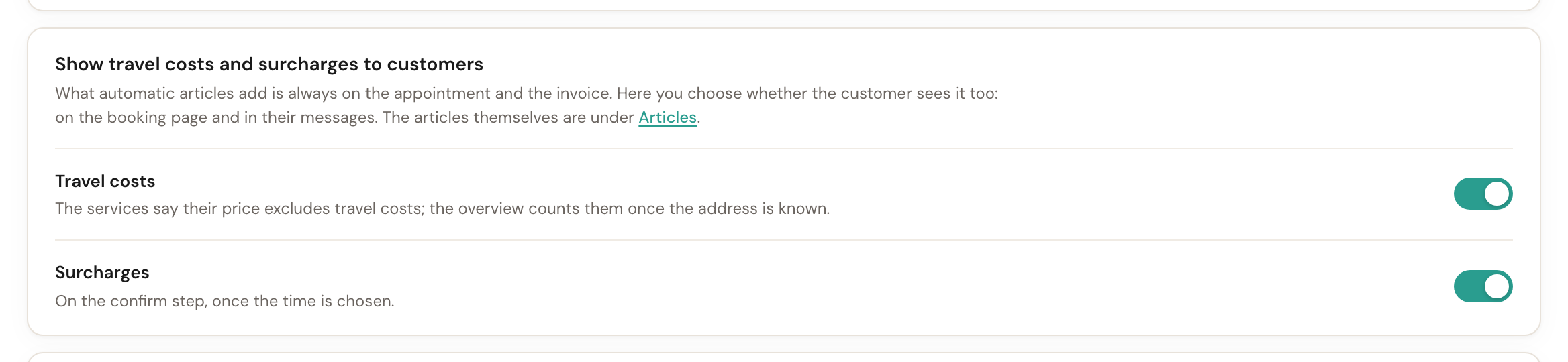
Show travel costs and surcharges to customers
Travel costs: offSurcharges: offTravel costs and surcharges an article adds to an appointment itself are always on the appointment and the invoice. Here you choose per kind whether the customer sees them too, on the booking page and in their messages. Travel costs on: the services say their price excludes travel costs, and the overview counts them once the address is known. Surcharges on: the surcharge shows on the confirm step, once the time is chosen.
Whether you name the drive separately is a choice about how you price, not about what
you charge. With a switch off, the customer reads nothing of that kind anywhere — not
on the booking page, not in the appointment card and not in {{totalPrice}} — while you
and your team do see them on the appointment and the invoice. How an article adds itself
is described in Articles.
Redirect after booking
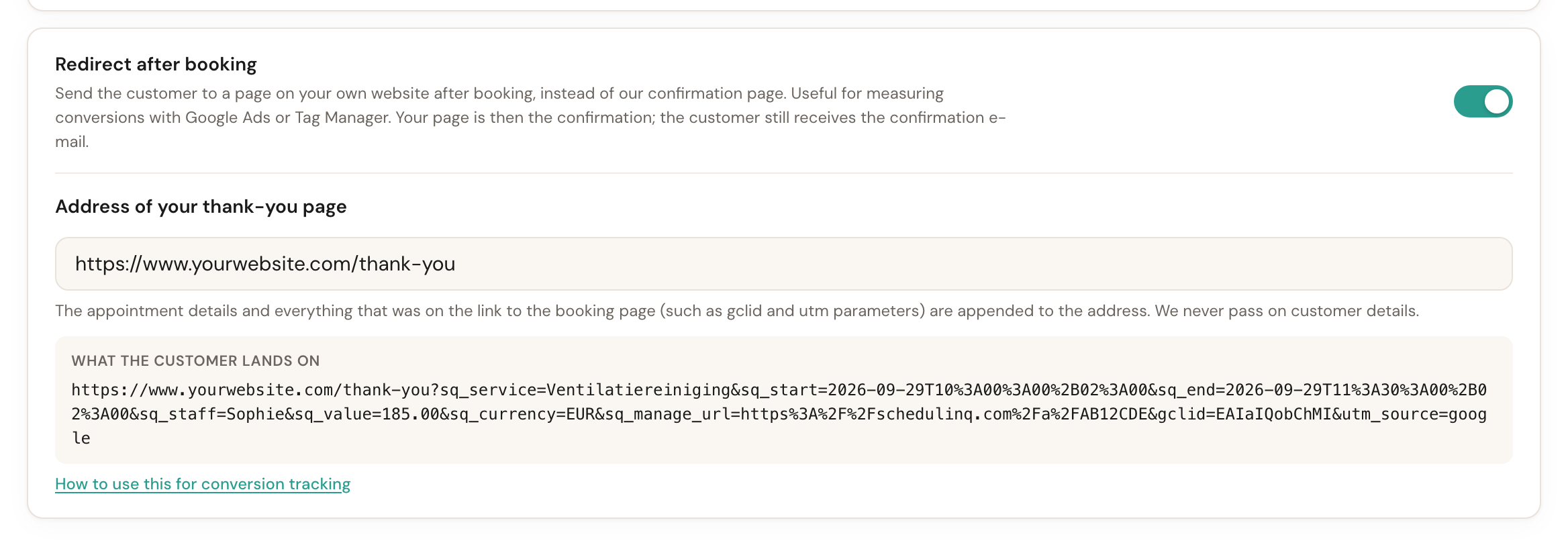
Default: offSends the customer to a page on your own website after booking instead of our confirmation page, with the appointment's details appended to the address. Meant for measuring conversions with Google Ads or Tag Manager.
Your tracking scripts run on your website, not on our booking page — so a booking only counts as a conversion once the customer is back with you. What the link carries exactly, and what your website builder has to do, is in Measure conversions after a booking.
Saving
Changes only take effect once you click Save. The button stays grey until something has actually changed.

Frequently asked questions
I turned same-day booking on but today stays empty. Look at the booking notice underneath it. At, say, 480 minutes today only opens eight hours from now — and past mid-afternoon nothing that late still falls inside your working hours.
Does the booking notice apply to tomorrow as well? Not in practice. It counts from now, and tomorrow is always more than 24 hours away — unless it is already late in the evening. For days further out it changes nothing.
Can I still schedule inside the notice period myself? Yes. All of these rules apply only to customers on the public booking page. You and your team schedule whatever is needed.
Why can my customer no longer cancel? The appointment most likely falls inside the cancellation deadline. You can still change or cancel it from the appointment itself. Their appointment page tells them so and how to reach you — see This appointment can no longer be changed online.