

Create your account
Register, confirm your email address and sign in for the first time — and what to do when you can't get in.
You start with a personal account. That is your own sign-in; your company gets set up afterwards. Registering takes a minute, plus one click in your mailbox.
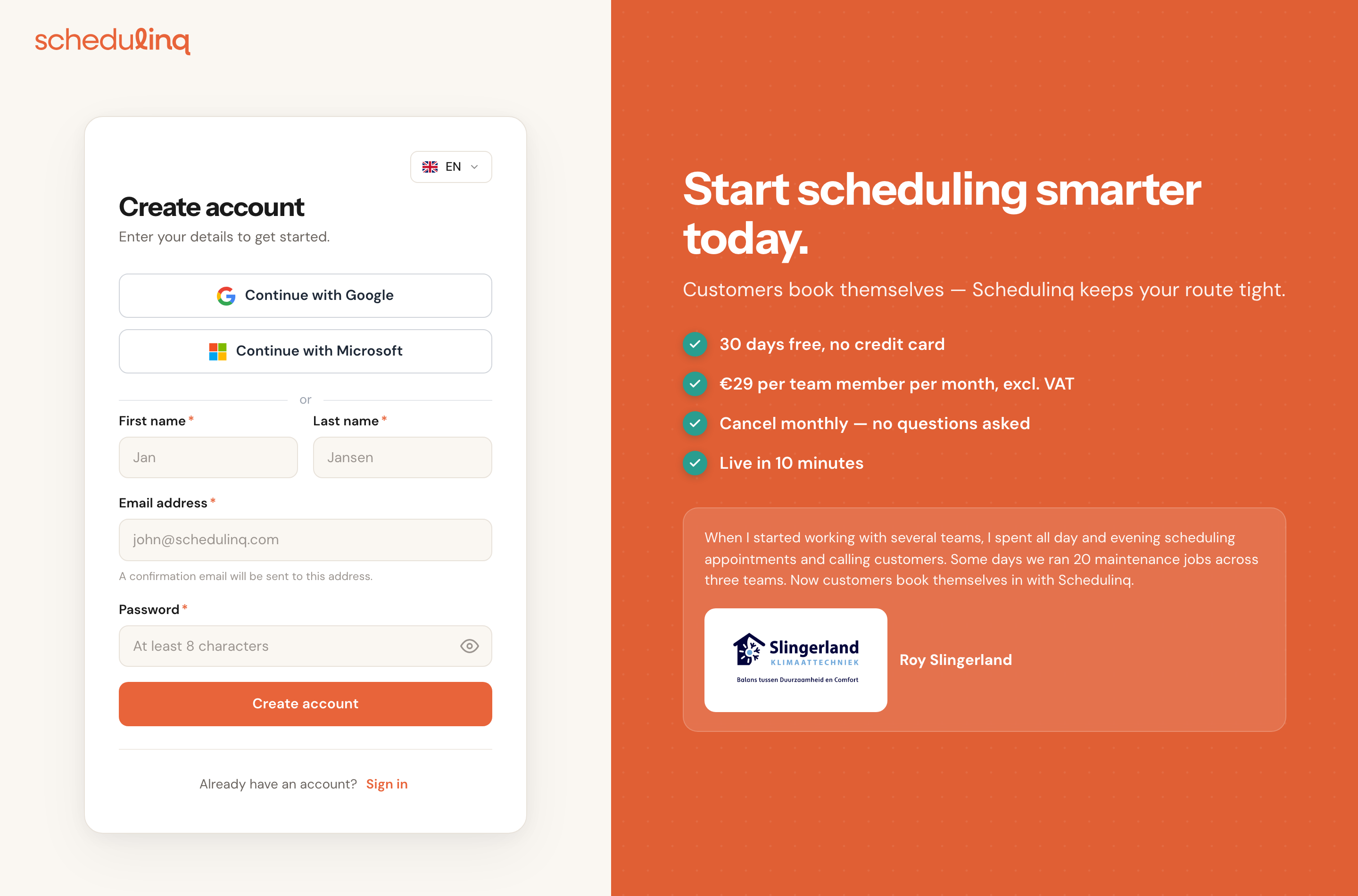
1Fill in the registration form, or continue with Google or Microsoft.
In short
- Go to the registration page and fill in your name, email address and password — or click Continue with Google or Continue with Microsoft.
- Open the email you receive and follow the link.
- On that page, click Verify my email.
- Your account is active and you are signed in straight away. On the welcome screen you set up your company.
Step by step
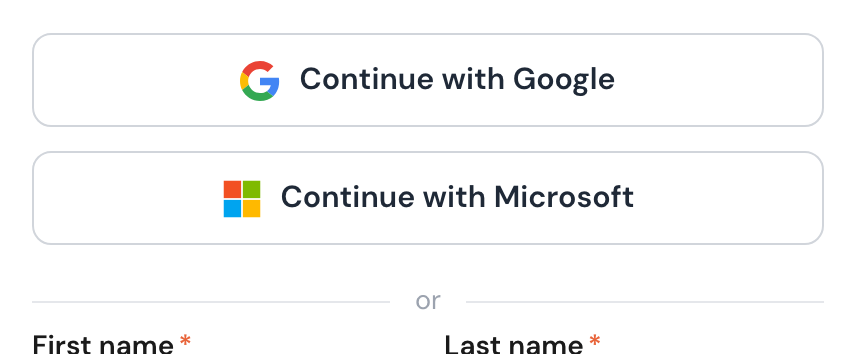
Choose how to create your account
Two buttons sit at the top of the form: Continue with Google and Continue with Microsoft. Use either one and you never invent a password. Google and Microsoft normally vouch for your email address themselves, and then you skip the form and the confirmation email and go straight to the welcome screen.
The exception is a Microsoft work or school account whose organisation has not verified its email domain with Microsoft. Schedulinq cannot take that address on trust, so you get the confirmation email after all: carry on at Confirm your email address below.
Below the line marked or is the ordinary form, for when you would rather use an email address and a password.
Fill in the form
First name, last name, email address and password. All four are required, which the asterisk after each label marks. Underneath the password field you see how strong your password is as you type.
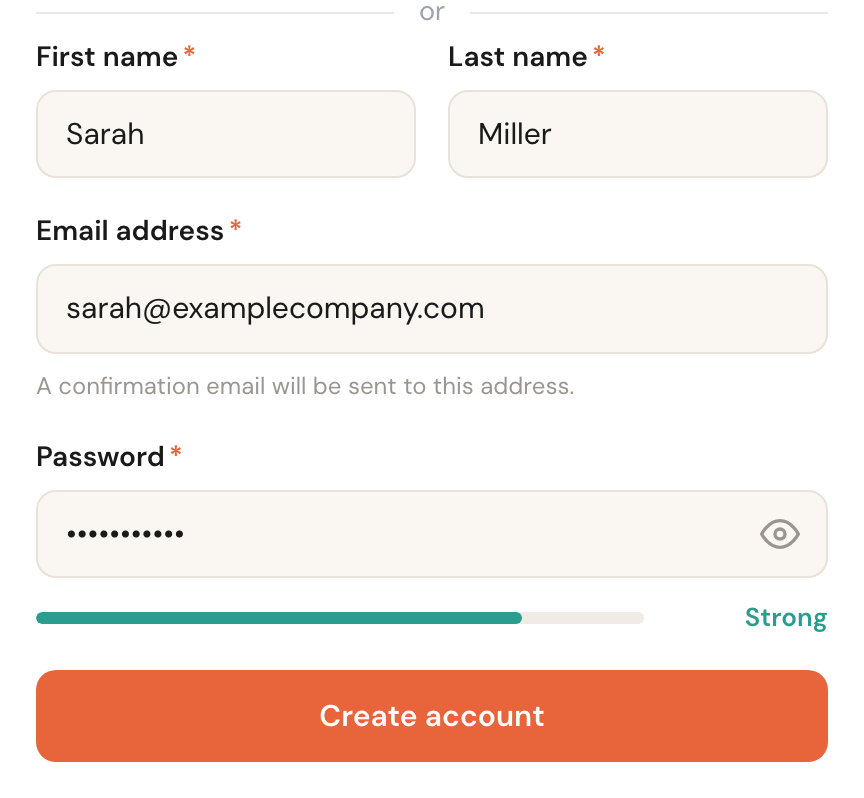
Then click Create account.
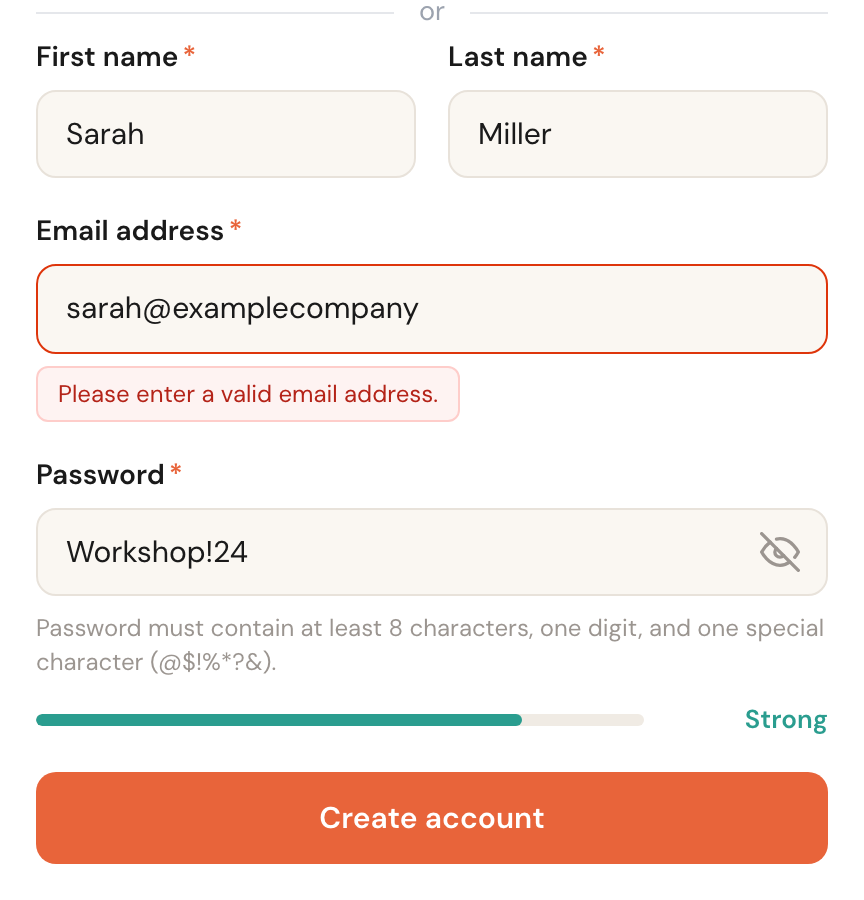
If something is wrong, the field itself turns red and says what is wrong right under it. You see that as soon as you leave a field, or when you click Create account. Your account is only created once everything checks out.
Confirm your email address
You land on a page saying we have sent a confirmation link, with your email address underneath it. Open that email and follow the link.
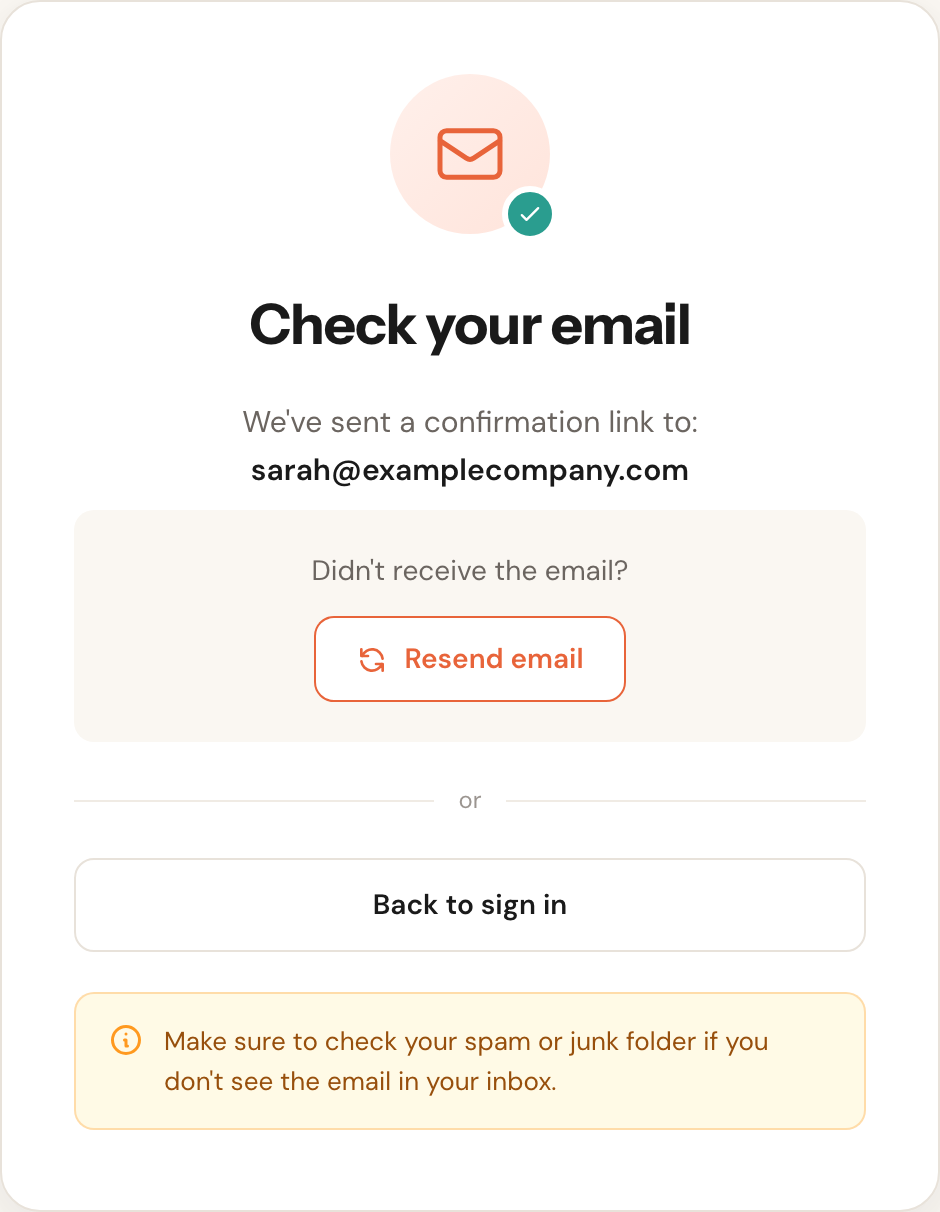
No email? Check your spam or junk folder first. If it is not there either, click Resend email.
Click the verify button
The link opens a page with a single button: Verify my email. Your account is only active once you click it.
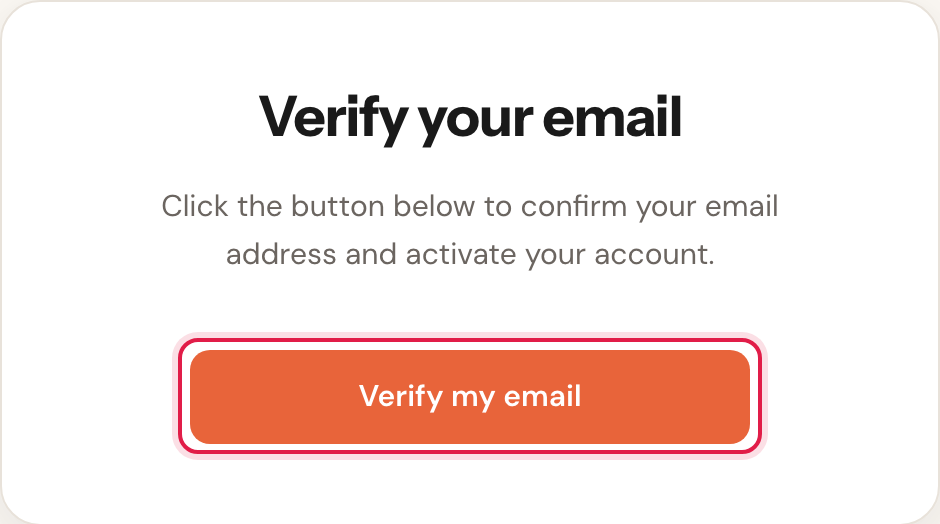
If the link has expired, the page says so and offers a Send a new link button. You do not need to register again.
Set up your company
After that click you are signed in straight away and land on the welcome screen. It has two steps: Your company and How you work. With Google or Microsoft you usually land here right after registering — unless you had to confirm your email address after all.
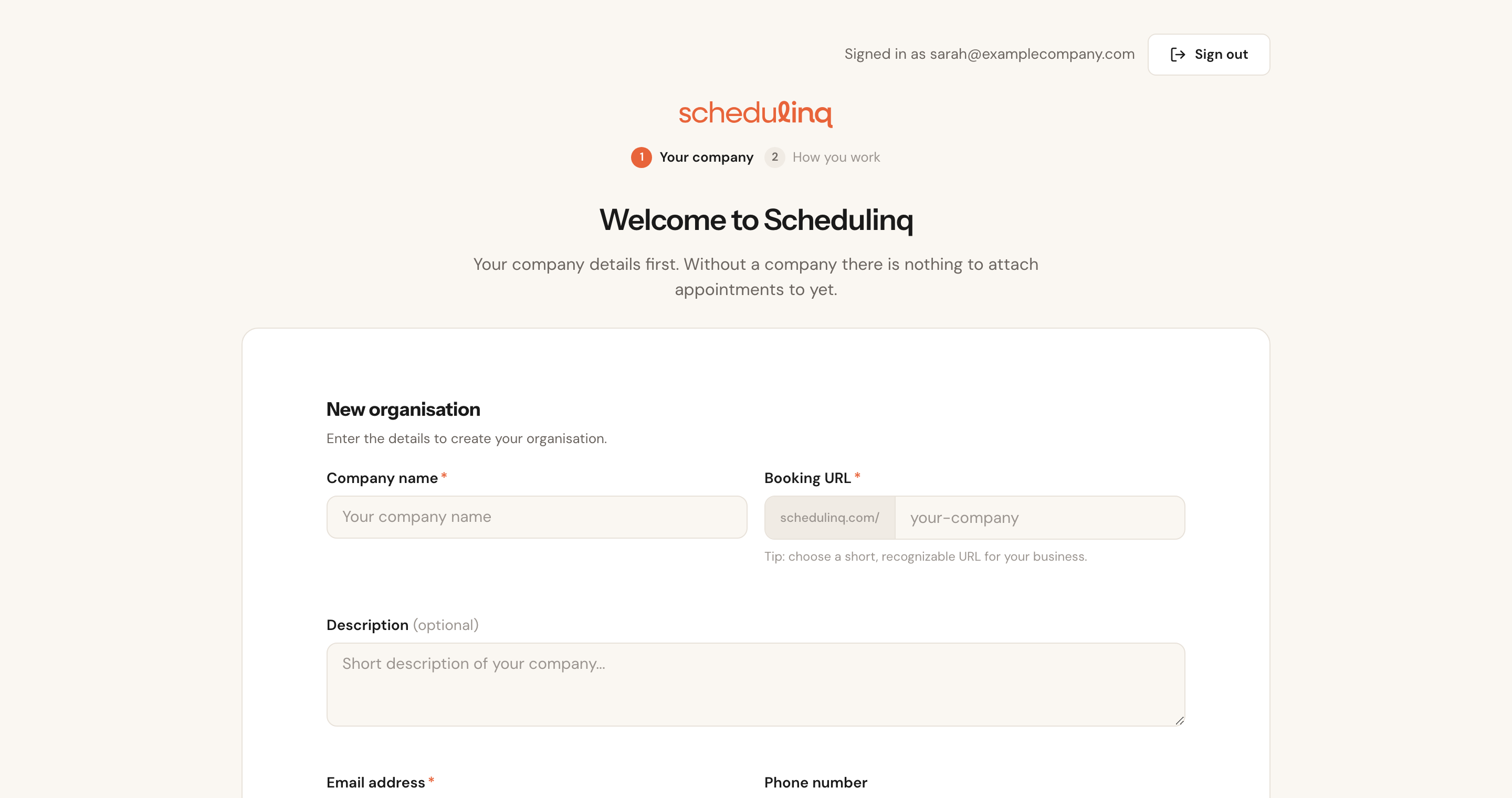
Under Your company you fill in your company name, booking URL and contact details — the same form as under Company → Details, where you find it again later. This step is required: without a company there is nothing to attach appointments to yet. What each field does is in Company details.
How you work then asks a few short questions: who carries out the appointments, where the work happens, how appointments come in and whether you invoice from Schedulinq. They set nothing up. They decide which guides you see, and in what order, when you later click User guide at the bottom of the menu. Not now? Click Skip and go to the agenda.
These questions come only once. Skip them — with that button, or with the × at the top right of the questions — and User guide keeps opening the general guide. The answers cannot be changed afterwards either.
The fields
First name and last name
RequiredMax. 100 charactersYour own name, not your company's. A name of nothing but spaces counts as empty.
This name appears on your appointments in the calendar, and it is how colleagues recognise you in the schedule and when services get assigned. The company name is entered separately, in your company details.
Email address
RequiredThis is your sign-inThe address the confirmation link goes to, and the one you sign in with from then on. It can be at most 100 characters, and the part before the @ cannot contain spaces, quotes, accented letters or other special characters — we cannot deliver a confirmation email there.
Use an address that is genuinely yours and that you will keep. A shared mailbox
like info@ works at first, but as soon as colleagues join, everyone needs their
own sign-in — and personal addresses are easier to tell apart.
Password
RequiredAt least 8 charactersThe field asks for at least 8 characters, and on top of that at least one digit
and at least one special character from @ $ ! % * ? &. The hint under the field
says so too. The bar below it runs from weak to very strong, and the eye on the
right shows you what you typed.
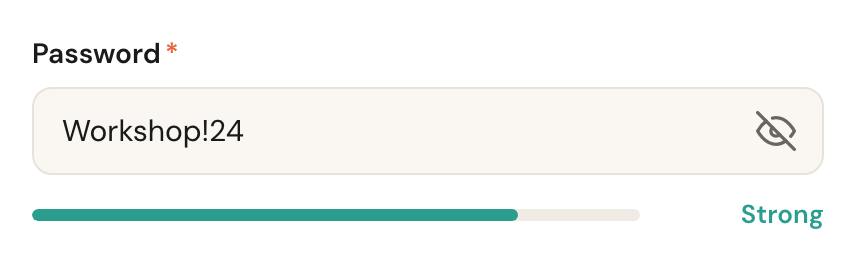
A password of eight plain letters looks long enough, but is rejected without a digit and a special character. There is a ceiling too: at most 72 characters, where an accented letter, an emoji or a character from another script counts as two to four. A passphrase the length of a whole line can run over it.
Language
Top right of the cardThe flag at the top right switches the page language.
It does more than translate this one page: whichever language is active when you click Create account becomes your account language, and that is the language Schedulinq will email you in. You can change it later under My profile.
That holds for the form only. Sign up with Google or Microsoft and your account language is Dutch, whichever flag is showing — so is the confirmation email, if you get one. Change it under My profile once you are in.
Signing in
Go to the sign-in page, enter your email address and password, and click Sign in. If you started with Google or Microsoft, use that same button — you will not have a password.
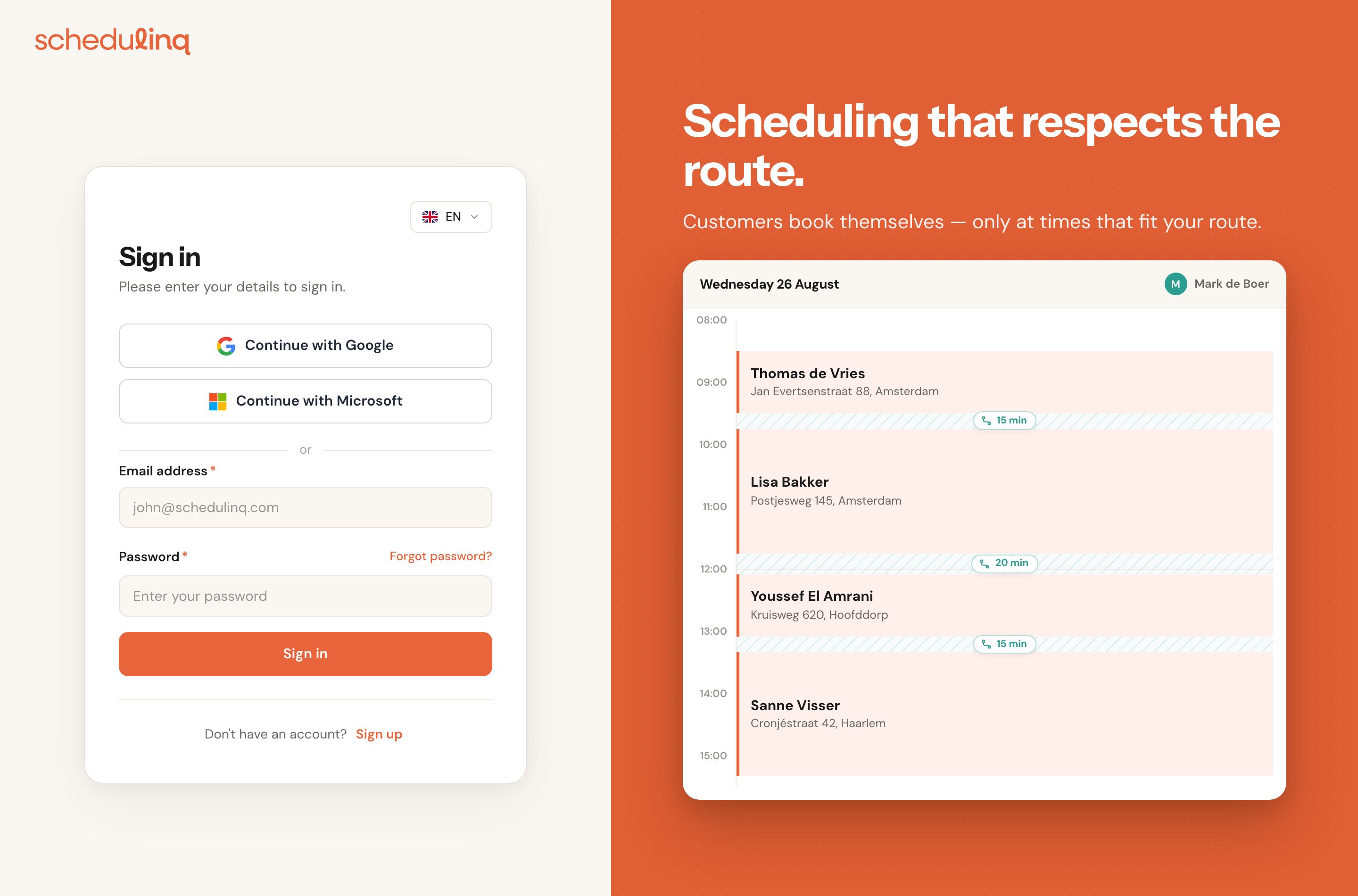
Open a link into Schedulinq while you are signed out — the button in an email about your subscription, say — and Schedulinq asks you to sign in first, then takes you to that page rather than to the agenda. That works with Google and Microsoft too.
Forgotten password
On the sign-in page, click Forgot password? next to the password label. Enter your email address and click Send recovery link.
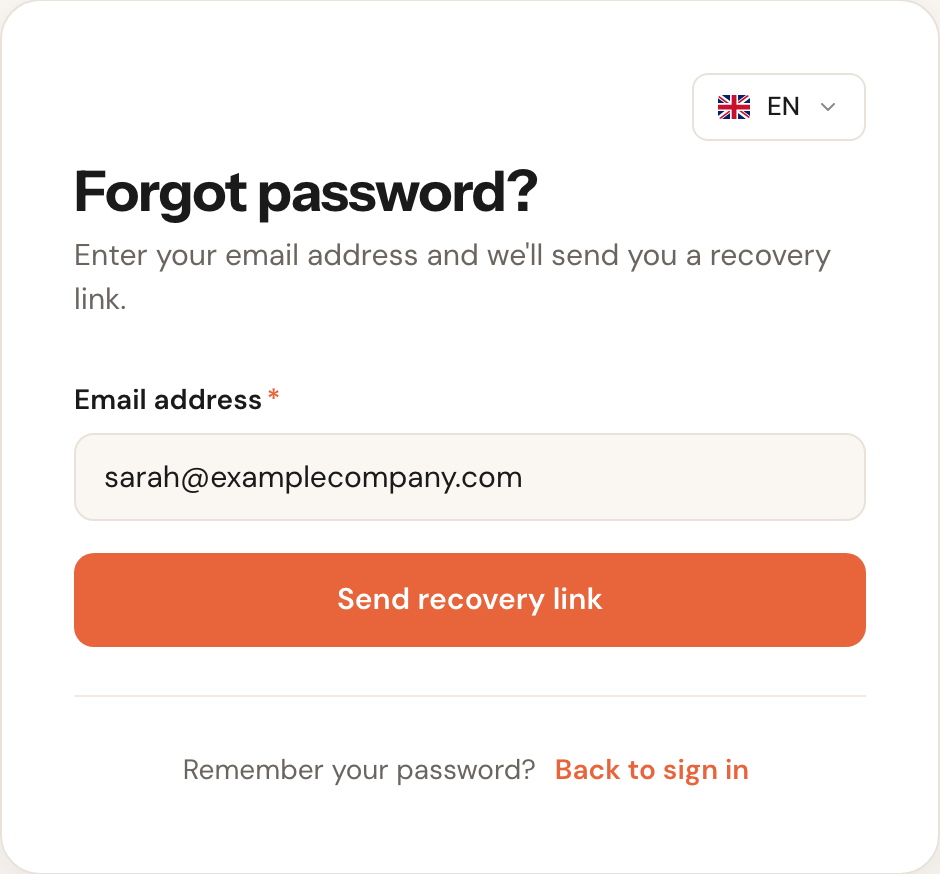
You always see the same confirmation, even when no account exists for that address. That is deliberate: otherwise anyone could use this form to find out which email addresses have a Schedulinq account.
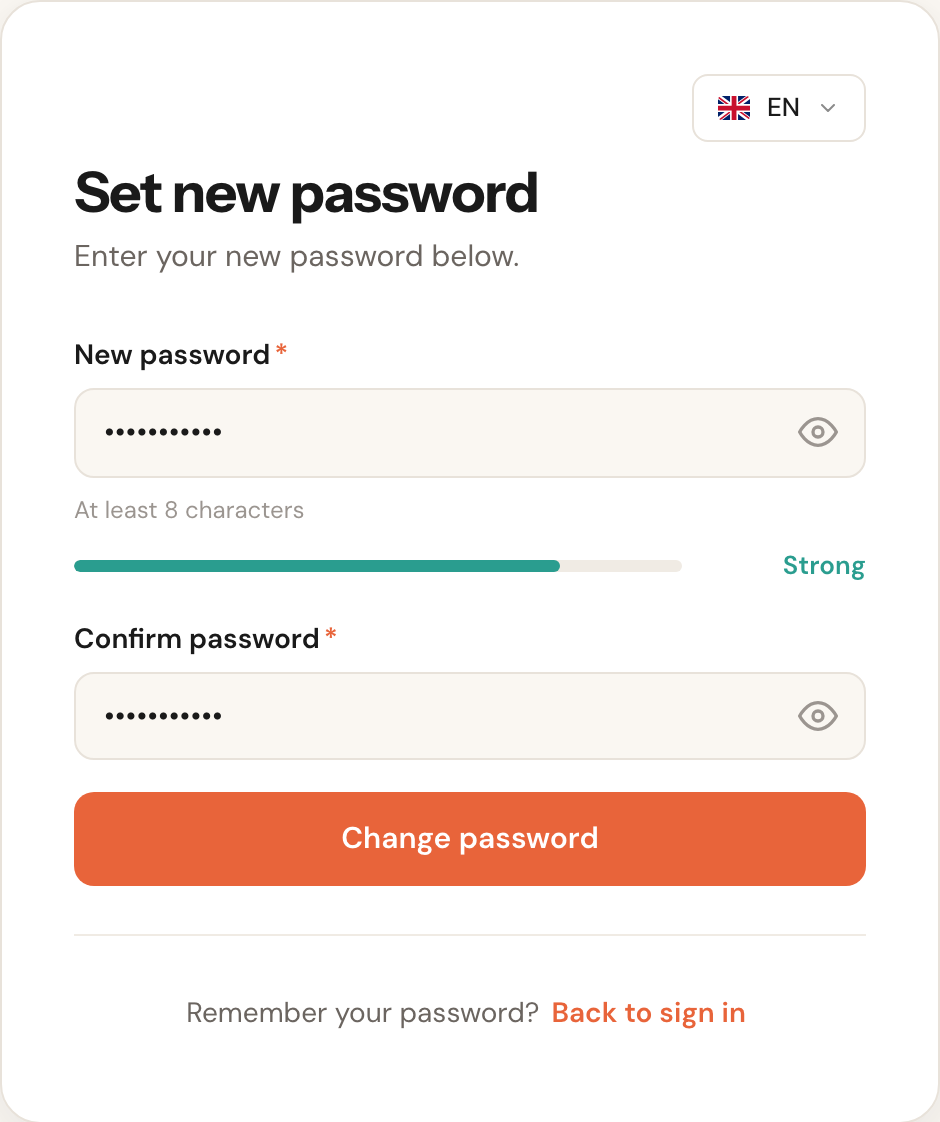
The email contains a link to a page where you choose a new password. The same rules apply: at least 8 characters, a digit and a special character. You type it twice, so a typo cannot lock you out.
Frequently asked questions
I never received the confirmation email. Check your spam or junk folder — that is where it most often ends up. Otherwise click Resend email on the Check your email page. If you can no longer reach that page, simply sign in: you will be sent back to it automatically.
The link in the email no longer works. Verification links expire. The page says so in as many words and offers a Send a new link button. Registering again is unnecessary, and would not work anyway — your email address is already in use.
Can I change my email address later? Not yourself. Your email address is your sign-in and is fixed on My profile; if it really has to change, contact support. See Your profile.
I signed up with the wrong account. On the welcome screen, click Sign out at the top right and sign up again with the right email address or Google account.
Does every team member create their own account? No. You invite colleagues from inside Schedulinq and they join through that invitation — see Invite your team. This page is only about the first account, which is yours.