

Set your branding
The colours and fonts of your booking page, with a live preview that recolours as you type.
Online booking → Branding decides how your booking page looks: two colours, a tint for the sidebar, a colour for the input fields and two fonts. Below the settings sits a real example of your booking page that recolours while you type, so you see the result before you save.
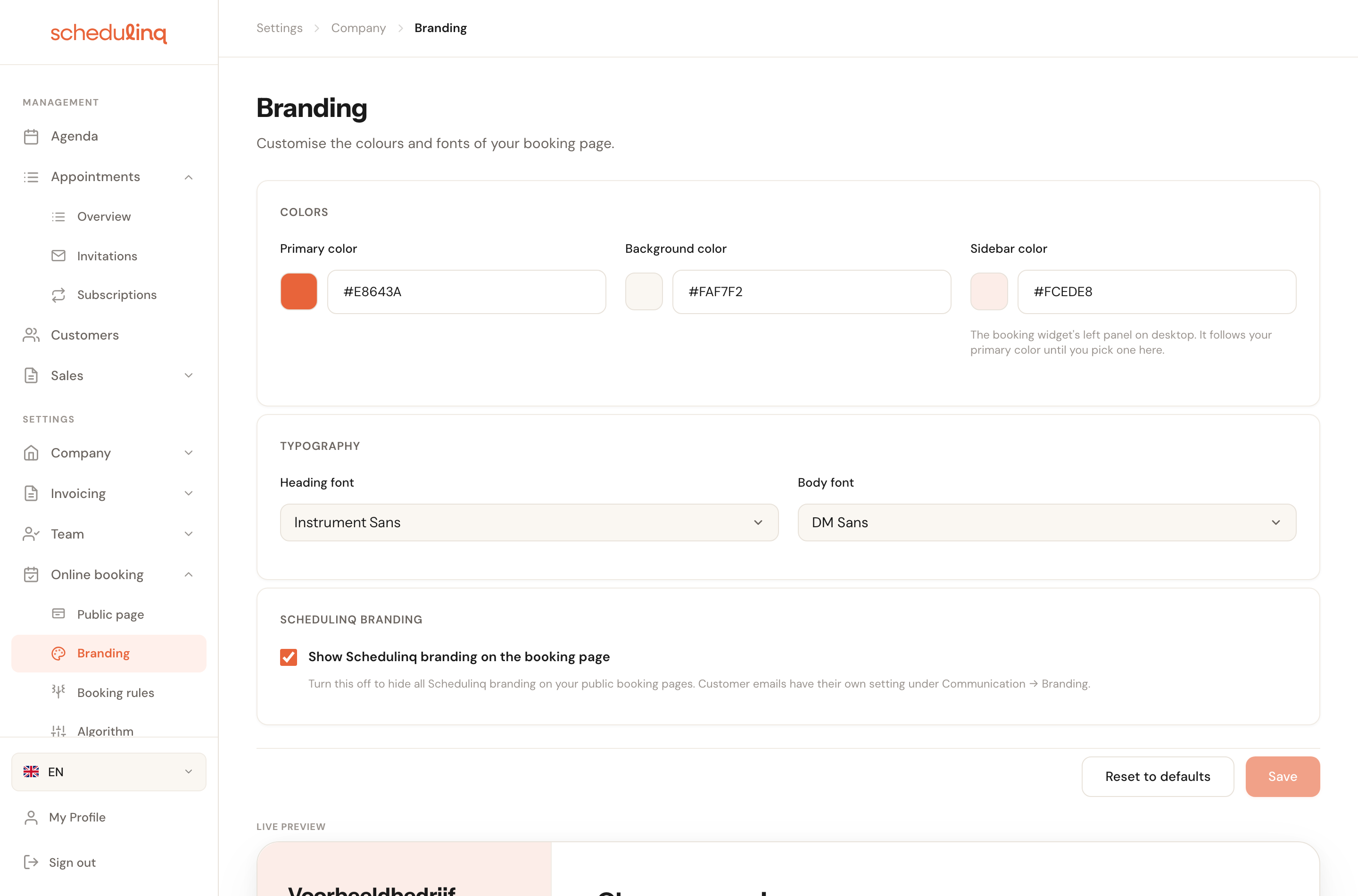
First, this: branding is per surface
Schedulinq has three places with their own branding. They are independent and each reads a different set of values. If you are looking for a colour and cannot find it here, it belongs to one of the other two.
| What your customer sees | Where you set it | What that page controls |
|---|---|---|
| The booking page | Online booking → Branding (this page) | Primary colour, background, sidebar, input fields, fonts, Schedulinq branding |
| Customer emails | Communication → Branding | Its own colours and fonts, logo height, Schedulinq logo |
| The invoice PDF | Invoicing → Invoice template | Accent colour, fonts, logo height |
Step by step
Open Online booking → Branding
In the left-hand menu click Online booking, then Branding. The page opens on the values you use now; if you have never set anything, you see Schedulinq's defaults.
Pick your colours
Click the coloured square for a colour picker, or type a hex code (
#E8643A) straight into the field beside it.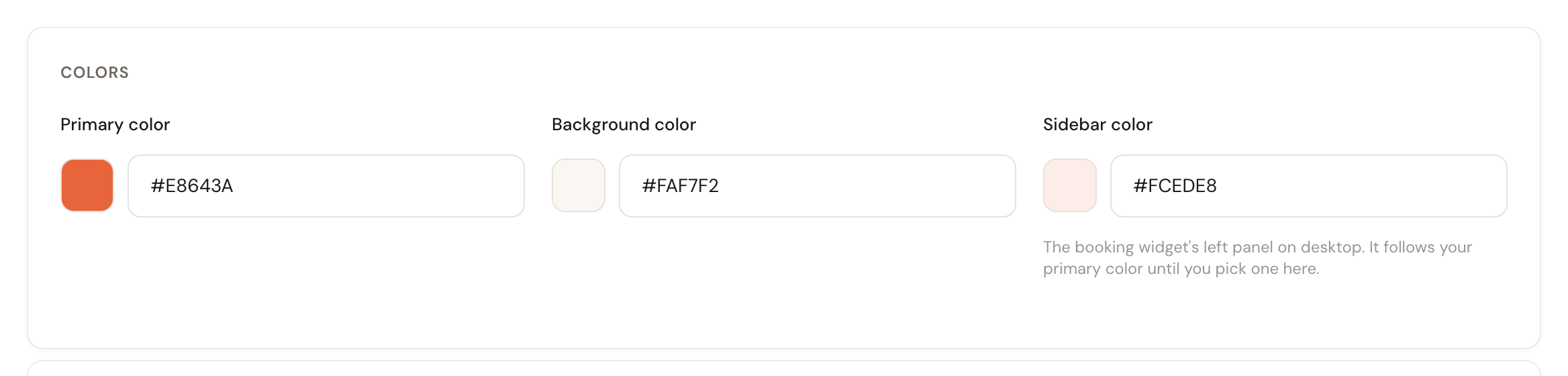
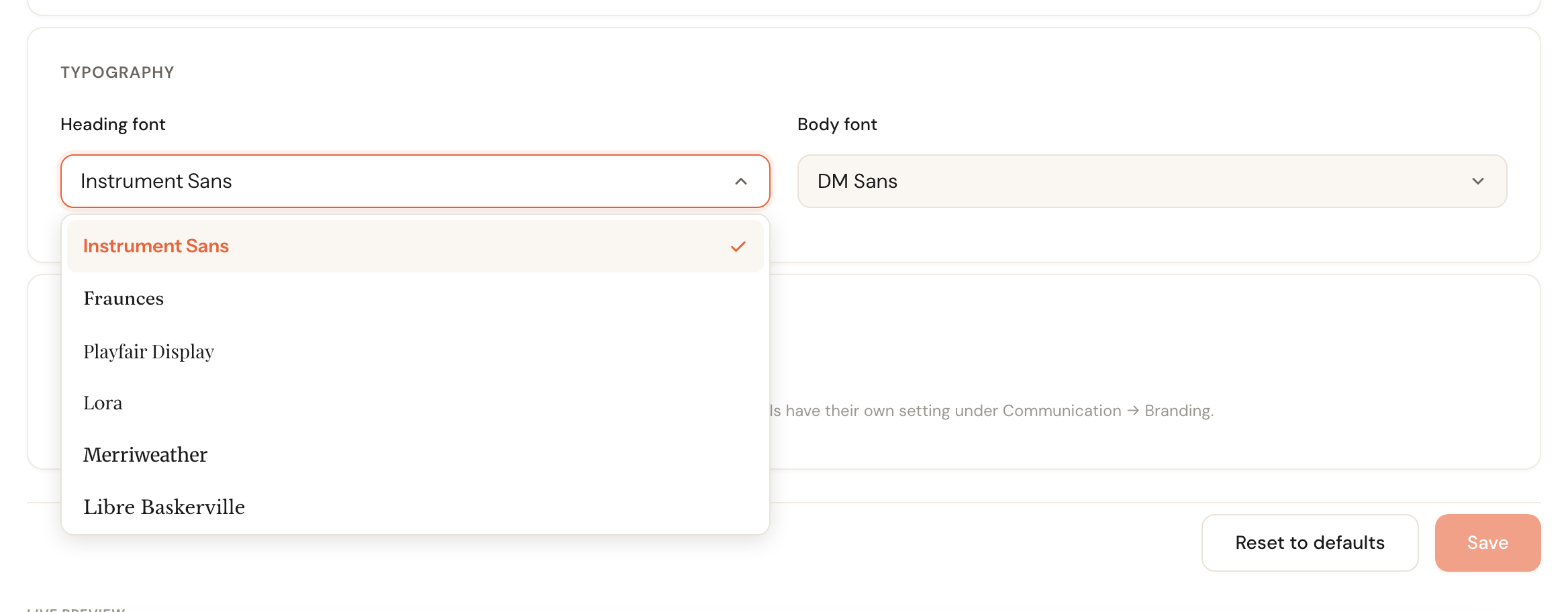
Pick your fonts
Two lists: one for headings, one for body text. Each name is set in the font itself, so you can see what you are choosing.
Check the preview and save
Scroll to Live preview at the bottom. That is your actual booking page, not a picture of one. If it looks right, click Save.

The fields
Primary colour
Default: #E8643AThe accent colour of your booking page: buttons, the active step in the sidebar, the border of a selected card.
This is the one colour your customer really notices, because everything meant to be clicked carries it. Take it from your own logo or website so the booking page matches wherever the customer came from.
Background colour
Default: #FAF7F2The colour behind the cards in the right-hand part of the widget.
Keep it light and quiet. The cards themselves are white, so the darker this colour the stronger the contrast — striking in a screenshot, restless for someone clicking through three steps.
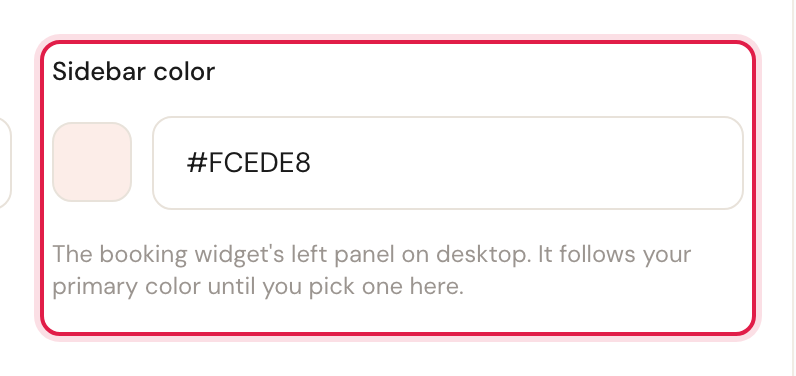
Sidebar colour
Follows your primary colourThe widget's left panel on desktop: your company name, contact details and the four steps.
You usually need not touch this. As long as you pick nothing, Schedulinq derives the sidebar from your primary colour — a light tint of it — and it recolours automatically when you change that primary colour later. Pick a colour here and it is fixed, and stops following.
Input field background
Follows your background colourThe colour of the text boxes, dropdowns and date fields on your booking page — where your customer types their name, email address and address.
As long as you pick nothing, Schedulinq derives it from your background colour, just as the sidebar follows your primary colour. Choose a striking background, such as light blue, and the boxes on the white card get that colour too; if you do not want that, pick a colour of your own here, white or light grey for instance. If the colour is dark, the text in the boxes turns white by itself.
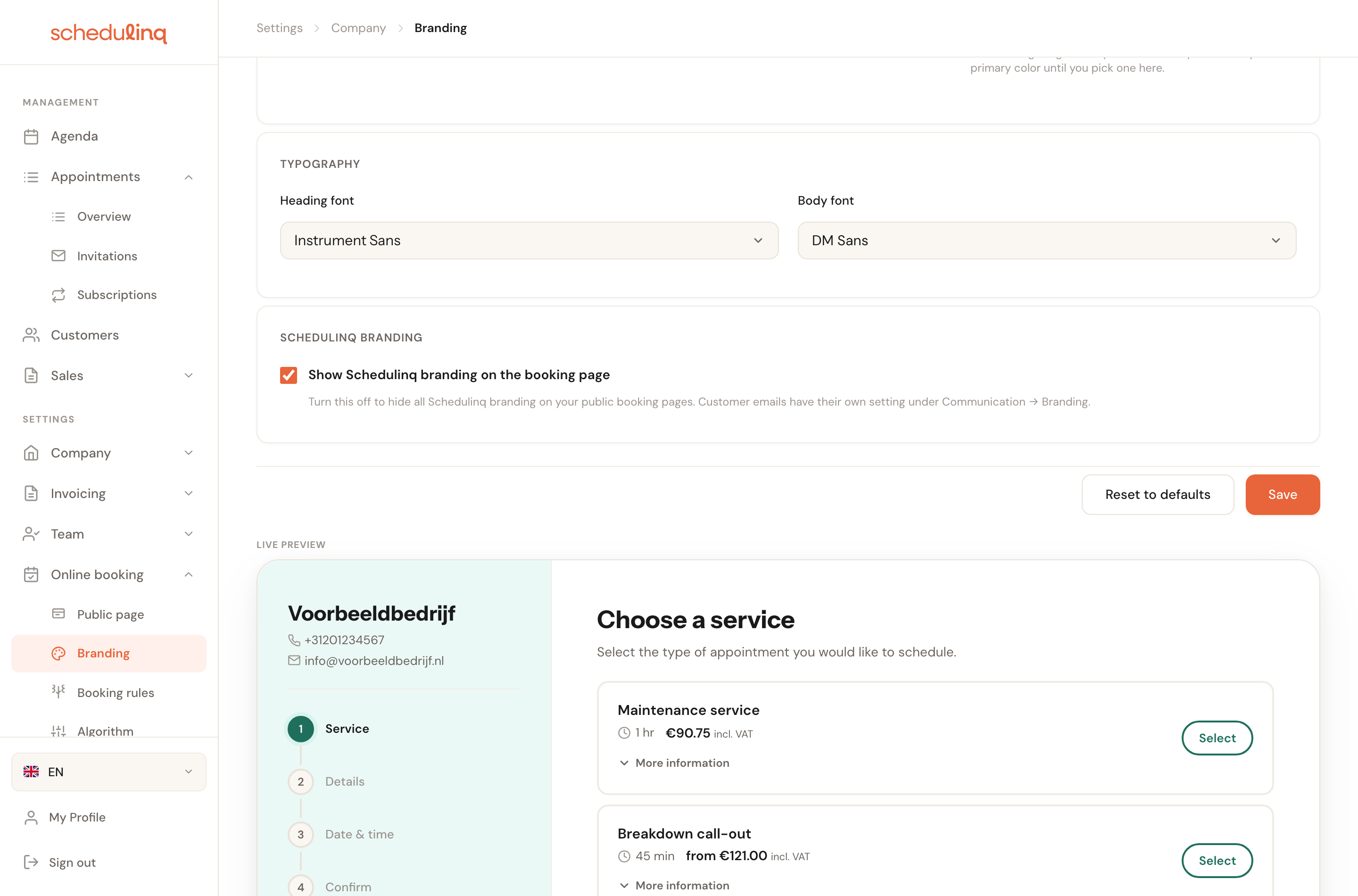
Heading font
Default: Instrument SansThe font used for titles: "Choose a service", your company name in the sidebar.
Body font
Default: DM SansThe font for all running text: service names, prices, explanations, buttons.
Choose something quiet. A characterful font is a pleasure in a five-word heading and tiring in a list of twelve services with prices after them.
Show Schedulinq branding
Default: onControls whether "Powered by Schedulinq" appears at the bottom of your booking page.
This covers your booking page only. Customer emails have their own switch under Communication → Branding, so turning it off everywhere means turning it off in two places.

The live preview
Below the settings sits your real booking page — the same widget your customers use, with your own services and prices in it.
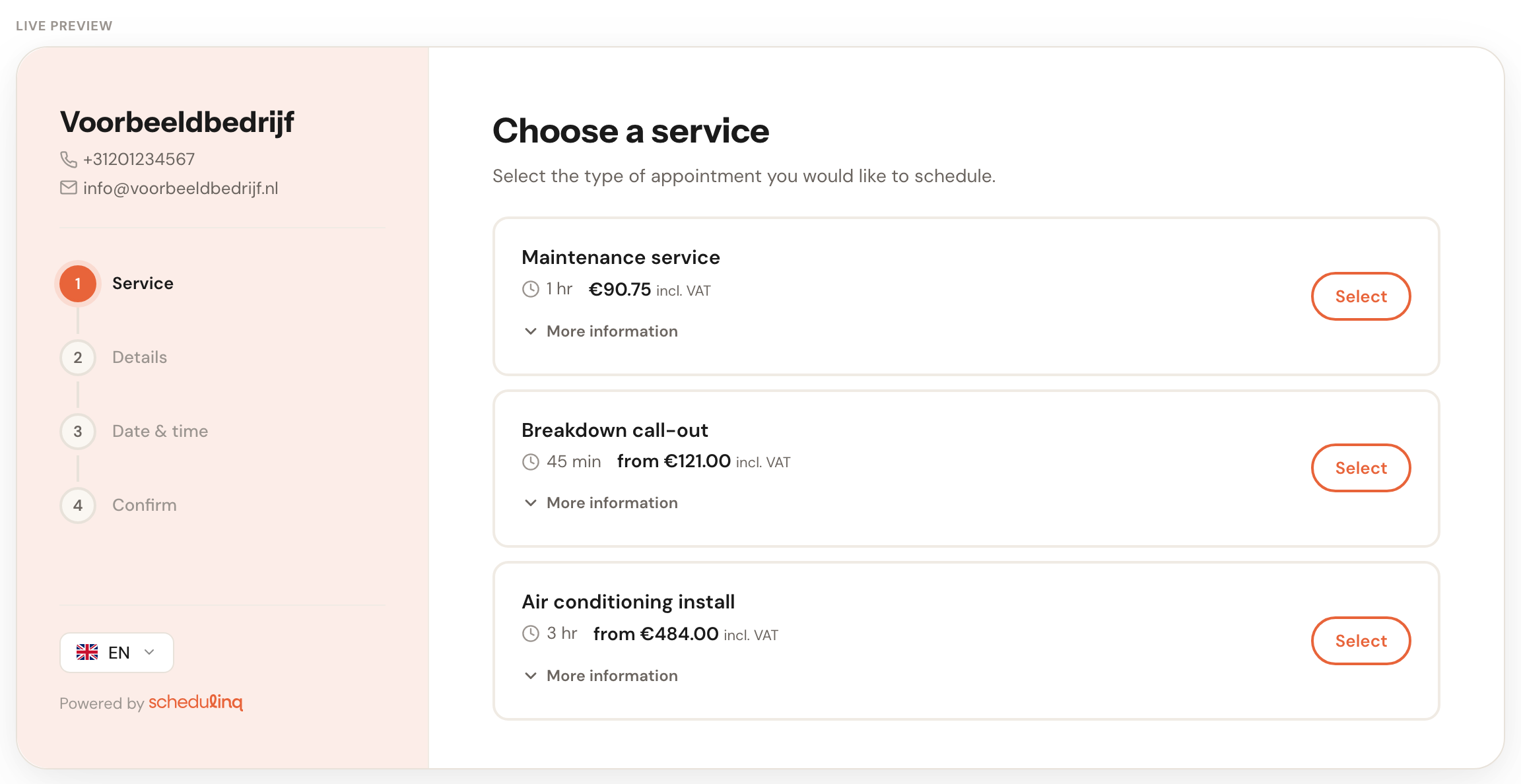
The preview runs on your unsaved values. Type a different primary colour and the widget recolours at once, sidebar included as long as it still follows that primary colour. So you see the result before committing to anything.
Resetting to defaults
Reset to defaults returns this page to the colours and fonts Schedulinq starts with, and switches Show Schedulinq branding back on. You confirm it first, and it cannot be undone: note your colour codes before you press it if you might want them back.
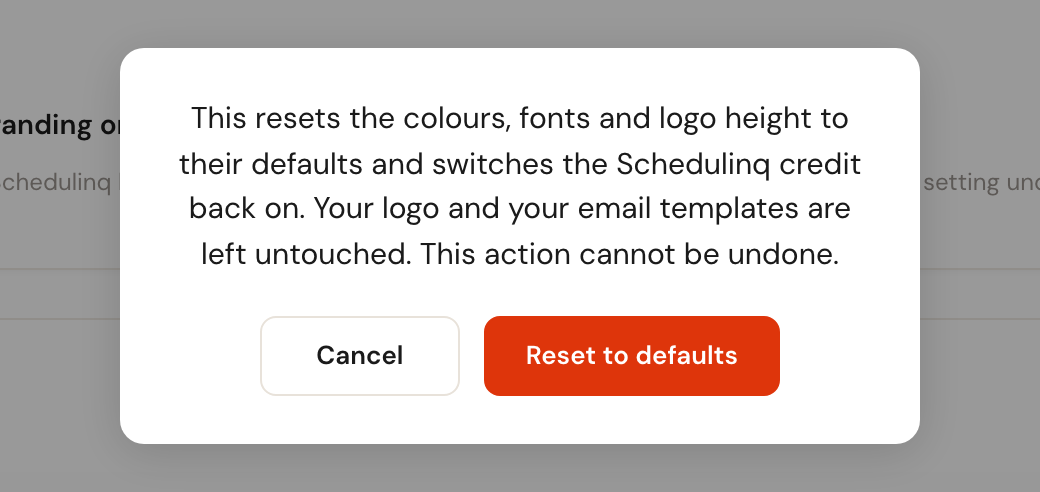
Your logo stays, as the dialog says: it is still under Company → Details afterwards. Your email templates are not touched either.
Frequently asked questions
Where do I upload my logo? Under Company → Details, next to your company name and VAT number. The logo is part of your identity and is used in several places, so it does not live with one page's colours.
Why can't I set my logo's height here? Because the booking widget decides its own logo size — a slider here would change nothing. On the surfaces where height does matter (customer emails and the invoice PDF) the slider is there.
I changed a colour but my customers don't see it. Check that you clicked Save: the live preview works without saving, so it can look right while nothing has been committed yet.
Can I set my email colours here? No, those live under Communication → Branding. By default your emails follow your booking page's branding, so often there is nothing to do there.