

Gift vouchers
Credit with a code that one person buys and another uses on your booking page — issuing, paid or not, the invoice that sells it, and how it pays an appointment and that appointment's invoice.
Someone buys a €75 gift voucher from you for a friend. Later the friend books an appointment on your booking page, types the code and pays (part of) the appointment with it. Whatever the booking does not use stays on the voucher for next time.
A gift voucher is not a discount: you give the customer nothing, they pay with money somebody else already paid. That is why a voucher is not among your articles but in a list of its own — and why on the appointment's invoice it is not a line but a payment below the total. Looking for money off the price? See Discounts and discount codes.
In short
- Go to Sales → Gift vouchers and click Issue gift voucher.
- Leave the code empty — Schedulinq makes one up — and enter the amount.
- Set Paid to Yes if the money is already in, and choose until when it is valid.
- Click Issue and give the code to the buyer.
- The recipient types the code on your booking page and pays their appointment with it.
The overview
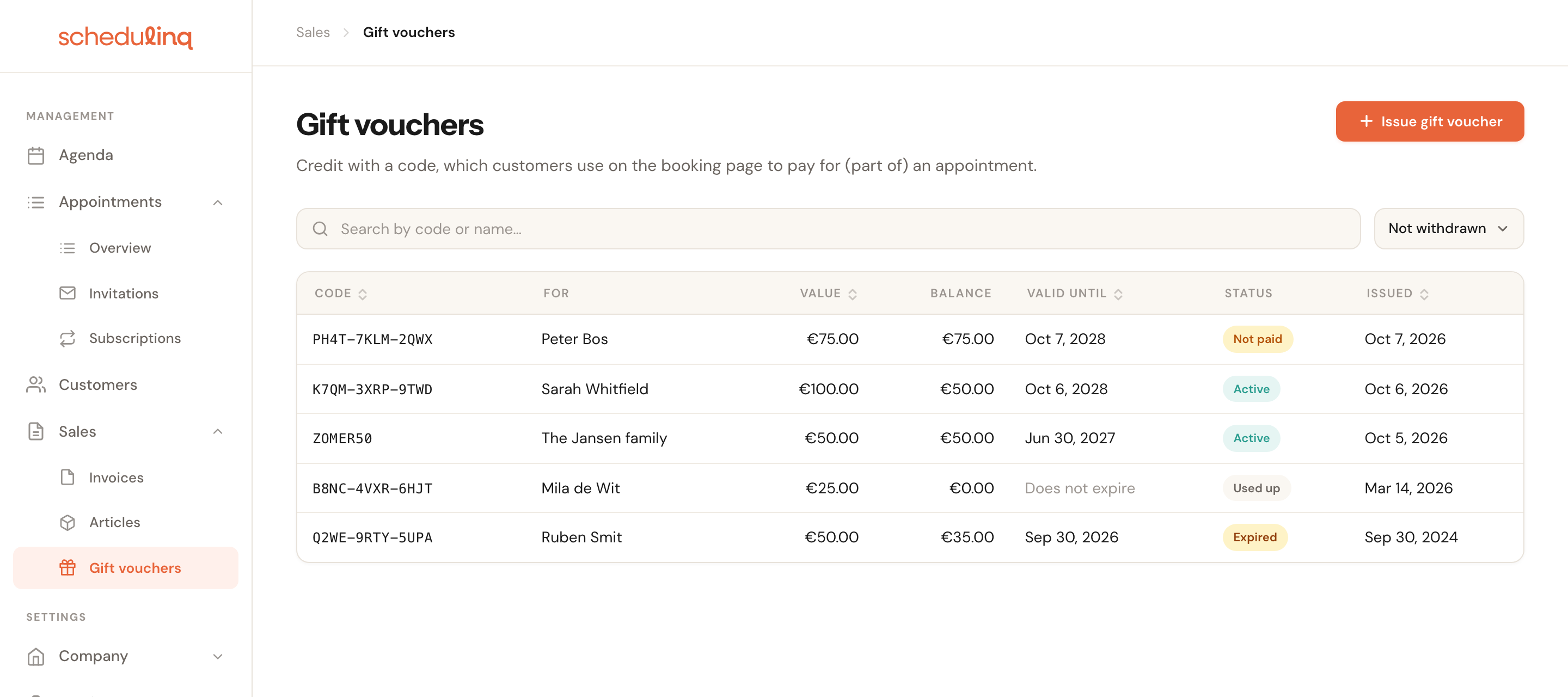
For each voucher you see the code, who it is for, its value, the balance left on it, until when it is valid, its status and when it was issued. Search by code or name. The filter on the right is set to Not withdrawn; Not paid shows the vouchers you are still owed money for.
| Status | Means |
|---|---|
| Active | Usable: paid, not expired, something left on it. |
| Not paid | Not paid yet, so not usable yet. |
| Used up | The balance is gone. |
| Expired | Its last day has passed. The balance is still there but can no longer be used. |
| Withdrawn | You withdrew it; see Withdrawing and restoring. |
Issuing a gift voucher
Click Issue gift voucher
The button is at the top right of the overview.
Fill in the voucher
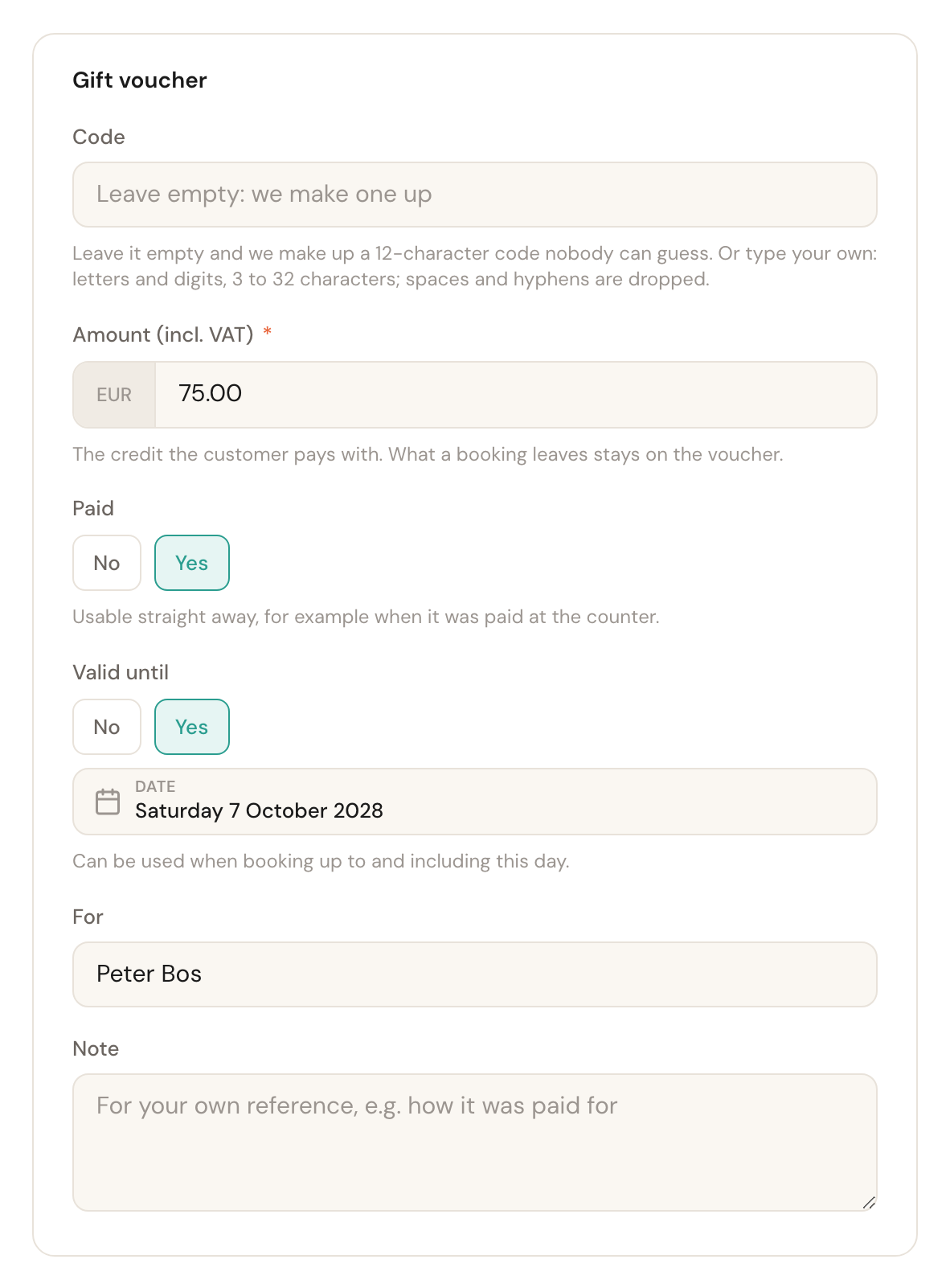
Leave the code empty, enter the amount, choose whether it is already paid and until when it is valid. For and Note are for your own reference.
Click Issue
You land on the new voucher's page. The copy button beside the code puts it on your clipboard, for an e-mail or a card.
Code
Empty: Schedulinq makes one up3 to 32 charactersUniqueLeave the field empty and Schedulinq makes up a twelve-character code, such as K7QM-3XRP-9TWD. You may also type your own: letters and digits; spaces and hyphens are dropped.
A made-up code cannot be guessed, and that matters for credit: whoever has the code can spend the money. A code of your own like SUMMER50 is easier to copy, but also easier to guess. A code can exist only once, also beside your discount codes. Once something has been paid with a voucher its code can no longer change: the customer may have it on paper.
Amount (incl. VAT)
RequiredThe credit the customer pays with, including VAT.
With the voucher the customer pays the price they see on your booking page, which includes VAT. You can change the amount later, but never below what has already been paid with it.
Paid
No or YesDefault: YesYes: the voucher is usable straight away, for example because it was paid at the counter. No: the voucher becomes usable once you mark it as paid, or once its invoice is paid.
When you sell a voucher on account, you do not want the recipient to spend it before the buyer has paid. The booking page treats an unpaid voucher as a code that does not exist — so the recipient learns nothing about the buyer's payment. See Not paid yet.
Valid until
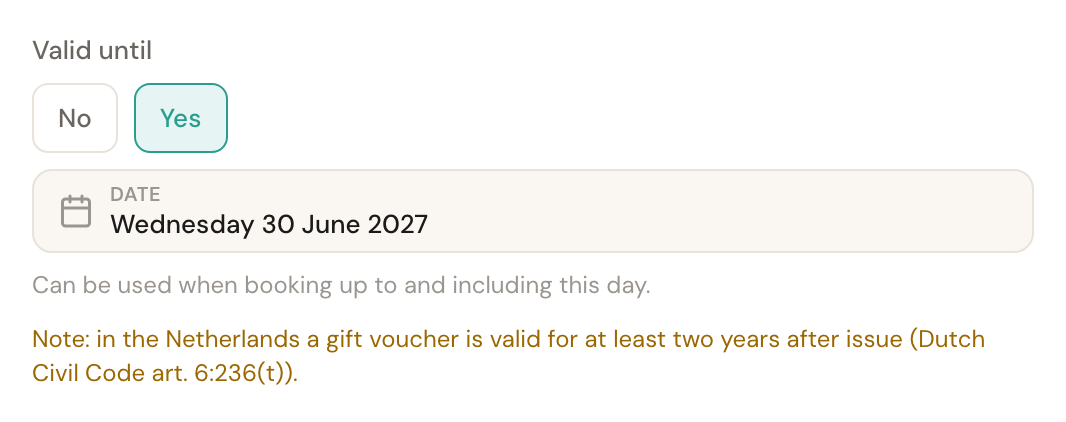
No or YesDefault: two years from todayYes with a date: the voucher can be used when booking up to and including that day. No: the voucher does not expire.
What counts is the day the customer books; the appointment itself may be later. A new voucher opens on two years ahead, because in the Netherlands a gift voucher must be valid for at least two years after issue. If a Dutch business picks an earlier date, the form warns — saving still works.
For and Note
OptionalFor your own referenceWho receives the voucher, and what you want to remember — who it came from, how it was paid.
The customer never sees these fields. They help you when someone calls about the voucher my sister gave me: search for the name and there it is.
Not paid yet
A voucher that has not been paid has the status Not paid, and the top of its page says it can only be used once it is paid. Actions holds what you can do with it:
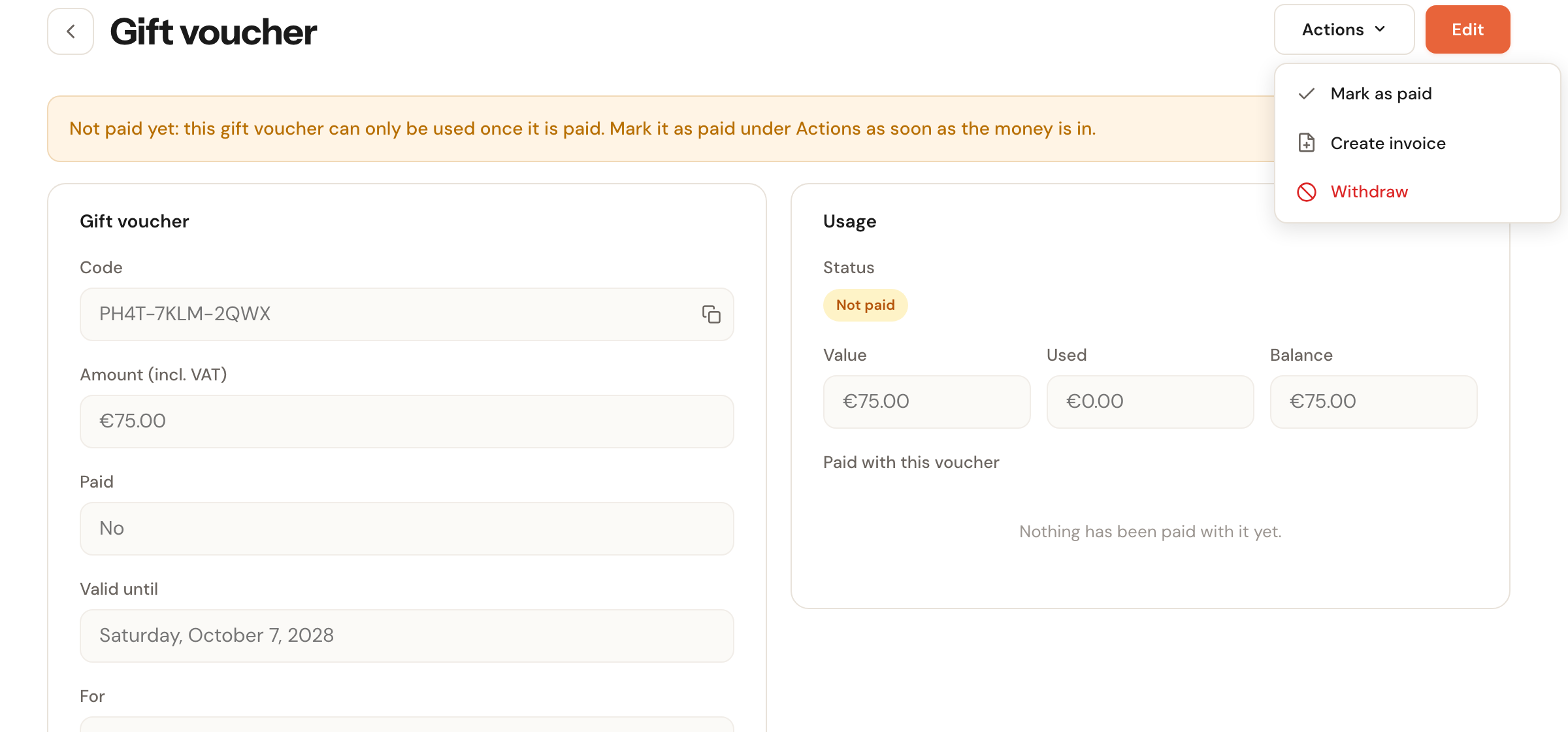
- Mark as paid — the money is in; the voucher can be used from now on.
- Create invoice — make an invoice for the buyer; see below.
- Mark as not paid — shown on a paid voucher, to undo a mistake made when issuing. That works only while nothing has been paid with it and its invoice is not paid.
An invoice for the buyer
When the buyer wants an invoice, or you sell the voucher on account, choose Actions → Create invoice. Pick the customer buying the voucher and click Create invoice.
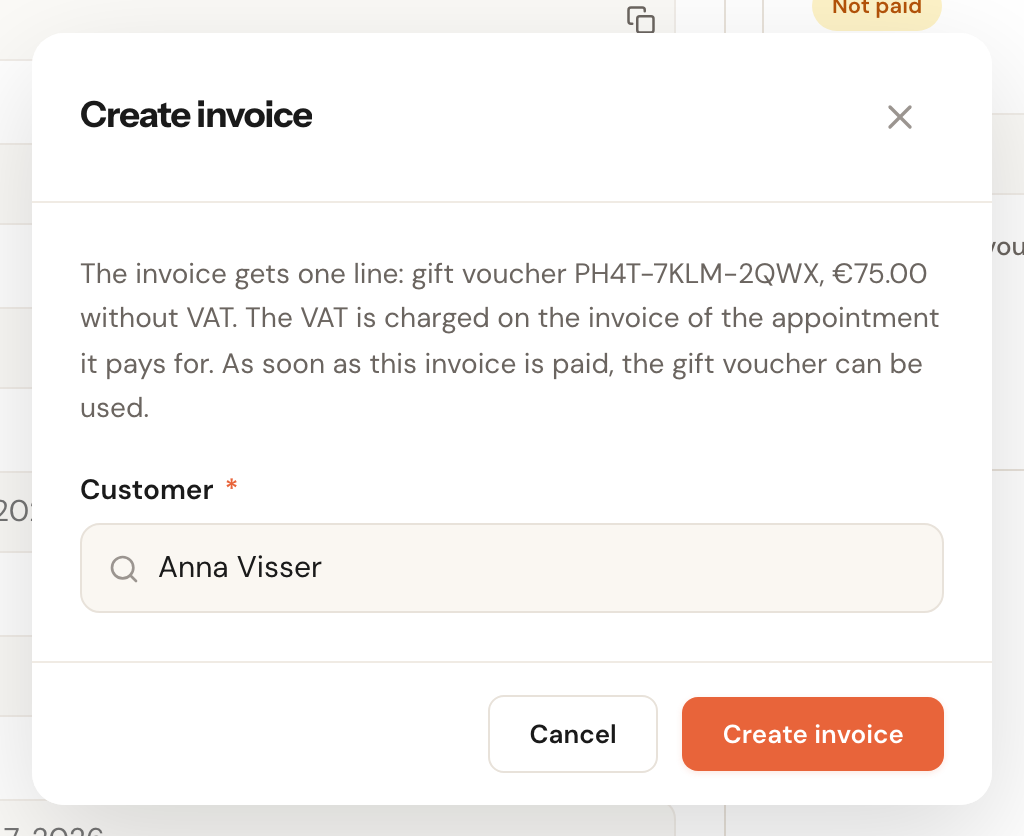
Schedulinq makes a draft invoice with one line: Gift voucher and the code, for the voucher's amount. The VAT column says no VAT, and a note under the totals says why.
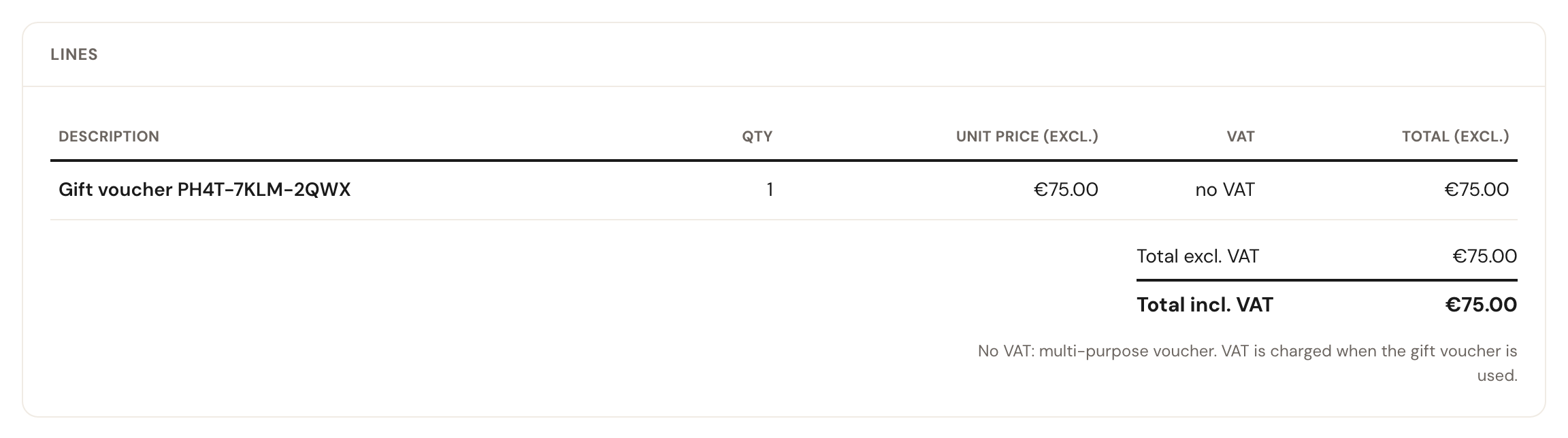
Issue the invoice and send it like any other; see Send it and get paid. As soon as you mark the invoice as paid, the voucher is paid too and so can be used. The voucher's page then shows the invoice under Usage, with its number and status; click it to open it.
A voucher has at most one invoice. Delete the draft and you can make a new one.
How the customer pays with it
The last step of your booking page has the Discount code or gift voucher? box. The customer types the code and sees straight away what the voucher pays and what is still to pay. With several vouchers they can type several, up to five codes per booking. A voucher never pays more than the booking costs: what is left stays on it for next time.
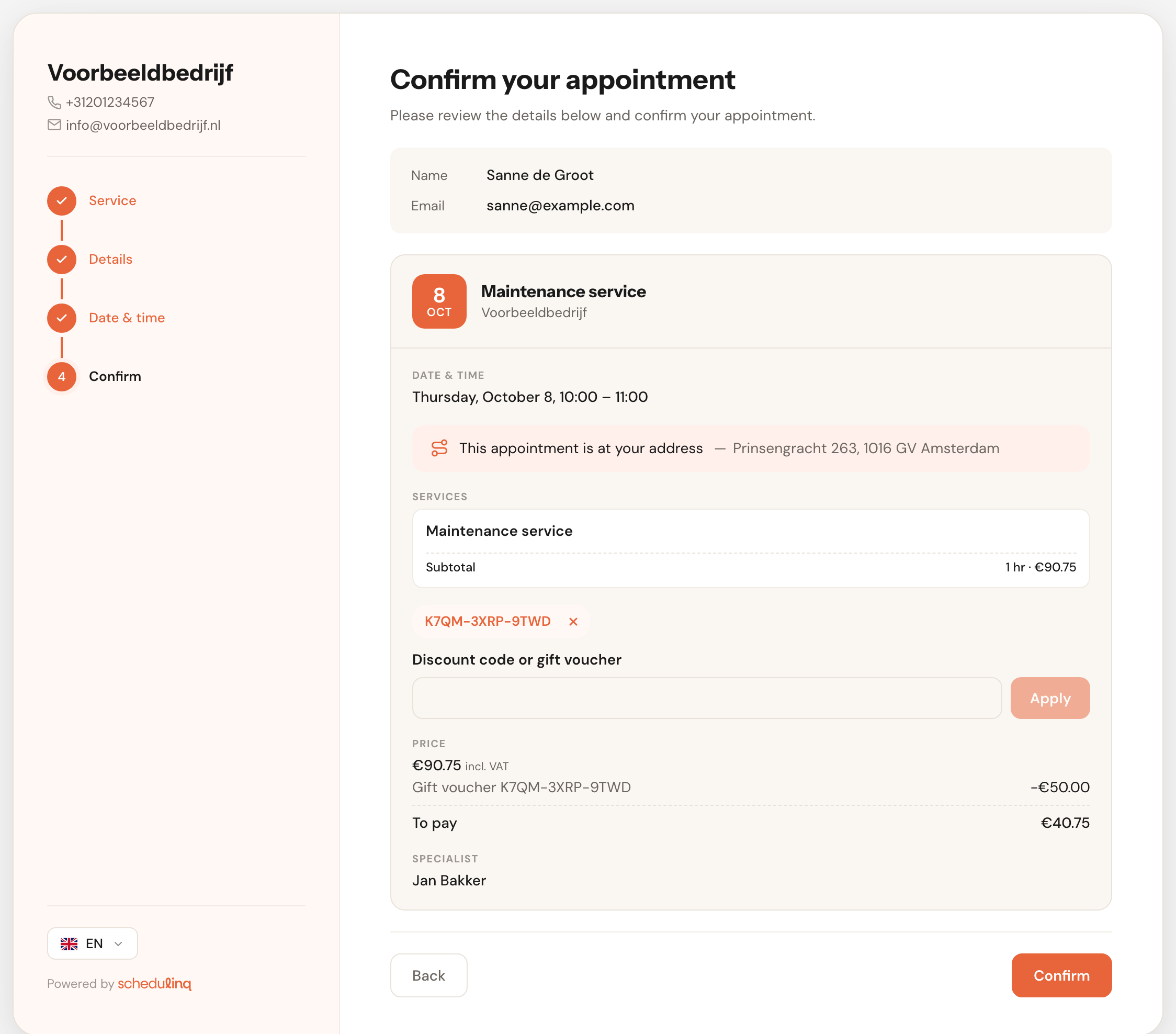
When a code does not work — the voucher is not paid, expired, withdrawn or does not exist — the booking page only says it does not recognise the code. When the balance is gone, it says so.
A voucher can be used together with a discount: the discount comes off the price first, and the voucher pays from what is left.
Usage: what was paid with the voucher
On the right of a voucher's page is Usage: the status, the value, what has been used and the balance, and below it every appointment the voucher paid, with the date, the customer and the amount. Click an appointment to open it.
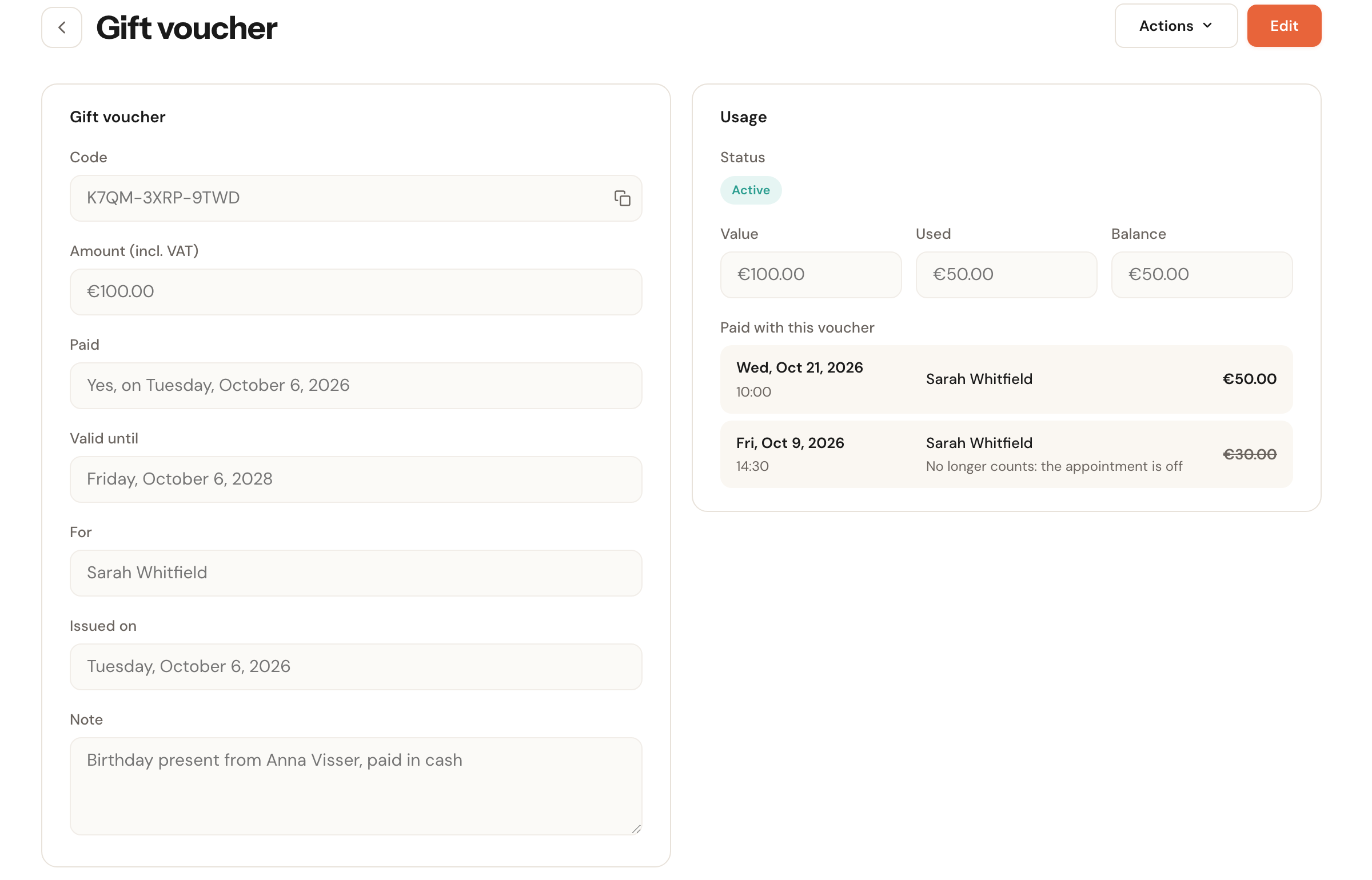
When an appointment is cancelled, the amount goes back to the voucher by itself. The appointment stays in the list, struck through, with No longer counts: the appointment is off. When an appointment gets cheaper — you remove an add-on, or the customer moves to a time without a surcharge — whatever the voucher overpaid goes back too. An appointment that gets more expensive is not topped up by the voucher: the difference is under Still to pay.
On the appointment
An appointment paid (partly) with a voucher shows it under the price: first the total including VAT, then per voucher Paid with gift voucher and the code, and finally what is still to pay.
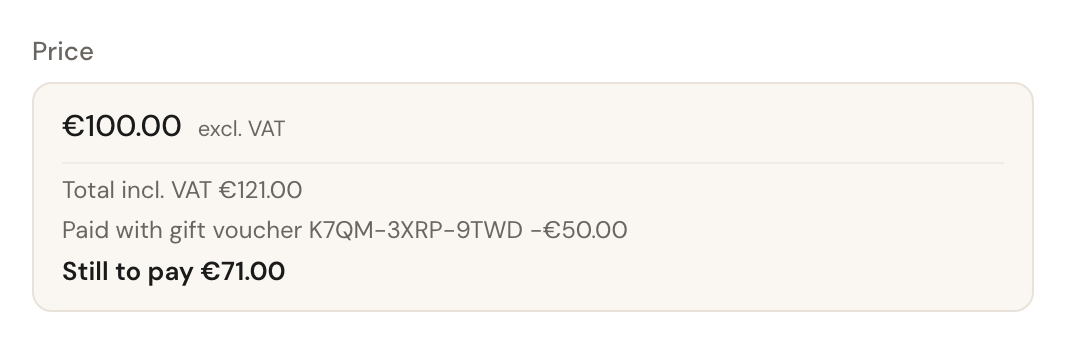
The figure at the top stays the price excluding VAT, as on every appointment: a voucher is a way to pay, not a discount on what the appointment is worth. The customer sees the same in their confirmation and reminders: what the voucher pays and what is still to pay.
On the appointment's invoice
Put the appointment on an invoice and it is there at the full price, with the VAT over it. Below the total is Paid with gift voucher with the code and the amount, and below that, in bold, Amount due.
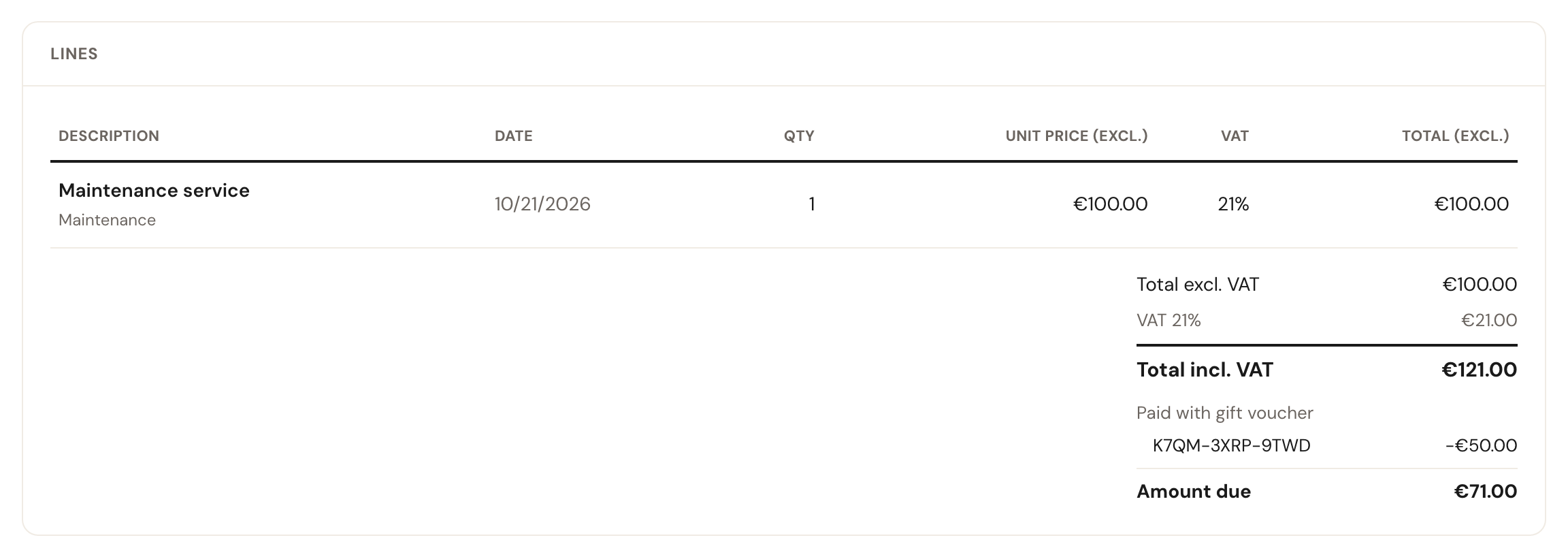
The amount due is also on the PDF and in the e-mail you send the invoice with, and under the total in the invoice overview. A few things happen by themselves:
- A draft works out the payments itself, from the appointments on the invoice. Take an appointment off the draft and that voucher's payment goes too.
- Issuing fixes the payment. When the voucher pays the whole invoice, the invoice is Paid straight away and the customer gets no reminders.
- A cent of rounding is taken by the voucher, if it still has a balance. VAT on an invoice is rounded per line, which can make an invoice a cent higher than the price the customer saw when booking.
- Revert the invoice to draft or delete it, and the payment counts for the appointment again.
Withdrawing and restoring
Actions → Withdraw makes a voucher unusable, for example because it was stolen or the buyer got their money back. What has already been paid with it stands. A withdrawn voucher is never deleted: the customer may still have it on paper, and its code stays reserved.
Set the filter to Withdrawn to find it again, open it and choose Actions → Restore to make it usable again.
Frequently asked questions
The customer says their code does not work. Open the voucher. If it is Not paid, Expired or Withdrawn, the booking page does not take it — and then only says it does not recognise the code. Mark it as paid, change Valid until or restore it.
I made a credit note for an appointment that was paid with a voucher. Is the money back on the voucher? No. The payment stays with the credited invoice. Give the customer a new voucher for the amount.
The buyer gets their money back. What do I do with the voucher? Credit the invoice you sold it with, and withdraw the voucher yourself: a credit note does not make the voucher unpaid again, and part of it may already have been spent.
Can I apply a voucher to an appointment by hand? No. Only the customer uses a voucher, when booking on your booking page. If someone pays at the counter with a paper voucher, lower the amount on the invoice or record the difference some other way.
Does a cancelled appointment give the money back to the voucher? Yes, by itself. As long as no issued invoice has the appointment on it, the amount goes back as soon as the appointment is off.