

Add your own fields
Capture what your trade actually needs — a licence plate, a VAT number, a photo up front — on the customer, on the appointment, on an object or on a staff member.
Schedulinq knows about names, addresses and phone numbers. What it cannot know is what your trade needs on top of that: a licence plate, a VAT number, the make of the boiler, a photo of the situation before you arrive. That is what custom fields are for.
You define them yourself, decide per field where they appear, and from then on they show up in your admin forms, on your booking page, and as columns in your overviews.
Customer, appointment or object
The first choice is also the one you cannot undo: does this belong to the customer, to the appointment, to one of the customer's objects, or to a staff member of your own?

The test is what the value belongs to:
- Customer — belongs to the person or company and stays the same across appointments. A VAT number, an account number with your supplier, a pass number.
- Appointment — belongs to this one visit. A photo of the situation, a preferred delivery time, a description of the fault.
- Object — belongs to one thing the customer owns that you work on: the serial number of a boiler, the plate of a car, a horse's registered name. This tab only appears once your company has set up object types, and it carries the name your company chose for objects. See Customer objects.
- Staff member — belongs to someone in your team: an employee number, a licence number. The tab is always there, last.
Each tab holds at most 30 active fields, and a key appears only once per tab.
Staff member fields
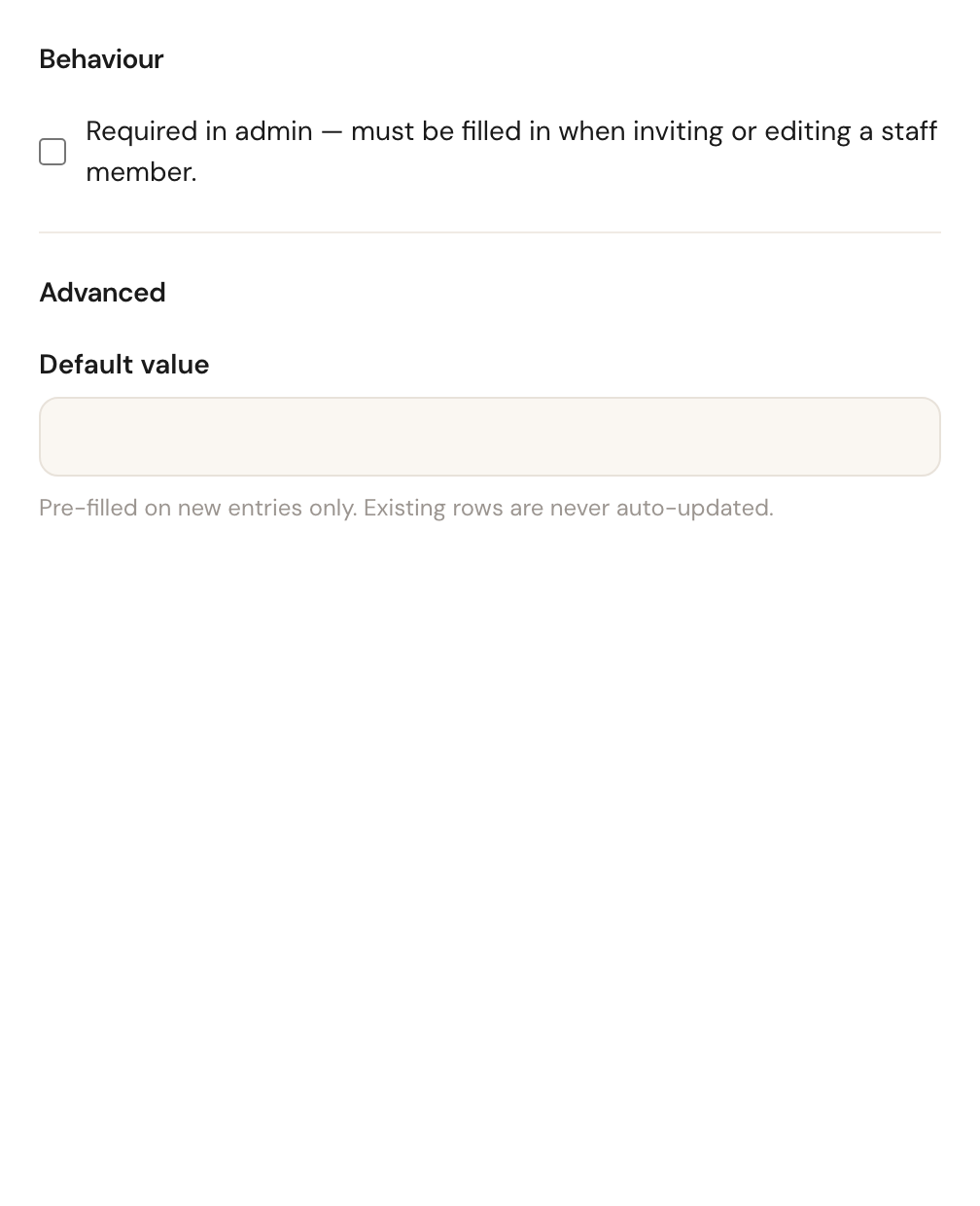
A staff member field is filled in by an admin or a role that manages team
members: in the invite window, in a
pending invitation's window, and under Additional fields on the team member's
profile. Never by the team member themselves — the organisation owns these
values. Your customers see them only where you put the merge tag
{{cf_user_<key>}} in a message; see
Edit a step.
Because they are never asked on the booking page, a staff member field has no booking options, no reference images and no Attachments type. Applies to has nothing to narrow — the field applies to everyone in the team — and there is no overview column for it.
Step by step
Open Custom fields
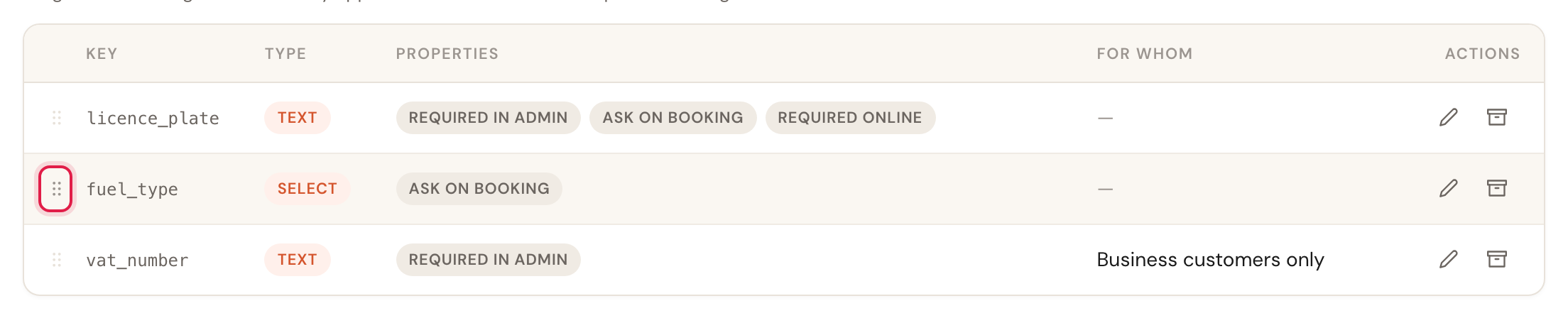
Go to Company → Custom fields. You see the fields you already have, each row showing its key, type, properties and who it applies to.
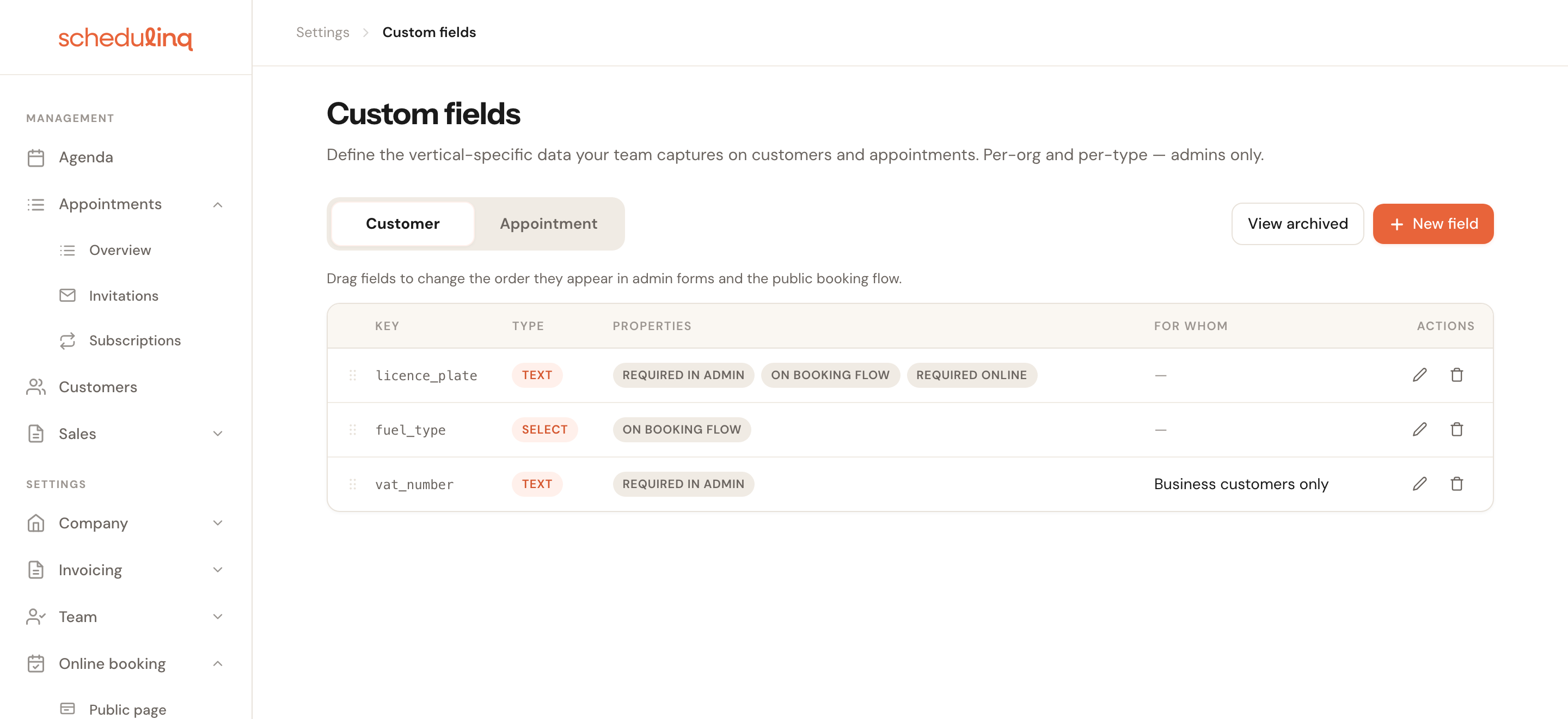
Pick the Customer, Appointment or Object tab
The list and the New field button both follow the active tab. On Customer, you are creating a customer field.
Fill in the basics
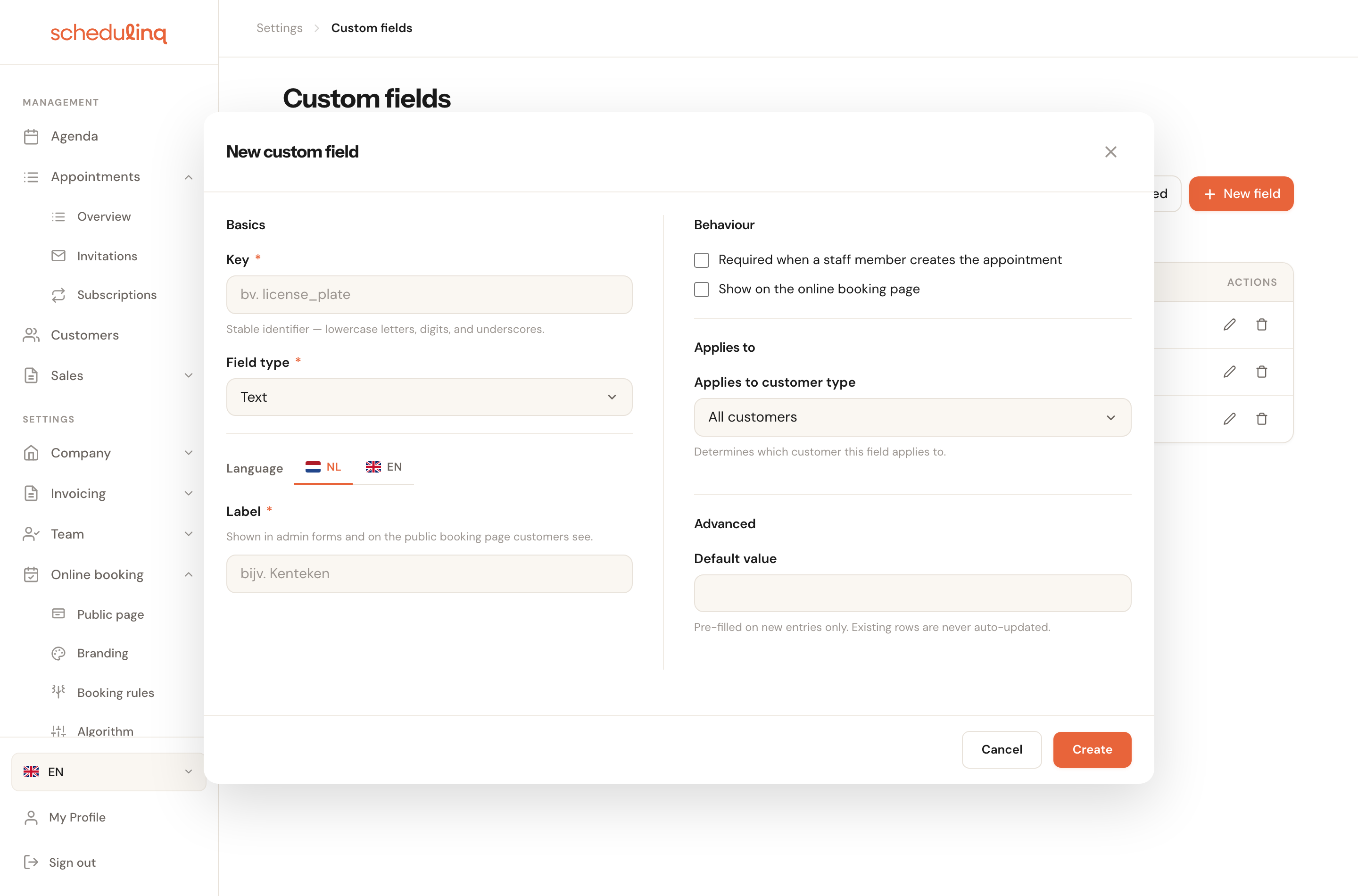
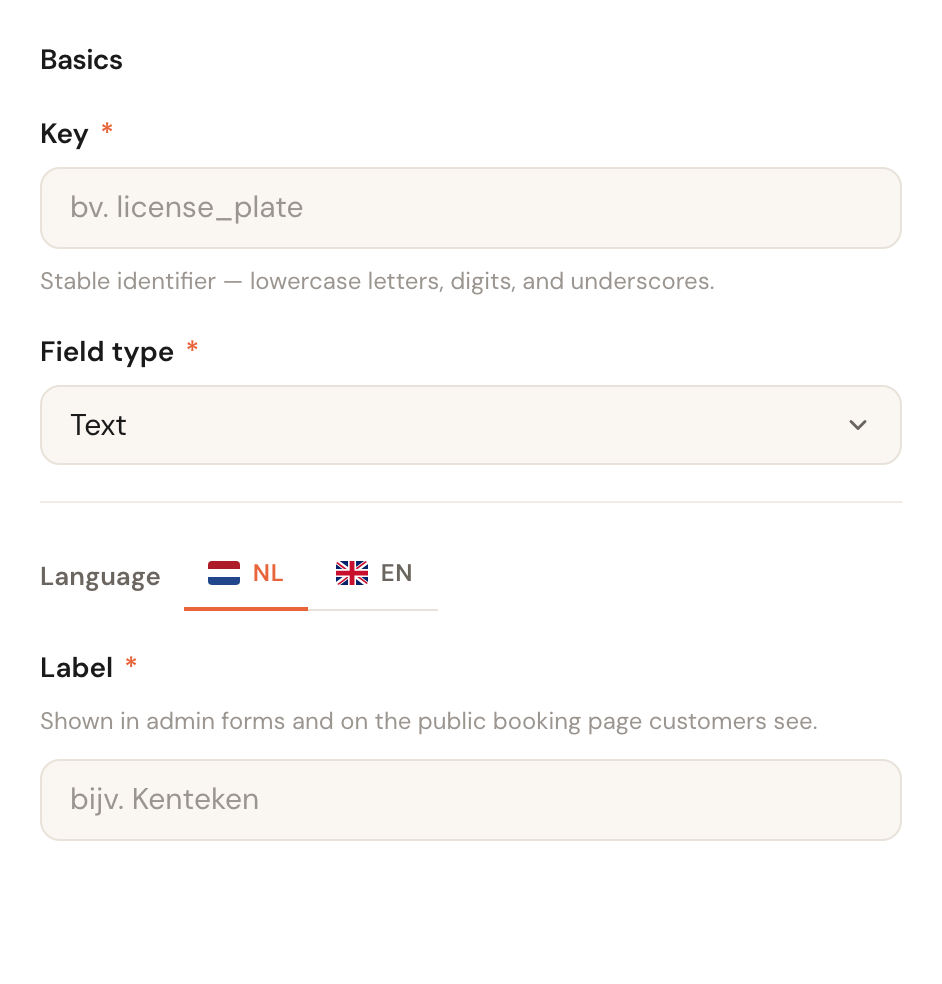
Click New field. On the left you describe what the field is: its key, its type and the label people will read.
Set the behaviour
Top right, under Behaviour, you decide where the field appears and whether it is mandatory. This is the block that makes the most difference — each checkbox is explained below.
Narrow it where it helps
Under Applies to you can limit the field to business customers, to certain appointment types or to certain object types. Leave it open and it applies everywhere.
Add an example picture if it helps
Under Reference images you add a photo showing what to enter. Not needed for an email address; very much needed for a serial number on a plate nobody can find. The picture is for your customers on the booking page; if you want your team to see it too, tick the box underneath.
Click Create
The field is live immediately. Existing customers and appointments simply gain an empty field — nothing is filled in retroactively.
The Basics block
Key
RequiredCannot be changed laterThe field's fixed identifier: lowercase letters, digits and underscores.
Your customers never see the key. It is the reference that stays the same when you rewrite or translate the label later, and the one exports and columns use to recognise this field. It is locked once the field exists — to rename, archive it and create a new one.
Field type
RequiredLimited changes laterWhat kind of value this is. There are thirteen types; what each one gives you and what Schedulinq validates is further down under The thirteen field types.
The type decides more than how the input looks — it decides what Schedulinq validates. Choose Email rather than Text and an address without an @ is rejected rather than stored.
Label
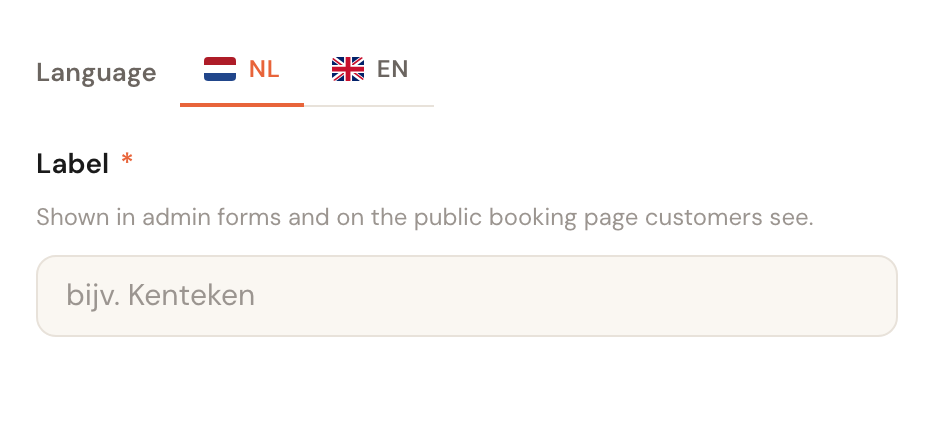
RequiredPer languageThe text above the input — this is what your team and your customer read. If your company supports more than one language, a language bar appears above the label and you fill it in per language.
There is one label and it appears in two places: your team's admin forms and your public booking page (an object field only in the admin forms). So write it the way you would say it on the phone, not as an internal abbreviation. If a language is missing, Schedulinq falls back to one you did fill in — the field never disappears, but it will not be in your customer's language.
Example text
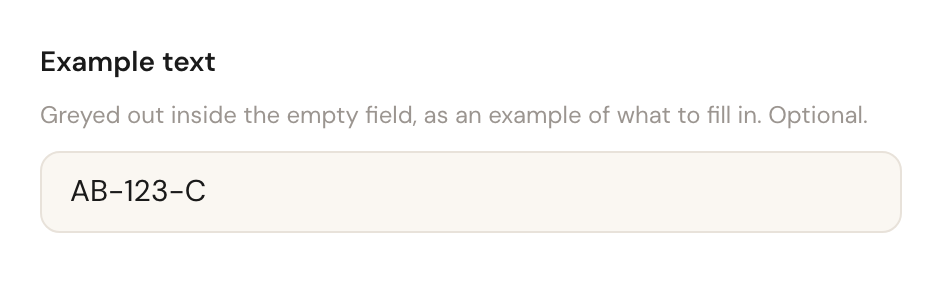
OptionalPer languageNot on every typeGreyed-out text inside the empty input, as an example of what to fill in —
AB-123-C for a licence plate, NL123456789B01 for a VAT number.
A label says what you are asking for; an example says in what shape. That is exactly the difference between the answers you can use and the ones you phone back about: the plate with hyphens, the order number without spaces. Leave it blank and the field stays blank — no stock example takes its place.
Options
Select and multi-select onlyA select or multi-select adds a block where you list the choices. Each option has a value (which is stored) and a label per language (which is shown).
Keeping those separate means you can rewrite or translate the label later without
changing answers already recorded. So keep the value short and permanent —
diesel, not Diesel (with particulate filter).

File count and accepted kinds
Attachments onlyFor the Attachments type you set how many files are allowed and which kinds: images, PDF, documents or spreadsheets. Each kind lists the extensions it covers. One file is the default, five is the maximum.
The kinds you tick decide what the file picker offers, but the server checks the
contents of the file rather than its name. Renaming an .exe to .pdf will not
get it through.
The thirteen field types
The type does three things at once: it decides what input your team and your customer see, what Schedulinq refuses to store, and whether you can find the field in the search bar or sort by it later.
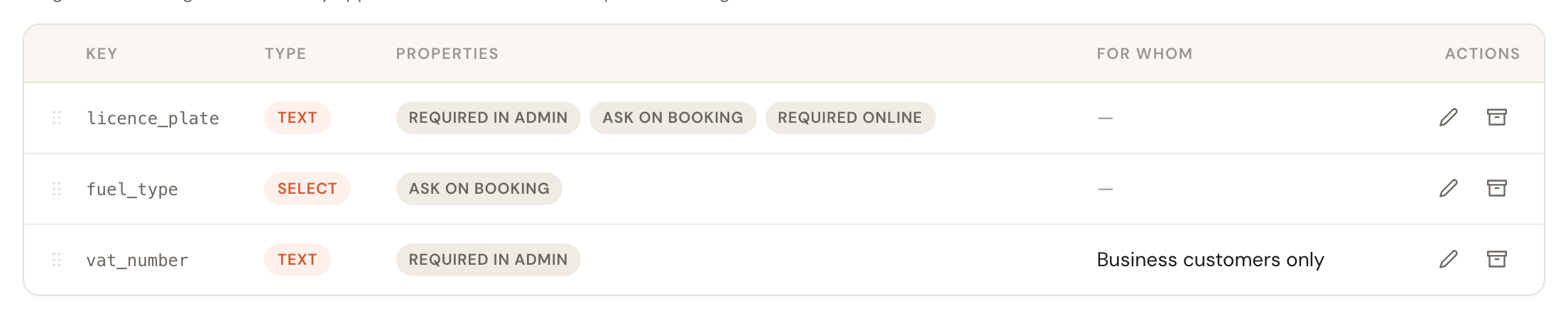
In the overview, each field's chosen type sits in the Type column.
| Type | What the person filling it in sees | What Schedulinq accepts |
|---|---|---|
| Text | A single input line | Up to 1024 characters |
| Long text | A multi-line text box | Up to 4096 characters |
| Number | A number input | With or without decimals |
| Whole number | A number input without decimals | Whole numbers only — 3, not 3.5 |
| Yes / no | Two buttons: Yes and No | Yes, no, or empty |
| Date | A date picker | A day, without a time |
| Date & time | A date and time picker | A moment, including its timezone |
| Select | A dropdown | Exactly one of your options |
| Multi-select | Checkboxes under each other | None, one or several of your options |
| A single input line | An address with an @ and a domain | |
| Phone | A single input line | 6 to 16 digits, country code optional |
| URL | A single input line | An address starting with http:// or https:// |
| Attachments | An upload button with a gallery below it | 1 to 5 files, each at most 12 MB |
Select and multi-select ask for options — that block is above, under Options. Attachments asks for a count and the kinds allowed, under File count and accepted kinds. The other eleven types need nothing further.
Searching and sorting per type
Not every type joins the search bar, and not every type can be sorted as a column. This is not something you set — it follows from the type.
| Type | In the search bar | Sorting as a column |
|---|---|---|
| Text | Yes | Alphabetical |
| Long text | No | Not sortable |
| Number, Whole number | No | By value |
| Yes / no | No | Not sortable |
| Date, Date & time | No | Chronological |
| Select | Yes | Alphabetical |
| Multi-select | Yes | Not sortable |
| Email, Phone, URL | Yes | Alphabetical |
| Attachments | No | No column |
Search works on text-like values, because that is where you look for a fragment: half a licence plate, a policy number. Long text is deliberately left out — free-form notes fill the search index with words nobody ever searches for, and slow the search down for everything else. Sorting falls away where a column has no sensible order: a yes/no column, or a multi-select with three answers per row. An Attachments field does not become a column at all: a row of photos does not read in a table.
The Behaviour block
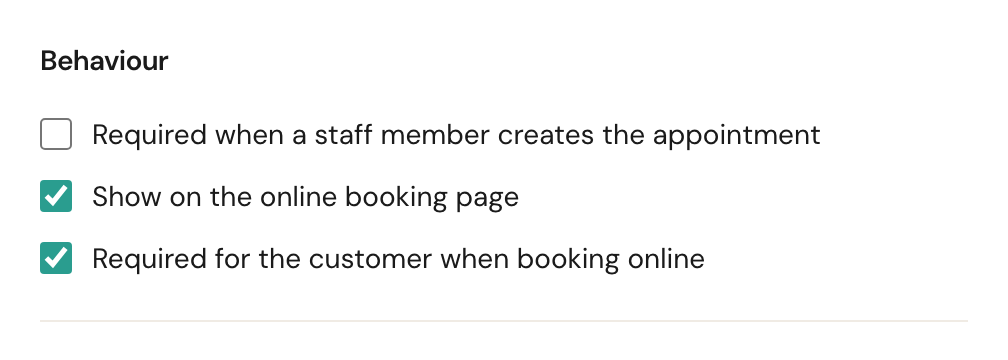
Three checkboxes, and between them they decide where the field turns up. An object field has only one: Required in admin. The booking page does not ask about objects (yet), so there is nothing to switch on there. A staff member field has only that one too: it must then be filled in when inviting or editing a staff member. An invitation from your CRM through the API, or from the Teamleader sync, is not held to it.
Required in admin
Your team cannot save while this field is empty.
Use it for data your administration stalls without — a VAT number on a business customer. Do not use it for something you only learn on site: you would be blocking your own team at the moment they are trying to schedule.
Ask on booking
Without this tick the field is internal only. With it, the customer sees it while booking.
This is the switch between "something we record" and "something we ask the customer". Every field you turn on here makes the booking form longer, so ask only for what you need in order to do the job properly.
Required online
Only appears once Ask on booking above is on. With that on, the customer cannot complete the booking without filling this in.
This is deliberately separate from Required in admin. You always want a licence plate from a customer booking online, while your colleague on the phone needs to be able to schedule for someone who does not have it to hand. Two checkboxes, two situations.
Where the field then appears
All three checkboxes, in one table:
| Behaviour | Admin form | Booking page | Column in overviews |
|---|---|---|---|
| Nothing ticked | Visible, optional | Not shown | Available |
| Required in admin | Visible, required | Not shown | Available |
| Ask on booking | Visible, optional | Visible, optional | Available |
| Ask on booking and required online | Visible, optional | Visible, required | Available |
The column is independent: any field can be switched on as a column in the customer, appointment or objects overview, via Configure columns on that overview. It does not depend on any of these ticks. The one exception is an Attachments field: that never becomes a column. A staff member field has no overview to be a column in.
The Applies to block
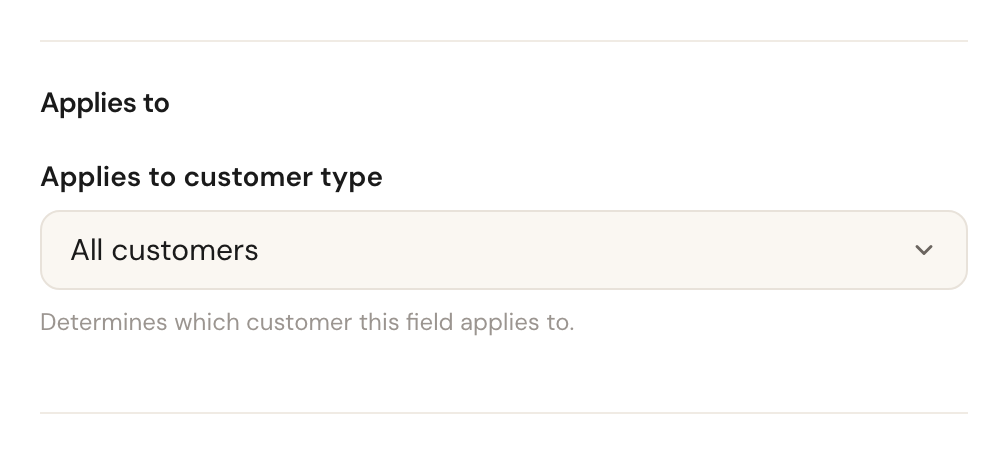
Customer type
Customer fields onlyAll customers, Personal customers only or Business customers only.
Asking a private customer for a VAT number produces an empty field everyone has to skip past. Narrowing it here removes the field for half your customers, rather than making it optional for all of them.
Appointment types
Appointment fields onlyPick the appointment types this field applies to. Leave everything unticked and it applies to every appointment type.
This is how "which make of boiler?" appears on a maintenance visit but not on an intake meeting. Mind the logic of the empty state: ticking nothing means everywhere, not nowhere.
Object types
Object fields onlyPick the object types this field applies to. Leave everything unticked and it applies to every type.
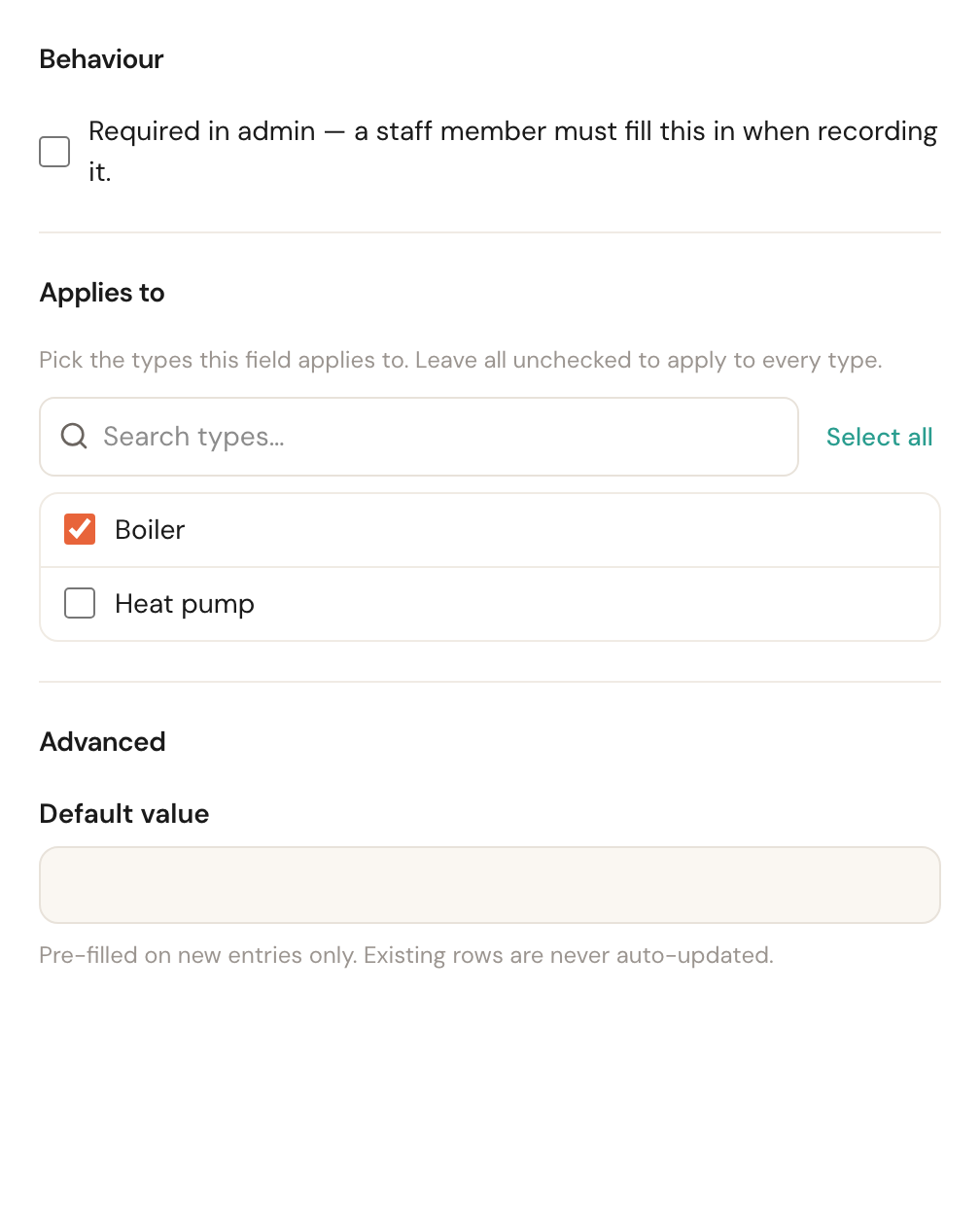
You ask every boiler and every heat pump for a serial number, but only a horse for its registered name. Need a field on two types? Tick both: do not create a second field with the same key, because a key appears only once per tab. Change an object's type later and the answers to fields of its old type fall away.
The Reference images block
This block is missing on an object field and on a staff member field: the pictures are there for customers on the booking page, and that asks about neither.
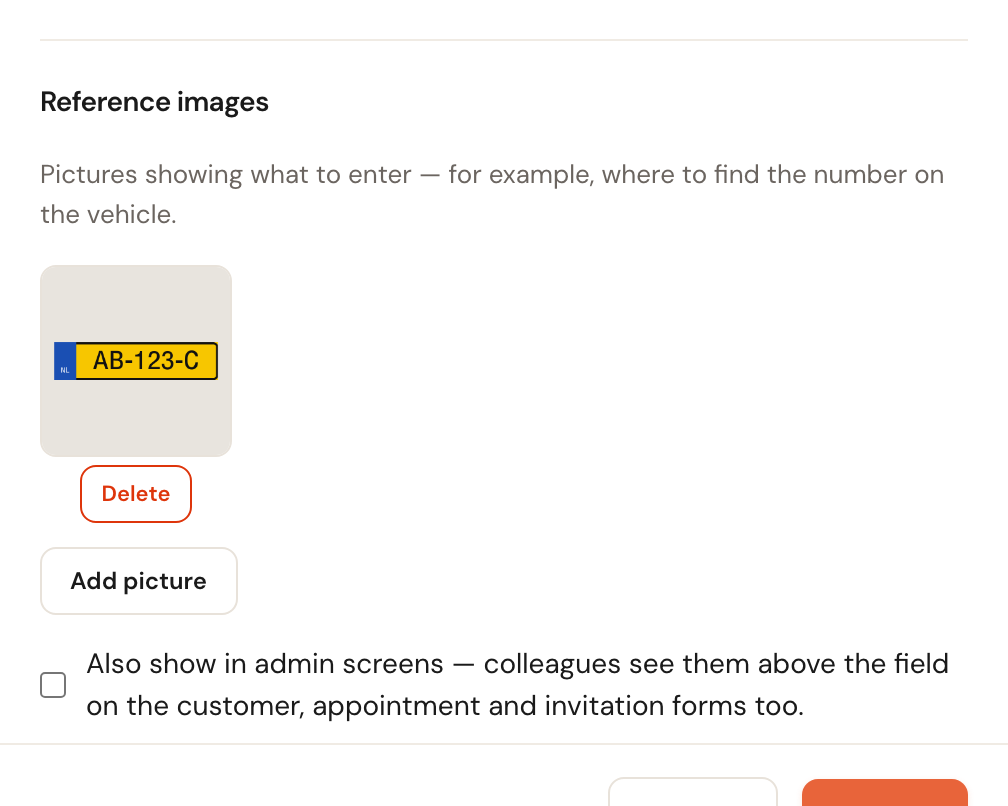
Reference images
OptionalUp to 5Every field typeOne or more pictures that show what to enter: where the type plate sits on the boiler, which number on the meter you mean, what a licence plate looks like. They appear above the field on your booking page.
A label says what you ask for, example text says in what form, and a picture shows where to look. That saves the photos of the wrong plate and the phone calls afterwards. On a new field the pictures go along when you click Create; on an existing field they are saved straight away, independently of the Save button.
PNG, JPG, WebP and HEIC, up to 12 MB per picture.
Also show in admin screens
Default: offOnly visible once there is a pictureTicked, your colleagues see the pictures above the field on the customer, appointment and invitation forms too. Unticked, only your customers see them.
The pictures exist to help a customer who fills in the field once. A colleague who fills in the same field every day does not need "here is where the chassis number sits" each time — and on a customer record such a picture soon reads as a photo the customer supplied. That is why it is off by default. Switch it on for fields where your team does hesitate, such as a type plate that sits somewhere different on every model. The box only appears once there is a picture, and on an existing field it is saved the moment you tick or untick it.
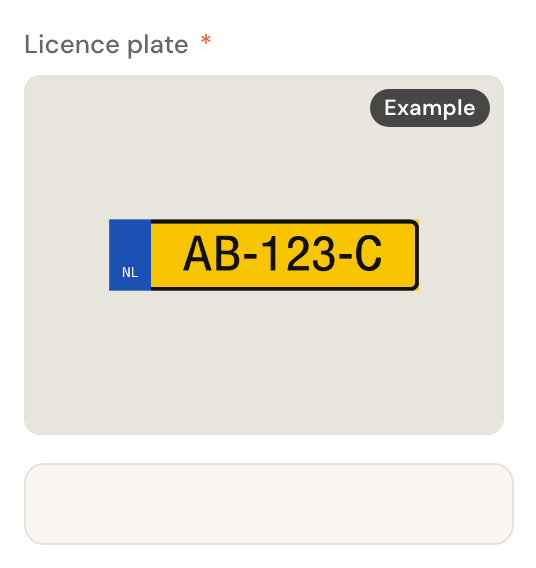
With it on, each picture on the form is a fixed-size tile labelled Example; click it and it opens full size. On the booking page your customer sees it the same way, whatever this box says.
The Advanced block
Default value
OptionalNot for attachmentsA value the field starts out with.
It pre-fills new entries only. Existing customers and appointments are never updated retroactively, so a default is a time-saver rather than a way to backfill missing data. For the Attachments type the box is absent: a default file is not something whoever fills the field in wants pre-loaded. To show a photo of what should be uploaded, use a reference image.
Setting the order
The order in this overview is the order the fields appear in in your own admin forms, and the order your booking page starts from.
Pick the right tab
The order is kept per tab. What you drag under Customer changes nothing about the order under Appointment or Object.
Drag the row into place
Take a row by the handle to the left of the key and drag it up or down. The new order is saved immediately — there is no save button.
Archive rather than delete
A field is never thrown away, it is archived. Click the archive icon on the row and confirm.

What happens then:
- The field disappears from every form and table.
- Existing values are kept. They reappear if you restore the field.
- You can restore it as long as no other active field uses the same key.
Archived fields are behind View archived in the toolbar.
Frequently asked questions
I named a field badly. Can I change the key? No. You can always rewrite the label — that is what people see. The key is fixed; to change it, archive the field and create a new one.
What happens to an answer if I remove an option from a select? The stored value stays, but is shown marked outdated. The next time the record is edited, a new choice has to be made.
Do existing customers get the new field too? They gain it empty. Nothing is filled in retroactively, not even a default value.
Can I make a field mandatory without asking customers for it? Yes — that is exactly what Required in admin does, with Ask on booking left off.
I cannot see the Object tab. It only appears once your company has object types. Create one under Company → Object types; see Customer objects.
Why can't I fill in my own staff fields? Because they are the organisation's record about you, not your profile. Someone who manages team members fills them in; on your own profile you see them read-only.
Who sees a staff member's fields? Anyone who can see the team, and — through
{{cf_user_<key>}} — anyone who can see an appointment or invitation of that staff
member: in the compose window's preview and send, and in the message history. So
store nothing confidential there.