

No times are available
Your booking page shows no times, or far fewer than you expect. This page walks the five filters a moment has to clear, and maps every page a customer can land on to the screen that fixes it.
You open your own booking page to check that everything works, and there are no times. Or a customer calls: "I can't pick anything." Almost nothing is ever broken — one link in the chain is missing, and Schedulinq usually tells you exactly which one.
How a time comes to exist
A moment is only offered when there is someone who can do it. That someone has to clear five filters at once:
Who is allowed to do this service?
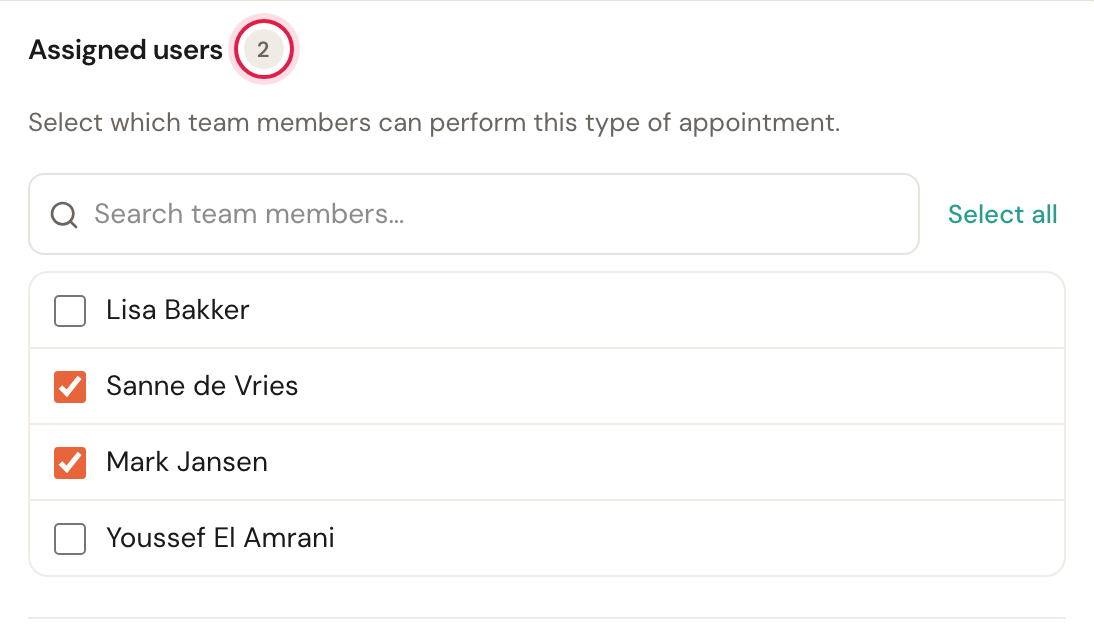
Every appointment type carries a list of assigned staff. Anyone not on it does not count for this service.
Who is allowed to do the chosen add-ons?
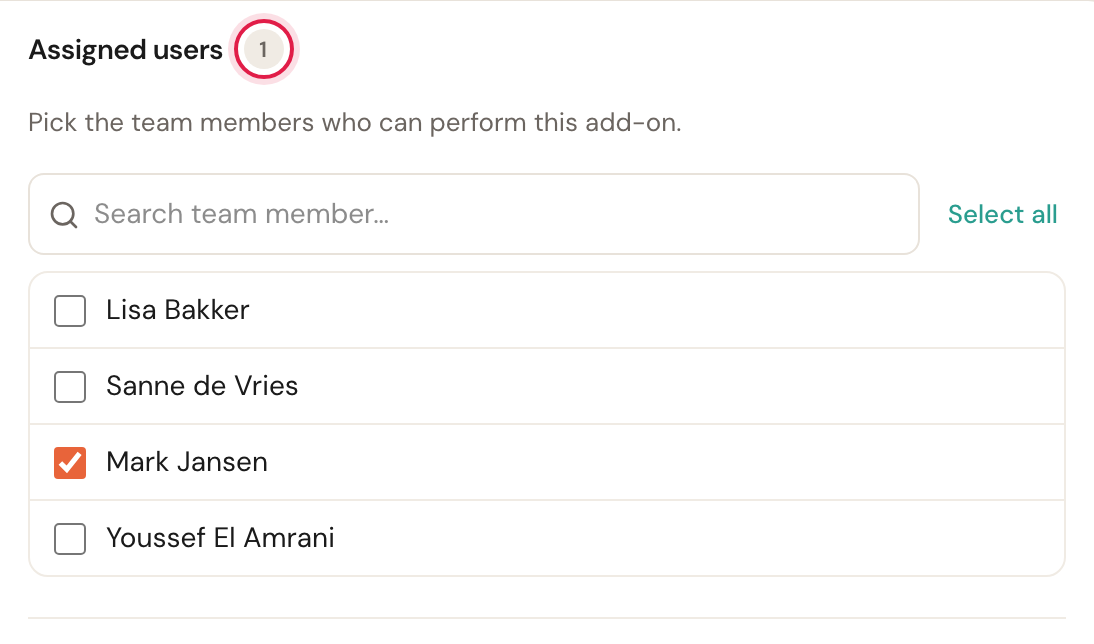
Every add-on has its own list of assigned staff. Pick a service plus an add-on and only the people who may do both are left.
Who works at that location?
A schedule block ties someone to a place. If a colleague is in Utrecht that Tuesday, they are not bookable in Amsterdam that Tuesday.
Who is scheduled at that moment?
Working hours decide when. Time off and one-off blocks count here too.
Who covers the customer's address?
Only for work at the customer's location, and only if you have set a service area per person.
If everyone does the same work from the same place, that intersection is never empty and you never notice any of this. The moment not everyone does the same thing, an empty intersection is entirely ordinary. One colleague allowed on the wrong service is enough to empty out a whole day.
Online booking is unavailable altogether
Two pages close the whole booking page rather than one service. Neither is about schedules.
"Online booking is unavailable"
Your organisation is not taking bookings: the subscription has lapsed — the trial ended without a paid plan, or a payment failed — or the organisation is scheduled for deletion. The customer sees this the moment they open the page, "Online booking for [your business name] is temporarily unavailable", with your contact details underneath. Invitations you sent stop working the same way.
Where you fix it: Subscription and seats. The page opens again as soon as the subscription is active.
Before, the page let a customer choose a service, a time and fill in their details, and only refused on the very last click. Now it says so up front, before anyone spends five minutes on a booking that cannot go through.
"Online booking isn't available right now"
The page opens, but there is not one service a customer can book. Every service is not listed for one of the reasons in part 1 — or is offered only at locations customers cannot book.
That last one is new. A service that takes place only on location, at locations that are all set to Online booking: No or have been deleted, is no longer shown on the booking page at all. It used to be listed, and the booking then quietly went to that location anyway.
Where you fix it: set at least one of the service's locations to Online booking: Yes — see Add a location — or tick a bookable location on the service. Invitations you send yourself can still use admin-only locations.
Part 1 — The service isn't listed at all
Save the appointment type and Schedulinq warns you immediately: "This appointment type will not be visible to customers", with the reason in brackets. There are four, and they can occur together.
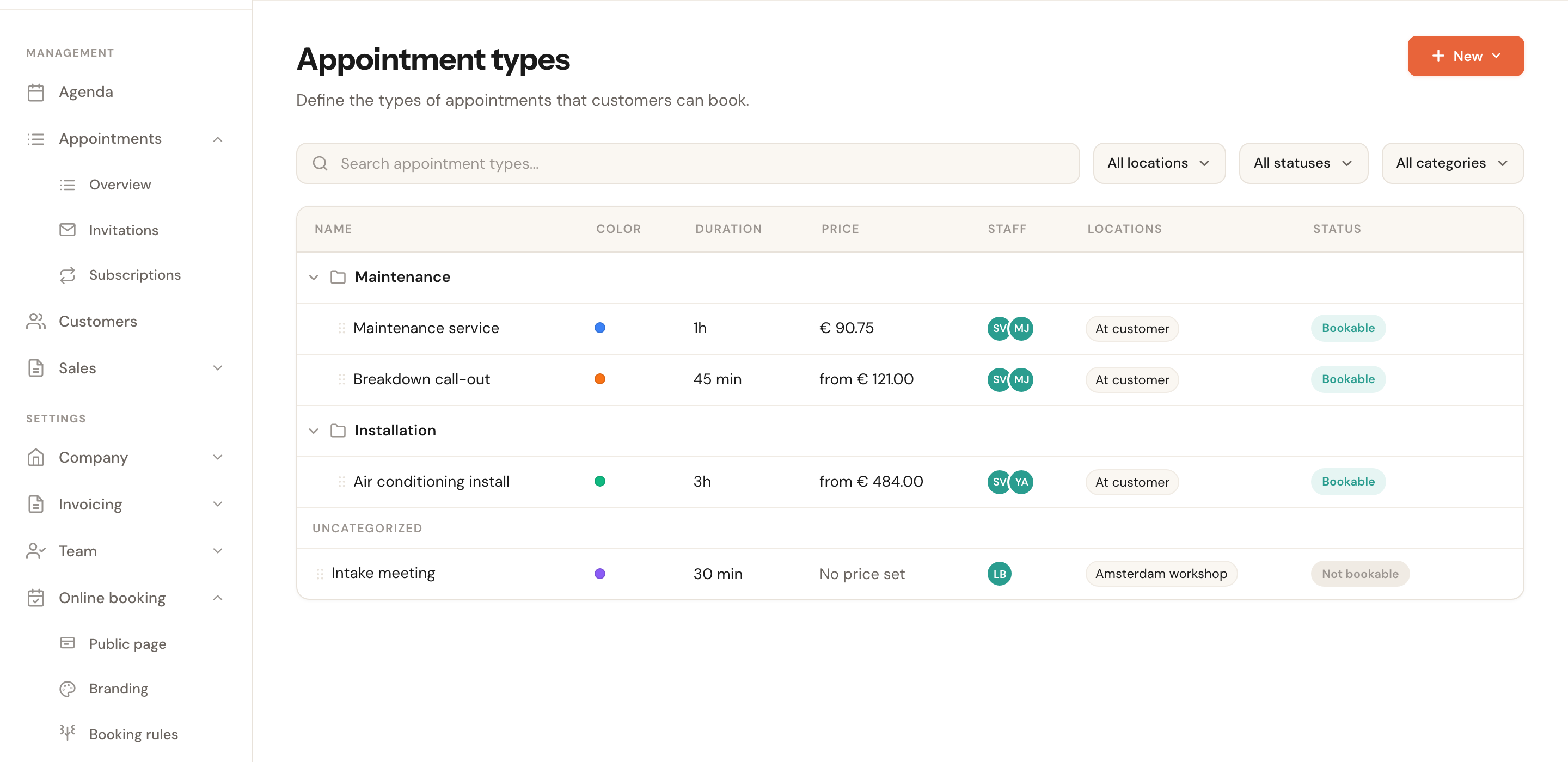
The overview is your fastest check: the Staff column shows the initials of everyone allowed to perform each service, and the Status column says whether it is bookable. A service with no circles in the staff column is one nobody can do.
status is inactive
The type is set to Inactive. Set the status to Active in the editor.
Inactive is for services you do not want to lose but are not currently offering. Existing appointments of that type stay exactly where they are — only new ones are blocked.
online booking is disabled
The type exists and is active, but the Online booking switch is off. You can still schedule it yourself; the customer never sees it.
This is the right setting for work that always goes through you — a quote visit, an intake, a follow-up. Turn it off by accident and your booking page looks exactly as if the service did not exist.
no users assigned
An empty selection was saved explicitly, or everyone who was assigned has since become inactive or been removed.
This is the most common cause after a staffing change, and the most annoying, because there is nothing else wrong with the type. The service disappears without anyone having touched it.
no duration set
A service without a duration cannot be scheduled — there is no block to put anywhere.
This is often a deliberate choice for work whose size you only see on site: you give it a "from" price and plan it yourself. See Duration and availability. If you do want it bookable online, give it a duration.
Also check that the service sits in a category that is itself visible, and that it belongs to the chosen location — see Organise your catalogue.
Part 2 — The service is listed, but there are no times
The customer then sees "This service can't be booked right now" with one line of explanation underneath — unless you reworded it. Read that line — it names precisely which of the five filters leaves nothing. Look it up below.
For a service at one of your locations, Schedulinq checks this as soon as the customer presses Next on their chosen services, before they fill in their details or receive a code. For a service at the customer's address it is checked once the address is known.
"No staff are currently available to perform this service"
Nobody is allowed to do this service. Filter 1.
Where you fix it: open the appointment type and look at Assigned staff in the right-hand column. If nobody is ticked, or only people who are no longer active, that is your answer.
"No staff member offers this combination of options"
The service is bookable, just not with the add-on the customer picked. Filter 2.
This is the hardest one to find on your own, because the service works fine as long as you pick nothing extra. Add-ons have their own assigned-staff list, and the customer can only book with someone allowed to do the service and every chosen add-on.
Where you fix it: open the add-on and compare its staff list with the appointment type's. See Add-ons.
"No staff are scheduled to perform this service"
Someone may do it, but nobody who may is scheduled. Filter 4.
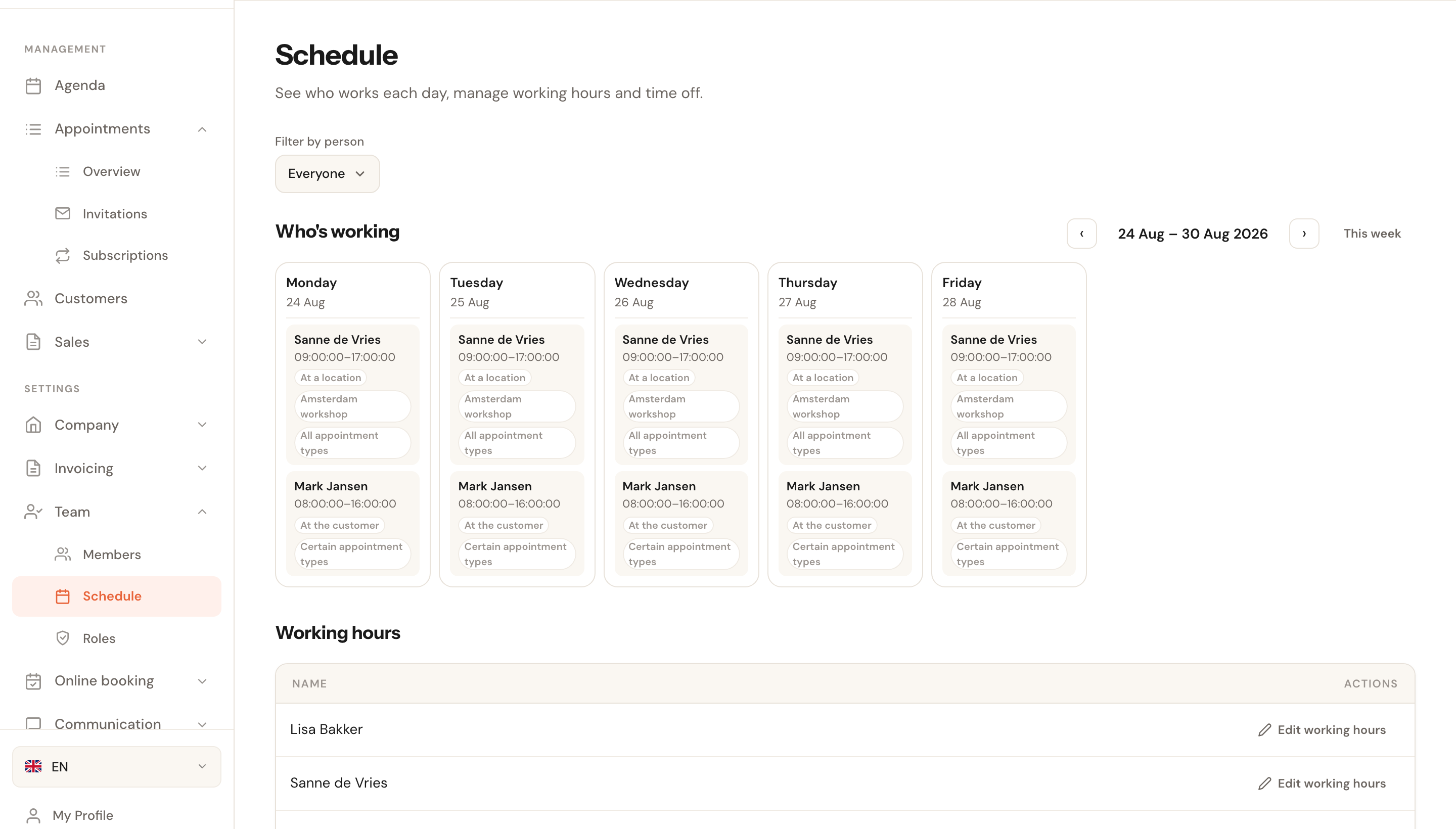
Watch for the special case: a schedule block can be restricted to certain services. If someone works all week but their block is set to "Maintenance service" only, they are invisible for every other service that entire week — while the schedule looks full.
Where you fix it: Working hours, and check time off and extra availability.
"No staff work at the selected location for this service"
Someone may do it, someone is scheduled — but somewhere else. Filter 3.
The appointment type's editor even warns you about this in advance: "No staff
who perform this service work at {location} yet, so it can't be booked there. Add
a matching block to a schedule."
Where you fix it: Working hours — give the schedule block the right location, or add one.
If you have more than one location customers can pick, the page offers Choose another location: the customer goes back to the location choice and keeps the services they picked, as long as they are offered there too. With only one location it offers Choose another service instead.
"Your address falls outside the area [your business name] serves for this service"
Filter 5, and the only message that has nothing to do with schedules. The customer's address lies outside every service area that applies to this service.
Where you fix it: Your service area. If you work with several areas, check two things: whether the area that covers the address serves this service, and whether the people allowed to do this service are in that area — it is quite possible that a colleague goes there but is not allowed on the service.
With several services in the basket, the customer sees this per service: a card for each one that cannot be booked at the address, while the rest can go ahead.
"These services can't be booked together"
The customer put two services in one appointment and nobody may do both. Schedulinq suggests the fix itself: book them separately. This page now has its own title — it used to say "This service can't be booked right now", which was true of neither service.
Where you fix it: nowhere, if that is correct. If you want the combination to work, at least one staff member has to be assigned to both services.
"This service can't be booked at your address"
Only for a service you offer both at the customer's address and at a location. Nobody can do it at the customer's address, but it can be booked at one of your locations — so the page says "This service isn't offered at your address" rather than that there are no times at all, and offers Choose another location. With Offer other places on, it lists those locations right there.
Where you fix it: if you do want to come to the customer, the schedule needs a block with At the customer in its workplace for someone who performs the service — see At the customer or on location.
"No times available"
Every filter is passed — someone may do it, is scheduled and covers the address — but in the whole period customers may book ahead, there is not one free moment. It is fully booked, or the working hours only start after the booking range ends.
The customer used to get a calendar with every day greyed out and no explanation. Now they get this page, with "There are no times available to book online at the moment", your contact details, and the buttons that can help: Choose another service, Choose another location where there is one, and Choose someone else when they had picked a particular team member. This works for several services in one booking and for invitations with several team members too.
Where you fix it: look further ahead in Working hours, and at the Maximum booking range in Booking rules.
"No available time slots for this date."
Not a page but a line in the calendar: the day the customer picked has no free time, while other days do. Nothing is wrong; the customer picks another day. If a day you expected to be open shows this, see Part 3.
Part 3 — There are times, but too few
If times do appear but fewer than you expect, it is not the five filters but the rules that remove moments afterwards:
| What you see | Where it comes from |
|---|---|
| The first few days are empty | The notice period, and whether same-day booking is on — Booking rules |
| Everything far ahead is empty | How far ahead customers may book — Booking rules |
| Only a few choices per day | That is deliberate: the number of options per day — The scheduling algorithm |
| Scattered gaps in an otherwise full day | The driving-time filter. The stricter it is, the more moments drop out for connecting badly — The scheduling algorithm |
| One day completely empty | Time off, a public holiday, or a schedule block restricted that day — Time off and extra availability |
A four-step check
Work through this in order; it is the order in which things actually go wrong.
Open the appointment type
Active? Online booking on? A duration set? Is anyone listed under Assigned staff, and does that person still work here?
Take the add-ons off for a moment
If times appear without add-ons, the cause is an add-on's staff list.
Look at the weekly schedule
Is anyone scheduled who may do this service — at the right location, with a block that is not restricted to other services?
Test with an address nearby
If one address stays empty and another works, it is the service area.
If none of that turns anything up, the service is probably simply full. Widen the number of options per day temporarily and see whether something appears — then you know it was the selection and not the availability.
After booking: the manage page and invitations
Three pages a customer can land on outside the booking itself. You can reword these too, under When booking isn't possible.
"This appointment can no longer be changed online"
The customer opened their appointment to move or cancel it, but it falls within your cancellation & reschedule deadline. The card says so, with your phone number when you have one, and offers Book another appointment. A past appointment does not get this notice — only that button.
Where you change it: the deadline itself is in Booking rules.
"This appointment has been cancelled."
The label on a cancelled appointment when the customer opens it. You can reword it, and optionally add Book another appointment below it (off by default).
"This invitation can no longer be used"
The customer opened an invitation that has already been used, has expired or was cancelled — or the team members it named are no longer available. They used to get a page that said the page did not exist. Now they see "This invitation has already been used or is no longer valid" with your contact details, and you can add a button to your booking page. See Send invitations.