

Create an appointment type
Set up a service customers can book — name, duration, staff, location and price.
An appointment type is one service you offer — a maintenance visit, a consultation, an installation. It decides how long the appointment takes, who performs it, what it costs and whether customers can book it themselves.
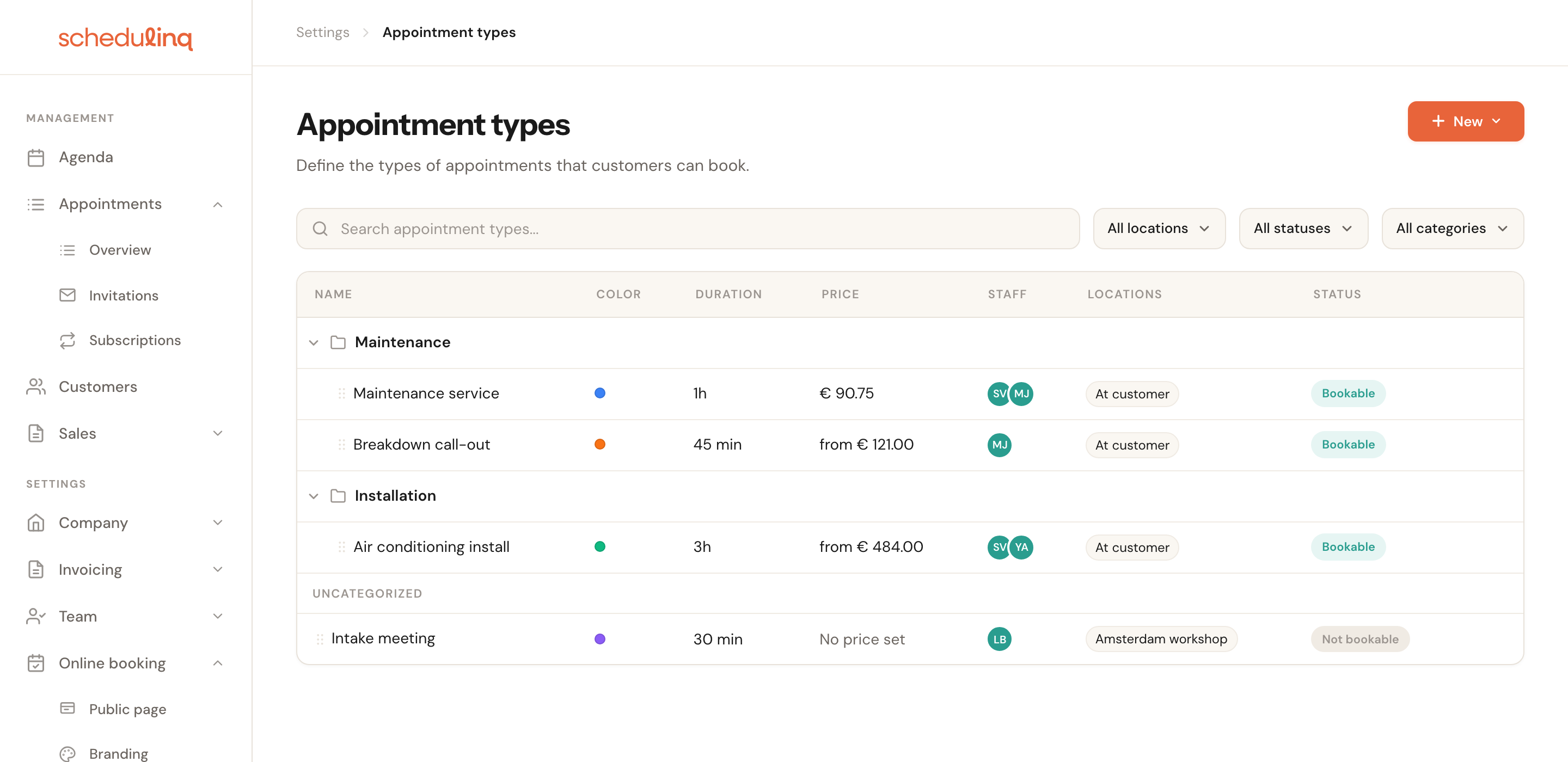
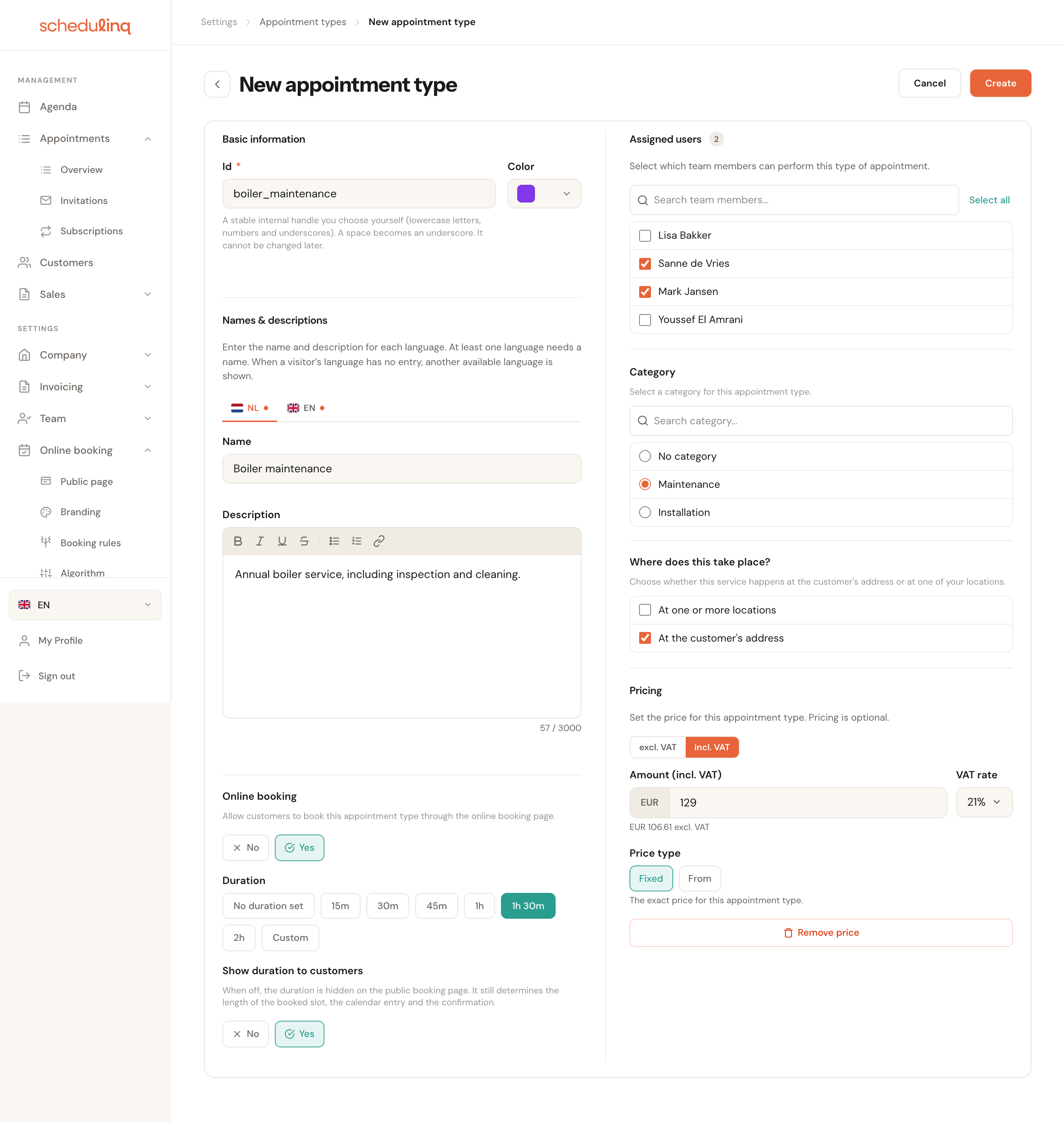
1Go to Services → Appointment types.
In short
- Go to Services → Appointment types.
- Click New at the top right and choose Add appointment type.
- Fill in an Id and a name, and pick a duration.
- Tick the staff who perform the service and set Online booking to Yes.
- Click Create.
Step by step
Open the appointment types overview
In the left-hand menu, under Settings, click Services and then Appointment types. You now see your whole catalogue: folders are categories, the rows underneath are the appointment types themselves. Services without a category sit at the bottom under Uncategorized.
Each row shows the colour, duration, price, staff, location and whether the service is bookable.
Start a new appointment type
Click the orange New button at the top right and choose Add appointment type. The same menu also creates categories.
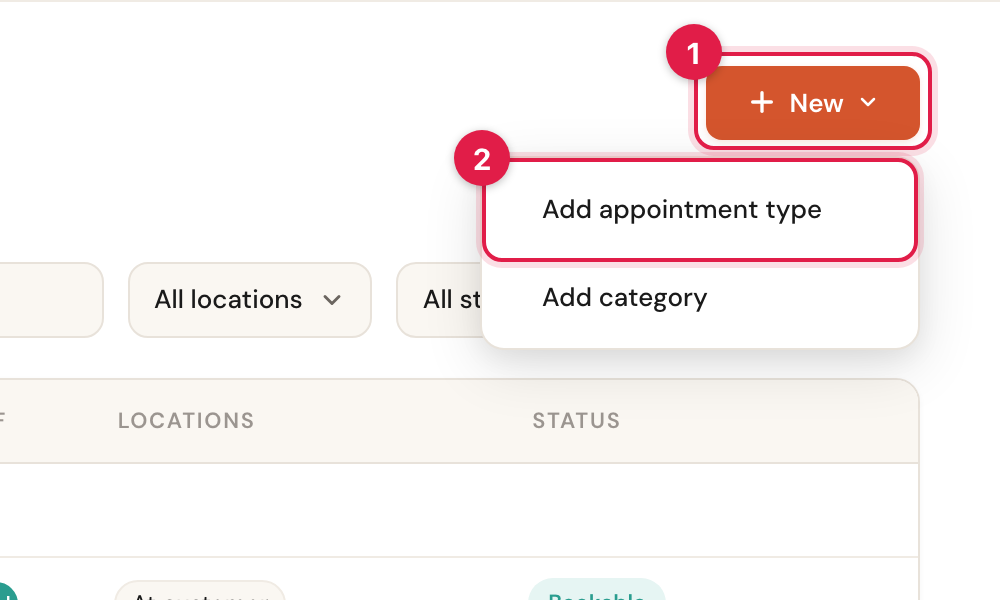
On a narrow screen the same button appears as an orange circle at the bottom right.
Fill in the form
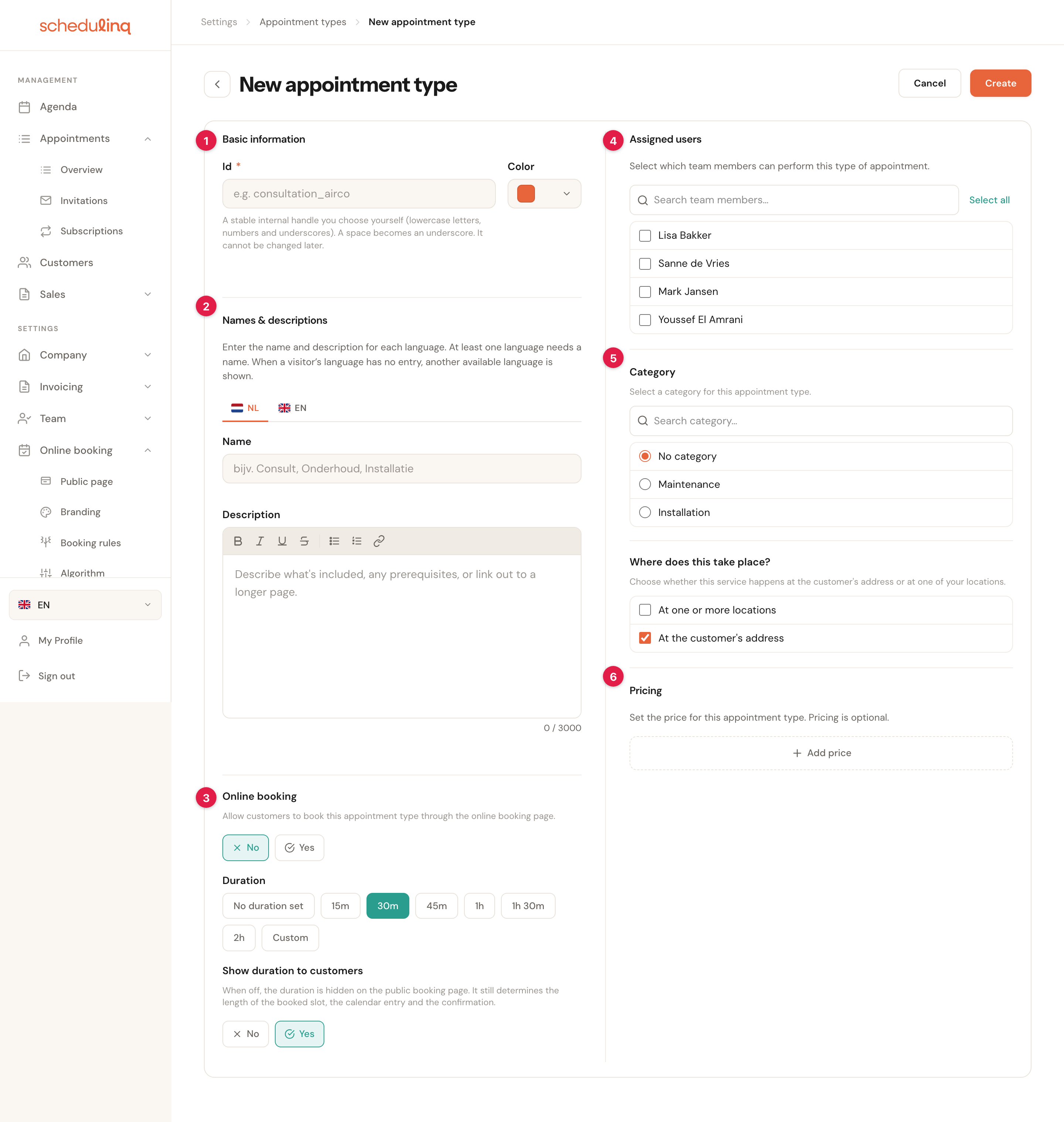
The New appointment type screen has seven blocks — eight if you keep track of customer objects. Only the Id and one name are required — everything else can wait. Below, each field is explained: what it does and why you would use it.
Save the appointment type
Click Create at the top right. If something is wrong, the screen jumps to the field in question and the explanation sits directly underneath it.
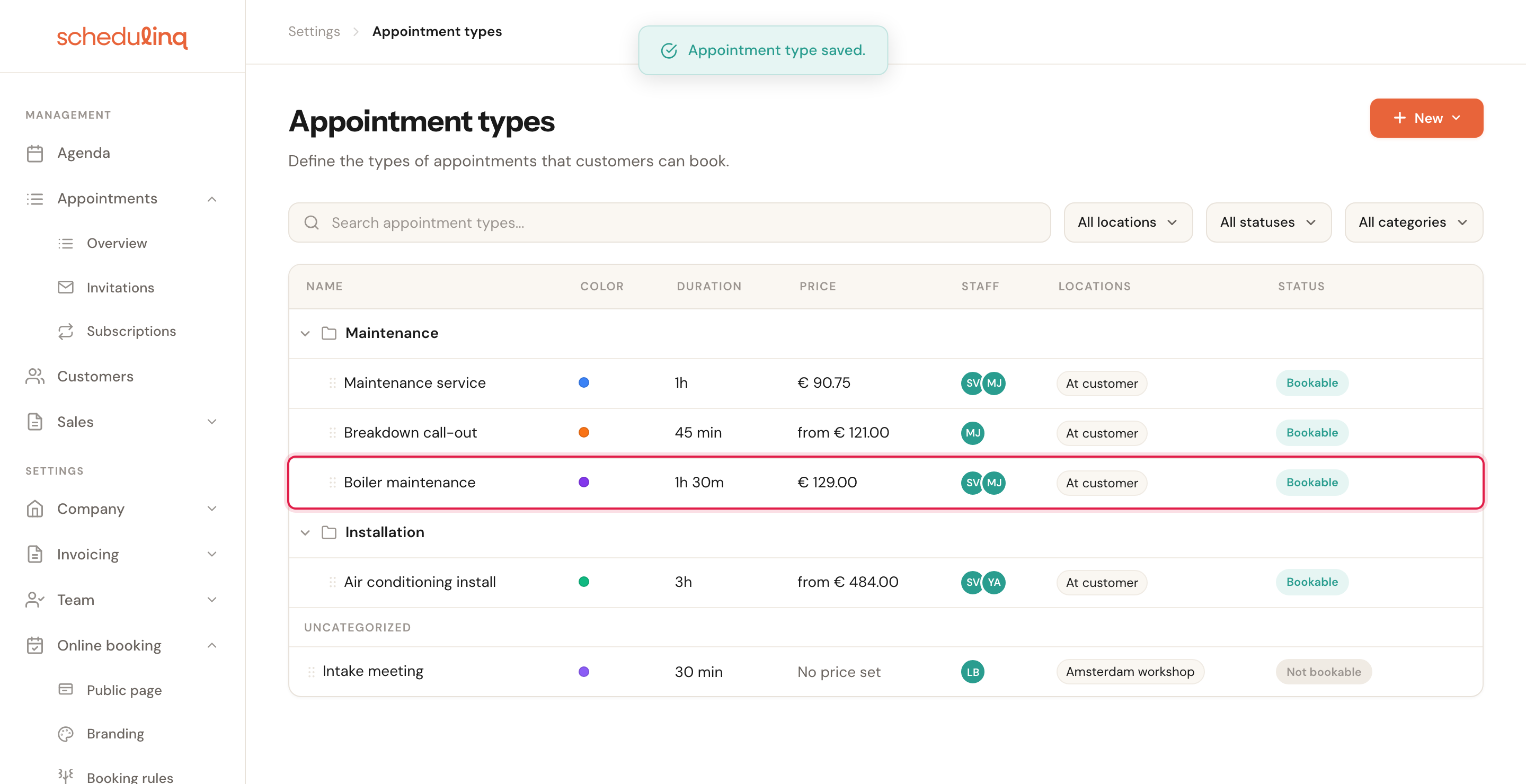
Click a row to open and edit the service later.
Block 1 · Basic information
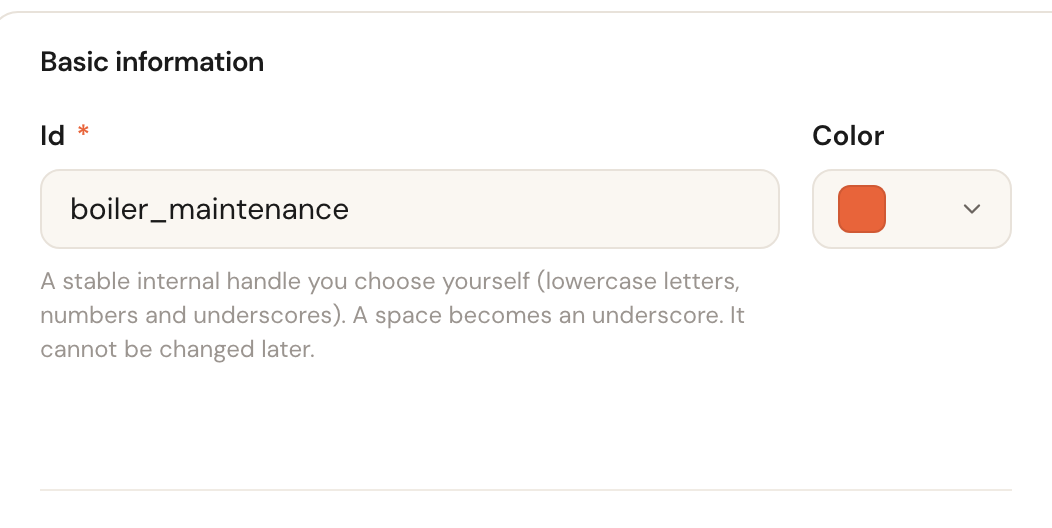
Id
RequiredCannot be changed laterThe internal name of this service: lowercase letters, digits and underscores, starting with
a letter. Type a space or a punctuation mark and Schedulinq turns it into an underscore —
boiler maintenance becomes boiler_maintenance.
Your customers never see this field. It is the fixed reference that stays the same when you rename or translate the service later, and the one integrations, exports and invoices use to recognise it. Pick something you will still understand in a year, and keep it short.
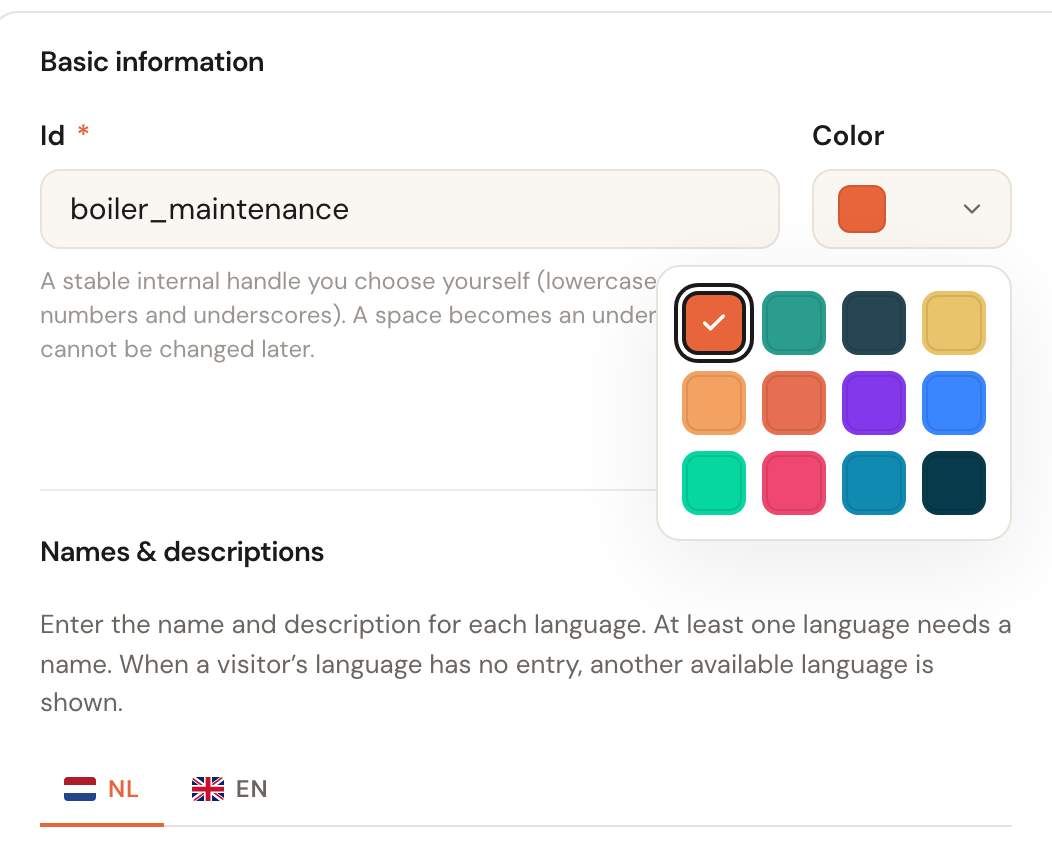
Colour
OptionalClick the coloured square and pick one from the palette.
The colour comes back as a dot in your calendar and in the overview. Give similar services deliberately different colours and you can read your week at a glance.
Block 2 · Names & descriptions
This is the text your customer reads. There is one tab per language your company supports.
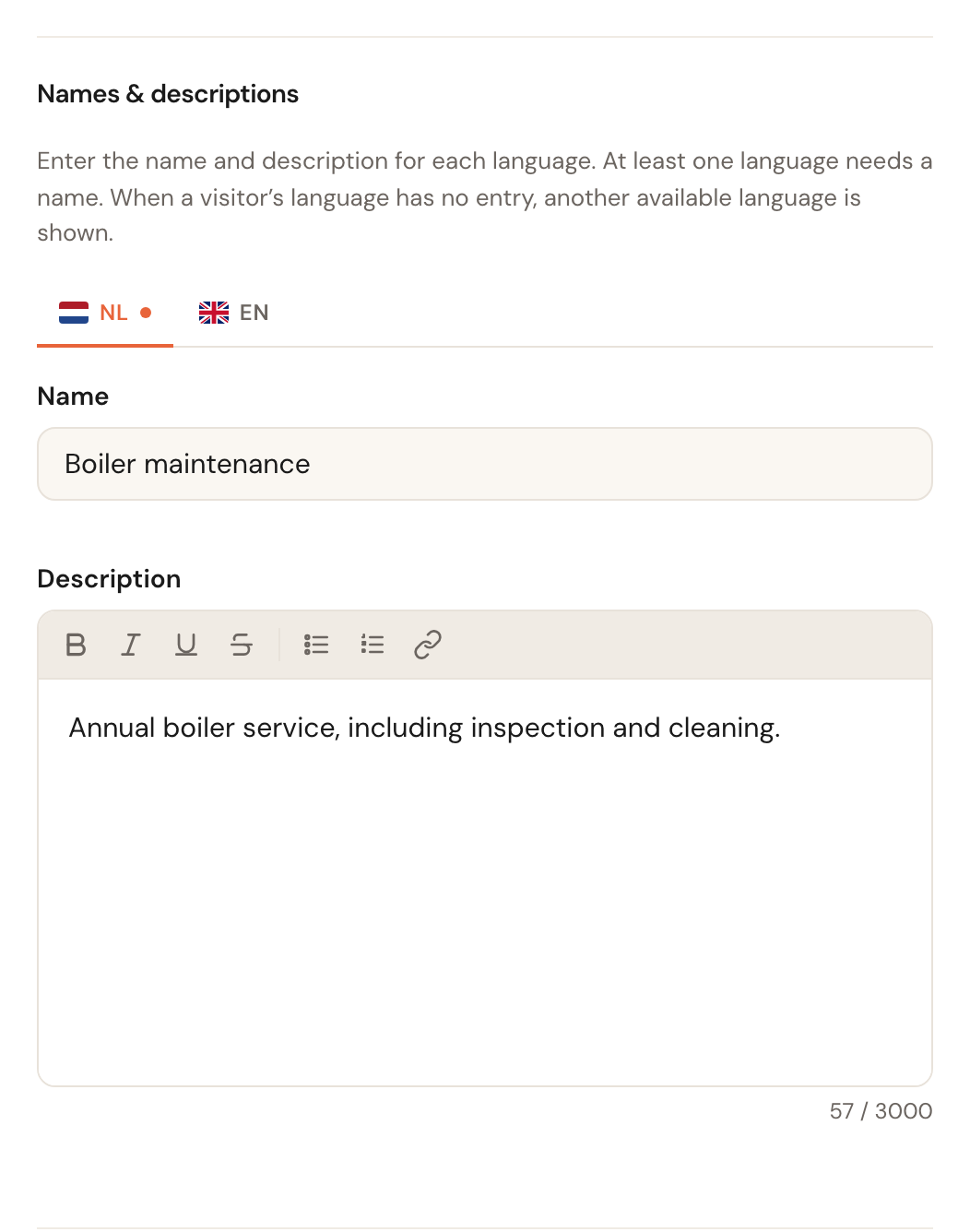
Name
Required in your own languageThe name the service appears under on your booking page, in confirmation emails and on invoices. Only your company's default language is mandatory.
Write what the customer is looking for, not what you call it internally. “Boiler maintenance” beats “Maintenance type B”.
Description
OptionalRoom for a short explanation, with formatting such as bold, italics, lists and links. Up to 3,000 characters.
This is where you stop customers calling ahead: what is included, what they need to have ready, when it takes longer.
Other languages
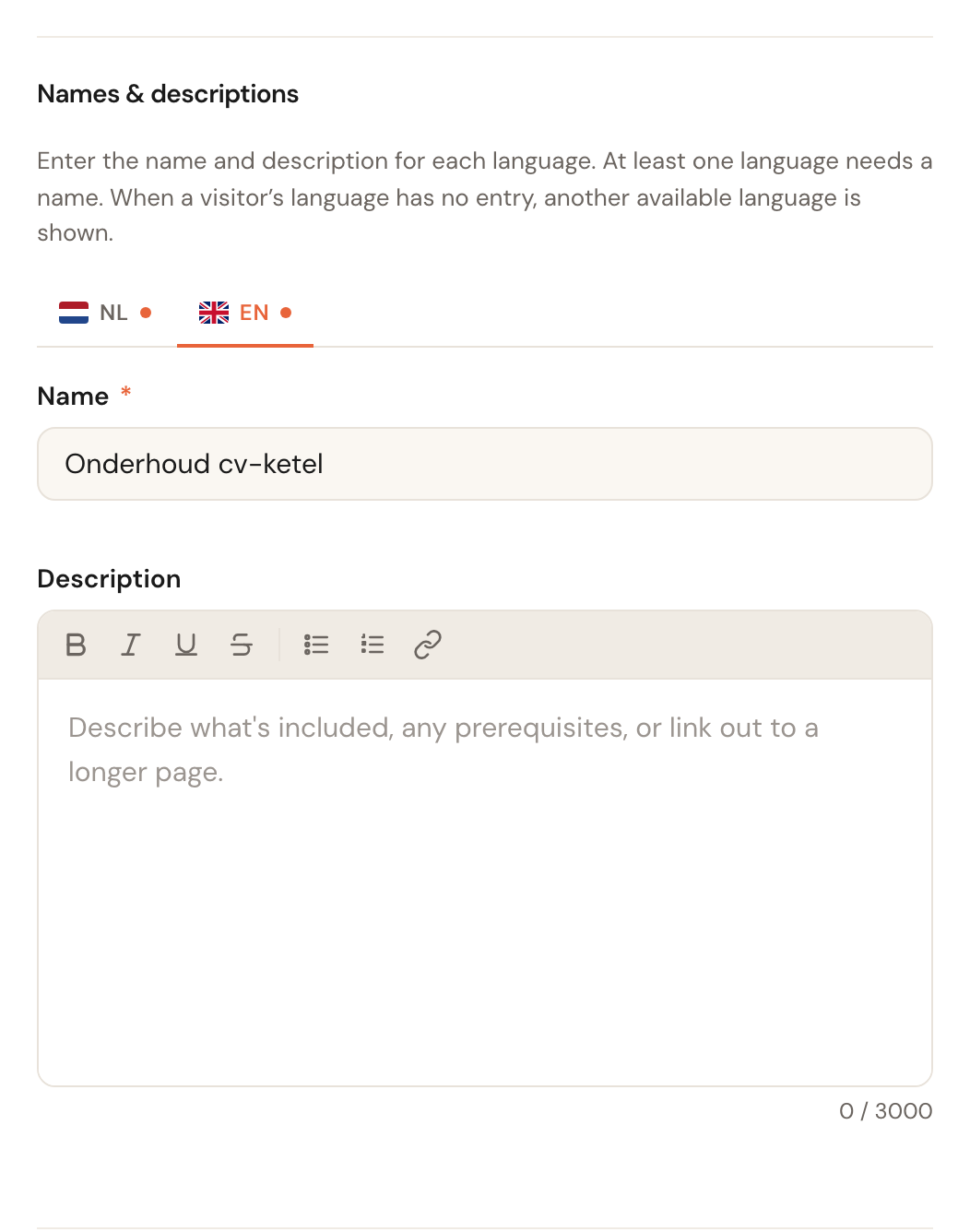
OptionalClick another tab to describe the same service in that language. An orange dot on a tab means something has been filled in there.
Customers see your booking page in their own language. If theirs is missing, Schedulinq falls back to a language you did fill in — the service never disappears, but a translation reads better.
Block 3 · Online booking & duration
Online booking
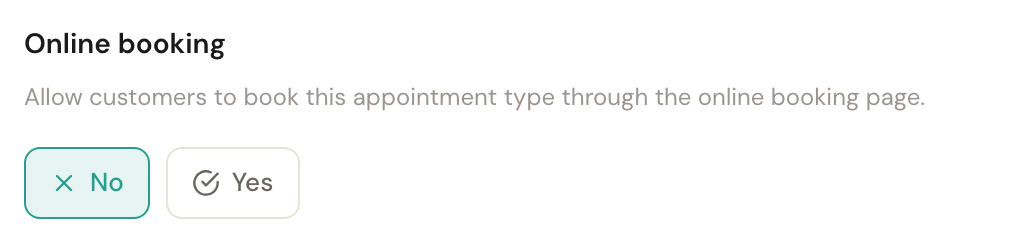
Default: NoDecides whether customers can book this service themselves through your public booking page.
New appointment types deliberately start at No, so you can set things up without bookings arriving mid-way. Services you only schedule yourself stay at No; you and your team can still plan them by hand.
Duration
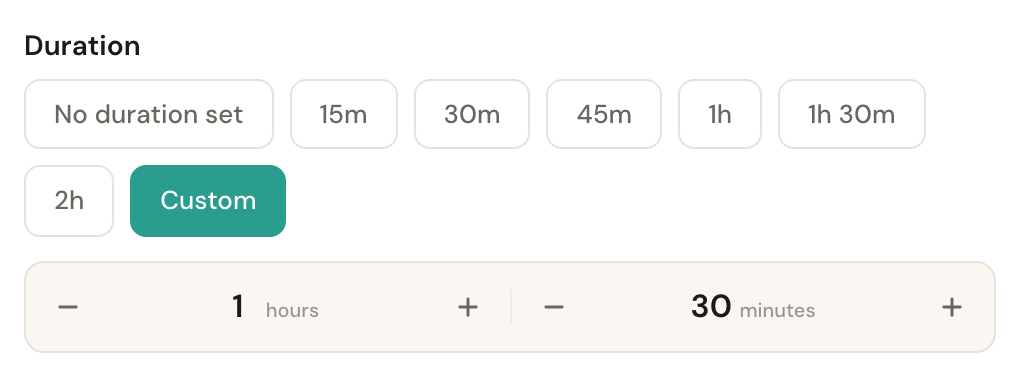
Default: 30 minutesPick one of the preset buttons, or click Custom to set hours and minutes yourself.
The duration decides how much time is blocked in the calendar and which slots a customer is offered. Be realistic: too short and your day runs over, too generous and you undersell yourself.
Show duration to customers
Default: YesControls only whether the number of minutes is visible on your booking page.
Set this to No when the duration raises more questions than it answers. The appointment still occupies the same time in your calendar and the customer still sees a start and end time in the confirmation.
Preparation time
Default: NoneHow many days ahead a customer has to book at the least: None, 3 days, 7 days, or Custom for any number of days up to 365.
For work you have to prepare — parts to order, a quote to draw up. Set to 3 days, someone booking today sees the first free time three days from now. It applies to invitations too. How it combines with your booking rules is in Duration and availability.
Block 4 · Assigned staff
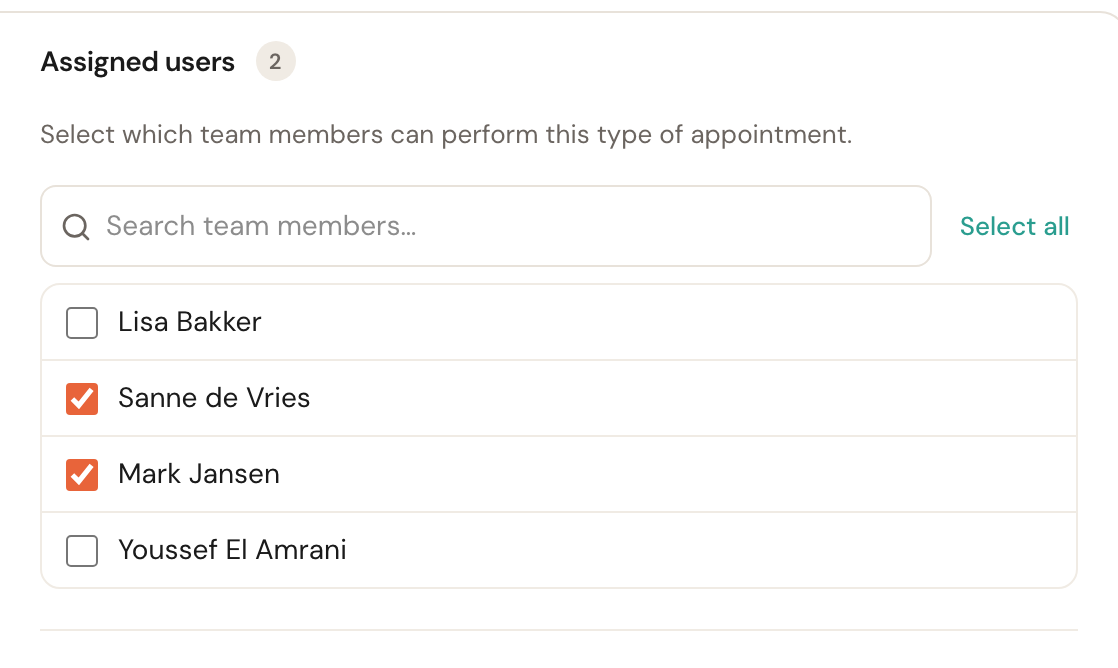
Staff
Required for online bookingTick everyone who may perform this service. Select all turns on the whole team in one click.
Schedulinq only looks for free slots in these people's calendars. Tick nobody and there are no available times, so the service cannot be booked online.
Objects
If you keep track of your customers' objects — a car, a horse, a heat pump — there is one more block between the staff and the category. It carries the word you use for them (Objects by default, Horses at a riding stable, say) and only appears once you have created at least one object type under Company → Object types. How you record objects is in Customer objects; how you pick the word, under What do you call them?.
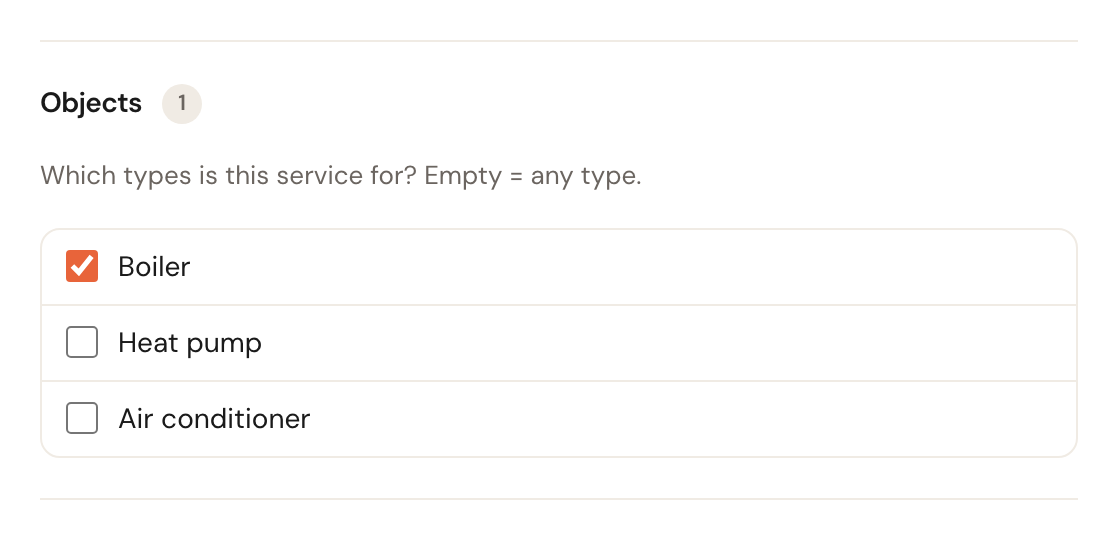
Which types is this service for?
OptionalEmpty = any typeTick the object types you perform this service for. Tick none and the service is for any type. Once saved, the block then says None configured. with Applies to all objects. under it — in your company's own word.
Servicing a boiler is a different job from servicing a heat pump. When you schedule this service, the form only offers the customer's objects of a ticked type. If the appointment already names an object of another type, the form says so underneath and only saves once you pick another object or None.
Block 5 · Category & location
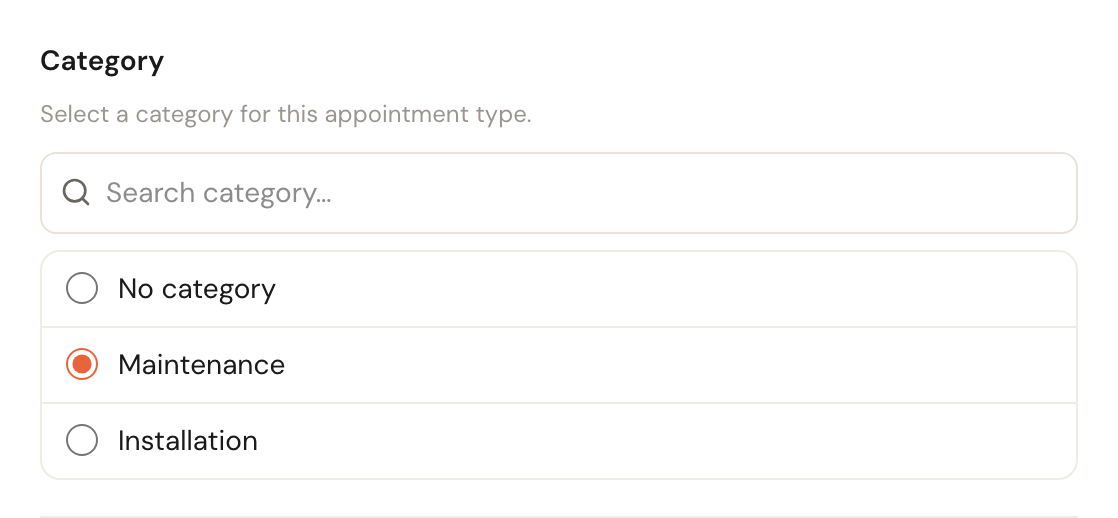
Category
OptionalPick the folder this service belongs in. If you have no categories yet, Schedulinq skips this block.
Categories organise both your own overview and the list your customer picks from. From about ten services onwards it saves your customer real searching.
Where does this take place?
At least one choiceFour independent tick boxes: At one or more locations (the customer comes to you), At the customer's address (you travel to them), Video call and Phone call. More than one is fine.
This decides which address ends up in the appointment and the confirmation, and whether travel time is planned. If you offer the service in more than one way, tick them all and let the customer choose when booking. A call asks for no address and costs no travel time. For a phone call the booking page always asks for the customer's phone number, even if you hid that field on the details step — you are the one calling.
If the service takes place at the customer's address but none of the selected staff has a schedule block that can host it there, a warning appears under the tick boxes: None of the selected staff has a schedule block that can host this service at the customer's address, so it can't be booked there. Add a matching block to a schedule. That happens when nobody's blocks are set to At the customer, or when every such block is restricted to other appointment types. You can still save.
If the service can be a call but none of the selected staff has a schedule block that takes such a call, a warning appears under the tick boxes: None of the selected staff has a schedule block that takes video calls, so they can't be booked. Turn on Video call in a schedule block. You can still save; it becomes bookable once someone has such a block — see Set working hours.
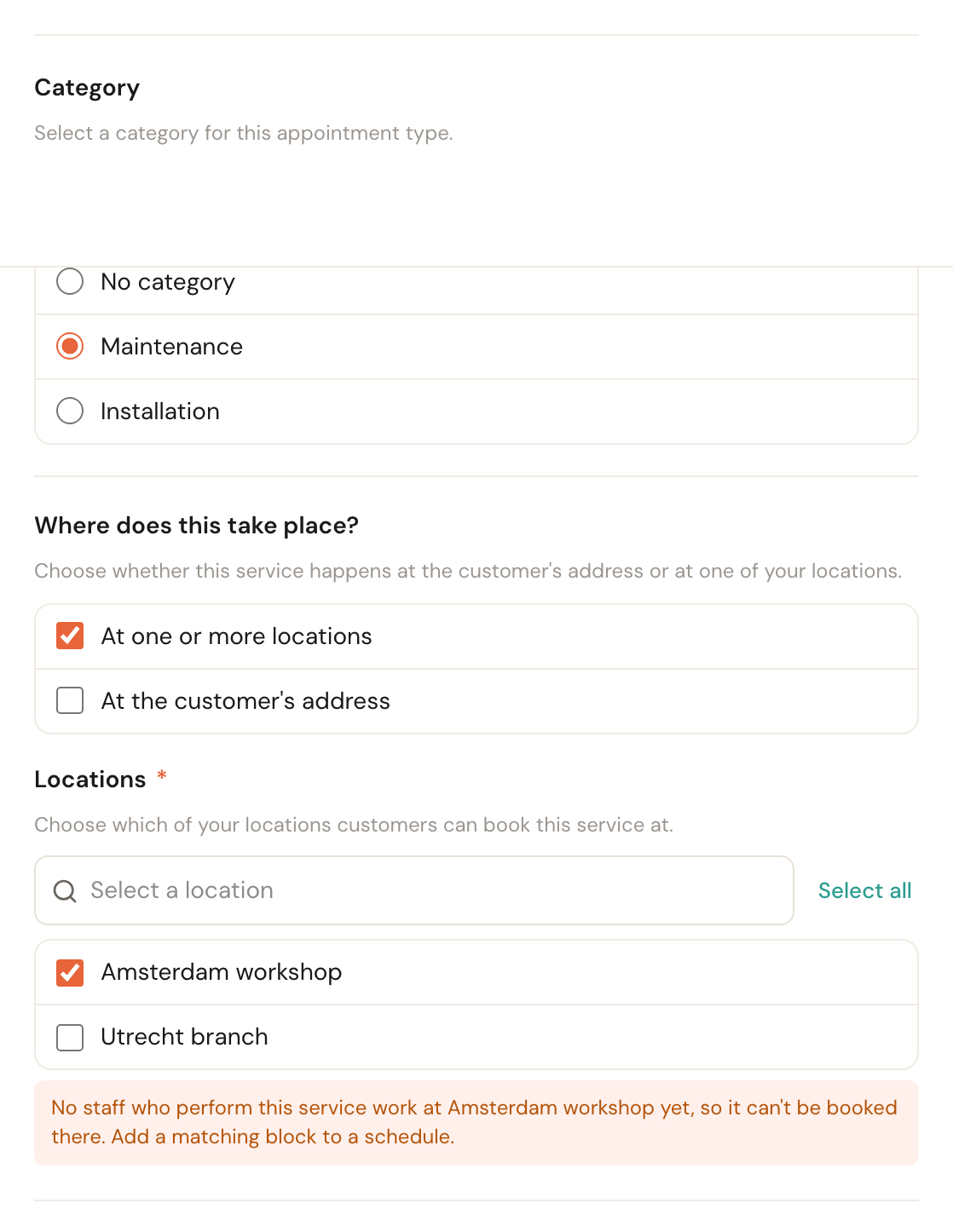
Locations
Required for “at a location”Tick At one or more locations and a list of your branches appears.
Not every branch offers every service. If nobody who performs the service works at a chosen location, Schedulinq warns you — add a schedule there first.
Service areas
Read-onlyFor a service at the customer's address, when you have more than one service area or an area serves certain services only, the form lists the areas that serve this service, with a link to Manage service areas. You choose that on the area, not here. With one area for every service this block is not shown: that area serves everything.
Once every area lists its own services, a new service is served by none of them until you add it somewhere — and a customer cannot book it at any address. The form then warns you: No service area serves this service. Better to read that here than to hear it from a customer.
Block 6 · Pricing
A price is optional. Until you set one, the service shows No price set and your booking page names no amount.
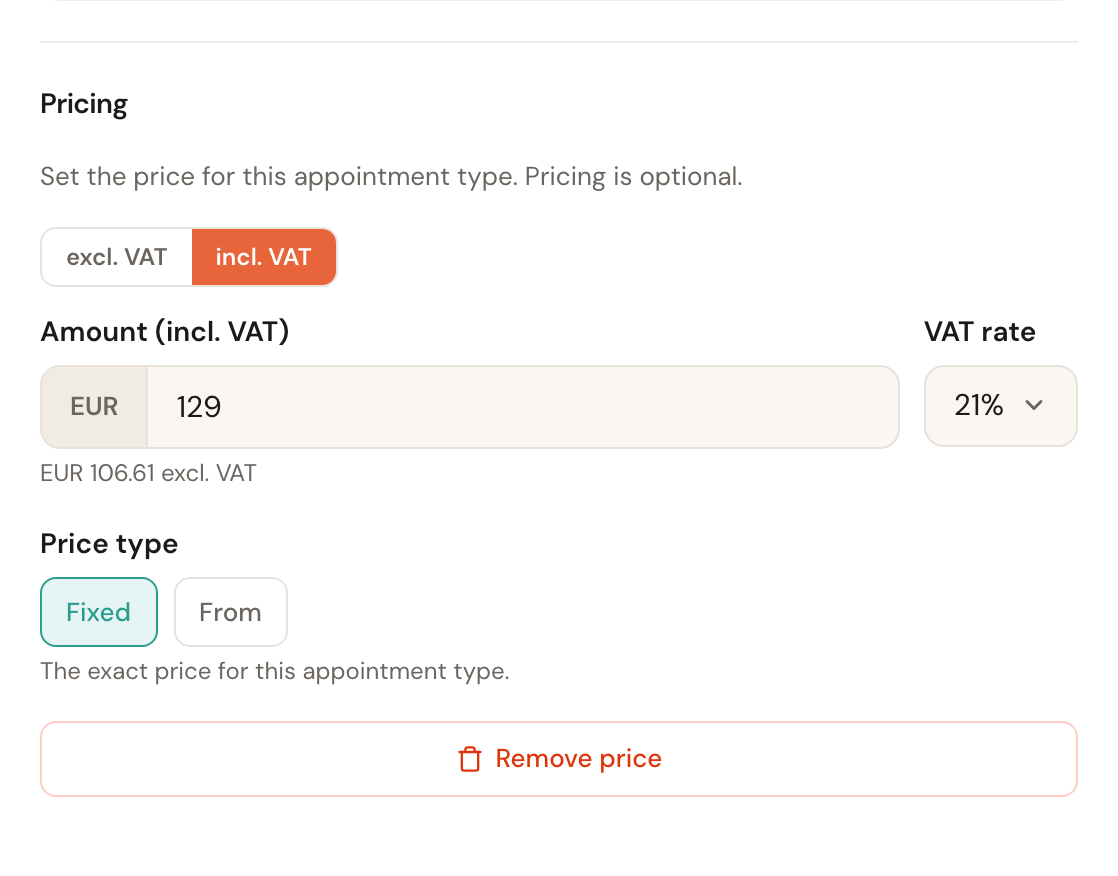
Excl. VAT / incl. VAT
Choose which form you type the amount in. Schedulinq works out the other value underneath the field as you go.
If you mostly work for consumers you think in amounts including VAT; for business customers, excluding. Both amounts are stored either way, so this only changes how you type.
Amount & VAT rate
Enter the amount and pick the VAT rate for this service. The available rates follow your company's country.
This amount appears on your booking page and on the invoice. A wrong rate here carries through your whole invoicing, so check it per service when in doubt.
Price type
Fixed or FromFixed shows the amount as an exact price. From shows it as a starting price: the customer sees “from € 129.00”.
Choose From for work whose final price depends on what you find on site. The customer knows what they are getting into without you committing to an amount you cannot hold.
Block 7 · Picture
At the bottom of the window sits a Picture block: the photo customers see with this service on your booking page.
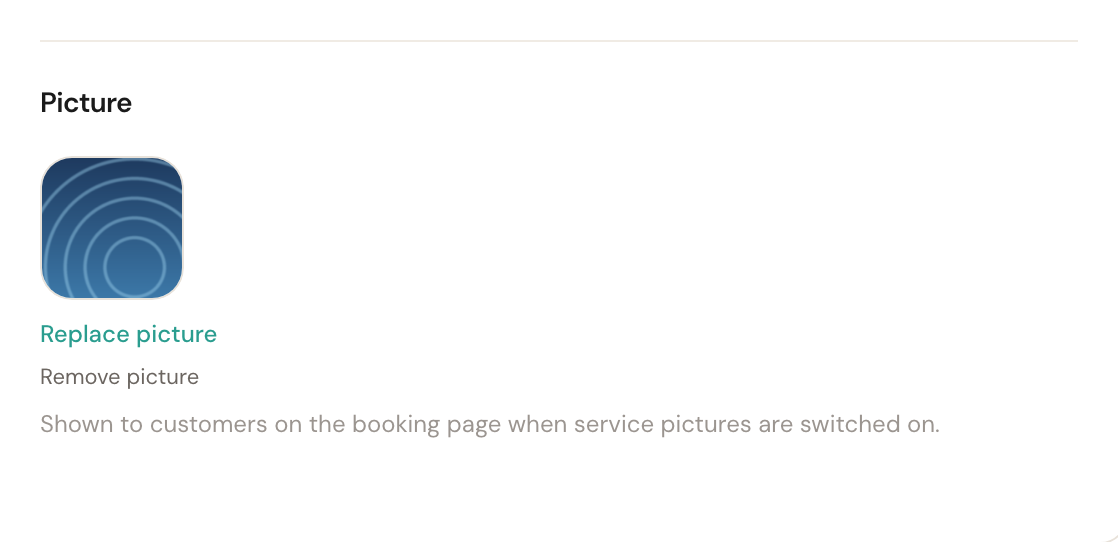
Picture
OptionalPNG, JPG, WebP or HEIC · max 12 MBClick Upload picture and choose a file. Once there is one, the buttons become Replace picture and Remove picture. In the window's read mode it says No picture until you have chosen one. If Schedulinq refuses the file, the service is saved all the same, but the window stays open and says why under the picture; choose another file and save again.
HEIC is the format an iPhone shoots in by default, so you can upload a photo straight off your phone without converting it first.
Frequently asked questions
My service is not on the booking page. Check three things: is Online booking set to Yes, is a duration set, and is at least one staff member ticked who works on the days in question?
Can I change the Id later? No. The Id is fixed once created, because integrations, exports and invoices refer to it. The name customers see can always be changed.
I want to pause a service. Set Online booking to No. The service disappears from your booking page but stays available to schedule by hand, and you keep every setting. That is almost always better than deleting it.