

Manage team members
Read the team list, change roles, deactivate someone, and remove team members.
Settings → Team → Members lists everyone with access to your Schedulinq environment: colleagues who accepted their invitation, people who have not replied yet, and colleagues you have set to inactive.
Inviting a new colleague has its own guide: Invite your team. This page is about everyone who is already there.
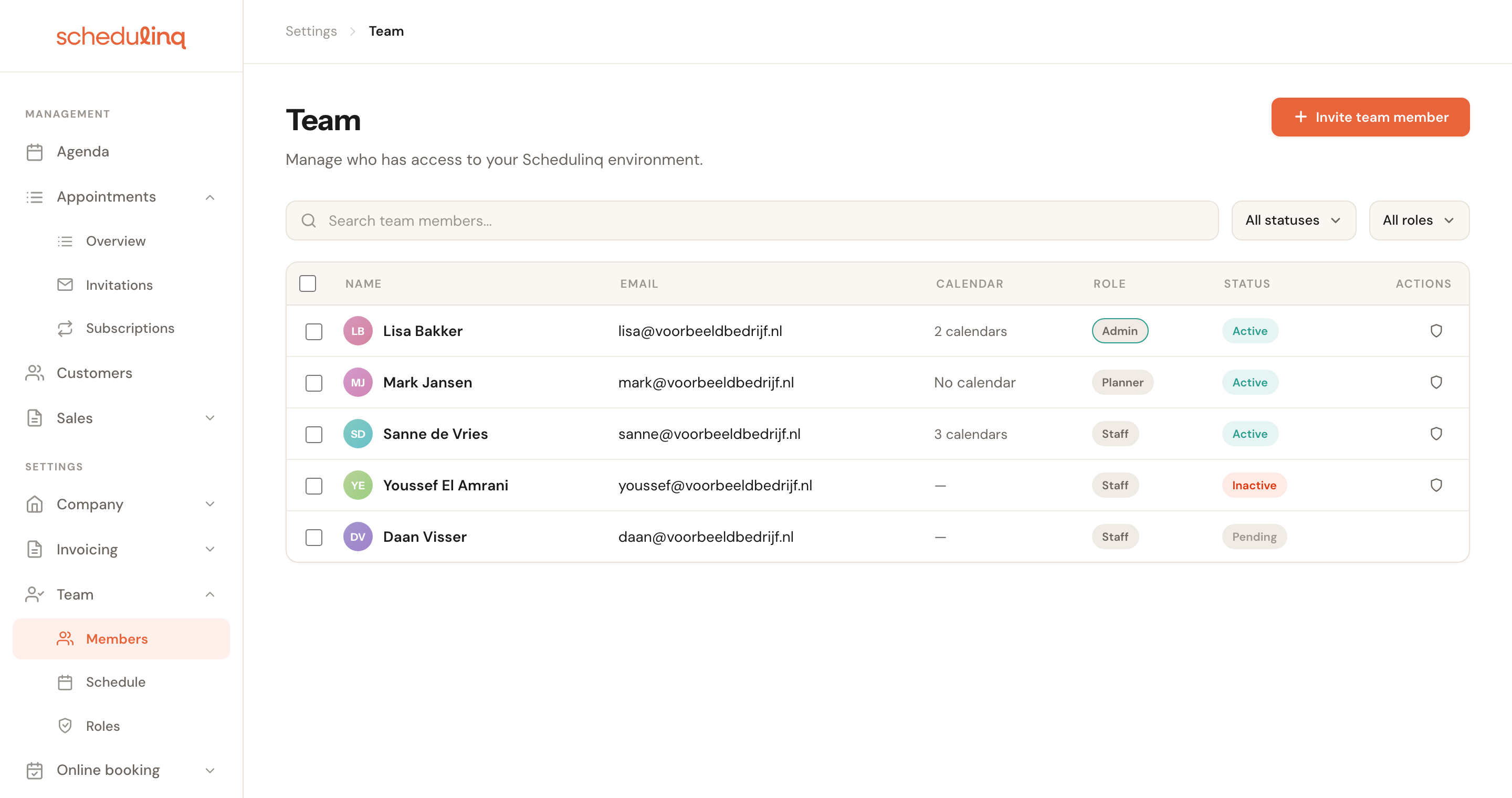
Each row sums someone up in five columns. The bottom two rows are still open invitations, not team members; the last one came from your CRM.
Reading the list
Status
| Status | What it means |
|---|---|
| Active | Can sign in and can be scheduled. |
| Inactive | Cannot sign in and disappears from scheduling. Actions → Activate brings them back — see Deactivating someone. |
| Pending | The invitation has been sent but not yet accepted. An invitation your own software sent through the API says Via API and the key's name under the name. |
Role
Administrators get the Admin label. Everyone else shows the name of the role you assigned, such as Staff or Planner. If it says User, no role is linked yet and only the default permissions apply.
What a role may actually do is configured under Team → Roles.
Calendar
How many calendars that colleague syncs. No calendar means a calendar is connected but nothing is being synced — which looks identical to a working connection from the outside, and means appointments in that calendar do not count towards availability. A dash means there is no connection at all.
An active team member who can be booked, and of whom Schedulinq reads no calendar, also gets the grey tag Calendar not connected. Their own busy times are then not taken into account when something is booked with them. They stay bookable: the tag is information about that colleague, not a fault, and it never blocks anyone. A connected account in which no calendar has Read switched on counts as not connected. How to fix it is in Connect your calendar.
Working hours
An active team member without any working hours gets the tag No working hours — not bookable under their name. That is what a colleague looks like right after accepting an invitation: accepting creates no schedule, so nobody can book them yet — not even for an appointment type that lists them as staff. The tag is a link: click it and you are in that person's working hours. How to fill them in is in Set working hours.
An inactive colleague or an open invitation never gets the tag: why they cannot be booked, the status already says.
Asking new team members to connect a calendar
Actions at the top right of the Team page holds one item: Connect calendar on activation, with its current state under it (Currently: on or Currently: off). It opens a window with one switch, New team members connect their calendar when they activate.
When it is on, someone who accepts an invitation first chooses a password and then connects Google or Microsoft, before they start. What they see is in Invite your team. The switch applies to invitations accepted from then on, admins included. It changes nothing for team members who are already there.
Only someone who manages team members sees the menu: an admin, or a role that may invite team members.
Searching and filtering
Search by name or email address, and filter by status and role.

Changing a role
Click the shield icon at the end of a row, or open the profile and choose Actions → Change role.
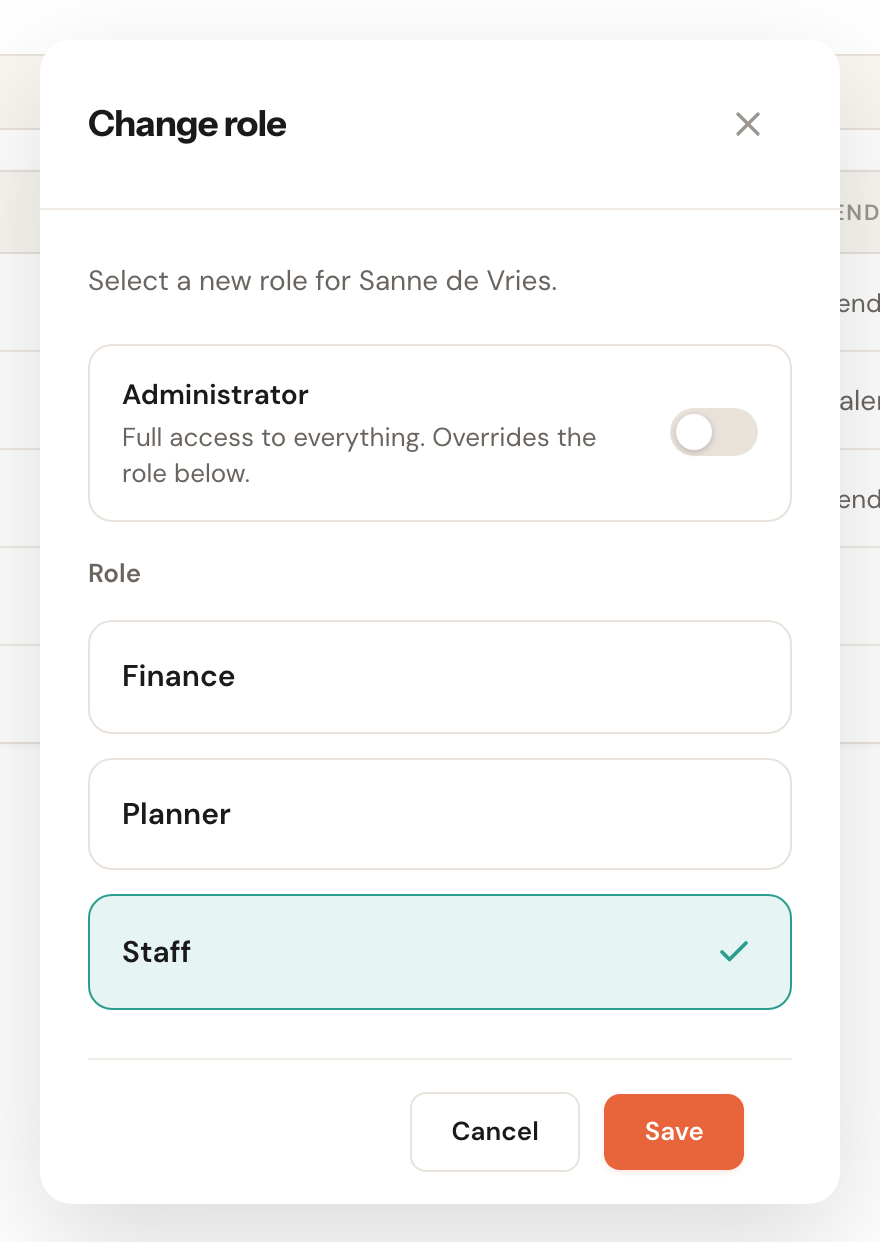
The Admin toggle sits apart from the roles below it: switch it on and that person gets full access, making the selected role irrelevant. That is why the list dims as soon as you turn the toggle on.
Opening someone
Click a row to open the profile: name, email address, phone number, language and their personal booking URL. Actions sits at the top right.
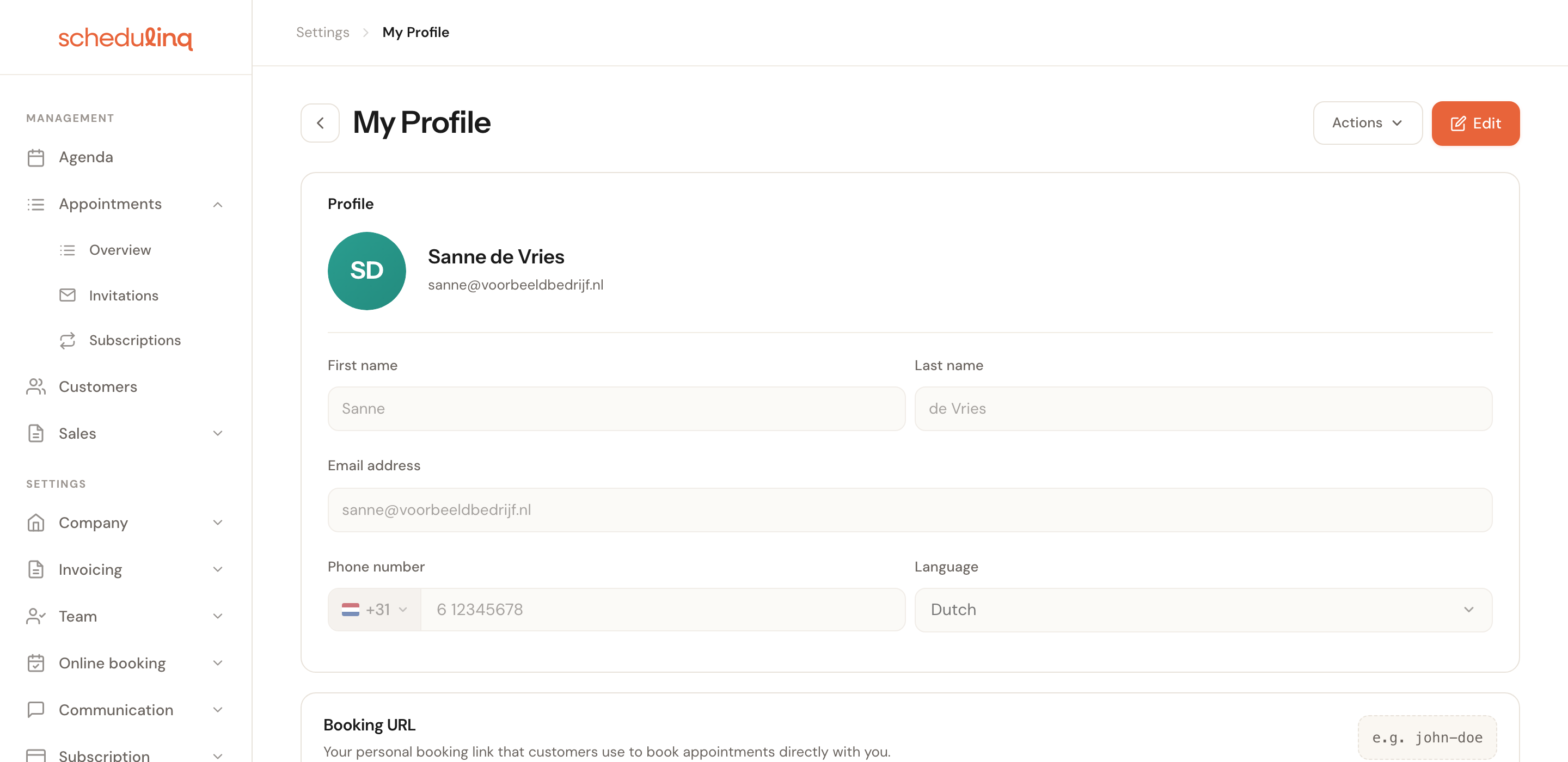
The page carries the colleague's name as its title, with Team members before it in the breadcrumb at the top. Only your own profile is called My Profile.
Additional fields
When your organisation has custom fields for staff members, the profile has an Additional fields card, for things like a team member's employee number. An admin or a role that manages team members fills them in, through Edit. Everyone else, the team member themselves included, sees them read-only, with the line Only people who manage staff can change these fields.
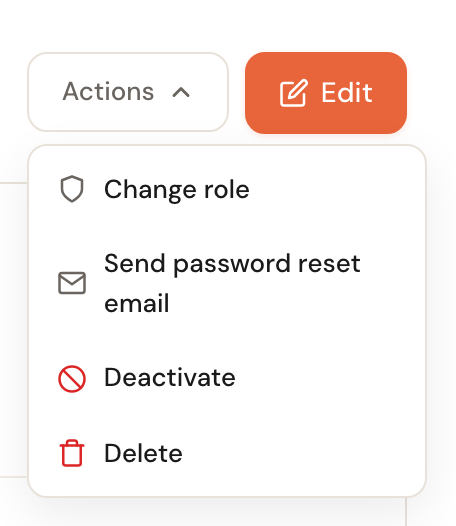
You can never set a colleague's password yourself. You send a password reset email, and they choose a new password.
Deactivating someone
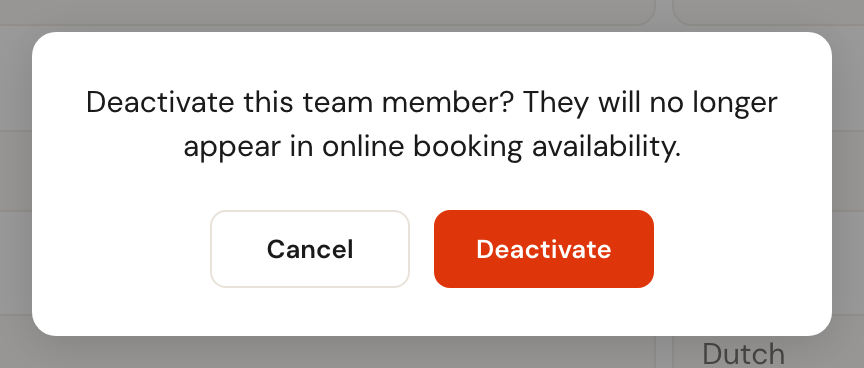
Actions → Deactivate blocks someone's sign-in and takes them out of scheduling. Schedulinq asks first: Deactivate this team member? They will no longer appear in online booking availability.
Actions → Activate reverses it, without asking: the colleague can sign in again and customers can book them again, with the working hours and appointment types they had. Appointments already in the calendar stay as they are, either way.
Removing someone
Through Actions → Delete, or tick several rows in the list and use the bar at the top.
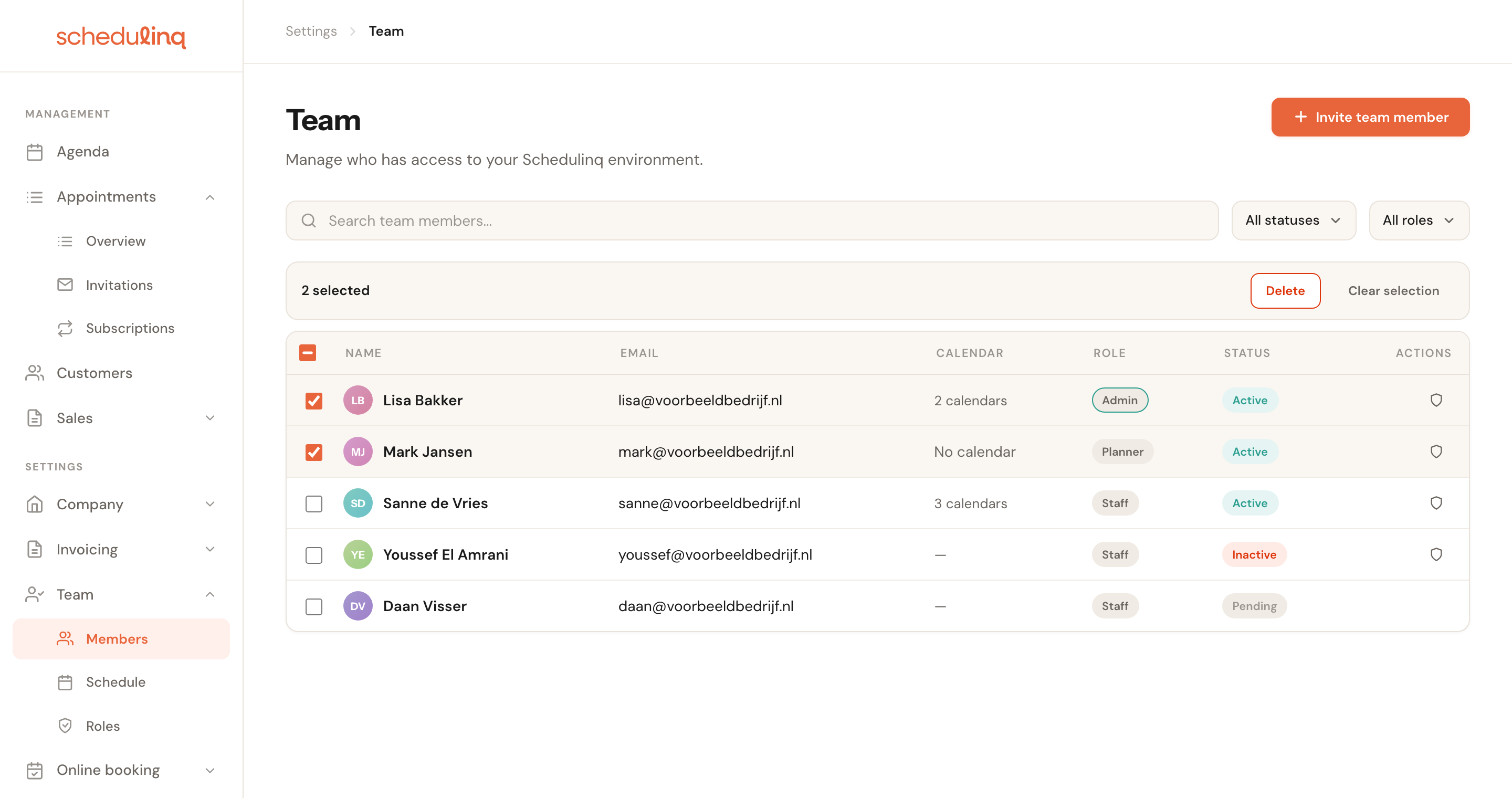
Existing appointments and invoices stay readable — the colleague disappears from your team, not from your history. You cannot remove your own account.
Frequently asked questions
A colleague is Active but gets no appointments. Being bookable is a chain of three links: the invitation is accepted, the colleague is assigned to the appointment type, and there are working hours in the schedule. Miss one and there are no times. There is no separate "bookable" switch. Missing working hours show in the list itself: No working hours — not bookable under the name.
I reactivated someone. Can customers book them again? Yes. Activate gives back both their sign-in and their place in online booking. Their working hours were kept while they were inactive.
Can I set someone's password? No. Send a password reset email.
Our CRM added someone. Your own software can invite team members through the API. Such an invitation says Via API and the name of the key that sent it, on its row and in its window under Invited by, and shows the CRM's metadata there. Otherwise it is an ordinary invitation: you can resend or cancel it, and the person accepts it as anyone else does.
Why can I not remove myself? To stop you locking yourself out. Ask another administrator to do it.