

Change or cancel an appointment
Move, edit or cancel a booked appointment — and above all, who is told about it automatically and who is not.
Changing a booked appointment takes two clicks. The question worth asking every time is a different one: will the customer know?
The short answer: your team and your organisation are always notified automatically, your customer never is. For the customer, Schedulinq opens a window where you can review, edit and send the email — or skip it. That choice is yours every single time.
Changing an appointment
Open the appointment
Click it in your calendar, or find it under Appointments → Overview. The appointment details sit on the left, with the Add-ons, Location, Internal note and Communication cards on the right. What each of them is for is in The appointment screen.
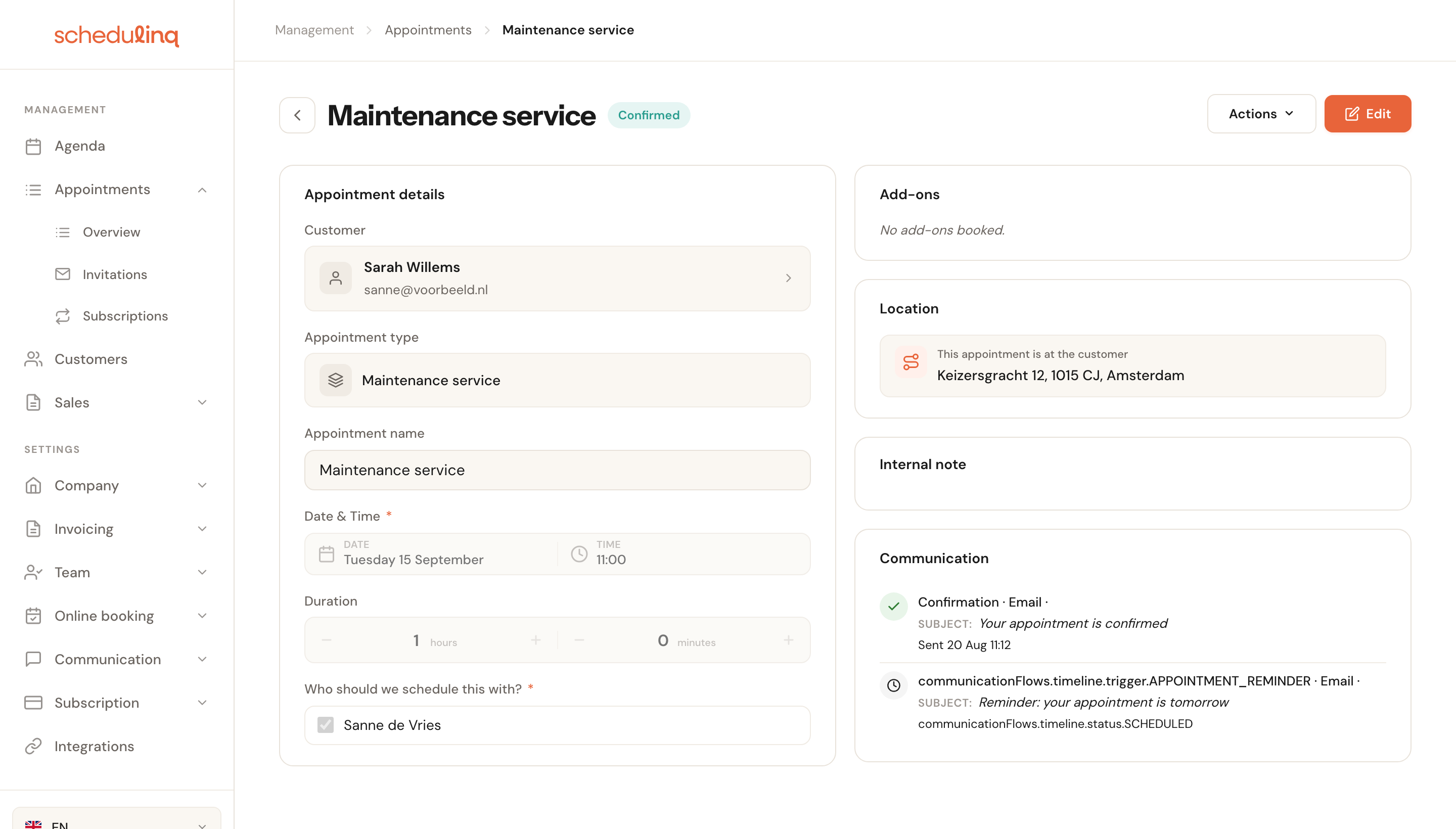
The Communication card at the bottom right shows what has already gone out to this customer and what is still scheduled.
Click Edit and change what needs changing
Every field becomes editable. To move the appointment, change Date & Time.
From the calendar it is quicker: right-click the appointment and choose Edit. The appointment then opens straight in edit mode.

Save, then decide about the email
After saving, the Send notification window opens with the text that matches your change already filled in.
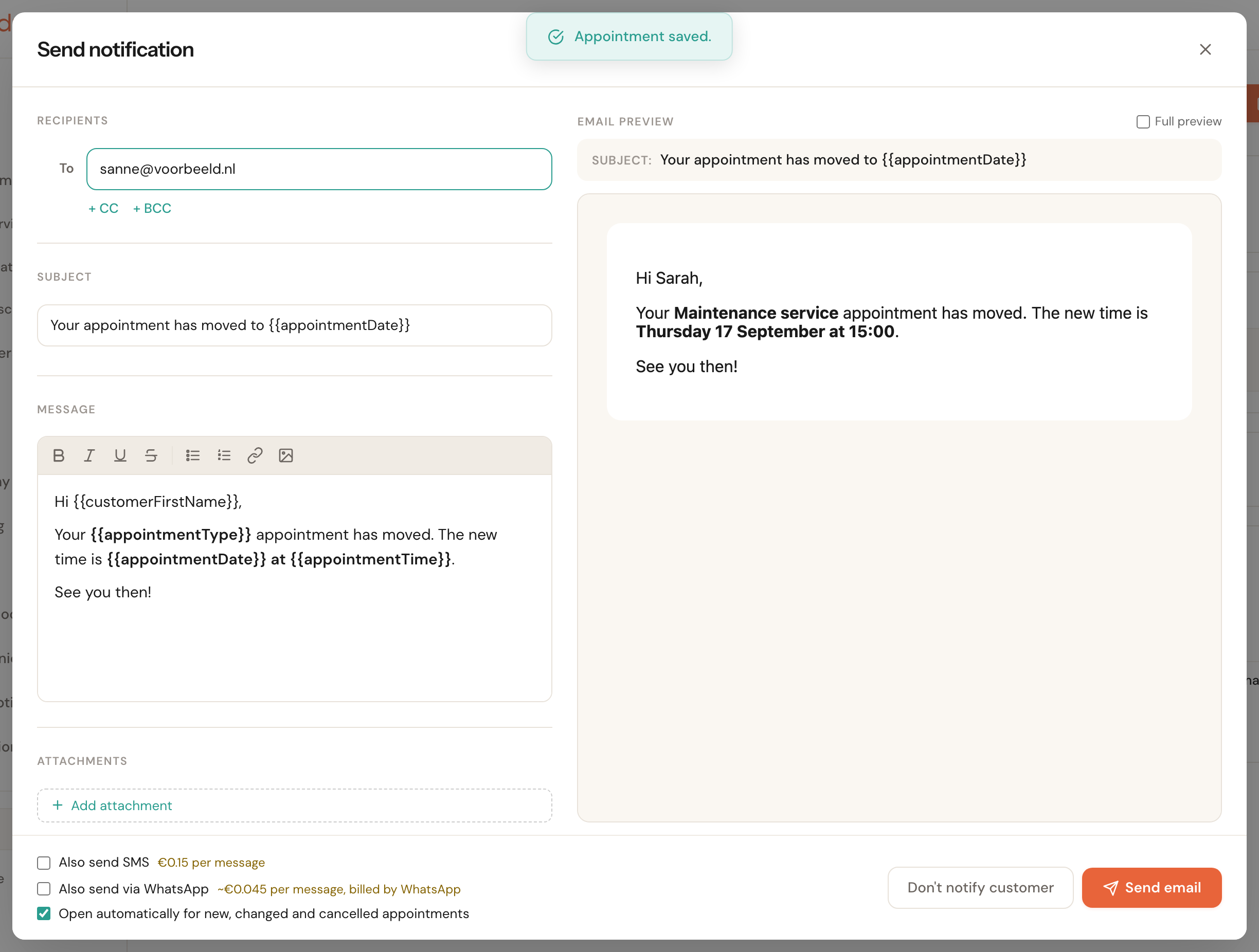
You can edit the text before sending, attach a file, or send it as an SMS or WhatsApp message — with the per-message cost shown next to each.
Two buttons, two outcomes:
- Send email — the customer is told.
- Don't notify customer — your change is saved, but the customer hears nothing.
What each part of the window does is in The Send notification window.
An appointment from your CRM
An appointment that came from your CRM — booked with an invitation it sent, or planned from its Plan button — can carry the CRM's references. They are the last field of the details, Metadata (Kenmerken in Dutch), and they are read-only: editing the appointment never changes them. See Metadata.
An appointment planned from the CRM's Plan button also has a Back to the CRM button while you view it, when your admin allowed that CRM's address under Integrations → API. It takes you back to the lead in your CRM.
An appointment without a service at a location
An appointment without a service can sit at a location where no service is offered (any more) — because it was made through the API, with Reschedule or from a planning link, or because the service later dropped that location. When you edit such an appointment, it stays there: the location is simply among the places you choose from. It only moves when you pick another place yourself.
What the appointment is worth
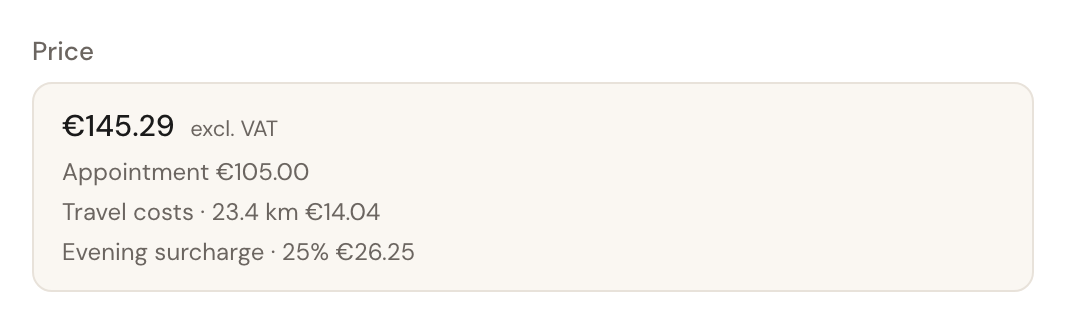
Under the duration sits Price: what this appointment earns, excluding VAT — the service's price plus every add-on, with the breakdown underneath when there are add-ons. It is read-only: you do not change it on the appointment.
When an article adds itself to your appointments, the amount also counts the travel cost and the surcharge, each on a line of its own under the appointment's price: Appointment €105.00, Travel costs · 23.4 km €14.04, Evening surcharge · 25% €26.25. See Articles that add themselves. When you edit the appointment it says Travel costs and surcharges are worked out again when you save.
When the customer got a discount when booking, it is there too as a line of its own, such as Discount code WELCOME10 · −10%, and the total is the price after the discount. Edit the appointment and the discount stays, worked out again over the new price when you save. When the customer paid with a gift voucher, below it are the total including VAT, what the voucher paid and what is still to pay. See Discounts and discount codes and Gift vouchers.

A video call on the appointment
If the appointment is a video call, the place where the address would be holds one block with the call: Video call, where the meeting was made (Microsoft Teams, Google Meet or Own link), and the link under it. At the edge of the block you copy the link or click Join; a cancelled call no longer has Join.
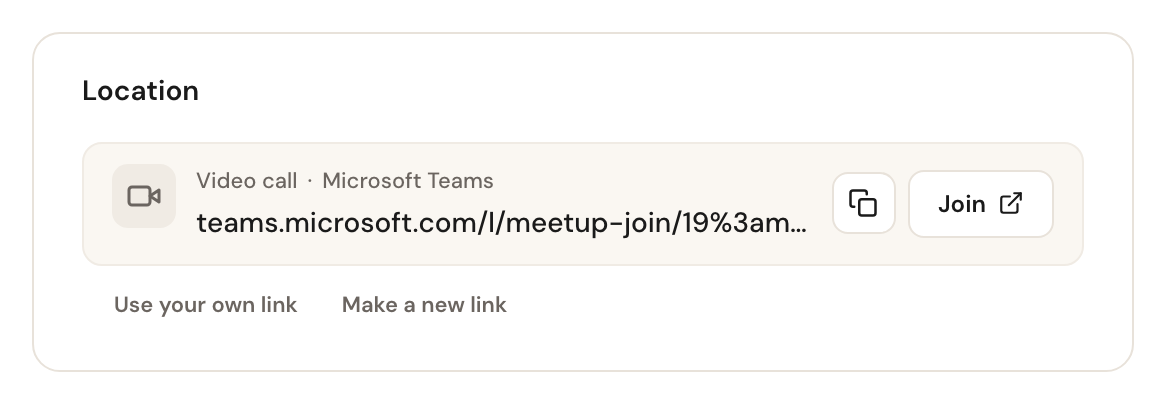
Under the block are the two things you rarely need:
Use your own link
Only if you may edit the appointmentPaste the link of your own meeting, from Zoom for example. It has to start with
http:// or https://.
A pasted link is yours: it stays when the appointment changes colleague or the customer reschedules it. If the customer already had a message about this appointment, they are sent the new link straight away.
Make a new link
Asks you to confirm firstHave the colleague's calendar make a new meeting. The current link stops working; until the new one is there, the block says A new link is being made….
For when a link has leaked or points at the wrong meeting. If the customer already had a message about this appointment, they get the new link; otherwise it is simply in their confirmation.
Open a video call just after it was made and the block says The link is being made in the colleague's calendar…. As soon as the calendar has made it, the link appears by itself; there is no need to reload the page.
If no colleague on the appointment can have a link made — nobody has a connected calendar that makes meetings — the block says so, and Add link is the only button: paste a link yourself.
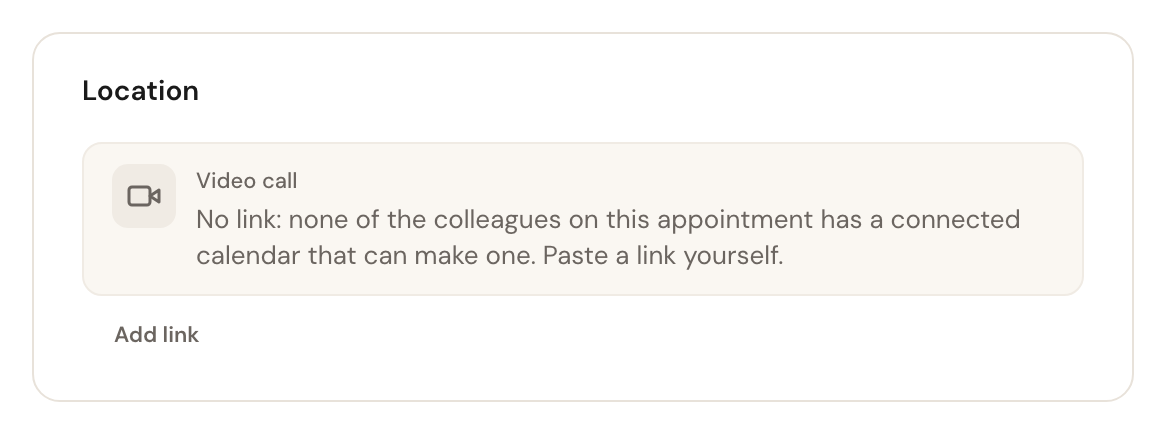
If there is no link yet but a calendar can make one, the block says No link yet, with Add link to paste one yourself and Make the link to try again. Where the link comes from is described in Connect your calendar; what your customer notices of it in Messages for video and phone appointments.
A phone call has a Phone call block with the number you call the customer on; click it to call. If the customer has no number on file, the block says No phone number on file.
Who is told about which change
Not every edit counts as a change anyone is told about. Schedulinq tracks six things; change anything else and no email window appears and nothing reaches the customer.
| What you change | Your team | The customer |
|---|---|---|
| Date or time | automatically | only if you send the email |
| Duration | automatically | only if you send the email |
| Appointment type | automatically | only if you send the email |
| Add-ons | automatically | only if you send the email |
| Location or address | automatically | only if you send the email |
| The customer's object, such as a car or a horse | automatically | only if you send the email |
| Assigned staff member | the staff involved | never |
| Customer, internal note, custom fields | nobody | never |
Move the appointment or change its duration and the scheduled reminders shift with it automatically. You do not need to set them again.
The Send notification window
Whether you change an appointment, cancel it or write with Actions → Send confirmation, you write to the customer in the same window. From top to bottom:
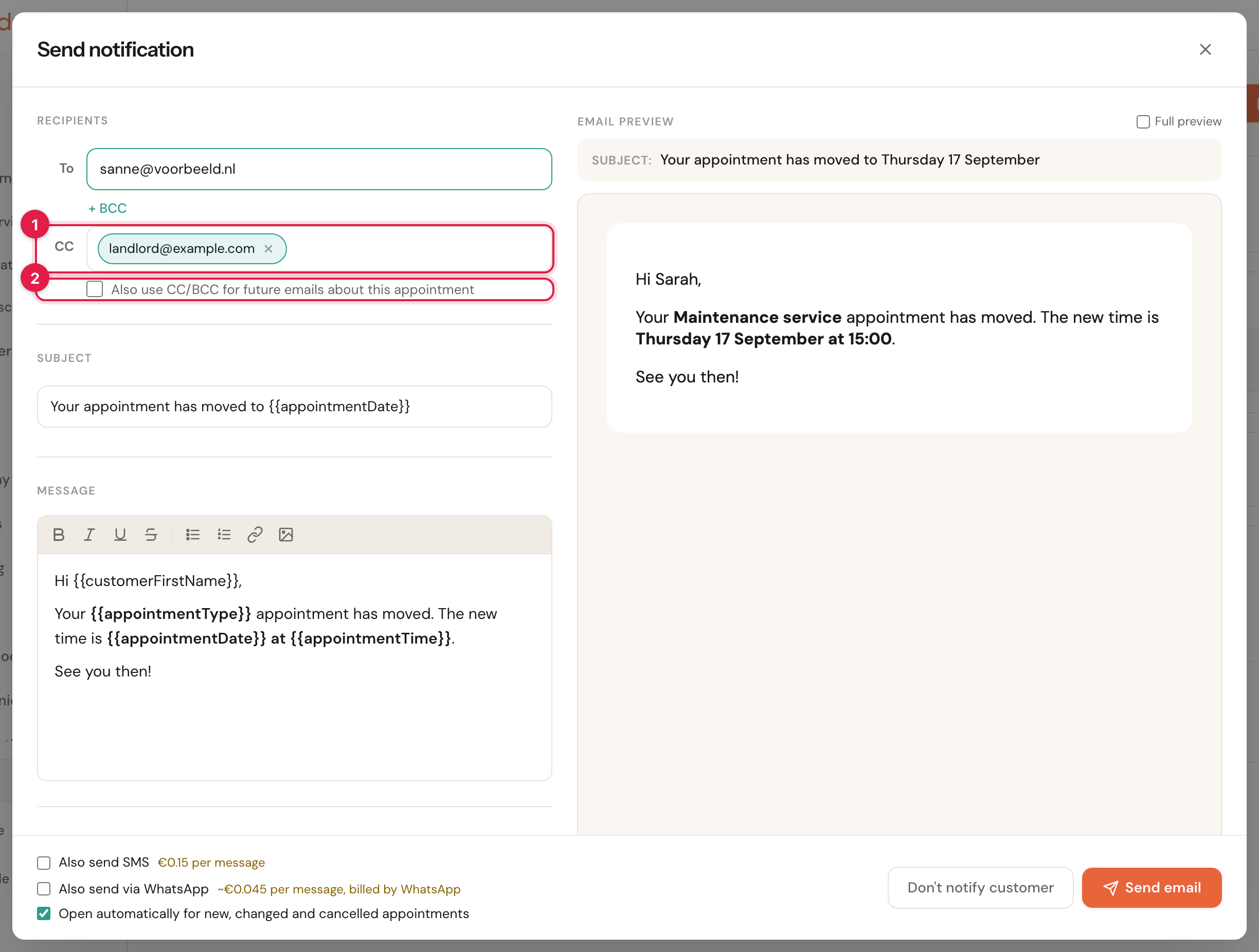
With + CC open: a copy for the landlord (1), and the box that keeps sending one (2).
To
EditableThe customer's e-mail address, already filled in. Change it to reach the customer at another address for this one message.
A customer without an e-mail address gets an empty To, and this is the only place to give one — which is why the window then always opens, whatever the checkbox at the bottom says. The address you type is also saved on the customer, so the reminders that follow reach them too. A customer who already has an address keeps it: what you type here is for this message only.
+ CC and + BCC
OptionalSend a copy to someone else: openly with CC, or with BCC without the customer seeing it. Type an address and press Enter; each address becomes a label you can remove with its cross.
For the landlord who has to open the door, or a colleague who wants to know. As soon as CC or BCC is open, Also use CC/BCC for future emails about this appointment appears under it. Tick it and these addresses also get every later e-mail to the customer about this appointment — the reminders already scheduled included.
Subject and Message
Filled in with the text of your communication step for this change; change it as you like for this one message. Insert merge tag adds a field such as the customer's first name at the cursor, in the subject or the message — wherever you clicked last.
The preview on the right shows the e-mail as this customer gets it, with the merge tags filled in. Full preview shows the whole e-mail instead of only the message.
Attachments
Up to 5 files of 5 MB eachAdd attachment adds a file to this message: PDF, JPG, PNG, Word (.docx) or Excel (.xlsx). Files your communication step always sends along are already there, marked From step.
Remove a From step file with its cross and it stays out of this one message only; the step keeps the file for the next ones. A file larger than 5 MB is not added.
Also send SMS
€0.15 per messageNot during the trialOnly there when the customer has a phone number and your trial is over. Tick it and an SMS box opens under the e-mail, filled with the text of your SMS step for this change if you have one. The SMS goes to this customer once, for this appointment: no rule is made for next time.
For a customer who reads a text message sooner than an e-mail, or a change on the day itself. The counter shows the characters used: one SMS holds 160, or 70 as soon as there is an emoji or an accented letter in it. A longer text goes out as two or more messages, and each one counts. The preview beside it shows the text with the merge tags filled in.
Also send via WhatsApp
About €0.045 per messageOnly there when the customer has a phone number. You write nothing here: WhatsApp only delivers wording it approved in advance, so the approved template of your WhatsApp step for this change goes out, shown read-only.
WhatsApp bills the cost itself, not Schedulinq: it is your own WhatsApp Business account. When it cannot send — not connected, no template yet, awaiting review or rejected — the box says so, with a link to fix it if your role may change the organisation settings. SMS and WhatsApp exclude each other: tick one and the other is cleared, so the customer does not get the same message twice.
At the bottom, Open automatically for new, changed and cancelled appointments decides whether the window opens by itself next time — see above. Send email stays greyed out until there is an address in To, a subject and a message. An address with a special character before the @, such as jörg@…, cannot be sent to: the window asks for another one.
Reschedule: letting the customer pick
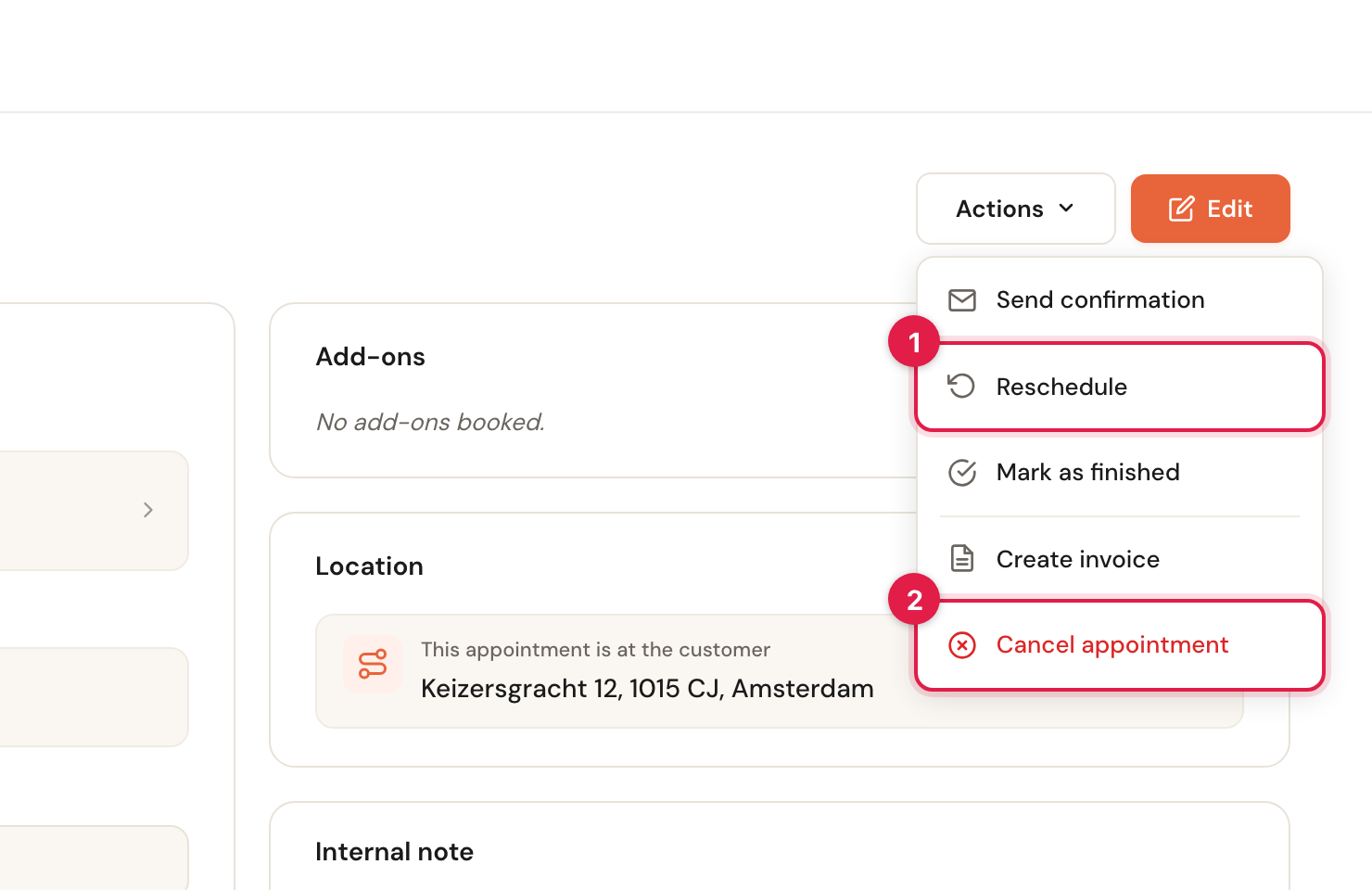
Reschedule sits under Actions. Use it when you do not want to pick a new moment yourself. On the calendar you also find it by right-clicking the appointment — handy when a whole day has to move, see Using the calendar.
What happens: the existing appointment is cancelled and the customer is invited to pick a new time from your available slots. Until they do, nothing sits in your calendar. Schedulinq lists this first in the Reschedule appointment window, including one point that surprises people: the customer cannot choose the same day as the original appointment — for that they need to call.
Reschedule also works for an appointment without a service. The customer then gets an invitation without a service with the same name, duration and place, with the appointment's colleagues — see Without a service. Reschedule is only there when the appointment has a customer: a block in your calendar has nobody to invite.
The invitation then appears under Appointments → Invitations, with the expiry date your communication flow gives by default. See Send invitations.
An appointment with Metadata passes them on: the reschedule invitation gets them, and so does the appointment the customer then books. Your CRM keeps recognising the lead.
Cancelling an appointment
Choose Actions → Cancel appointment
Schedulinq asks for confirmation. On the calendar you can also do this by right-clicking the appointment.
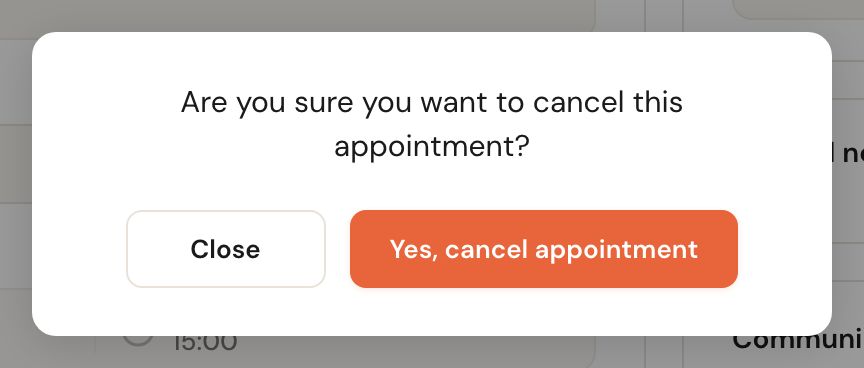
Note what it does not say: nothing is promised about an email to the customer. That step comes next, and like an edit it is optional.
Send the cancellation, or don't
Straight after cancelling the same window opens, now with the cancellation text. Send it or skip it — the same choice as for a change.
For an appointment with no customer (a block in your calendar) Schedulinq skips this step. There is nobody to tell.
The appointment gets the status Cancelled and disappears from your calendar immediately. The time is free again: customers can book that slot.
Where cancelled appointments live
They leave the calendar, but they are not gone. Go to Appointments → Overview and set the status filter to Cancelled.
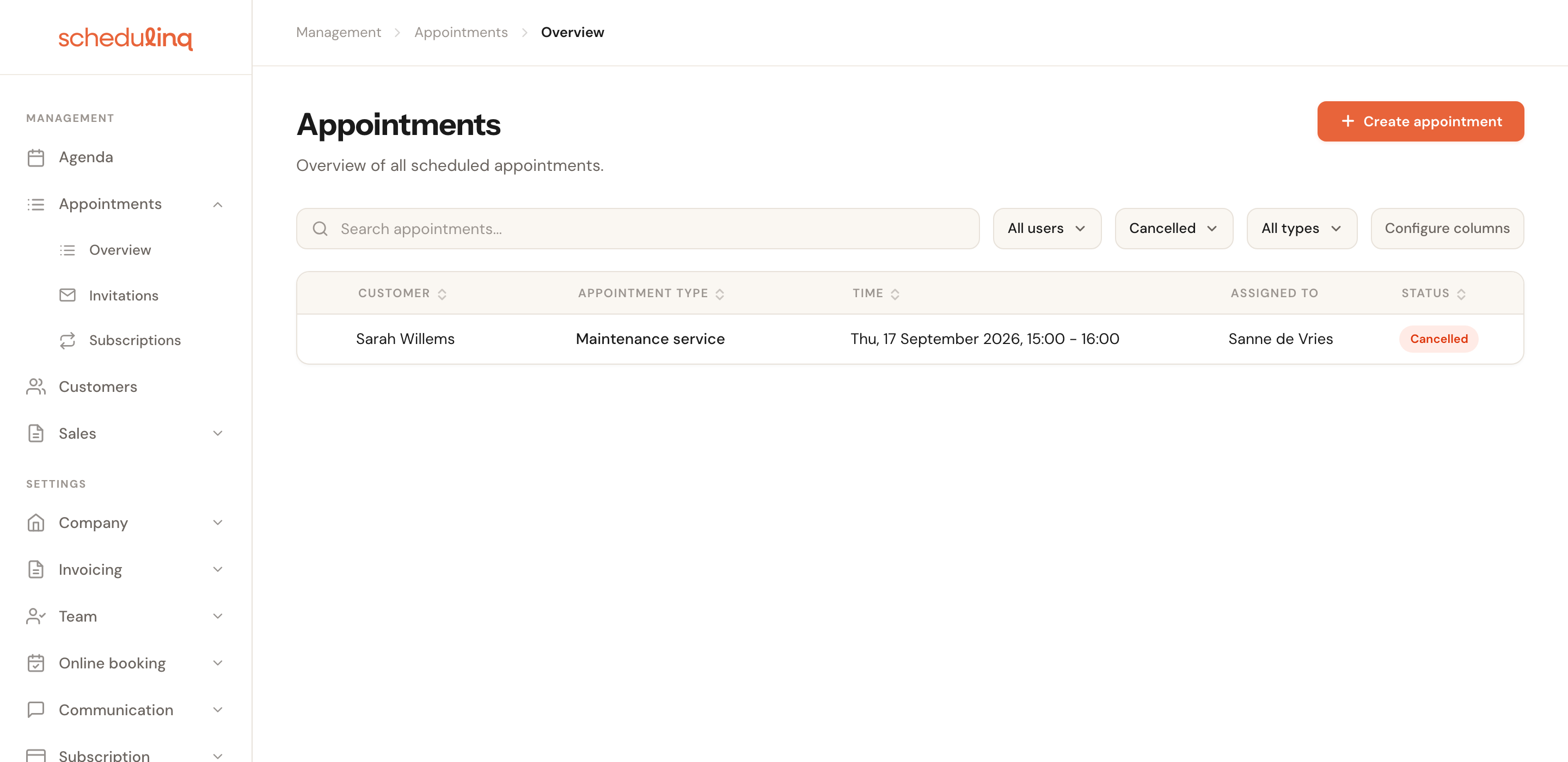
You can still open the appointment to see what was agreed and what was communicated. Invoices attached to it also remain.
Frequently asked questions
I saved a change but no email window appeared. You changed something that does not count as a change — a different staff member, the internal note or a custom field. Or automatic opening is off; check Actions for a queued message. Or there is no message to the customer set up for this change: then the window never opens by itself. Under Actions you can still write the customer a message yourself.
I clicked Send email and the connection dropped. The window then says the message may already have been sent. Just click Send email again: the customer will not get it twice.
The window says Couldn't load the email template. Then fetching the text of your communication step failed, for example over a shaky connection. Close the window and try again, or write a one-off message. That is different from No email template configured: then there really is no step for this change, this service and this place — at the customer's, on location, video or phone.
Can I write to a customer without changing anything? Yes. Actions → Send confirmation opens the same window with no particular trigger, so you can write whatever you need to say.
Does the cancelled time free up immediately? Yes, right away.
What happens to the reminders for a cancelled appointment? They lapse. A customer never gets a reminder for an appointment that no longer exists.