

Add a customer
Add a customer by hand — person or business — and record what you need in order to schedule and invoice them.
Most customers arrive on their own: anyone who books online is created as a customer automatically. Sometimes you add one yourself — someone who phones, an existing client you are moving across, or a company you are about to invoice.
Open Customers
Click Customers in the left-hand menu, then Add new customer at the top right.
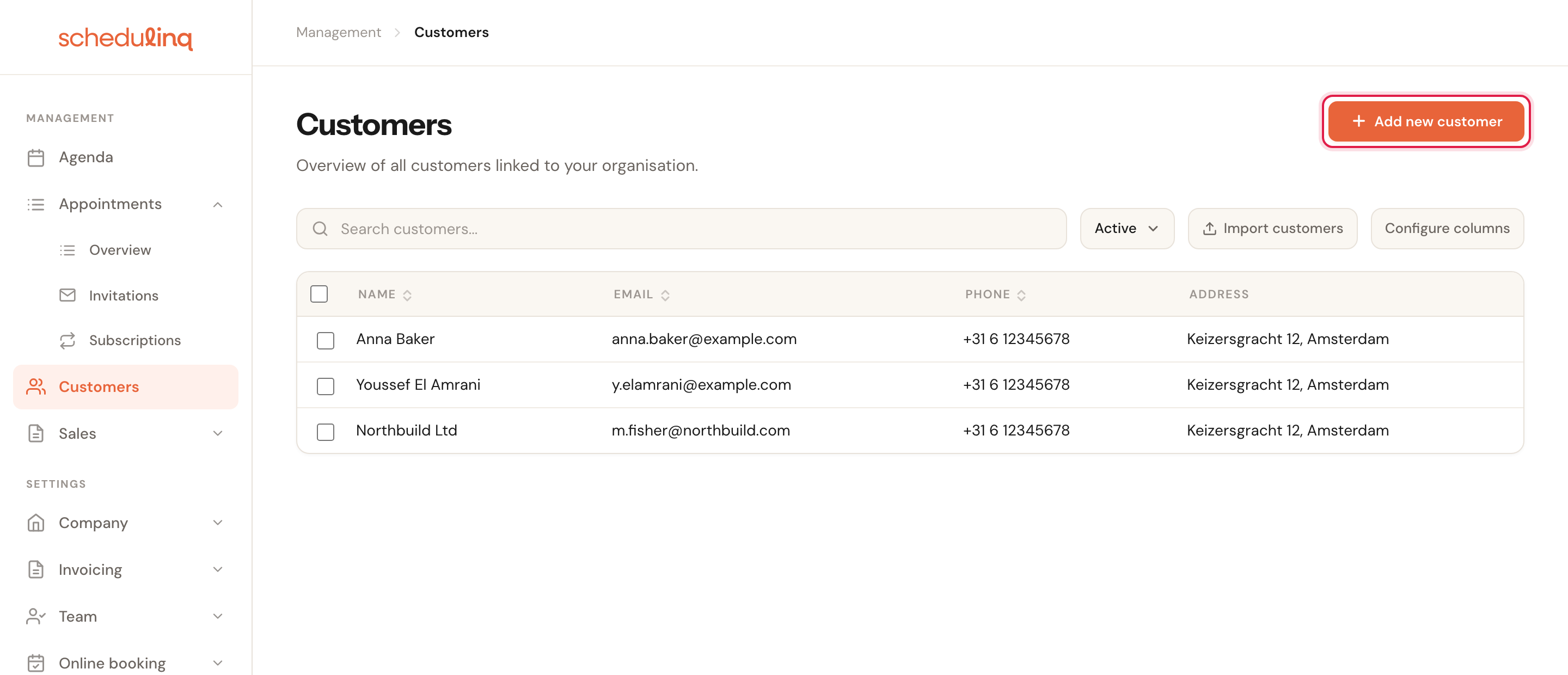
Moving a whole list across? Use Import customers next to it rather than adding them one by one.
Choose the customer type
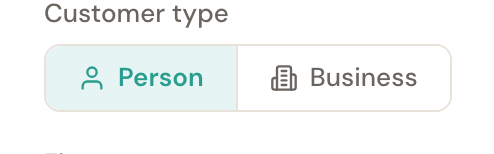
At the top of the form, pick Person or Business. That choice reshapes the rest of the form, so make it first.
Fill in the details and save
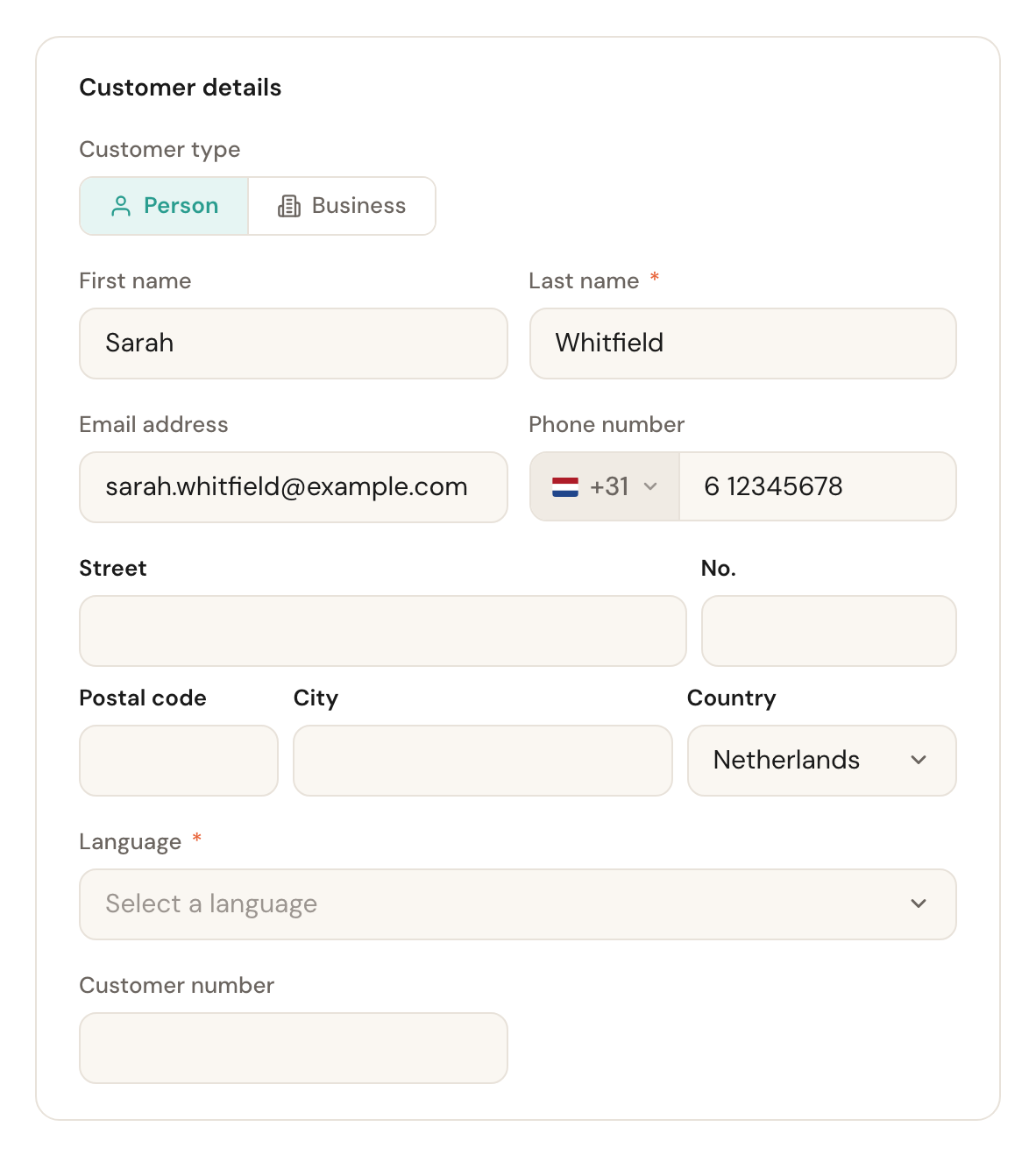
Only the name and the language are required. Everything else can follow later — a customer you have on the phone can be saved with nothing but a last name.
Customer type
Person or Business
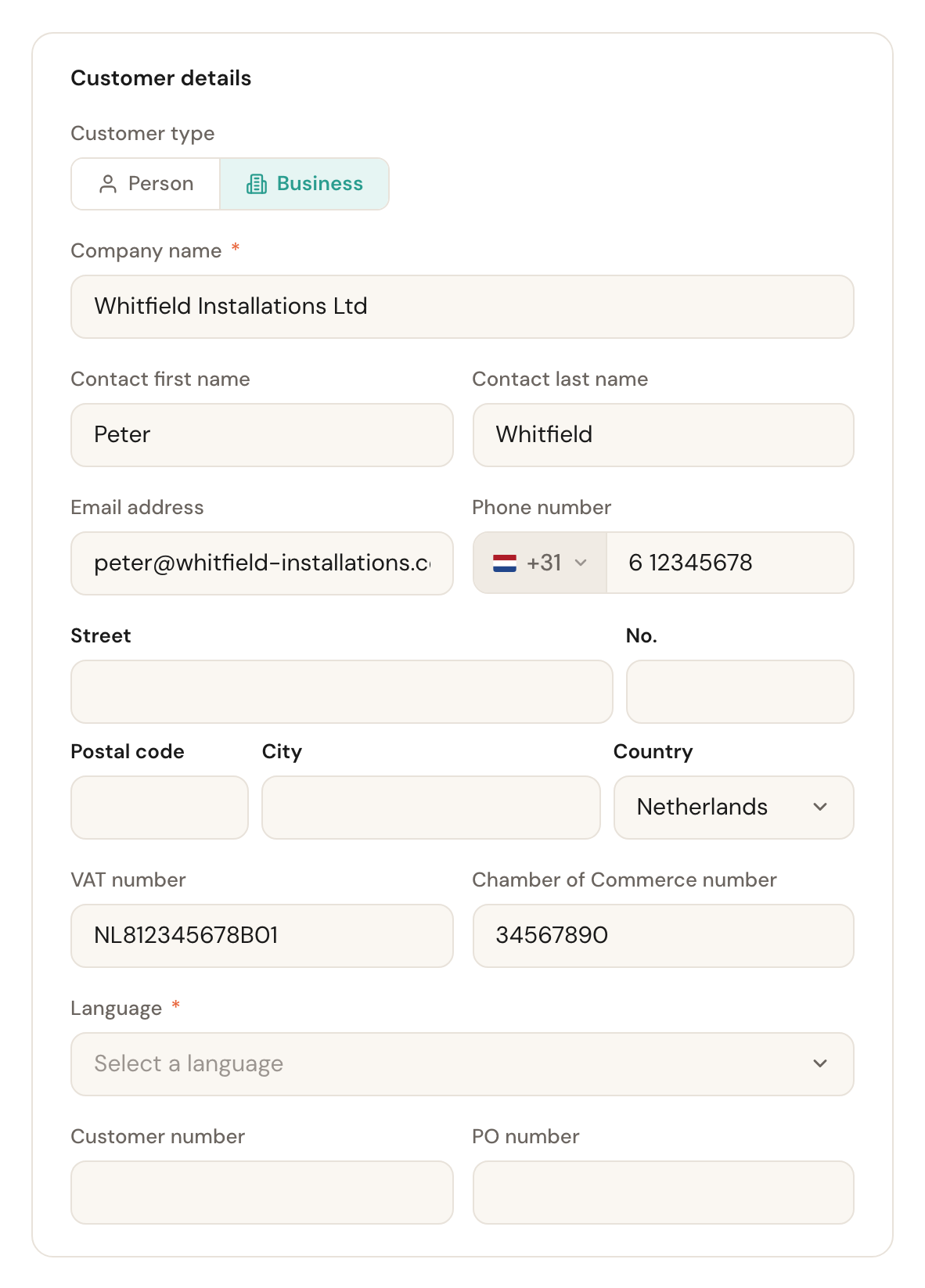
Default: PersonPerson asks for a first and last name. Business reshapes the form: you enter a company name, and the name fields become the contact person. VAT and Chamber of Commerce numbers appear as well.
This field is not merely cosmetic. Messages to customers can be set per customer type, so you can write to businesses differently than to consumers. A customer on the wrong type receives the wrong copy.
Name and contact details
Name
RequiredFor a private customer the last name is required and the first name optional. For a business the company name is required; the contact person may stay empty.
This is what identifies the customer in your lists. A business customer appears in the overview under its company name, not under the contact person's name — that is what you will be searching for later.
Email address and phone number
OptionalBoth may be left empty. If you do enter an email address, it has to be a valid one,
with no spaces, quotes or other special characters before the @. A phone number takes
digits, spaces and + - ( ) . /; with a letter in it the field says Invalid phone
number and the customer is not saved.
Without an email address you can still schedule the customer, but they receive no confirmation and no reminder. Fine for someone you ring yourself; not fine for someone whose appointment you want confirmed.
Address
OptionalAll of it, or noneStart typing and pick a suggestion, or fill in the fields yourself. This is the customer's own address — the one your invoice goes to. Street and house number together may be at most 255 characters, the postcode 20 and the city 100; anything over that is said under the box straight away.
An appointment at the customer's has an address of its own: that way you can also serve a customer at a second address, such as a holiday home or business premises. When you schedule an appointment or an invitation yourself, Schedulinq fills this address in as the appointment's address; you can change it there per appointment. When the customer books online, that booking only fills this address in while it is still empty — an address already here is never overwritten. Fill in part of it and Schedulinq asks for the rest: street, city and country belong together.
Language
Language
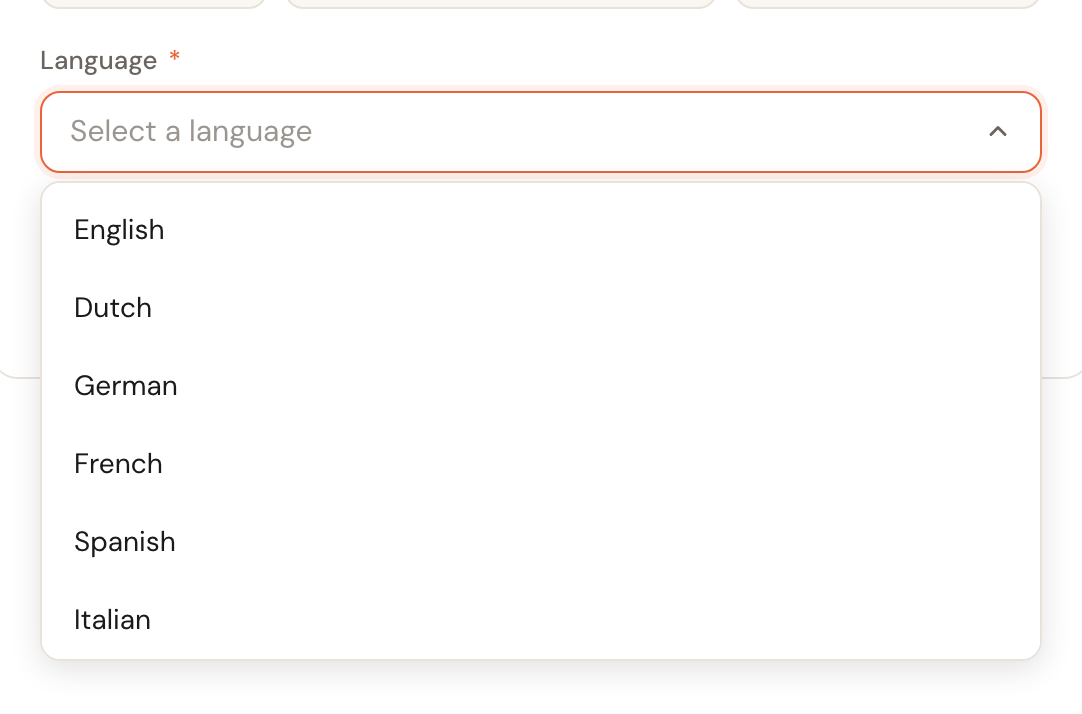
RequiredThe language this customer is written to in.
Confirmations, reminders and the booking page all follow this setting. It is separate from the language you use Schedulinq in — you can work in English and write to a customer in German.
Your own fields
If your organisation has set up custom fields, they appear at the bottom of the form. A field can apply to every customer, or only to private or only to business customers — in the example above, PO number appears on the business form only. You set them up under Company → Custom fields.
Objects
If your company has set up object types, such as a horse, a car or a boiler, you record the customer's objects once the customer is saved: the customer record has a tab of its own for them. How that works is in Customer objects.
Frequently asked questions
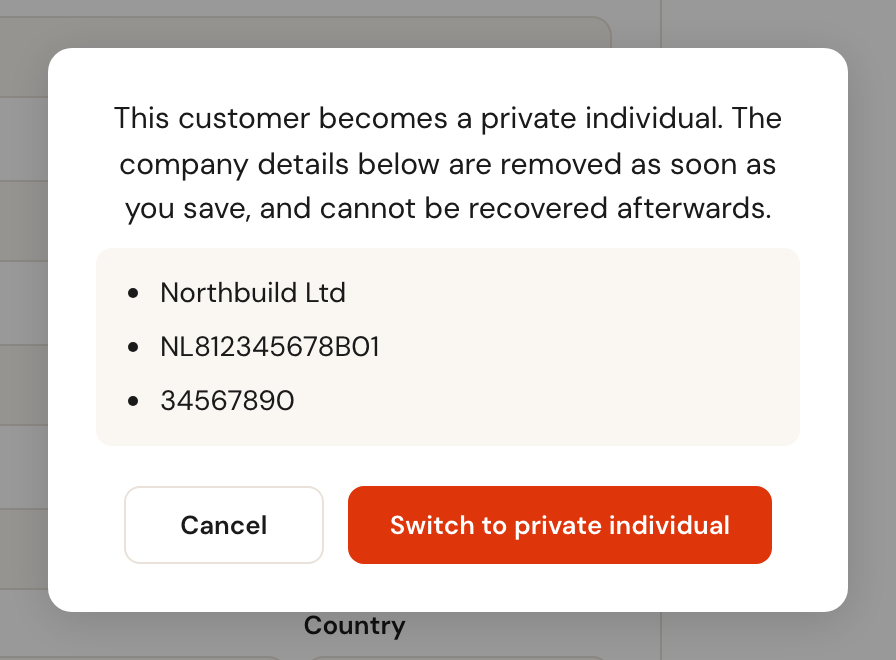
Can I convert a customer from person to business later? Yes — open the customer and switch the type. Bear in mind that the other direction removes the company details when you save; Schedulinq asks you to confirm first.
What if I create the same customer twice? With a duplicate email address Schedulinq warns you first. Without an email address it can happen. Merge the two records afterwards rather than deleting one: that way the history of both is kept. See Merging two customers.
Does deleting a customer remove them from my appointments? Not from past ones: completed appointments and invoices stay readable. Upcoming appointments are cancelled, without a message to the customer, and their running subscriptions and open invitations are cancelled too. See The customer record.