

Email branding
How your emails look — your booking page's colours and fonts by default, or a look of their own — with the height of your logo and a live preview.
Communication → Branding decides how the emails Schedulinq sends for you look: their colours, their fonts and how tall your logo is. Out of the box they simply take your booking page's branding, so often there is nothing to do here. What the emails say is set in the steps — see Edit a step.
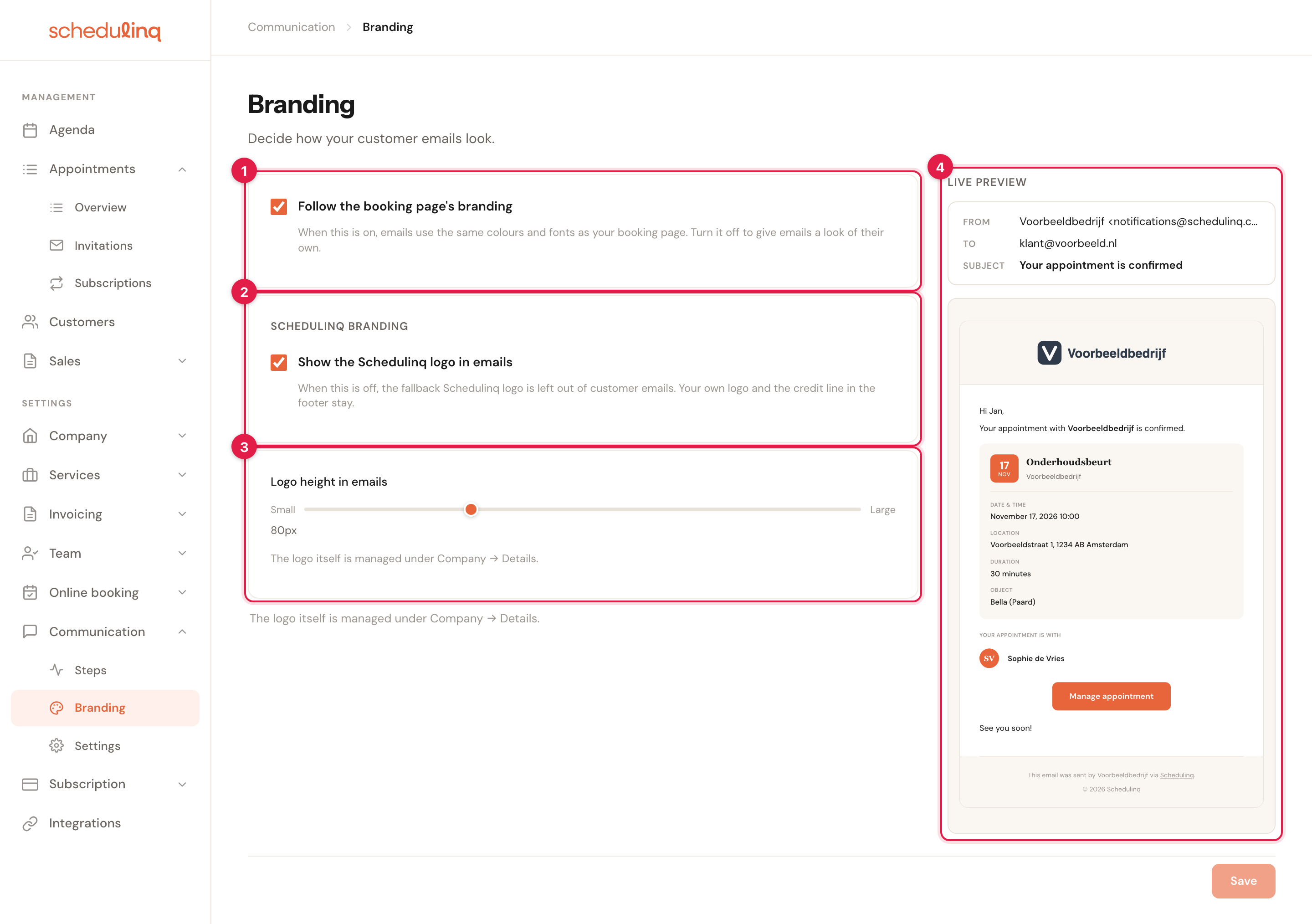
This is how a new account starts: the emails follow the booking page.
- Follow the booking page's branding — on by default.
- Show the Schedulinq logo in emails — the stand-in logo for an account without one.
- Logo height in emails — only there once you have a logo.
- Live preview — an example email with what is on the page now.
Nothing changes for your customers until you click Save. The button stays greyed out while there is nothing to keep.
Which emails it applies to
- Every email from your steps, in all three flows — Appointment, Invitation and Invoice: confirmations, reminders, invitations, the invoice itself and payment reminders. That includes the emails to your own organisation and to your colleagues. See How communication works.
- The email with the code a customer confirms their email address with while booking, if your booking page asks for one. See Email verification.
- The email that tells you whether Meta approved one of your WhatsApp messages.
It does not apply to emails about your Schedulinq account itself — a password reset, an invitation to join your team, notices about your trial: those keep Schedulinq's own look. SMS and WhatsApp are plain text and have no branding. The invoice PDF has its own, under Invoicing → Invoice template — see Invoice template.
Following the booking page
Follow the booking page's branding
Default: onWhile it is ticked, your emails take the primary colour, background colour, card colour and fonts of Online booking → Branding. The bands at the top and bottom of the email take the background colour.
One look, kept in one place. Change a colour on the booking page and your emails change with it, without you coming back here. Untick it only when your emails should look different from your booking page.
A look of their own
Untick Follow the booking page's branding and five colours and two fonts appear. They start on the colours and fonts your emails have now, so unticking alone changes nothing you can see — the preview only moves once you change a field.
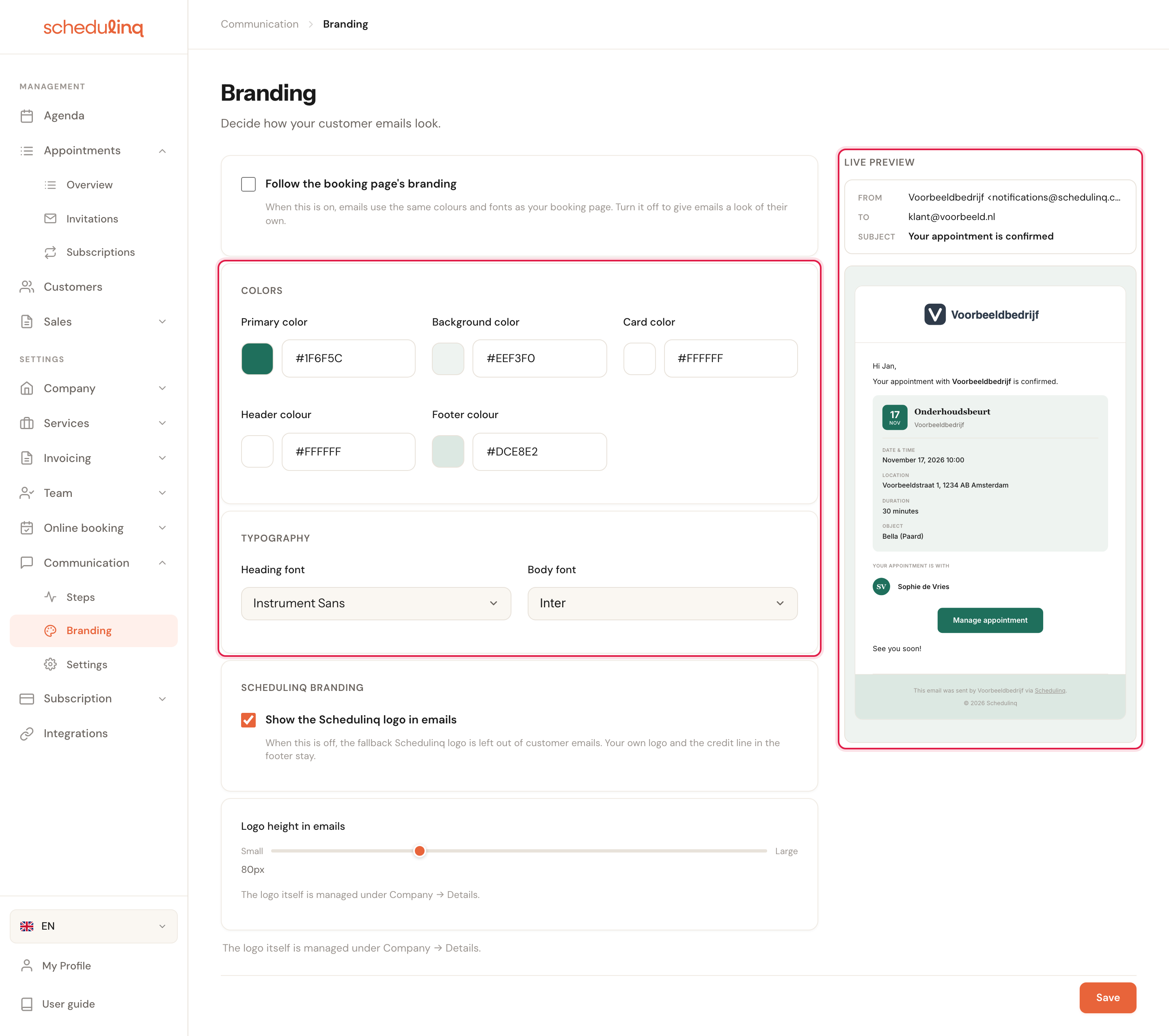
The preview repaints while you type, before anything is saved.
Once you save, your emails stop following: a later change to your booking page no longer reaches them. Tick the box again and save, and your own colours are dropped — the next time you untick it, the fields start from the booking page again.
Primary color
Default: #E8643AThe buttons in the email (Manage appointment) and the date on the appointment card.
Background color
Default: #FAF7F2Everything around the message, and the fill of the appointment card inside it.
Card color
Default: #FFFFFFThe panel the message itself sits on.
Keep it light: the text of your message is near-black whatever you choose here.
Header colour
Starts as your background colourThe band at the top of the message, behind your logo.
Pick the colour your logo was designed on. A white logo needs a dark band; a dark logo on a dark band disappears.
Footer colour
Starts as your background colourThe band at the bottom, with the line This email was sent by … via Schedulinq.
Body font
Default: DM SansAll the text of your messages.
Not every email program loads the font you choose — Outlook, for one, shows Arial instead. So make sure your message also reads well in Arial.
Heading font
Default: Instrument SansOnly the email with a verification code uses it, for the code itself. The messages from your steps do not.
Your logo in the email
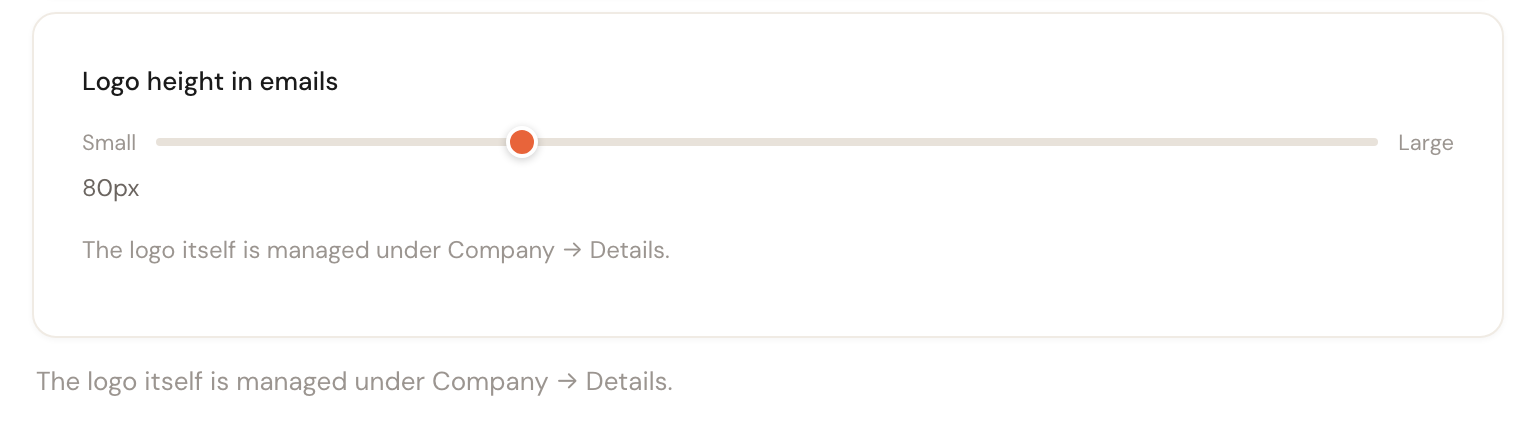
Logo height in emails
30 to 200 pxDefault: 80 pxHow tall your logo may be in the band at the top of the email. It is never wider than 280 pixels, so a wide logo can stop growing before it reaches this height. The slider only appears once you have a logo.
The logo itself lives under Company → Details: the email shows your full logo, or your icon if that is all you uploaded. See Your logo.
The Schedulinq logo
Show the Schedulinq logo in emails
Default: onSchedulinq's logo appears in two places: at the top of the email when you have not uploaded a logo yourself, and small in the footer of the email with a verification code. Untick this and both are left out.
Your own logo stays either way, and so does the line This email was sent by … via Schedulinq at the bottom of every email.
This setting is the emails' own. It stands apart from Follow the booking page's branding — the booking page has a switch of its own for Powered by Schedulinq — and a reset on the booking page leaves it alone.
The live preview
On the right is an example email, made the way a real email is made, with what is on the page now — including what you have not saved yet. The text is a fixed example in English; this page only decides how it looks. To see one of your own messages, open its step: the preview there uses these settings too.
Frequently asked questions
I changed my booking page's colours, and my emails changed too. That is Follow the booking page's branding at work. Untick it here and save if your emails should keep their own look.
Where do I upload my logo? Under Company → Details. This page only decides how tall it is in the email.
Can I remove "via Schedulinq" from the footer? No. The line at the bottom stays in every email; what you can leave out is the Schedulinq logo.
My email looks different in Outlook. Outlook does not load the font you chose, so it shows your message in Arial. The colours do come through.