

Discounts and discount codes
A promotion that takes money off every booking made in a given period, or a discount code the customer types on your booking page — and what the appointment and the invoice show afterwards.
An autumn offer of 20%, a welcome code for new customers, ten euros off an MOT: those are discounts. In Schedulinq a discount is an article, like travel costs and surcharges — the fourth kind. You create it once, and from then on your booking page does the work: the customer gets the discount by itself, or after typing the code.
A customer gets a discount in one of two ways:
- With every appointment — a promotion. Whoever books within the promotion's period gets the discount without doing anything. On the booking page the service shows the old price struck through, with the new one beside it.
- With a discount code — the customer types the code, for example WELCOME10, on the last step of the booking page, in the Discount code or gift voucher? box.
Looking for credit somebody else paid for? That is not a discount but a gift voucher.
In short
- Go to Sales → Articles and click New article.
- Give it a code and a name. The name is what the customer sees: Autumn offer.
- Under Kind of article, choose Discount.
- Choose how the customer gets it: With every appointment or With a discount code.
- Fill in the discount, optionally the period and the services, and click Create.
Creating a discount
Create a new article and choose Discount
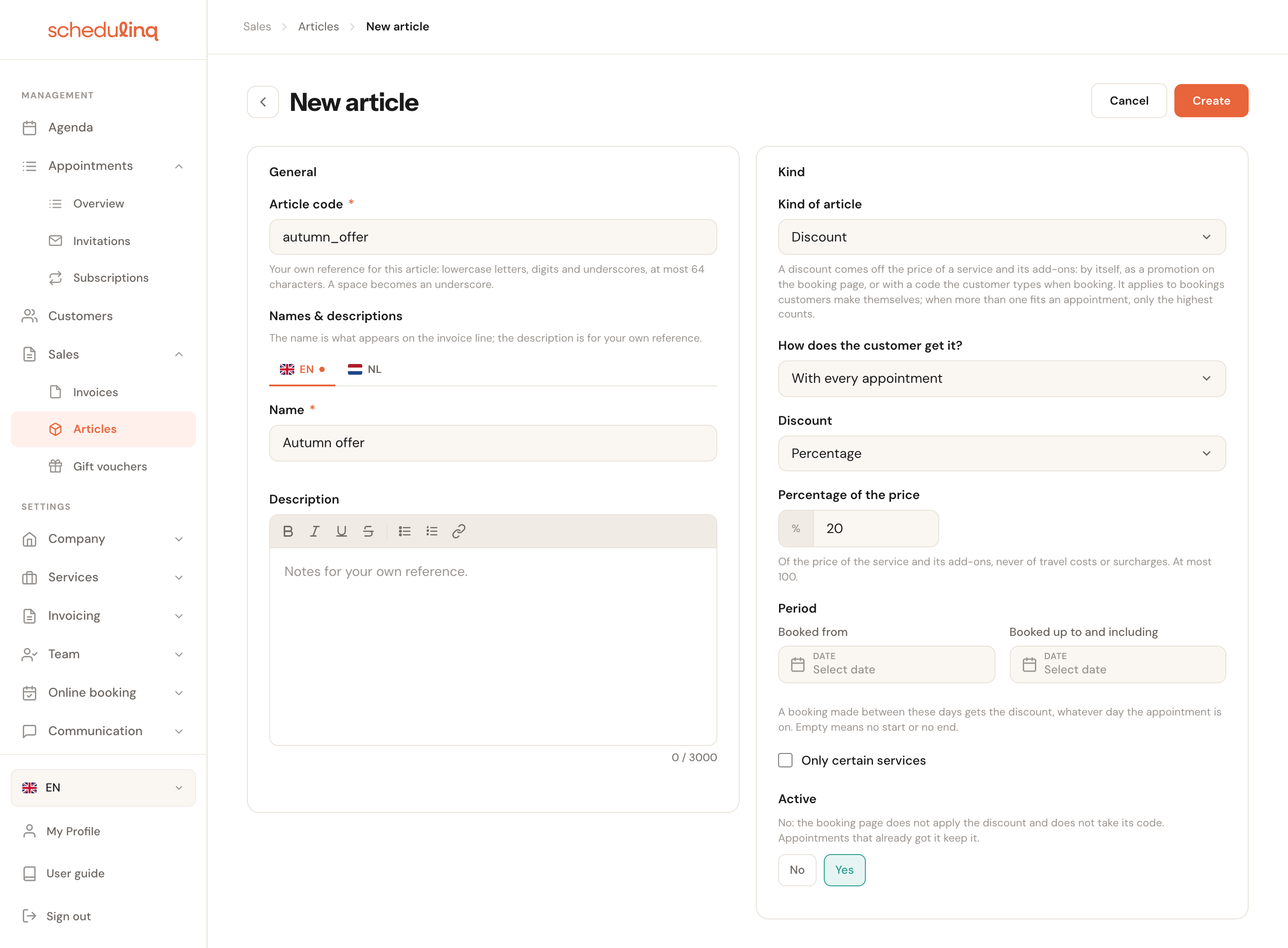
Under Sales → Articles, click New article. Fill in an article code and a name, and choose Discount under Kind of article. Different fields appear than for a plain article: a discount has no price card and no stock, because the amount is part of the discount itself.
Choose how the customer gets the discount
With every appointment makes it a promotion. With a discount code adds the Discount code field: what the customer types.
Fill in the discount
Choose Percentage or Fixed amount and enter the figure.
Choose the period and, if you like, the services
Leave the period empty and the discount runs straight away with no end. Tick Only certain services to limit it.
Click Create
With Active on Yes, the discount applies on your booking page at once.
The overview
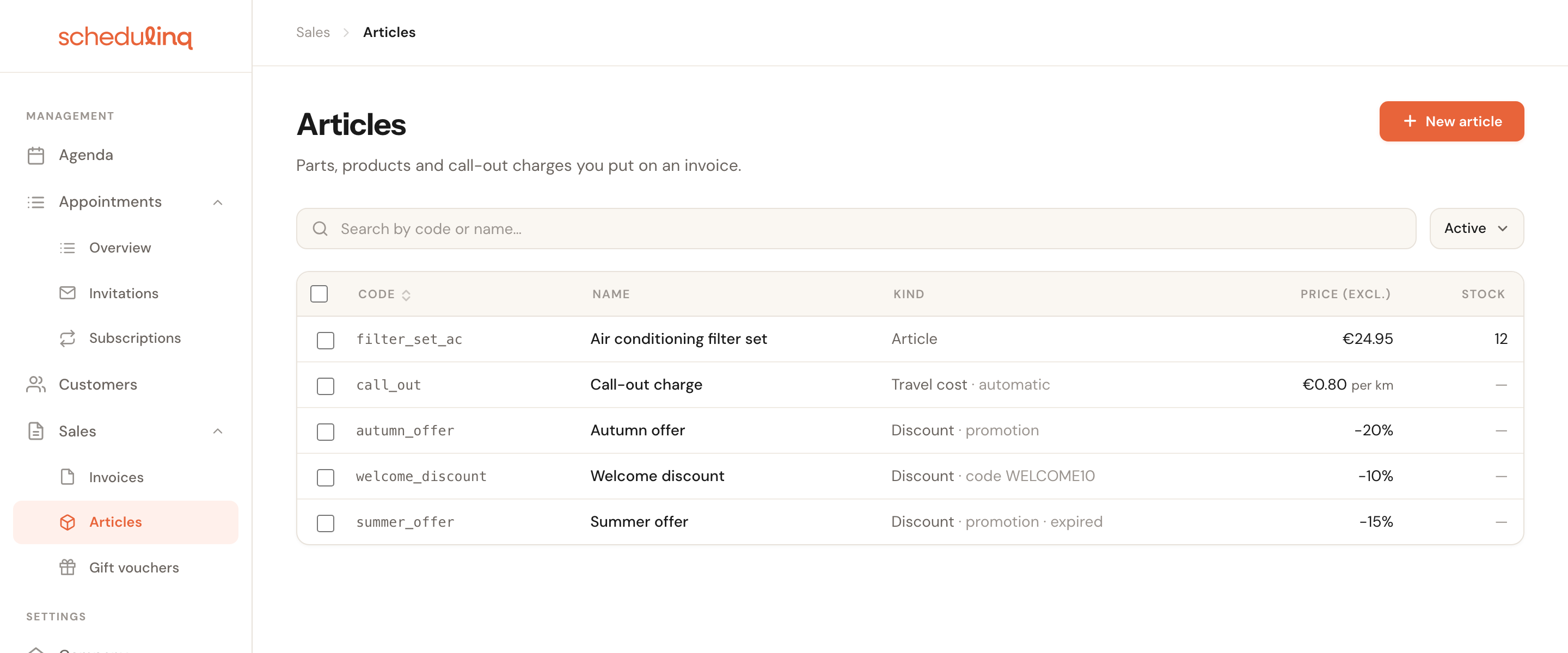
Discounts sit among your other articles. The Kind column says whether it is a promotion or a code, and whether its period is over (expired) or still to start (scheduled). A discount you switched off reads off. The Price column shows what the discount takes off: −20%, or −€10.00 incl. VAT.
A promotion
How does the customer get it?
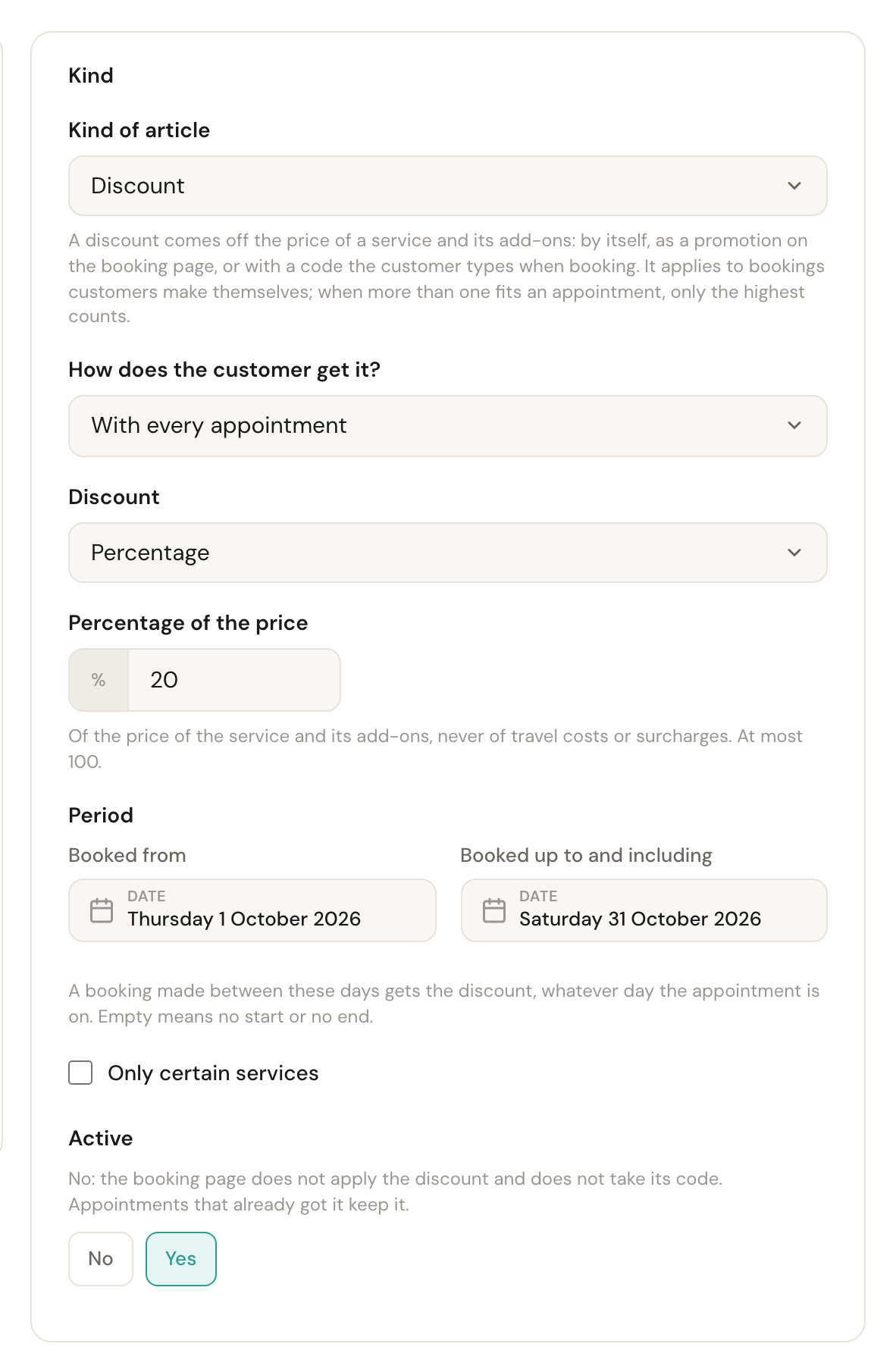
With every appointment or With a discount codeWith every appointment is a promotion: whoever books within the period gets the discount by itself.
On your booking page customers see the promotion while they choose a service: the regular price struck through, the discounted price beside it and the promotion's name below. So give it a name a customer understands — Autumn offer, not Q4 promo.
Discount
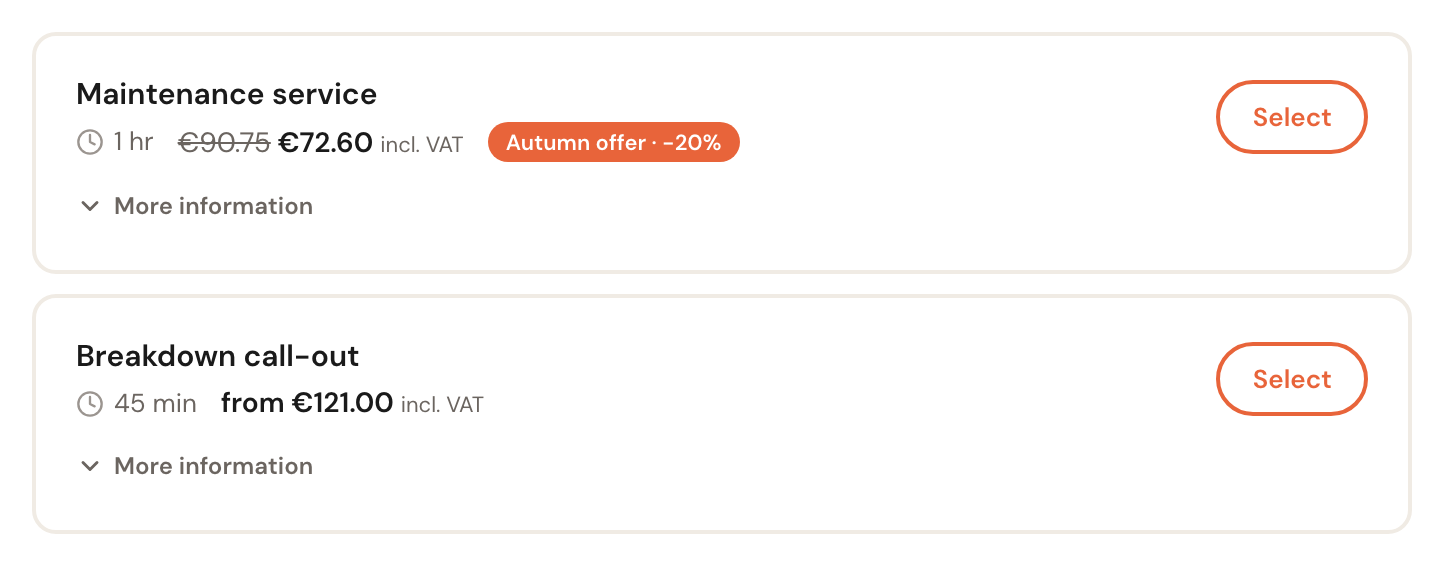
Percentage or Fixed amountA percentage of the price — of the service and its add-ons, at most 100 — or a fixed amount including VAT, per service.
A discount never comes off travel costs or surcharges, and never makes a service cheaper than free: a fixed €10 on an €8 service takes off €8. When a customer books three services at once, a fixed amount applies per service. The discount's VAT follows the service's: a discount on a 21% service and a 9% add-on comes off each rate, so the VAT on the invoice stays right.
Period
Booked fromBooked up to and includingBoth optionalThe days on which a booking must be made to get the discount. Both days count.
It is the day of booking that counts, not the day of the appointment. An October promotion gives a discount to everyone who books in October — also for an appointment in December. That way you can fill a quiet month with bookings for later. Empty means no start or no end.
Only certain services
Default: every serviceTick this and choose the services the discount is for. Unticked, it applies to every service, including services you add later.
That is how you run a promotion on your maintenance visits only, without making your installations cheaper. With only one service, the choice is not shown.
Active
No or YesOn No the booking page does not apply the discount and does not take its code.
A way to pause a discount without deleting it. Appointments that already got the discount keep it: nothing you change about a discount afterwards — the percentage, the period, or switching it off — touches an appointment that has been booked.
A discount code
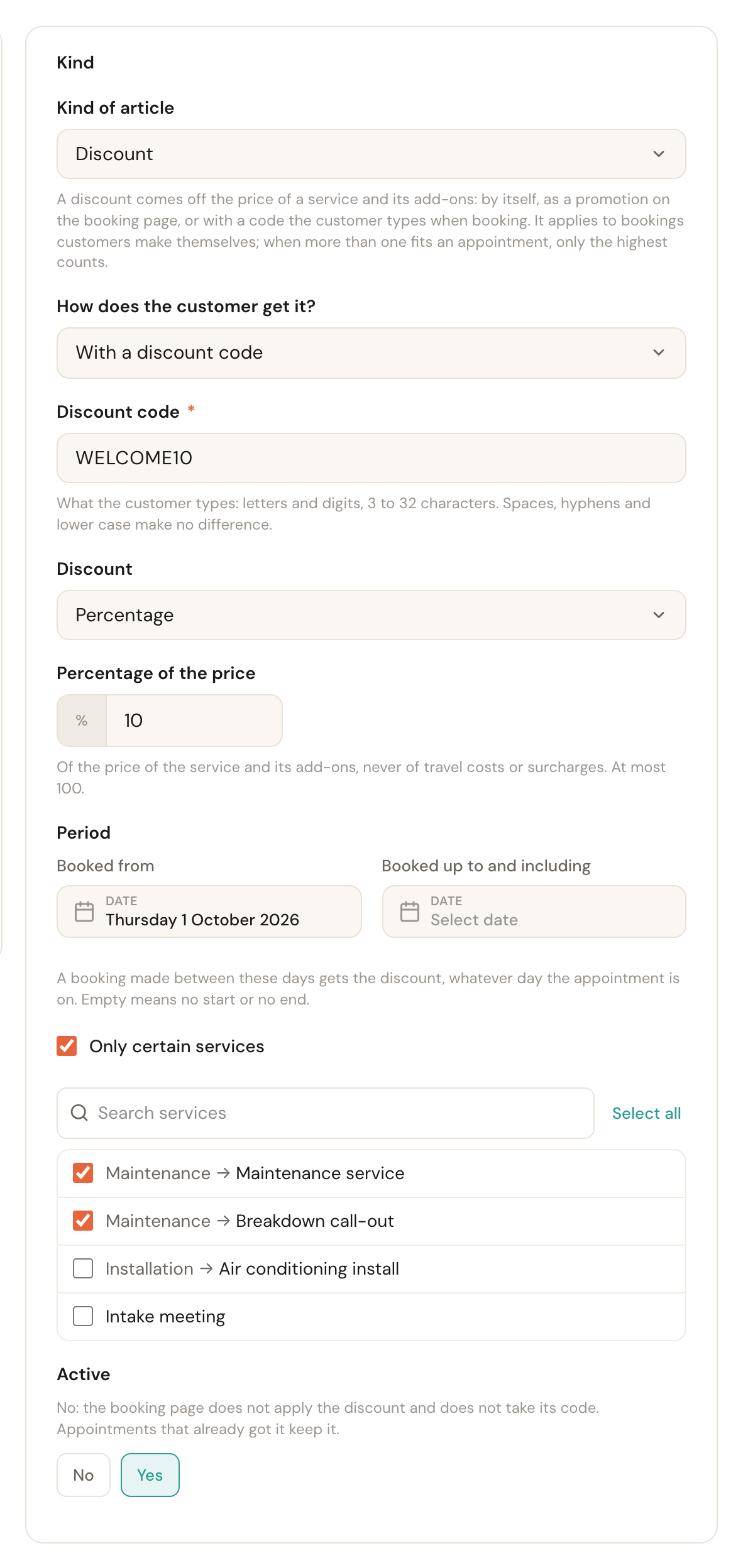
Discount code
Required for a code3 to 32 charactersUniqueWhat the customer types: letters and digits. Lower case, spaces and hyphens make no difference — welcome 10 and WELCOME-10 are both WELCOME10.
A customer copying the code from a flyer does not have to get it exactly right. A code is unique: two discounts, or a discount and a gift voucher, cannot share one. The field then says This code is already in use, by another discount or a gift voucher.
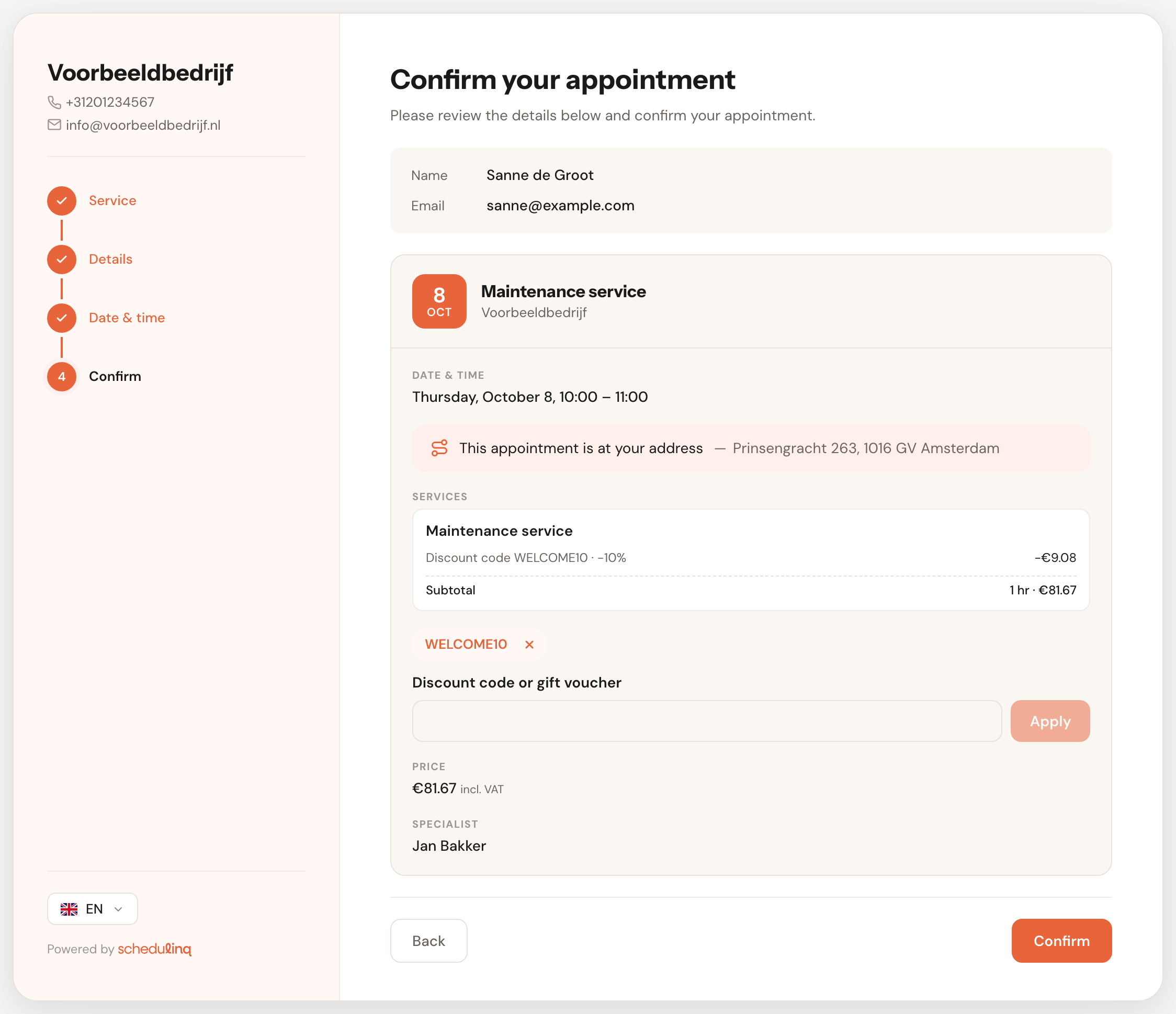
The Discount code or gift voucher? box appears on the last step of your booking page as soon as a discount code is active, or a gift voucher that can still be used. With neither, the customer does not see the box. When a customer types a code that does not exist, is switched off or whose period is over, the booking page says so — without giving away whether the code ever existed. Whoever tries many wrong codes has to wait a while.
More than one discount
Discounts do not add up. When several fit an appointment — a promotion and a discount code — the appointment gets only the highest, compared including VAT. On a tie, the code the customer typed wins. When a customer types a code worth less than a promotion that is already running, the booking page says This code gives no extra discount.
A gift voucher is not a discount but a way to pay. So a customer can use a discount and a gift voucher: the discount comes off the price first, and the voucher pays (part of) what is left.
What the appointment shows
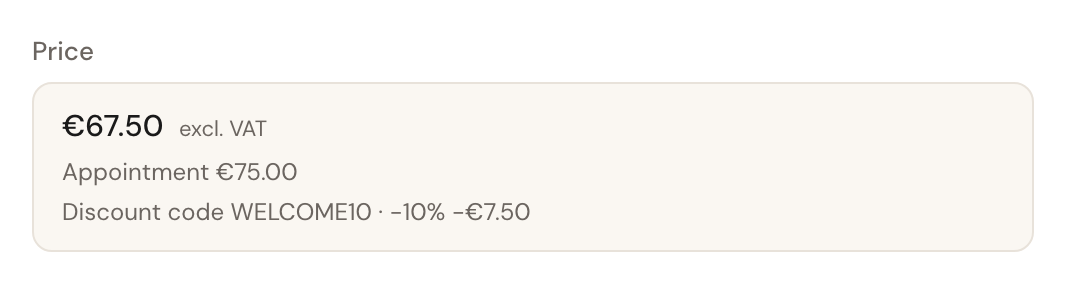
Open an appointment booked with a discount and the discount is in the Price field: a line of its own under the appointment's part, such as Discount code WELCOME10 · −10% or Discount: Autumn offer · −20%, with the amount excluding VAT. The total above it is the price after the discount.
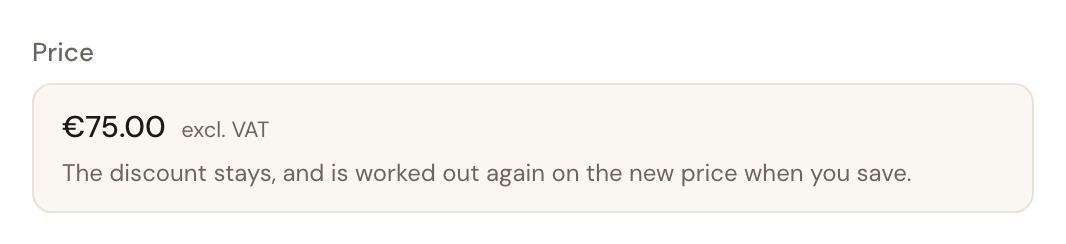
Move or change the appointment and the discount stays. While you edit, the field says The discount stays, and is worked out again on the new price when you save. Choose a more expensive service or add add-ons, and Schedulinq works the percentage out over the new price. An appointment the customer moves themselves keeps its discount too.
The customer sees the discount in their confirmation and reminders too, as a line of its own in the appointment's summary.
On the invoice
Put the appointment on an invoice with Add from appointments and the discount comes along as a line of its own, indented under the appointment — in the same words as in the customer's e-mail, at the VAT rate of what it takes off.
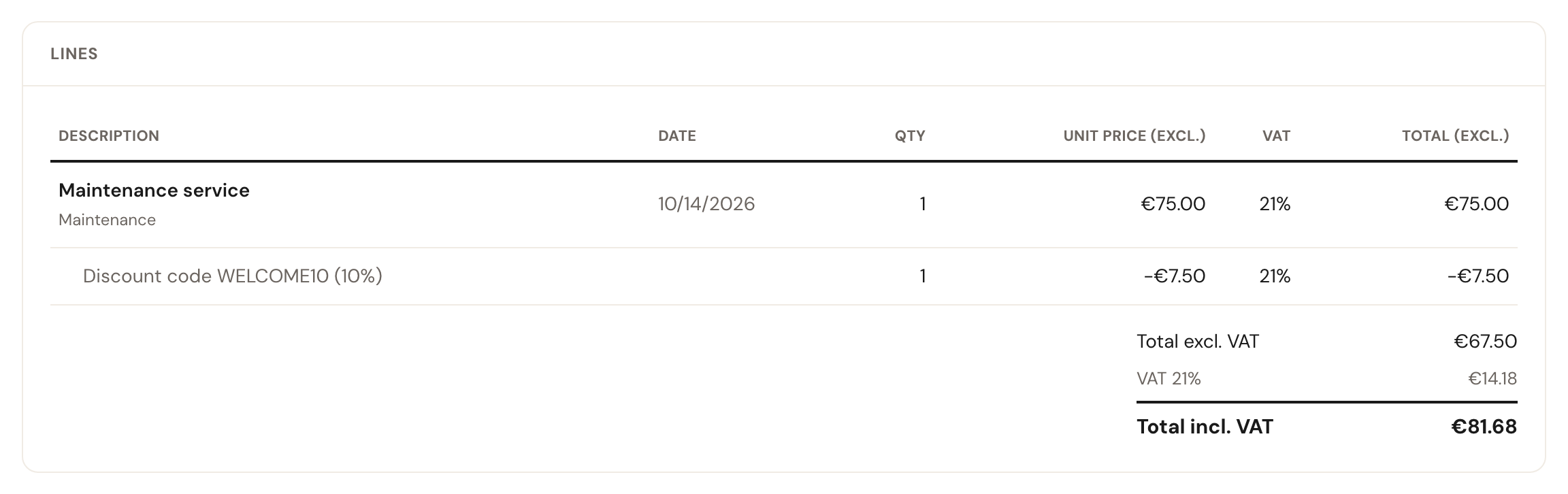
On a draft you can change a discount line's description and amount, or delete the line. The amount always stays zero or below: a discount line takes something off. See also Create an invoice.
Frequently asked questions
Can I give a customer on the phone a discount? Not as a discount: discounts apply only to bookings through the booking page, and you cannot add one to an appointment by hand. To charge a customer less anyway, change the amount on the invoice. Or send them the code and let them book themselves.
I raised a promotion's percentage, but old appointments keep the old one. That is right: an appointment keeps the discount as it was when it was booked. Only new bookings get the new percentage.
Does a promotion apply to a subscription's invitations? No. A promotion applies only to bookings a customer makes on your booking page, and a subscription's invitations do not take discount codes either.
What happens when I delete a discount? The code stops working and the promotion stops, just as with Active on No. Appointments and invoices that already have the discount keep it. You can restore a deleted discount like any article; see Articles.