

Subscription and seats
Your plan, what a team seat is, and what happens when you invite someone while your seats are full.
Subscription → Overview is what you pay Schedulinq: your plan, the number of team seats you have bought, and the way through to your payment details.
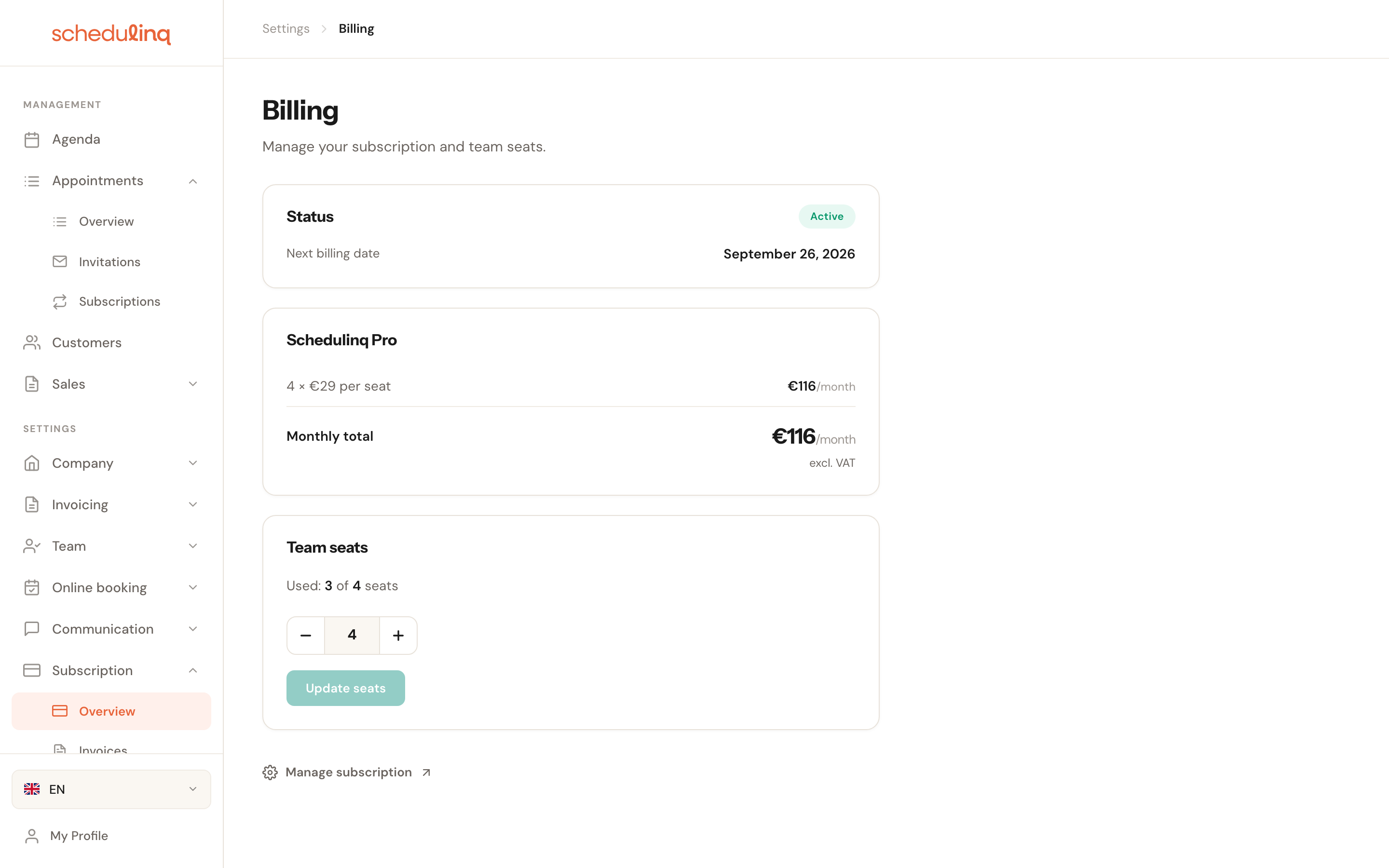
The page is titled Billing while the menu item says Subscription — same page, two names.
In short
- Status tells you whether your subscription is running and when the next invoice arrives.
- Schedulinq Pro shows your price per user and your monthly total.
- Team seats is where you raise or lower the number of users.
- Manage subscription takes you to your payment details, invoices and cancellation.
The cards on this page
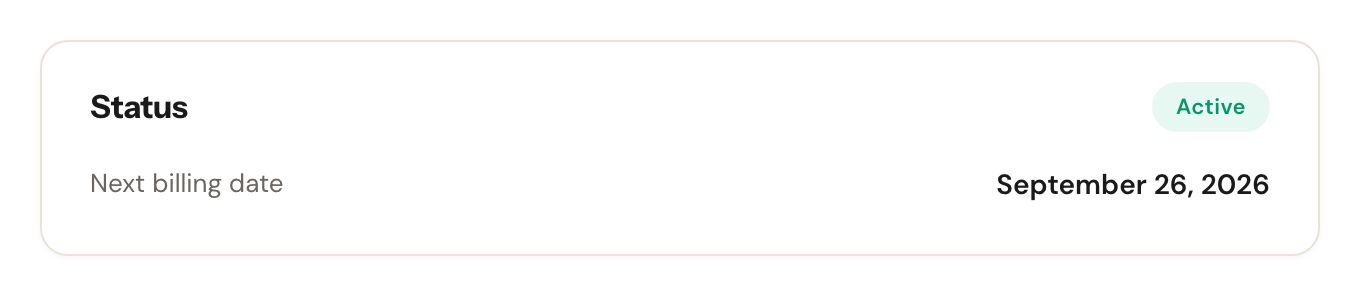
Status
Read-onlyThe state of your subscription and, while it is running, your next invoice date.
Most states are reassuring — Trial, Active and Payment processing (a payment that is still on its way) mean everything works. These are not:
- Past due — everything keeps working, but update your payment method before the next attempt fails too.
- Restricted — your subscription is suspended because a payment did not go through. Your booking page takes no bookings until the payment is settled, and you cannot invite colleagues. Everything else keeps working: your agenda, your customers and your data stay, and you can go on changing them. The button on the card reads Reactivate.
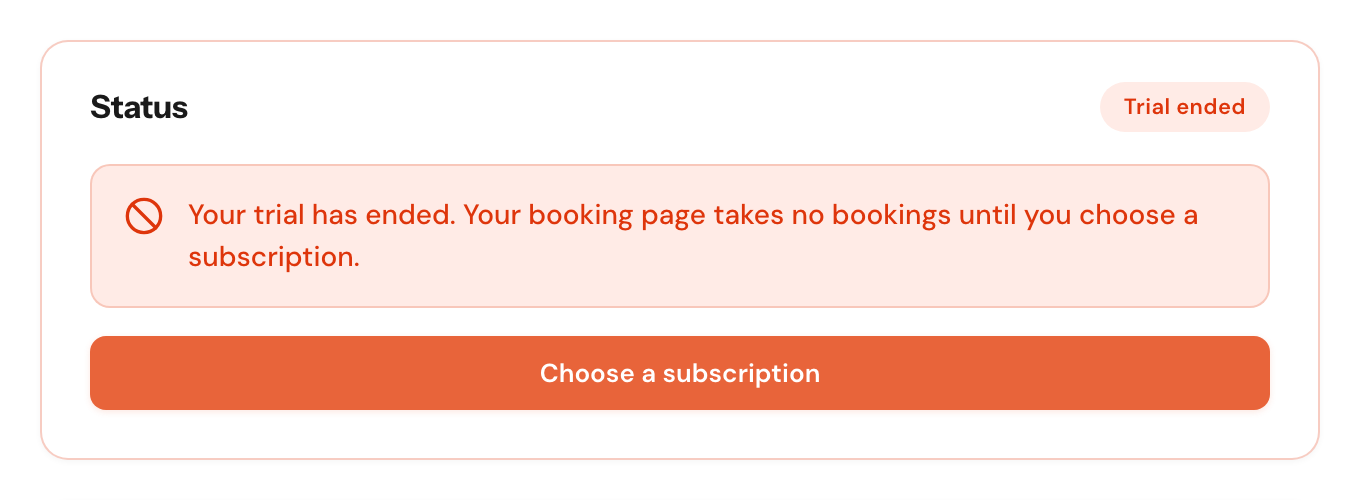
- Trial ended — your trial is over and no subscription was chosen. Nothing was left unpaid, but your booking page takes no bookings until you click Choose a subscription. Here too you can simply keep working.
- Canceled — your subscription has ended. Your booking page takes no bookings until you take out a new one with Resubscribe. While a cancellation has not taken effect yet, the badge reads Canceled too; see Payment details, invoices and cancelling.
- Incomplete — you started a paid subscription, but its payment was never completed. Once your trial is over, your booking page takes no bookings in this state. Complete payment takes you straight to the payment form, for at least as many users as you have now.
If the payment for a new subscription did not go through, the card also says Your last payment failed, with a Try again button that opens Choose your plan again (see Taking out a subscription).
Schedulinq Pro
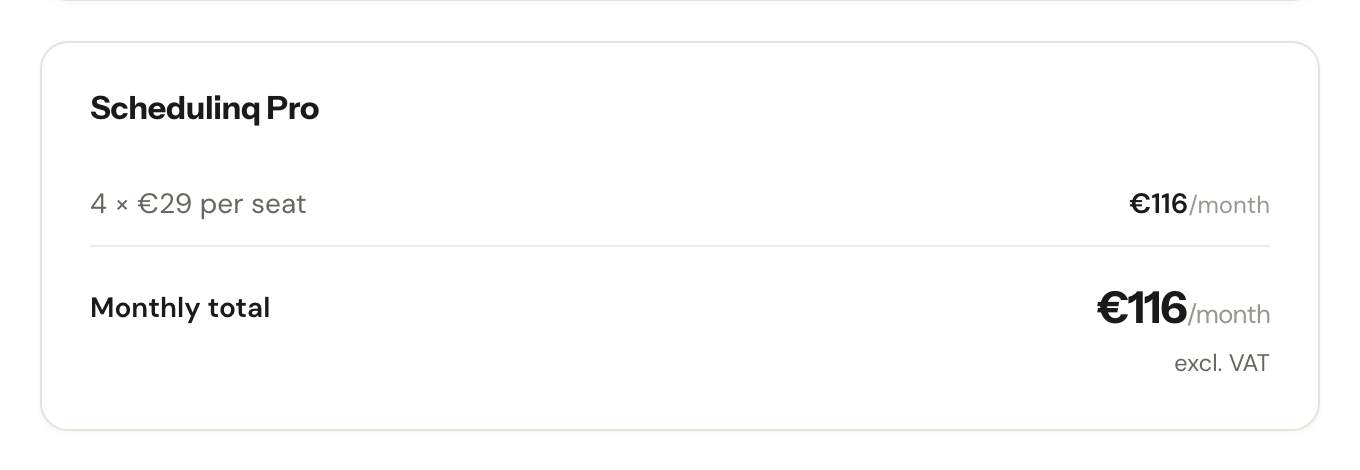
How the price is made up: the number of users times the price per user, and the monthly total. All amounts are excluding VAT.
This figure comes straight from your actual subscription rather than a price list, so it is what will really be charged. If you are on an older plan with a base fee, it appears here as its own line above the per-user line. Newer subscriptions have only the per-user line.
Team seats
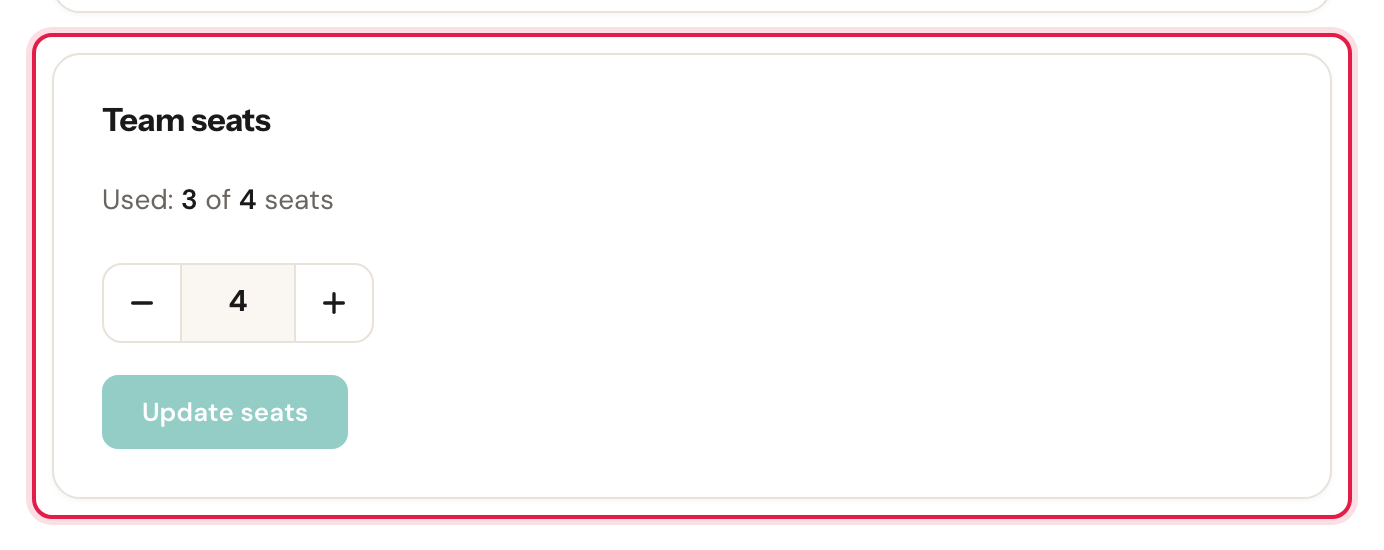
How many seats you have bought, how many are in use, and the stepper that changes it.
A seat is not "someone logged in" but an active team member or an outstanding invitation. Someone you have invited who has not accepted yet already occupies a seat — otherwise you could invite more people than you have paid for.
Taking out a subscription
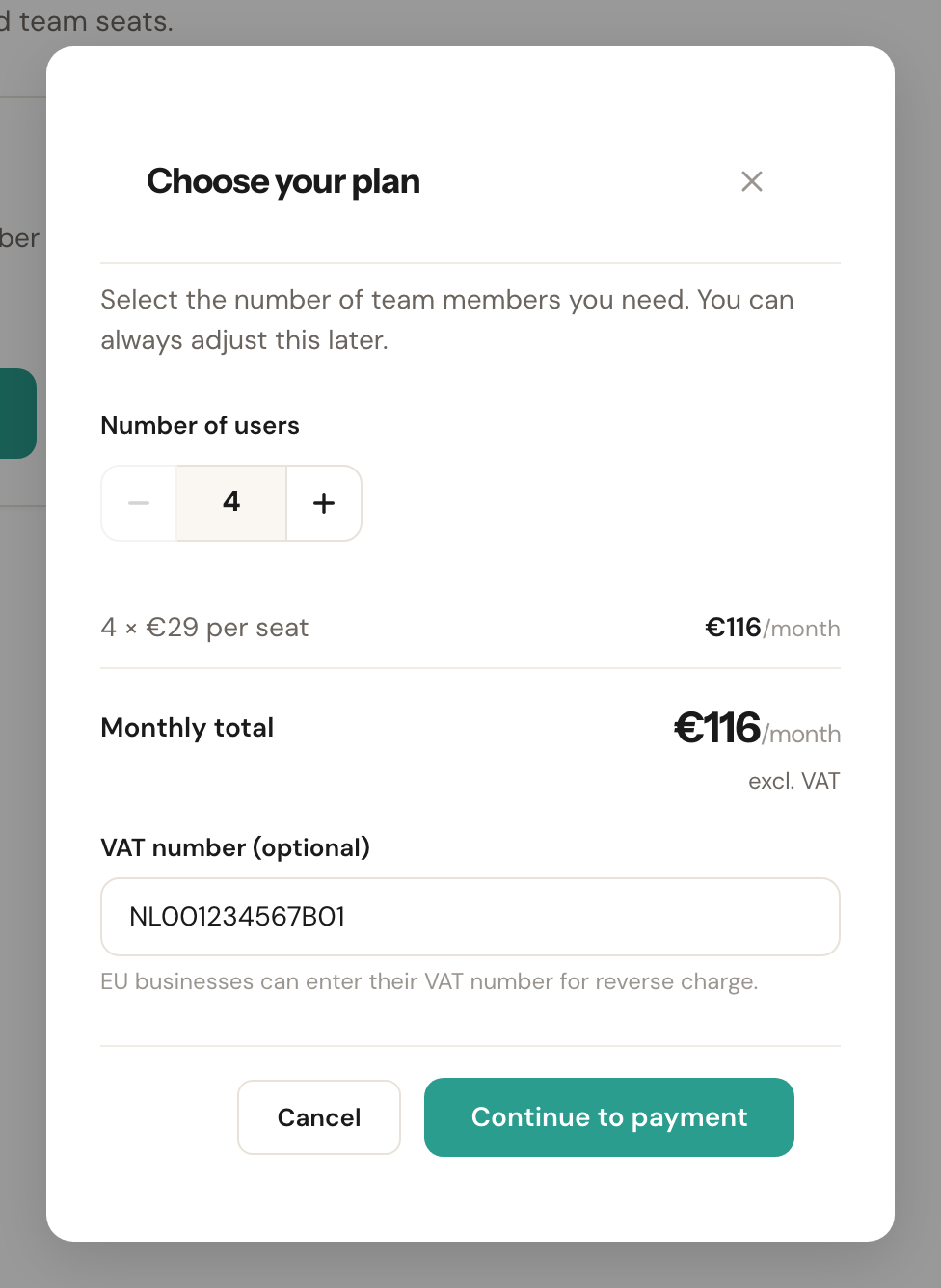
During your trial the status card has an Upgrade to paid button, which opens the Choose your plan window. The same window opens from Choose a subscription after a trial has ended, from Resubscribe after your subscription has ended, and from Try again after a failed payment. Between its two fields it shows the price: the number of users times the price per user, and the monthly total, excluding VAT.
Number of users
Starts at the number of people you have now: your active team members plus your open invitations. You cannot go below that; the most is 999.
Each of them takes a seat (see Team seats above), so with a lower number someone would be left without one. You can add seats later at any time.
VAT number (optional)
Already filled in if your VAT number is in your company details. As an EU business you enter it so the VAT on your invoices from Schedulinq is reverse-charged.
Continue to payment
Continue to payment opens the page Your subscription, with our payment provider's payment form inside it. You pay there; your card or bank details never reach Schedulinq. Changed your mind? Back to billing takes you back, and nothing has been taken out.
Back in Schedulinq
After paying you land on a page with the outcome:
- Payment successful — your subscription is active.
- Payment processing — the payment is on its way; an iDEAL or SEPA payment can take a while. Everything works in the meantime, and the status card reads Payment processing.
- Payment failed — the payment was not completed and no subscription was taken out. Go back to billing and try again.
After a successful payment, or while it is processing, Schedulinq takes you back to Subscription → Overview by itself after a few seconds (Redirecting in 3 seconds…). Go to billing does it straight away.
Changing the number of users
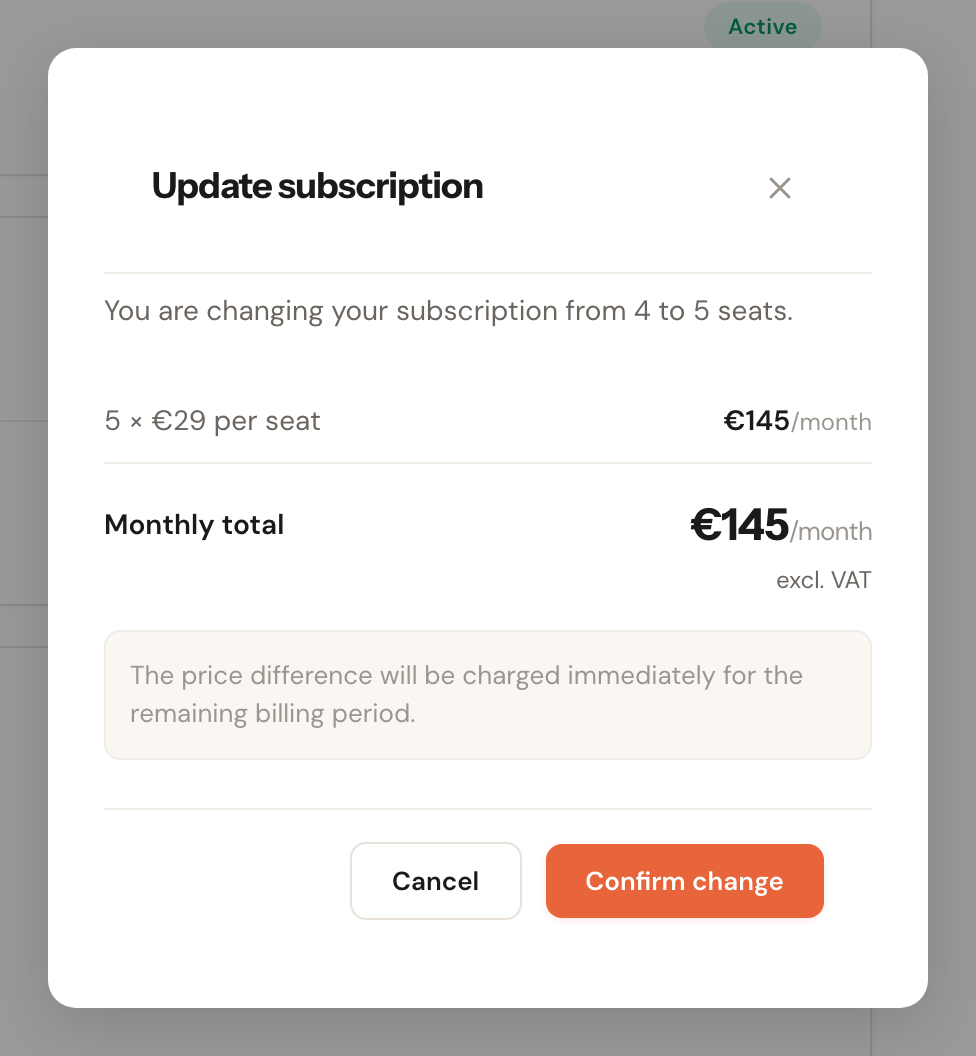
Set the stepper to the new number
Use the plus or minus button. Update seats only becomes active once the number differs from what you have now.
Confirm the change
You get the new monthly amount first, with what it means financially underneath.
Inviting someone while your seats are full
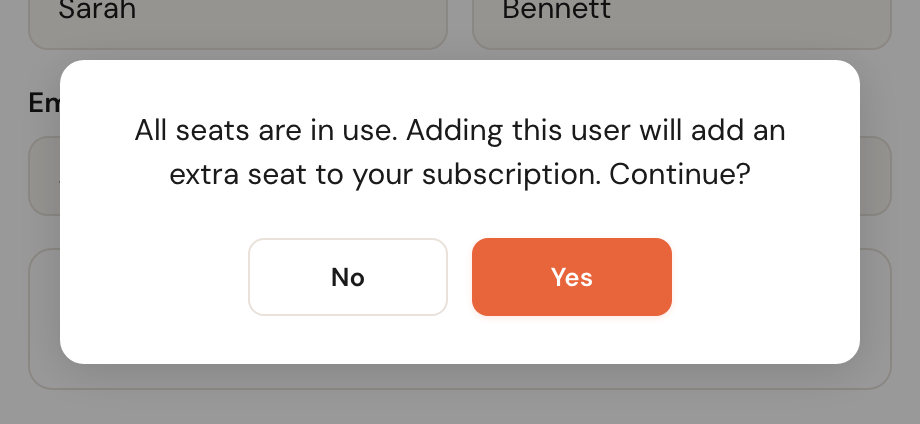
You do not need to buy a seat first. Invite as you normally would (see Invite your team); if your seats are full, Schedulinq asks you to confirm.
Payment details, invoices and cancelling
Manage subscription
At the bottom of the page is a link that takes you to our payment provider's secure environment.
Changing your payment method, downloading your invoices and cancelling all happen there rather than in Schedulinq — which is how your card details never reach our systems. You do leave Schedulinq briefly; your browser's back button brings you straight back.
If you cancel, your subscription simply runs to the end of the period you have already paid for. The status card then shows a notice with a Reactivate button — change your mind before that date and it undoes the cancellation, with nothing else affected. The badge on the card already reads Canceled by then, although everything keeps working until that date, and the Team seats card disappears: you cannot change the number of users of a subscription that is ending.
Frequently asked questions
Do the amounts include VAT? No. Every amount on this page excludes VAT, as the note under the monthly total says.
I have a VAT number — can I use reverse charge? Yes. You can enter your VAT number when you take out a paid subscription. If it is already on your company details, it is filled in for you.
My trial is ending. What happens? The status card shows how many days remain, with a button to move to a paid subscription. Do nothing and your subscription gets the status Trial ended and your booking page stops taking bookings: a customer who opens it sees straight away that online booking is unavailable, with your contact details, instead of finding out on the last click. Your data stays and the rest of Schedulinq keeps working. The page opens again as soon as you choose a subscription — see Online booking is unavailable.
And my invitations and recurring appointments? While your booking page is closed, Schedulinq sends your customers no link that would land on that closed page. The email for a new invitation and the reminders after it do not go out; the invitation's timeline lists them as Skipped, with the reason underneath. Save an invitation in that time and Schedulinq says it was saved but not sent. Recurring invitations from your subscriptions wait: as soon as you choose a subscription, each one sends the invitation for the current period after all.
I get an email "Customers are trying to book with you". As an admin you get it after your trial has ended, as soon as someone opens your booking page while it takes no bookings. It says how often that happened, with a Choose a subscription button. After that comes at most one email a week, and only when there were new visitors, for four weeks. To stop them, click Unsubscribe from these e-mails at the bottom and confirm on the page that opens with Unsubscribe. That applies only to you; other admins still receive them.
Who can change this? Admins only. Other team members can see that something is wrong with the subscription, but cannot resolve it themselves.