

The customer overview
All your customers in one list — search it, switch between active and inactive customers, and delete several customers at once.
Management → Customers lists everyone who is a customer of your company. Click a row to open that customer's record — see The customer record.
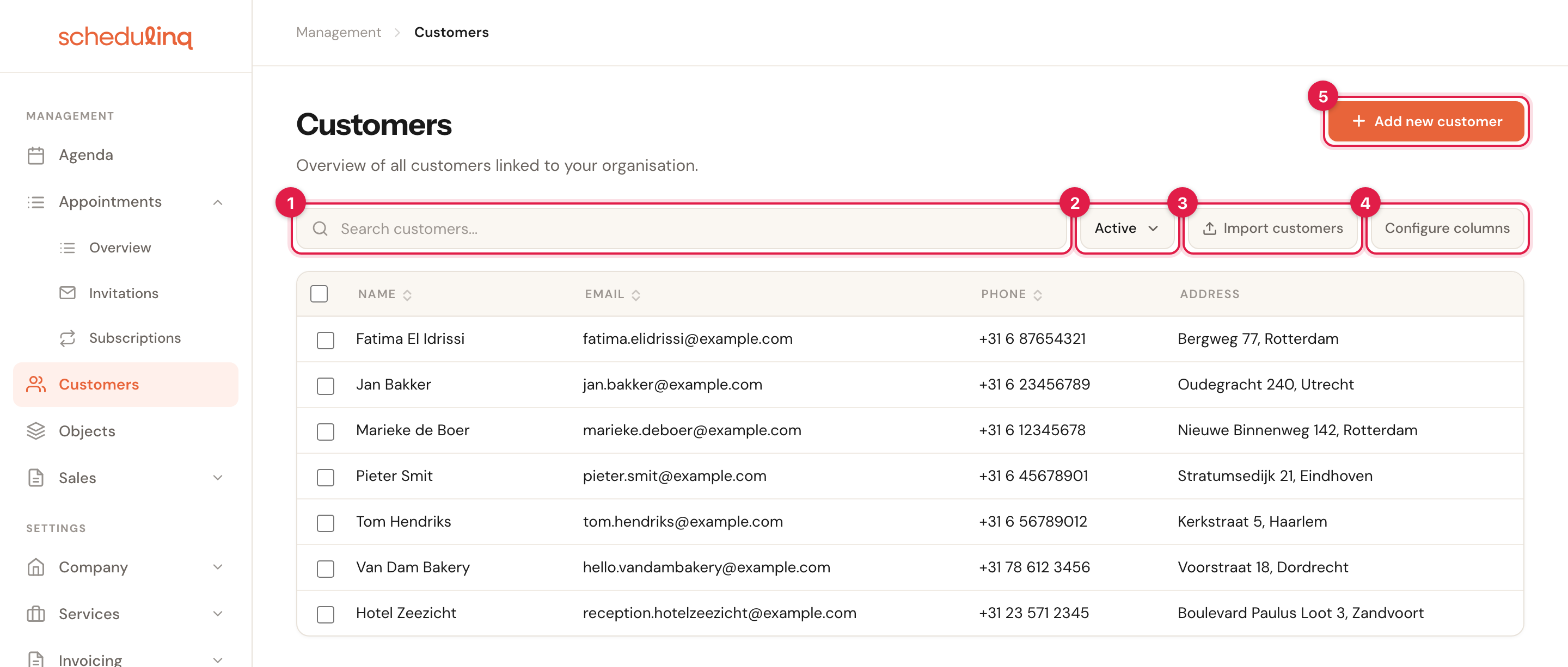
A business is listed under its company name, a person under their own name.
- Search customers... — find a customer by name, contact details, address, your own fields or one of their objects. See Searching.
- Active — which customers the list shows. See Active and inactive customers.
- Import customers — bring a whole list across from Excel or CSV. See Import customers.
- Configure columns — which columns you see, and in which order. See Columns and sorting.
- Add new customer — one customer, by hand. See Add a customer.
Searching
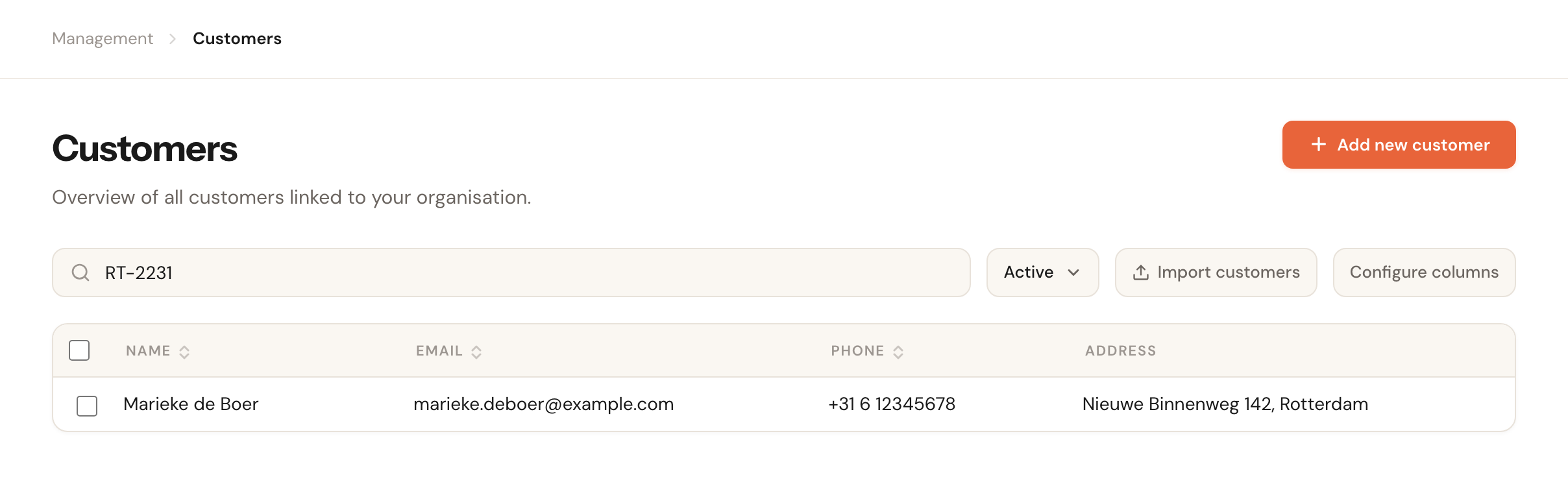
RT-2231 is the start of the serial number of Marieke de Boer's loft boiler, so the search finds her.
The search looks at:
- the name — first name, last name, or both: marieke de b;
- the e-mail address and the phone number;
- the address — street and house number, and city. Not the postcode;
- the company name of a business customer;
- your own fields for customers of the type Text, Select, Multi-select, Email, Phone or URL. Long text, numbers, dates, yes/no and attachments are not searched. See Add your own fields;
- the customer's objects — the name of the object and its own fields of those same types, such as a serial number or a licence plate. An archived object no longer counts. See Customer objects.
Part of a word is enough, and capitals make no difference: boer finds Marieke de Boer.
The search stays within the filter next to it: under Active it finds only active customers. When nothing matches, the list says No customers found.
Active and inactive customers
The filter starts on Active: the customers who can book with you. Inactive shows the customers someone has set inactive — with Actions → Set inactive on the customer record. They can no longer book online; everything else about them is kept. See The customer record.
A deleted customer is in neither list.
Columns and sorting
The overview starts with four columns: Name, Email, Phone and Address. With Configure columns you add Type, Contact person, Created or your own fields, and set the order. The layout is saved for you alone; how it works is in Configure columns.
Click a column header to sort by that column, a second time to reverse the order, and a third time to go back to the order the list started in. Of the standard columns only Address cannot be sorted; for your own fields it depends on the type. Your sort is remembered too: next time the list opens the way you left it.
If your role may edit customers, you can also move a column straight in the table: point at the header, and drag it sideways by the grip that appears on its left.
Pages and links
With more customers than fit on one page, the page numbers appear under the list, with the number of customers per page — 15, 25, 50 or 100 — and the total. The overview always opens at 15 per page.
Your search, the filter, the sort and the page you are on are kept in the browser's address bar. Open a customer and press Back, and you return to the same list. Copy the address, and a colleague opens the same selection.
Deleting several customers at once
Tick the box to the left of a row. As soon as one is ticked, a bar appears above the list.
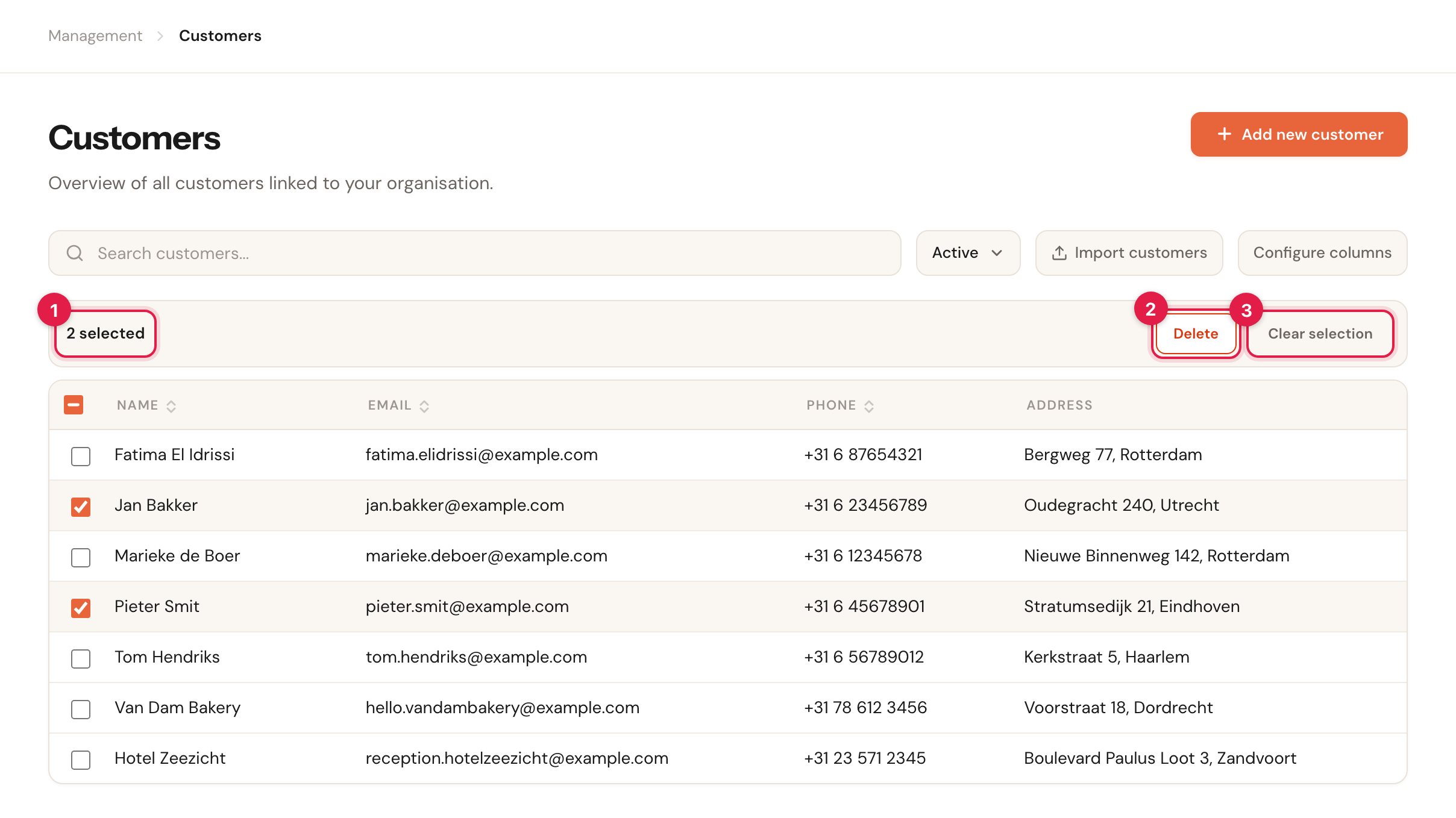
- How many customers you have selected.
- Delete — asks for confirmation first.
- Clear selection.
The box in the column header ticks every row on this page — never every customer in your account. Go to another page, search or switch the filter, and the ticks on rows that leave the screen are dropped. At most, then, you delete one page: a hundred customers.
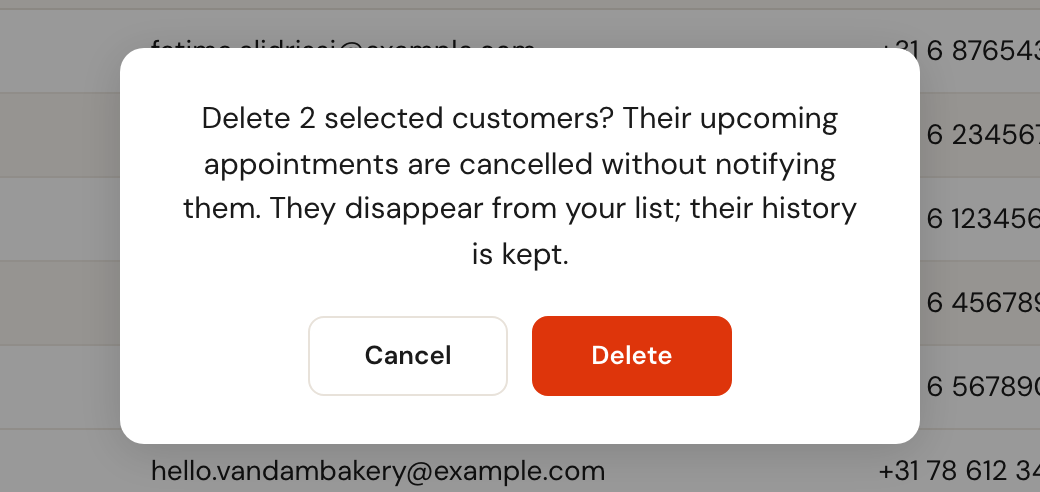
Delete does for each customer exactly what Delete on the customer record does:
- The customer disappears from the overview — from Active and Inactive alike.
- Their upcoming appointments are cancelled. The customer receives no cancellation, and no reminders go out for them any more. Connected calendars and your CRM do get the cancellation.
- Their running or paused recurring appointments stop: no new invitations go out. See Recurring appointments.
- Their invitations that have not been booked yet are cancelled, together with the reminders still to be sent for them. See Send invitations.
- Completed appointments, invoices and notes stay: the history is kept.
There is no undo in the app: a deleted customer cannot be brought back from here. If you deleted one by mistake, contact support.
Delete is for customers who really have to leave your records — at their own request, for instance. To stop someone booking for a while, set them inactive instead. For a customer who is in your records twice, use Merge with another customer on the customer record: then the history ends up in one place rather than being lost. Both are in The customer record.
If deleting fails for some of the customers, you do not get a success message. Schedulinq says how many were and were not deleted, names them, and leaves exactly those rows ticked: click Delete again to try just those once more.
Who sees what
- The overview itself needs visibility All on Customers. With Own, the Customers item is not in your menu at all, and neither are Objects, this overview or the import: a link to them opens the calendar instead. You reach the customers of your own appointments through those appointments — click the customer's name on the appointment. See Roles and permissions.
- Import customers and the tick boxes for deleting are there only when your role may edit customers (Edit on Customers), and for admins.
- Configure columns is there for everyone who sees the overview: the layout is your own.
Frequently asked questions
A customer I know exists is not in the list. Usually one of three things: you typed fewer than three characters, the customer is inactive (switch the filter to Inactive), or it is a business and you searched for the contact person's name. A deleted customer does not come back in either list.
Under Inactive it says No customers yet. Then you have no inactive customers. The list shows the same text whenever it is empty without a search, whichever filter is on.
I don't see Customers in my menu. Your role has visibility Own on Customers, or no access to customers at all. An administrator can change that under Team → Roles.
I don't see the tick boxes. Your role may view customers but not edit them.
Can I delete all my customers at once? No. The select-all box covers the page you are on, and a page holds a hundred customers at most.