

Connect WhatsApp
Connect the WhatsApp Business number you already use, so appointment notifications arrive in the chat your customer already has open.
Once WhatsApp is connected, Schedulinq sends confirmations and reminders over WhatsApp instead of — or alongside — email and SMS. They arrive in the same chat your customer already has with you, and you keep using the WhatsApp Business app on your phone exactly as before.
The connection runs through Meta. That makes it a one-off bit of ceremony compared with the rest of Schedulinq: you leave the screen for a moment, work through a dialog belonging to Meta, and come back. This guide walks that route step by step, and shows how to tell afterwards whether it really works.
What you need
A Meta Business account
RequiredThe account your business is known by at Meta. If you have ever set up a Facebook or Instagram business page, or WhatsApp Business, you probably have one already. If not, Meta creates one during the connection.
The WhatsApp number ends up under this account, not under Schedulinq. You stay the owner — which is why you can detach it without us, and why Meta bills you directly.
A phone number
RequiredThe number you want to message customers from. You can connect the number you already use in the WhatsApp Business app, or have a new one created.
Connecting the number you already use keeps your existing conversations and keeps you recognisable to customers. That is almost always what you want — see Bringing your existing number below.
A payment method at Meta
Before you go liveSet up in WhatsApp Manager, after connecting.
Without one the connection still works, but sending stops the moment you use up Meta's free allowance — and it stops without any warning in Schedulinq, because we cannot read your payment status at Meta.
Making the connection
Open the WhatsApp tab
Go to Communication → Settings and pick the WhatsApp tab.
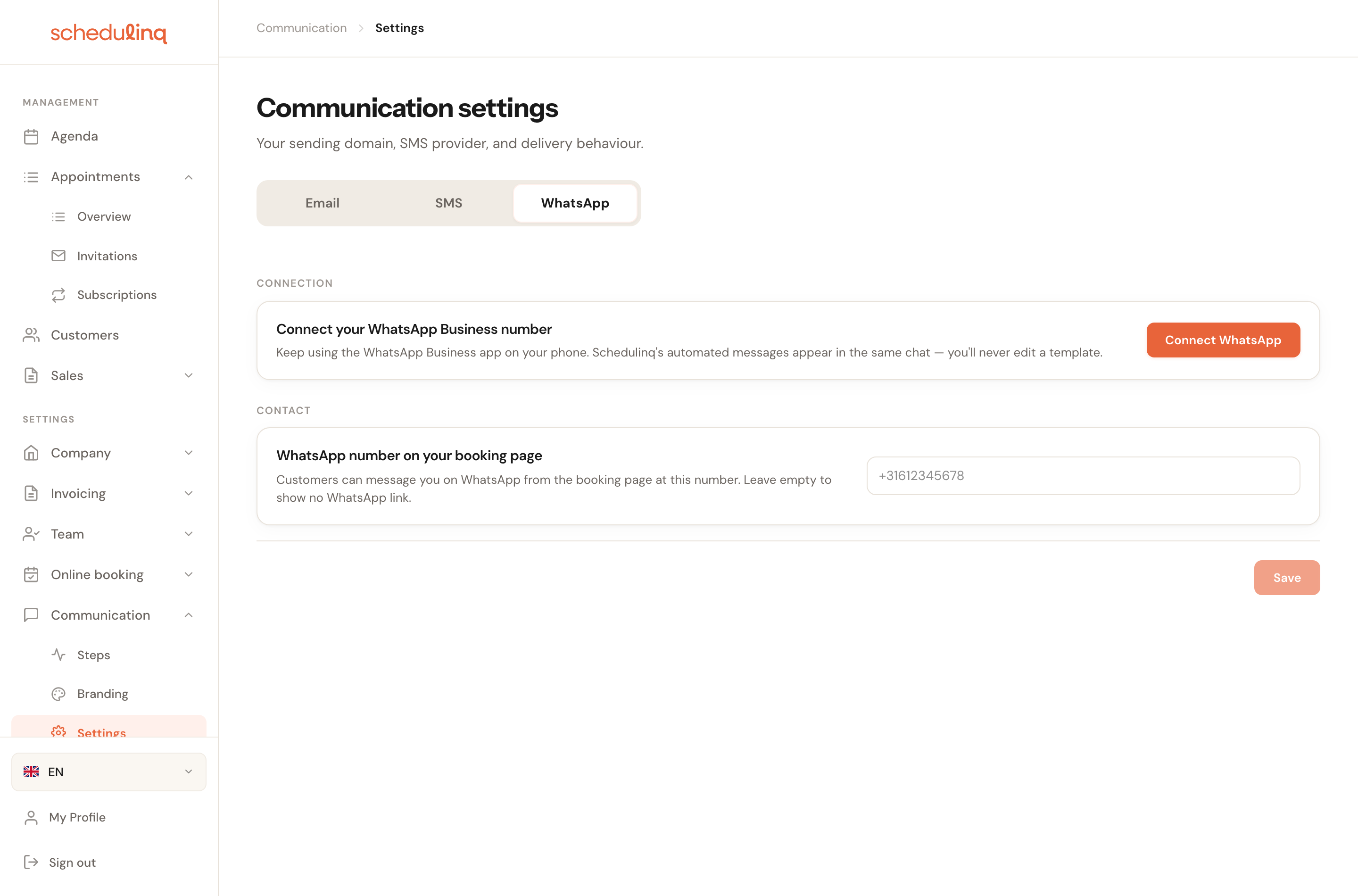
The same tab also holds the WhatsApp number for your booking page. That is a different thing: a clickable link for customers, not a sending channel. It needs no connection at all.
Click Connect WhatsApp
While nothing is connected you see a single card with a button.

Button greyed out? Then you are still on a trial. The reason appears just below the card.

Work through Meta's dialog
A window from Meta opens — you leave Schedulinq for a moment here. Meta asks you, in order, to:
- sign in with your Facebook account;
- choose or create your Meta Business account;
- choose or create the WhatsApp Business account;
- choose or add the phone number, and verify it with a code by SMS or call.
Do not close this window half way. If you do, nothing happens — just click Connect WhatsApp again.
Check that it worked
After the dialog you return to Schedulinq. If all went well, your number is on screen straight away with a Connected label — there is no in-between state to wait for.
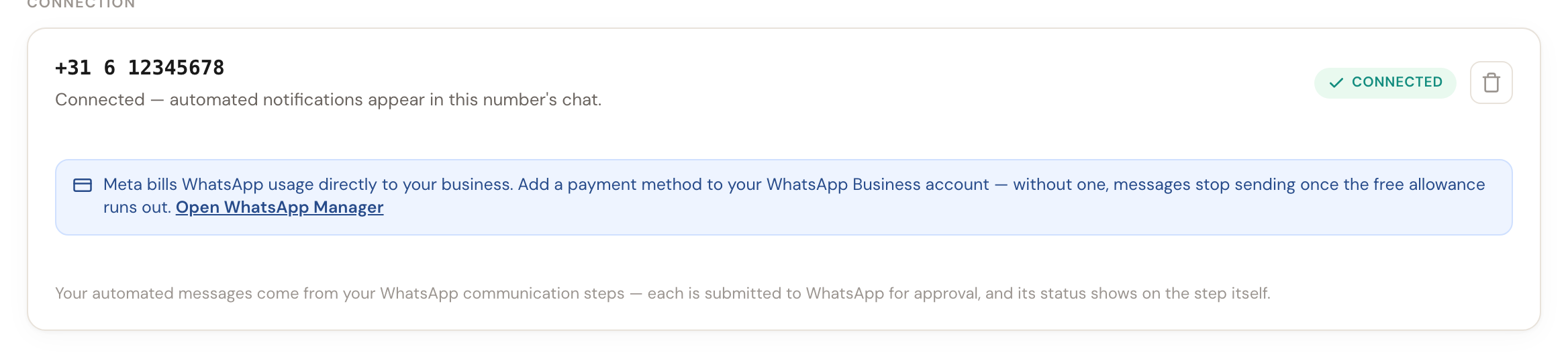
Seeing a different number than you expected? Disconnect and connect again — Meta's dialog is where you pick the right one.
Bringing your existing number
Meta calls this coexistence: the number you use in the WhatsApp Business app stays yours and keeps working in that app, while Schedulinq sends automated messages through it.
Meta gives you no more than 24 hours from starting the dialog to carry that across. If it does not complete in time, Meta treats the connection as unfinished and you have to make it again.
What the screen tells you
Status
There are two possibilities: Connected means messages can go out, WhatsApp isn't live means nothing is being sent.
This is the only place that tells you whether the channel is actually alive. Anything other than Connected and your WhatsApp steps do nothing — and whether your customer then gets an SMS or nothing at all depends on the SMS fallback.
The phone number
The number as Meta knows it.
Check this once, carefully. It is the number your customers receive messages from, and the one point in the connection where a mistake is hard to explain away later.
Quality rating
High, Medium or LowHow WhatsApp rates your number — Unknown until Meta has rated it. At Medium or Low a warning appears under it: WhatsApp rates this number's quality as low. That usually comes from customers blocking your messages or reporting them as spam. Meta lowers your messaging limit first and can disable the number after that.
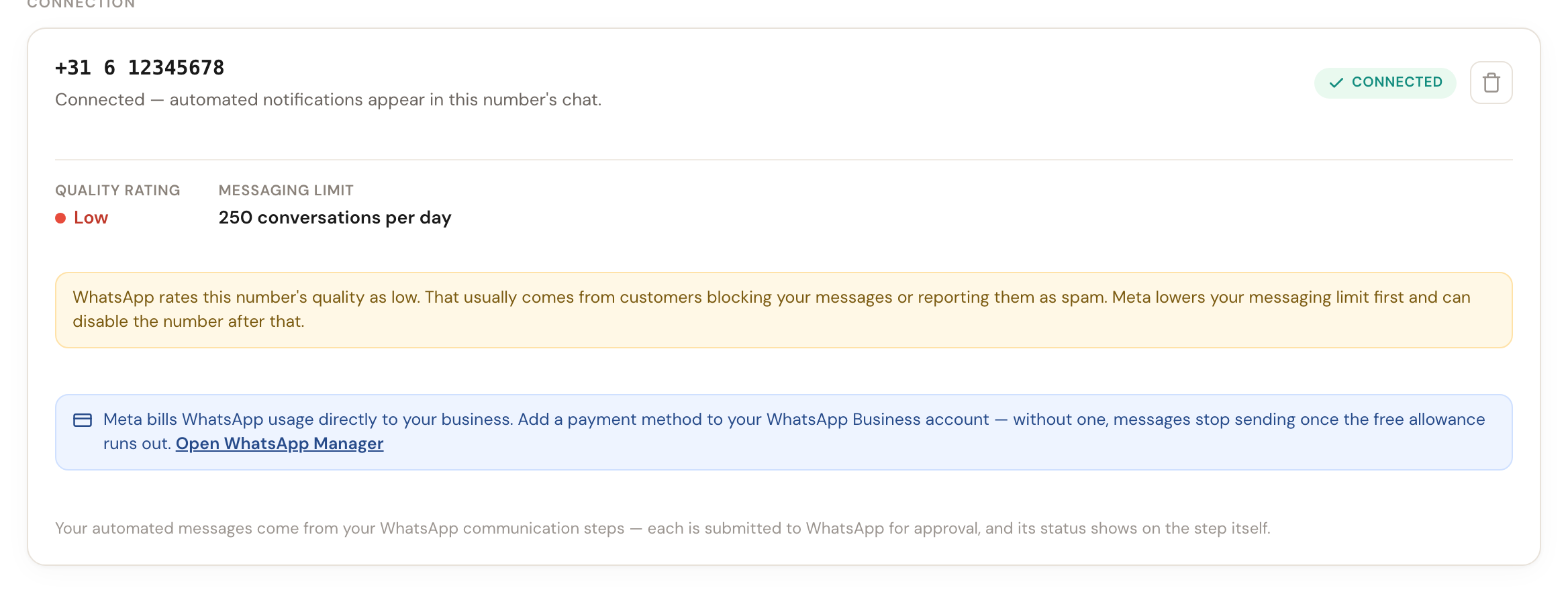
This is the early warning. Meta cuts how much you may send before it takes a number offline, so a falling rating is the moment to look at what you send — not the day messages stop arriving.
Messaging limit
How many conversations a day Meta allows this number, such as 1,000 conversations per day. The row is missing until Meta has passed on a limit.
The billing notice
Always shownThe blue bar about Meta billing does not disappear once you add a payment method.

We cannot see whether you have set up a payment method at Meta — that detail is not readable by us. Rather than guess, we leave the notice up permanently. Read it as standing information, not as a sign that something is wrong.
Where your messages come from
At the bottom, a line explaining that your automated messages come from your communication steps.
There is no separate place where you write WhatsApp copy. Every WhatsApp step is submitted to Meta as a template, and whether it was approved shows on the step itself — not here.
Whether your templates are sending
Every WhatsApp step is a template that Meta reviews. Its status shows on the step itself:
| Status | What it means |
|---|---|
| Awaiting WhatsApp approval | Just saved. Approval usually takes a few minutes. |
| Approved by WhatsApp | It sends. |
| Rejected by WhatsApp | It does not send. Meta's reason is under the text box; change the text and save again. |
| Paused by WhatsApp | Meta has paused an approved template. It does not send. |
| Disabled by WhatsApp | Meta has switched an approved template off. It does not send. |
Meta only gives a reason for a rejection. While a template does not send, the step goes out as an SMS if the SMS fallback is on — otherwise your customer gets nothing. Schedulinq e-mails your organisation's address each time Meta approves, rejects, pauses or disables a template, naming the step and the language. The rules a text has to meet are in Edit a step.
Keeping the connection alive
If you brought an existing number, Meta wants proof that it is still genuinely yours. The proof is simple: open the WhatsApp Business app on your phone now and then. Leave it about fourteen days and Meta may let the connection lapse.
Schedulinq warns you a day ahead, from thirteen days of silence:
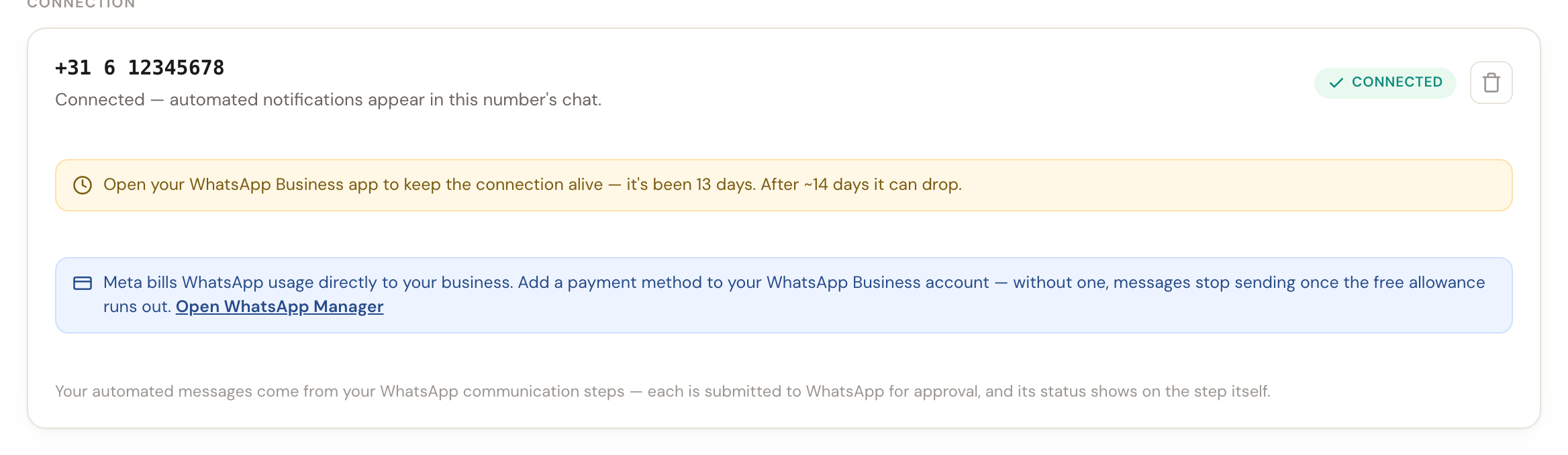
Opening the app is enough. You do not have to send anything.
When the connection drops
A red notice appears at the top of the tab, with a button to put it right.

There are usually three causes:
- The keep-alive lapsed — the app has not been opened for too long.
- Access expired. Meta's permission has a shelf life; we check every few hours and flip the status as soon as it runs out.
- Setup did not finish within 24 hours, as described above.
In all three cases the fix is the same: click Reconnect and work through Meta's dialog again. Your number, your conversations and your communication steps stay as they were.
Disconnecting
The bin icon next to Connected detaches the number.
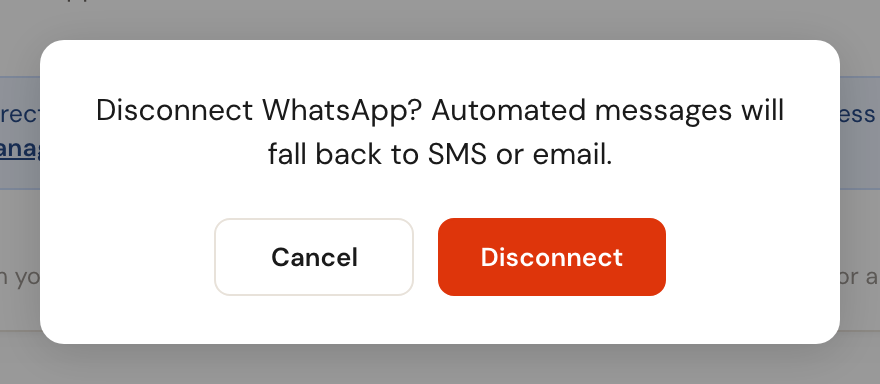
Your WhatsApp Business app and your conversations are untouched — you are only removing Schedulinq's access. Your WhatsApp steps stay put, but they stop sending anything.
Frequently asked questions
Can I use my own mobile number? Yes, if you already use it in the WhatsApp Business app. A number cannot be in the regular WhatsApp app and WhatsApp Business at the same time.
Do my old conversations survive? Yes. You are connecting the existing number, so the chats stay where they are — in your app, and after syncing, alongside the customer records in Schedulinq.
Do I have to get my wording approved? Meta reviews every WhatsApp step as a template. That happens automatically when you save the step; the status shows on the step itself.
I'm being asked for a two-step verification PIN. We set that up for you when connecting, and it is never shown anywhere. If Meta asks for it later, you will find it in WhatsApp Manager under the phone number, at Two-step verification.
What does it cost? Meta charges per message, directly to you — about €0.045 a message, the figure the message window shows. Schedulinq charges nothing extra for WhatsApp — though a paid plan is required.