

Set up languages
Choose which languages you maintain your texts in and your team works in — and see why that is not the same as the language your customer gets.
Schedulinq speaks eight languages. On this page you choose which of them your business uses: the languages you maintain your appointment types and emails in, and the languages your team can set the app to.
That is emphatically not the same as the language your customer sees your booking page in. This distinction is the most important thing this page has to tell you, and we come back to it below.
You will find the page under Company → Languages.
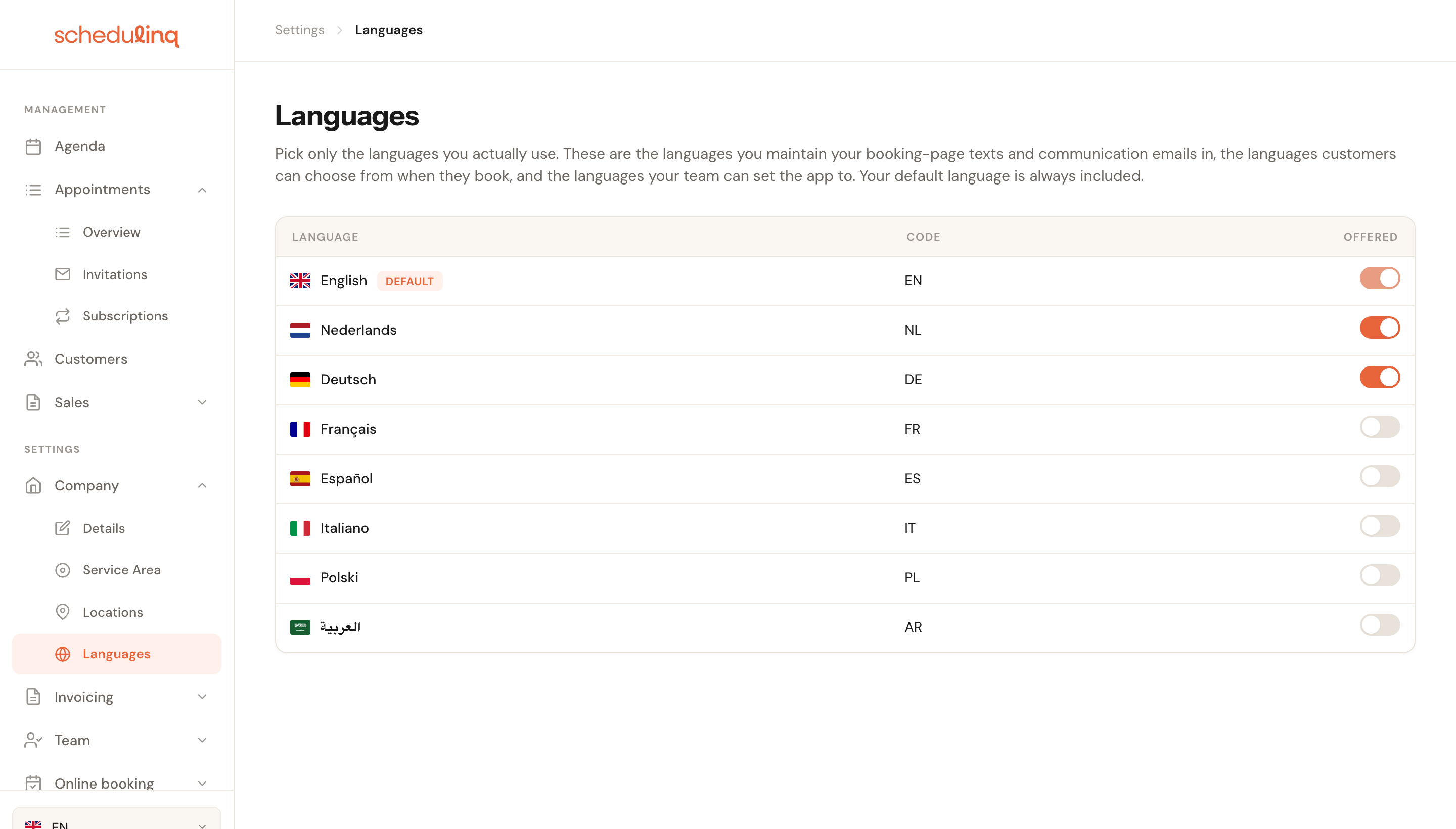
Every language has one switch. There is no save button: a click is stored straight away.
Your default language is fixed
One row is different. Your default language carries a Default label and its switch is locked — you cannot turn it off.

That is not an arbitrary restriction. Your default language decides which language tab is required on every appointment type, add-on and category. If you could switch it off, the mandatory name would suddenly have no tab to live in.
Turning a language on
Click the switch. That is all — the change is saved immediately and a short confirmation appears at the top.
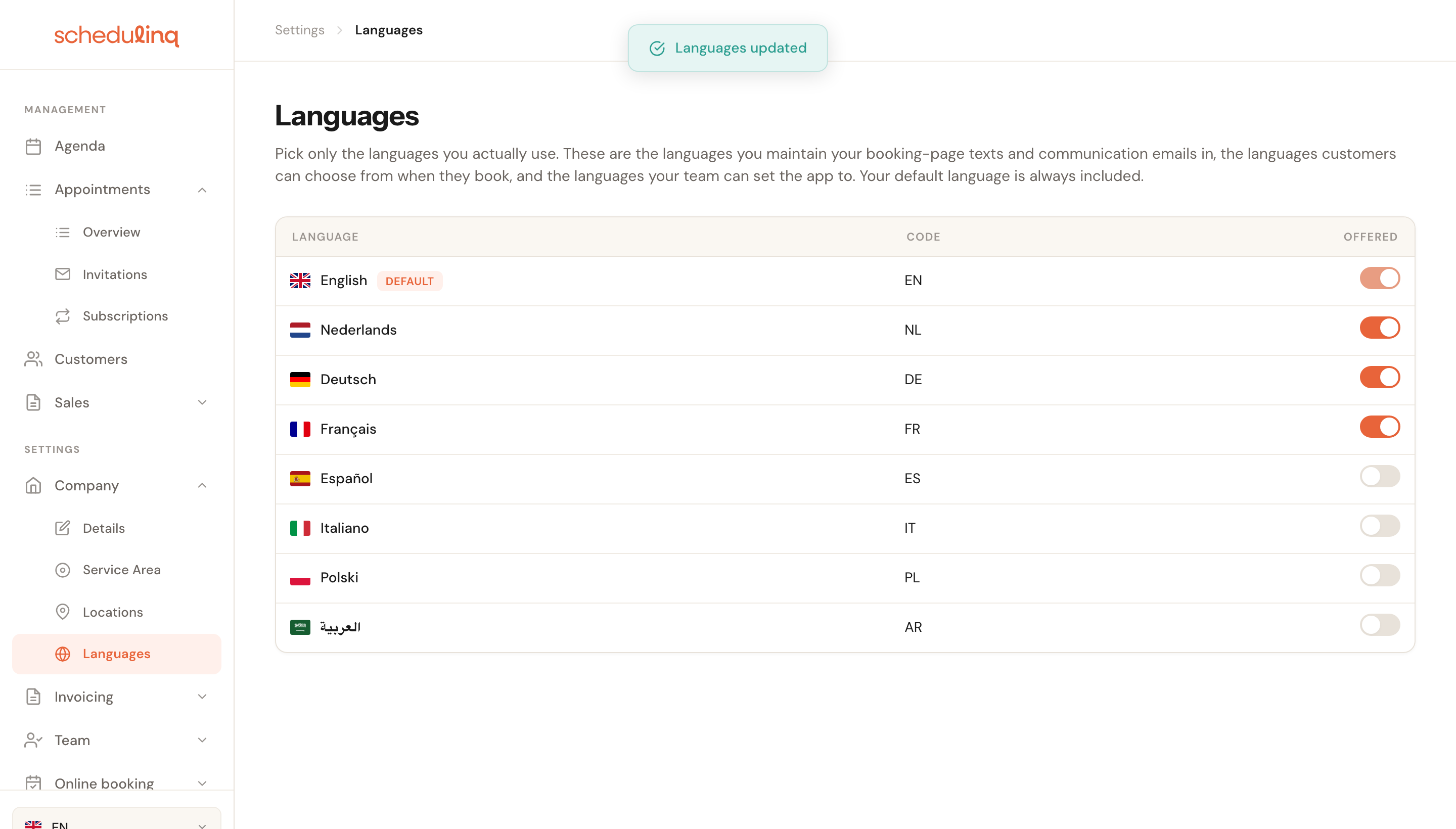
If saving fails, the switch snaps back to whatever the server holds. What you see therefore always matches what was stored.
What turning a language on changes
Two things, both visible immediately.
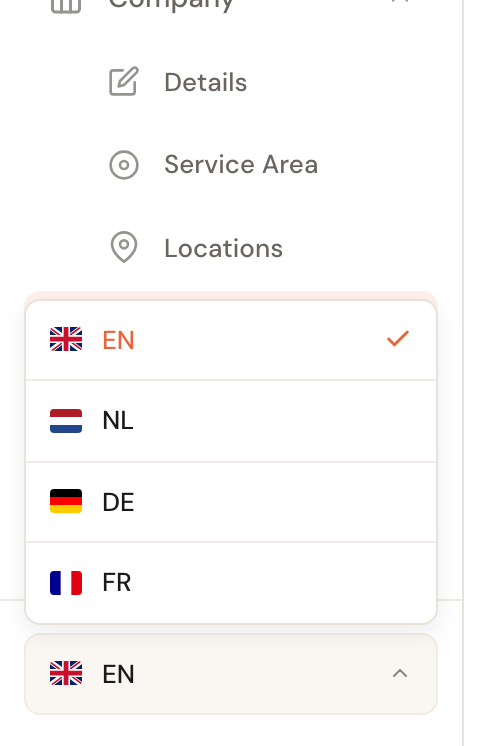
Your team can set the app to that language
The language picker at the bottom of the sidebar offers exactly the languages you switched on here. Each colleague picks their own — it is a personal preference, not a setting you make on the team's behalf.
A language tab appears in every editor
Everywhere you enter text your customer reads — appointment types, add-ons, categories, custom fields, communication steps and your invoice template — you get one tab per language you switched on.

An orange dot means something has been filled in for that language. On appointment types, add-ons, categories and custom fields the tab of your default language comes first — the one whose name is required. The editor of a communication step keeps a fixed order.
What it does not change: your customers
This is where the page is most easily misread.
Your customers always get all eight languages. The language picker on your booking page offers every one of them, no matter what you switch on here. And a customer whose language is Spanish gets their confirmation email in Spanish, even if Spanish is switched off here.
What a switched-off language does prevent is you writing text in it. For a Spanish customer that means Schedulinq's own wording — buttons, labels, the structure of the confirmation email — arrives in Spanish, while the names of your services stay in a language you do maintain.
If you want to serve that customer entirely in Spanish, switch Spanish on here and fill in the Spanish tabs on your appointment types.
Polish and Arabic
Polish and Arabic work like the other six. Switch one on here and:
- a PL or AR tab appears on your appointment types, add-ons and other texts, so you can translate your service names into it;
- your team can set the app to it.
Whether or not you switch them on, you can set a customer to Polish or Arabic in the language choice on the customer record.
Frequently asked questions
Do I need to switch on a language for every customer I have? No. Your customer gets their own language either way. Only switch a language on if you intend to translate your services and emails into it.
What happens if I switch a language on but leave the tabs empty? Nothing bad. Where a translation is missing, Schedulinq falls back to a language you did fill in — so a customer never sees an empty service name.
Can I switch all languages on? You can, but it means eight tabs on every appointment type, add-on and communication step. As the page itself says: pick only the languages you actually use.