

Connect your calendar
Connect Google Calendar or Microsoft 365 to Schedulinq, so your existing appointments block your availability and new bookings appear in your own calendar.
You already have a calendar. If Schedulinq knows nothing about it, a customer will book you at a time you are long since busy — and you will be copying every booking across by hand. A connection solves both: what is in your calendar blocks your availability, and what is booked through Schedulinq lands in it automatically.
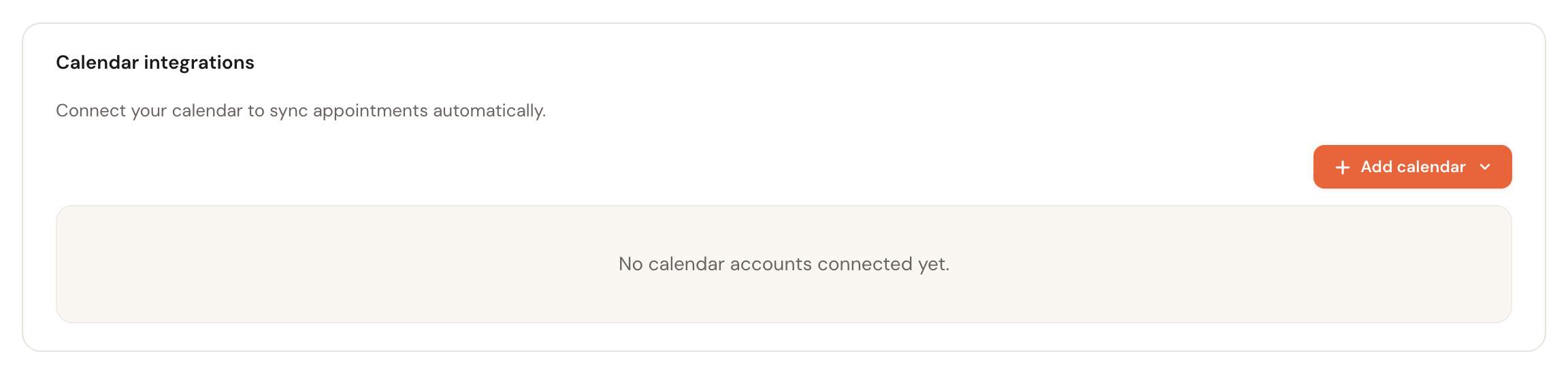
1Go to My Profile, to the Calendar integrations block.
In short
- Go to My Profile and find the Calendar integrations block.
- Click Add calendar and choose Connect a Google account or Connect a Microsoft account.
- Sign in at Google or Microsoft and give Schedulinq access. You are returned automatically.
- Tick the calendars from that account you want to use.
- Set Read and Write per calendar.
Which calendars can you connect?
Two providers:
- Google Calendar — an ordinary Google account or a Google Workspace account.
- Microsoft 365 / Exchange — a Microsoft account or a work Microsoft 365 account.
You can connect several at once. That is not only for running two providers side by side: one account often holds several calendars, and a shared family or team calendar usually lives inside the account you have already connected.
Step by step
Open the Calendar integrations block
Click My Profile at the bottom of the left-hand menu. At the bottom of that page is Calendar integrations. Until you connect something it just says there are no accounts yet.
Pick a provider
Click Add calendar. The menu offers Connect a Google account and Connect a Microsoft account. If you have already connected an account, it is listed above those — more on that below.
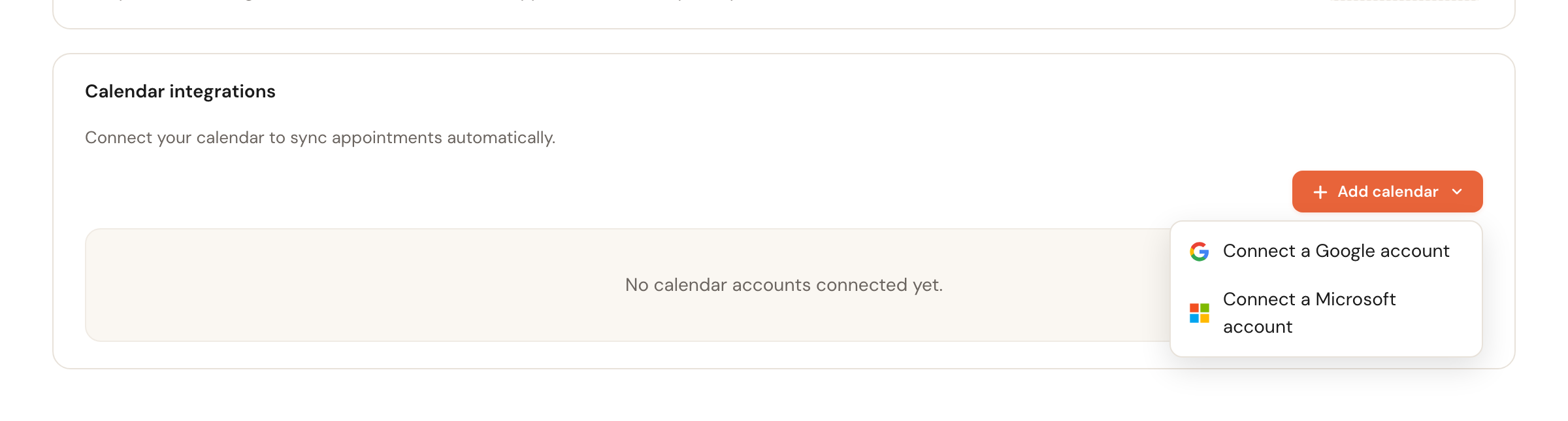
Grant access at Google or Microsoft
You now leave Schedulinq. On Google's or Microsoft's screen you sign in with the account that holds the calendar and allow Schedulinq to read it and write to it. As soon as you agree, you land back on your profile page.
Choose which calendars to use
Back in Schedulinq a window appears listing every calendar in that account. Tick the ones you want — you do not have to pick exactly one, and you do not have to pick them all.
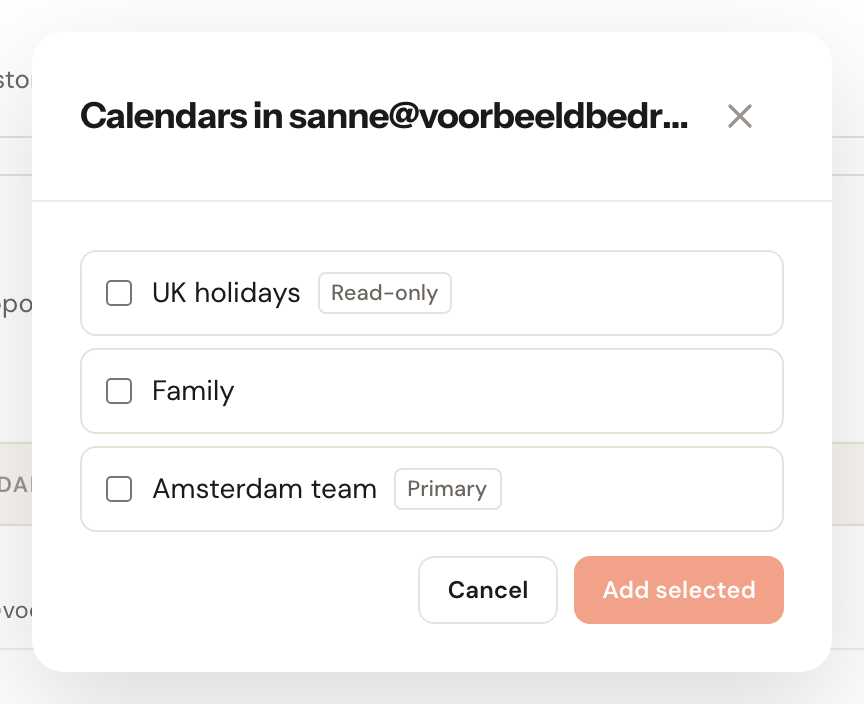
A calendar may be marked Read only. That one is shared with you and you cannot put anything in it yourself — so neither can Schedulinq. Primary is the account's main calendar.
Read how locations affect travel time
Next comes a short explanation with a tick box under it. It is worth actually reading: it is the only place that tells you Schedulinq uses the location of your calendar events to work out travel time.
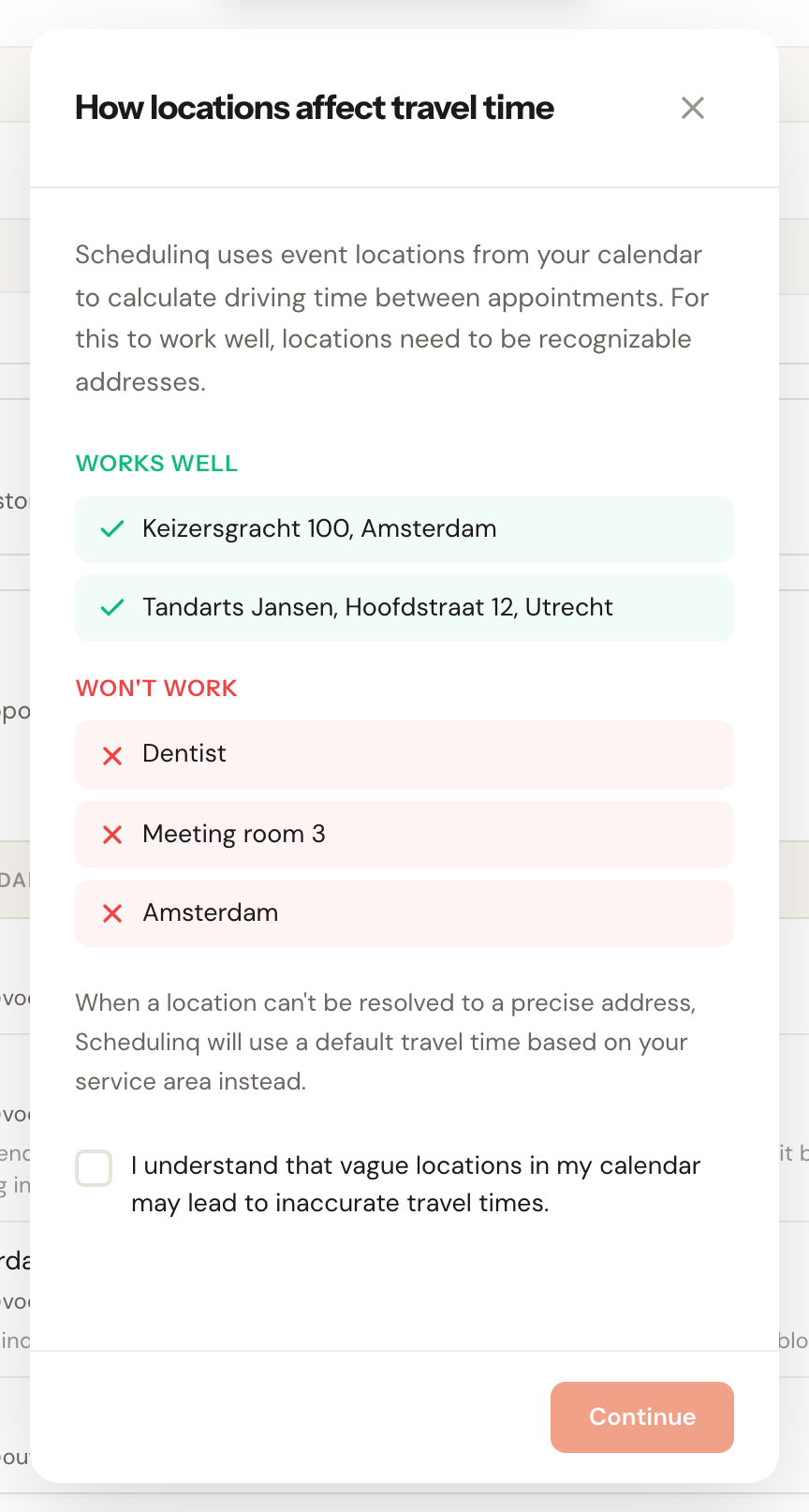
A location like Keizersgracht 100, Amsterdam can be turned into a driving time. Dentist, Meeting room 3 or just Amsterdam cannot, and Schedulinq falls back on a default travel time based on your service area. So put full addresses in your calendar events, or accept that the travel time around them is an estimate.
Required when you join
Your organisation can ask every new team member to connect a calendar before they start: Team → Members → Actions → Connect calendar on activation. A new colleague then connects Google or Microsoft straight after choosing a password, on a page of its own, and picks the calendar Schedulinq reads. Connect later is offered only after an attempt failed. What the colleague sees step by step is in Invite your team.
The requirement applies at activation only. Someone who connects later, or whose connection stops working, can still sign in and be booked.
Read and write
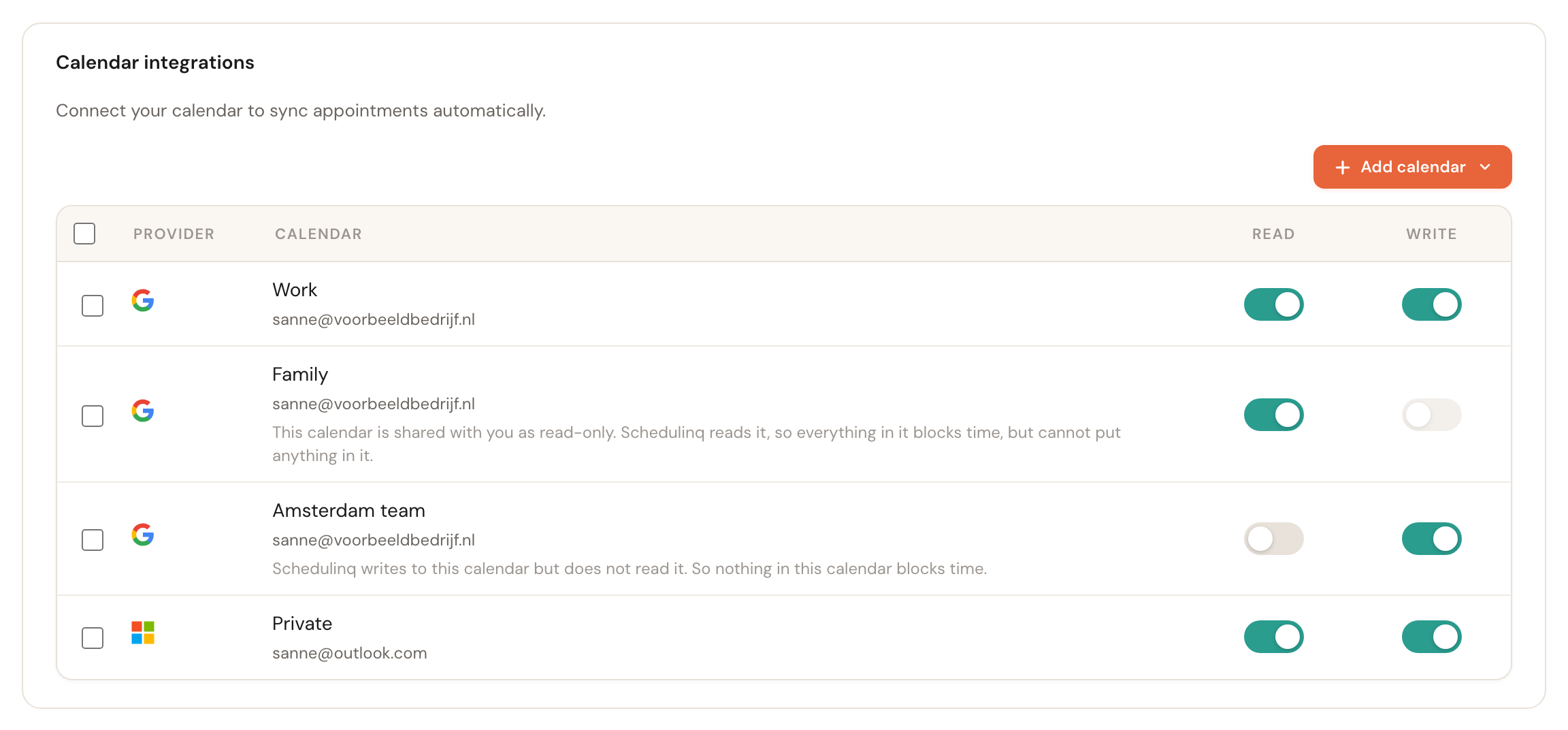
Every connected calendar gets its own row with two switches. They are independent, and together they decide what actually happens.
Read
Blocks your availabilitySchedulinq fetches the events in this calendar and treats them as busy time. Customers are no longer offered those moments.
This is why most people connect in the first place. Without read, Schedulinq knows nothing about your dentist appointment, your meeting or your holiday, and a customer will book straight over it.
Write
Puts bookings in your calendarAppointments booked through Schedulinq appear in this calendar. All of them, by default; once this is on, a pencil appears at the right of the row, with which you narrow that down to certain locations or services.
That way your Schedulinq appointments show up on your phone, in your mail and beside all your other appointments without you copying anything. You may turn it on for more than one calendar, as long as you tell each calendar which appointments belong in it — see Writing only some appointments. Turn it on everywhere without choosing, and every booking appears several times in your week.
Three combinations show a note under the calendar name, because they behave differently than you would expect:
| What you see | What it means |
|---|---|
| Both on, no note | The ordinary case: events block time and bookings land here. |
| Write is off and cannot be turned on | The calendar is shared with you as read-only. Schedulinq does read it, so everything in it blocks time, but it cannot put anything in it. That is the sharing setting at Google or Microsoft, not Schedulinq. |
| Read only | Events block time, but your Schedulinq bookings will not appear here. |
| Write only | Bookings land here, but the events in this calendar do not block your availability. This is the combination people most often end up with by accident — unless a colleague already reads the calendar, see A calendar a colleague already reads. |
If a calendar name has Writes only: … under it, that is not a warning: you have chosen which appointments go into that calendar. The next section is about that.
If you turn both switches off for a calendar, it no longer does anything. Schedulinq then asks whether you want to remove it, because that is what you mean. Cancel and everything stays exactly as it was.
Writing only some appointments
By default Schedulinq puts every booking into every calendar that has Write on. It does not have to. For each calendar you choose which appointments go in: only those at a certain location, only those of certain services, or both.
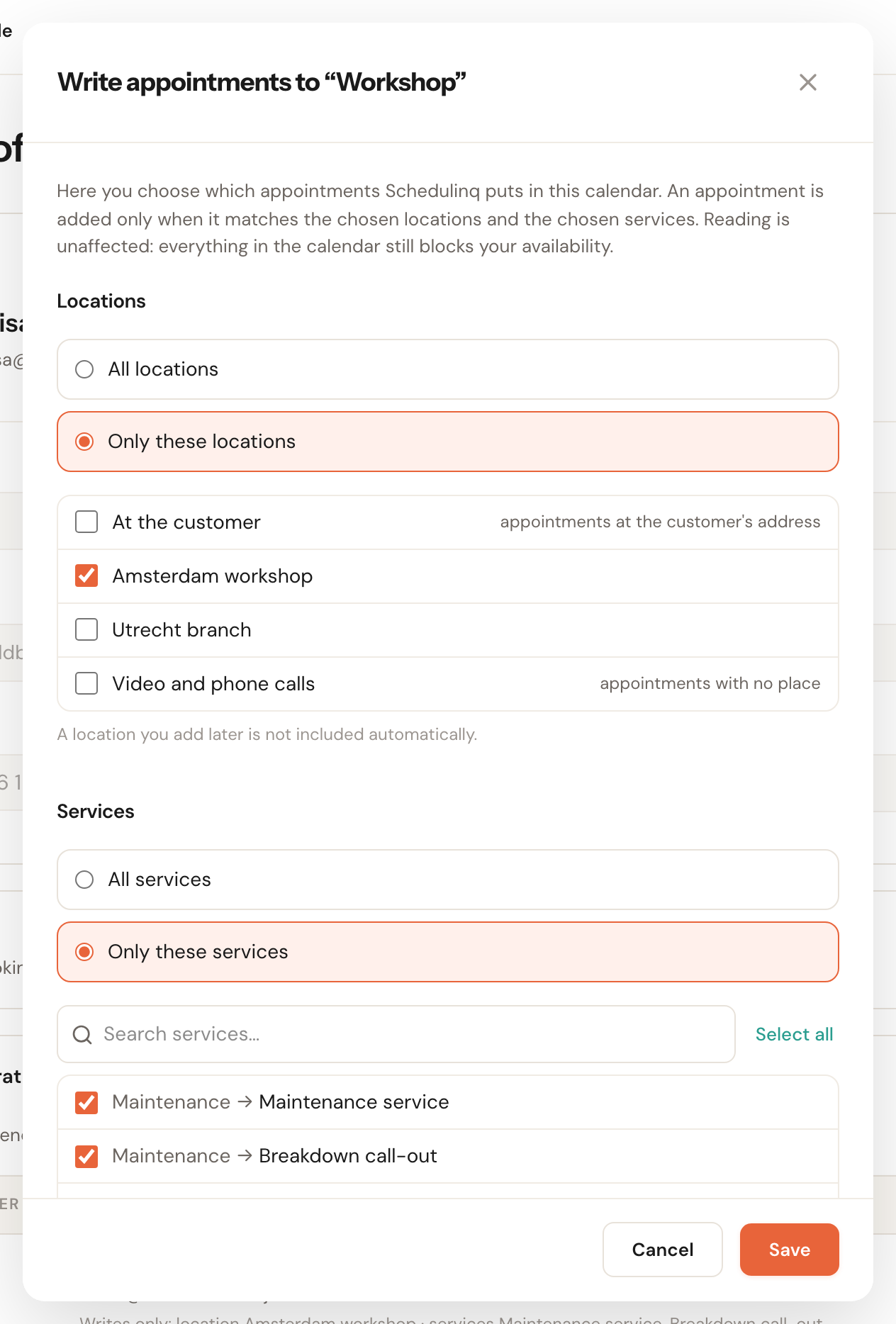
When Write is on, a pencil appears on the right of the row. Click it and a dialog opens with two questions — or only the services question if you have no locations and offer no video or phone calls, since every appointment is at the customer then. Both are set to all by default, and as long as they are, nothing changes.
Locations
Where the appointment takes placeAll locations, or Only these locations and then a list to tick. At the top of that list is At the customer: the appointments without a fixed location, so at the customer's address. If one of your services can be a video or phone call, the list ends with Video and phone calls — appointments with no place. A location you add later is not ticked here by itself: its appointments stay out of this calendar until you tick it.
This is the choice for a calendar that belongs to a place. A shared workshop calendar should hold the appointments in the workshop, not the jobs you do on the road. Whether an appointment is at a location or at the customer is set on the appointment type — see At the customer or on location.
Services
What kind of appointment it isAll services, or Only these services and then a list of all your appointment types to tick. You can search it. A service you later delete from your catalogue stays ticked here, marked archived, until you untick it. A service you add later works the other way round: it is not ticked by itself, so its appointments stay out of this calendar until you tick it here.
This is the choice for a calendar that belongs to a kind of work: a course calendar that gets only the courses, while the one-off consultations stay in your own calendar. An appointment without an appointment type only falls under All services.
An appointment lands in the calendar only if it satisfies both choices. As soon as you have narrowed anything, it shows under the calendar name in the table — Writes only: location Amsterdam workshop · services Maintenance service, Breakdown call-out — so you do not have to open the dialog to see which calendar gets what. If you keep the calls in, that line names Video and phone calls too.
The situation this is built for: you work in a workshop you share with colleagues, and you also visit customers. The workshop has a shared calendar, you have your own, and both have Read on. Turn Write on for the workshop calendar with only the location Workshop, and for your own calendar with everything in it. The workshop calendar then shows exactly what happens in the workshop that day, without the jobs at customers' homes, and you see your whole day in your own calendar. Prefer your own calendar to hold only the jobs on the road? Then give it Only these locations with just At the customer ticked, and a workshop booking lands in the workshop calendar alone.
This changes nothing about Read: everything in the calendar blocks your time, including what Schedulinq would not put there itself.
The choice belongs to one calendar of one person. If a colleague connects the same shared workshop calendar, they choose for themselves what goes in through their connection. Only one of you can have Read on for it, though — the next section says why.
A calendar a colleague already reads
Schedulinq reads a calendar for one person only. When a colleague in your organisation already has Read on for a calendar — a shared team or workshop calendar, or their own calendar shared with you — you cannot read it as well.
When you add it
Write onlyIf Schedulinq can write to the calendar, it is added with Write on and Read off, and a message says so: “Workshop” is already read for someone else in the team. Schedulinq only adds appointments to it. Your bookings land in it; the events in it do not block your time.
If Schedulinq cannot write to it either, because it is shared with you as read-only, it is not added. The window says why, under the list: This calendar is already read for someone else's availability in the team. A calendar can be read for one person only. Nothing you ticked in that go is added: untick that calendar and confirm again.
Nothing in a shared calendar says whose an event is. Read by two people, every event in it would block both of them, and its address would sit on both their routes, while only one of them is actually there.
When you switch Read on
RefusedFor a calendar a colleague already reads, switching Read on is refused with the same message, and the switch stays off.
- Writing is not affected. Several colleagues can each put their bookings in one shared calendar, each with their own choice of what goes in.
- To move reading to someone else, the colleague who reads the calendar switches Read off first; then the other can switch it on.
- Calendars two colleagues already both read before 23 October 2026 stay as they were. Once one of them switches Read off, it cannot be switched back on.
- Microsoft calendars are not checked. Schedulinq recognises a shared Google calendar, but a shared Microsoft calendar looks different in every mailbox, so Schedulinq cannot tell it is the same one and does not stop you. Keep Read on for one person there yourself.
One account on several team members
Sometimes one person has several team member accounts in your organisation — one per campaign, for example — and connects the same Google or Microsoft account to each. Schedulinq treats those team members as one person: an appointment booked for one blocks that time for the others, and its address counts on their route. They can all read the same calendars, because those calendars are theirs.
Online meetings
If you offer video calls, Schedulinq makes a meeting for every booked video call in the calendar of the colleague who holds it: Google Meet in a Google Calendar, Microsoft Teams in a work Microsoft 365 account. A personal Microsoft account cannot make Teams meetings. There is nothing extra to connect or allow. The link is on the appointment in Schedulinq and goes along in the messages to your customer — see Messages for video and phone appointments.
A calendar can only make the meeting when Write is on and the calls go into it: if you unticked Video and phone calls under Writing only some appointments, that calendar does not count. If one of your services can be a video call, the calendar that makes your meetings says so in the table, under its name: Makes Teams meetings or Makes Google Meet meetings.
Create online meetings in
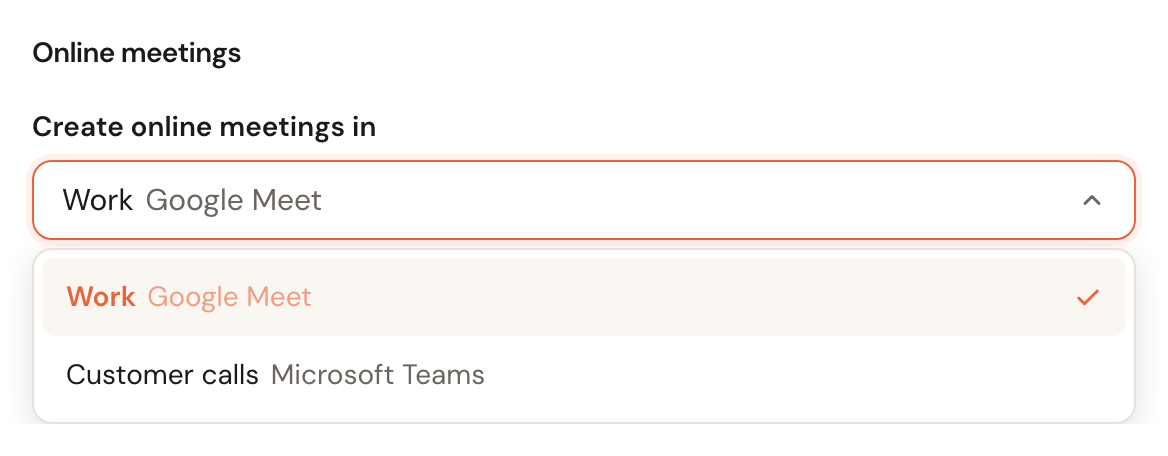
Only with two or more suitable calendarsOnly when a service can be a video callWhen two or more of your calendars can make meetings, the dialog behind the pencil — on each of those calendars — ends with an Online meetings block. Choose in the dropdown which calendar does it; each calendar says whether that will be Google Meet or Microsoft Teams. Your choice applies when you save the dialog; from then on the other calendars make no meetings.
Without a choice your primary calendar makes the meetings, otherwise the first one that can. If you hold customer calls in Teams while your primary calendar is Google, this is where you choose where the meeting goes.
What else happens:
- The customer is not an attendee of the calendar event. Whoever opens the link lands in the Meet or Teams waiting room, and the colleague lets them in.
- One meeting per appointment. When several colleagues hold the call, one of them makes the meeting; the others get the appointment in their calendar with the same link.
- No calendar that can? Then the appointment is booked anyway, without a link. When none of the colleagues on the appointment has a connected calendar that can make a meeting, the appointment says so and you can only paste a link yourself — from Zoom, for example. When such a calendar exists but making the link failed, you can also have it tried again. See A video call on the appointment.
- A link you pasted yourself stays, also when the appointment changes colleague or the customer reschedules it.
- When the colleague who made the meeting is taken off the appointment, that meeting goes with them: the next colleague makes a new one, and the customer gets that link.
What does not sync
This is where the surprises are, so it is worth knowing them.
- Calendars you did not tick. Only the calendars in the table count. Other calendars in the same account are ignored, however full they are.
- Events set to "Free". If you mark an event Free rather than Busy in Google or Microsoft, it blocks nothing. It is still visible, but customers can book straight over it. Useful for all-day labels like "Week 34" or a birthday.
- A shared read-only calendar never receives bookings. See the table above.
- The contents of your events. Schedulinq uses the start time, the end time and the location. Whatever else is in the description stays in your own calendar.
Changes come through on their own: edit an event in Google or Microsoft and Schedulinq follows that change without you doing anything.
Several calendars and several accounts
You can connect up to five calendars, counted across all your accounts. At that maximum the Add calendar button is disabled and the reason is shown underneath.
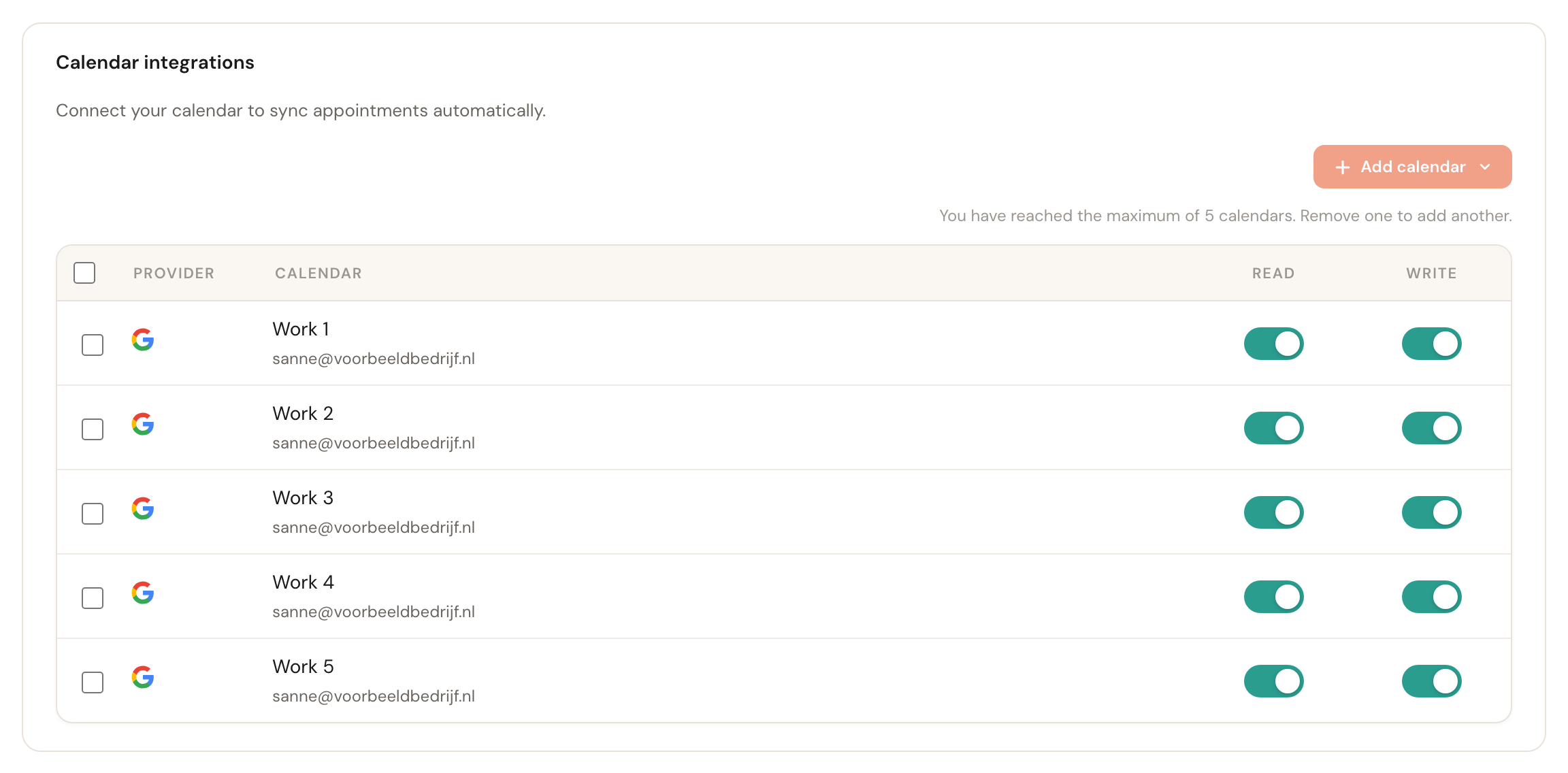
To add a calendar that lives in an account you have already connected — a shared family or team calendar, say — click Add calendar and pick that account at the top of the menu. You do not have to sign in again.

Removing a calendar or an account
Remove a single calendar by ticking it on the left and clicking Delete in the bar that appears. What happens:
- Its events no longer block your availability.
- Appointments Schedulinq had put in it are removed.
- If it was that account's last calendar, the whole account is disconnected. Otherwise a connection would linger with nothing on screen to remove it.
All your appointments inside Schedulinq stay exactly as they are. Disconnecting only affects the link with Google or Microsoft.
When a team member has no calendar connected
Schedulinq counts a team member as connected when it reads at least one of their calendars: an account with at least one calendar that has Read on. An account that is connected but has no calendar ticked, or only calendars with Write, counts as not connected — nothing in it keeps a booking away from their busy times.
For an active team member who can be booked, that shows as Calendar not connected:
- on their row on the Team page;
- in Find appointment options, beside their name in the staff picker and on each of their options.
Their own appointments are then not taken into account when something is booked with them, but they stay bookable: the grey tag is information, not a fault, and it never blocks. To fix it, the team member (or an admin, from their profile) connects an account here and turns Read on for at least one calendar.
A connection that stops working — the access was revoked at Google or Microsoft, or the mailbox is no longer available — is noticed the next time Schedulinq talks to the provider, at the latest within a few hours. Until then the team member still counts as connected; afterwards they get the tag, and they stay bookable. They are told themselves too — see the next section.
When a connection stops working
When Schedulinq can no longer do its work in a calendar, a bar appears across the top of every page. It goes to the person whose calendar it is, not to an admin.

| The bar says | What happened | What to do |
|---|---|---|
| … was automatically disconnected … | Schedulinq has removed the whole account — see below. | Click Reconnect and set the account up again. |
| … sync has been failing | Fetching a calendar failed three times in a row. The account is still connected. | Click Reconnect and connect the same account again: a fresh grant usually fixes it. Your calendars and switches stay as they were. |
| Schedulinq can no longer add appointments to … | The calendar's owner now shares it with you as read-only, so Schedulinq switched Write off for that calendar. Read keeps working. | Ask the owner for edit access, then switch Write back on. |
Reconnect takes you to My Profile, where the Calendar integrations block is. An admin lands on the Team page instead; their own calendar is still under My Profile.
When Schedulinq disconnects an account itself
Schedulinq disconnects a calendar account on its own when it can never work again as it is:
- The access expired or was revoked. Google or Microsoft no longer accepts the access you gave — you withdrew it there, for instance.
- The account has no usable mailbox. A shared mailbox, or a Microsoft account without a licence that includes a calendar.
- The Google account does not use Google Calendar. Turn Google Calendar on for that account first, or connect a different one.
The whole account is then removed from your profile: the calendars you ticked, their Read and Write switches, and any Writes only choice. Reconnecting means starting over — connect the account, tick the calendars and set the switches again. For a shared mailbox or an account without a calendar, reconnecting the same account does not help; connect a different one.
Frequently asked questions
Our organisation asks for a calendar on joining. Can a colleague start without one? Yes. If connecting fails, Connect later appears and the colleague continues to their agenda. They are active and bookable; the Team page shows Calendar not connected until they connect one from their profile.
Does everyone on my team have to do this separately? Yes. The connection belongs to one person, so everyone who can be booked online connects their own calendar. As an admin you can set it up for a colleague from their profile page.
A customer booked me while I was busy. Check that Read is on for the calendar that event was in, and that the event itself is not set to Free. If the event is in a calendar you did not tick, it does not count.
My Schedulinq appointments are not in my calendar. Then Write is off for every calendar, or on only for one that is shared with you as read-only — Schedulinq cannot put anything in that. If the calendar name has Writes only: … under it, you have chosen which appointments go in, and these fall outside that.
I work at a fixed location and at customers' homes — can the workshop calendar get only the workshop appointments? Yes. Turn Write on for that calendar, click the pencil and under Locations choose Only these locations with only the workshop ticked. Appointments at customers' homes — At the customer — then stay out of it. See Writing only some appointments.
I cannot switch Read on for a calendar. Then a colleague already reads it. A calendar is read for one person only; ask that colleague to switch Read off. See A calendar a colleague already reads.
Can I use my private calendar without work appointments landing in it? Yes. Turn Read on and Write off for that calendar: your private events will block your time, but nothing gets added.
What happens if I change my Google or Microsoft password? Usually nothing — the connection keeps working. If you revoke the access at the provider itself, the connection stops and you have to set it up again.