

Send it and get paid
From draft to paid — issuing, sending, recording payment, and correcting a mistake without breaking your numbering.
An invoice moves through four steps: draft → issued → sent → paid. This is the route through them, and what to do when something goes wrong on the way.
In short
- Open the draft and click Issue — the invoice gets its final number.
- Click Send and check the covering email.
- Once the money arrives: Actions → Mark paid.
Step by step
Issue the invoice
A draft is still freely editable and has no number yet. Issue commits it: it takes the next invoice number, and the lines, amounts and address details are frozen.
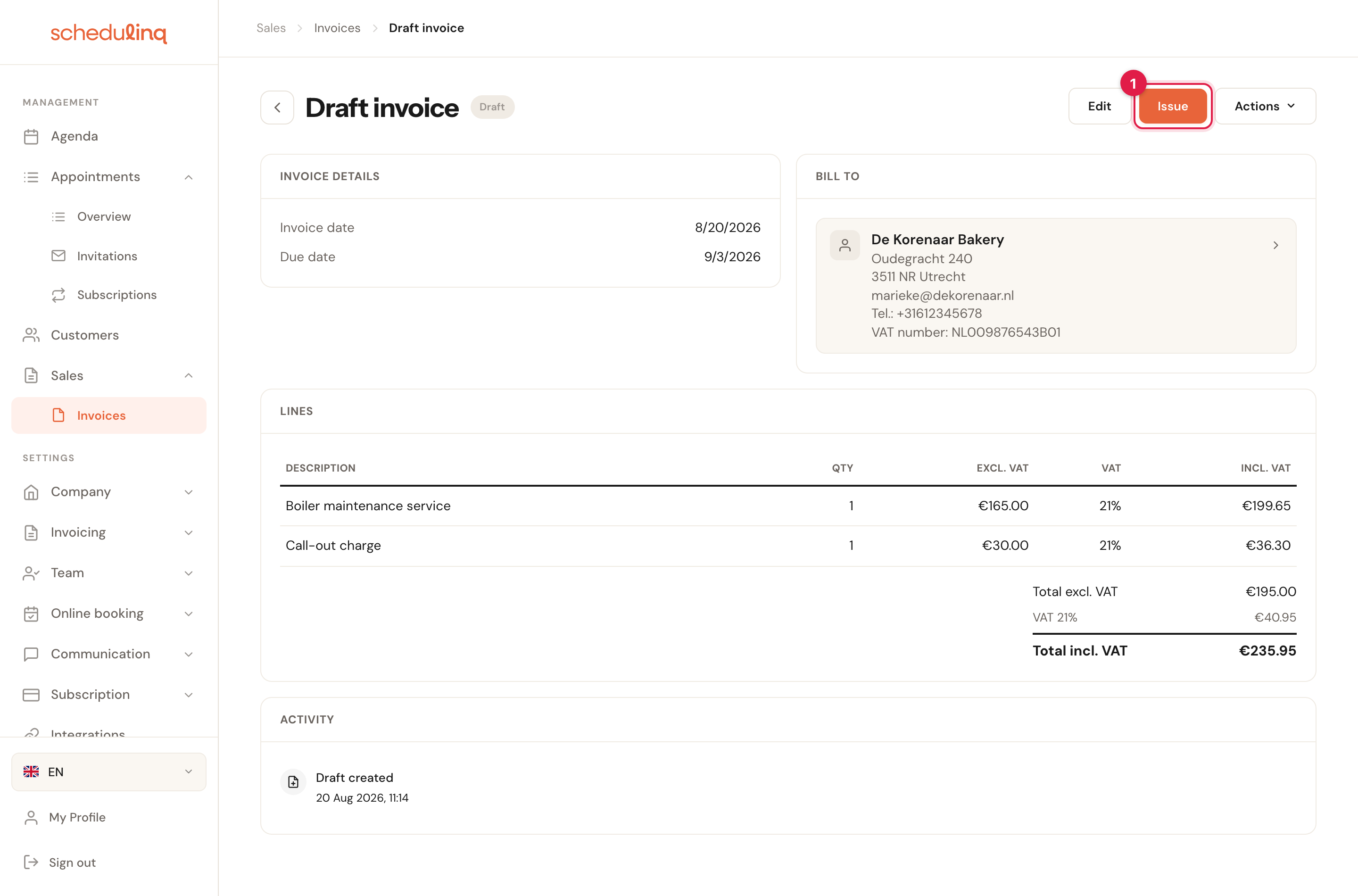
While the status is Draft, everything can still be changed through Edit.
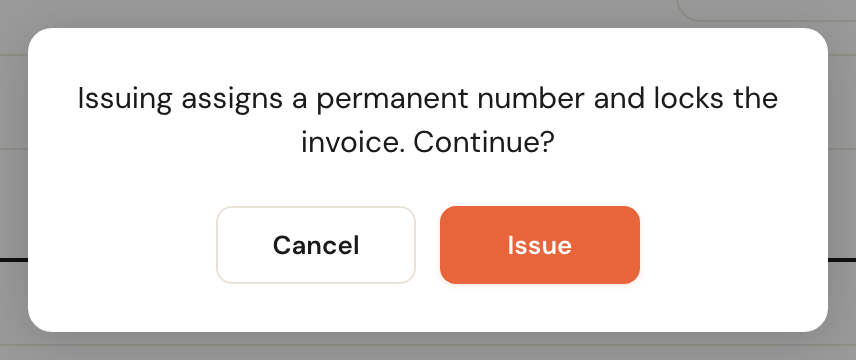
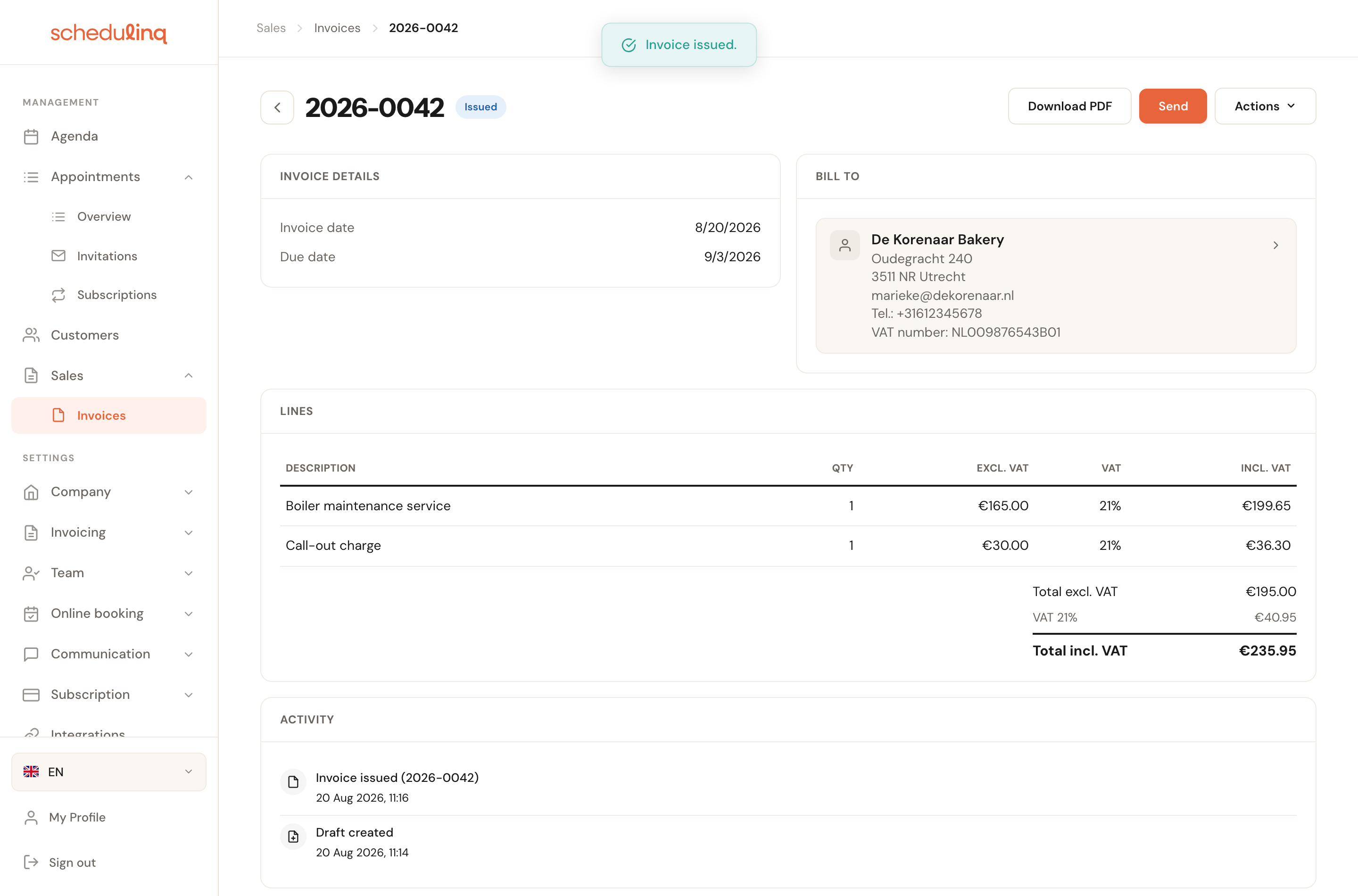
After issuing, Download PDF and Send appear.
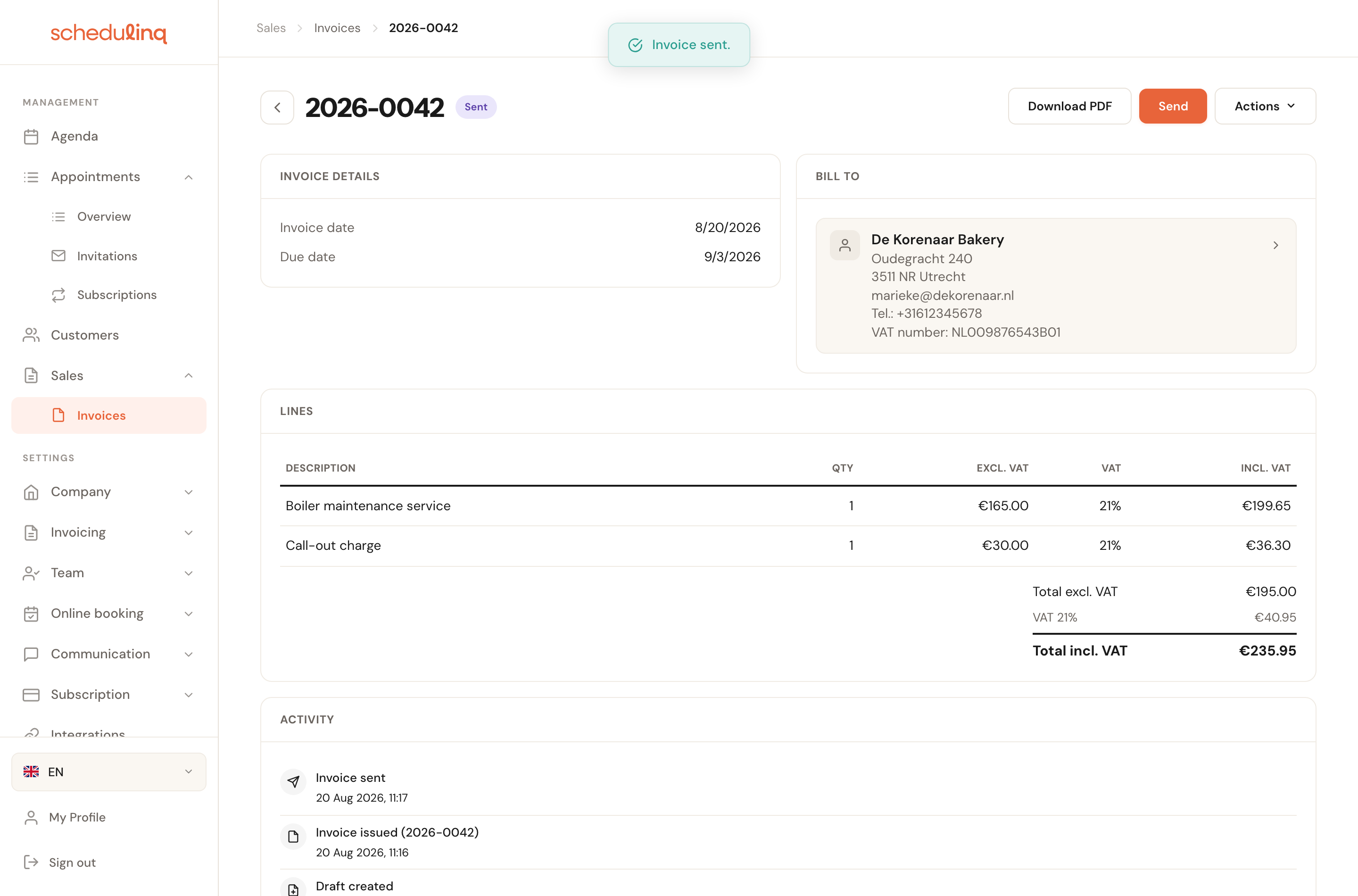
Send it to your customer
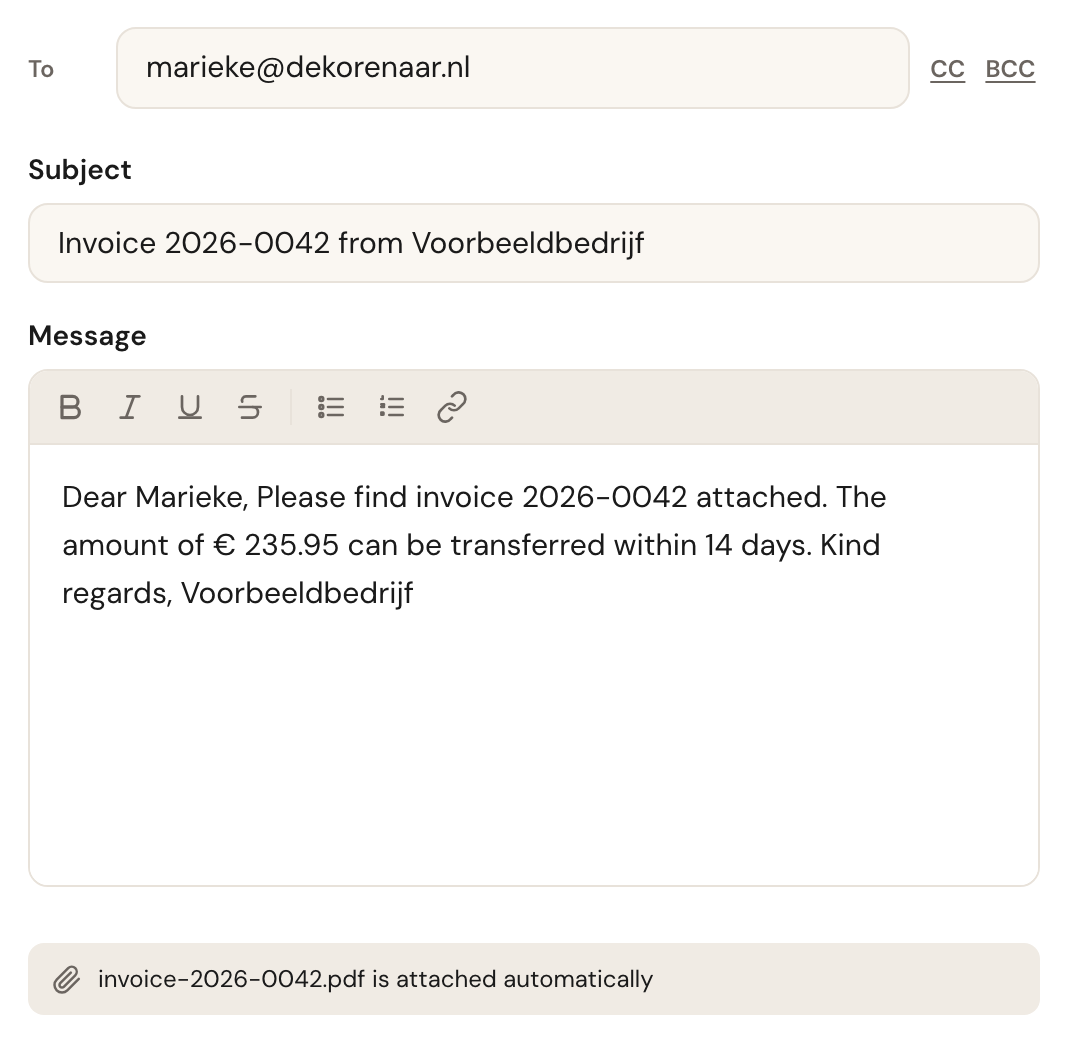
Send opens a window where you can adjust the covering email before anything leaves. The subject and message are pre-filled from your invoice communication step.
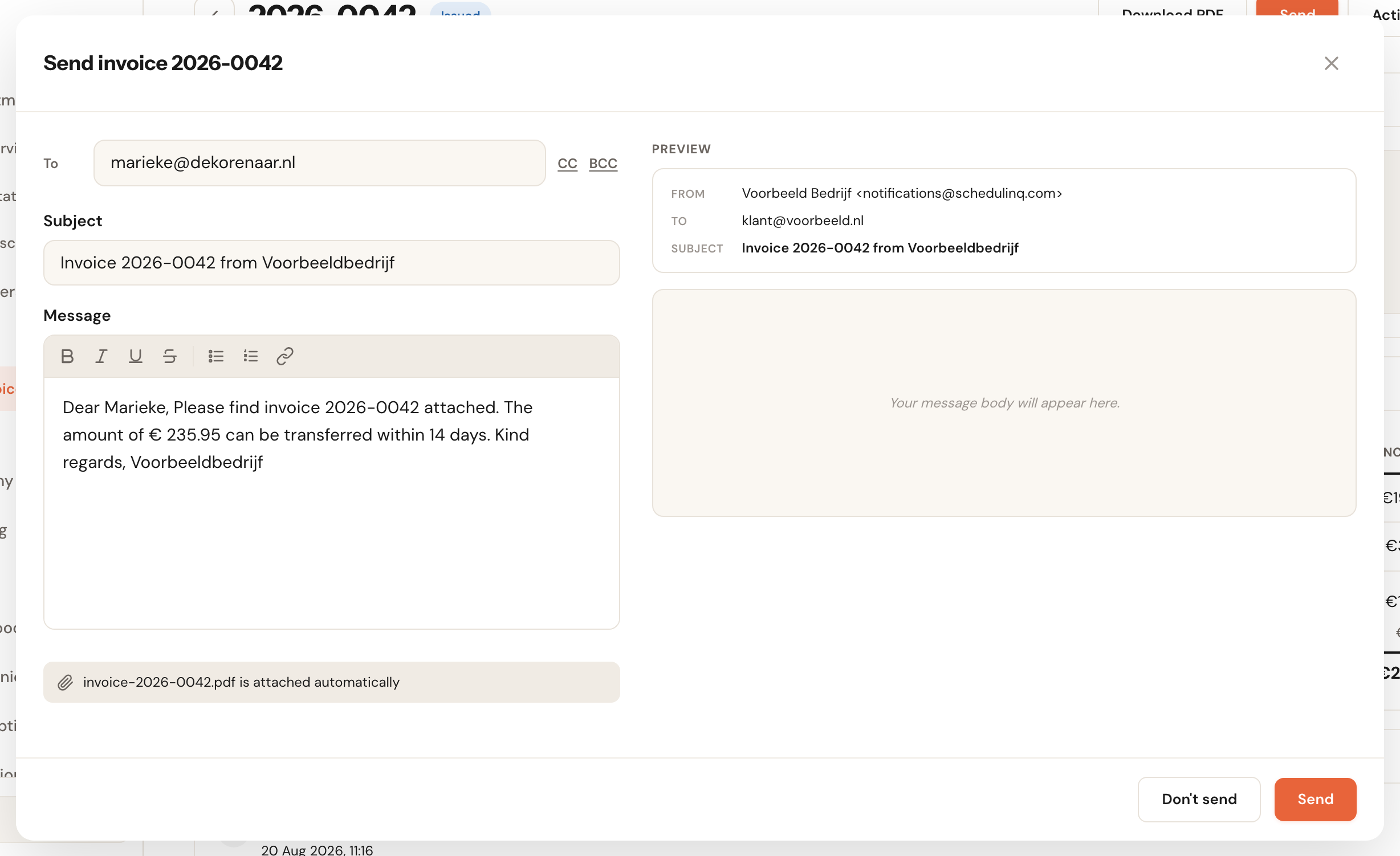
On the right you see exactly how the email will reach your customer, in your own branding.
Record the payment
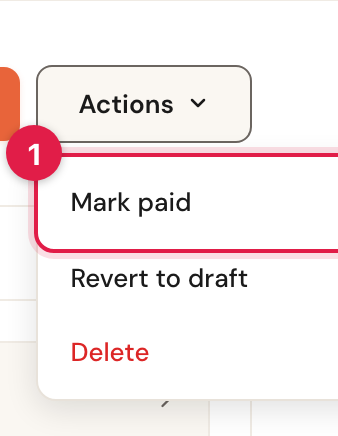
Once the amount is in your account, mark the invoice paid by hand through Actions → Mark paid.
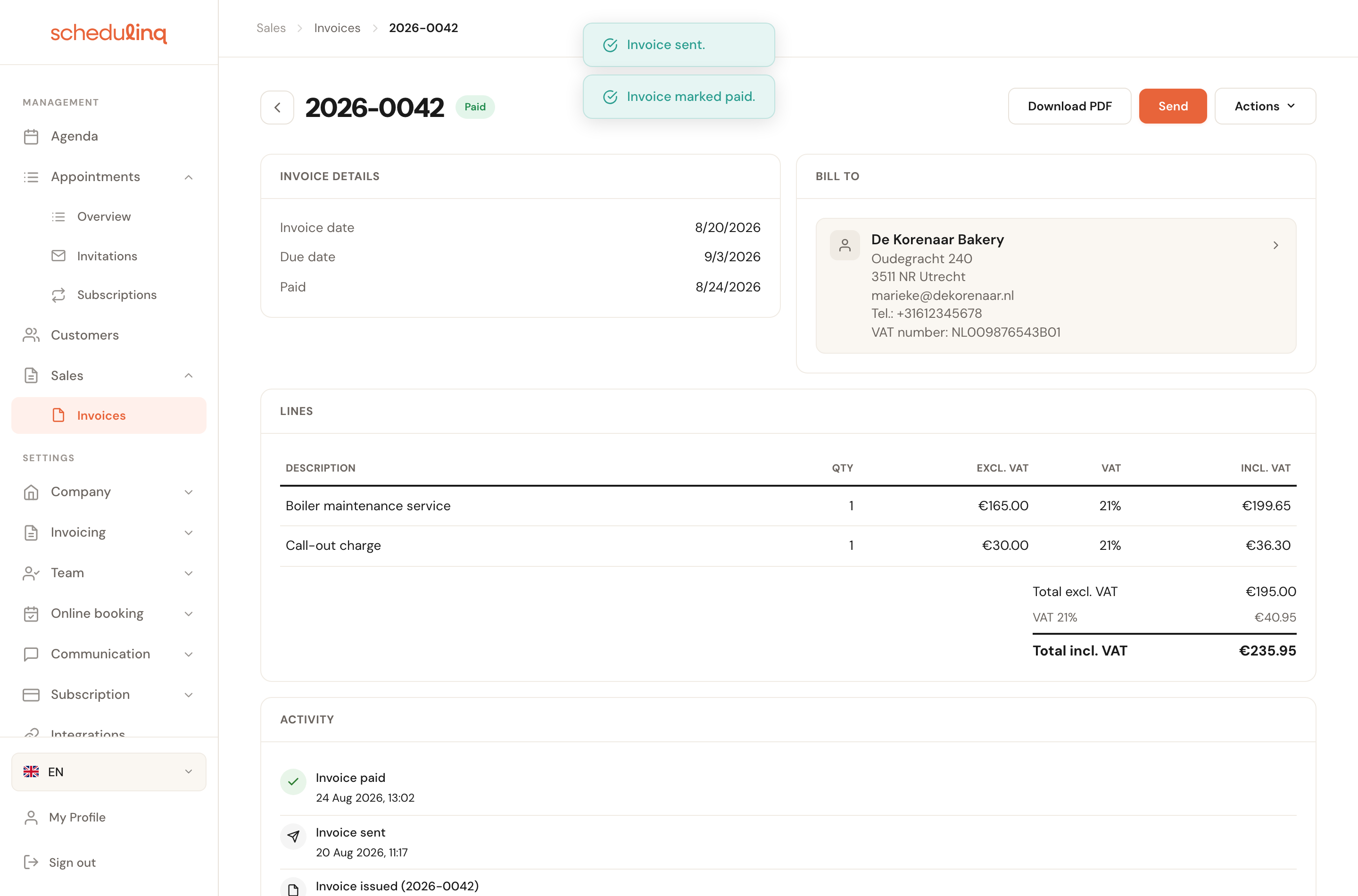
The payment date joins the invoice details, and the activity list keeps the whole history.
WhyBecause there is no bank connection, Schedulinq cannot know on its own that you have been paid. So this step is not administrative tidiness: it decides whether your customer still gets a reminder, and whether the invoice keeps showing as outstanding in your overview.
The statuses
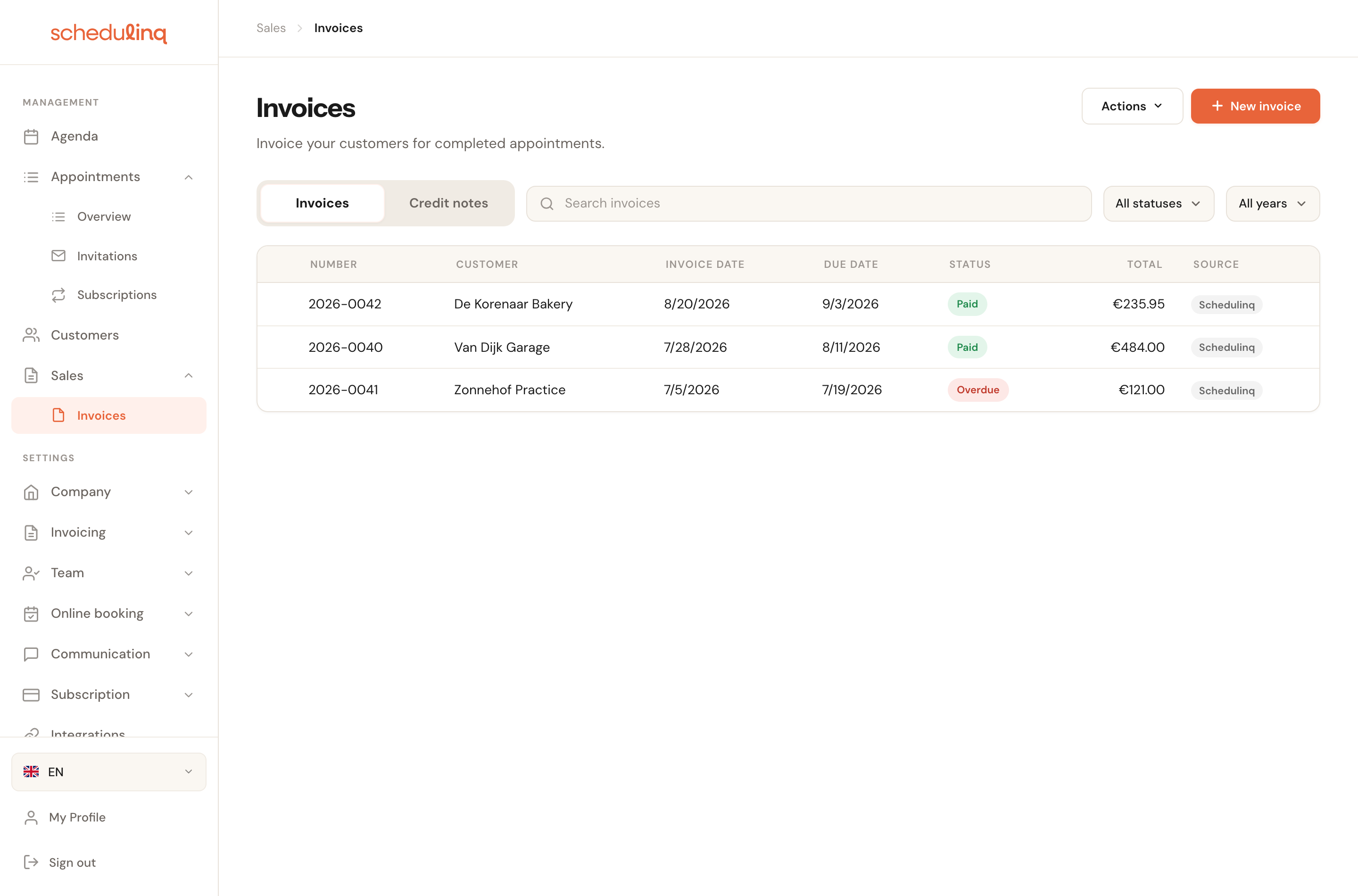
In the overview you can filter by status, year and search term.
| Status | What it means |
|---|---|
| Draft | Still freely editable, no number yet. Can be removed without consequence. |
| Issued | Committed and locked. Has an invoice number but has not been sent. |
| Sent | The covering email with the PDF has gone to your customer. |
| Paid | You have recorded the payment. |
| Overdue | The due date has passed and the invoice is still open. This happens automatically. |
| Credited | A credit note has been raised against it. |
The activity list
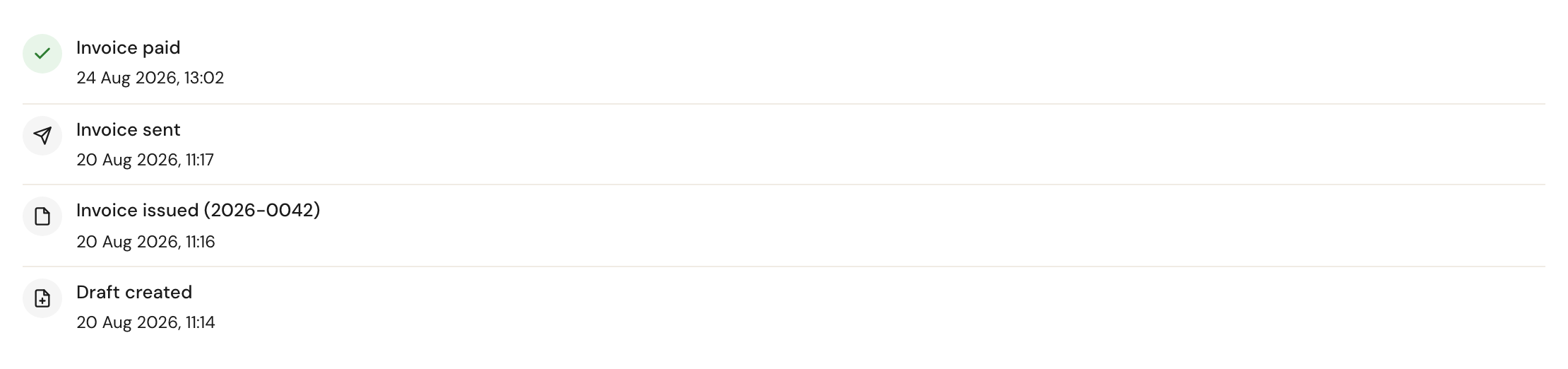
At the bottom of every invoice, Activity keeps its history with date and time: Draft created, Invoice issued with the number, Invoice sent, Invoice paid, Invoice credited — and Reverted to draft when you took it back, so the history stays complete even though the number was released. Every e-mail and reminder is listed there too; see Payment reminders.
Invoices with a gift voucher
Two kinds of invoice involve a gift voucher, and with both, paying does something extra.
- The invoice that sells a gift voucher. Mark it as paid and the voucher is paid too, so the recipient can use it on your booking page from then on. Until then the booking page does not take the code.
- The invoice of an appointment paid with a gift voucher. Below its total is what the voucher paid, and below that the Amount due. That amount is also on the PDF, in the cover e-mail and in your reminders. When the voucher pays the whole invoice, the invoice is Paid as soon as you issue it: there is nothing left to collect, so the customer gets no reminders either.
Correcting a mistake
Which route you take comes down to two questions: has the invoice been paid, and is it still your latest invoice number?
Not yet paid → Revert to draft
Latest invoice onlyIf the invoice is Issued or Sent — not yet Overdue — and is the most recently issued one, you can reopen it through Actions → Revert to draft. The invoice number is released and reused at the next issue.
This is the clean option while no money has changed hands: you correct the invoice itself instead of putting a second document beside it. It only works on the latest invoice, because taking a number out of the middle leaves a gap in the sequence.
Already paid → Credit
Creates a credit noteA paid invoice is not undone but set right: Actions → Credit creates a credit note that books the amount back. The original invoice becomes Credited and is kept, with a link to its credit note.
A paid invoice has already reached your bookkeeping and your customer. Changing it after the fact would make the trail untrustworthy; a credit note shows what actually happened.
Unpaid, but overdue or not the latest → Mark paid, then Credit
No direct routeAn unpaid invoice that is Overdue, or that has a later invoice after it, offers neither Revert to draft nor Credit. There is no direct route for it. What works: Actions → Mark paid, then Actions → Credit. The credit note cancels the invoice in full; then raise a new, correct invoice.
It is a detour, so mind what Mark paid does on the way: your When invoice is paid message goes out if you have one, and an invoice that sells a gift voucher makes that voucher usable — withdraw it if it should not be. If the invoice is Overdue but still your latest number, Delete is there as well; only use it for an invoice that never reached your customer.
The credit note
Actions → Credit asks you to confirm, then creates the credit note: Credit note created. The address bar now points at the credit note, but the page keeps showing the original invoice until you reload it — or open the credit note from the Credit notes list.
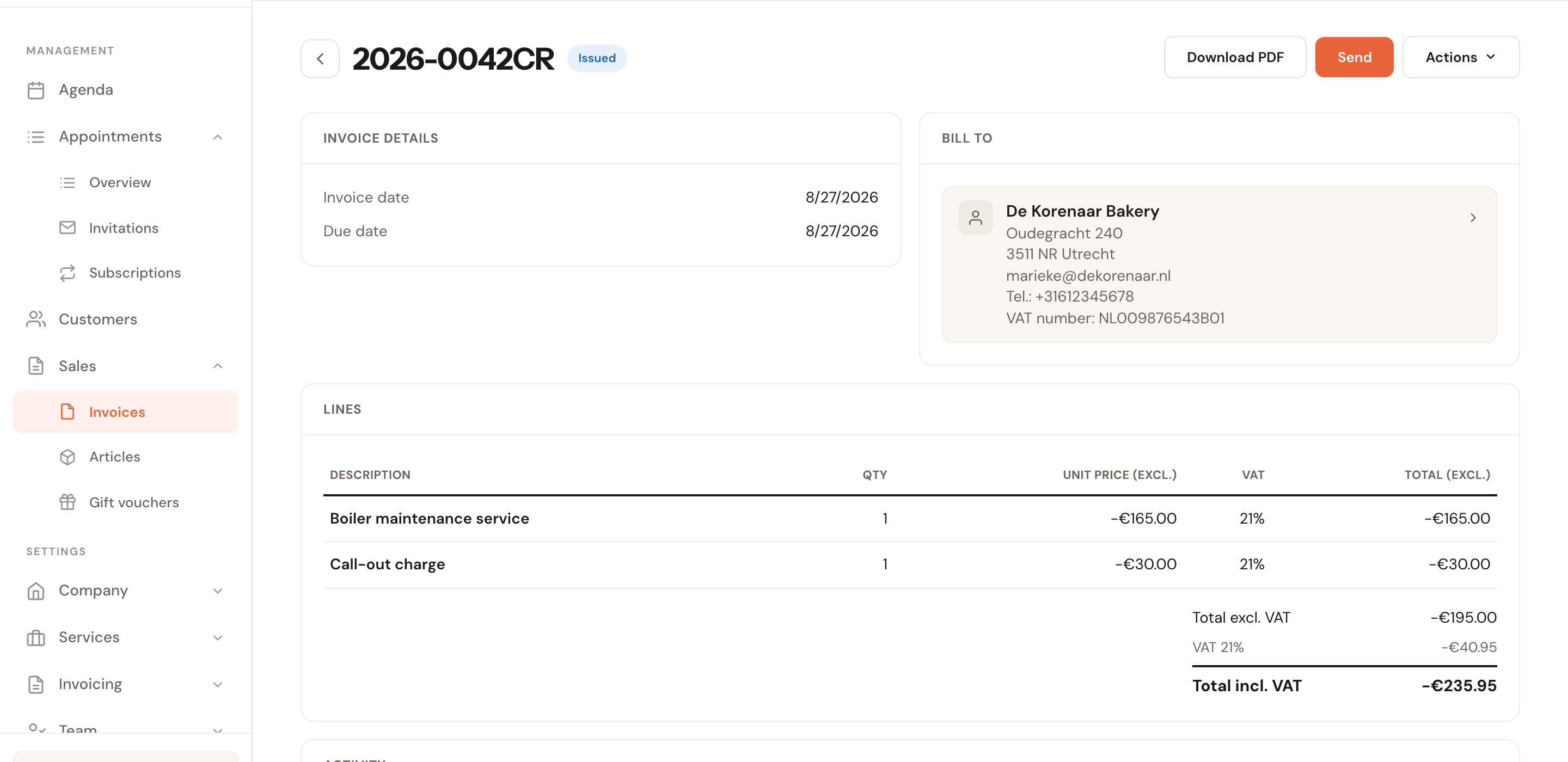
- Its number is the original's with CR after it: 2026-0042CR. It takes no number from your sequence, so your numbering stays unbroken.
- Its lines are the original's with negative amounts, dated today. If a gift voucher paid part of the original, that payment is reversed too, so what the credit note shows under Amount due is what you pay back in money.
- The PDF is headed Credit note and names the invoice it corrects. Send and Download PDF work as they do for an invoice.
- The original becomes Credited and keeps its number; its Actions menu now has View credit note. That one has the same quirk: after clicking it, reload the page.
In Sales → Invoices credit notes have a list of their own, behind the Credit notes switch at the top. The credited invoice itself stays under Invoices.
Frequently asked questions
Can I send an invoice again? Yes. Send stays available even after the invoice has been sent or paid, and your customer receives the email with the PDF again.
My customer has no email address. You can type any address you like in the send window — it does not have to be the one on the customer record. If you would rather not email at all, use Download PDF and send it yourself. The file is named after the invoice number.
What if I invoiced too little? If the invoice is not paid and still your latest number, revert it to draft and correct the amount. Otherwise credit it — see Correcting a mistake — and raise a new one for the correct amount. A paid invoice cannot be increased.
Why is there no payment link? There is not one yet. Payment is by bank transfer; the details are on the PDF.
Drafting an invoice is covered in Create an invoice.