

Your profile
Your name, photo, phone number and language — plus your password and your personal booking link.
Everything Schedulinq knows about you, rather than about your company, sits on one page: My Profile, at the bottom of the left-hand menu. It holds your details, your password, your personal booking link and your calendar connection.
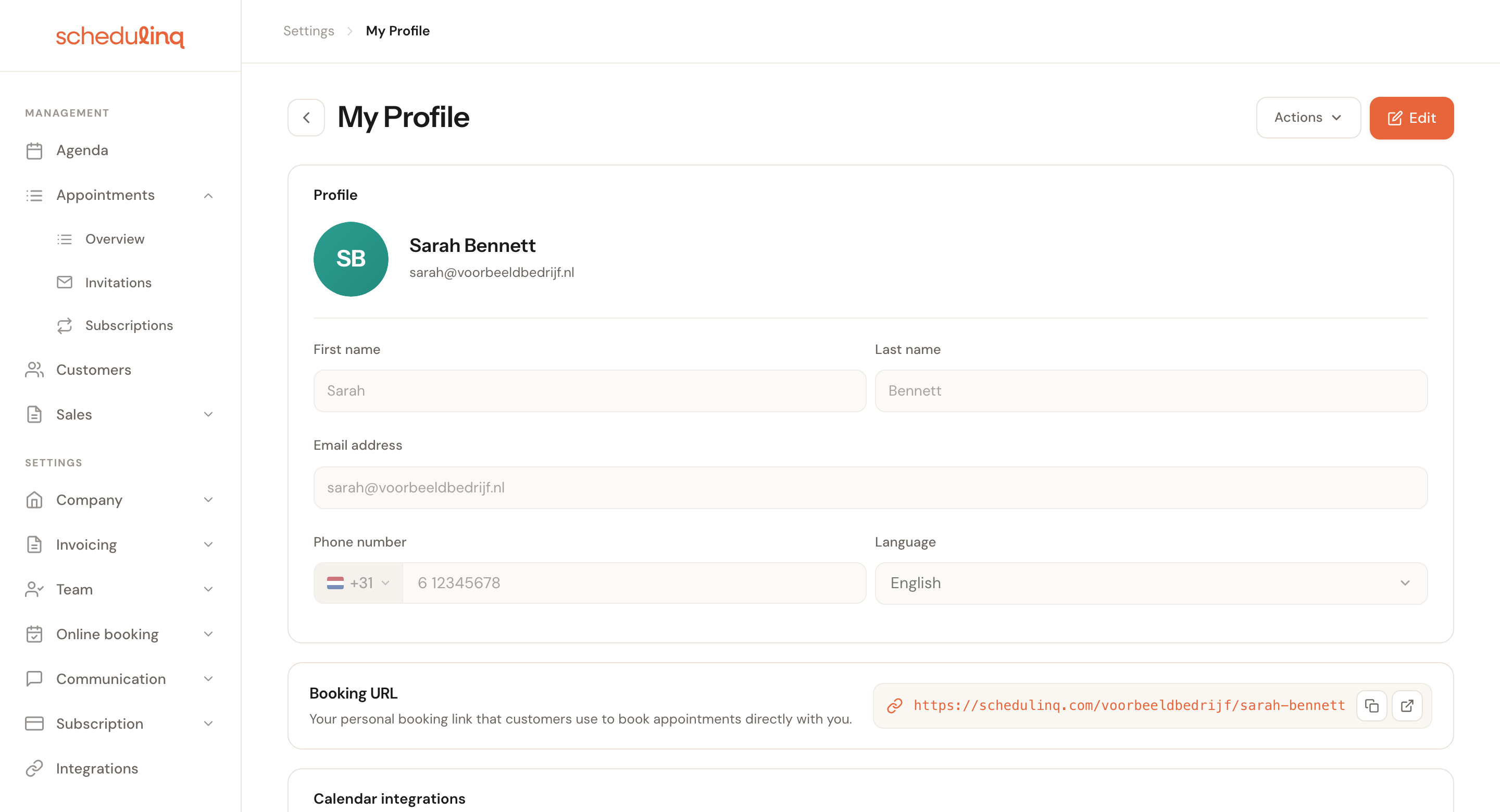
The page always opens in read-only mode. Click Edit at the top right before you can change anything, and Save when you are done.
Your details
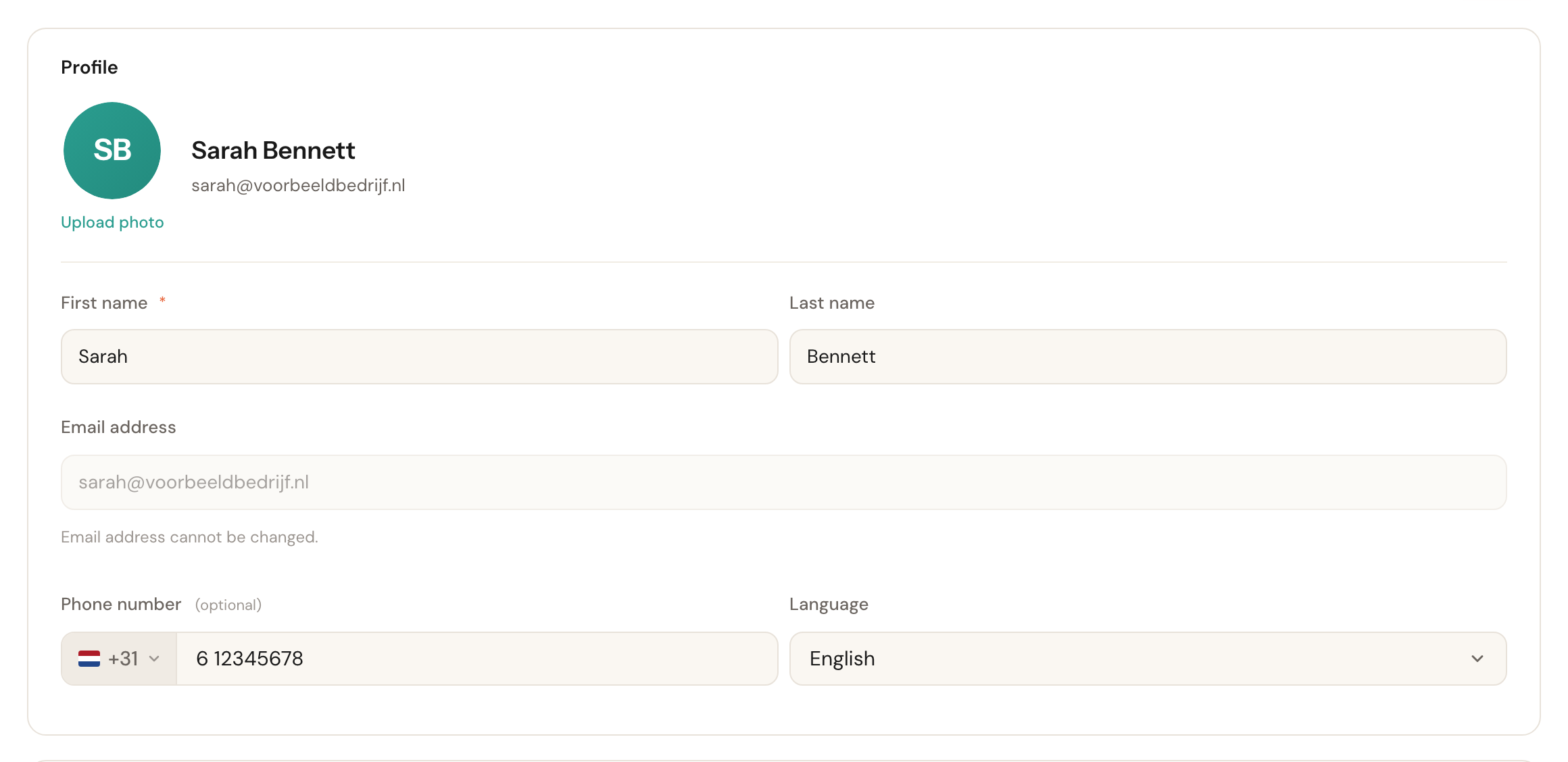
First and last name
First name requiredColleagues see this name in the team overview, and your customers see it in the confirmation emails for appointments you carry out.
So it is not an internal nickname: what you type here appears in the email your customer reads. Your initials also become your avatar for as long as you have no photo.
Email address
Cannot be changedYour email address is fixed — the field is greyed out and not editable.
You sign in with it and it is the key to your account. If it genuinely has to change, an administrator arranges that through support; you cannot move it yourself.
Phone number
OptionalPick the country code from the dropdown and type the rest of the number after it:
digits, spaces and + - ( ) . /. With a letter in it the field says Invalid phone
number and you cannot save.
Language
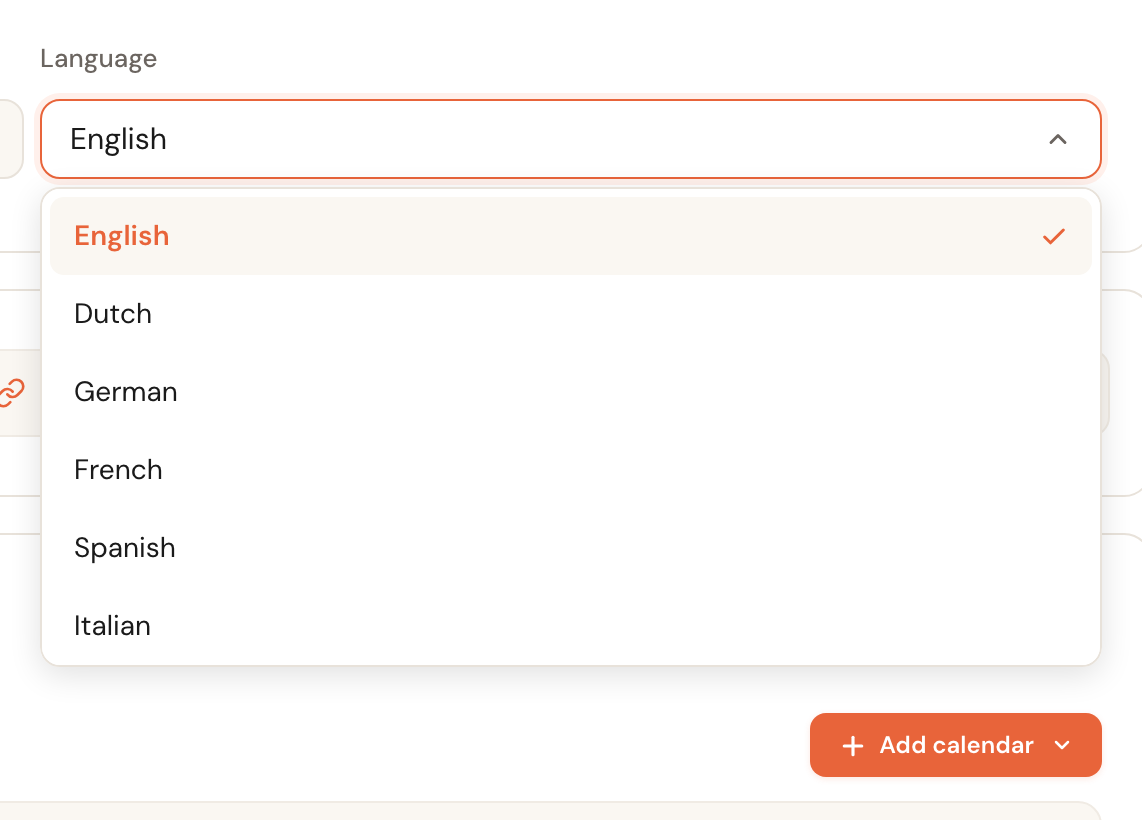
The language Schedulinq itself speaks to you in: the admin screens and the emails you receive from Schedulinq.
This is your personal setting, not your company's. A German-speaking colleague at a Dutch company sets their own profile to German without changing anything for anyone else. What your customer sees is separate — that follows the customer's own language.
Additional fields
When your organisation keeps fields about its staff, your profile shows them in an Additional fields card — your employee number, for instance. You can read them, but only someone who manages team members can change them; the card says so. They are the organisation's record about you, and they may appear in messages to your customers.
Your profile photo

Click Upload photo and pick a JPG, PNG, WebP or HEIC of at most 12 MB. If Schedulinq refuses the file, the reason appears under the photo. Once you have one, the buttons become Change photo and Remove. Without a photo Schedulinq shows your initials in a coloured circle — that works just as well everywhere, so uploading one is entirely optional.
Your personal booking URL

Alongside your company's booking page you have a link of your own, which lets customers book directly with you rather than with whichever colleague is free first. Useful in an email signature or on a business card.
The small buttons on the right copy the link, open it, or edit it. When you edit, you only type the last part — the company portion of the link is already there. As you type, Schedulinq checks whether that part is still free: a green tick means it is, a cross means a colleague already uses it.
Your password
Passwords are not in the form but under Actions, at the top right next to Edit.
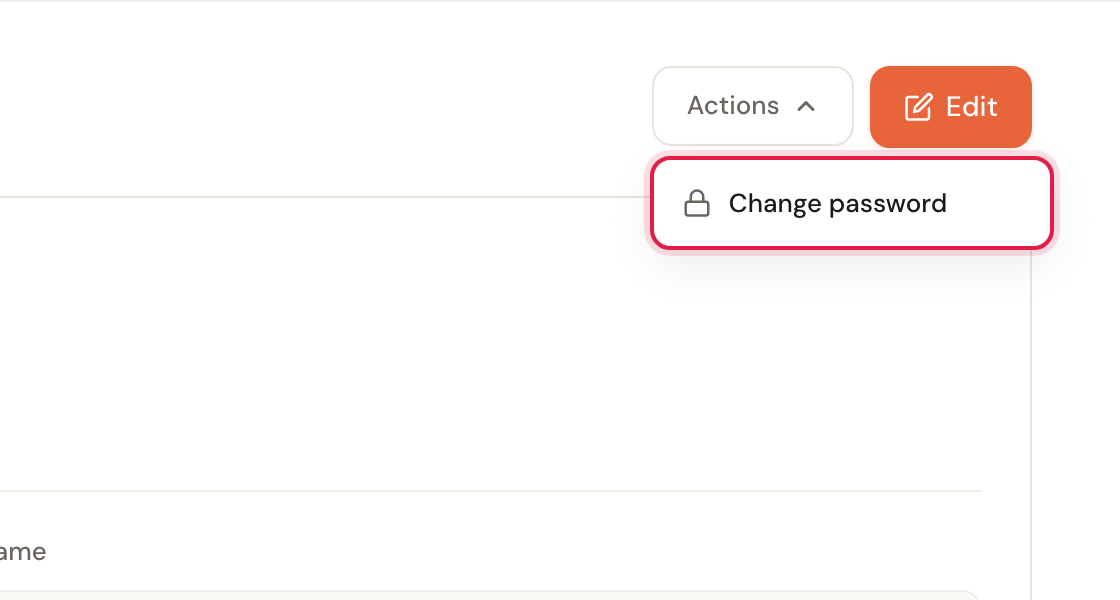
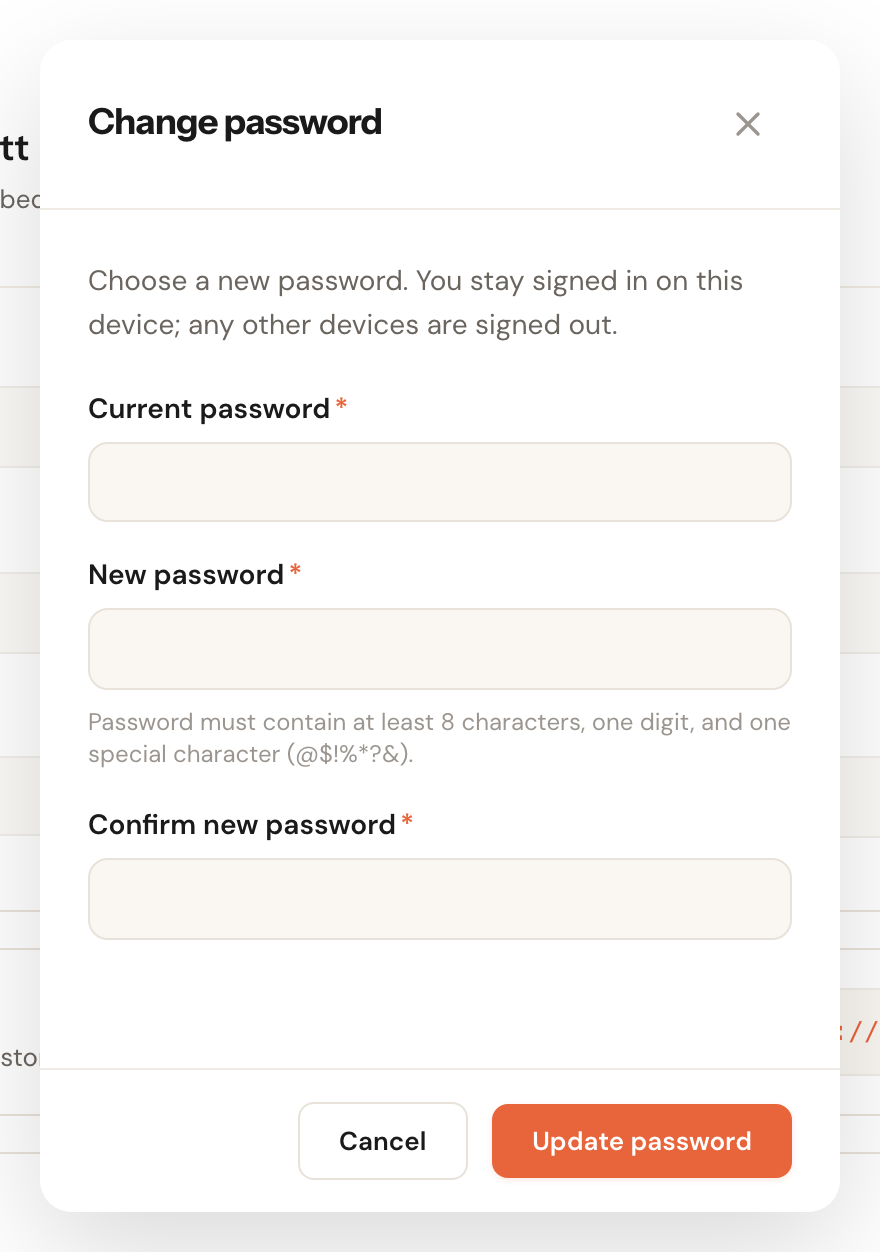
You enter your current password, then the new one twice. The requirements are printed
under the field and all three apply: at least 8 characters, at least one digit and
at least one special character from @$!%*?&.
After changing it you stay signed in on this device; you are signed out on your other devices.
Connecting your calendar
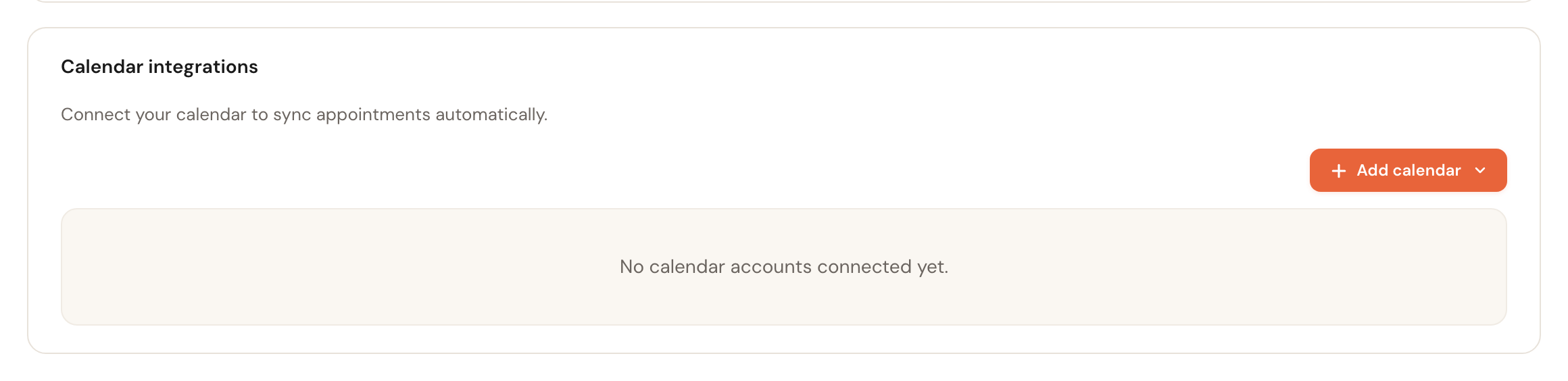
At the bottom of the page you connect your own Google or Microsoft calendar, so that appointments from outside Schedulinq block your availability. That is a story of its own — see Connect your calendar.
This connection is per person. An administrator cannot arrange it for the whole team at once, but can connect a colleague's calendar from that colleague's profile.
Frequently asked questions
What does a colleague's profile look like? If you are an administrator and open a team member through Team → Members, you see their name, email address and phone number. The page is headed with their name — Team member profile while it is still loading — and the path above it starts at Team members. Only your own profile is headed My Profile.
Can I set a colleague's password? No. On someone else's profile you can only send a reset email; that colleague chooses the password themselves.
I see no button to deactivate or delete myself. Correct — those actions appear only on somebody else's profile, and only if you have the rights for it. You cannot close your own account from this page.