

How communication works
The model behind every message Schedulinq sends — flows, steps, moments, and who a message is written for.
Schedulinq sends your customers messages: a confirmation, a reminder, an invoice. None of it is fixed — you decide what goes out, down to "business customers get this wording, consumers get that".
This page explains the model. Read it once before you change anything; every other screen in this chapter then explains itself.
You will find all of it under Communication → Steps.
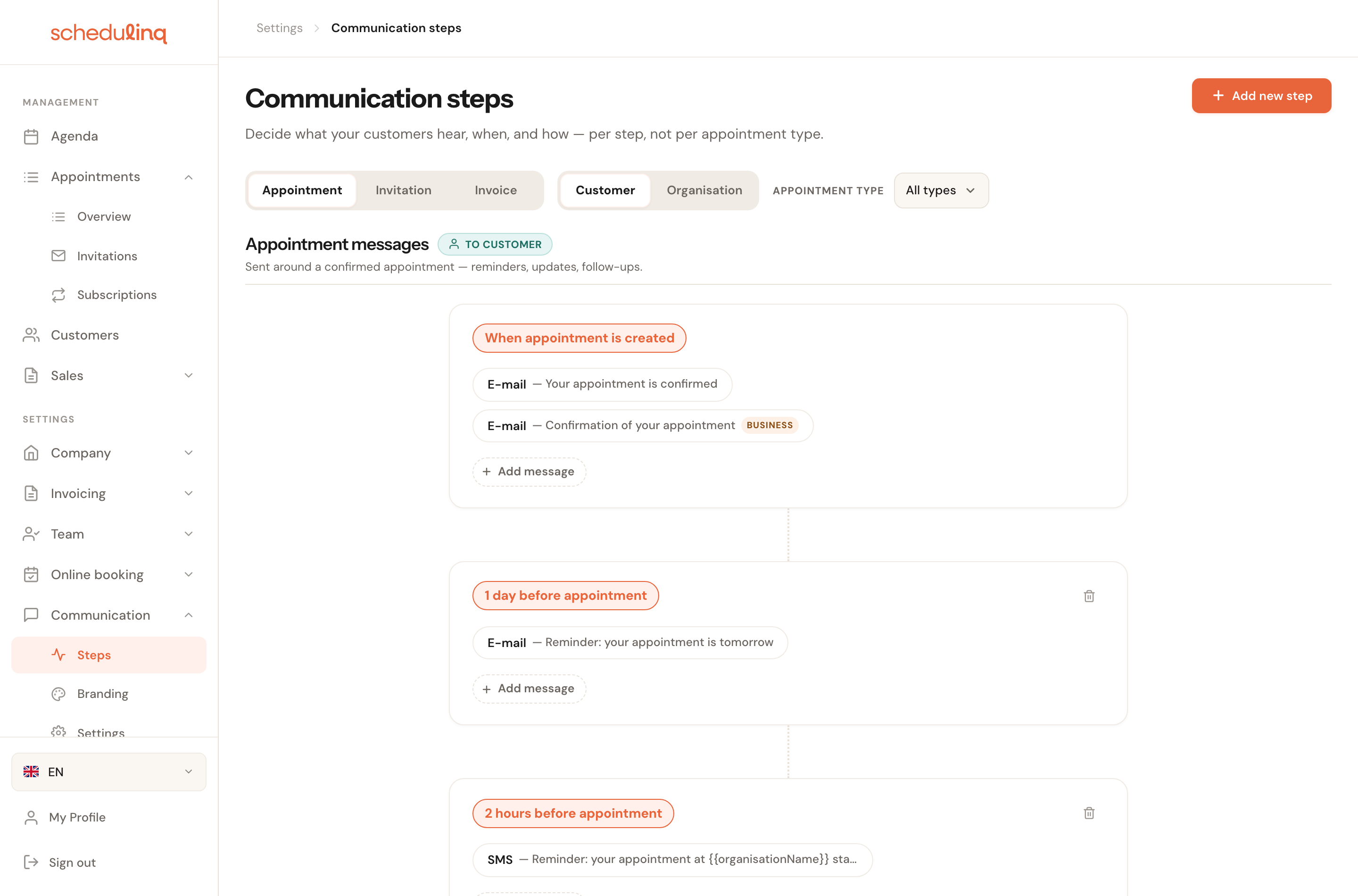
The timeline reads top to bottom: each block is a moment, and inside each moment are the messages that go out then.
Three flows
Messages belong to one of three things that happen in Schedulinq. Those are the flows, and the first row of buttons switches between them.
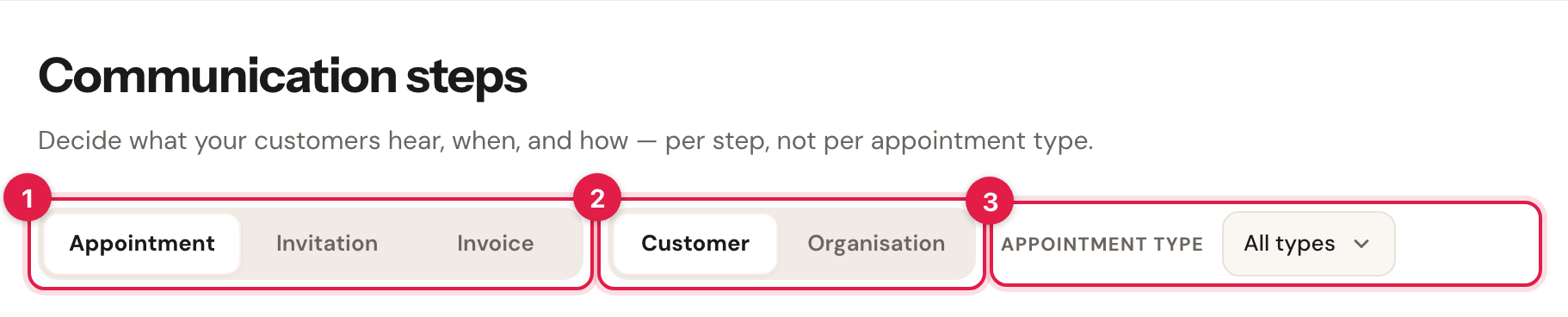
- Flow — Appointment, Invitation or Invoice.
- Recipient — whether you are looking at what the customer gets, or what your own organisation gets.
- Appointment type — see what would actually send for one specific service.
| Flow | Is about | Examples |
|---|---|---|
| Appointment | A confirmed appointment | Confirmation, reminder, cancellation, change |
| Invitation | An invitation to book a slot | The invitation itself, a reminder, its expiry |
| Invoice | An issued invoice | The invoice, payment reminders, thanks-for-paying |
Each flow has its own timeline with its own moments.
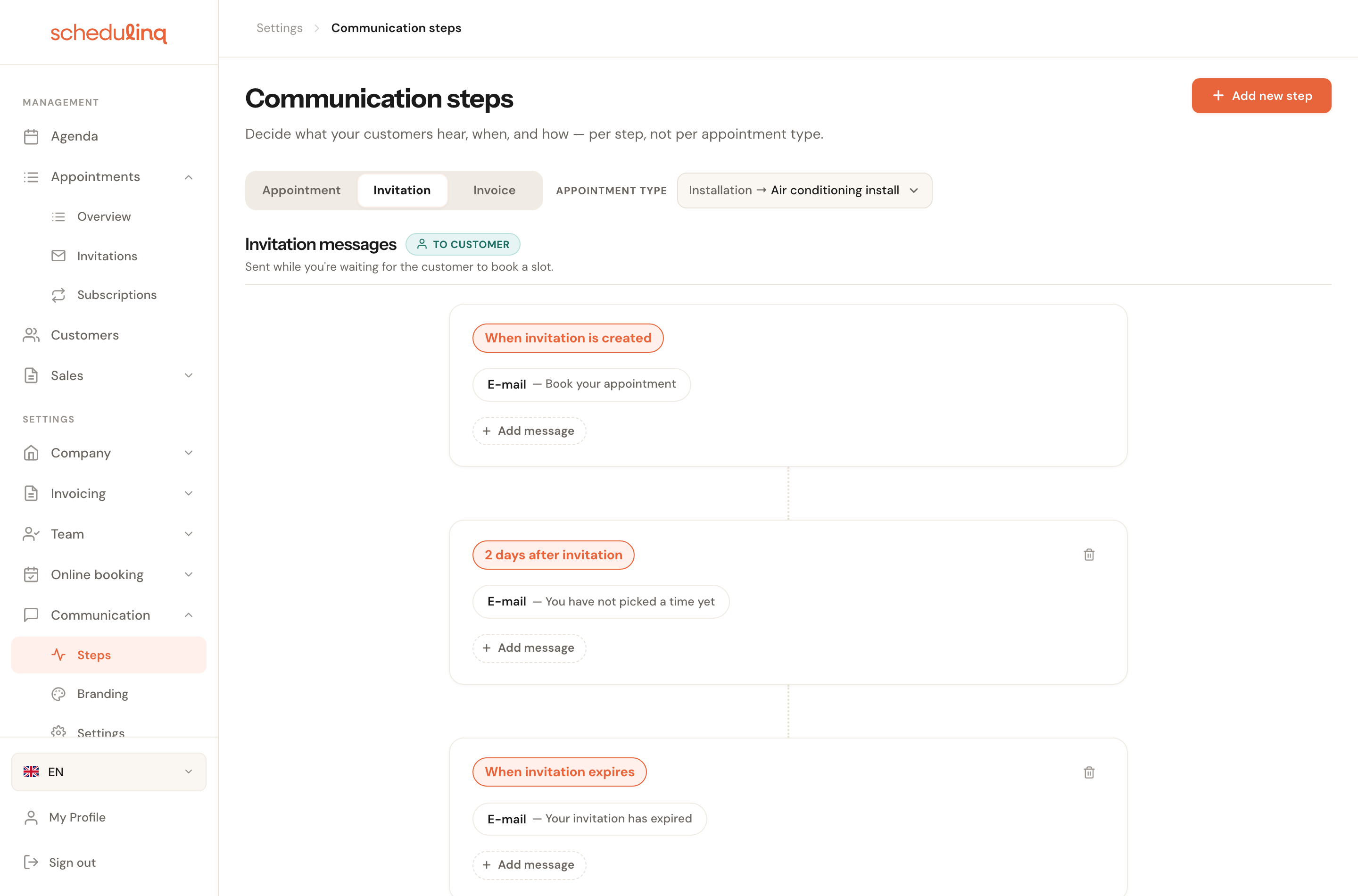
The invitation flow runs until the customer books — or until the invitation expires.
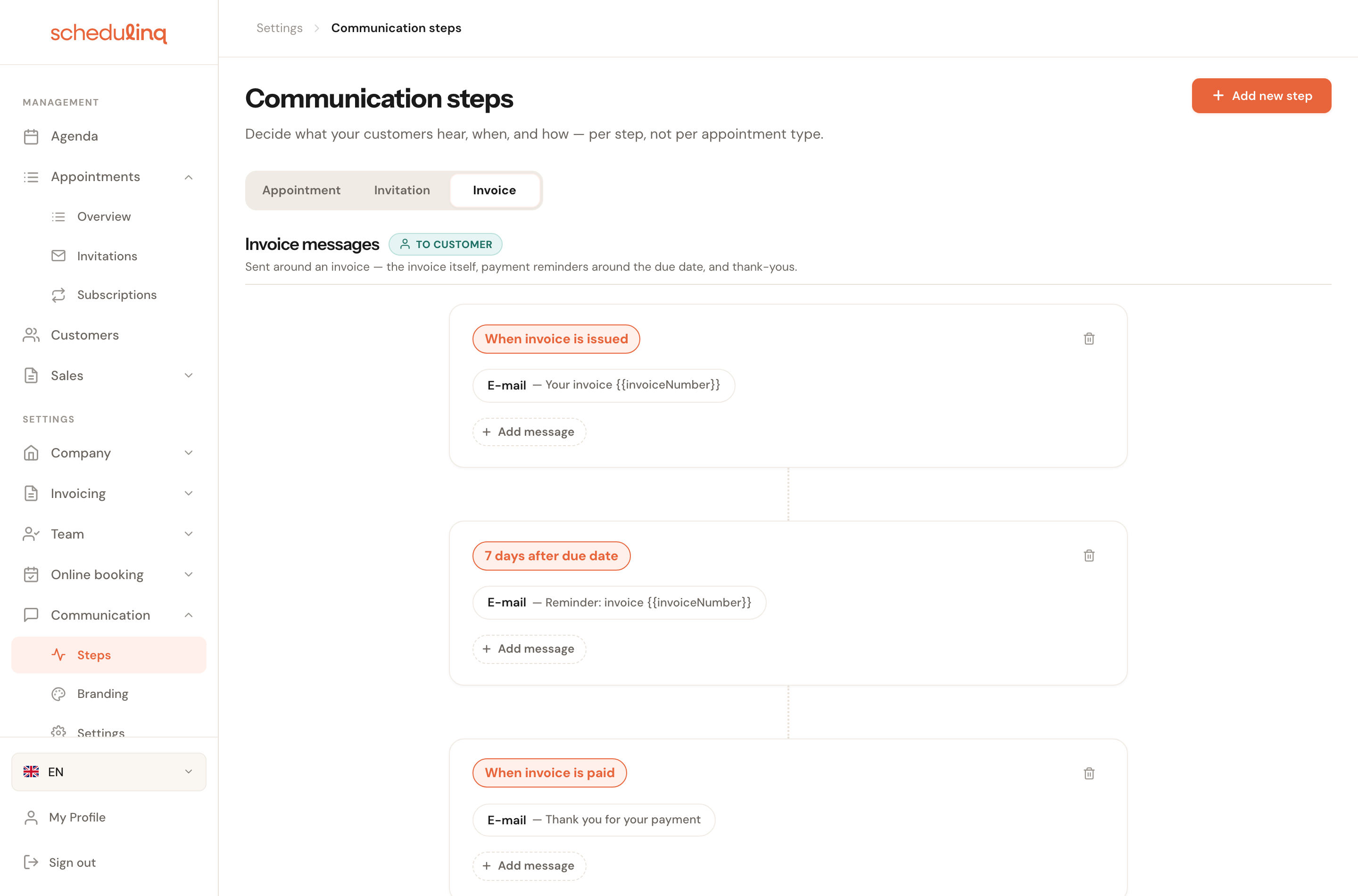
Invoices have no recipient buttons and no appointment-type filter: an invoice is not tied to a service.
A step
One message is a step. A step fixes four things, and nothing more:
When
The momentThe orange label at the top of the block — When appointment is created, 1 day before appointment. Some moments are immediate ("as soon as this happens"), others sit a chosen time before or after the anchor.
Moments with a time in them are the only ones you can move. When appointment is cancelled happens at the cancellation and nowhere else; 1 day before can become 2 hours or 3 days.
How
The channelE-mail, SMS or WhatsApp. The channel is the first thing on every message.
The channel belongs to the step, not to your organisation. So you can have the same reminder as an e-mail and as an SMS — those are two steps, and the customer gets both.
To whom
The recipientThe customer, your organisation, or the staff assigned to the appointment.
What
The contentA subject and body, per language your company supports, with details from the appointment filled in.
When a step sends
Every moment belongs to exactly one flow. These are all of them:
| Flow | Moment | When |
|---|---|---|
| Appointment | When appointment is created | As soon as the appointment is booked |
| Appointment | Around the appointment | A chosen time before or after the appointment |
| Appointment | When appointment is cancelled | As soon as it is cancelled |
| Appointment | When appointment is rescheduled | When the start time changes |
| Appointment | When appointment is edited | When something else changes: duration, service, add-ons or location |
| Invitation | When invitation is created | As soon as you send the invitation |
| Invitation | Relative to invitation creation | A chosen time after sending, as long as the invitation has not expired |
| Invitation | When invitation expires | As soon as the invitation's expiry date has passed; never without one |
| Invoice | When invoice is issued | On sending, with the PDF attached |
| Invoice | Around the due date | A chosen time after issuing |
| Invoice | When invoice is paid | As soon as the invoice is marked paid |
Who a message goes to
Not every message is for the customer. The second row of buttons shows you the other side of the same flow.
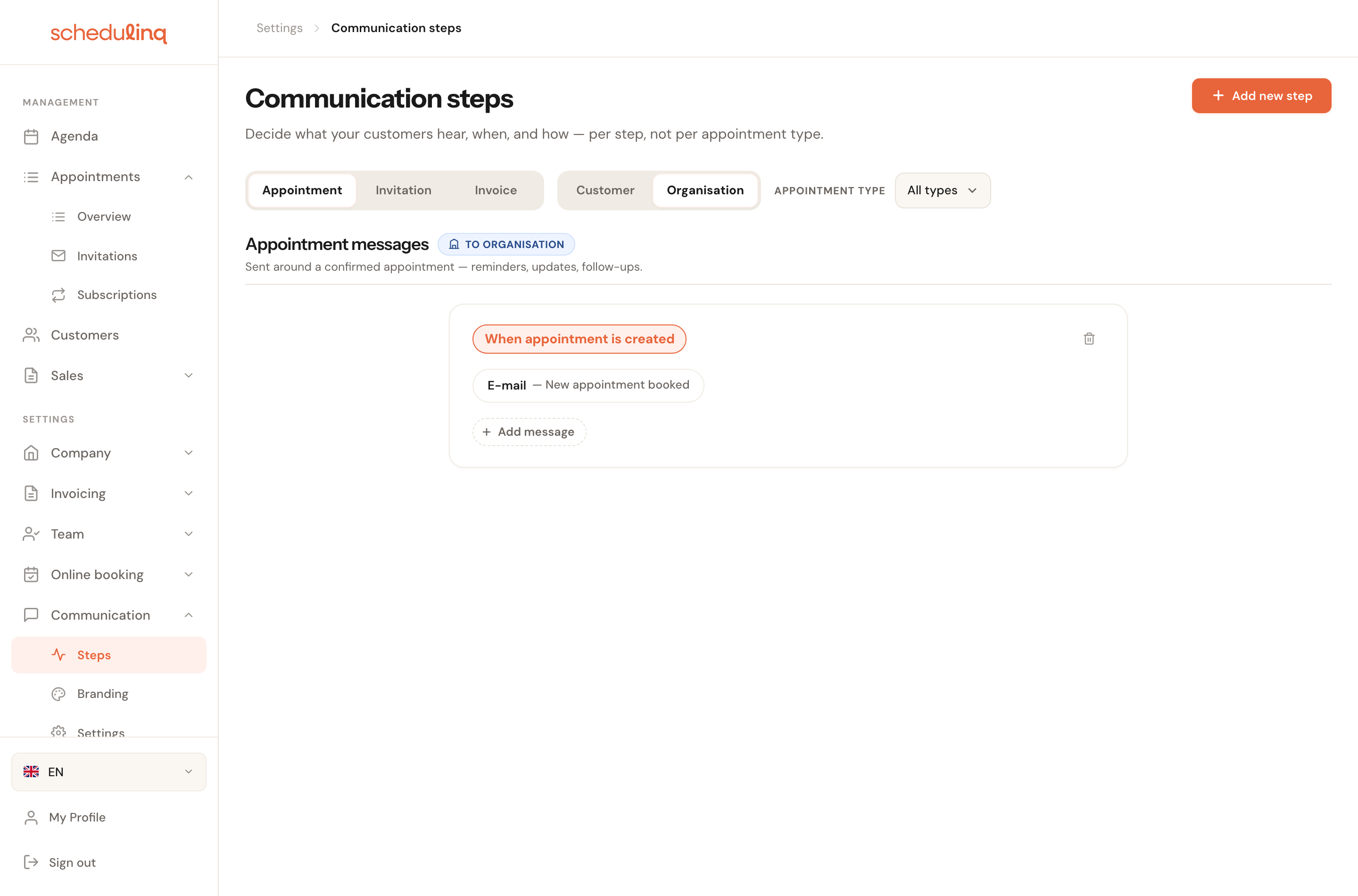
Internal notifications are separate from what the customer receives. You can change them, or leave them out, independently.
- Customer — the person the appointment is for.
- Organisation — you, at your general address.
- Assigned team — the staff carrying out the appointment.
Who a message is written for
This is the part that repays the most attention, and the only part that is not obvious. A step can be narrowed in two ways, independently of each other — and in three if your services take place in more than one way.
By appointment type
A step covers all your services by default. You can narrow it to particular appointment types — a preparation e-mail that only belongs with an installation, for instance.
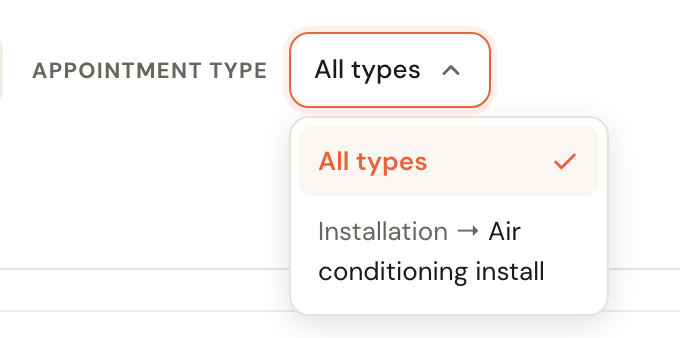
Pick a service here to view the timeline as it applies to that one service.
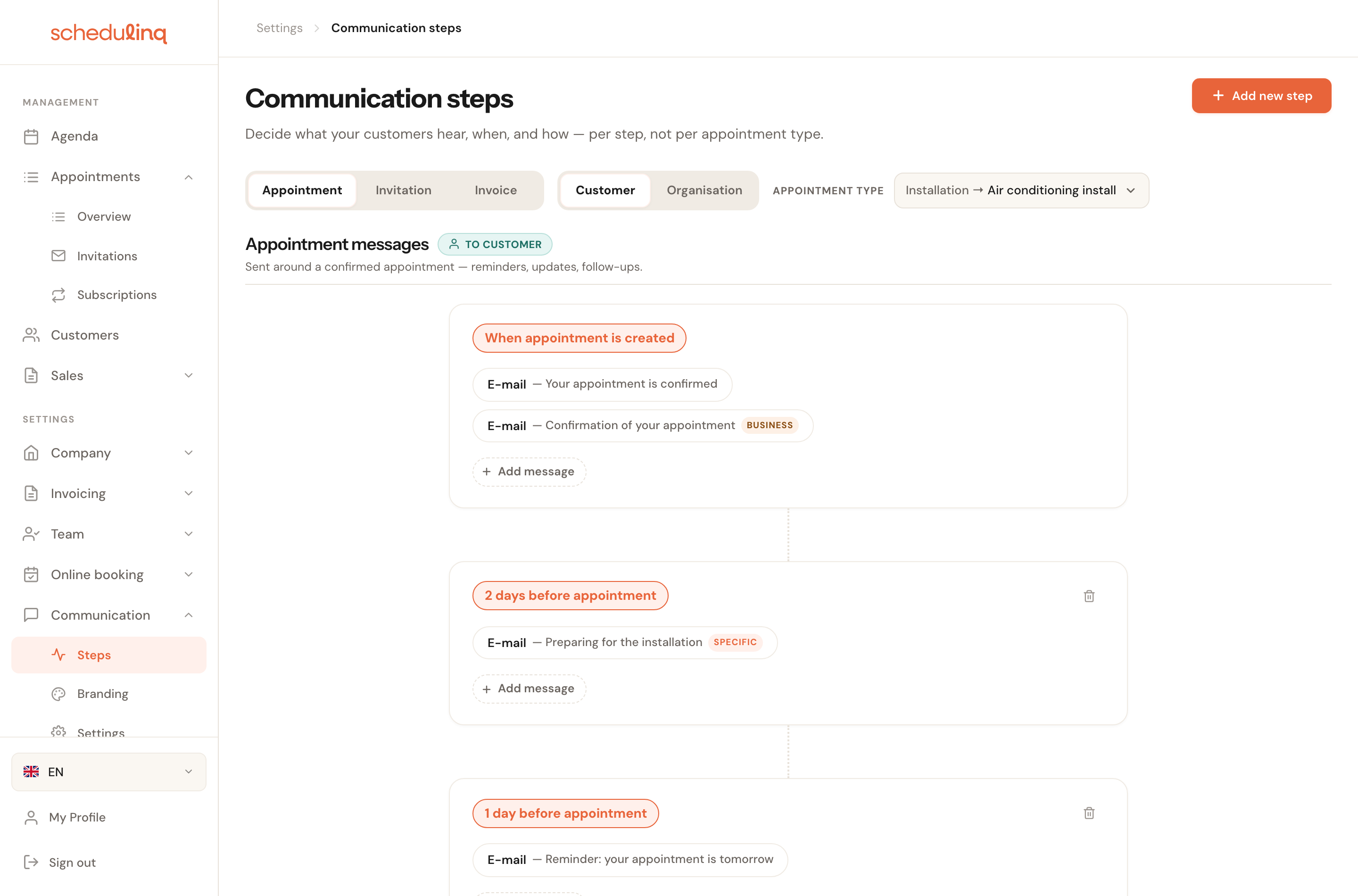
Filter by appointment type to see what would really send for that one service. The specific label marks a message that applies to this type alone.
By kind of customer
Independently of that, you can write a step for consumers or for business customers. Leave it unset and it serves both.
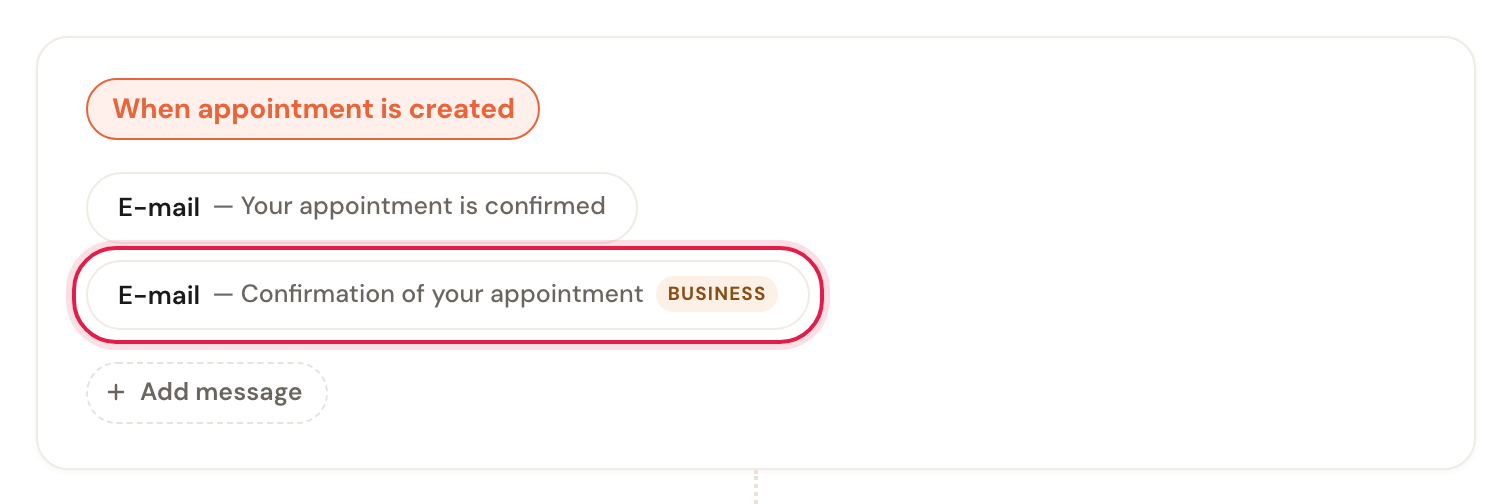
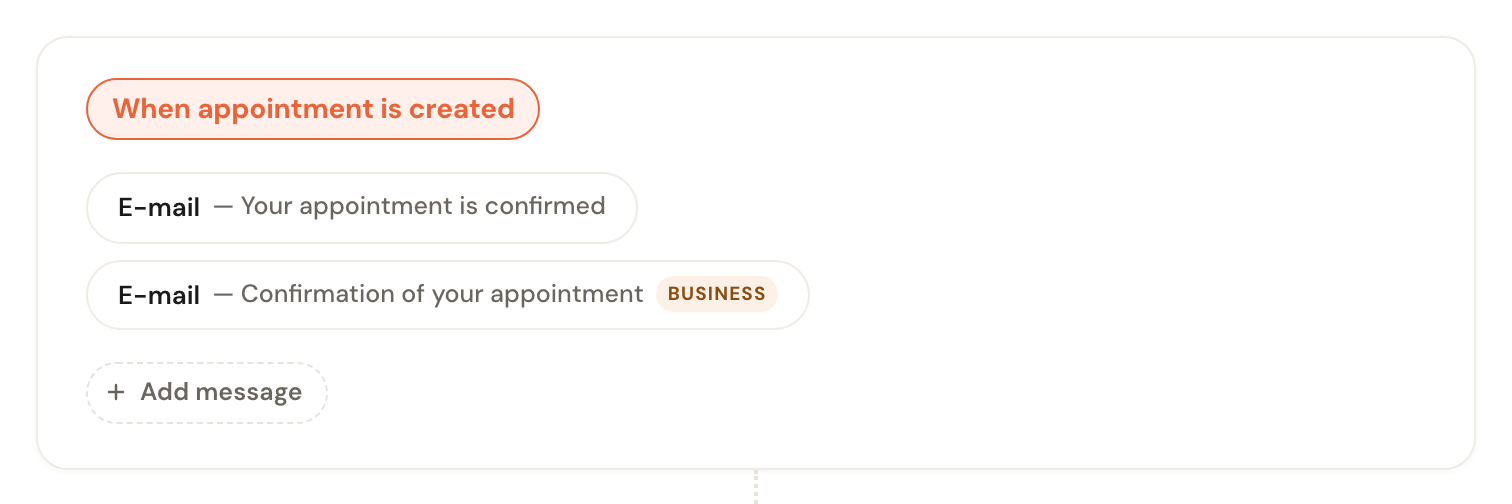
Two confirmations at the same moment. The lower one is for business customers only and therefore carries a label; the unlabelled message is for everyone.
A company and a private customer read differently. Without this split you would have to duplicate your whole catalogue just to address them differently — a duplication that has nothing to do with your services.
By where the appointment takes place
If your services take place in more than one way — at the customer's and at a location, or as calls too — a step can also be written for one way an appointment takes place: At the customer, At a location, Video call or Phone call. Such a step carries a grey label with that way on the timeline. A confirmation with the meeting link is the example; how to write it is described in Messages for video and phone appointments.
Which one wins
When several messages exist for the same moment, channel and recipient, the most specific one wins. In this order:
- A message for this way — a video call, for instance — beats one for everywhere.
- If they are equal there, a message for this appointment type beats one for all types.
- If they are equal there too, a message for this kind of customer beats one for everybody.
The way counts most: a service's own confirmation — we'll come round — must never reach a customer who booked that service as a video call. Then the appointment type, because it decides whether a message is relevant at all. The kind of customer only decides how it is written.
For the moments that matter most — the confirmation, the change, the reschedule, the cancellation and the invitation — Schedulinq does check. If a service has no message for one of them, for all your customers or for one kind of customer, a yellow notice appears at the top of the page. Review opens Coverage gaps: per service, the moments without a message, and for which kind of customer. See Who gets which message.
Every step is optional
No step is required. The confirmation, the cancellation, the reschedule, the change and the invitation itself can all be deleted, archived or narrowed to some of your customers. Schedulinq never puts a deleted step back.
A moment without a step sends nothing — no error, simply no message. What your customers hear is entirely up to you.
On the Steps page
A grey lineWhen no customer gets a message at such a moment, the page says so, for example Customers get no message for a new appointment. When only some of your customers get one — because the message is narrowed to an appointment type, a kind of customer or a way the appointment takes place — it says Not every customer gets a message for a new appointment.
Nobody is notified when a message is missing, and the customer does not know they should have heard something. The yellow notice lists the gaps per service; this line shows them at the moment itself, where you would add the step.
When you save an appointment
No compose windowThe Send notification window opens by itself after you create, move, change or cancel an appointment only when a message to the customer is set up. Without a step it does not open, and for several appointments in a row Schedulinq does not ask whether the customer should get a confirmation.
To tell the customer something anyway, open the window from Actions on the appointment and write the message yourself. A message you write by hand like that goes out even without a step.
When you send an invitation
Saved, not sentWithout a step for the invitation mail, Schedulinq says after saving that the invitation was saved, not that it was sent: nothing went to the customer. The same goes for Reschedule: Appointment rescheduled. The customer gets no message.
When to remove steps
You usually remove a message because something else already sends it. The clearest case: your CRM or another system of your own sends your customers its own confirmations, reminders and invitations, through the API. Then you do not want the customer to get everything twice. Delete the steps to the customer and keep the messages to your team. How your system gets the links those messages need is under Sending your own messages to customers.
Remove a message without anything else taking over, and the customer hears nothing — not even when their appointment is cancelled or moved.
Where you change all this
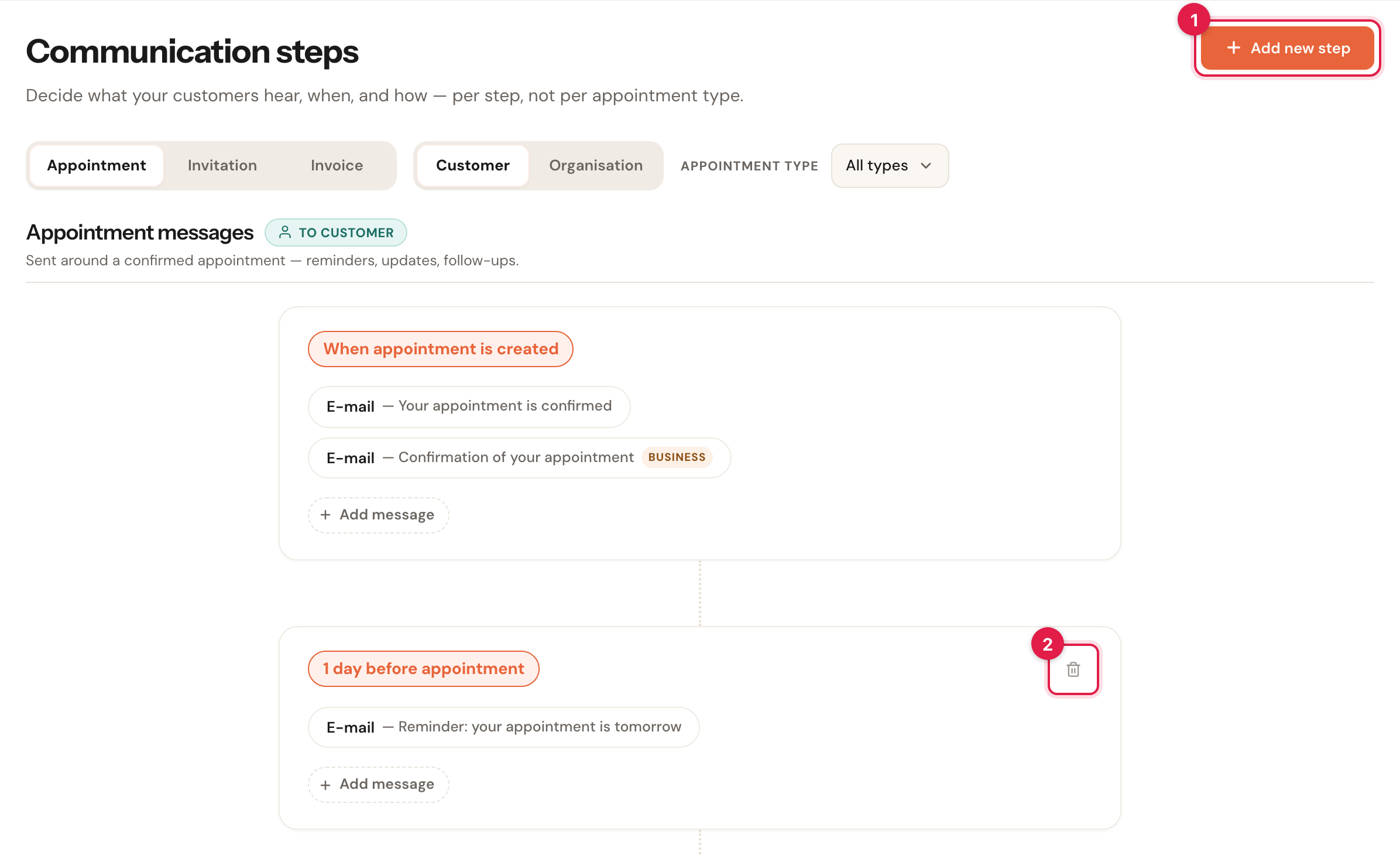
- Add new step, at the top right, starts a new moment. In the editor that opens you choose when it goes out, the channel and the recipient.
- The bin on a moment card, Delete step, deletes every message at that moment for the recipient you are looking at; messages to the other recipients stay. You confirm it first. Every card has one, the confirmation's and the cancellation's too.
Click a message to open it, or use Add message inside a moment to add one at that moment. What you find in that editor — channel, timing, wording, merge fields and attachments — belongs to the guide on editing a step.
Orphaned overrides

Below the timeline, a section Orphaned overrides appears when a step written for specific appointment types has none of them left — because those types were deleted, or because another step took them over. Such a step sends nothing. Edit opens it, so you can give it types again; Apply to all types makes it apply to every service; Delete removes it.
The rest of this chapter covers the channels and the sender: connecting WhatsApp, sending from your own domain, and the branding of your e-mails.
Frequently asked questions
Will my customer now get two confirmations? Only if you have two messages that both apply to them, for example one by e-mail and one by SMS. A specific message replaces the general one, so that never produces two.
I changed a message and nothing changed. Check whether a more specific message sits above yours: a version for a video or phone call, for this appointment type, or for this kind of customer. Filter by the appointment type in question and you will see exactly what would send for that service.
Why can I not see the recipient row? It only appears when messages exist for more than one recipient. Invoices also have no appointment-type filter, because an invoice is not tied to a service.
What happens to messages that were already scheduled? If you delete a step, the reminders still queued for it are cancelled — they will not go out after all. Messages that were already sent stay as history and do not come back.