

Several appointments in one invitation
Let one customer book several services back-to-back on one day, with one invitation and one staff member — at one address or at several.
Sometimes a customer books not one service but a run of them: a maintenance service and a breakdown check straight after, or the boiler at home and the heat pump at the holiday home round the corner. A multi-appointment invitation covers that with one invitation. The customer picks a moment and books every service back-to-back in a single go.
Three things are fixed the moment you send it:
- Every service is booked on the same day, one after another. When they are at different addresses, Schedulinq plans the drive in between.
- One staff member performs them all — the customer does not pick a different person per service.
- At one of your locations, every service takes place at that one location. At the customer's, each service may have an address of its own.
In short
- Go to Appointments → Invitations and click New invitation.
- Choose Multiple appointments.
- Select the customer.
- Add the services and say per service where it takes place.
- Check who is allowed to perform the run and until when the customer can book, and click Send invitation.
Step by step
Choose the kind of invitation
Click New invitation in the overview. Schedulinq first asks what kind of invitation you want to send — choose Multiple appointments.
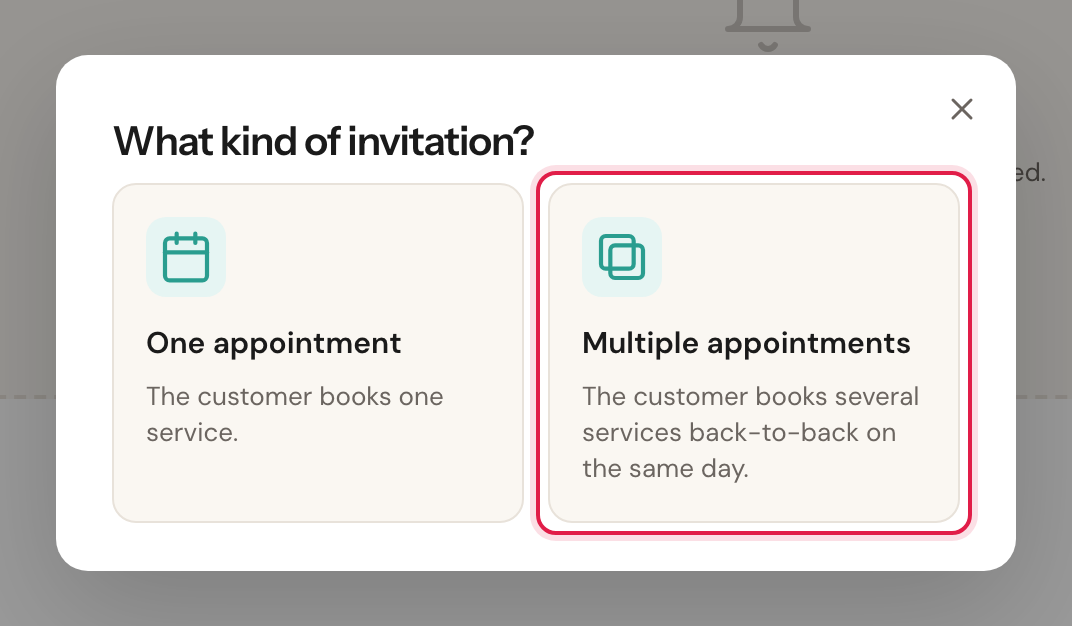
Choosing One appointment here takes you to the regular invitation instead.
Select the customer
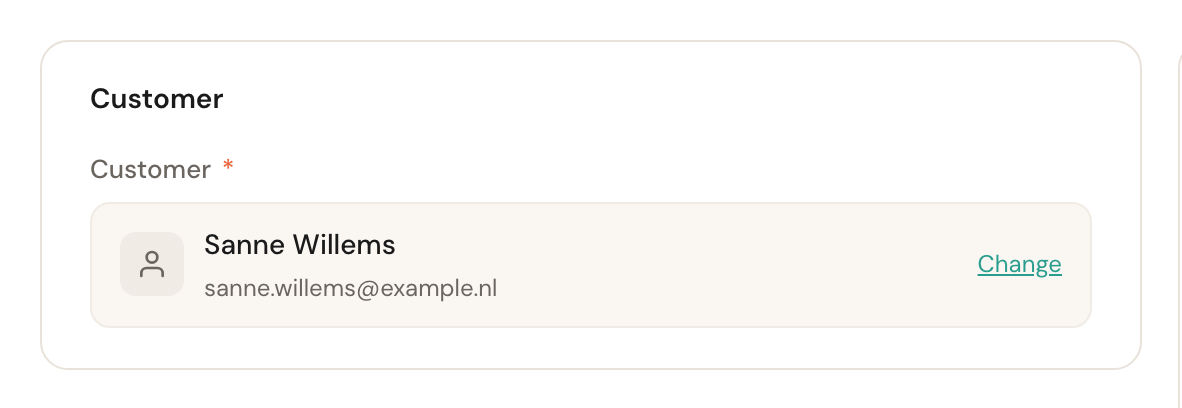
Search by name or email address. As soon as you pick someone, Schedulinq fills in that customer's address on the first service.
Add the services
Each service gets a card of its own, numbered. Pick the appointment type under Service 1, then click Add another service for the next one. The left of a card says what the service is, the right where it takes place.
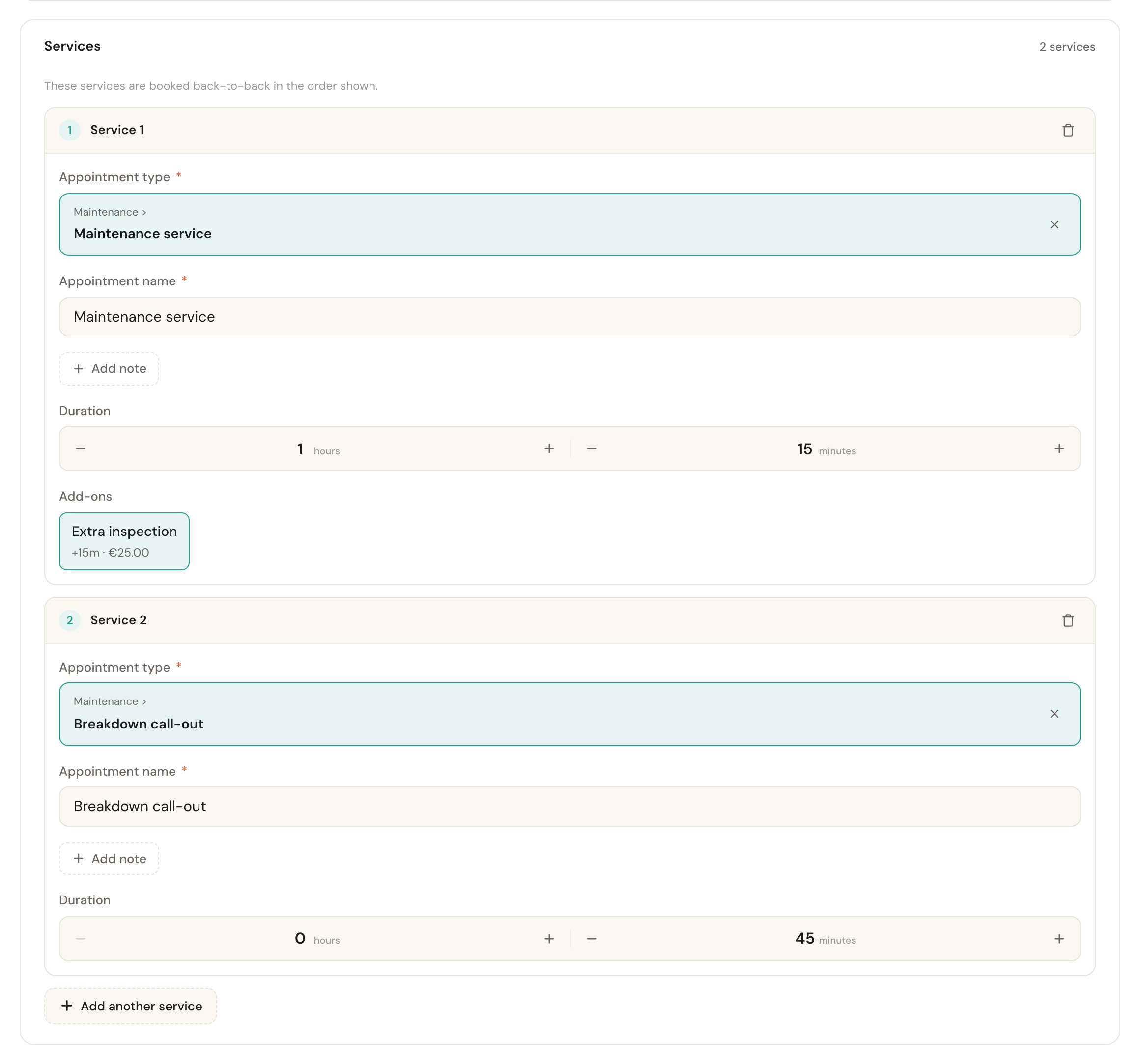
Per service you can adjust the name, the duration, any add-ons and, with Add note, an internal note. The bin icon removes a service — you cannot remove the last one, because an invitation without services does not exist. One invitation holds at most ten services.
Say where each service takes place
The first service at the customer's gets the address from the customer record. Each later service asks whether it is at the same address as a service above it — Same address as service 1 · Maintenance service — or at a Different address, just for this service.
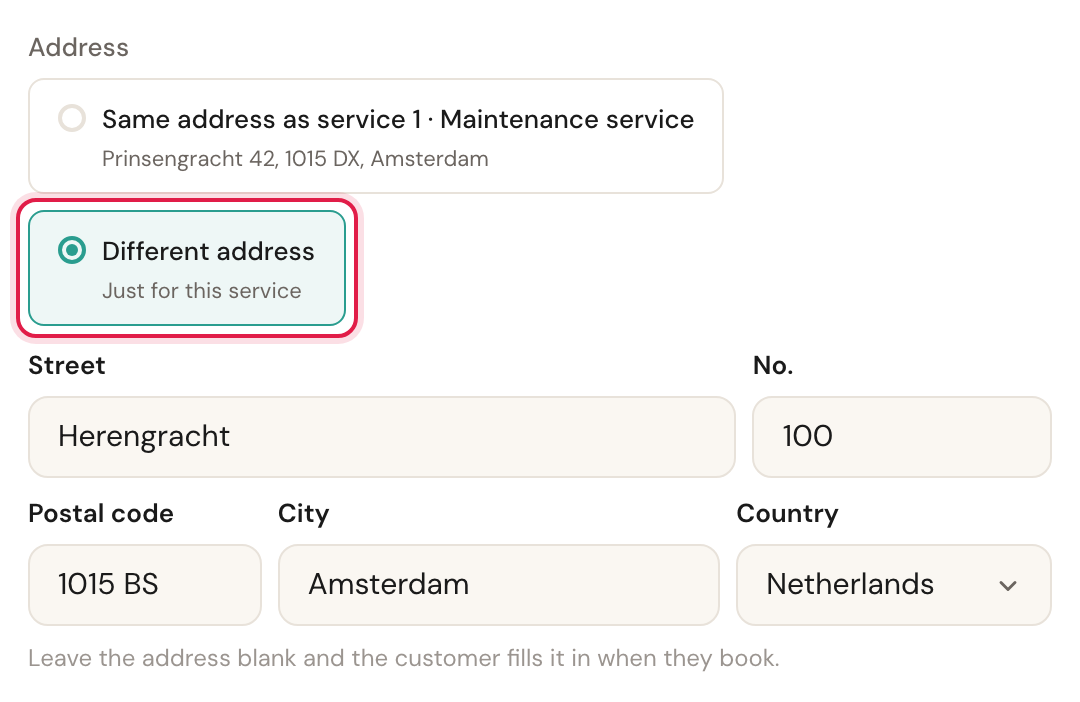
As soon as the services are at two or more addresses, Order of the visits appears at the top of the card — see the fields below.
Check who may perform it
Under Allowed staff you only see people who can perform every selected service. Leave it empty and anyone on that list may take the run.

Choose until when the customer can book, and send
At the bottom is Invitation validity, already filled in with the date your communication steps give. Change it if you need to, then click Send invitation at the top right.
As with a regular invitation, the window with the invitation e-mail then opens, and the customer gets nothing until you click Send email there — unless you unticked Open automatically for new invitations instead of sending straight away. See Send invitations.
The fields
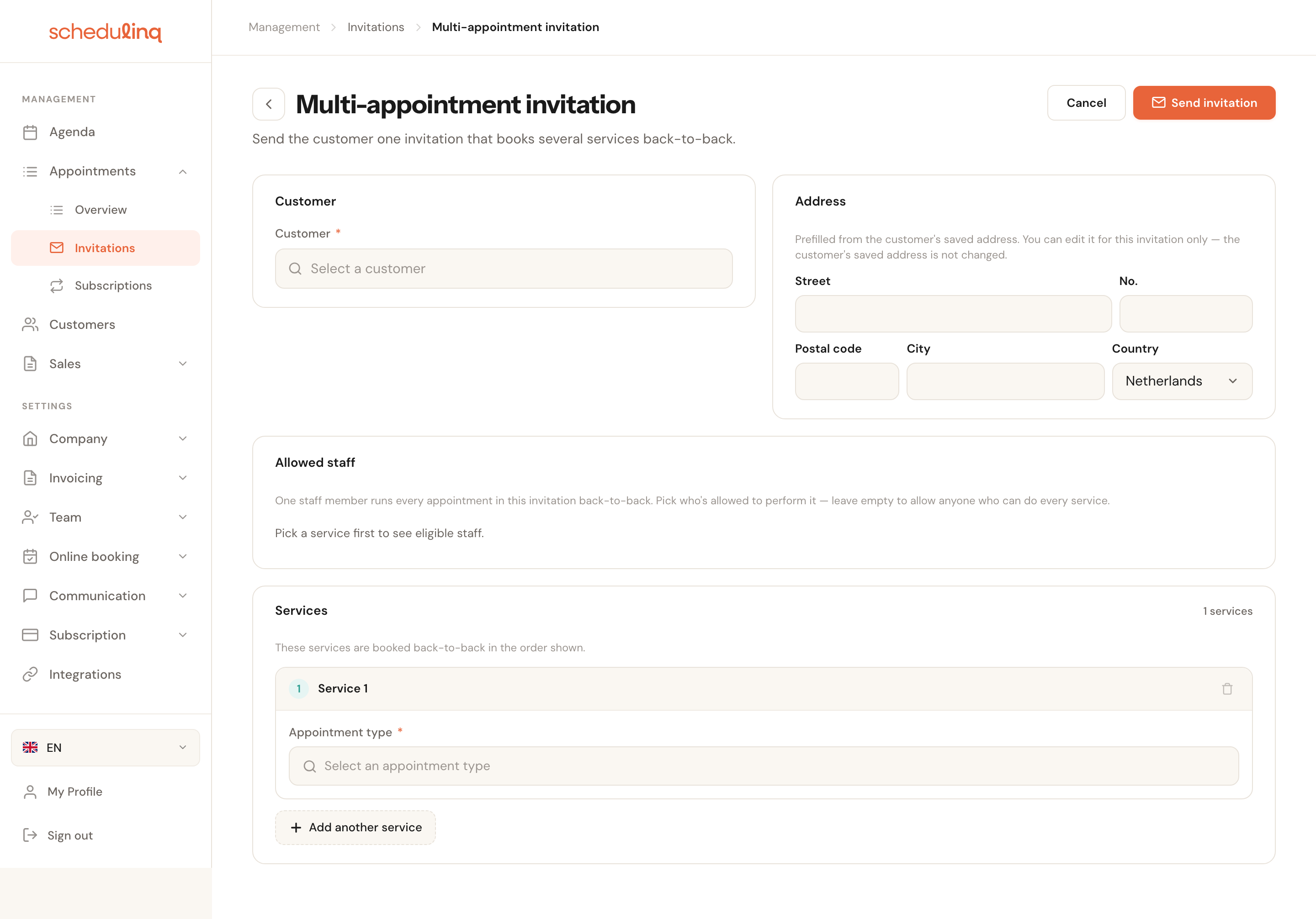
Customer
RequiredThe person who receives the invitation and books the run.
The customer's address is carried over to the first service. Working somewhere else — a second home, a business unit? Change it per service. The address on the customer record itself does not change: that is where the invoice goes.
Address per service
At the customer'sMay stay blankWhere this service takes place. The first service at the customer's has an address box; each later one chooses between Same address as service … — one choice per service above it with an address of its own — and Different address.
An installer doing the boiler at home and the heat pump at the holiday home in one visit puts them in one invitation this way. Don't know an address? Leave the box blank: the customer fills it in when they book. A service sharing a blank address shows No address yet: the customer fills it in under its choice. Change a service's address later and the services sharing it move with it.
Order of the visits
Only with two or more addressesDefault: Shortest routeOne choice for the whole invitation. Shortest route: when the customer books, Schedulinq chooses the order with the shortest travel time. In this order: the visits follow the order of the cards, and the arrows on the cards move a service up or down.
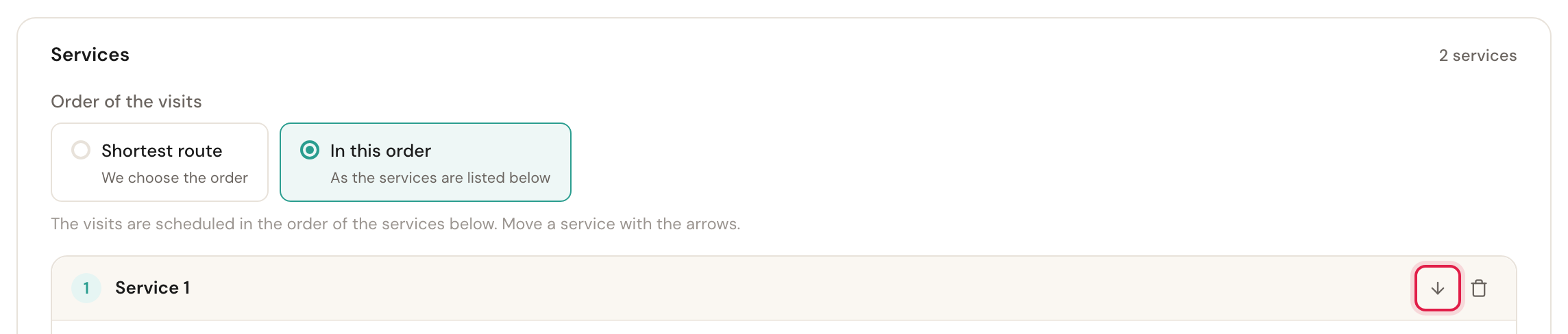
Shortest route saves your staff member driving, so leave it there unless the order really matters — say, the boiler has to come off before the heat pump can go on. When every service is at one address there is nothing to drive: the choice does not appear, and the services are booked in the order they are on screen. There are no arrows then; for a different order, remove the service and add it again.
Duration per service
Pre-filledEach card starts at the duration from your catalogue. Pick an add-on and Schedulinq adds that time on top straight away. When a service has no fixed duration, the card starts at half an hour and you enter how long this appointment takes.
Only change this when this particular customer needs more or less time. Your catalogue is untouched — you are not editing the appointment type itself here.
Add-ons
OptionalThe add-ons belonging to that appointment type, as a list with checkboxes. An add-on with Multiple units carries a counter on its row for the quantity.
An add-on lengthens the appointment and can shrink the list of allowed staff: not everyone who can perform the service can also perform every add-on.
Object
Only with object typesOptionalPer service, the object it is about — the horse, the car, the installation. The field carries whatever name you gave your objects, and only appears on the card when you have set up object types and the customer has an object that fits that service.
That way every appointment says which object it is for, even when the customer has several and each service is about a different one.
Allowed staff
Empty = anyone who can do it allOnly staff who can perform every selected service and every selected add-on are in this list. Tick who may take the run, or search for someone by name.
One person performs the whole run, so someone who can only do half of it is not an option. Schedulinq filters the list up front rather than letting it fail at scheduling time. Pick someone and then add a service they cannot perform, and they are removed from the selection — with a message naming them. If Schedulinq still refuses someone when you send, the list says Not every chosen colleague can do all the services.
Internal note
OptionalPer serviceAdd note on a card puts an internal note on that one service.
The note lands on that appointment in your calendar — useful for something that applies to that service only, such as "the key to the holiday home is with the neighbours". The customer never sees it.
Pre-fill extra fields
Only with appointment fieldsOptionalPer serviceA card whose service has appointment fields of your own has Pre-fill extra fields: what you fill in there is already filled in for that service on the customer's booking form.
It works as on a regular invitation, see Pre-fill extra fields — only here per service, since each service can have fields of its own.
Invitation expiry date
Pre-filledNo or YesThe last day on which the customer can book the whole run. The form opens on what your communication steps give the first service; No means the invitation never expires.
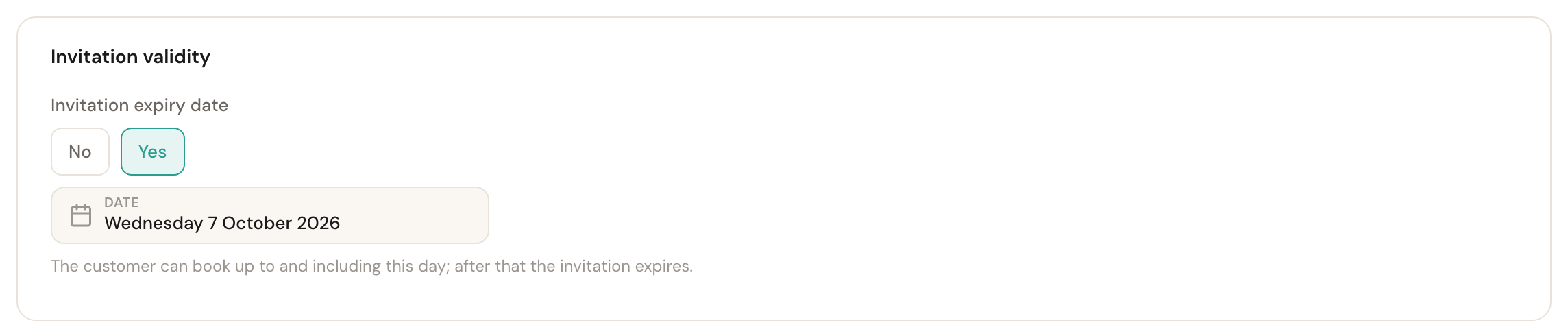
This works exactly as on a regular invitation, including what happens to the reminders and the Invitation expired message — see Until when the customer can book.
What the customer sees
The customer gets one email with one link. Behind it they pick a single moment and book every service back-to-back in one action. Each service sits on a card of its own with the address you filled in — which the customer can still adjust there — or with an empty address box if you left it blank. With In this order they see the services in your order; with Shortest route Schedulinq finds the order with the least travel time when they book. If the customer has no address on their record yet, the booking page also asks where the invoice should go.
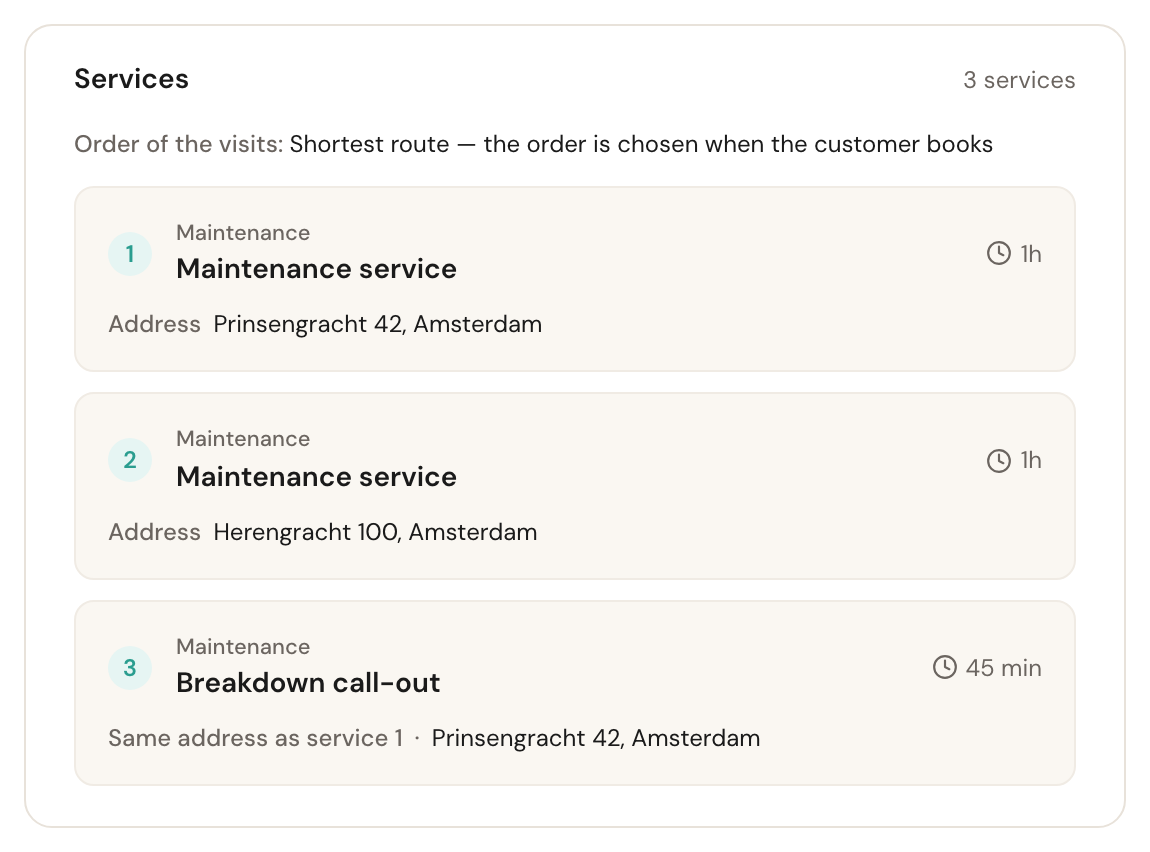
In your own overview the invitation is listed as 2 appointments, 3 appointments and so on. Open it to see the services. When they are at two or more addresses, every service says where it happens: its own address, or, for a service sharing the address of one above it, Same address as service 1 · followed by that address. Above them it says which order applies.
Changing an invitation you already sent
Open it from Appointments → Invitations and click Edit. Schedulinq brings you back to this screen with everything filled in as you sent it. That includes an invitation with only one service left in it: it stays a multi-appointment invitation. You see Edit and Actions only if your role may edit invitations.
Adding a service to a regular invitation
Sent a regular invitation for one service, and the customer wants something added? Open the invitation and choose Actions → Add another service.
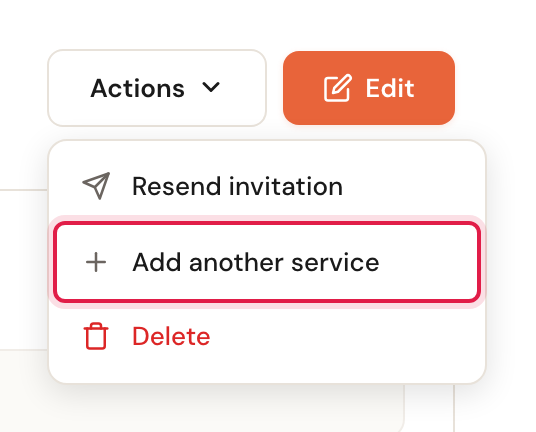
You land on this screen with the invitation's service as Service 1 — with its duration, add-ons and note — and an empty card below it. Save, and it is a multi-appointment invitation; the customer keeps the same link.
The option is not there on an invitation that needs more than one team member at once (Required team members per appointment above 1): in a multi-appointment invitation one staff member does everything. Nor on an invitation without a service: a multi-appointment invitation is made of services, and every card on this screen asks for one.
Frequently asked questions
Can the customer book the services separately, on different days? No. That is exactly the difference from separate invitations: here everything belongs to one moment. To spread them out, send several regular invitations.
Can I pick a different staff member per service? No. One staff member performs the whole run.
Can I combine services at different addresses? At the customer's, yes: each service can have its own address, and Schedulinq plans the drive in between. At one of your locations, no: the first service sets the location and the rest follow. If a service disappears from the list, it is not offered at the chosen location.
How many services can one invitation hold? Ten. At the tenth, Add another service goes away.
What if the customer already has an open invitation? Schedulinq sends the new one anyway. Both stay valid, and booking one does not close the other: the customer can book both. Delete the invitation you no longer need.