

Invite your team
Invite a colleague into your Schedulinq environment, decide what they may see and do, and follow up on pending invitations.
You invite colleagues from Team → Members. They receive an email with a link that lets them set their own password — so you never create an account for someone else, and you never share a password.
How to do it
Open Team → Members
In the left-hand menu, click Team and then Members. You see everyone with access, along with their role and status. Click Invite team member at the top right.
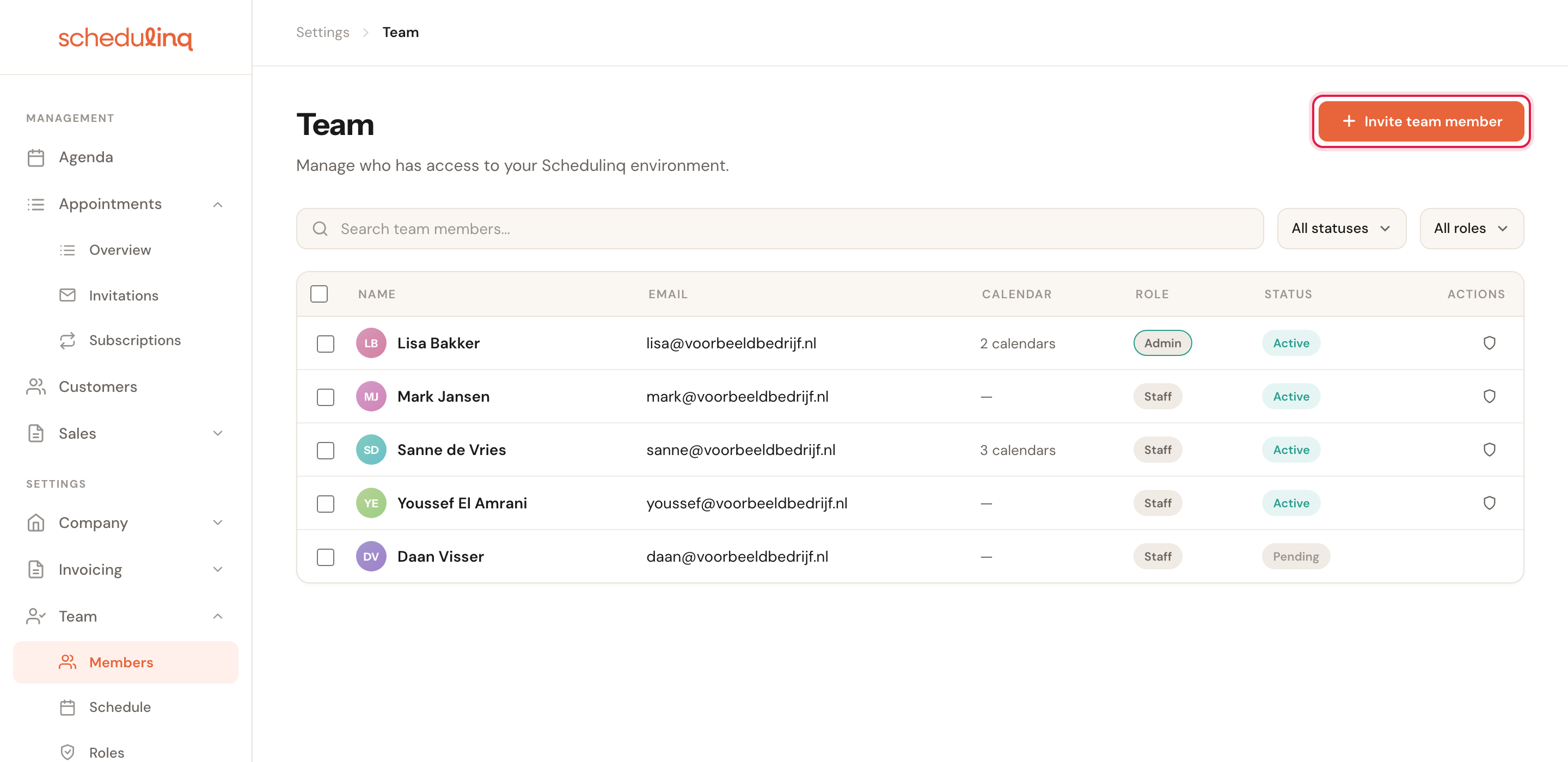
Someone with the status Pending has been invited but has not accepted the invitation yet.
Fill in name, email address and role
First name, last name and email address are required. The email address is where the invitation goes, and what your colleague will sign in with.
Below that is the one choice that really matters: turn Administrator on, or pick a role. With Administrator on, your colleague gets access to everything and the role below is ignored. With it off, the role decides what they may see and do.
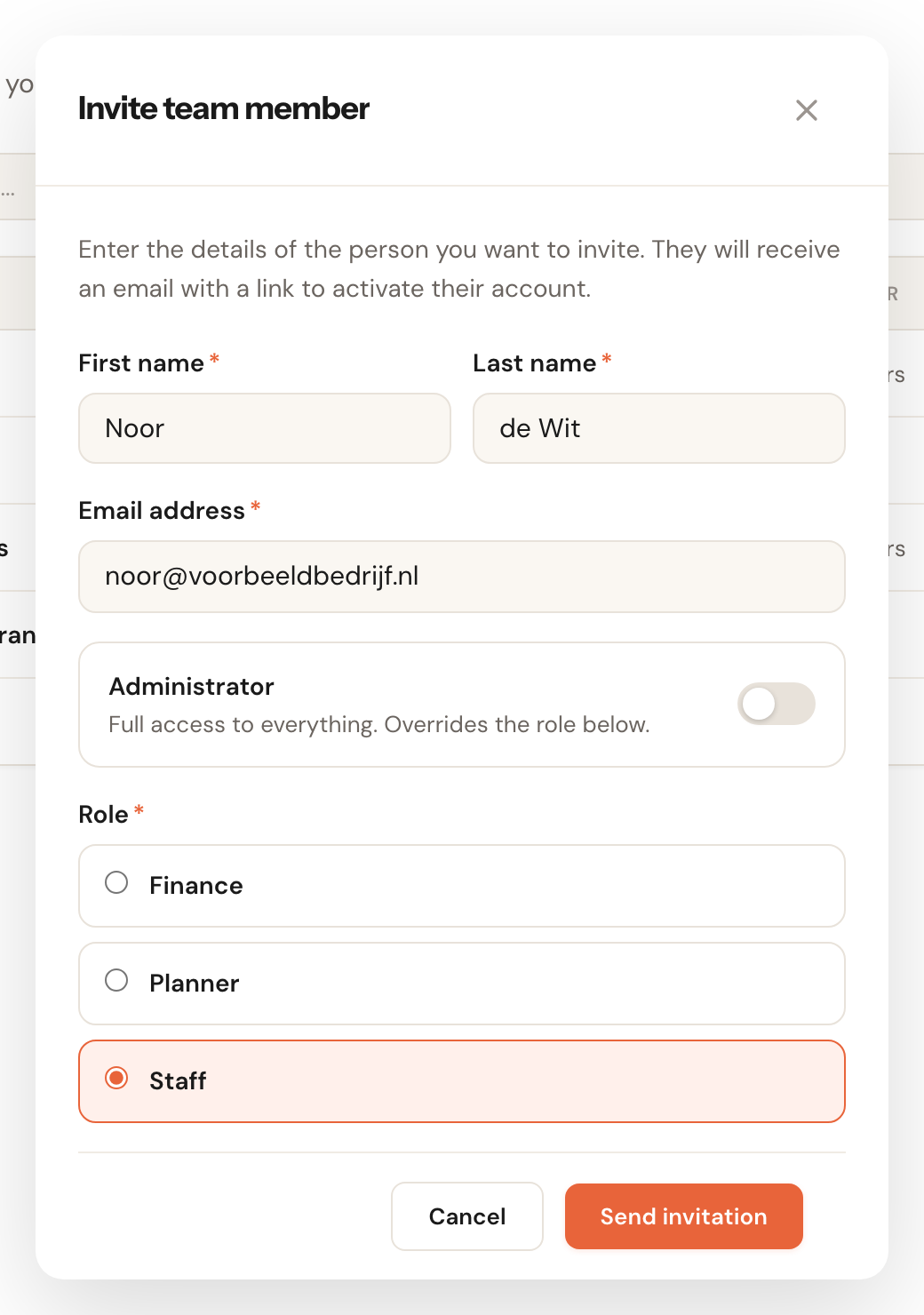
When your organisation has custom fields for staff members, they appear in the same window, such as your colleague's employee number. A required one must be filled in here: the window does not send the invitation without it.
Send the invitation
Click Send invitation. Your colleague appears in the list straight away with the status Pending, and receives an email with a link. That link is where they set a password, which activates their account.
The invitation page opens in your organisation's language, or in the language an invitation from your CRM names — unless your colleague already chose a language in that browser. The flag on the page switches it, and whichever language is showing when your colleague sets the password becomes their account language: the one Schedulinq emails them in.
When your organisation requires a calendar
Under Team → Members → Actions → Connect calendar on activation you can ask every new team member to connect a calendar before they start. See Manage team members. With that switch on, your colleague's activation has one more step:
- On the invitation page they choose a password. Under it they read After that you connect your Google or Microsoft calendar.
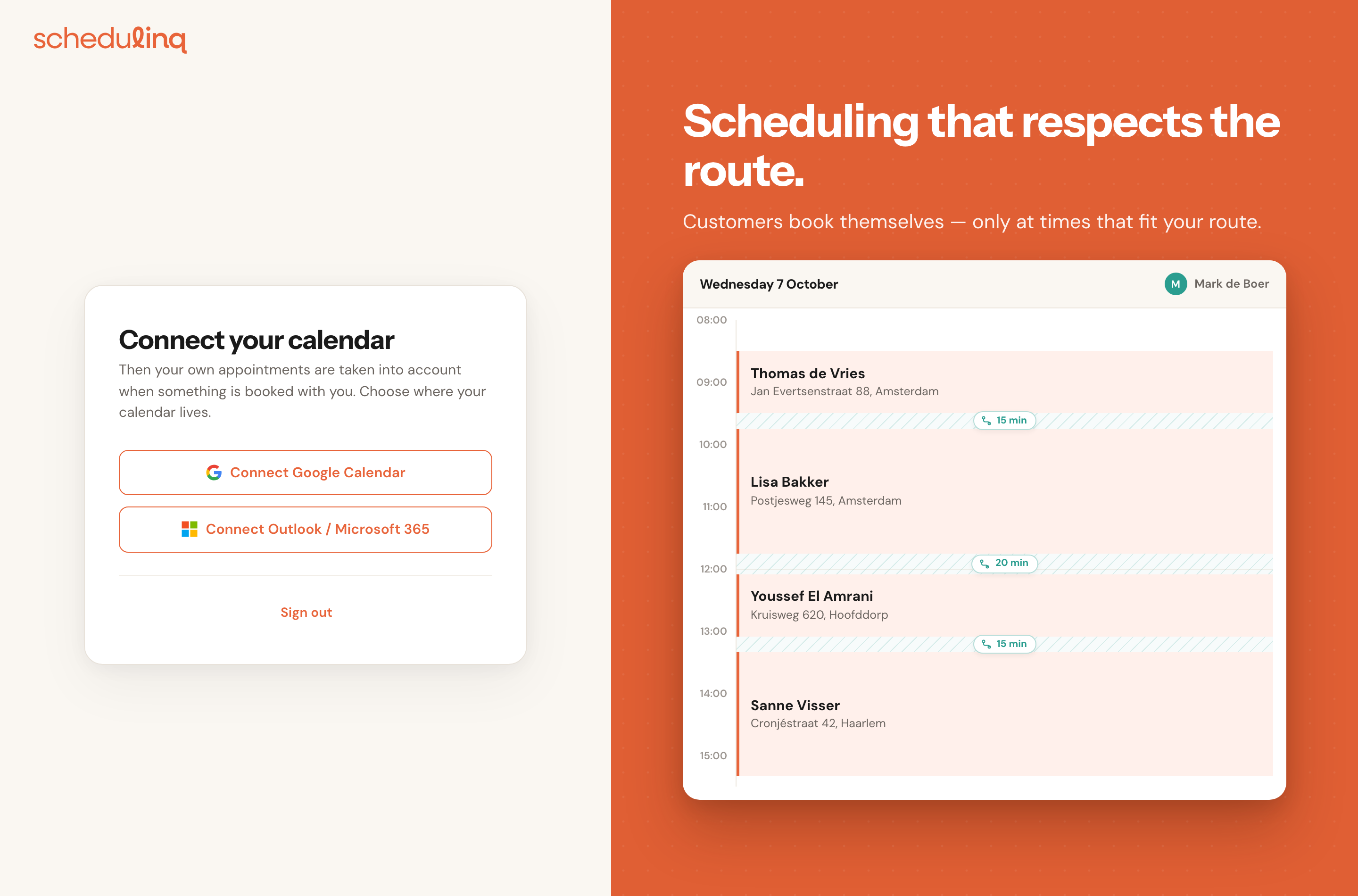
- The next page, Connect your calendar, offers Connect Google Calendar and Connect Outlook / Microsoft 365.
- After signing in with Google or Microsoft, they choose which calendar Schedulinq reads, and land on their agenda.
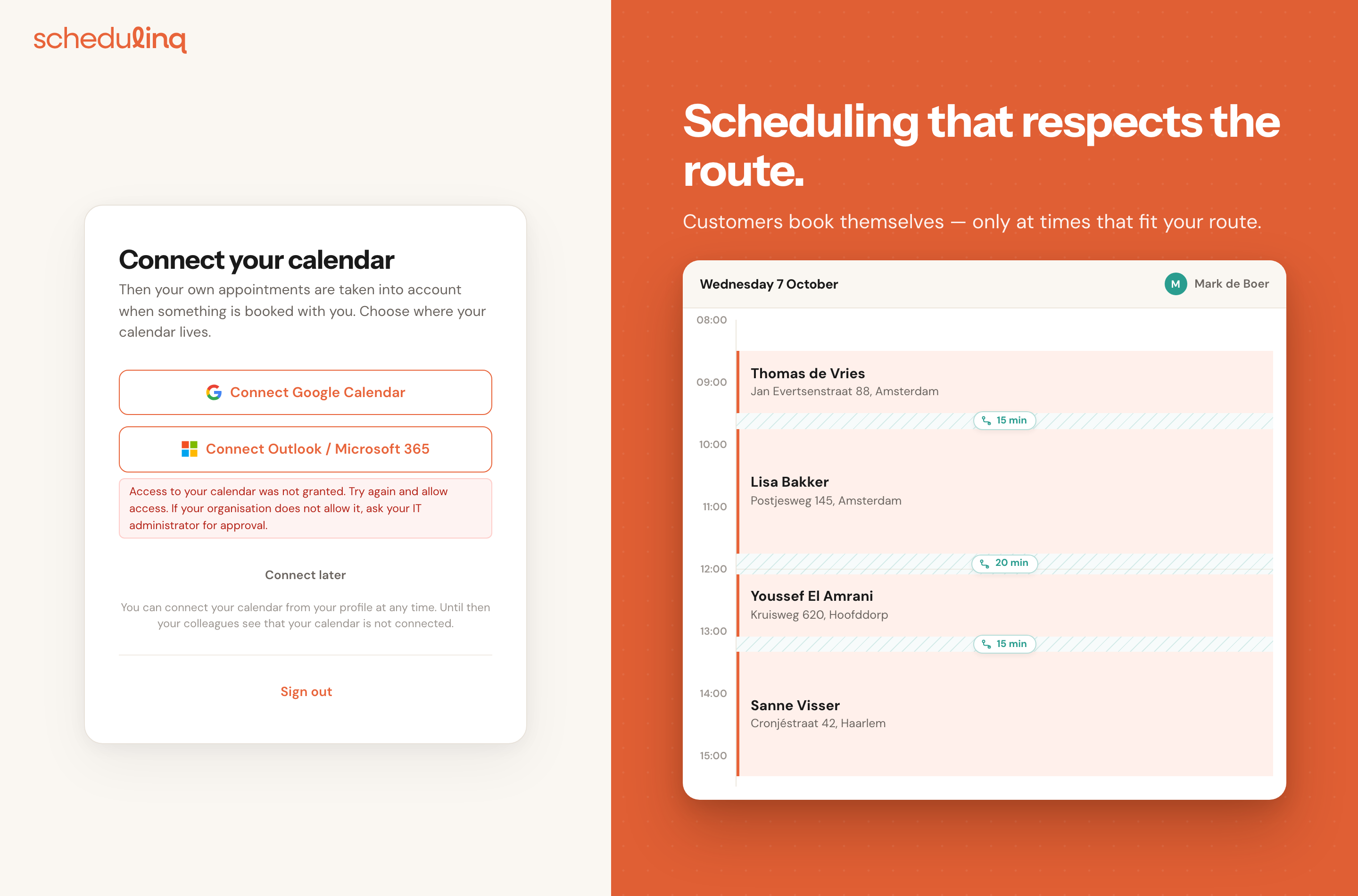
Connect later appears only after an attempt failed: access was refused (some Microsoft organisations only allow it after their IT administrator approves), connecting took too long, or no calendar was chosen. Your colleague is active and bookable either way; until a calendar is connected the Team page says Calendar not connected. How connecting works in detail is in Connect your calendar.
Following up on a pending invitation
Click anyone with the status Pending. You see when the invitation was sent, when the link expires and who sent it.
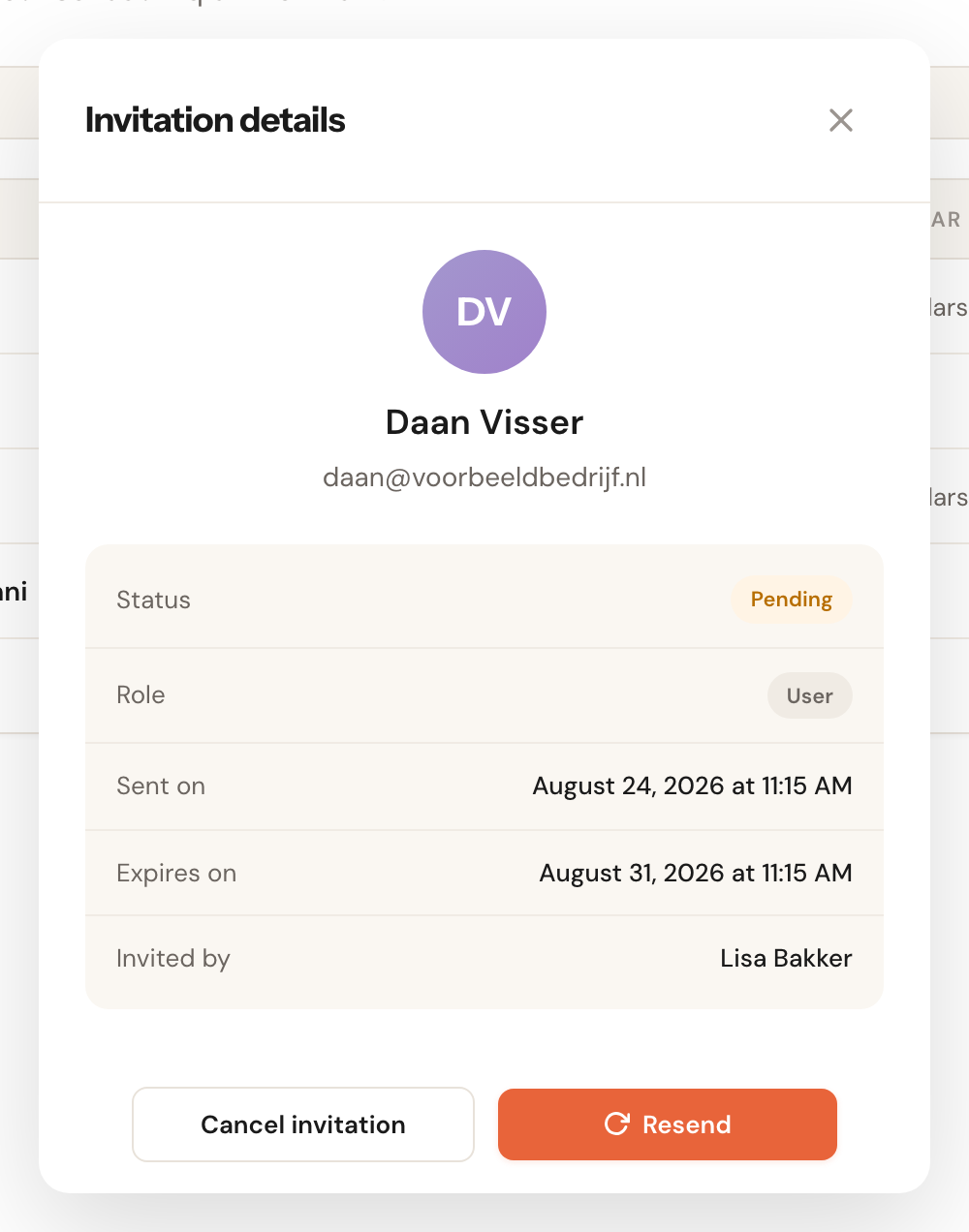
Two buttons:
- Resend — sends the same invitation again. Use this when the email never arrived, or when the link has expired.
- Cancel invitation — withdraws it. The link stops working and the row disappears from your list.
Typed the wrong email address? Cancel the invitation and send a new one. The address on a pending invitation cannot be edited.
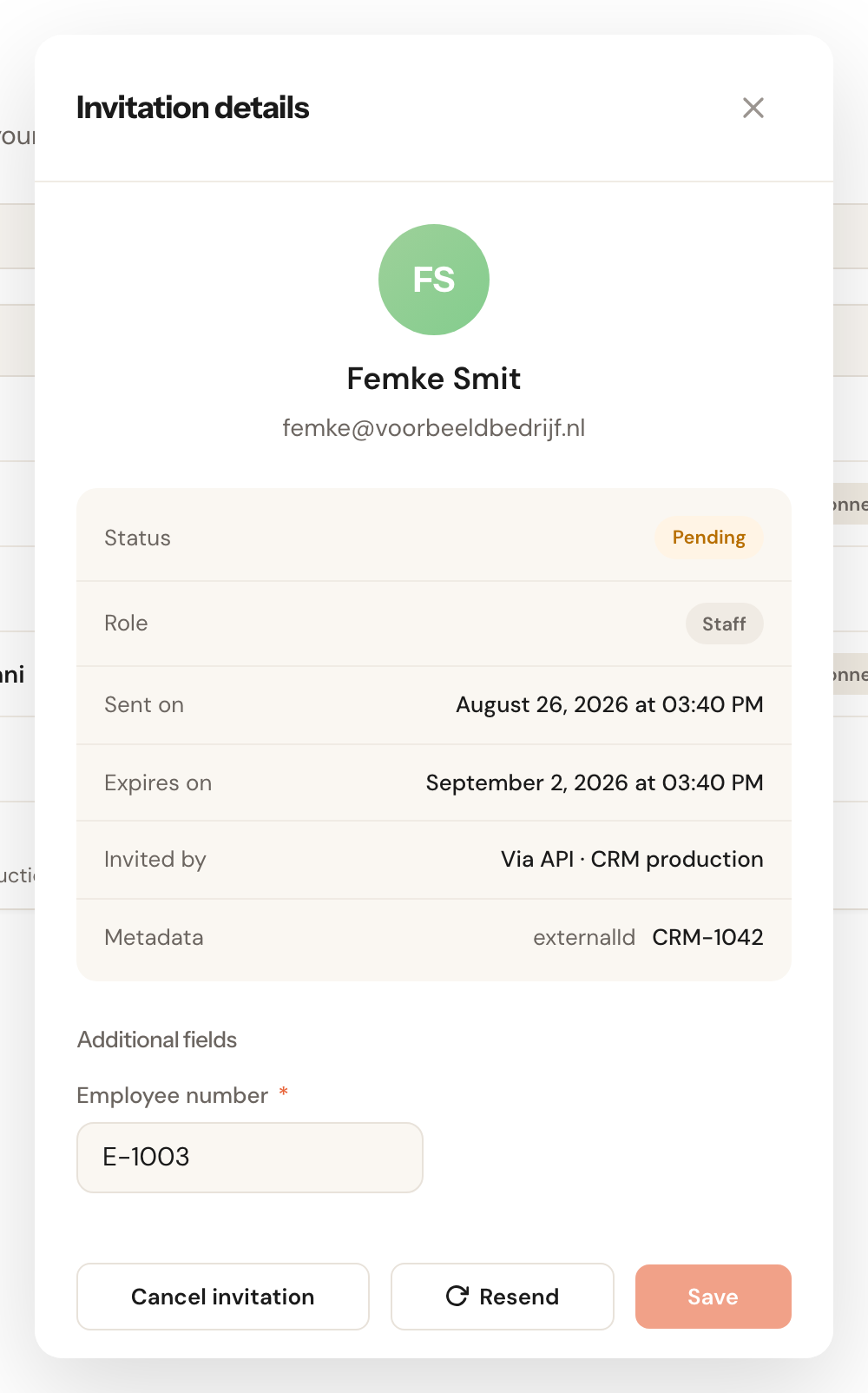
The same window shows the invitation's Additional fields, when your organisation has staff fields. You can still change them there, with their own Save; whatever is in them when your colleague accepts goes onto their profile.
Invitations from your CRM
Your own software can invite team members through the API. Such an invitation says Via API and the key's name on its row and, in this window, under Invited by. Below that it shows the CRM's Metadata — its own references, such as a record id — read-only. Resend and Cancel invitation work as for any other invitation.
Fields a person must fill in on the invite window are not enforced for an invitation from your CRM or from the Teamleader sync: fill them in here or on the profile afterwards. The invitation mail of an API invitation names your organisation rather than a person.
Frequently asked questions
My colleague is in the list, but customers cannot book anything with them. Being invited is not enough. Customers can only book with someone once they have accepted the invitation, are assigned to an appointment type, and have working hours set. Miss any one of the three and there are simply no free slots to show.
I get a message that the email address is already in use. That address already belongs to an existing team member or to a pending invitation. Look the address up in the list — if an invitation is open, resend that one rather than creating another.
Someone is pending and nobody here invited them. Look under Invited by. It says Via API and a key's name when your CRM or other software sent the invitation through the API. An admin sees the keys under Integrations → API.
Can I temporarily remove someone's access? Yes. Open the team member and set them to inactive. They can no longer sign in and will not appear in new bookings, but their appointments and history are kept. That is almost always better than deleting them.