

Set prices
Amount, VAT rate and price type for an appointment type — and where that amount ends up afterwards.
Every appointment type can carry one price. It appears on your booking page, travels with the appointment into the confirmation, and forms the basis of the invoice line. This is where you set it, and these are the choices you make along the way.
Adding a price
Open the appointment type
Go to Services → Appointment types and click the service you want to price. On a new service you fill the price in as you go — see Create an appointment type.
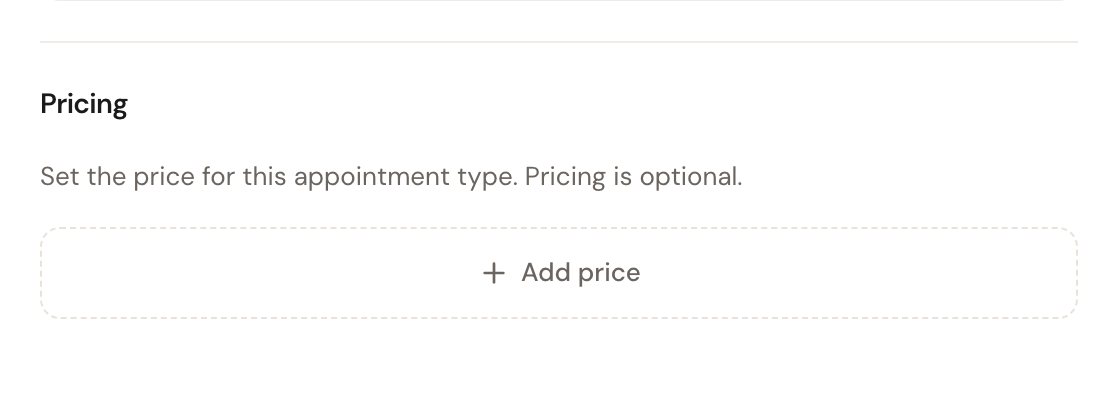
Click Add price
The Pricing block sits in the right-hand column. While there is no price, all you see is the button.
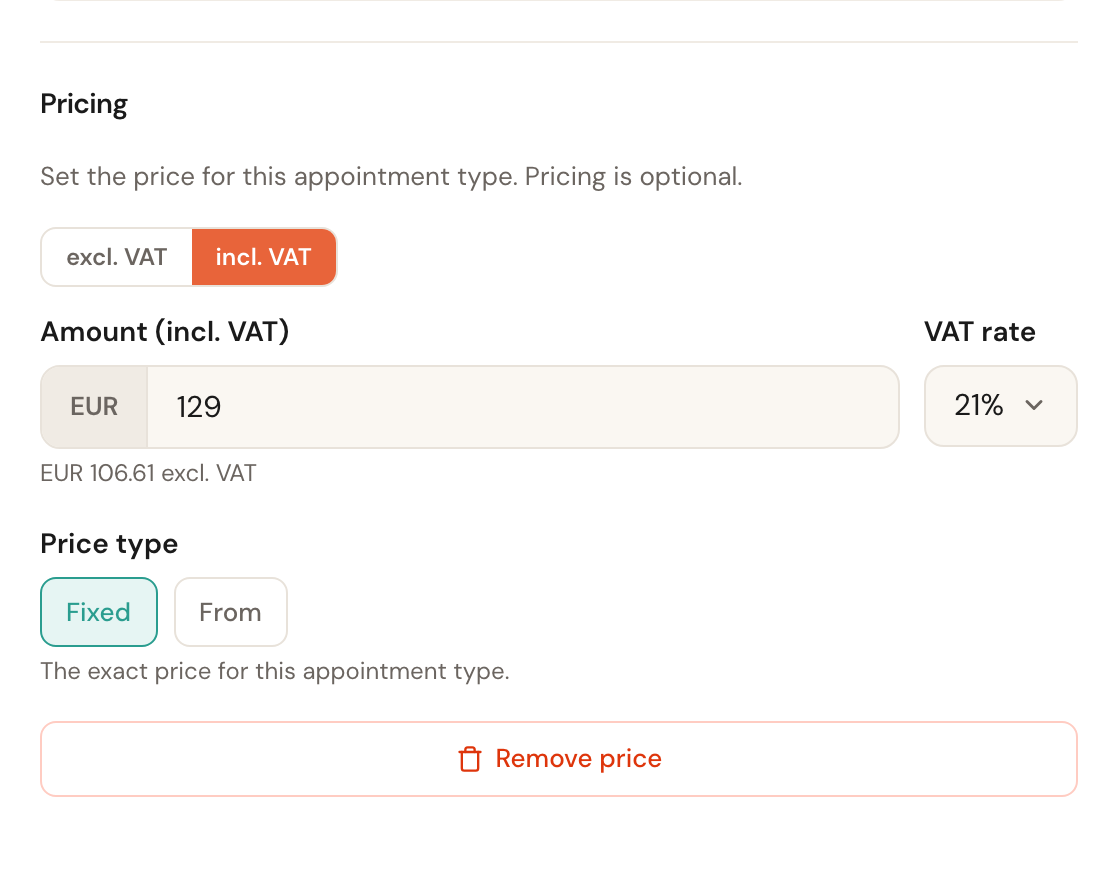
Fill in amount, VAT and price type
The fields appear underneath each other: first the excl./incl. VAT switch, then the amount, then the VAT rate, and the price type last.
Save the appointment type
The price is only stored when you save the appointment type as a whole. Click Save at the top right.
Field by field
excl. VAT / incl. VAT
Remembered per browserDecides which form you type the amount in. Schedulinq works out the other value underneath the field as you go, so you see both without doing the arithmetic.
If you mostly work for consumers you think in amounts including VAT; for business customers, excluding. Both amounts are stored either way, so this only changes how you type — not what the customer pays.
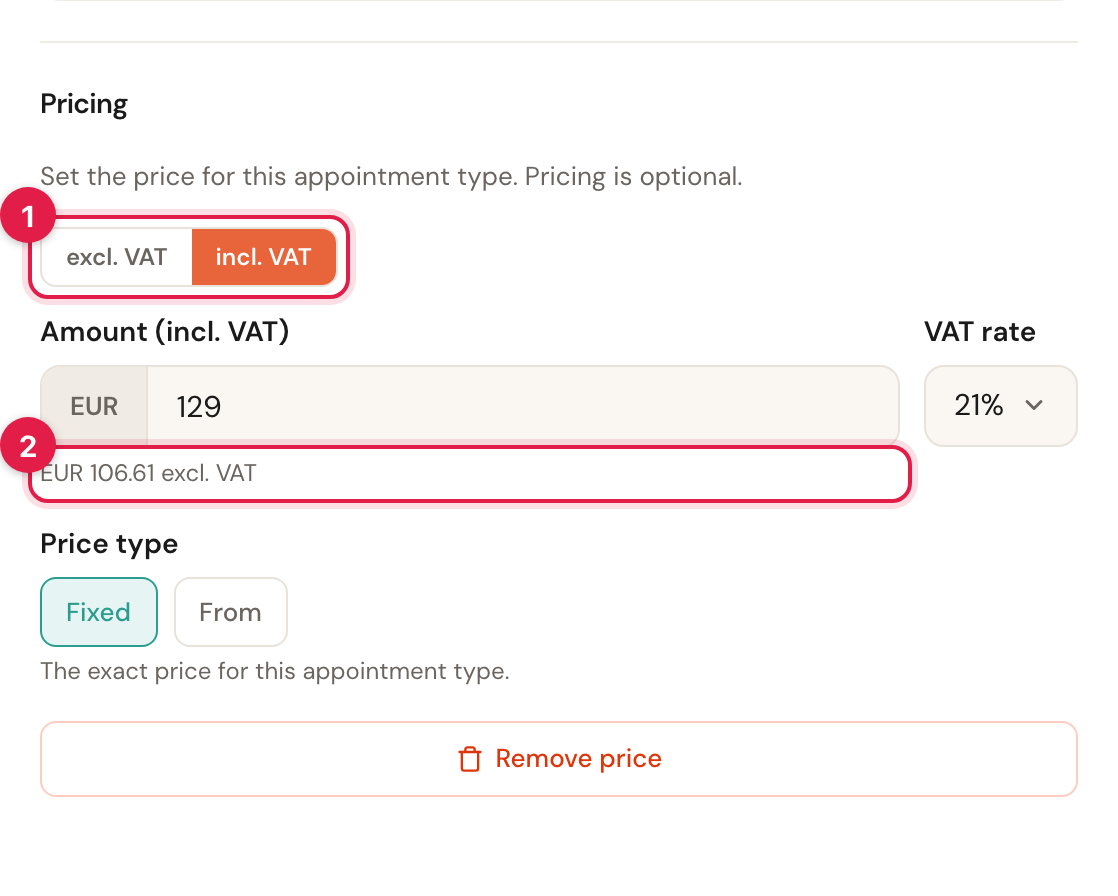
1 the switch, 2 the converted amount, which follows along as you type.
The choice is remembered in your browser, so it applies to every appointment type you open afterwards — not just this one. A colleague on another computer may see the other side selected.
Amount
Required once the block is openThe amount in your company's currency. Use a dot or comma for the cents; negative amounts are rejected, as are amounts above a million.
If you opened the block but left the amount empty, saving is blocked with Enter a price, or remove the price. That is deliberate: an empty price field is ambiguous — it could mean "free" or "not known yet" — and Schedulinq makes you say which one you meant.
VAT rate
The rates in the list come from your company's country, which you set under Company → Details. A Dutch organisation sees 21%, 9% and 0%; a Belgian one sees 21%, 12%, 6% and 0%.
This rate carries all the way through to the invoice. Check it per service rather than leaving the standard rate everywhere — think of work that falls under a reduced rate, or services that are exempt.
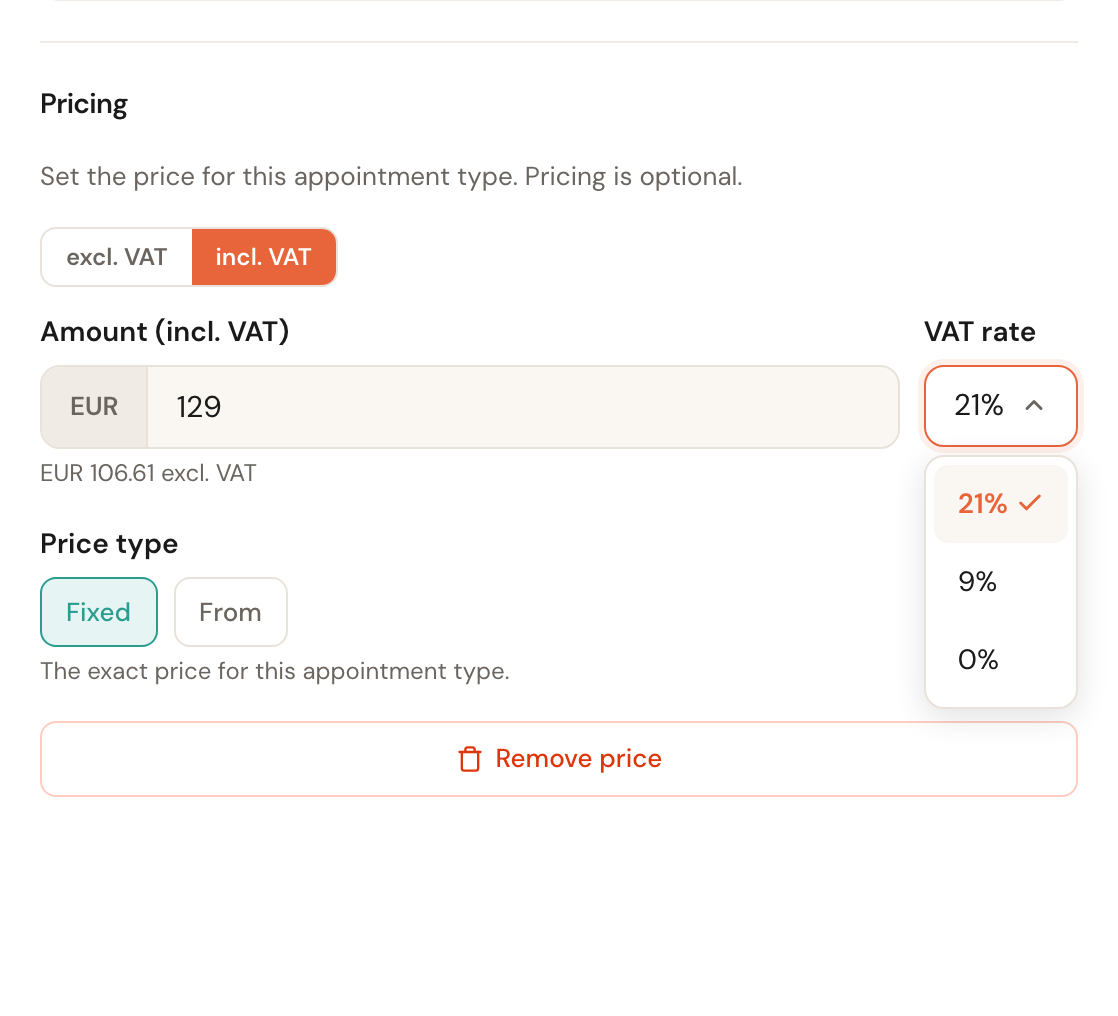
Change the rate while you are working in incl. VAT and the amount excluding VAT stays put while the inclusive amount moves. Work in excl. VAT and the amount you typed stays put while only the converted value below it changes. Either way, what you decided yourself is what survives.
Price type
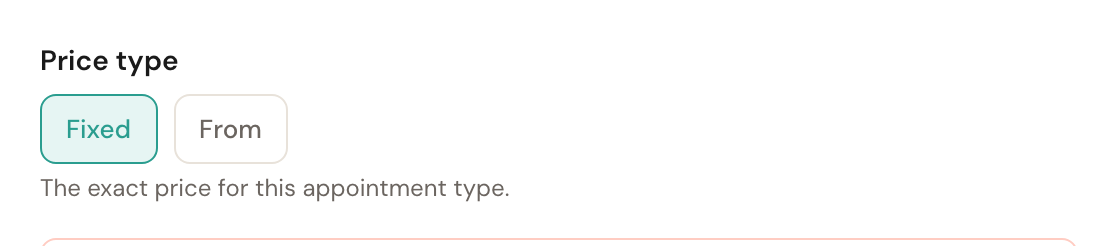
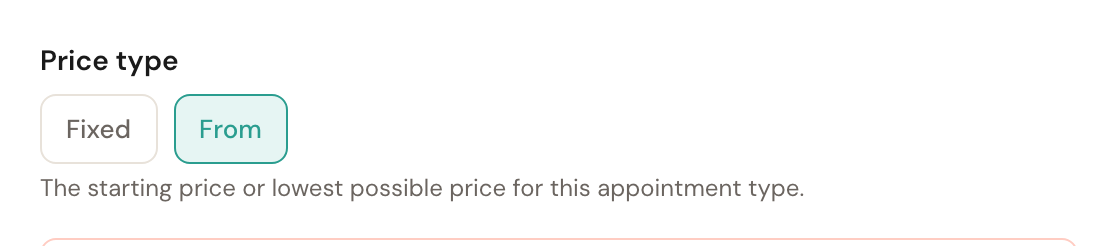
Fixed or FromFixed shows the amount as an exact price. From shows it as a starting price: the customer sees from € 121.00.
Choose From for work whose final price depends on what you find on site. The customer knows what they are getting into without you committing to an amount you cannot hold. The price type only changes how the amount is presented — it does not calculate anything differently.
Where the price ends up
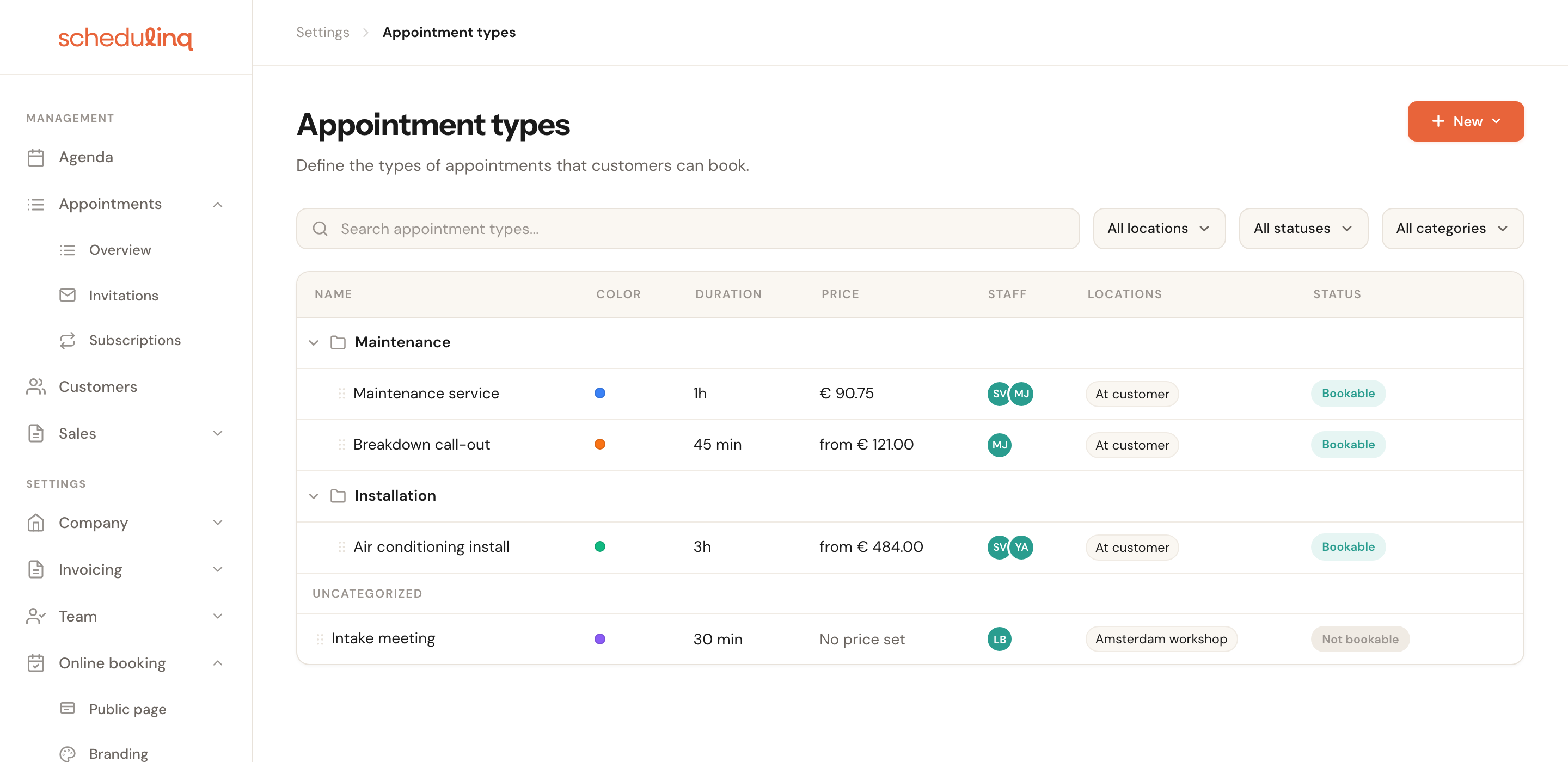
The overview shows all three possible outcomes side by side — excluding VAT, as the column header says.
In your own screens — the catalogue, the appointment, the appointments overview — the amount is always shown excluding VAT. That is the figure you typed in and the figure that is your revenue; the VAT is added on the invoice.
On your booking page the amount is always shown including VAT, labelled incl. VAT, with the word from in front of it if you chose that price type. The amount excluding VAT never appears there — that is a figure for you and your bookkeeping, not for the customer.
In the appointment the price is captured at the moment of booking, together with the VAT rate — both amounts, including and excluding. If you change the appointment type's price later, nothing changes for appointments that are already booked; the new amount applies from the next booking on. The captured amount is on the appointment itself in the Price field, and in the appointments overview you can switch it on as a column — see The appointments overview.
On the invoice Schedulinq uses the captured amount excluding VAT and adds the VAT separately. Nothing is derived back: both amounts are kept as they were at booking.
Removing a price
Click Remove price at the bottom of the block.
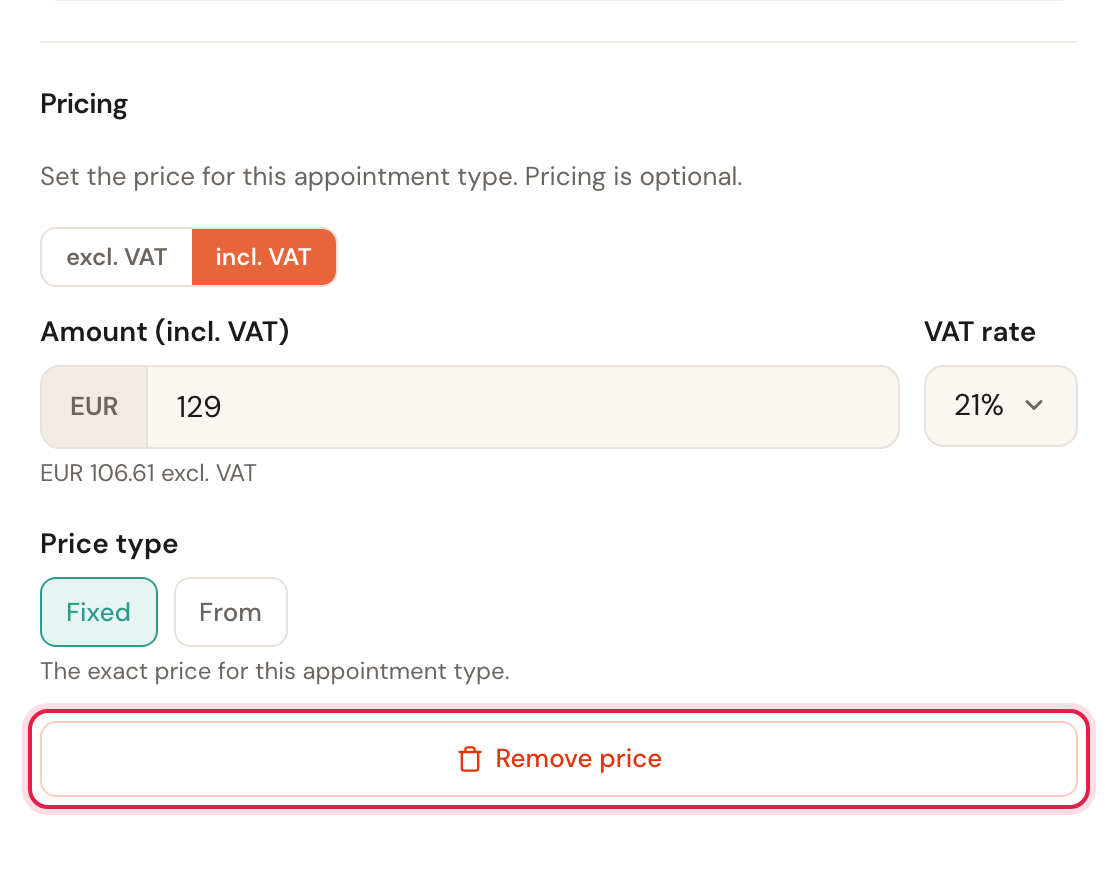
The fields disappear immediately, but the price is not gone yet: that happens when you save the appointment type, and Schedulinq asks you to confirm first. Change your mind before saving and you can simply leave the screen without saving — the price stays.
Frequently asked questions
Can I set several prices for one service? No, one appointment type has one price. Different prices mean different appointment types — a short and a long variant, for instance — or a From price with the differences explained in the description.
Why is my amount excluding VAT slightly off? Both amounts are stored rounded to whole cents. For some combinations of amount and rate, converting back lands a cent away. When in doubt, type the amount in whichever form is authoritative for you — usually including VAT, since that is what the customer sees.
I changed the price but the customer saw the old amount. The price is captured in the appointment at the moment of booking. A change applies from the next booking on; existing appointments and their invoices keep the amount from back then.
The price is not on my booking page. Check that an amount above zero is set — with No price set and with € 0.00 the booking page shows nothing. If there is an amount, check that the service itself is visible; that is covered in Create an appointment type.