Organise your catalogue
Searching, filtering, reordering and deleting in the appointment types overview — so you still find things quickly at fifty services.
Once you have more than a handful of services, the overview itself becomes a tool. This page shows how to move around it quickly and how to set the order your customers will see.

The toolbar has four parts: the search field (1), and three filters — location (2), status (3) and category (4).
Searching
Type a few letters and you get suggestions: folders first, services below, each with the path it sits in.
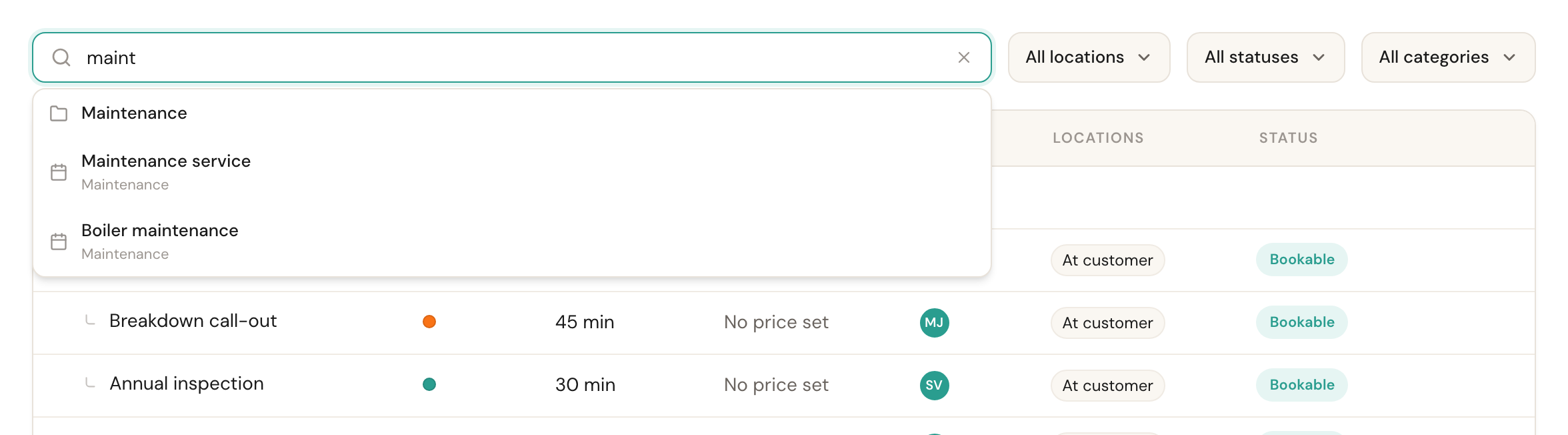
Pick a suggestion with the arrow keys and Enter, or click it. A service opens straight away; for a folder, Schedulinq expands the whole branch and jumps to it, then clears the search field for you.
While you type, every folder opens, so a match deep in the tree never stays hidden. The cross on the right of the field clears the search.
Filtering
The three filters work together and all narrow the same list.
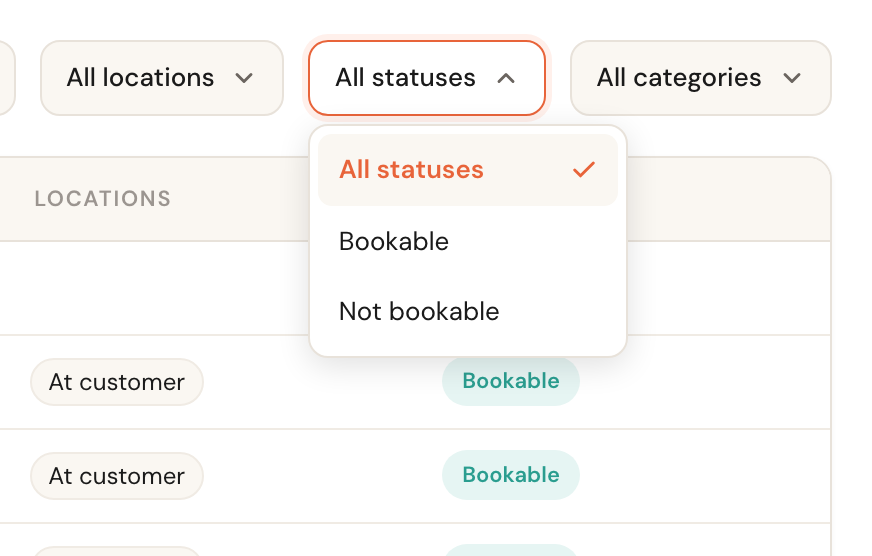
Status leaves only bookable or only not-bookable services — useful for seeing what still needs finishing. It goes by the Online booking switch alone: a service marked No duration or No staff in the Status column has that switch on, so it still shows under Bookable. Category zooms in on one folder, including the folders beneath it.
The location filter is a different kind of filter: it shows your catalogue as it looks per location.
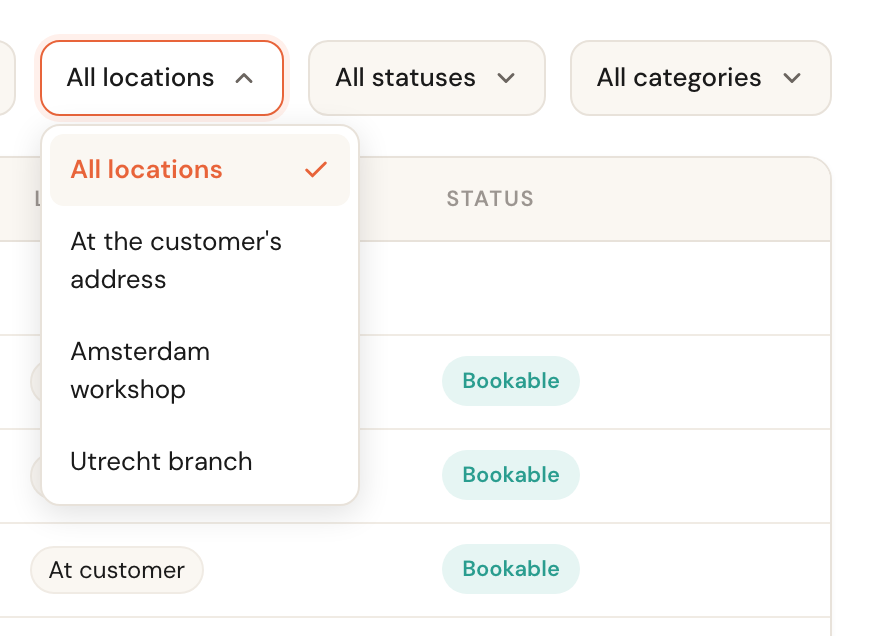
All locations is the full management view. Choose At the customer's address or a branch and you see only the services bookable there, with empty folders dropping out of sight. That is how you check at a glance what a customer sees at a given location. Once a service can take place as a call, the filter also offers Video call and Phone call: the services a customer can book that way.
Order and folders
The order in this overview is also the order on your booking page. Drag a service by the handle to the left of its name: within the same folder to move it up or down, or into another folder to move it there.
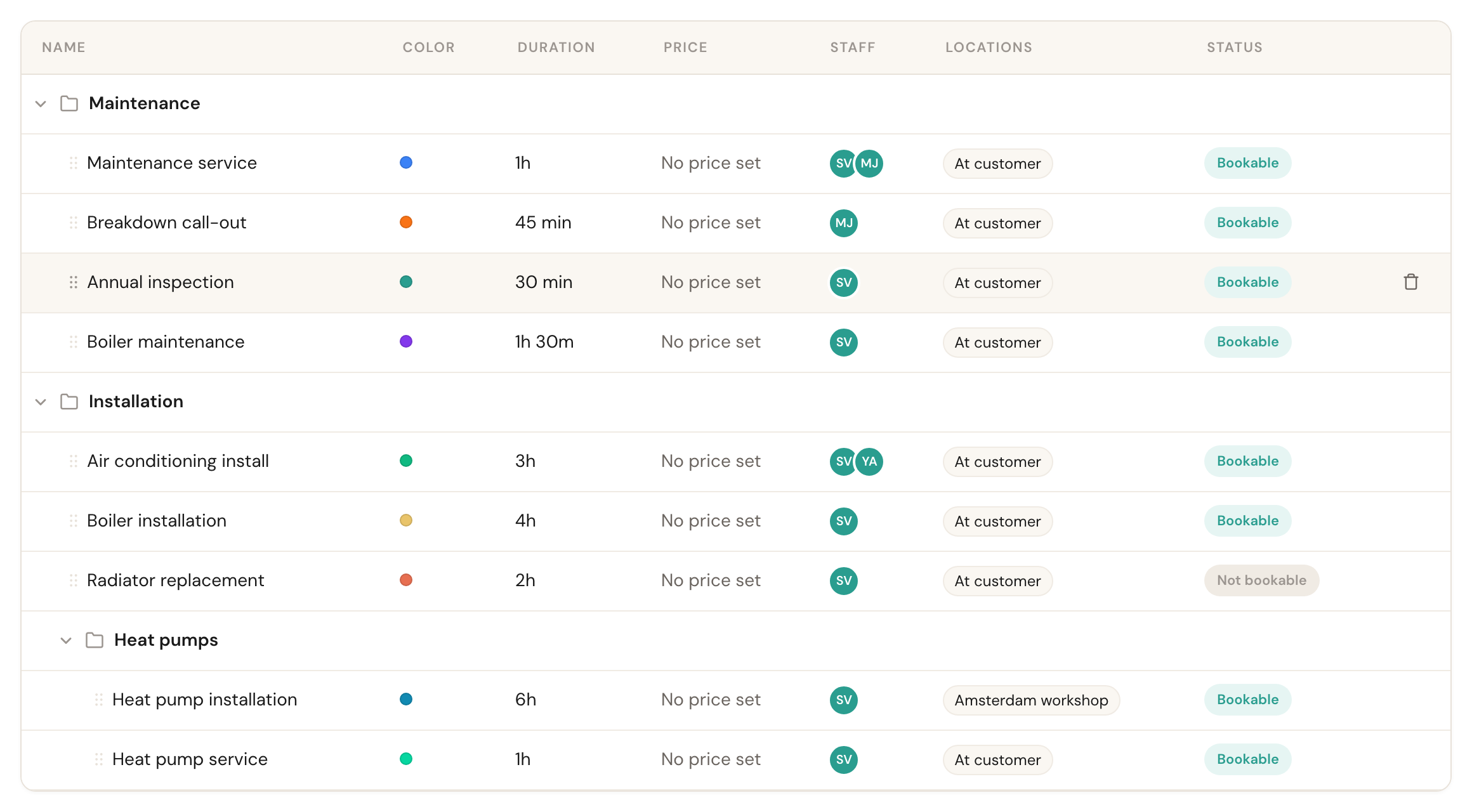
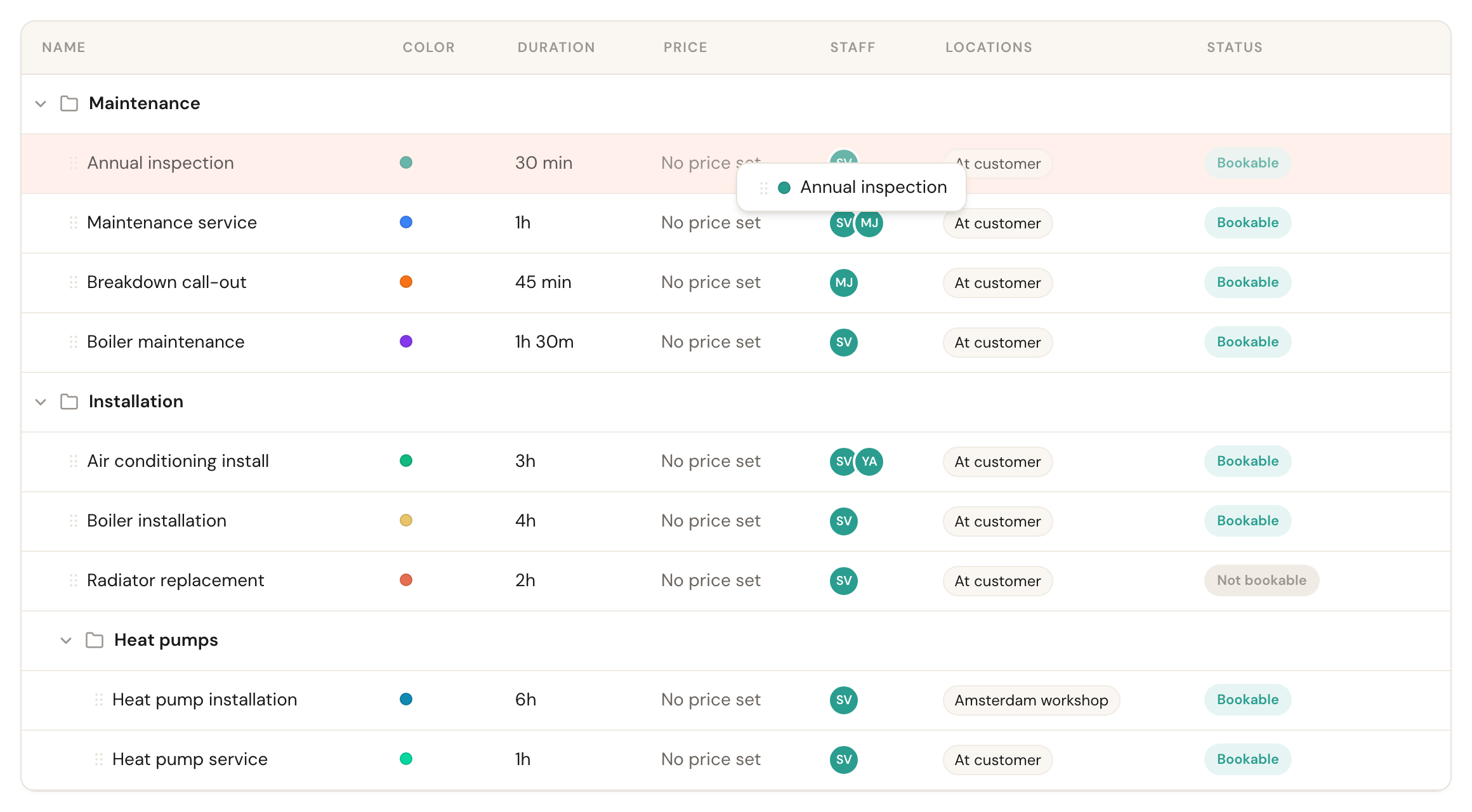
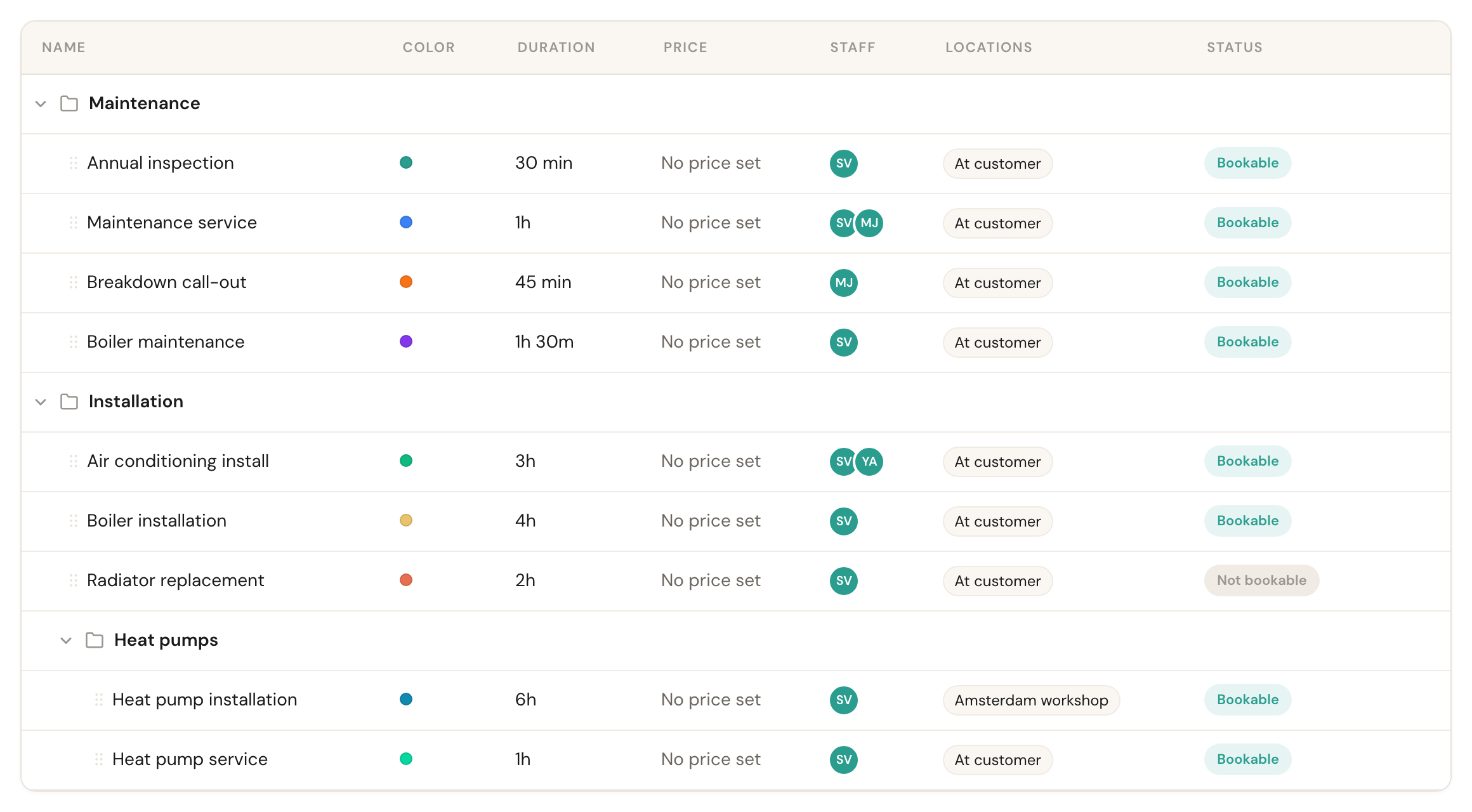
1Pick the service up by the handle left of its name.
The folders themselves can be dragged too. A category row carries the same handle, left of the folder icon. It reorders your folders — but only within the level the folder is already on, never into another parent. More about that under Categories.
The arrow to the left of a folder opens or closes it. Schedulinq remembers that per browser, so your own layout stays put until you change it yourself.
Pictures in the overview
If you have put a photo on a service or a category, this overview shows a thumbnail in front of the name. Services and folders alike — it is the same photo your customer sees on the booking page.
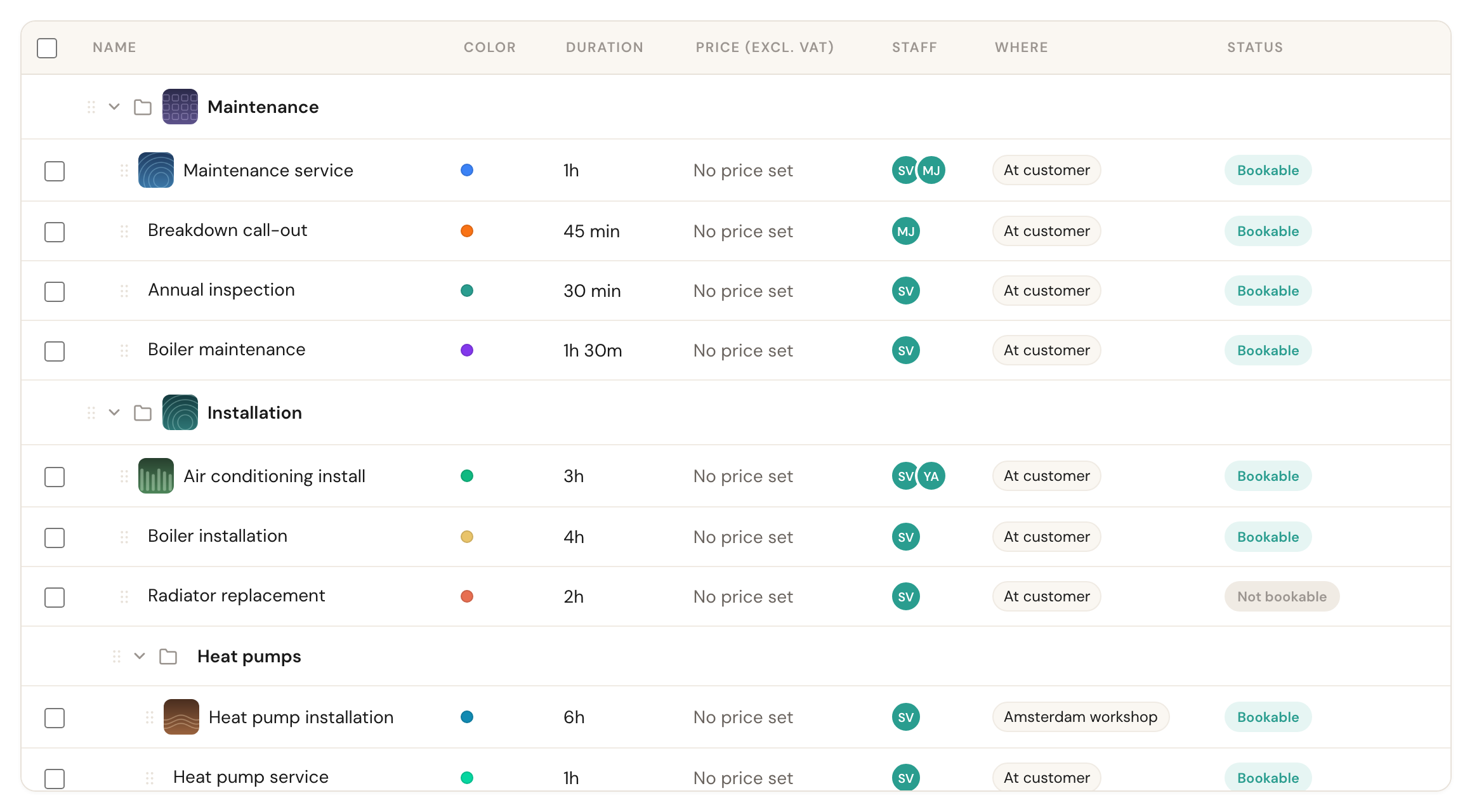
Thumbnails on Maintenance, Maintenance service and Air conditioning install; the rows without a photo look exactly as they did before pictures existed.
A row without a photo shows no thumbnail, and no empty frame either. That is deliberate: a catalogue is usually either photographed or not, and an empty box beside the one service you forgot reads as a fault.
Where you upload those photos is covered in Create an appointment type and Create categories. Whether your customer gets to see them hangs on a switch on your booking page — the overview here shows the thumbnails either way.
Deleting a service
Hover over a row and click the bin at the end of it.
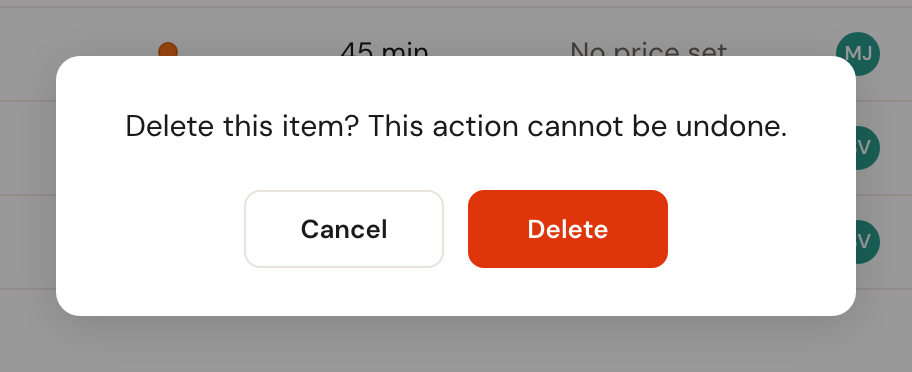
The service disappears from your catalogue and from your booking page. Appointments that are already booked stay readable — your calendar and your invoices do not change retroactively. There is no button to bring a deleted service back, so if you are unsure, set Online booking to No instead: the service then leaves your booking page but stays yours.
You delete a folder the same way, with one extra choice: whether the services inside go with it, or come loose and end up at the bottom under Uncategorized.
Deleting several services at once
When more than one has to go, you do not have to work row by row.
Tick the services
Every service has a checkbox in front of it. The box in the header row selects everything you can see at that moment in one click.
Check the bar that appears
As soon as you tick something, a bar appears with the count — 2 selected — and two buttons: delete, and Clear selection.
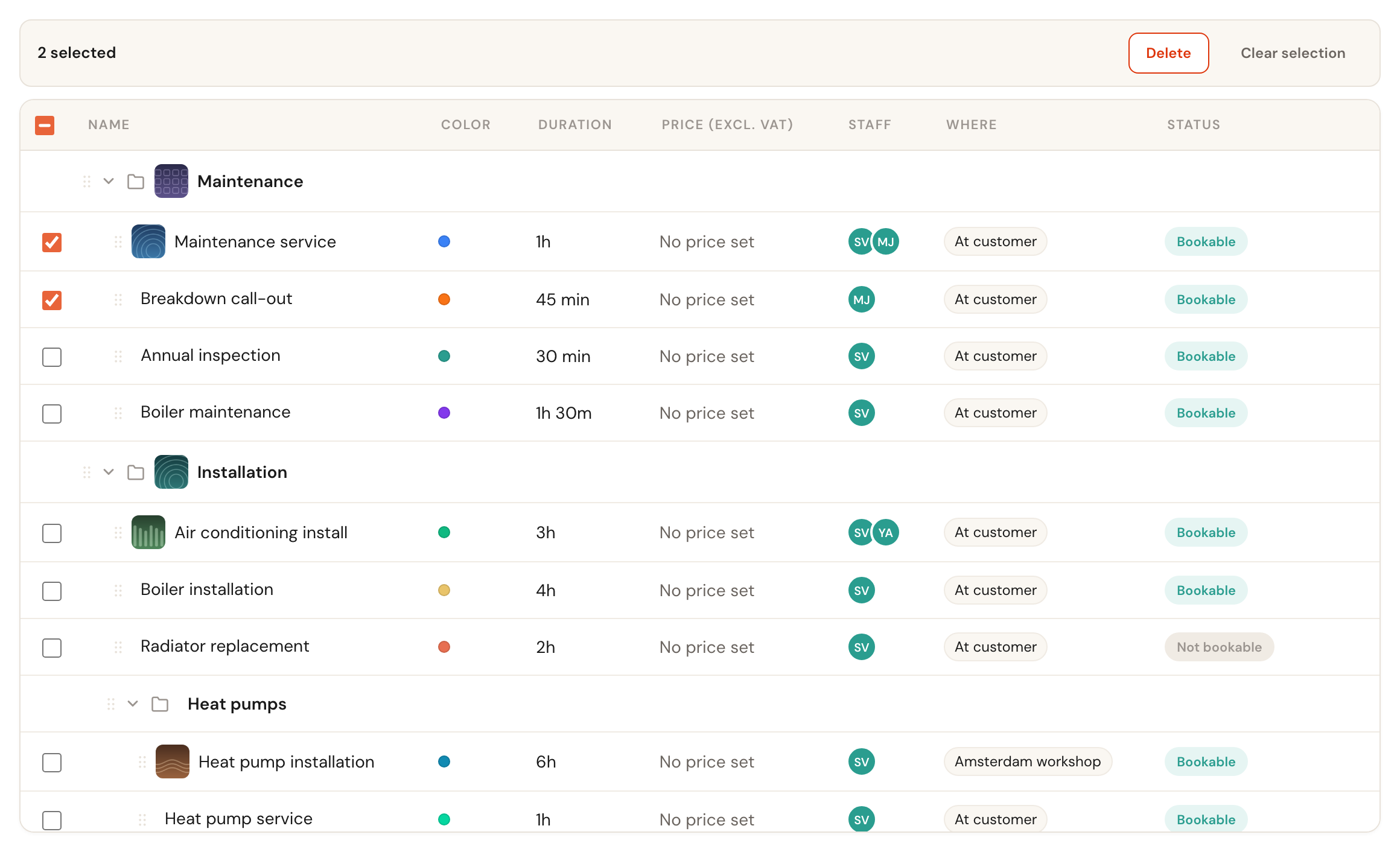
The folder rows Maintenance, Installation and Heat pumps have no checkbox.
Confirm once
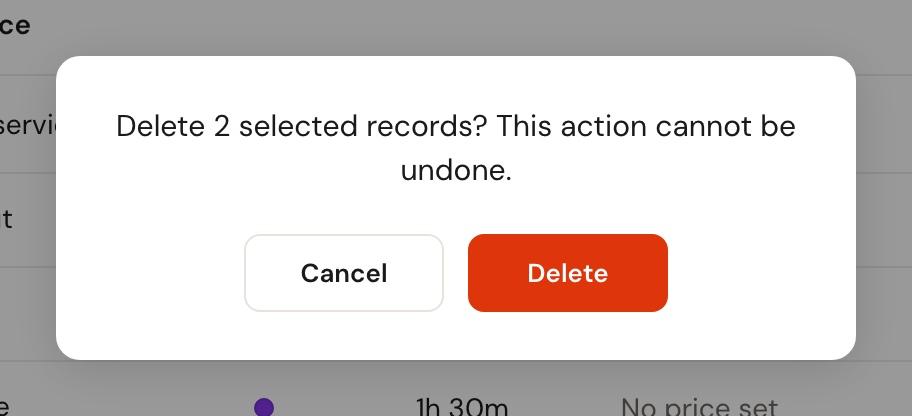
Schedulinq asks Delete 2 selected records? This action cannot be undone. One question for the whole selection, not one per service.