

The scheduling algorithm
Decide which times customers are offered — how many options per day, how strictly you filter on driving time, and what changes when you adjust them.
Your schedule decides when someone could work. This page decides which of those moments your customer actually sees. Nothing here changes who can be booked or how long an appointment takes — that lives in duration and availability. You find the page under Online booking → Algorithm.
How a time becomes an option
For every day, Schedulinq runs the same five steps. The settings below only make sense once you know where each one takes effect.
Collect the possible times
Your staff's working hours produce every moment the appointment would fit. Nothing is selected out yet.
Give each moment a score
Every moment gets a score between 0 and 1. That score is mostly travel efficiency: how well the moment connects to the appointments before and after it. A small bonus is added when there is already an appointment nearby that day, and something is taken off when the moment splits a free block in two with nothing useful left in either half.
Filter out the weak ones
Anything below a certain score is dropped. That line is what Cutoff strictness sets.
Narrow it down to a few options
What is left is reduced to the number in Options per day, spread across the working day: the day is divided into that many bands, and the best-scoring option in each band survives.
Rescue empty days that are close
If a day within the next week ends up with nothing, but did have a workable moment, the best one is shown anyway. Further out it is not: an empty week is the signal to look later.
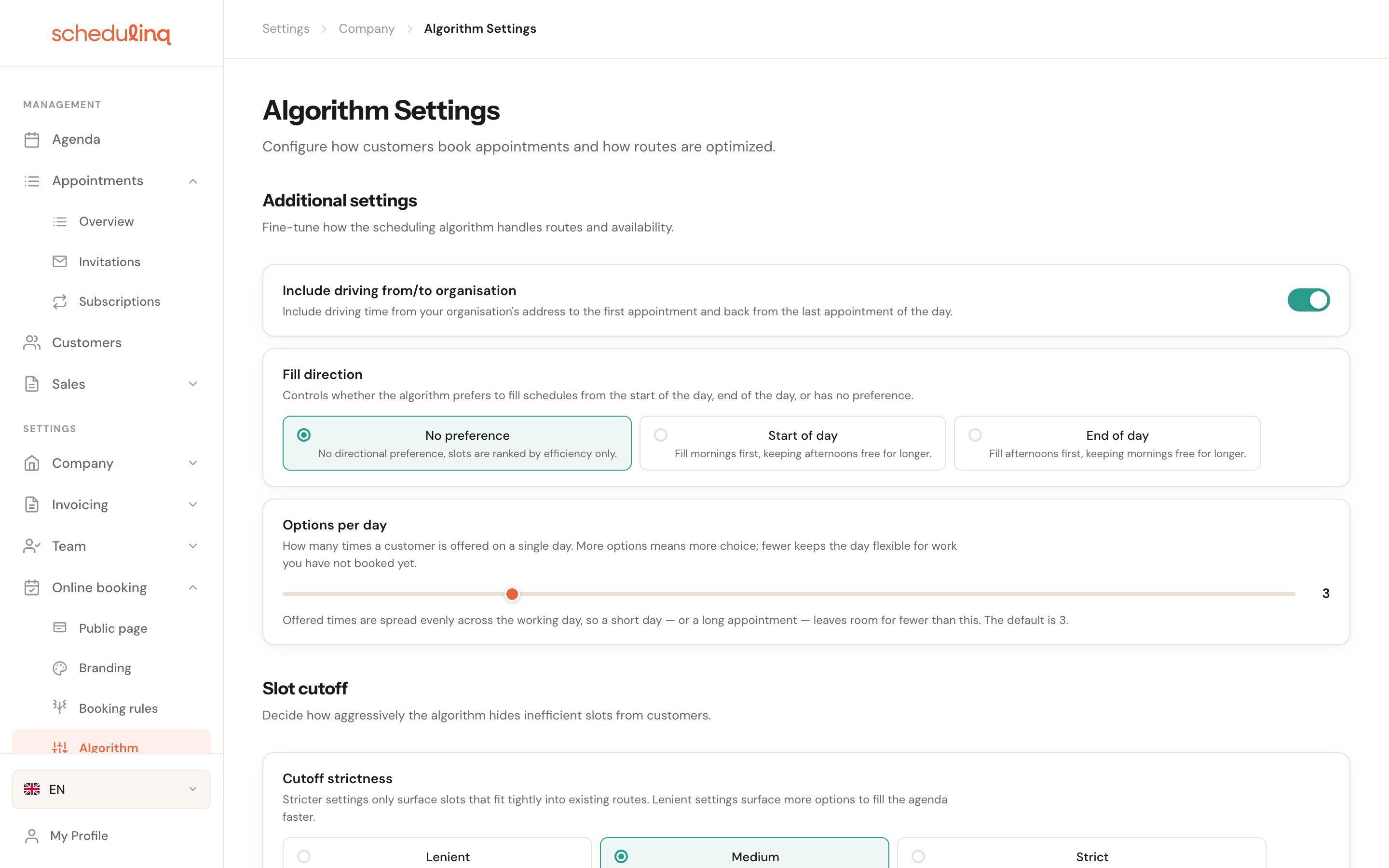
Include driving from/to organisation

Include driving from/to organisation
Default: onCounts the drive from your business address to the first appointment of the day, and the drive back after the last one.
Switch this on if your people start at the office: the first and last times of a day then move inward to leave room for those drives, so your customer is never offered a time you cannot actually make. If your people leave from home, that travel is not yours to plan and you switch it off — otherwise you give away room at the edges of the day that genuinely exists.
Fill direction
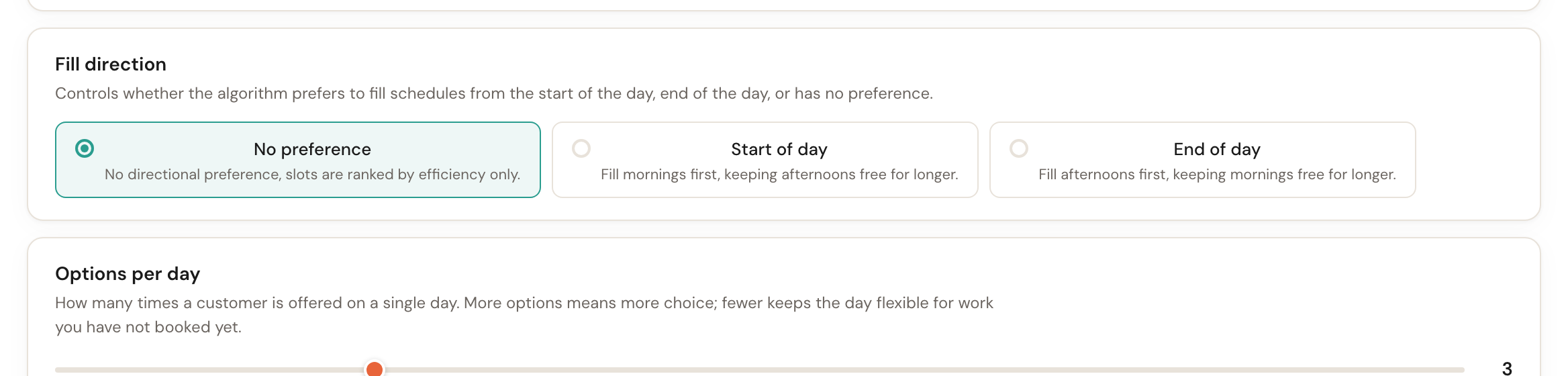
Fill direction
Default: No preferenceDecides whether offered times are spread across the day or pushed against one end of it.
On a day that is still empty this does more than you might expect. With No preference your customer gets several moments spread across that day. Choose Start of day or End of day and an empty day offers one moment per staff member per work window, flush to its beginning or its end: one for a colleague who works one block that day, two for a split shift, and one each when several colleagues could do the job. That is exactly what the setting is for — the rest of the day stays free for work you schedule yourself — but it also means your customer has less to choose from. The page says so itself, under both settings, as soon as you pick a direction.
Options per day
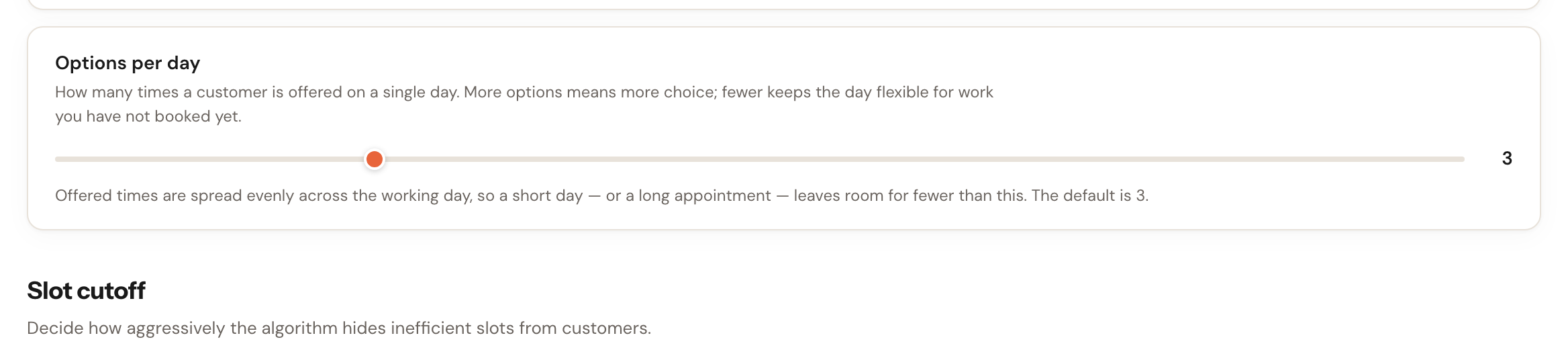
Options per day
1 to 10Default: 3How many times a customer is offered on a single day, across all your staff.
More options means more choice for the customer, but also more of your day that can be given away. Fewer options keeps the day flexible for work you still have to schedule yourself. Three works for most businesses: enough choice to book, little risk of your day filling up in one go.
It is a ceiling, not a promise. A short day, a long appointment, or a day that is already fairly full leaves room for fewer — and that is fine: three usable times beat eight that get in each other's way.
Show every free time
The first card under Slot cutoff switches that filtering off, for the appointments where it gains nothing.

Show every free time
Default: offA time every 5, 10, 15, 20, 30 or 60 minutesOnly for appointments at a fixed location, by phone or by video call — the card says so itself. Switch it on and choose under A time every how fine the grid is; 30 minutes by default. In a roster block without At the customer in its workplace, Schedulinq then offers every free time on that grid: 9:00, 9:30, 10:00 and so on. Times fall on the clock: if an appointment ends at 10:10, the next time is 10:30.
In a salon, a showroom or a consulting hour there is no drive to save: your customer simply wants to see when you are free. The five steps above exist to plan drives cleverly, so such blocks skip the score, the strictness, Options per day and the rescue of empty days.
A work block with home visits keeps showing the best-fitting times, even with this setting on: every drive counts there, and offering every free time would scatter your day. When a day has both a block at a location and a block visiting customers, each block gets its own way. Drives are checked either way — a time a colleague cannot reach in time from the previous appointment does not appear on the grid either.
Find appointment options never uses this setting: there the point is the times that fit best.
Cutoff strictness
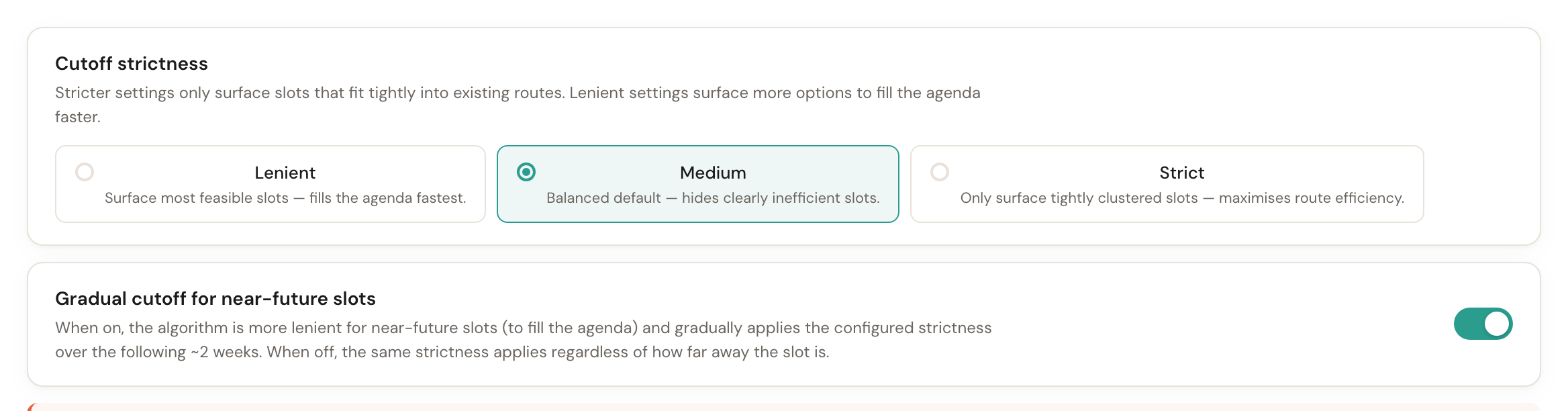
Strictness
Default: MediumThe minimum score a moment has to reach to be shown at all.
This is the most noticeable control on the page, and the only one most businesses ever need to touch. Medium is the default and the best choice for most businesses. Lenient shows more times, including ones that cost more driving: your customers get more choice, but you drive more between appointments. Strict only shows times that fit tightly against what is already booked. That is most efficient when your agenda is full; with room to spare, more of the day stays empty.
If customers are seeing too few times, move it one step more lenient before you touch anything else. If you are driving too much while your agenda is full, one step stricter.
Maximum drive between appointments

Maximum drive between appointments
Default: off5–240 minutesSwitch it on and fill in a number of minutes. Schedulinq then no longer offers a time for which a team member would have to drive longer than that from the previous appointment, or to the next one.
Strictness weighs a long drive against everything else, so a time with a long hop can still come through when nothing better is left. This setting does not weigh: a drive over the limit is simply never offered. Use it for the hop you do not make between two jobs, whatever the day looks like.
Only the drive between two appointments counts. The drive from the start of the day to the first job and home after the last one is what your service area is for, so a day with nothing on it yet always stays available. The travel buffer is not added to the figure, and an invitation you send yourself skips the limit. It applies to the booking page and to Find appointment options alike.
Like strictness, this is the default for every service area: an area can follow it, set its own maximum, or have none.
Gradual cutoff for near-future slots

Gradual cutoff
Default: onRecommendedLets the line above move with how far away the date is.
On: the bar is lower for the next few days and climbs gradually, over about fourteen working days (roughly three weeks), to your chosen strictness. That fills the coming days while leaving room further out for appointments that fit the route better. Off: the same strictness everywhere, whether it is tomorrow or three weeks away — the coming days fill less and fewer appointments fit your agenda.
The worked example on the page
Below the toggle, Schedulinq converts the chosen strictness into something tangible: how many minutes of driving an appointment is still allowed to cost.

Set the strictness to Strict and both numbers visibly drop:

Switch the gradual cutoff off and one limit remains, applied everywhere:

What is not on this page
When too few times show up, the cause is more often somewhere else than here:
- How long an appointment takes and who may perform it — on the appointment type itself.
- How soon and how far ahead customers may book — under Online booking → Booking rules.
- Who works when — under Team → Schedule.
- How far you drive — under Company → Service area.
The full search is described in duration and availability.
Frequently asked questions
I changed something and see no difference. First check whether there were any times to filter at all. If nobody is rostered or the appointment type is not bookable, no setting here will change that. And if you adjusted Fill direction on a day that is already busy, a small or invisible effect is normal.
Customers only see one time per day. Almost always Fill direction: on an empty day a direction offers one time per colleague per work window, so with one colleague working one block that is one a day. Set it back to No preference.
Dates further out have fewer options than next week. That is Gradual cutoff, and it is intended. If you want the same amount of choice everywhere, switch it off.
Some gaps between two appointments never get offered, even on Lenient. Check the maximum drive, here and on the service area. Strictness cannot bring back a time the maximum has refused.
Which setting should I change first? Strictness. One step more lenient or stricter does more than all the other controls combined, and it is easy to undo.