

Send invitations
Let the customer pick a time instead of you picking one for them — and follow what happens next.
With an invitation you decide what happens and who may do it, and the customer decides when. You send the invitation, the customer books a time that suits them, and the appointment lands in your calendar.
Step by step
Open Invitations
In the left-hand menu, click Appointments → Invitations. You see every invitation you have sent. The screen opens on Pending — the ones you can still expect something from.
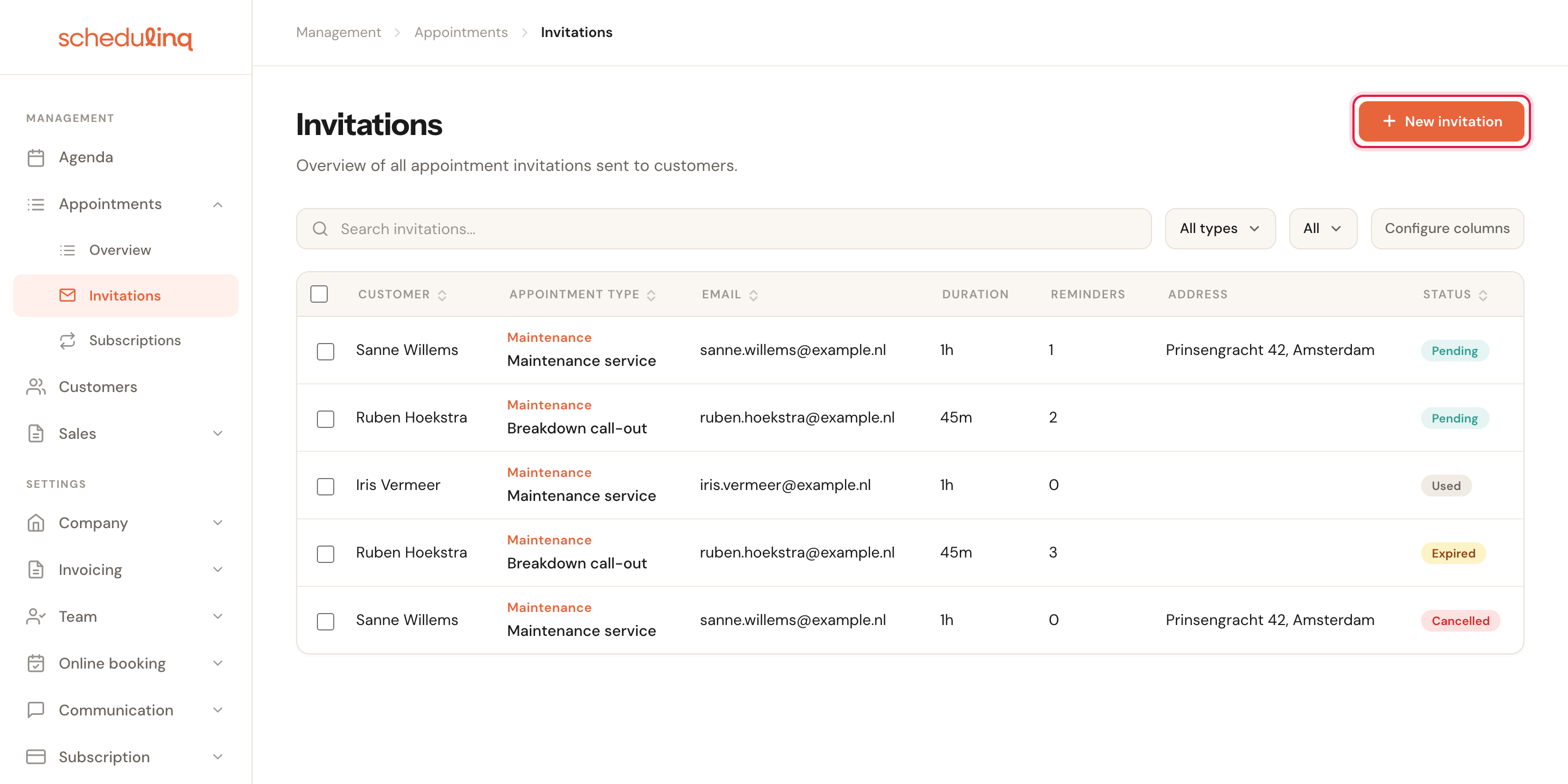
Here the filter is set to All, so every status is visible, and the Valid until column is switched on.
The Valid until column is off by default; Configure columns adds it. It shows the last day the customer can still book, or Never expires. An invitation for several services is listed as 2 appointments, 3 appointments and so on.
The search box also finds an invitation by one of its metadata values — the references your CRM sent along through the API, such as a record id — from the first character.
Choose the kind of invitation
Click New invitation at the top right. Schedulinq first asks what kind of invitation this is.
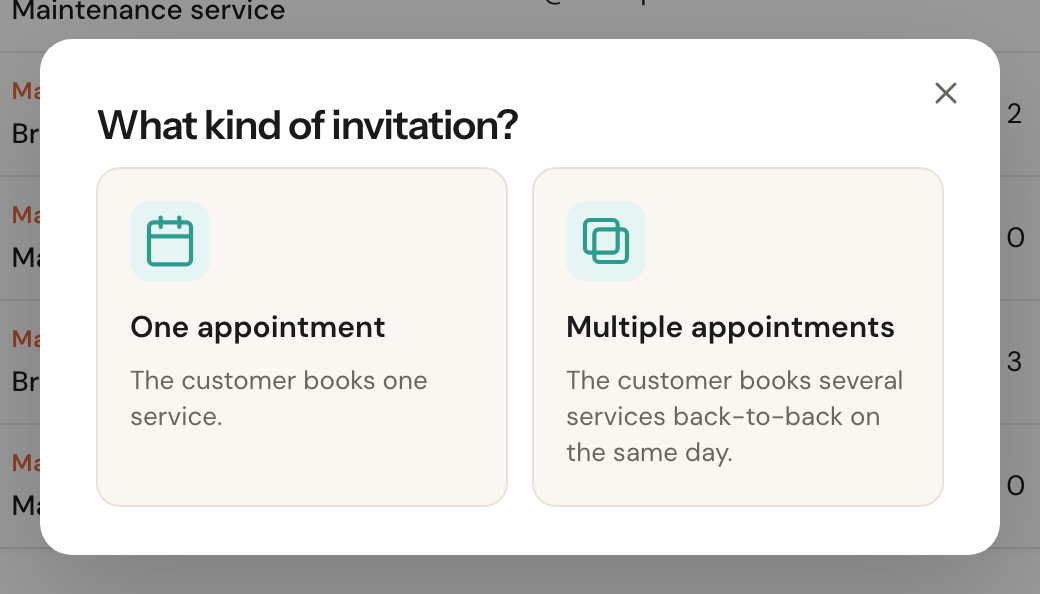
One appointment is the usual choice: the customer books a single service. Multiple appointments is for a customer taking several services back to back on the same day — that gets its own guide.
Fill in the invitation
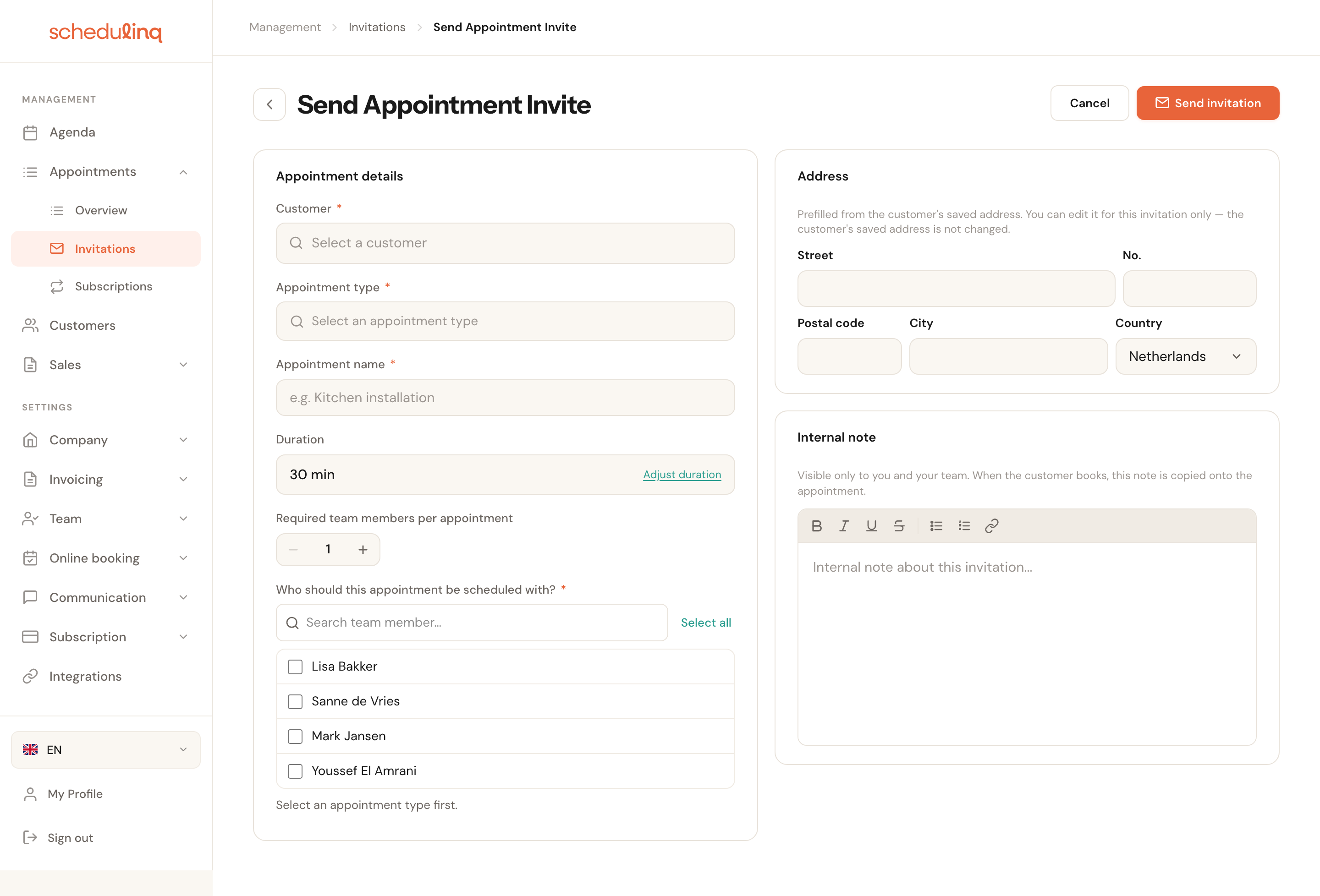
Search for the customer by name. From the first few letters you get a list with the email address and address alongside, so two customers with the same name stay apart.

Pick the service
The appointment type asks where the appointment happens first, and only then which service it is.
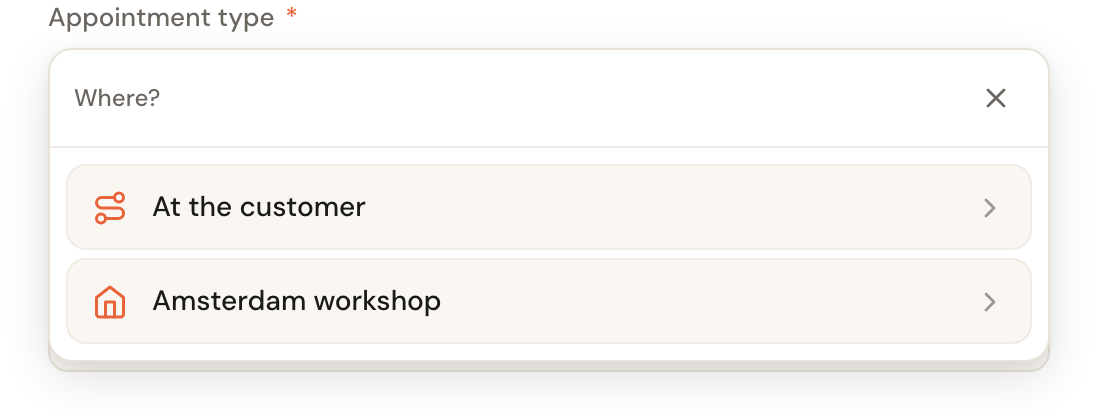
That surprises people the first time — you expect a list of services straight away. The reason is that not every service is offered everywhere: by choosing the place first, what follows is only the services that can actually happen there.
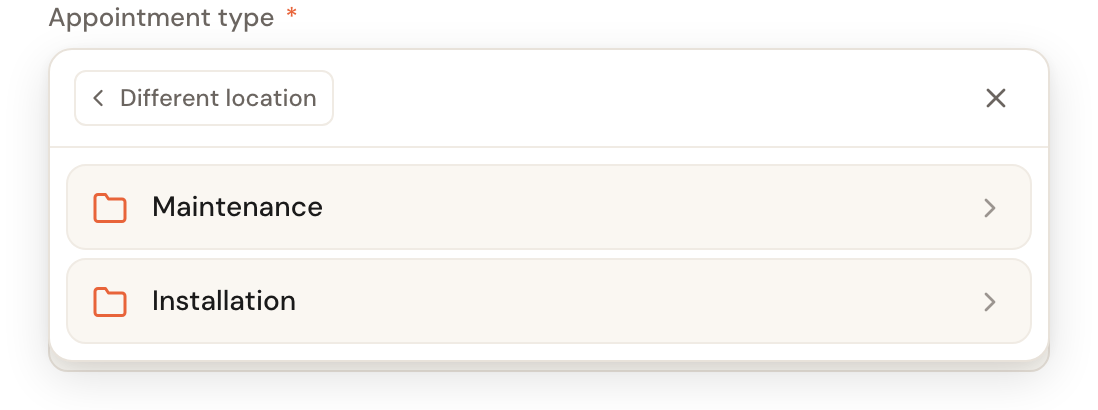
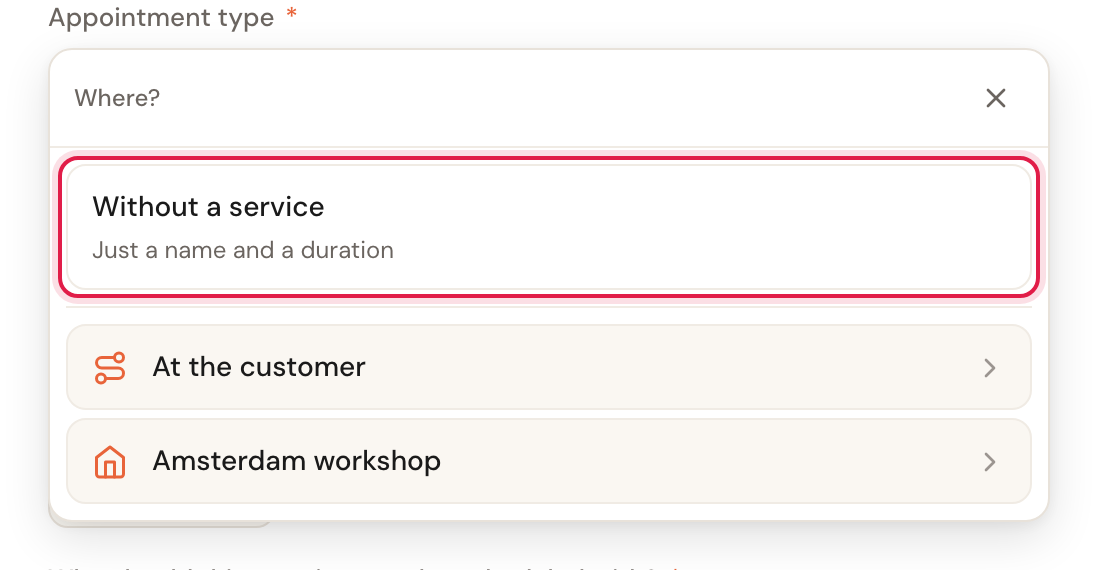
Without a service is always at the top: for an appointment that is not in your catalogue. See Without a service.
Send it
Click Send invitation at the top right. The invitation is saved, and the window with the invitation e-mail opens: the customer gets nothing until you click Send email there. That e-mail holds the link to pick a time themselves. What else the window can do is in The Send notification window.
The window opens as long as Open automatically for new invitations instead of sending straight away is ticked in it, which it is until you untick it. Unticked, Send invitation sends the e-mail straight away. A customer without an e-mail address always gets the window, ticked or not: type the address in To.
Without a service: just a name and a duration
Not everything you arrange with a customer is a service from your catalogue: an introduction, discussing a quote, a survey beforehand. Then pick the first row of the appointment type, Without a service — Just a name and a duration.
The field then reads Without a service; its cross lets you pick a service after all. Leave the field empty and you cannot send: Schedulinq never assumes on its own that there is no service.
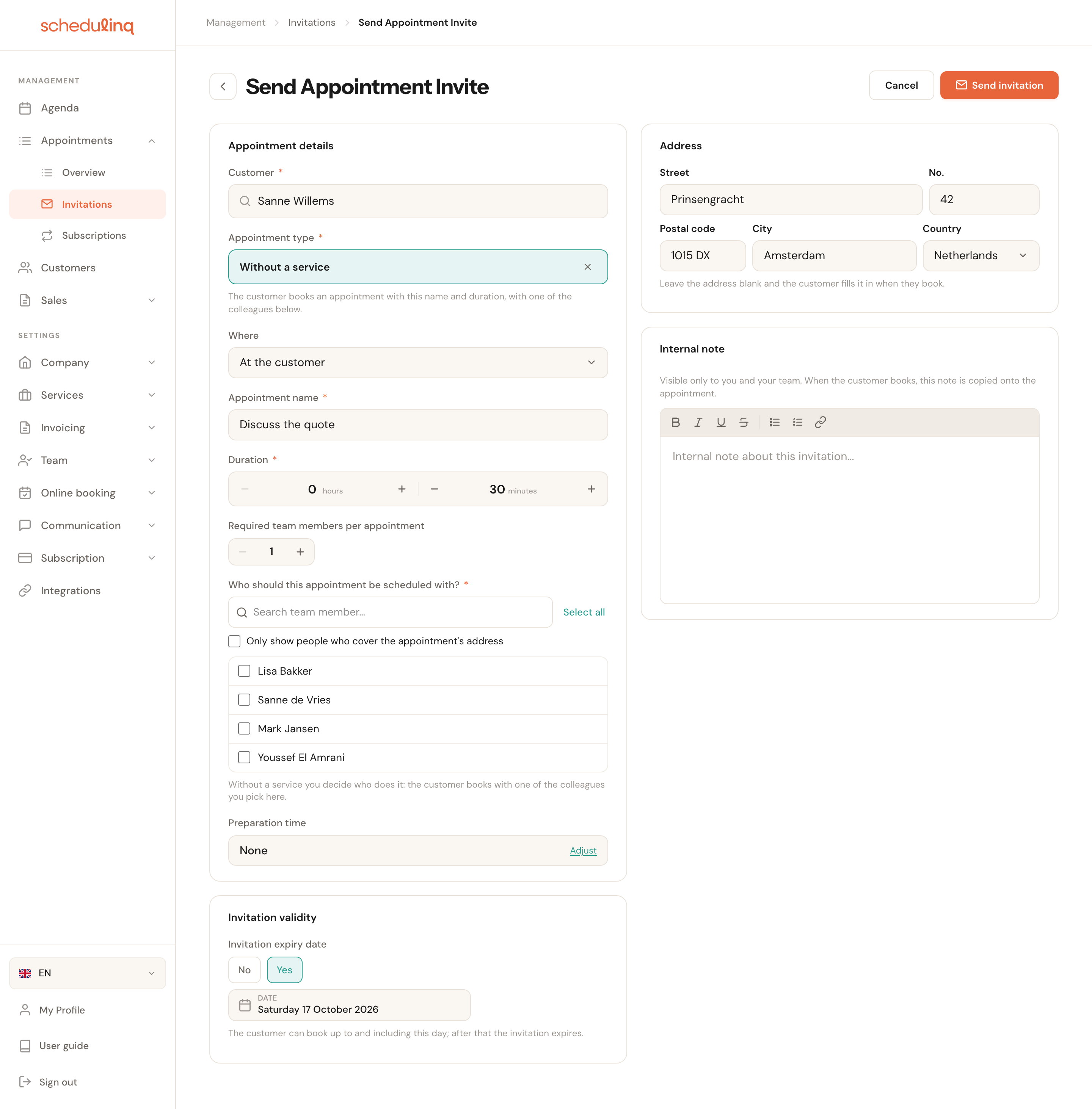
What is different:
- Appointment name and Duration are required. They are what the customer books and what lands in your calendar. There is no Use auto duration to go back to.
- Who should this appointment be scheduled with? lists everyone in your team, since no service decides who can do it. Tick at least one colleague: the customer books only with the people you pick here.
- Where asks where the appointment happens — at the customer's, at one of your locations or as a call — when there is more than one place. The customer's address is always among them.
- No add-ons, and no Add another service: an invitation for several appointments is made of services.
- Preparation time is None until you set one; there is no appointment type to take it from.
- Invitation expiry date comes from the communication steps that apply to all services.
In the overview and on the customer record, such an invitation is listed under its appointment name, and the opened invitation says Without a service.
If an invitation without a service sits at a location no service is offered at any more — because it was made through the API or with Reschedule, for example — it stays there when you edit it: that location is simply among the places under Where. It only moves when you pick another place yourself.
The fields worth explaining
Who should this appointment be scheduled with?
RequiredTick the team members the customer can be booked with. The customer is only offered times when at least one of them is free.
Tick everyone and the customer will nearly always find a slot — but the appointment can land with a colleague who does not do this work. Tick one person and their calendar becomes the bottleneck. Tick whoever can genuinely do the job, no more and no less.
If a ticked team member cannot perform the service, the invitation is not sent and the list says Not every chosen colleague can do all the services.
Required team members per appointment
Default: 1How many people need to be there at the same time.
Set this to 2 for work you cannot do alone. Schedulinq then only offers the customer times when two of the ticked people are actually free — otherwise they book a slot that leaves you short-handed.
Address
PrefilledMay stay blankWhere the appointment takes place. Taken from the customer record; you can change it here for this one invitation, or leave it blank. Leave the address blank and the customer fills it in when they book.
The address on the customer record is where the invoice goes; the address on the invitation is where you go. The two may differ, so changing it here leaves the customer record alone. Not sure where exactly the work is — a second home, a business unit? Leave it blank and the customer types it. If the customer has no address on their record yet, the booking page also asks them where the invoice should go.
Edit an invitation that was at one of your locations and switch it to the customer's, and the address fills in with the one on the customer record.
If the service can also be a video or phone call, you choose where the appointment takes place with the service, as when you schedule an appointment. Choose a call and the card is called Location instead of Address, and there is no address: it says Video call with The customer books the call without an address; the link comes with the confirmation., or Phone call with the customer's number — if there is none, The customer gives a phone number when booking. Choose no call and it stays a visit: an invitation never offers the customer a call you did not choose.
Object
Only with object typesOptionalThe object this appointment is about — the horse, the car, the installation. The field carries whatever name you gave your objects, and only appears when you have set up object types and the customer has an object that fits the chosen service.
When a customer has three horses, the appointment says which one it is for. Pick a different customer afterwards and the object is cleared; pick a service that does not take this kind of object and the field says so, so you choose another object or none.
Internal note
OptionalVisible only to you and your team — the customer never sees it.
Whatever you write here is carried into the appointment as soon as the customer books. That makes it the place for "gate is locked, ring at no. 12" — what the colleague going there actually needs.
Pre-fill extra fields
Only with appointment fieldsOptionalYour own appointment fields that apply to the chosen service, to fill in for the customer ahead of time — without a service, the ones that apply to every service. Each of them is optional here, also one the booking form requires.
What you fill in here is already filled in on the customer's booking form, so they do not have to type what you already know: the meter number, the make of the boiler. They can still change it. A required field you leave blank, the customer fills in when booking.
Preparation time
Single appointment onlyOverridable per invitationHow many days ahead the customer has to book, at the least. It shows the appointment type's preparation time by default, labelled From the appointment type.
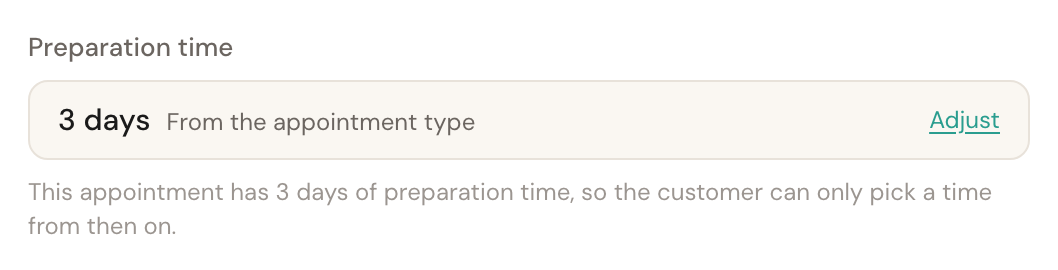
Adjust sets it differently for this one invitation: None, 3 days, 7 days, or Custom for a number of your own. Use the appointment type's hands it back.
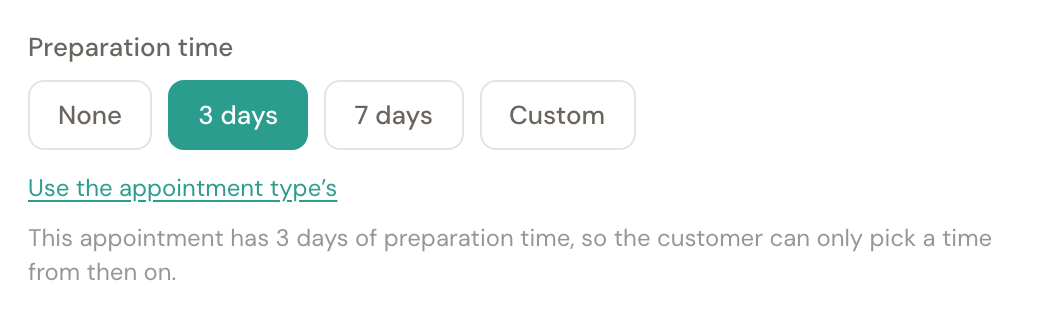
The preparation time on the appointment type applies to your whole catalogue, but this one visit is sometimes the exception: the parts are already in, or something has to be ordered first. Without this button you had to change the appointment type itself — which takes every other customer with it.
Until when the customer can book
Once you have picked a service, the Invitation validity card appears at the bottom.
Invitation expiry date
PrefilledNo or YesYes sets the last day the customer can still book; after that the invitation expires. No keeps it open until the customer books or you delete it.
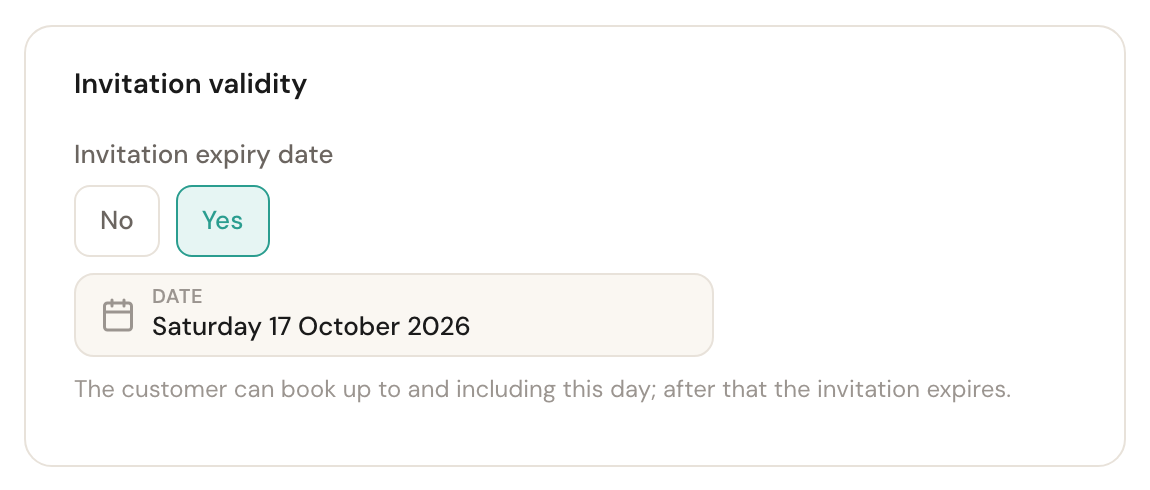
The form opens on what your communication steps give this service: the day the Invitation expired message would go out, or No when your flow has no expiry message. Pick another service or customer and the date follows — until you have changed it yourself.
The customer can book up to and including the day you choose, in your business's time zone. Your reminders only go out before that date, and the Invitation expired message goes out the moment it expires. For a job that has to happen by a certain date, choose an earlier day; for a customer who wants time to think it over, a later one.
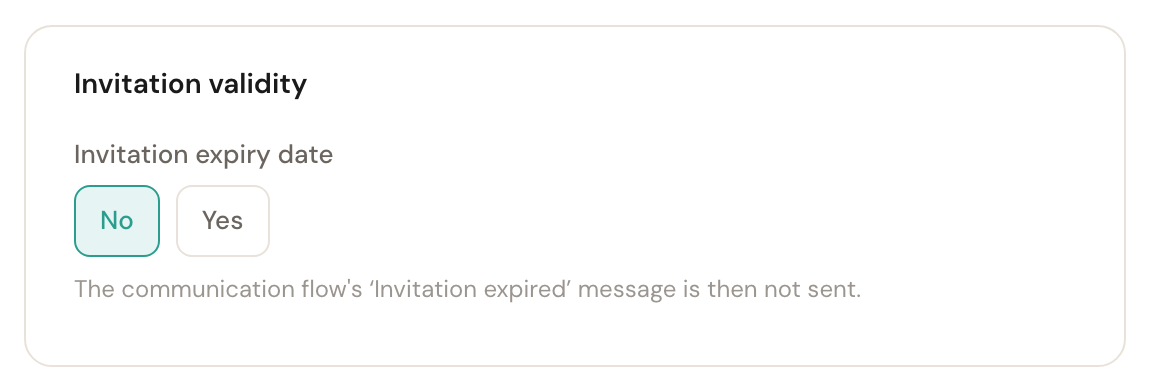
Choose No and the form says straight away what that means: without an expiry date the invitation never expires, so the Invitation expired message never goes out either.
What happens next
Open an invitation to see where it stands.
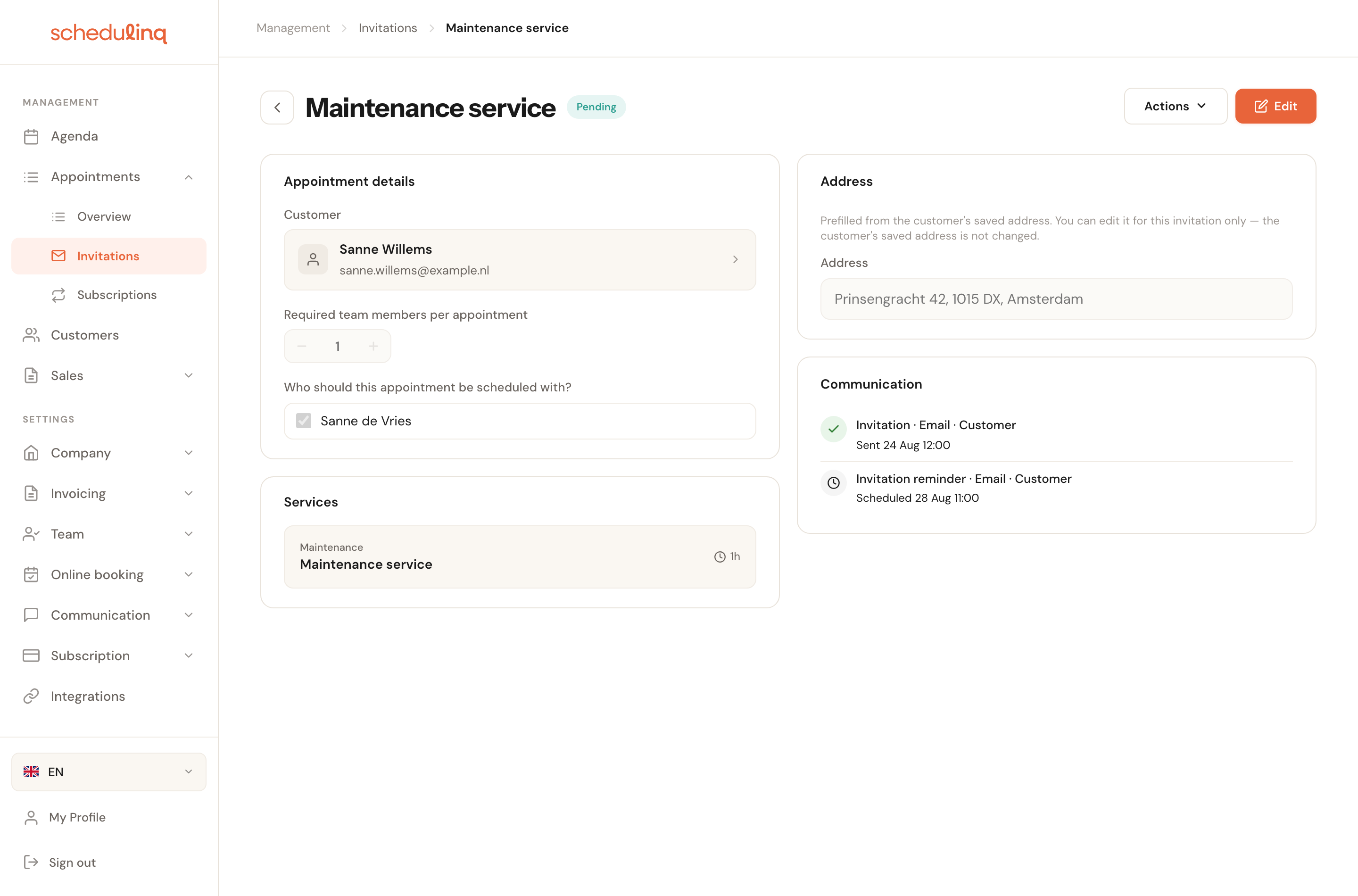
On the right, under Communication, you see what has been sent and what is still scheduled. Those messages come from your communication steps — you do not set them per invitation, but once for your whole business.
Under Invitation validity you see until when the customer can book (Invitation valid until), or Never expires.
An invitation your CRM sent through the API says so: under Created it reads Via API and the name of the key that sent it. Its Metadata block (Kenmerken in Dutch) lists the CRM's references, read-only; they go along to every appointment the customer books with it. Otherwise it is an invitation like any other: you open, edit and resend it here.
Actions at the top right resends the invitation, deletes it, or turns it into an invitation for several appointments with Add another service — see Several appointments in one invitation. Edit changes the invitation as long as the customer has not booked yet. You see Edit and Actions only if your role may edit invitations; someone who may only view them can open an invitation but not change or resend it.
If you closed the window with the invitation email without sending it, the Communication card says the invitation has not been sent to the customer yet. Send it after all with Actions → Resend invitation.
If you have no step for the invitation email, Schedulinq says after saving that the invitation was saved, not that it was sent: the customer then gets nothing from Schedulinq, and you or your own system give them the link.
If your booking page is not taking bookings at that moment — because your trial has ended, for instance — the window with the invitation email warns you, for a new invitation and for a resend alike: the message still goes out, but its link lands on a page where the customer cannot book.
To delete several invitations at once, tick them in the overview: a bar appears above the list with Delete, which asks you to confirm first. It does to each of them what Actions → Delete does to one, and the customers are not told. The checkboxes are only there if your role may edit invitations.
The four statuses
| Status | What it means |
|---|---|
| Pending | Sent, the customer has not booked yet |
| Used | The customer booked — there is now an appointment in your calendar |
| Expired | The expiry date has passed; the customer can no longer book with it |
| Cancelled | The invitation was withdrawn |
Has an invitation expired and does the customer still want to book? Open it and click Edit. Under Invitation expiry date, choose a date from today on, or No, and save: the invitation is open again and the customer's link works again.
Frequently asked questions
I want to invite the same customer for the same service again. You can: Schedulinq sends it like any other invitation. Both stay valid and the customer can book with either. If that is not what you want, delete the old one first.
The customer booked with one invitation. What happens to their others? Nothing: every invitation stands on its own. When the customer books with one, their others stay open, with their own reminders — even when they are for the same service, or when one is an invitation for several appointments that includes the same service. If you no longer need an invitation, delete it yourself.
The customer says there are no times available. Then no time is free with the ticked team members. Check whether enough people are ticked, whether Required team members per appointment is not set too high, and whether those people have working hours in the period the customer is looking at. If there is nothing free in the whole booking range, the customer sees a No times available page with your contact details instead of an empty calendar. That page has no Choose another service or Remove this service buttons: the service and place are the ones you invited them for. See No times are available.
What does a customer see when they open an invitation that was already used? A page that says "This invitation can no longer be used", with your contact details — the same for an invitation that expired, was cancelled, or whose team members are no longer available. It used to say the page did not exist. You can reword it and add a button to your booking page under When booking isn't possible.
An invitation came from our CRM. Can the CRM withdraw it too? No. Your CRM can send invitations and read them back; deleting one happens here, in the dashboard, under Actions. The CRM hears about it through a webhook.
Can I pick a time myself instead of the customer? Yes — then you do not create an invitation but an appointment in the calendar directly.
Does changing the address here change the customer's address? No. An address changed on the invitation applies to this appointment only. What the customer types when booking does not change an address on their record either; only a customer who had no address yet gets one that way.
I set no expiry date. Does the customer still get an expiry message? No. The Invitation expired message goes out the moment the invitation expires, and without an expiry date that moment never comes. Your reminders do go out as usual.