

Time off and extra availability
Block time out or open extra hours — one-off or repeating, for everyone or for one person.
Your schedule describes a normal week. An exception describes the weeks that are not normal: a holiday, an afternoon off, or a Saturday morning you are working this once.
There are two kinds, and they do opposite things:
- Time off takes time out of the schedule. Nobody can be booked then.
- Extra availability adds time outside the normal schedule.
You choose which one you are making up front — the form itself has no switch to change the type afterwards.
Step by step
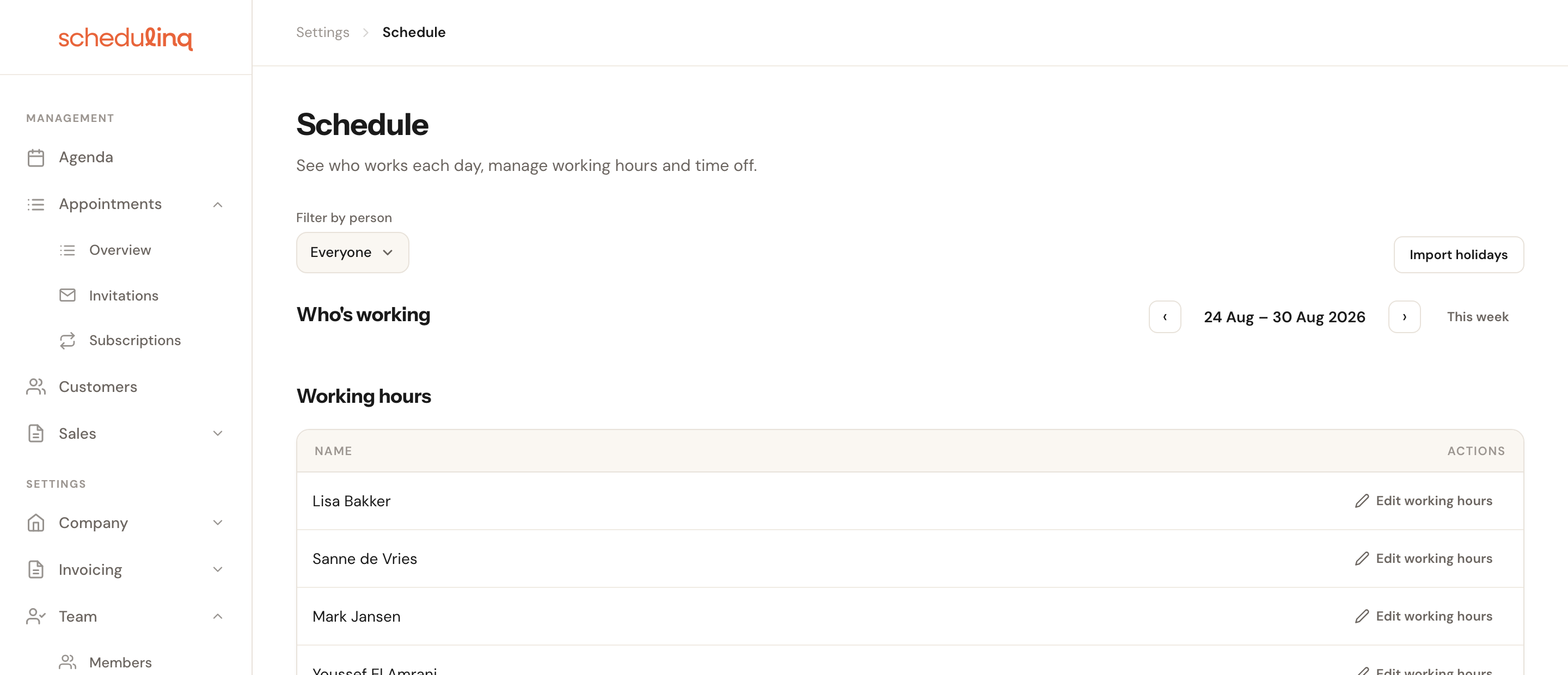
Open the schedule
In the left-hand menu, click Team → Schedule. Your existing exceptions are listed underneath.
Choose what you are setting up
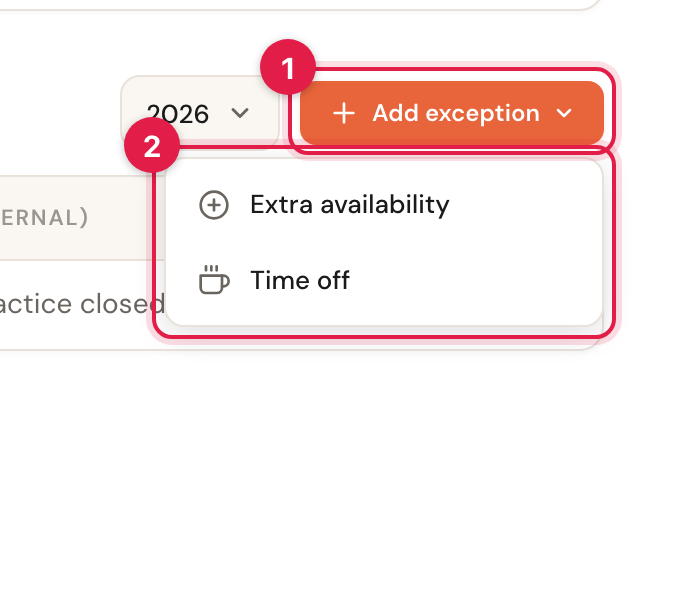
Click Add exception and pick Time off or Extra availability. That choice is fixed from then on.
Fill in the exception
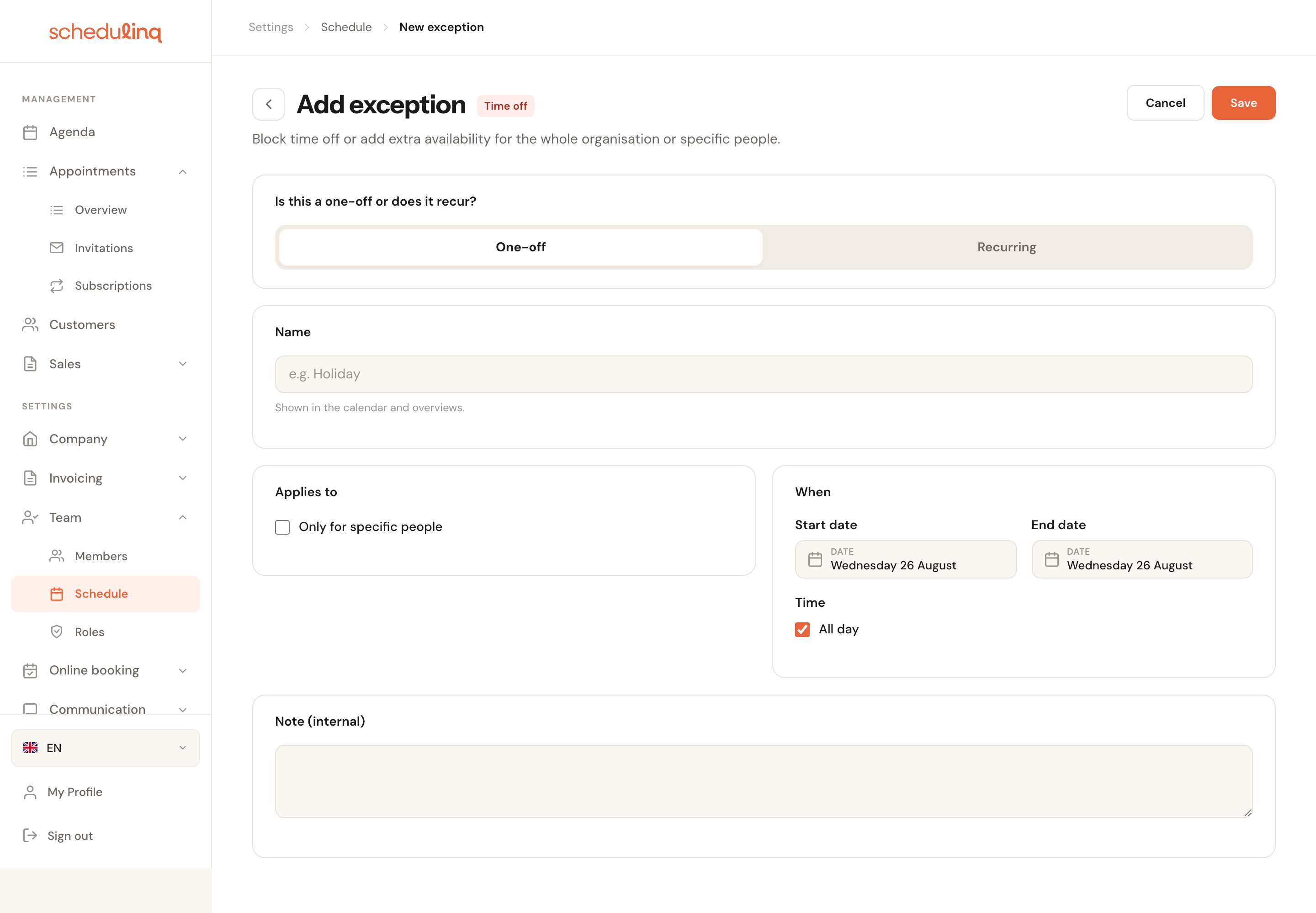
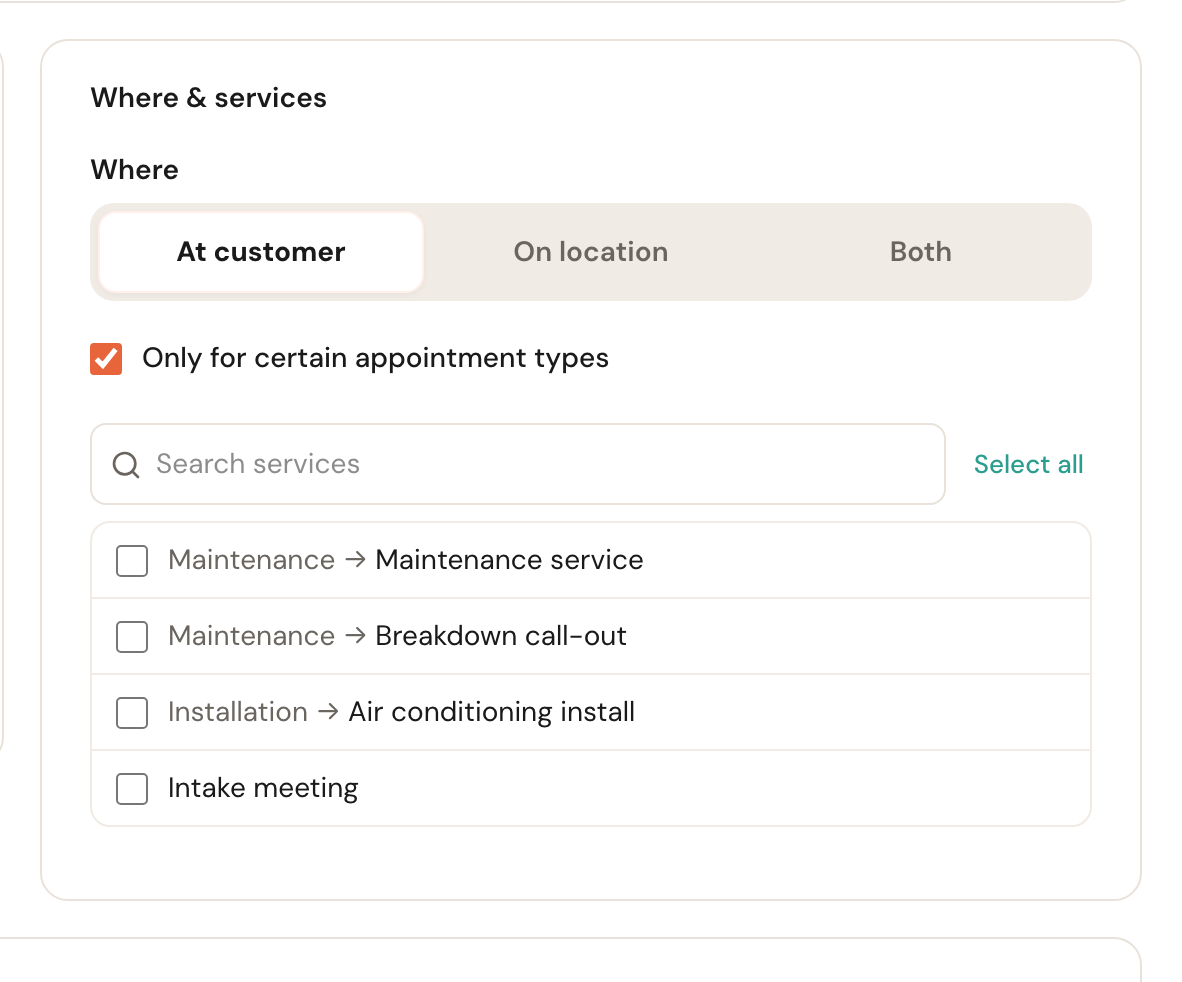
A badge at the top of the form shows the type you picked, so you always know which of the two you are creating.
Save
Click Save at the top right. You land back on the schedule with the exception in place.
The fields
Name
OptionalA short description, for example Summer holiday.
The name shows up in the calendar and in the schedule overview. Without one you just get a coloured block and have to open it to find out why that week is closed — with one, it is obvious at a glance to your whole team.

One-off or recurring
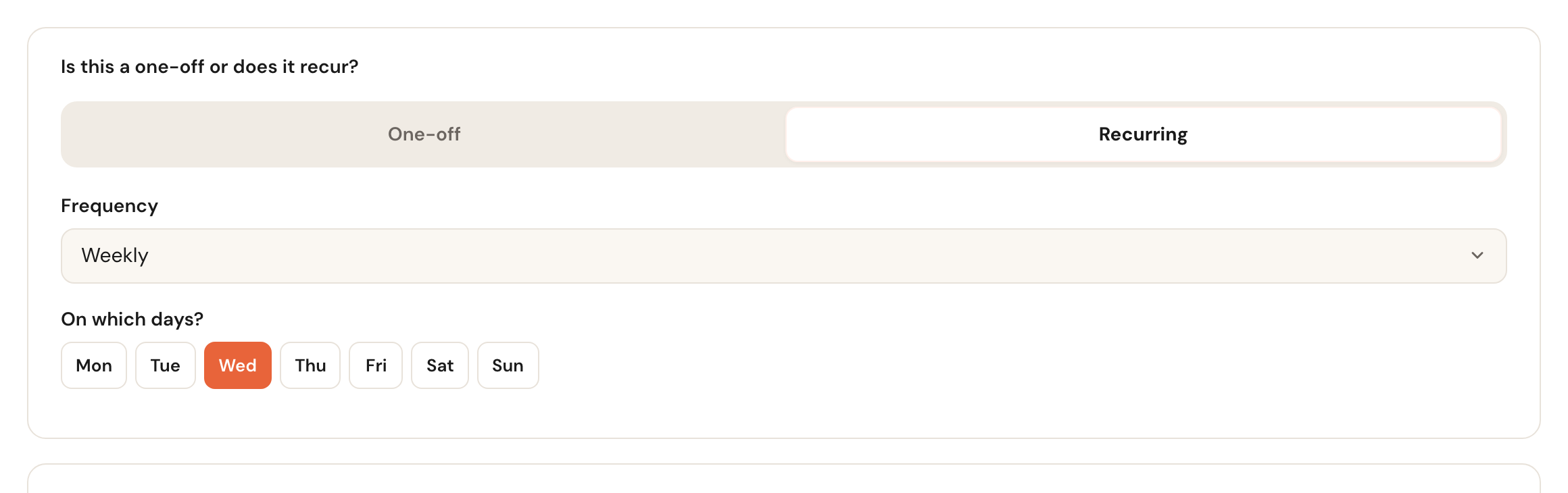
One-off is a single day or one continuous period. Recurring asks for a frequency: weekly, monthly or yearly. Weekly also asks which days.
Yearly is for things that come back every year, such as a fixed closure between Christmas and New Year. Set as a one-off, you have to enter it again next year.
Applies to
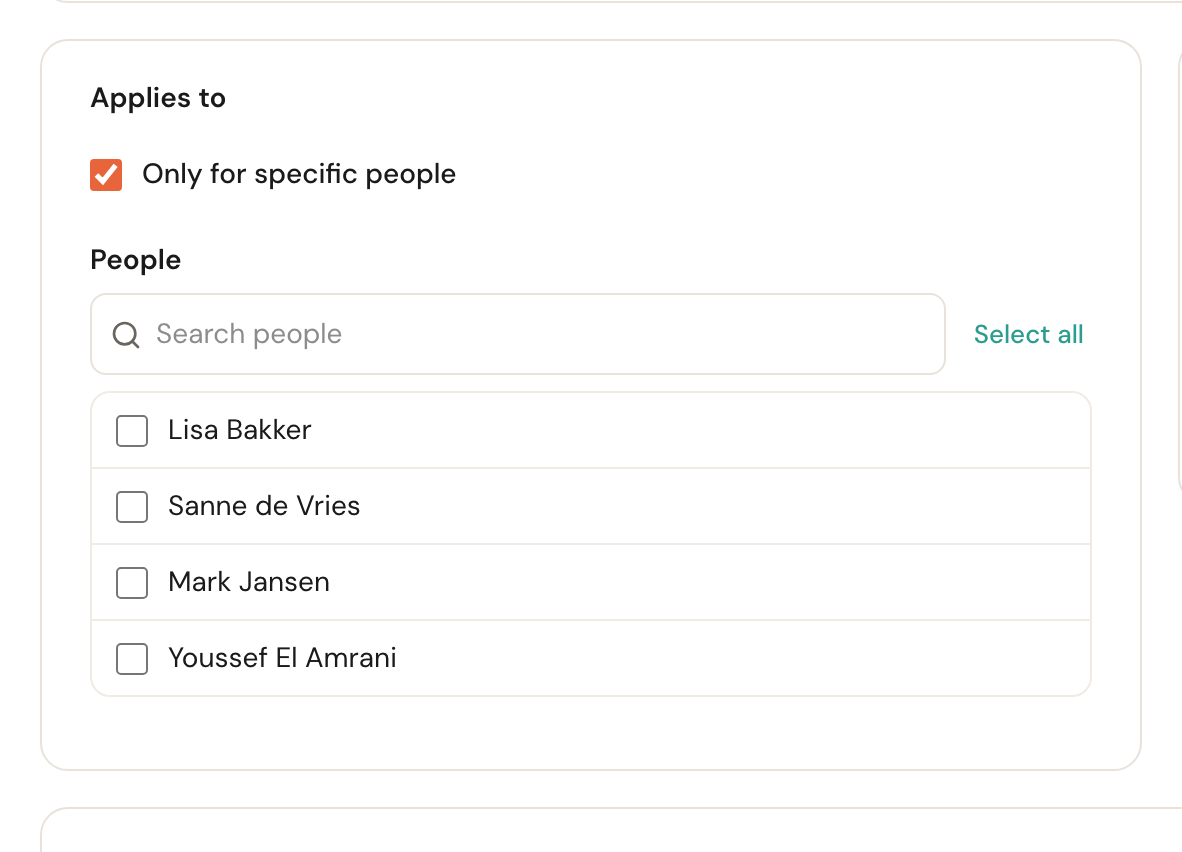
Default: whole organisationAn exception applies to everyone by default. Tick Only for specific people to pick one or more.
A company closure applies to the whole team; a holiday applies to one person. If you tick the box but select nobody, Schedulinq tells you — an exception with no people would do nothing at all.
When
A start and end date, plus the All day choice. Turn it off and you fill in a start and end time instead.
Time off defaults to whole days, because that is what a holiday usually is. Extra availability starts with times already filled in (09:00–17:00), because an extra block is nearly always part of a day.
Note
InternalRoom for context, for you and your colleagues.
This text stays inside Schedulinq. Customers never see it — not even when the exception is what is blocking their appointment.
Extra availability only
An extra block is working time, and working time has a place and an offering. So this type has two fields Time off does not.
Where
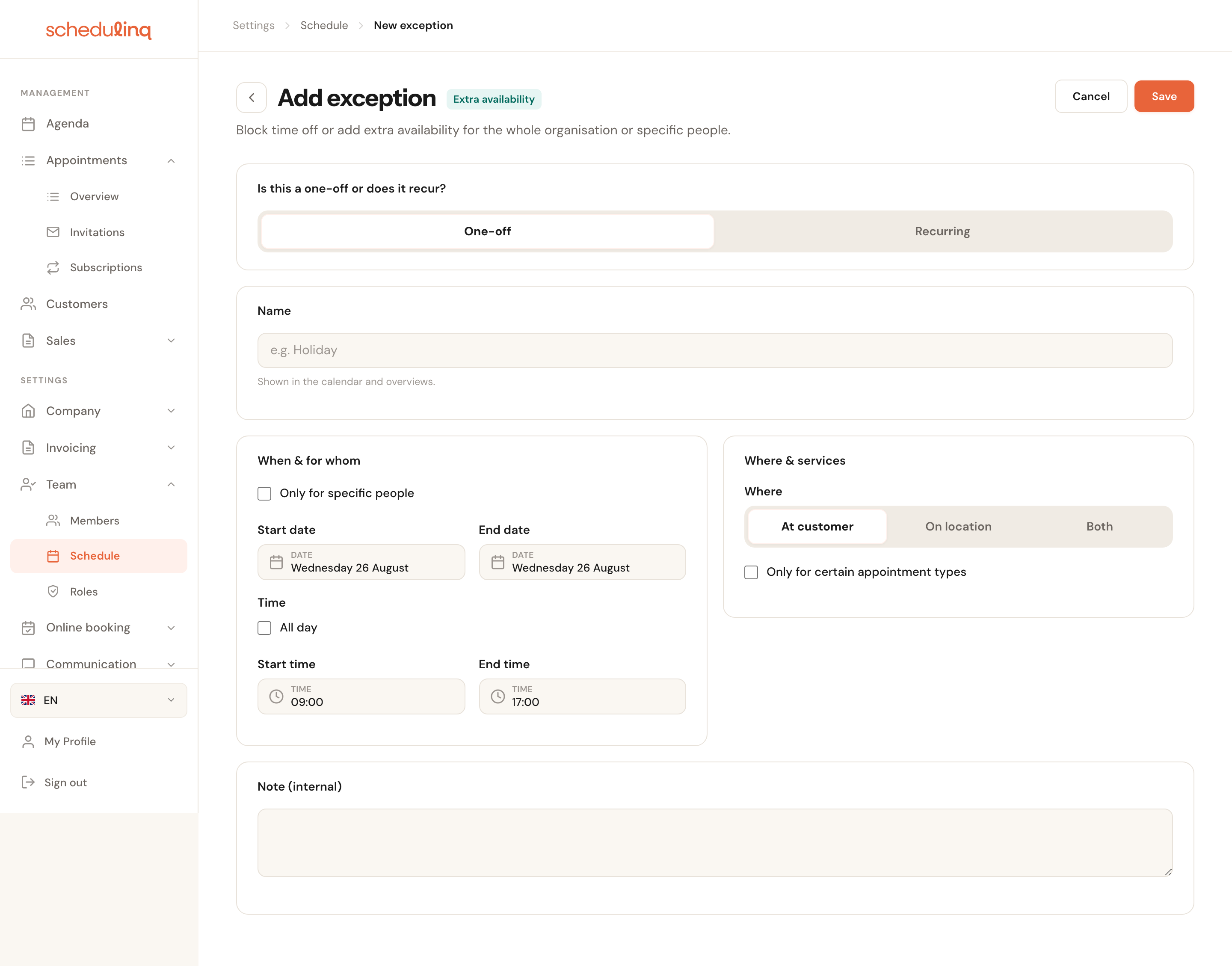
At least oneLocation required for at a locationTick one or more: At the customer, At a location, Video call and Phone call — exactly the same choice as the workplace of a regular schedule block. Tick At a location and you must also pick a branch.
Without it Schedulinq would not know where the extra block is worked, and so could not tell which appointments fit in it. An extra evening for video calls only is a block with just Video call. If you have no locations yet, At a location is not offered, with the hint add a location first.
Services
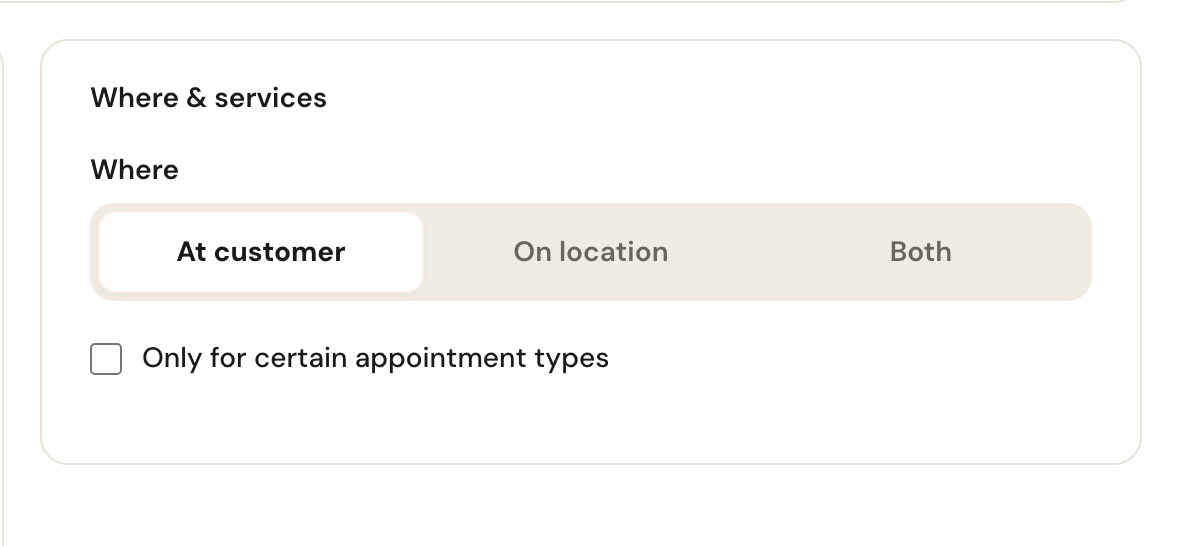
Default: allLeave this alone and the extra block offers everything you normally do. Tick Only for certain appointment types to narrow it. A service you later delete from your catalogue stays ticked here, marked archived, until you untick it.
Useful when you open a Saturday morning purely to clear a backlog: you want to be able to schedule maintenance, but not a three-hour installation. Note this also means customers cannot book any of the other services at that time.
Two things that do not work the way you expect
Editing and deleting
Click an exception in the schedule to open it. It opens read-only; Edit at the top right makes it editable.
Delete it through Actions → Delete. Two cases deserve extra care, and Schedulinq asks about them explicitly:
- A recurring exception is deleted as a whole — the entire series, not one individual day.
- An organisation-wide exception is deleted for everyone. You have to tick a confirmation first, because one row in the list looks the same whether it applies to you or to the whole team.
Frequently asked questions
A customer can book while I am off. Check whether an extra availability block covers that day. Time off does not remove it — see the warning above.
I added extra availability but no times appeared. An extra block only produces times for services that fit in it. If Services is restricted, the block only applies to those appointment types. See also Duration and availability.
Do my customers see that I am off? No. They only see that no times are available. The name and the note stay internal.
Can team members record their own time off? Only with the Team schedule permission. Without it, Schedule is not in their menu and Schedulinq refuses to add, change or remove an exception for them — their own time off included. Whoever manages the schedule records it for them, or you give their role that permission: see Roles and permissions.