

Define your service area
The area you travel to customers in — how to draw it, which services and people it covers, and what a customer outside it is told.
Your service area is the map of where you are willing to drive. When someone books, Schedulinq compares their address against that area: inside it, they are offered times; outside it, they are told you do not come there.
This only applies to services that take place at the customer. Services that happen at a location — where the customer comes to you — ignore your service area entirely.
Your service areas
You start with one service area: a 30 km circle around your business address, carrying your business name, for your whole team and every service. For many businesses that is enough — at most you redraw it.
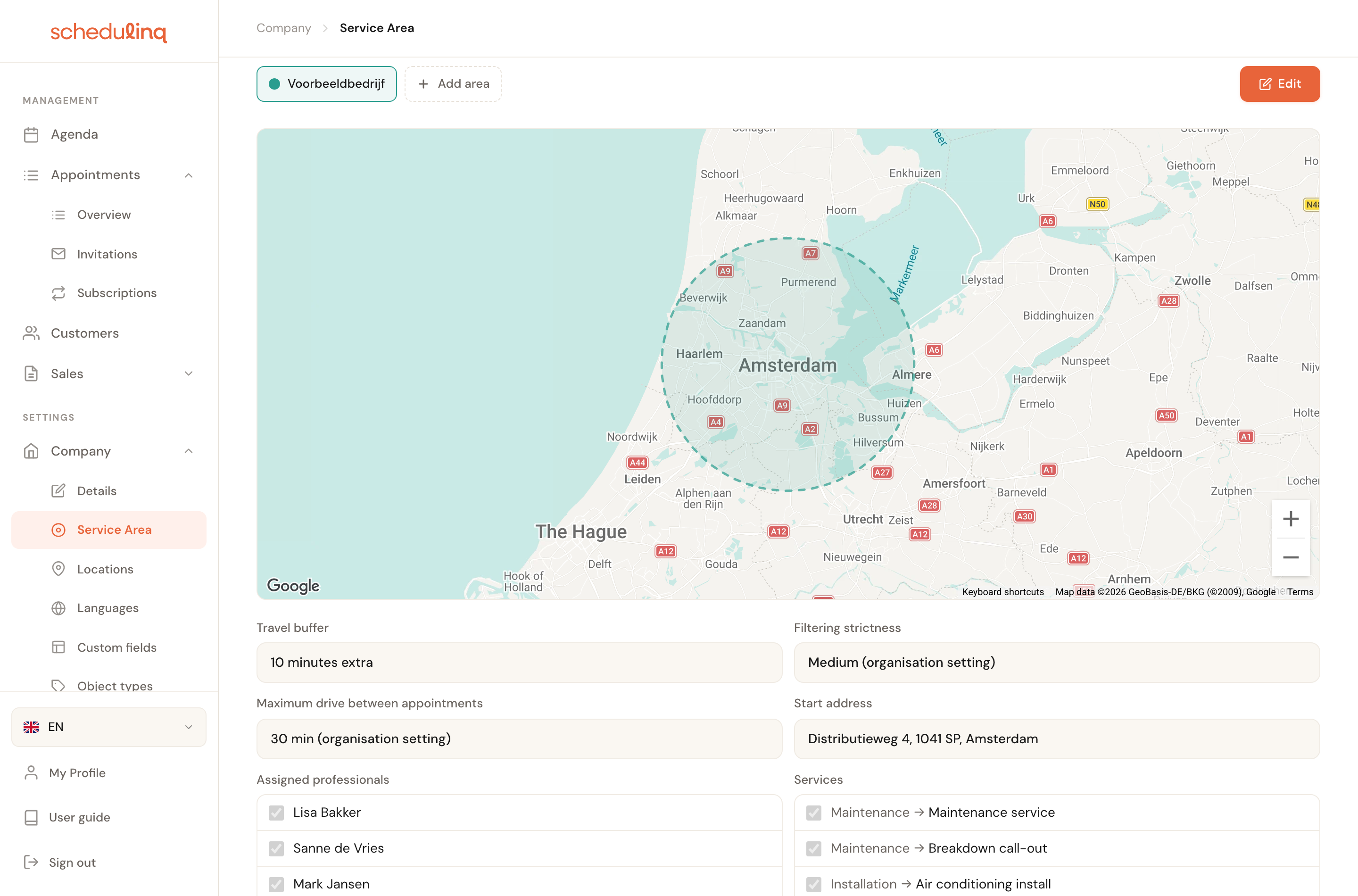
When one area does not fit, you add more. Each area has its own name, colour, shape and settings, and applies to:
- every team member, or only certain team members — a crew per region;
- every service, or only certain services — maintenance close to home, installations further away.
When someone books, Schedulinq only searches the calendars of the people whose area covers that address for that service. So a customer in Arnhem is never offered the colleague based in Haarlem, and a maintenance visit can stay close to home while an installation is taken much further away.
Your areas sit as chips above the map, each with its colour. Click one to show it. Edit at the top right opens the selected area; Delete sits beside it once you have more than one area.
From five areas on, that row of chips becomes a dropdown you can search. Each area is listed with its colour, its name and who and what it covers — 3 team members · 5 services, or Everyone · all services. Add area sits beside it as a button. Up to four areas, they stay chips.
Drawing an area
Click Edit at the top right. There are two shapes, as tabs above the map. They are mutually exclusive: an area is either a radius or a custom shape, never both.
Simple: radius
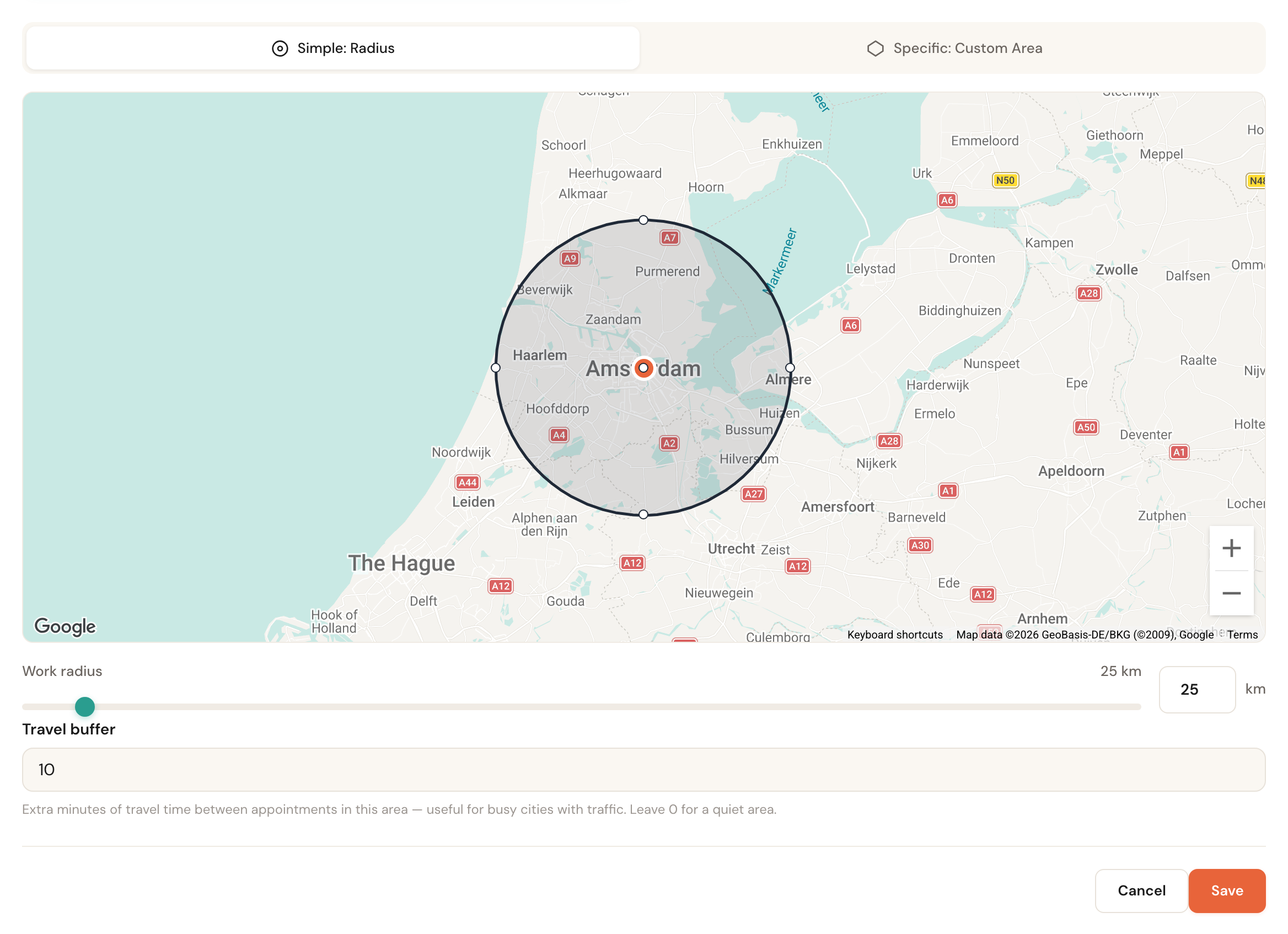
A circle around a centre point. Drag the slider or type the number of kilometres; 1 to 500 km.
Specific: custom area
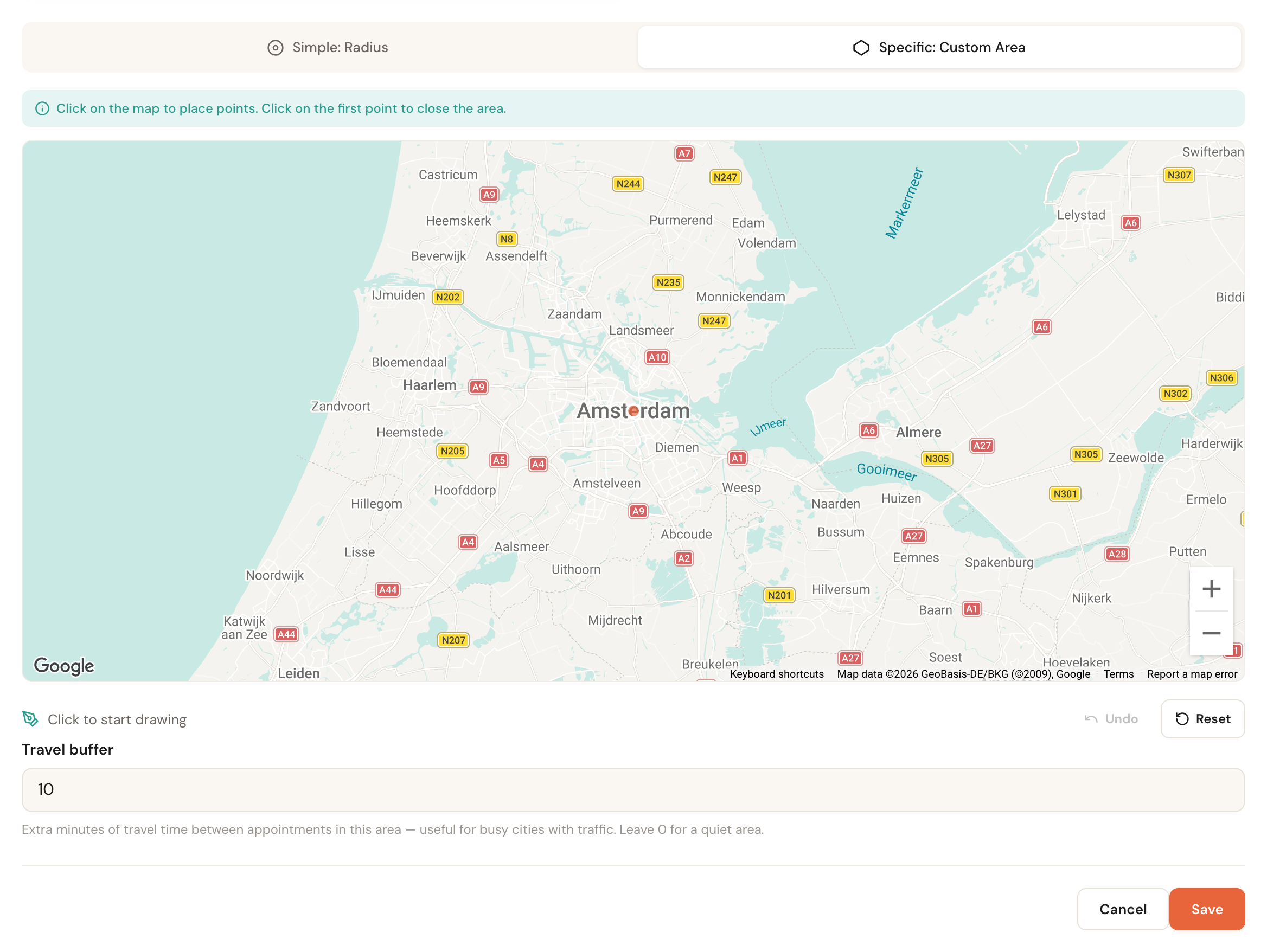
Draw the shape yourself. Click the map to place points, then click the first point to close the shape. After that you can drag points to adjust. Below the map you get the surface area, the number of points and the perimeter.
A circle is rarely what a working area actually looks like. A river, a provincial border, or simply "everything north of the motorway" is captured exactly by a shape, where a radius forces you to choose between covering too much and covering too little.
Travel buffer

Travel buffer
0–120 minutesPer areaExtra minutes Schedulinq adds on top of the normal travel time between two appointments in this area.
Travel time is calculated from distance, not from traffic. In a busy city that calculation is wrong in the same direction every time, and your afternoons run late. Put the minutes you actually lose in here. For a quiet area, leave it at 0.
Filtering strictness
Filtering strictness
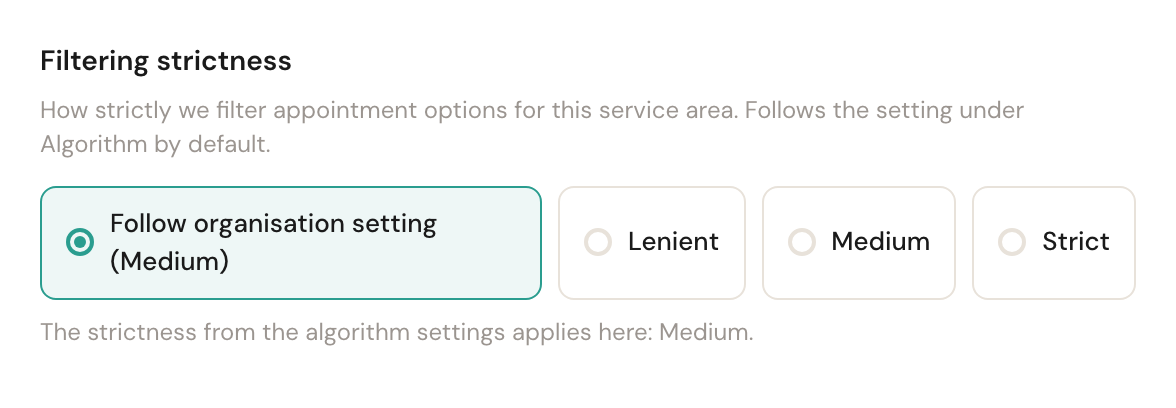
Default: follow the organisationPer areaHow strictly Schedulinq filters the times it offers in this area. The first choice, Follow organisation setting, uses whatever is set under Scheduling algorithm and names it in brackets. The other three pick a level for this area only.
One level rarely suits every area. In a dense city you can afford to be Strict — there is always a job around the corner — while in a thinly populated region Lenient is what keeps the diary from staying empty. With one area per region you set each to what that region can carry.
Maximum drive between appointments
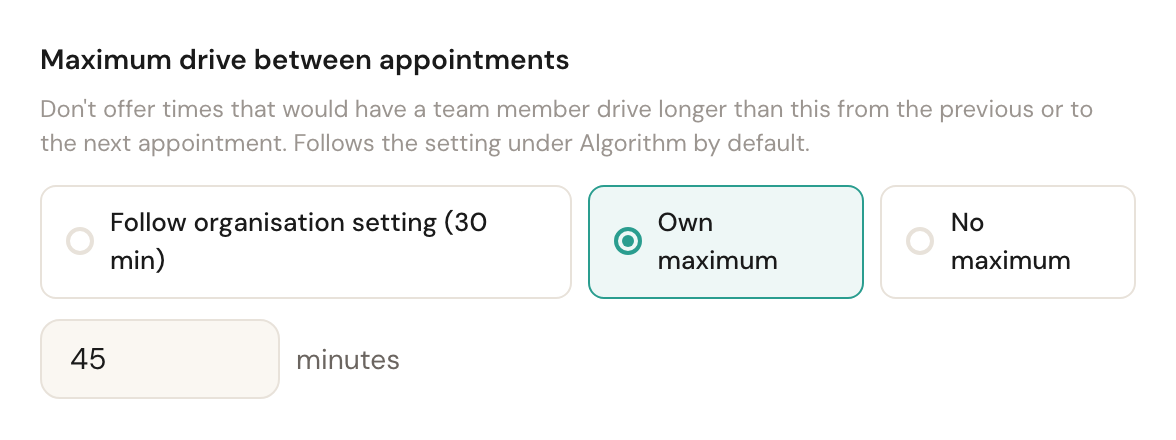
Maximum drive between appointments
Default: follow the organisationPer areaA hard limit on the drive between two appointments. Schedulinq does not offer a time for which a team member would have to drive longer than this from the previous appointment, or to the next one. Three choices:
- Follow organisation setting — the limit set under Scheduling algorithm, shown in brackets (or no maximum if none is set there).
- Own maximum — a number of minutes for this area only, 5 to 240.
- No maximum — no limit in this area, even if the organisation has one.
Strictness only makes a long drive less attractive; a slot with a 70-minute hop can still be offered if nothing better exists. The maximum refuses it. Use it for the drive you simply do not make between two jobs.
Start address
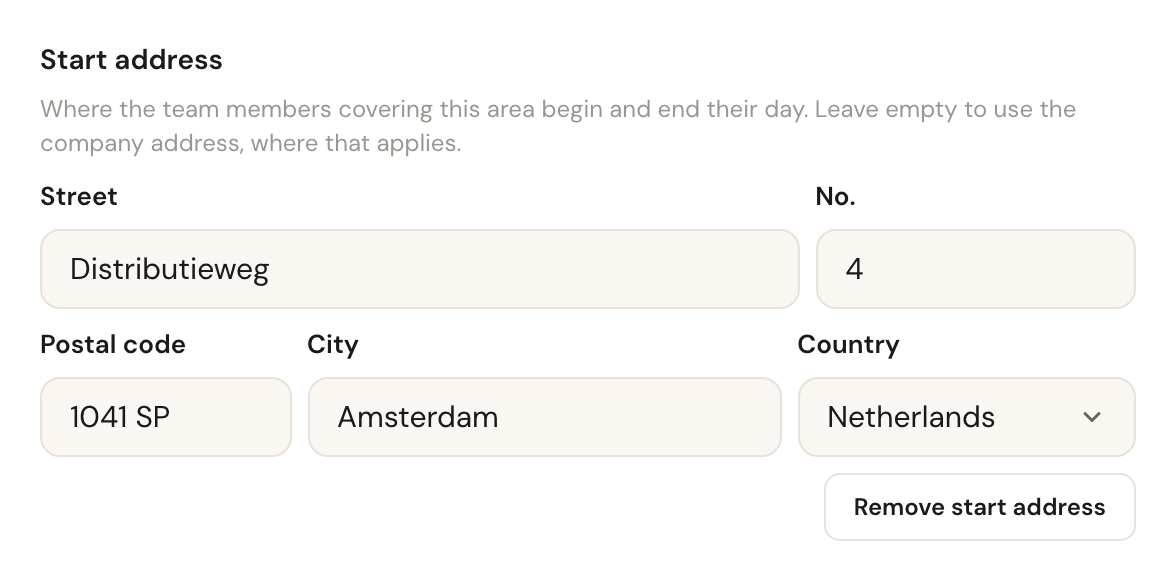
Start address
OptionalPer areaWhere the team members covering this area begin and end their day. The warehouse, the yard, the depot — wherever the van is parked in the morning.
If you have counted the drive to and from the business as working time, Schedulinq has to know where that drive starts. With no start address it measures from the centre of your working area, and that centre is an arithmetic point: it may sit in a field, and it can never coincide exactly with your customer's address. A customer standing at your depot's front door was still charged a drive.
Reading an area without opening the editor
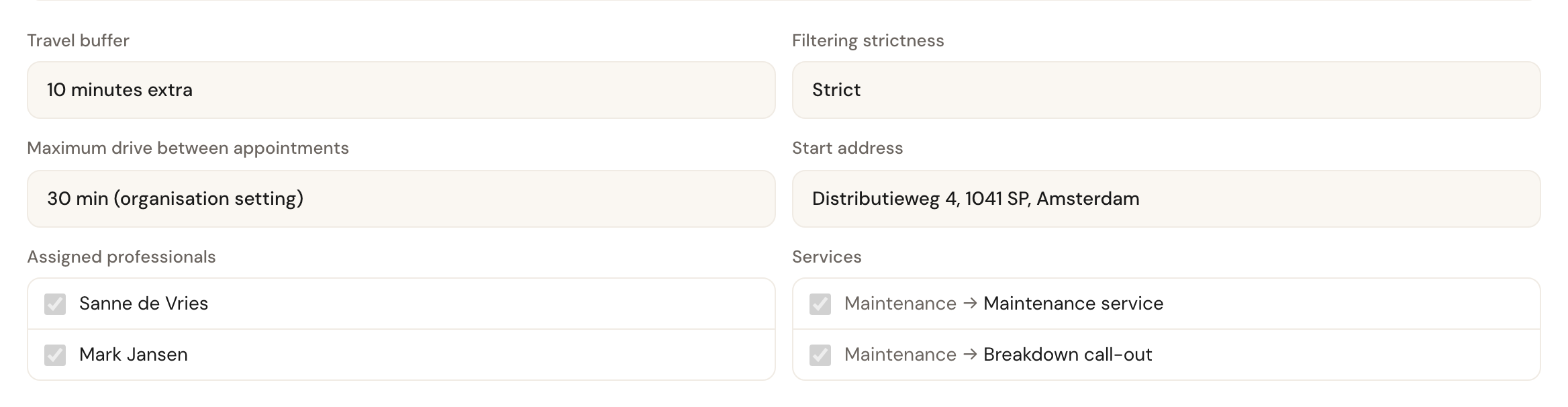
The map shows the boundary and nothing else, so everything else that shapes a day sits under it, readable at a glance: the buffer, the strictness, the maximum drive and the start address, and below them who works the area and which services it serves.
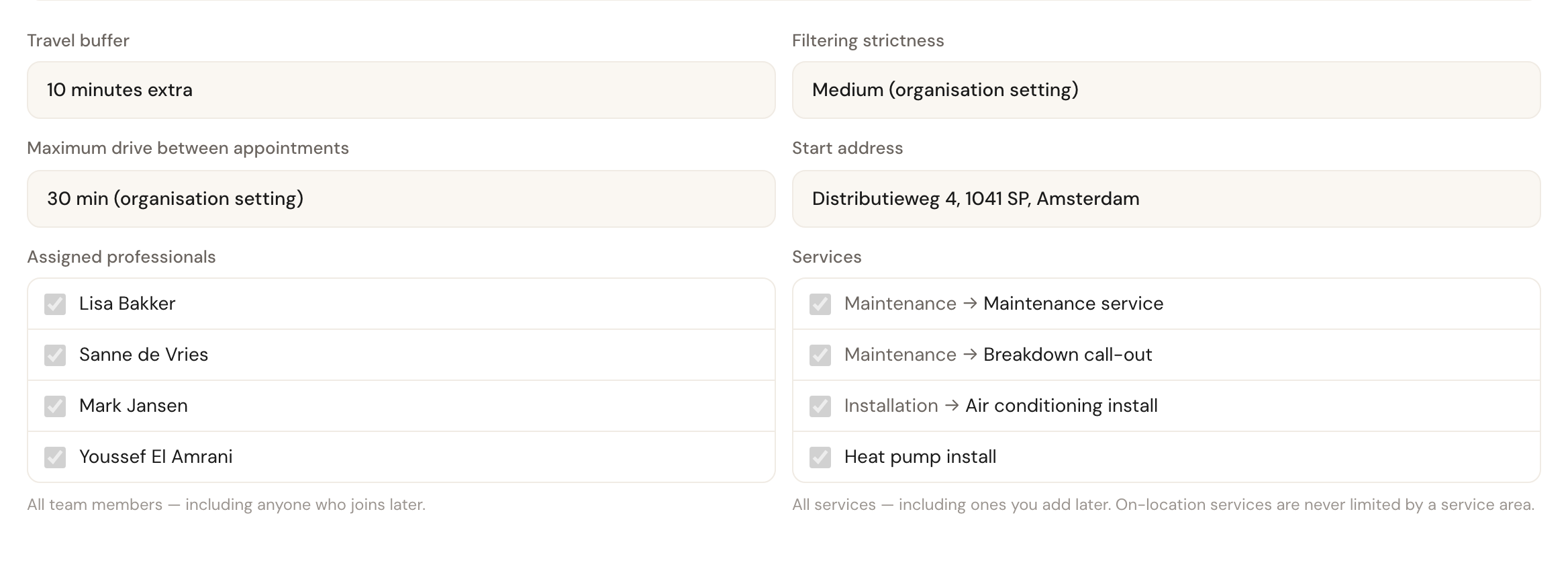
A setting you have not filled in does not read as blank. Strictness and maximum drive say (organisation setting) behind the value when the area follows the organisation, and an area without a depot of its own says The company address under Start address. An area for everyone shows the whole team ticked, with All team members — including anyone who joins later. underneath; the services work the same way. That is the difference between a setting nobody has filled in and a setting that is deliberately empty.
Several areas
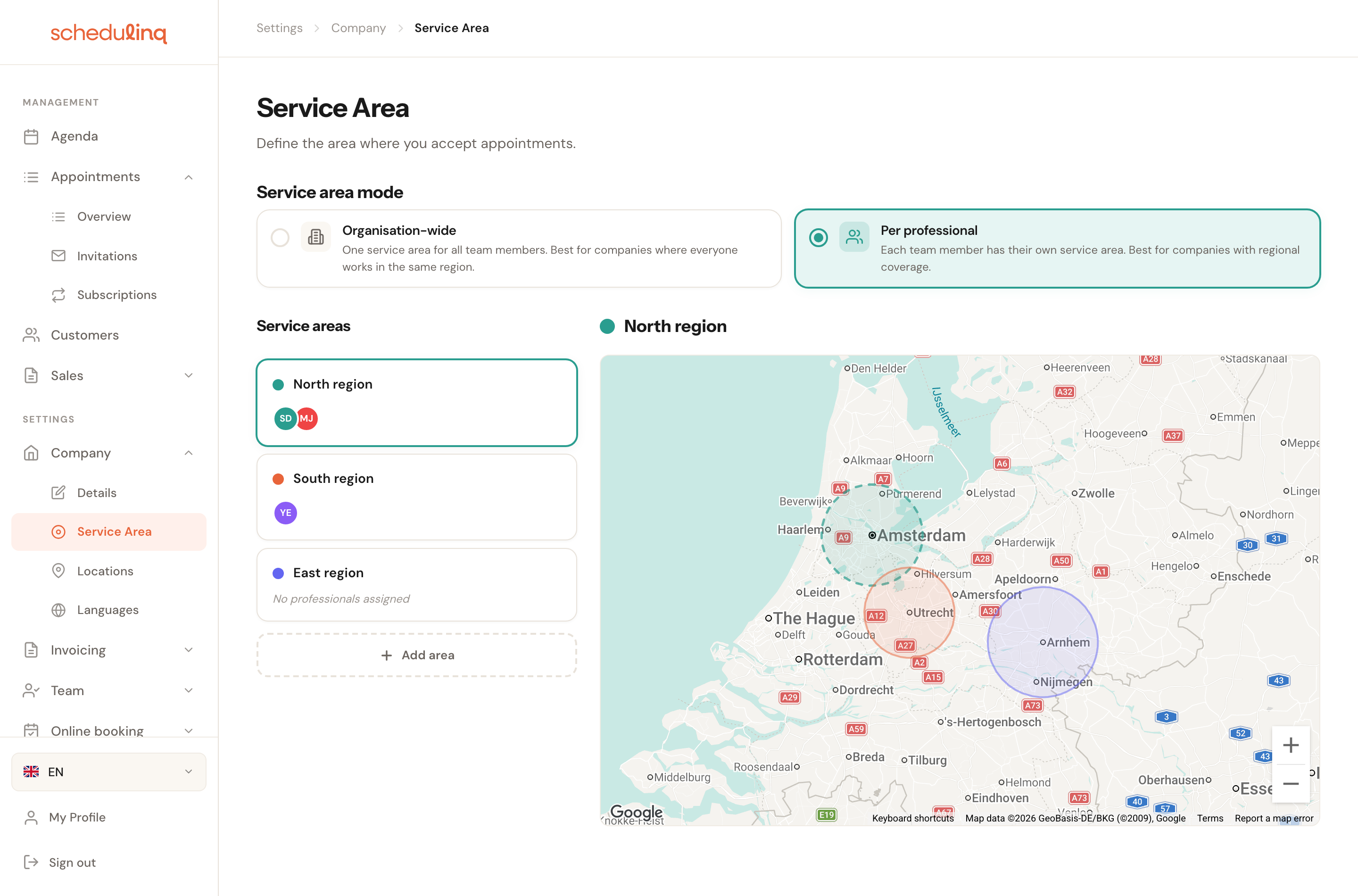
With more areas, the selected one is dashed on the map and the others are drawn around it as coloured overlays, so you can see at a glance where they overlap and where a gap falls. Edit and Delete at the top right act on the area that is selected.
Under the map you read the selected area's settings, followed by who works it and which services it serves:
Creating or changing an area
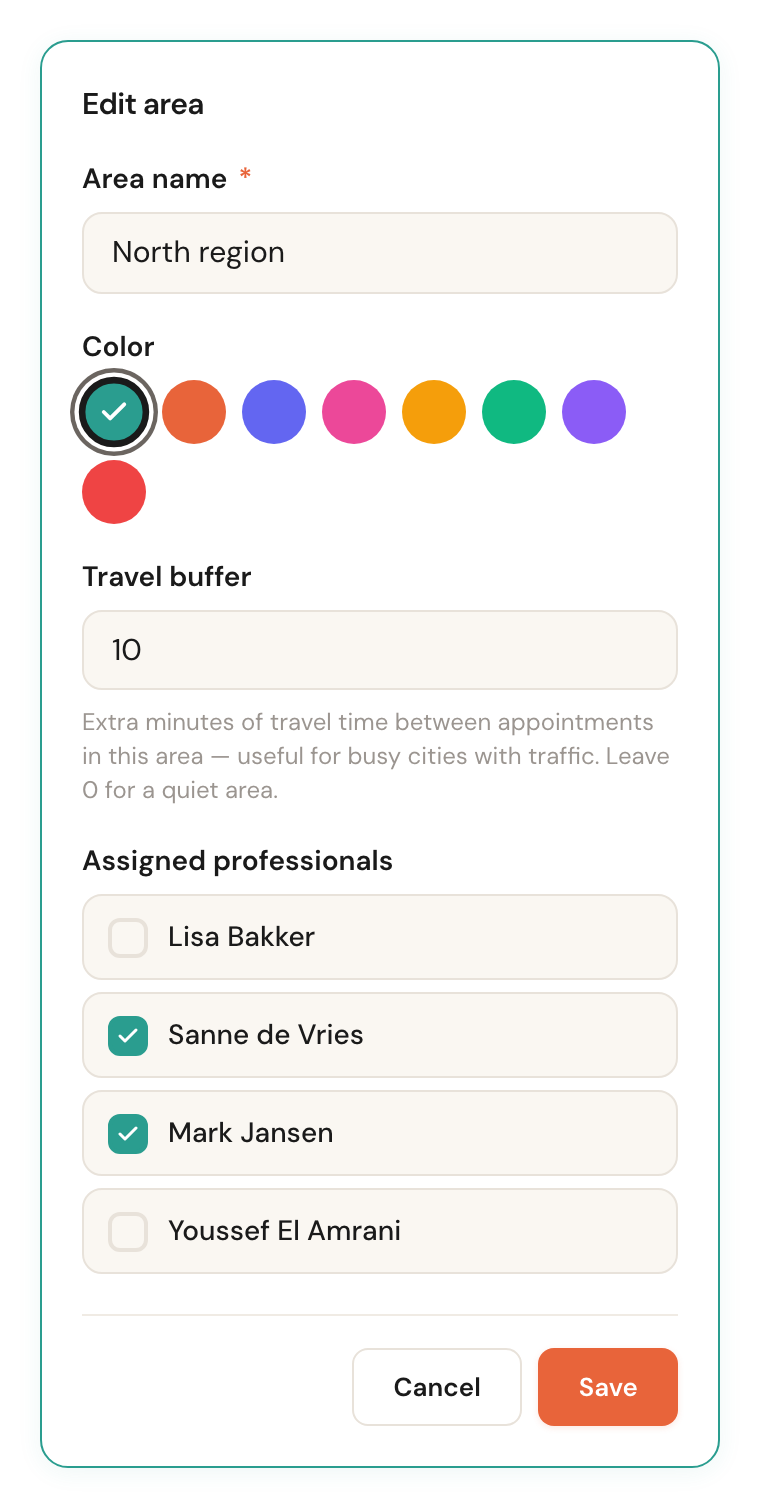
Create an area
Click the Add area chip, beside your areas. Give it a name your team will recognise — "North region" or "Installations" beats "Area 2".
Pick a colour
The colour is purely for the map, but it is how you spot overlaps and gaps. Schedulinq suggests one you are not using yet.
Draw the area
The same two tabs as above: radius or custom area.
Choose the team members, if you need to
Leave Only certain team members unticked and everyone works in the area, including anyone who joins later. See below for when to tick it.
Choose the services, if you need to
Leave Only certain services unticked and the area serves everything. More on that below too.
Save
Save sits at the top right, where Edit was.
An area for certain team members only
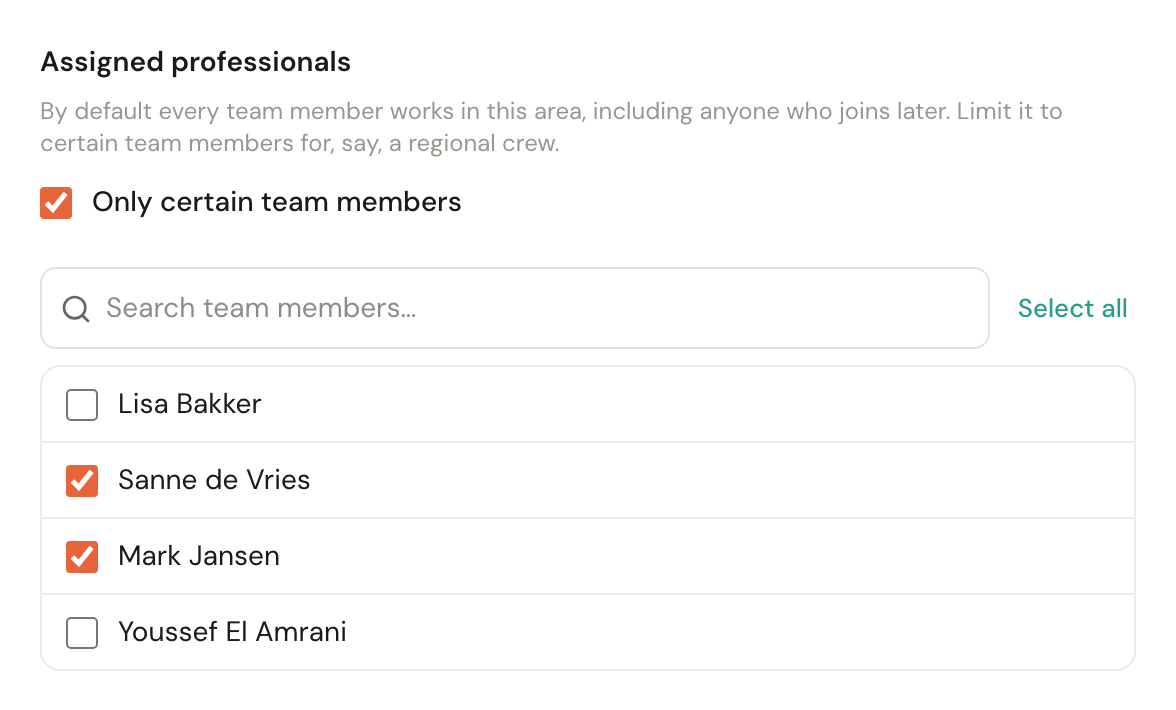
Only certain team members
OptionalPer areaBy default every team member works in an area — including anyone who joins later, without you having to open the area for it. Tick Only certain team members and pick who works here. Someone can belong to several areas.
For a crew per region: the fitters from Arnhem in the area around Arnhem, the ones from Haarlem in the one around Haarlem. Untick the option again and Schedulinq remembers who you had picked; tick it later and those same people are ticked again.
Pick nobody and the form says Pick at least one team member, or untick the option so every team member works in this area and does not save: an area for nobody yields no times at all.
A team member no area covers
As long as one area applies to every team member, everyone is covered. Once every area names its own people, a team member who is in none of them can no longer be scheduled at any customer's address. Schedulinq warns you above the area chips, with the names:

Add that person to an area, or untick Only certain team members on one of the areas. Team members who cannot be scheduled are left out of the list: an area changes nothing for them.
An area for certain services only
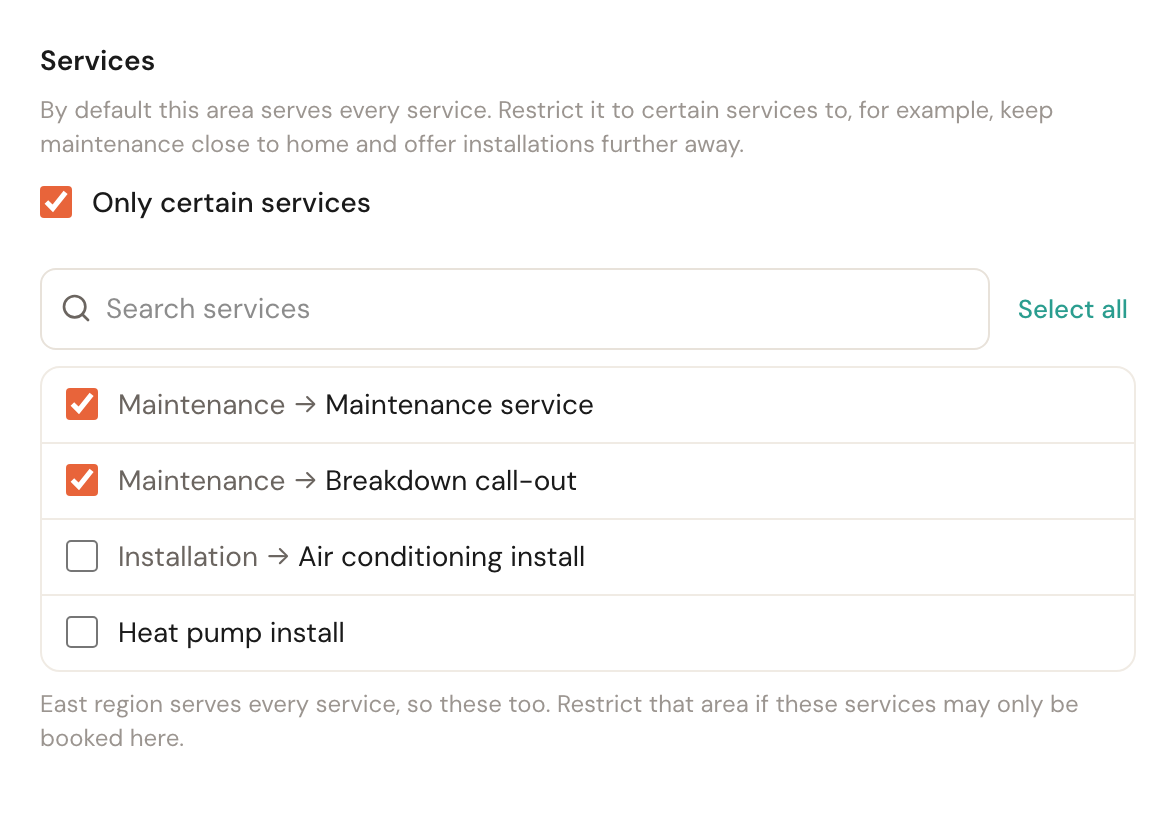
Only certain services
OptionalPer areaBy default an area serves every service. Tick Only certain services and pick the ones this area is for. A customer at an address inside this area is then only offered these services by this area's team.
An installation company wants maintenance concentrated around its own city, but will drive an hour for an installation — often with the same people. Draw a small area for maintenance and a large one for installations, and put the crew in both. Without this, you had to choose one circle for both jobs.
Three things to know:
- Restricting one area takes nothing away from another. If a different area still serves every service, it keeps serving these too — the form names it, as in the example above. If these services may only be booked in this area, restrict that other area as well.
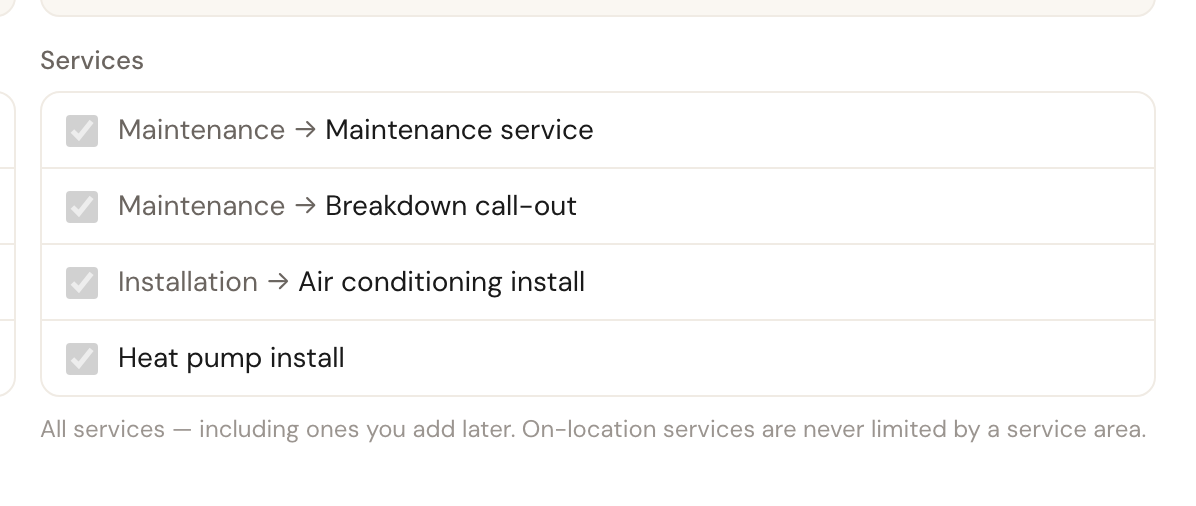
- Services at a location and calls are never limited by an area. They do not appear in the list, because an area has no say over them. If you had already picked a service and it no longer goes to the customer, it stays in the list with on location — not bounded by an area or call — not bounded by an area.
- A service you add later is served automatically by every area that has Only certain services unticked. An area that lists its services does not pick up the new one until you add it.
A service no area serves
As long as one area serves every service, every service is covered. Once every area lists its services, a service that none of them names can no longer be booked at any customer address. Schedulinq warns you in two places:

- above the area chips, with the services it concerns, one per line;
- on the service itself, under Service areas, where the areas that serve it are otherwise listed.
The fix is to add the service to an area — or to untick Only certain services on one of them.
What a customer outside your area sees
This is the part you never see on your own screen, and therefore the part that surprises people most.
If a customer enters an address outside your area while booking, they do not get an empty list of times — they get an explanation:
Your address falls outside the area [your business name] serves for this service.
Above it the title This service can't be booked right now, below it a Change address button and your contact details. That is the default wording; you can reword this page — separately for bookings at the customer's address — and add Choose another service under When booking isn't possible.
If the service is also offered at one of your locations, the customer's address is not the end of the road: with Offer other places switched on, the page lists the locations where it can be booked, each with its first free date. See Book elsewhere.
With several services in their basket, Schedulinq checks each service on its own, at the address the customer gave for that service. If only some cannot be booked — the maintenance is fine, the installation is outside its area — the customer sees a card for each service that cannot, naming its address, with Remove this service and Change address. Once the last card is gone, they carry on with the rest. If none of the services can be booked at that address, each of them gets such a card.
This is exactly why a too-small service area costs more than it appears to: you do not lose the booking visibly. There is no failed attempt in your system, no notification, no email. The customer reads that you do not come to them and moves on. When in doubt, check the edges of your area once more rather than once less.
Invitations skip the service area
If you invite a customer to pick a time themselves, their address is not checked against your service area. The invitation works even if they live well outside it.
Deliberate: if you invited them, you have already made that call. The service area exists to guard your public booking page, not to overrule you. Just bear in mind that an invitation is therefore not a check — the travel to that customer is on your own estimate.
No times for an at-customer service?
The service area is one of the places availability quietly reaches zero. Check these, in this order:
- Does the customer's address genuinely fall inside the area? Zoom in on the edge — a 15 km radius covers less ground than it looks like on the map.
- Do you have more than one area, or an area for certain team members or services? Then an area that serves this service and has one of the staff who perform it has to cover the address. An area with other people produces nothing, and neither does an area that lists other services.
- Is a maximum drive set? On a busy day it can rule out every gap between two appointments.
- Does that person work on the days being asked for?
The full diagnosis is in Duration and availability.
Frequently asked questions
Can someone work in more than one area? Yes. An area for every team member covers everyone; in an area for certain team members you tick them. When booking, it counts if any one of their areas covers the address for that service. If two of their areas both do, the stricter strictness applies.
What happens to existing appointments if I shrink my area or remove a service from it? Nothing. The service area is only used when searching for new times. Appointments already in the diary stay put.
Are areas allowed to overlap? Yes, and it is often the point — in the overlapping stretch there are simply more people available, or different services. The colours on the map show you where that happens.
Can I set the services on the service instead of on the area? No. You choose them on the area; the service form only shows which areas serve it, with a link here.
I do no address-based work at all. Do I need this? No. If all your services take place at a location, your service area plays no part anywhere.