

Payment reminders
Send an automatic reminder when an invoice falls due — where to set it up, when it goes out, and how to check that it did.
Payment reminders are not a separate feature in Schedulinq. They are communication steps, exactly like your appointment confirmation — they just hang off an invoice instead of an appointment. That is why you will not find them under Invoicing, but under Communication → Steps, on the Invoice tab.
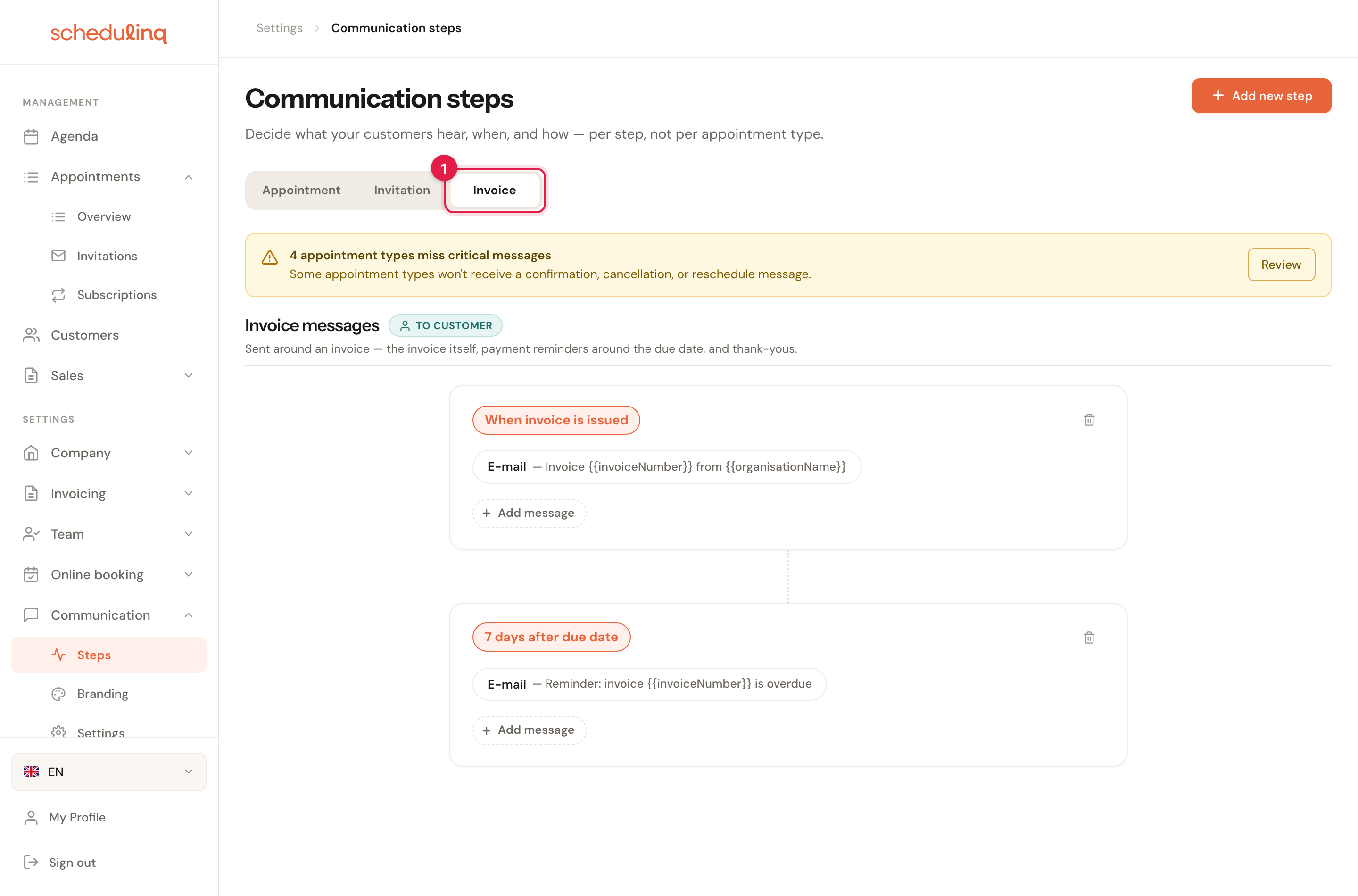
Communication → Steps, Invoice tab .
The three moments around an invoice
The invoice tab has exactly three moments. You recognise them by the orange label at the top of each card.
| Moment | When it goes out | What it is for |
|---|---|---|
| When invoice is issued | The moment you send the invoice | The covering email the PDF is attached to |
| Around the due date | A number of days after the due date | The payment reminder — what this guide is about |
| When invoice is paid | The moment you mark the invoice paid | A thank-you or payment confirmation |
Step by step
Open the Invoice tab
Go to Communication → Steps and click Invoice at the top.
There is no appointment-type filter here, and that is correct: an invoice does not belong to one service, so invoice messages always apply to every customer.
Find the reminder
The card labelled … days after due date is your payment reminder. It starts at 7 days after due date.
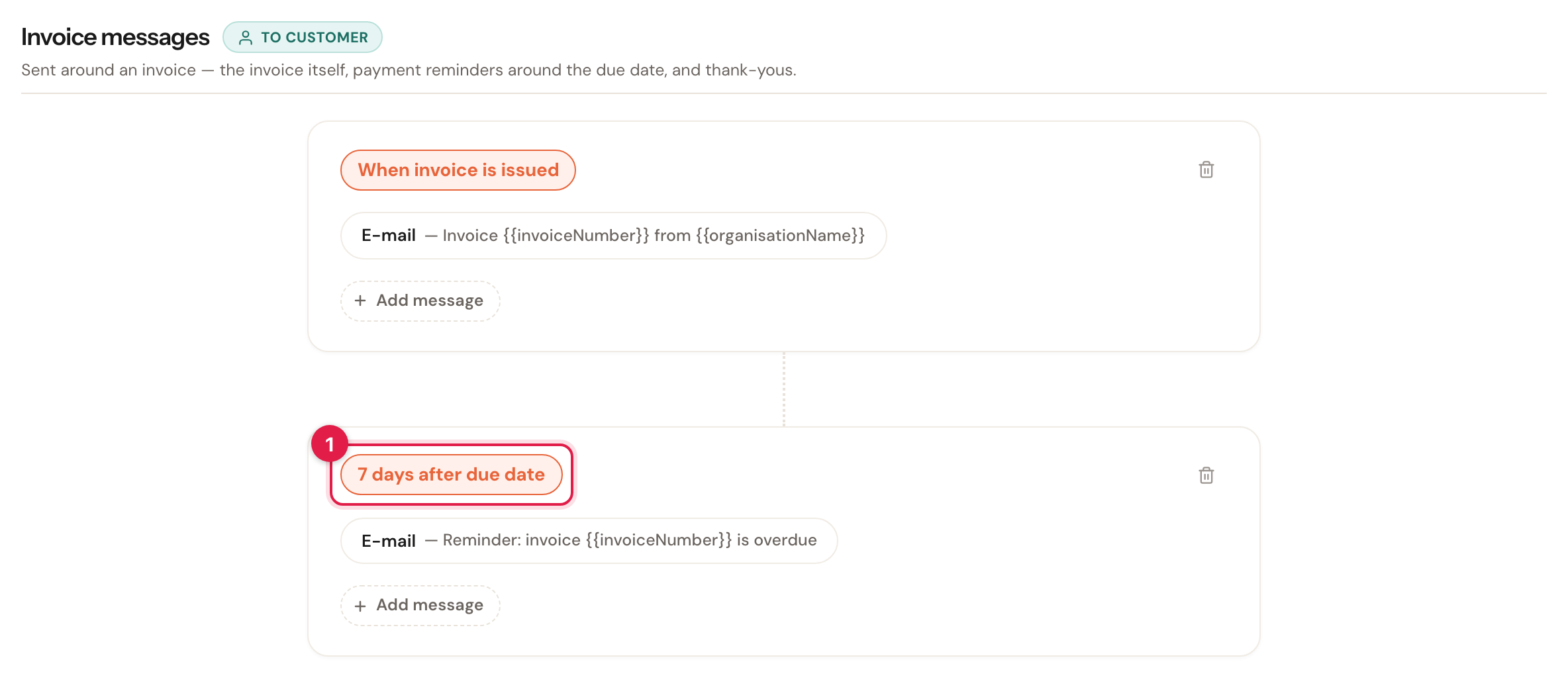
Click the message to open it
Click the E-mail — … row inside the card. That opens the step itself, with the timing, the wording and a live preview side by side.
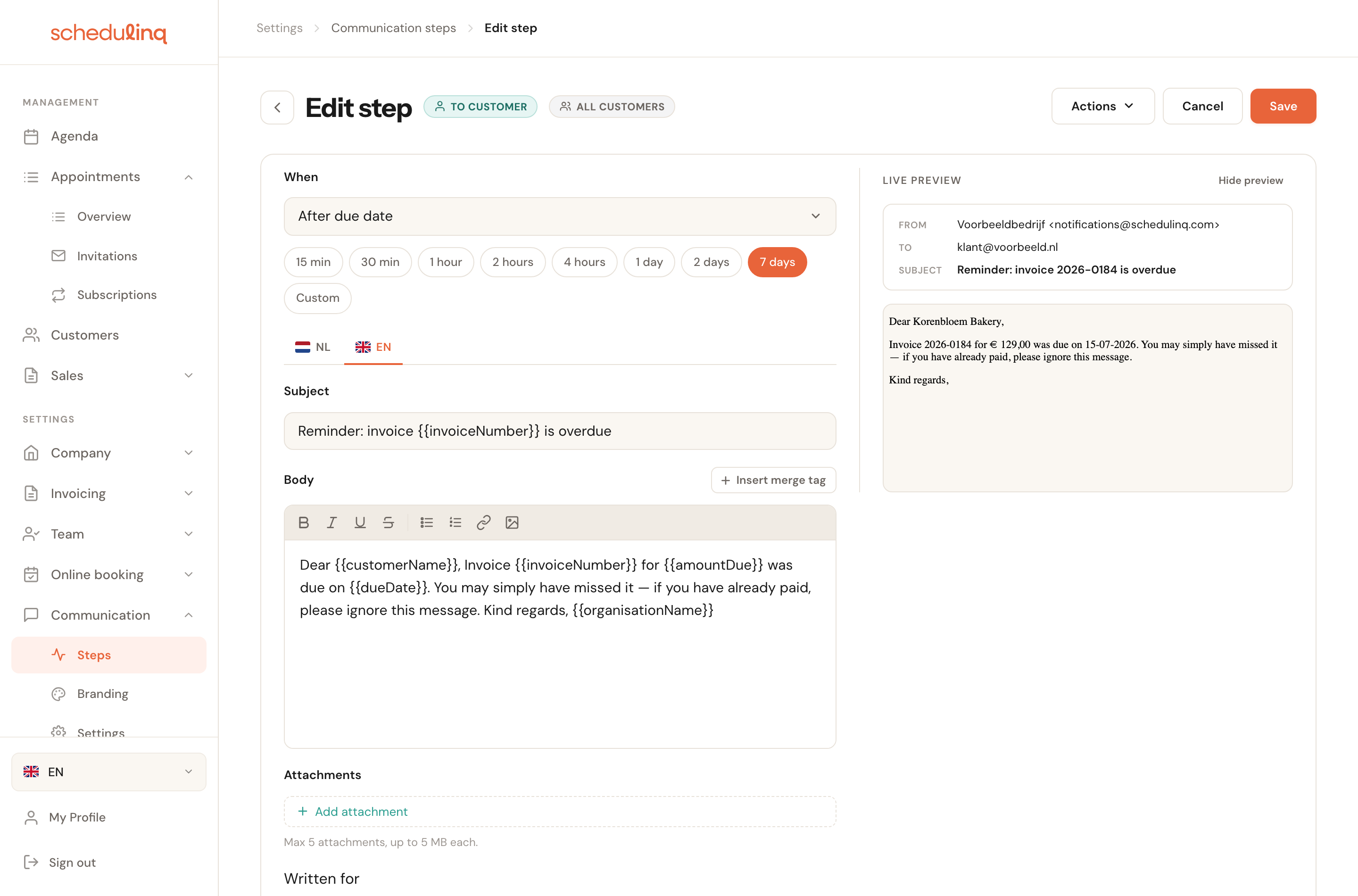
Set the timing and the wording, then save
Under When, choose how many days after the due date the reminder goes out, write the text for each language, and click Save.
The fields
When
After the due dateDecides how long after the due date the reminder goes out. Pick one of the buttons, or click Custom for your own number.
The anchor is the invoice's due date, not its invoice date. Send an invoice on 1 July with a fourteen-day payment term and the due date is 15 July, so a 7 day reminder goes out on 22 July. Change your payment term later and the reminder moves with it — there is nothing to adjust here.
Subject and message
Per languageThe text your customer reads. Each tab is a language your company supports; a customer gets the text in their own language.
A reminder is an awkward message. Keep it short and assume forgetfulness rather than unwillingness — a line like "if you have already paid, please ignore this message" saves you angry calls from customers who transferred the money yesterday.
Variables
Insert merge tag+ Insert merge tag opens the window of variables and drops details from the invoice into your text — see Variables. For invoice messages these are available:
{{customerName}} · {{customerFirstName}} · {{recipientName}} ·
{{recipientFirstName}} · {{organisationName}} · {{invoiceNumber}} ·
{{invoiceDate}} · {{dueDate}} · {{amountDue}}
The amount owed is {{amountDue}} — not {{invoiceTotal}}. A variable that is not
in this list simply stays in the email as literal text, so always check your message
in the live preview on the right.
When a reminder does and does not go out
Reminders are scheduled at the moment you send the invoice. From then on they sit waiting and nothing else happens until the day itself.
- The invoice is paid or credited → every still-pending reminder for that invoice is cancelled. You do not have to do anything to stop a paying customer being chased.
- The customer has no email address → nothing is scheduled.
- You send the same invoice again → no second reminder is added; there is at most one pending per step per invoice.
Checking that it went out
Open the invoice under Sales → Invoices. At the bottom is the activity timeline: every message with its status.
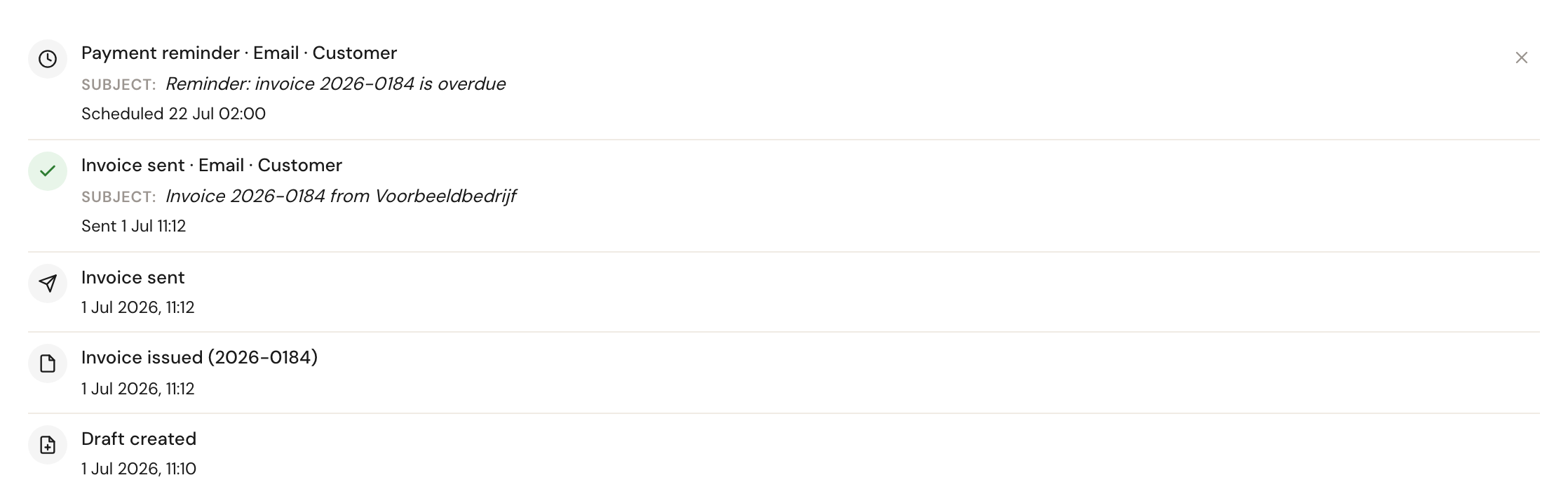
Scheduled means it is queued but not sent. Sent, with a tick, means the email has left.
The cross to the right of a scheduled reminder cancels that one reminder, for this invoice only. Useful when you have just spoken to the customer yourself.
Frequently asked questions
Can I send more than one reminder? Yes. Use Add message inside the card for a second channel, or Add new step to add another moment with a different number of days — seven and twenty-one, for instance.
Can I remind before the due date? No. The moment is always after the due date. If you want to flag something in advance, put it in the covering email under When invoice is issued.
Do I get a copy myself? Only if you add one. Invoice messages are addressed to customer by default.
I changed the wording — does that apply to invoices already sent? No. A reminder is given its text when it is scheduled, which is when the invoice is sent. Your change applies from the next invoice onwards.
For how steps work in general, see How communication works and Edit a step.