

Send from your own domain
Have confirmations and reminders arrive from your address instead of Schedulinq's — including the DNS records you need to publish.
By default Schedulinq sends your email from schedulinq.com. That works, but your customer sees a sender that isn't yours. Connect your own domain and confirmations, reminders and invoices arrive from your address — and Gmail and Outlook recognise your messages as legitimate, which keeps them out of the spam folder.
Step by step
Open the sending-domain setting
Go to Communication → Settings and stay on the Email tab. The Sending domain block sits at the top. Click Connect a domain.

Until you connect your own domain, this tells you which address your email currently leaves from.
Choose the domain you want to send from
The field starts with
mail.on purpose. Complete it into a subdomain of your own domain —mail.yourbusiness.com, for example.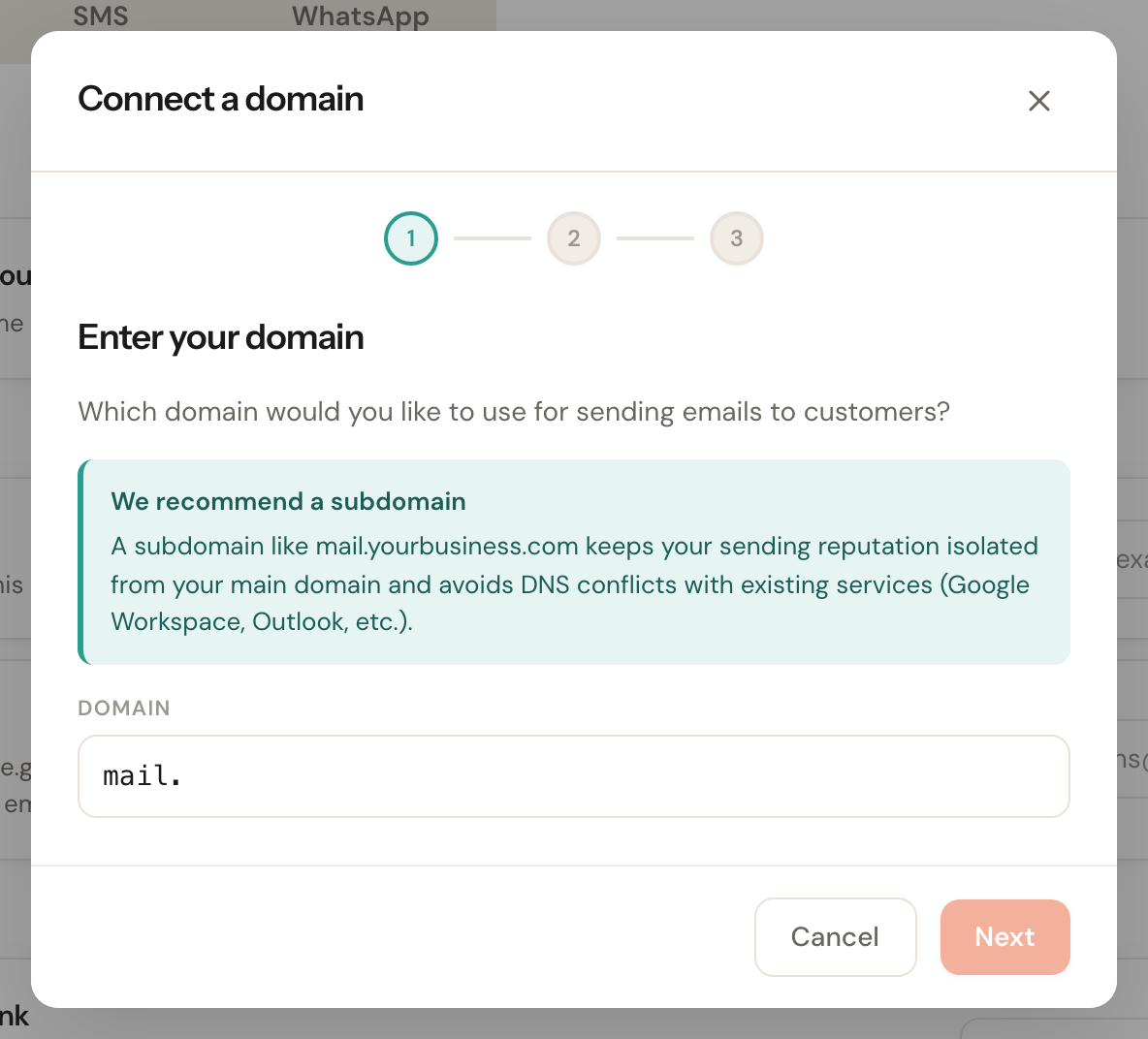 Why
WhyA subdomain keeps the sending reputation of your automated messages separate from your ordinary business mail. If delivery ever goes wrong, it doesn't touch your main domain. Just as importantly, your existing mail (Google Workspace, Microsoft 365) already has SPF and DKIM records on your main domain, and those could clash with the new ones.
Publish the DNS records at your provider
Schedulinq shows three records. Log in to your domain provider, find the DNS management screen for your domain, and add them one by one.
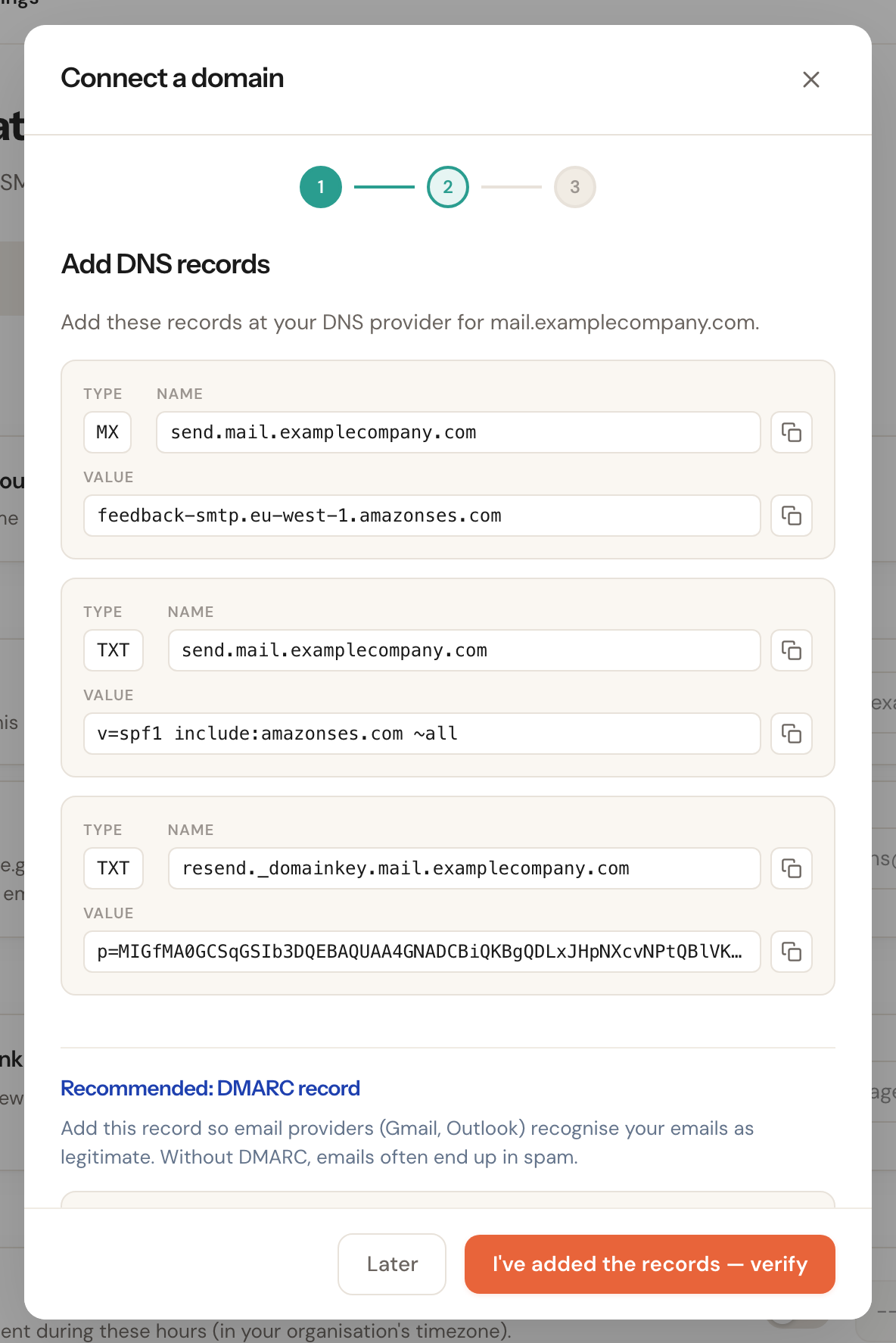
Use the copy button next to each value. The DKIM key is a block of several hundred characters that the screen truncates with
…— retyping it almost always goes wrong.Verify the connection
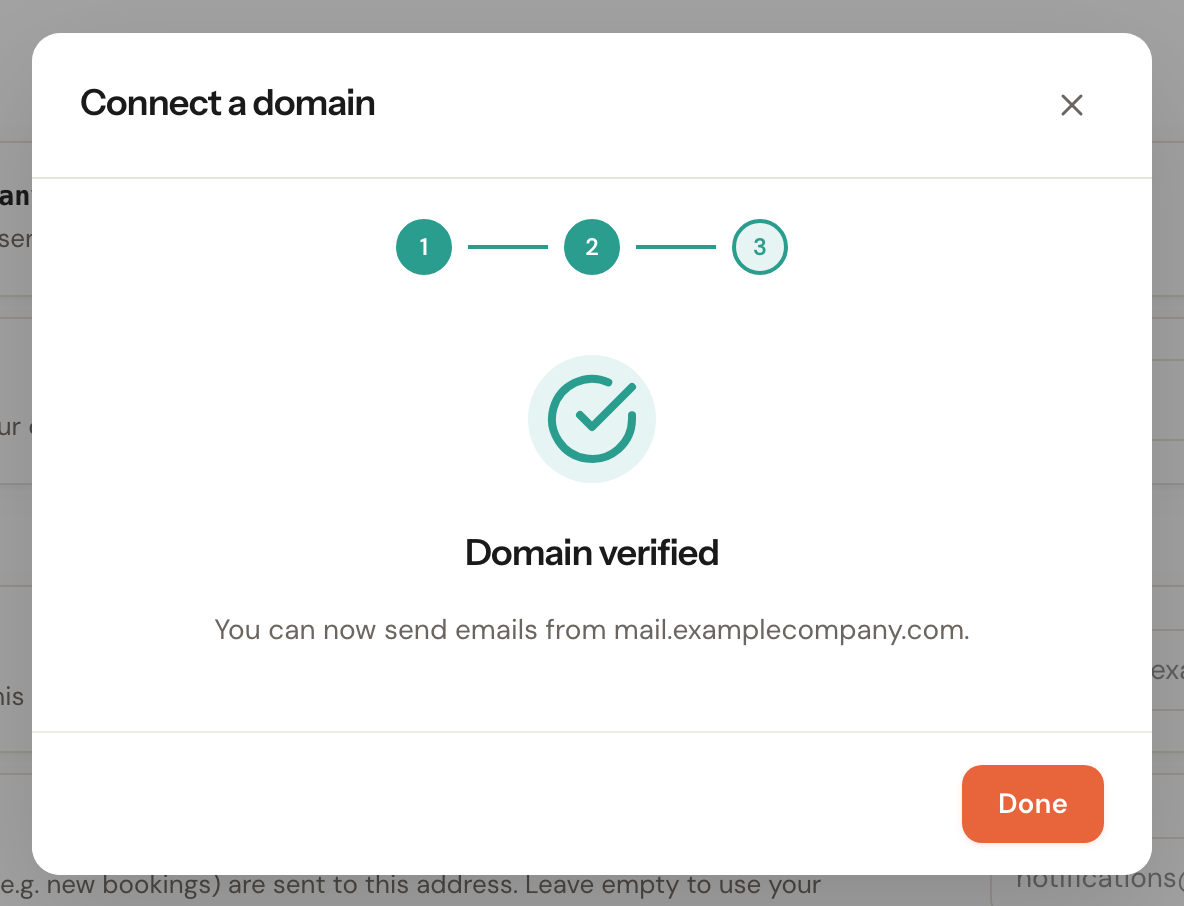
Click I've added the records — verify. When it succeeds you get a confirmation, and Schedulinq sends from your domain from that moment on.
The records, one by one
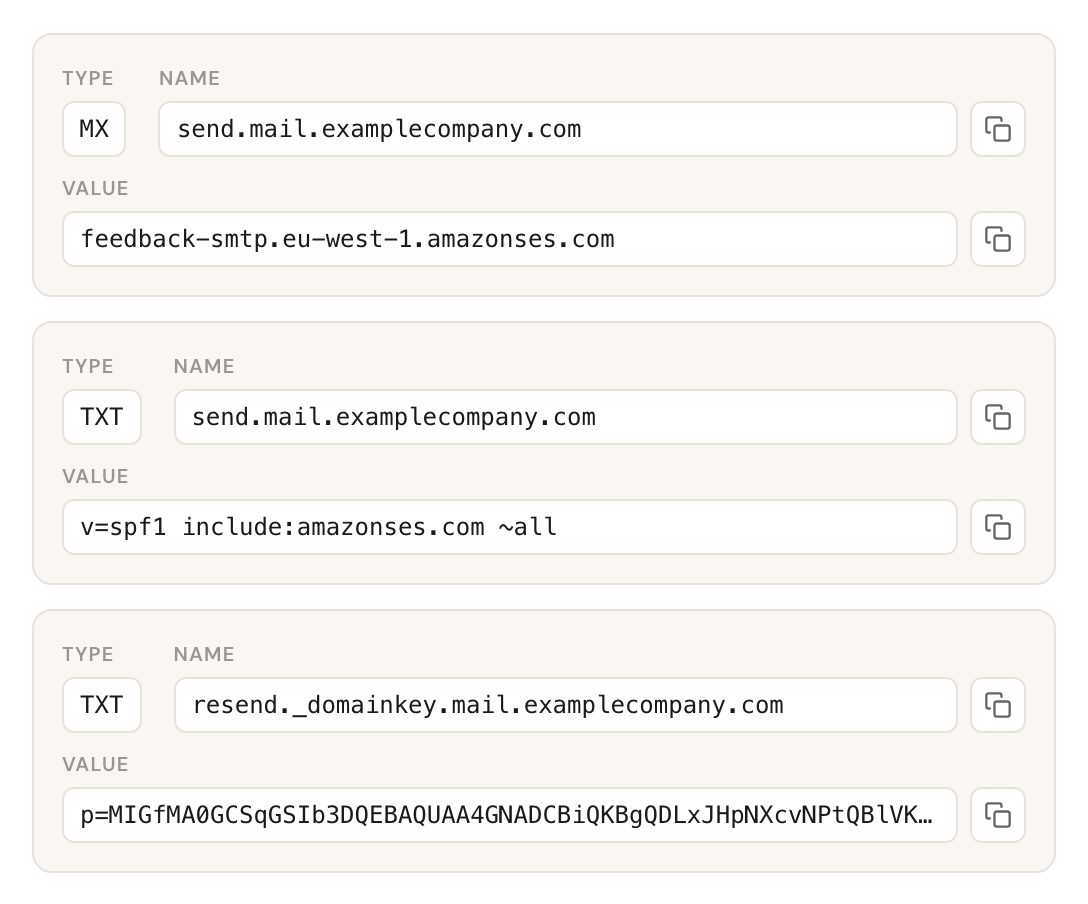
Here's what you're publishing and why. The exact values are in your own screen — copy them from there, not from this example.
MX record
RequiredName send, value feedback-smtp.eu-west-1.amazonses.com, priority 10. The
window shows the Priority and the TTL under the value; enter both as
shown.
This catches the feedback from mail servers that reject your message or mark it as spam. Without it you still send, but you never hear about it when delivery starts failing.
TXT record for SPF
RequiredName send, value v=spf1 include:amazonses.com ~all.
SPF is the list of servers allowed to send on behalf of your domain. If Schedulinq's server isn't on it, any receiving mail server is entitled to reject your message — and in practice they do.
TXT record for DKIM
RequiredName resend._domainkey, value a long key starting with p=.
DKIM puts a digital signature on every message so the recipient can check it wasn't altered in transit. This is the record that most often goes wrong, precisely because the value is so long.
TXT record for DMARC
RecommendedName _dmarc, value v=DMARC1; p=none;.
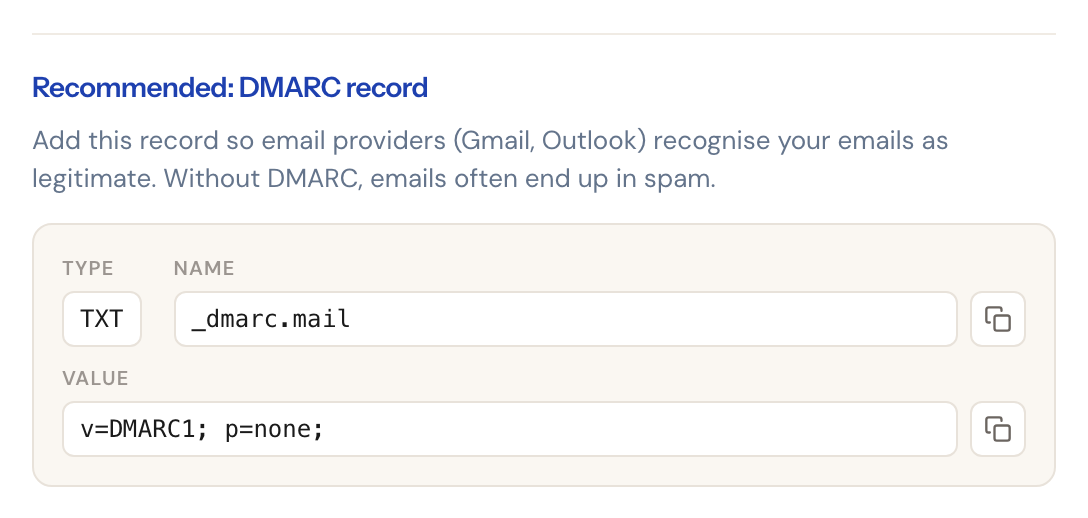
DMARC tells Gmail and Outlook what to do when SPF or DKIM doesn't check out.
Without it your messages land in spam more often, even with the other records
set correctly. p=none means observe only, reject nothing yet — the safe
setting to start with.
When verification doesn't work yet
You'll see DNS records not yet propagated.
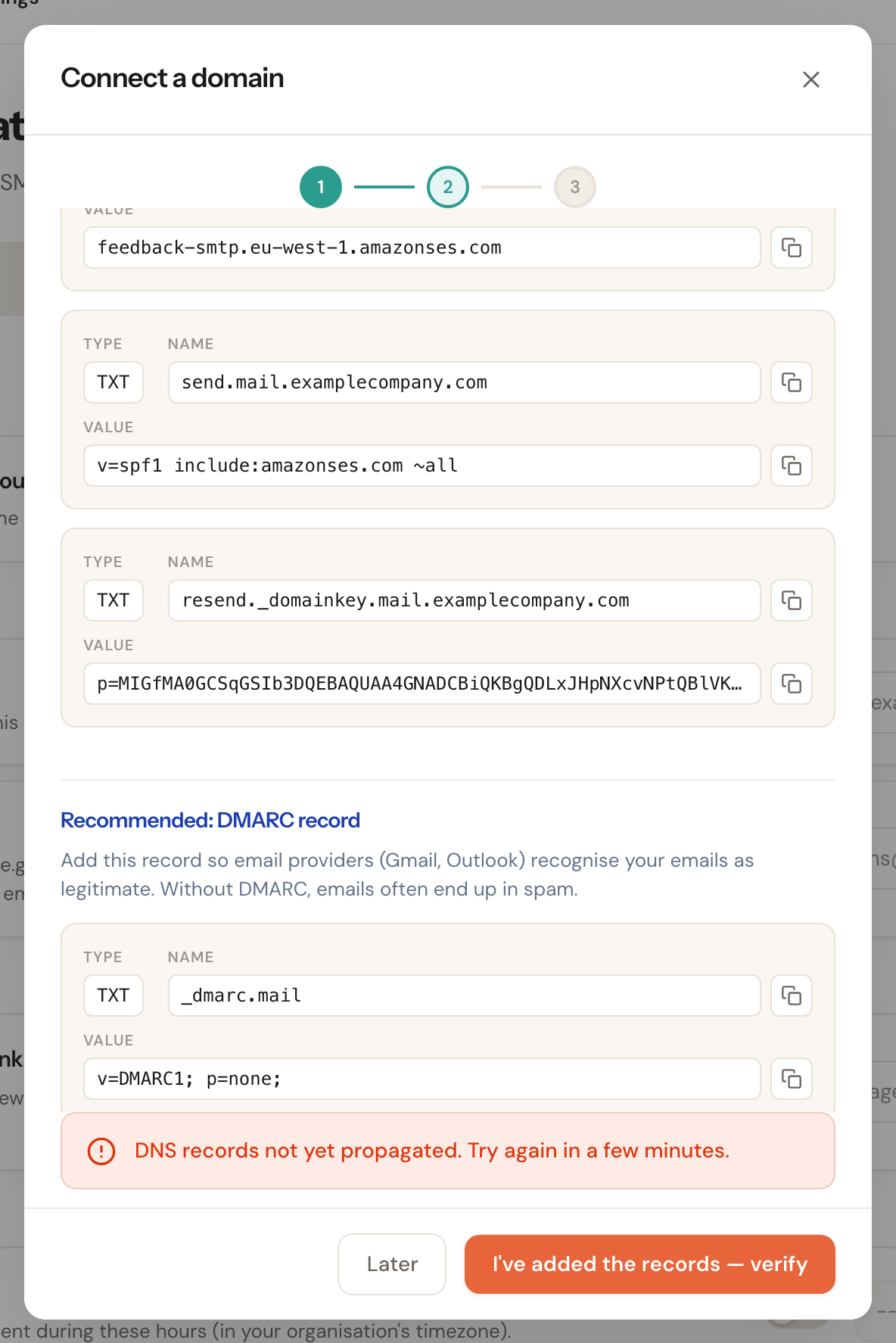
That's usually patience rather than a mistake. DNS changes have to spread across the internet, and the check runs in the background as well — sometimes clicking again after half a minute is enough.
Each record has a status of its own, so you can see which line isn't right yet: Not checked yet before the first check, then Pending, Verified, Failed or Temporary failure. The DMARC record has no status — it is recommended, not checked.
If it still fails after an hour, work through this:
- Are all three records there? The DKIM line is the one most often missed — look for the record that isn't Verified.
- Are the names written correctly? See the warning above.
- Is the DKIM value complete? Copy it again with the copy button.
- Is there already an SPF record on the same subdomain? Two SPF records side by side is invalid; they have to be merged into one line.
You don't have to sit and wait with the screen open. Click Later — your domain stays listed as Pending under Sending domain, and you can reopen the wizard there to verify.
Once it works
The domain shows as Verified in your settings, and all customer mail goes out from it from then on.

Leave the records in place. Remove them at your provider later and Schedulinq loses its verification, and a warning appears in your settings saying the setup has to be completed again.
Frequently asked questions
Can I use my main domain instead of a subdomain? Yes. Enter a domain without a subdomain and a warning appears — you have to tick that you understand the risks before you can continue.
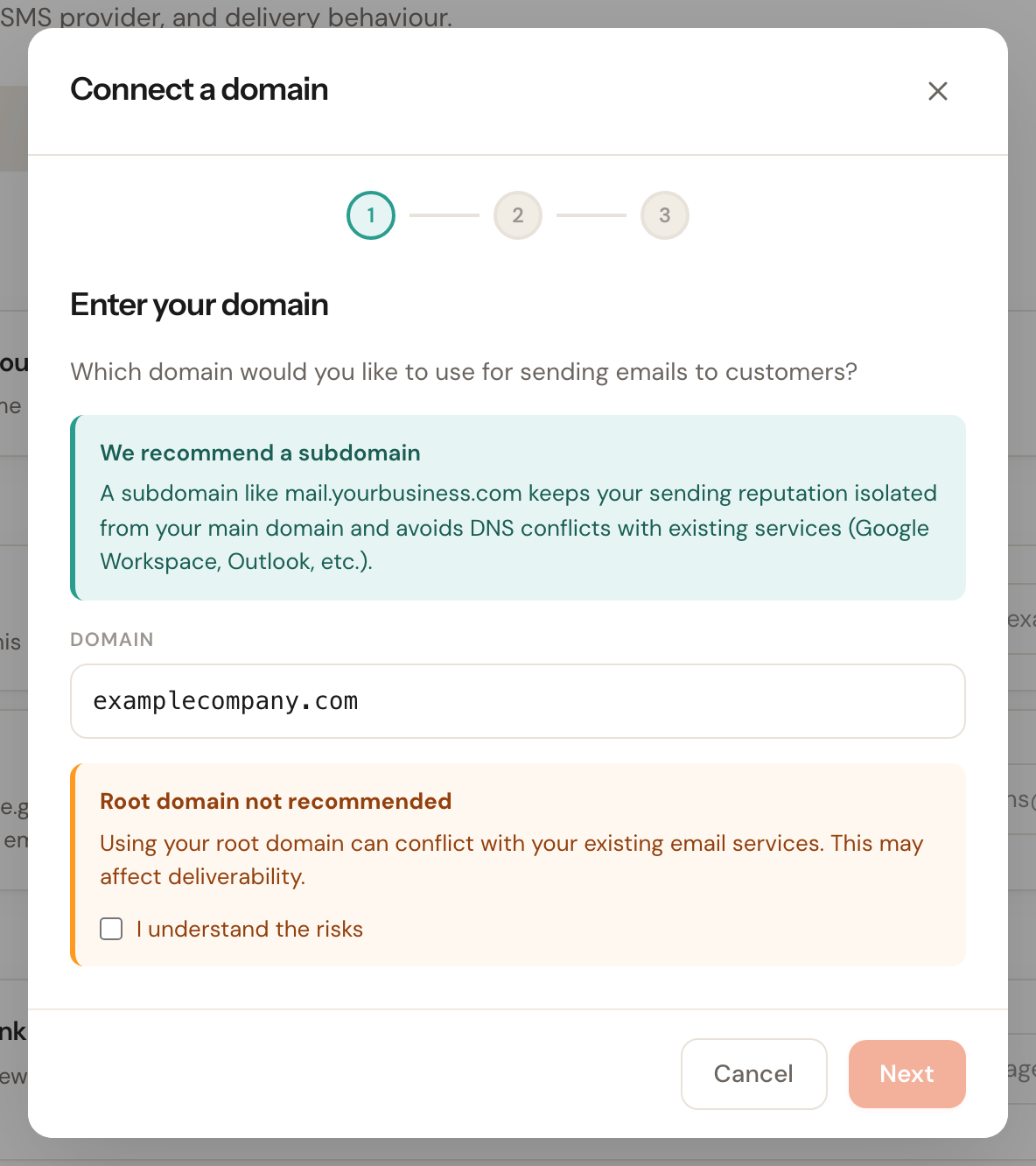
The risk is a clash with the SPF and DKIM records of your existing mail, which can cause delivery problems for your ordinary business post. Choose a subdomain unless you have a good reason not to.
Does this change the address customers can reply to?
Only if you leave the reply-to address empty. Without your own domain, a reply then
goes to your organisation's e-mail address; with your own domain, it goes to the
address your e-mail is sent from — notifications@ on your sending domain. Fill in a
reply-to address under Default sender on the same page and replies go there, with or
without your own domain.
Do I need to do anything if I move to another domain provider? Yes — your DNS moves with you, so the records have to be recreated at the new provider. Do that before the move if you can, so there's no window in which your messages go out without a valid signature.
Can I disconnect the domain again?
Yes, with the delete button next to the domain. Your messages then go out from
schedulinq.com again.