

The appointment screen
Everything about one appointment on one screen — the details, your own fields, add-ons, the place, the internal note with its photos, and what has been sent to the customer.
Click an appointment in your calendar or under Appointments → Overview, and it opens on a screen of its own. This guide goes through that screen block by block, and the internal note — with its photos — in detail. Changing, moving and cancelling the appointment are in Change or cancel an appointment.
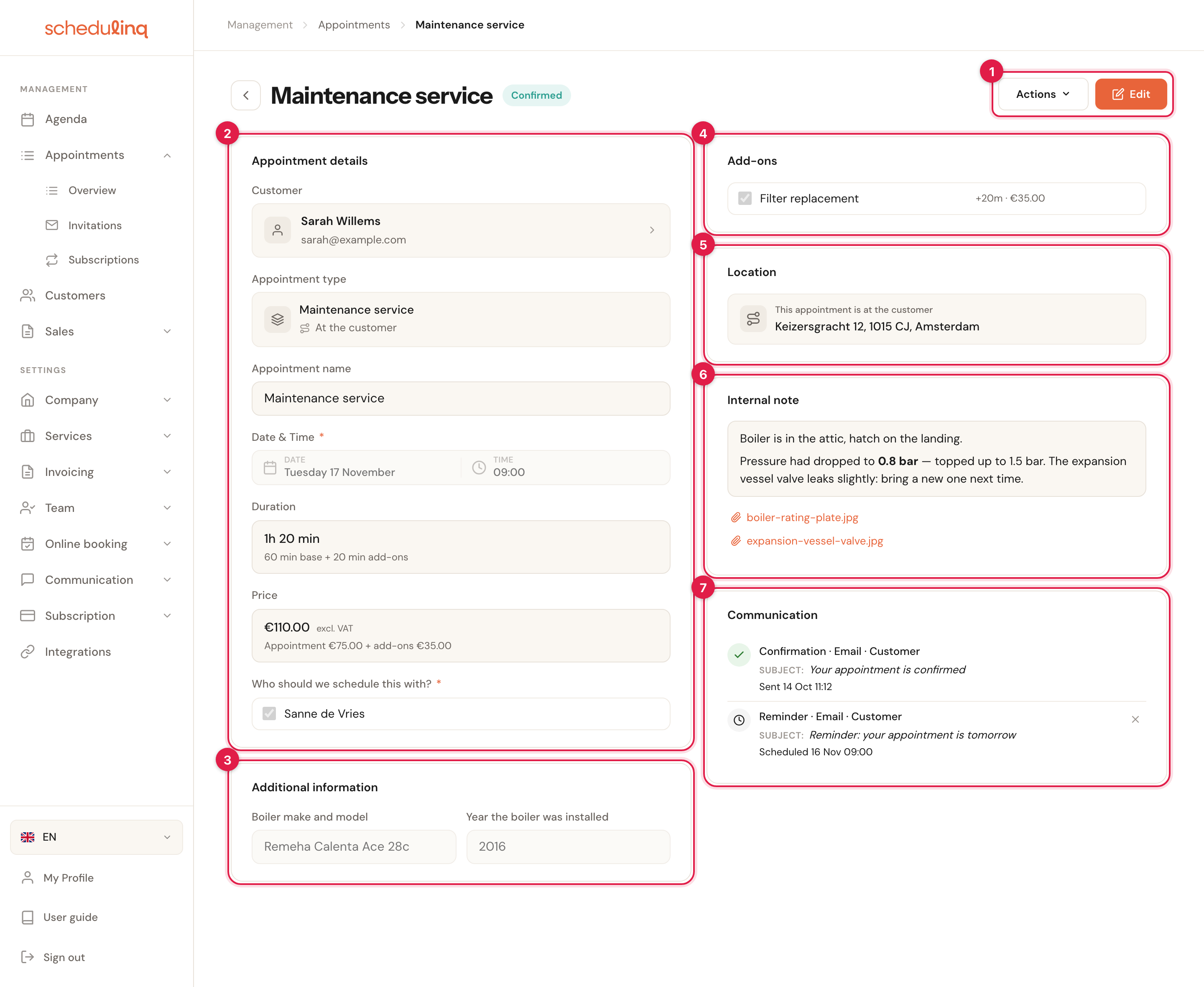
The screen opens read-only. Edit makes the fields editable.
- Actions and Edit — everything you can do with the appointment.
- Appointment details — who, what, when, how long, what it is worth and who goes.
- Additional information — your own fields for appointments.
- Add-ons — what was booked on top of the service.
- Location — where it takes place.
- Internal note — for you and your team, with photos.
- Communication — what has gone out, and what is still to go.
Next to the name at the top is the status: Pending, Confirmed, Completed or Cancelled. Once an appointment is Completed, there is no Edit any more and its note lives in the customer's dossier — see Where the note ends up.
Actions
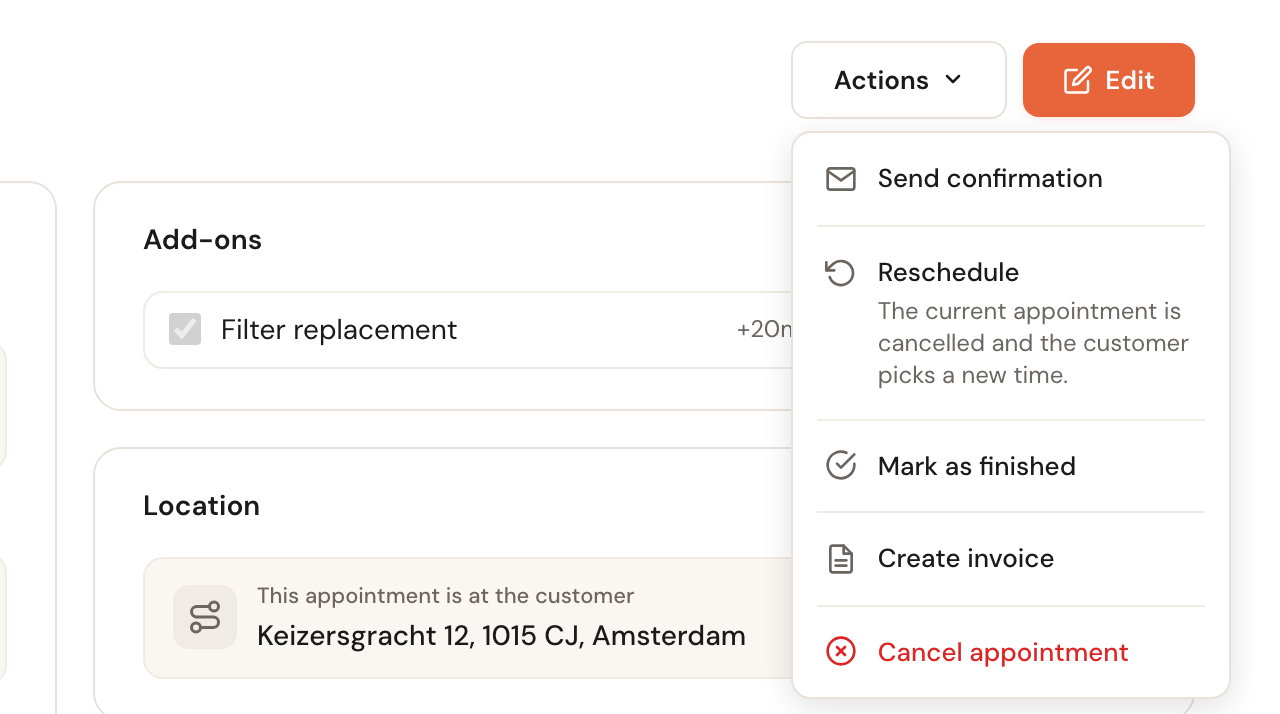
| Action | What it does |
|---|---|
| Send confirmation | Opens the message window, so you can write to the customer without changing anything. When a message is waiting after a change, the item is named after it: Send new time, Send change or Send cancellation. |
| Reschedule | Cancels this appointment and invites the customer to pick a new time themselves. See Reschedule. |
| Mark as finished | The status becomes Completed, and the internal note goes into the customer's dossier. |
| Create invoice | Makes a draft invoice from the appointment and opens it. An appointment that is not finished yet is marked finished first. If it already has an invoice, the menu says so and offers Go to invoice and Create another invoice. See Create an invoice. |
| Cancel appointment | See Cancelling an appointment. |
| Delete appointment | Only on a completed appointment, where Cancel no longer is. It disappears from your calendar and lists; the customer's notes are kept. |
Your role decides which of these you see: an action you may not carry out is not in the menu. See Roles and permissions.
An appointment planned from your CRM's Plan button can also have Back to the CRM next to Actions — see An appointment from your CRM.
Appointment details
- Customer — click it to open the customer record. No customer selected. means this is a block in your calendar rather than an appointment with someone. If your role may not open customer records, you see the name, e-mail address and phone number instead, without the link.
- Object — the customer's horse, car or boiler the appointment is for. Only there if your company works with objects; see Customer objects.
- Appointment type — the service, with where it takes place underneath.
- Appointment name — what your calendar shows. Usually the name of the service.
- Date & Time — when it starts.
- Duration — the length of the service plus its add-ons, with the sum underneath: 60 min base + 20 min add-ons. A length someone changed by hand shows as hours and minutes instead.
- Price — what the appointment earns, excluding VAT. You cannot change it here; see What the appointment is worth.
- Who should we schedule this with? — the colleagues on the appointment.
- Metadata — only on an appointment from your CRM: its references, read-only. See Metadata.
Additional information
Your own fields for appointments — the make of the boiler, the number of the key box. The card is only there when at least one of your fields applies to this service. You fill the fields in after Edit, like the rest. An Attachments field shows its photos and files here too. You create the fields under Company → Custom fields; see Add your own fields.
Add-ons
What was booked on top of the service, with the extra time and price of each. The card shows what was booked at the time, so an add-on you have since archived still appears. No add-ons booked. means there are none. See Offer add-ons.
Location
Where the appointment takes place:
- At the customer — the address of the visit.
- On location — the name and address of your location. That address belongs to the location; you cannot change it on the appointment.
- Video call — the meeting link, to copy or join. See A video call on the appointment.
- Phone call — the number the call is made on.
The internal note
The internal note is for you and your team: where the boiler is, what to bring, what you found. A colleague who has connected their calendar finds the text in the appointment's event there too.
Writing the note
Click Edit. The note becomes a text box with formatting — bold, italic, lists, a link. Type, then click Save: the text is saved with the rest of the appointment.
A changed note does not count as a change for the customer, so no e-mail window opens after saving.
Adding photos
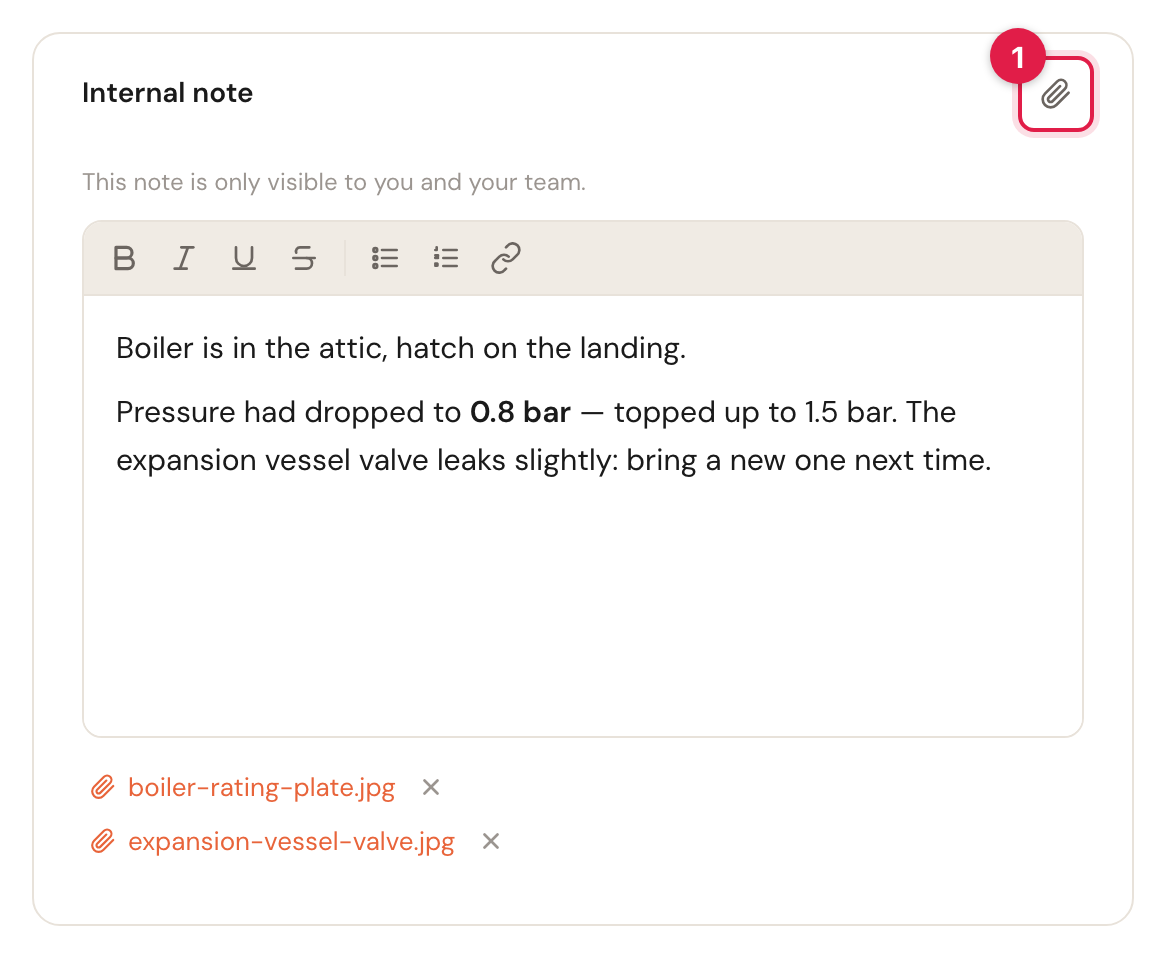
While you edit, the paperclip (1) adds a photo. Each photo appears under the note by its file name; the cross removes it.
Click Edit
The paperclip appears at the top right of the Internal note card.
Click the paperclip and choose a photo
The photo is stored straight away and appears under the note. Add more one at a time.
- What it takes: JPEG, PNG, WebP or HEIC — the format of iPhone photos — up to 12 MB per photo, and at most 10 photos per note.
- Opening a photo: click its file name. It opens in a new tab, also when you are not editing.
- A refused photo: the reason appears under the note — too large, not a photo, or the note is full.
The paperclip is only there while you edit, on an appointment with a customer — a block in your calendar has no dossier to keep photos in — and when your role may change appointments. A completed appointment has no Edit: add its photos in the customer's dossier.
Where the note ends up
The note does not stay on the appointment alone. It goes into the notes dossier on the customer record, as a dated note with the name of the appointment above it, so the next colleague who visits sees what was found.
- When the appointment is completed — with Mark as finished, or with Create invoice, which marks it finished first — the note is copied into the dossier.
- When you add a photo before that, the note is in the dossier from that moment, and every Save brings its text up to date there.
A note without text and without photos leaves nothing in the dossier.
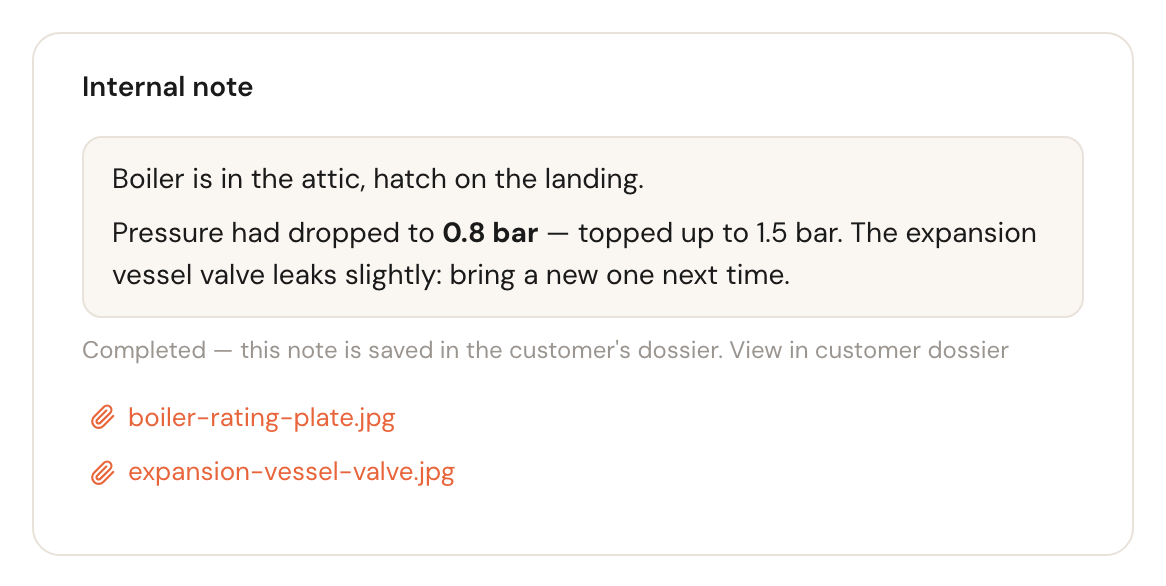
Once the appointment is completed, the note on the appointment is read-only. From then on the dossier is the copy that counts: View in customer dossier takes you there, and there you change the text or add and remove photos. See The customer record.
Communication
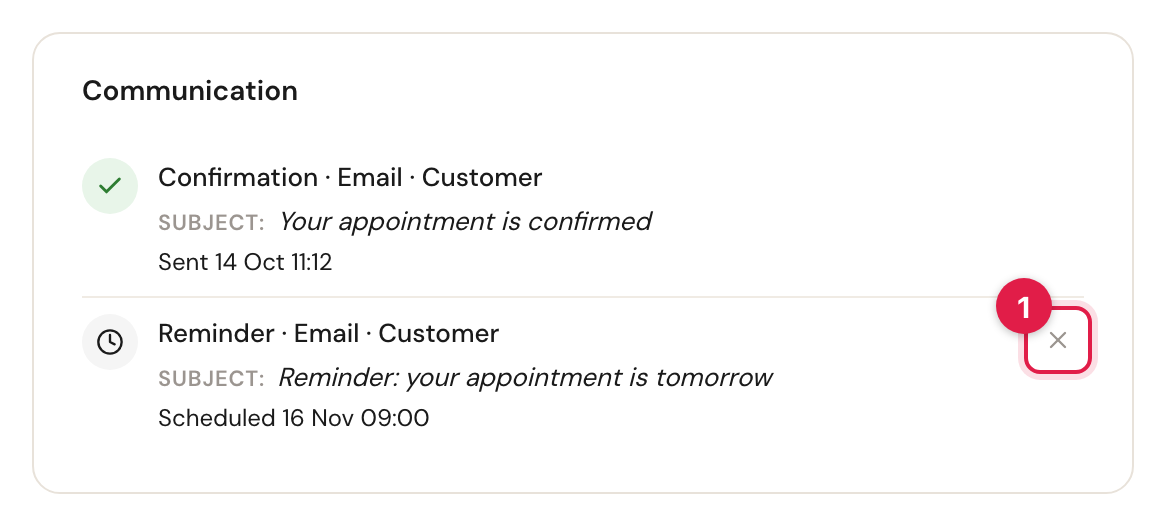
Every message for this appointment: what kind it is (Confirmation, Reminder, Follow-up), the channel, who it is for, and either Sent with the time it went or Scheduled with the time it will go. A message that was skipped says why when there is a reason worth knowing — your booking page not taking bookings, for example.
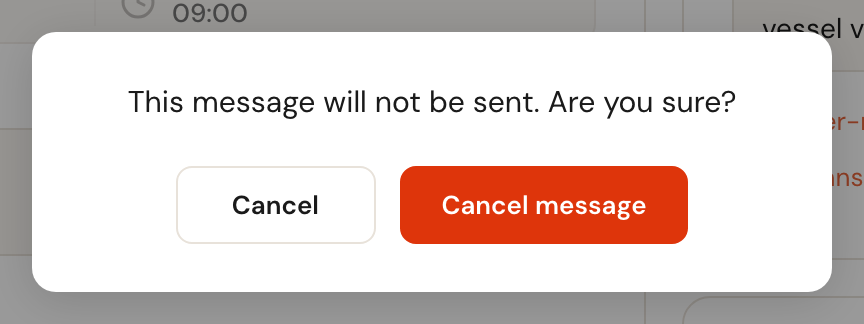
A message that is still scheduled has a cross (1). Click it and confirm with Cancel message to hold that one message back. The step in your communication flow stays on for every other appointment. There is no undo.
Which messages go out, and when, is set in your communication flow; see How communication works.
Frequently asked questions
I added a photo and then clicked Cancel, but the photo is still there. Photos are saved the moment you add them, not with Save. Remove it with the cross next to it.
Can I attach a PDF to the note? No, the note only takes photos. For a signed form or another file, use an Attachments field; it shows under Additional information.
I changed the note in the customer's dossier, but the appointment still shows the old text. A completed appointment shows its note as it was when it was finished; the dossier holds the current one. The photos are shared: one added or removed in the dossier is added or removed on the appointment too.
Can the customer see the note or the photos? The photos never. The text only if a
step for the customer contains {{notes}} — none does unless you put it there.
There is no Edit button. The appointment is completed or cancelled, or your role may not change appointments.