

Articles
Parts, products, travel costs and surcharges you put on an invoice with one click, or that add themselves to your appointments — including how Schedulinq works out the kilometres for you.
An appointment lands on the invoice by itself. Everything you charge besides it — a filter, a thermostat, the drive to the customer — you used to type out every time. Articles are those loose lines, recorded once: a name, a price, a VAT rate. On the invoice you type the first letters and the line is there.
There are four kinds. A plain article has a price per piece. A travel cost does not: its amount depends on the distance to the customer, and Schedulinq works that out for you. A surcharge comes on top of an appointment's price: in the evening, on a Saturday, on a public holiday. Travel costs and surcharges can add themselves to your appointments — see Articles that add themselves. A discount comes off instead: as a promotion on your booking page, or with a code the customer types. Discounts have a guide of their own: Discounts and discount codes.
In short
- Go to Sales → Articles and click New article.
- Give it a code and a name — the name is what the customer reads on the invoice.
- Choose the kind: an article with a unit price, a travel cost by distance, a surcharge or a discount.
- Fill in the price and click Create.
- On an invoice, type the name into an empty line and pick the article from the list.
The overview
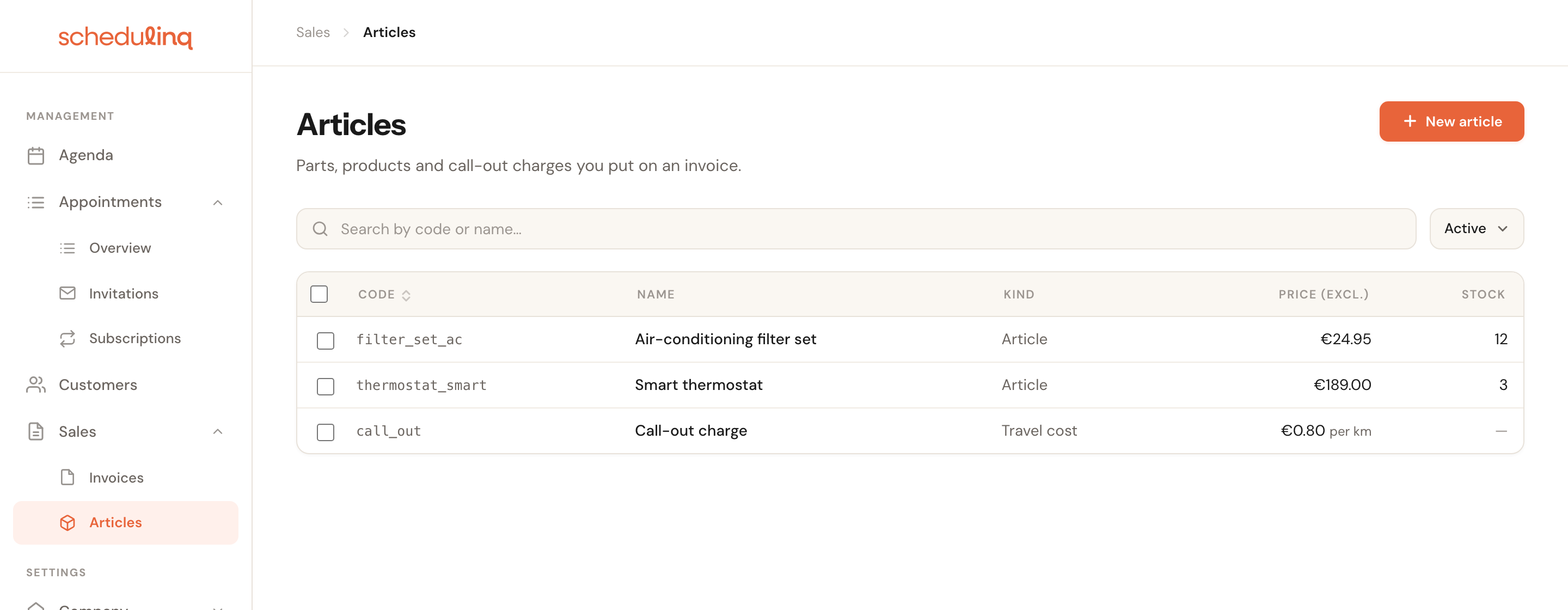
The Kind column says whether an article bills per piece, by distance or as a surcharge. An article that adds itself to appointments carries the label automatic.
You search by code or name. The filter on the right is set to Active; switch it to Deleted to find articles you have removed, or to All. Click a row to open the article. Export downloads the list with your filters as an Excel or CSV file (how exporting works).
If you keep objects, the overview gets an Object types column and an All object types filter. The column says which object types an article belongs to: a name, All, or — for travel costs, surcharges and discounts. Filter on a type and you see that type's articles plus every article that belongs to all types. See The Object types card.
Creating an article
Click New article
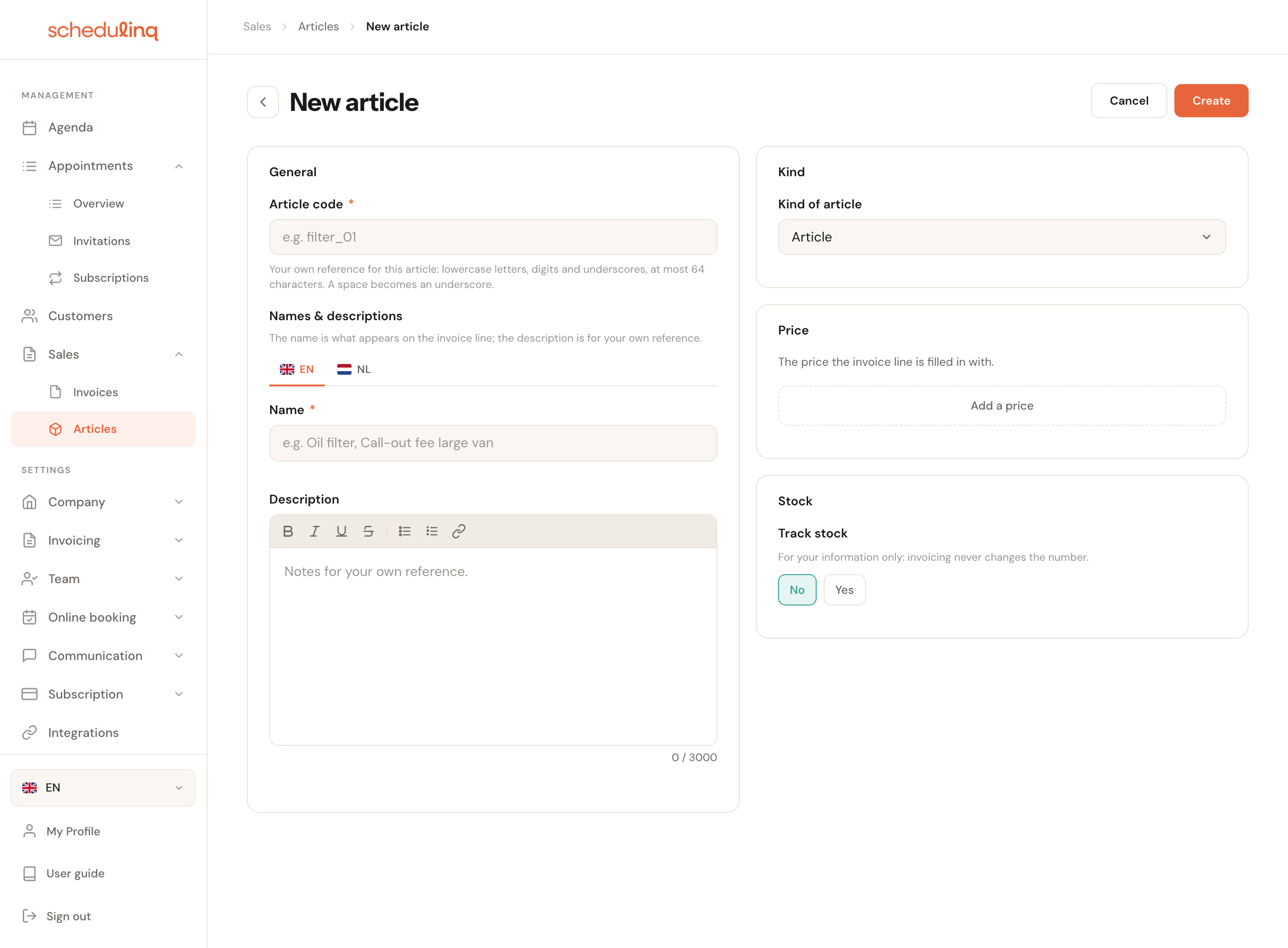
Top right of the overview. You land on an empty form with what the article is on the left and what it costs on the right.
Give it a code and a name
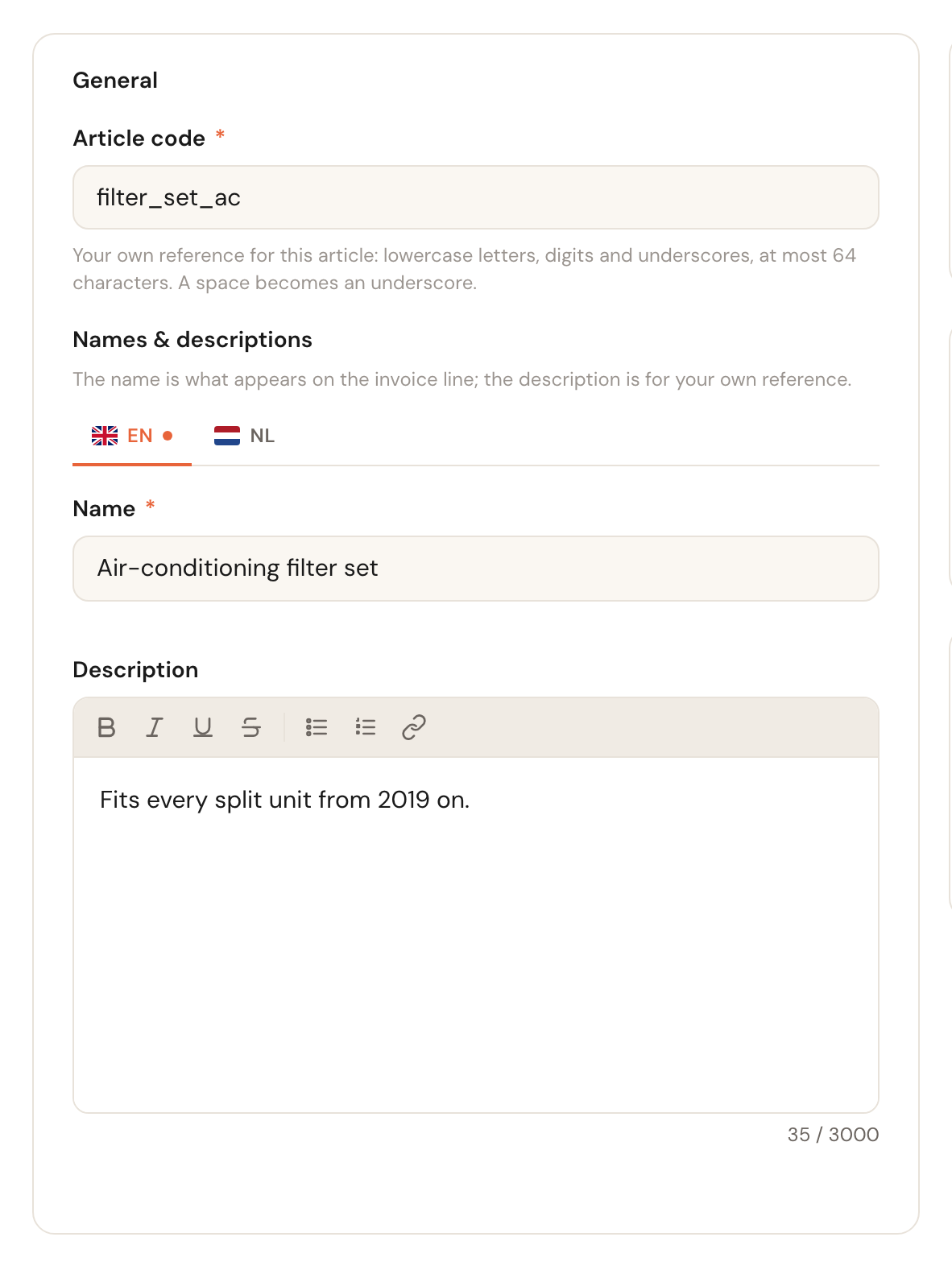
The article code is your own reference; the name is what goes on the invoice line. If you work in several languages, you fill in a name per language.
Choose the kind
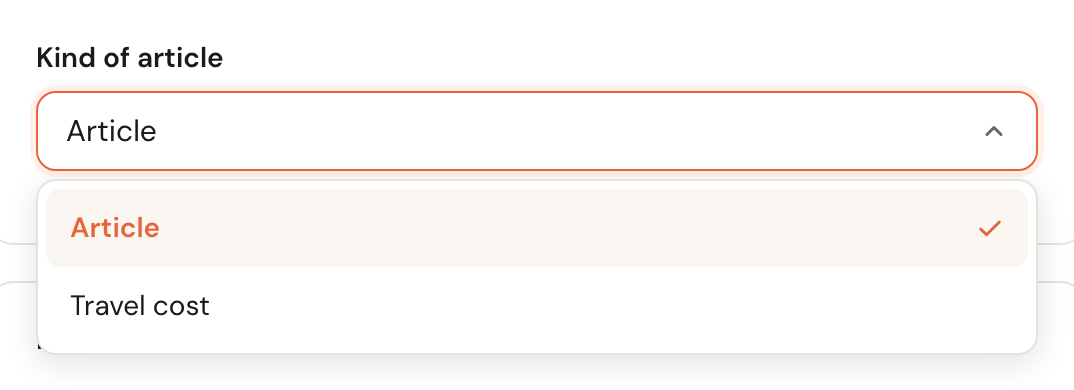
Under Kind of article you pick Article, Travel cost, Surcharge or Discount. A travel cost and a surcharge bring extra fields; they are covered further down in Travel cost and Surcharges. A discount is covered in Discounts and discount codes.
Fill in the price
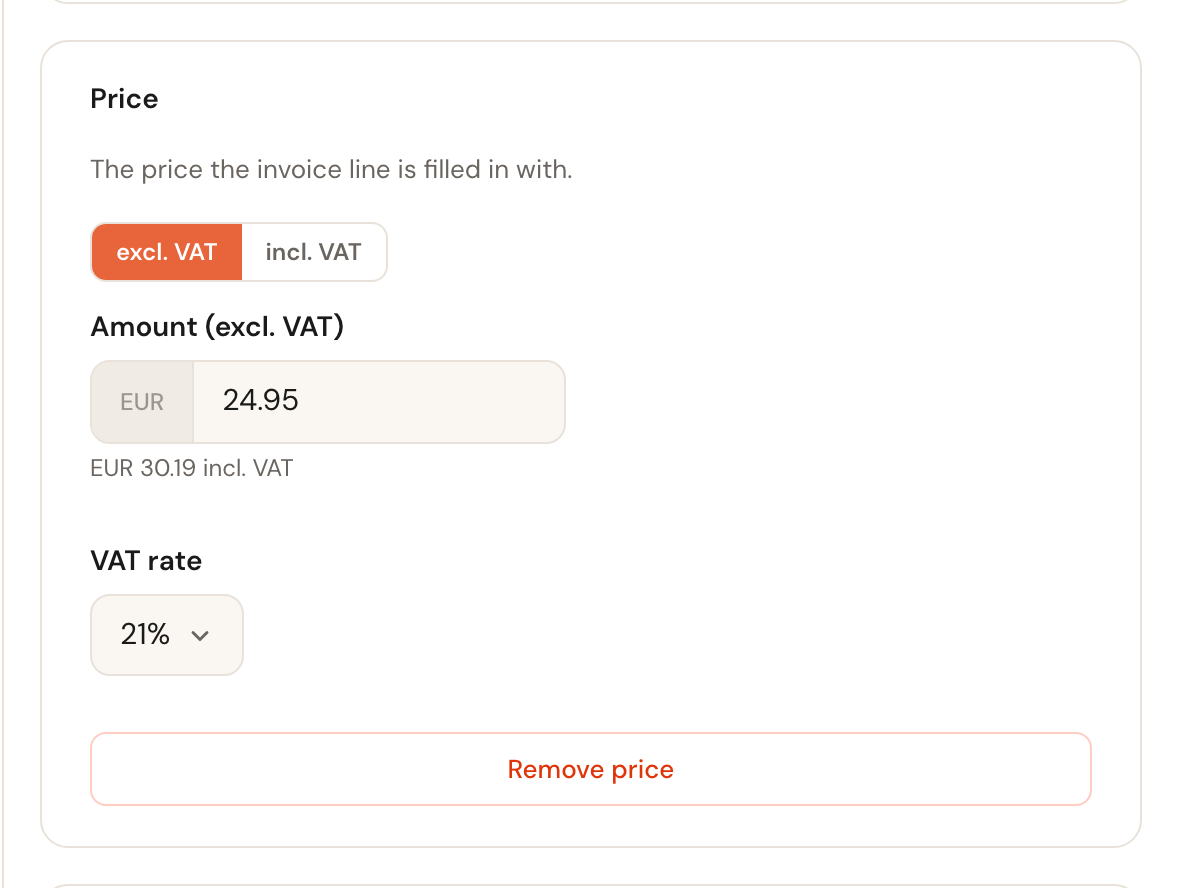
Click Add a price. You choose whether you type the amount including or excluding VAT, and the VAT rate; Schedulinq works out the other amount.
Track the stock if you want to
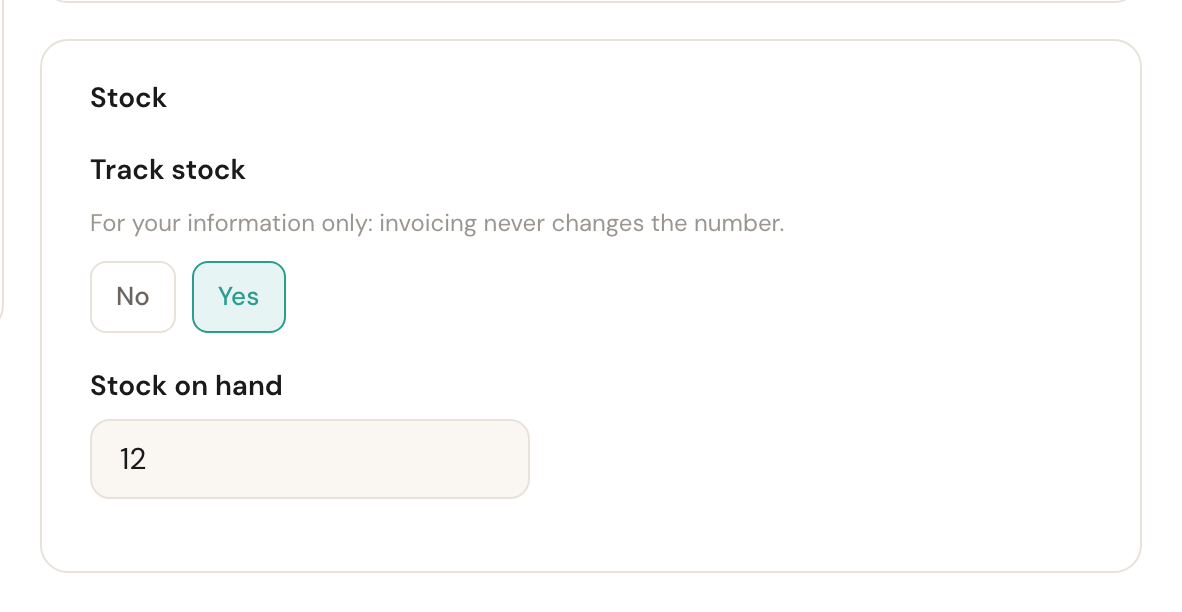
Set Track stock to Yes and fill in the number. This is for your information only — see Stock for what it does and does not do.
Click Create
The article is in the overview straight away, and in the invoice editor's search list.
The General card
Article code
RequiredUniqueYour own reference: lowercase letters, digits and underscores, at most 64 characters. A space becomes an underscore by itself.
The code is what you search on — in the overview and in the invoice editor. If you use the numbers from your own stockroom or your supplier, you type the same thing on the invoice as on the delivery note. Unlike an appointment type's identifier, you may still change the code later: nothing else hangs off it.
Name and description
Name required in your first languagePer languageThe name goes on the invoice line. The description is for you and never leaves the building.
The customer only reads the name, so write it the way you want it on the invoice: Air-conditioning filter set, not FLT-AC-01. If you have set up several languages, a customer gets the name in their own language — and otherwise the one in your default language. The description is the place for what you want to remember: which supplier, which type fits what.
The Kind card
Kind of article
Article, Travel cost, Surcharge or DiscountAn article bills per piece. A travel cost bills by distance to the customer. A surcharge comes on top of an appointment's price, at certain times, on certain days or on public holidays. A discount comes off an appointment's price; see Discounts and discount codes.
The difference is in what the price means. For an article it is an amount per piece, multiplied by the quantity on the invoice. For a travel cost the amount depends on the kilometres, which Schedulinq fills in. For a surcharge it is a percentage of the price or a fixed amount per appointment. A discount has no price or stock card at all: what it takes off is part of the discount itself. That is why the other cards change the moment you switch here.
The Price card
Amount and VAT rate
The amount the invoice line is filled in with, plus the VAT rate that goes with it. You type including or excluding VAT; the other figure appears right underneath.
On the invoice Schedulinq always calculates from the amount excluding VAT, so that is what lands on the line — even if you typed the price including VAT here. If you change the price later, the new price applies to new lines. Invoices that already carry the article keep their amount: a line is a copy of the article at that moment, not a reference to it.
The Stock card
Track stock
Default: NoFor information onlyOn Yes, a Stock on hand field appears. The number shows as a column in the overview.
The number is a note, not bookkeeping: an invoice never changes the stock. You raise it yourself when a box comes in and lower it when you count. What it buys you is one place where you see what is still on the shelf, next to the price you sell it for. A negative number turns red.
The Object types card
This card is only there when you have object types — a heat pump, an air conditioner, a boiler — and only for the kind Article. Travel costs, surcharges and discounts are not things that sit inside something.
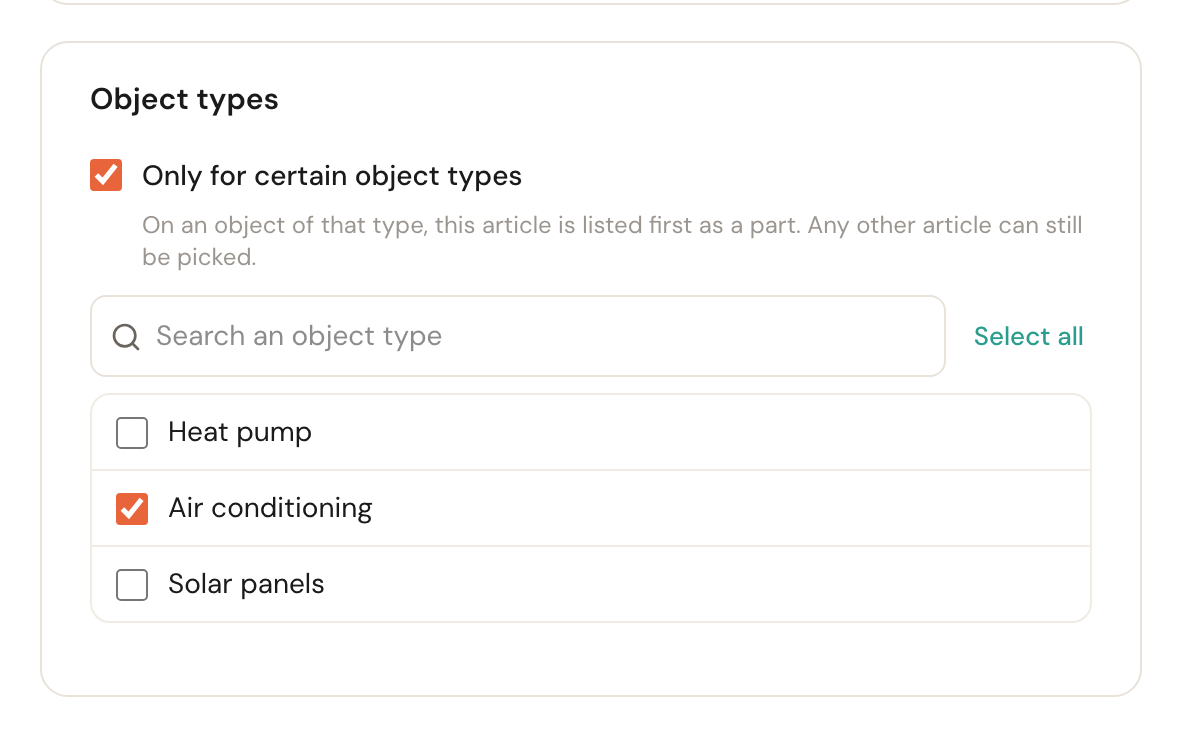
Only for certain object types
Default: off, so every typeTick it and choose the object types this article is a part of: the outdoor unit for Heat pump, the filter set for Air conditioning. Tick it without choosing a type and the article does not save: Choose at least one object type, or untick the box.
It is a help with choosing, not a restriction. When you record a part on an object's page, the articles of that type come first, under For Air conditioning, and all others below, under Other articles. Picking an article of another type stays possible. Nothing changes on the invoice.
Travel cost: an article that bills by distance
Choose Travel cost under Kind of article and the form changes. Instead of a price per piece you choose under Pricing how the drive is priced: Per kilometre or in Bands.
Pricing
Per kilometre or BandsPer kilometre: a number of free kilometres, a fixed fee per trip and a rate per kilometre beyond them. Bands: the distance falls in a band, and that band decides the amount.
Per kilometre counts every kilometre and is exact. Bands are easier to explain to a customer — up to 10 km €15, up to 25 km €25 — and suit anyone whose website already lists their call-out charges that way.
Per kilometre
You record three things: how many kilometres are free, whether a fixed fee per trip comes on top, and whether you count the way back too. The Price card is now called Rate per kilometre.
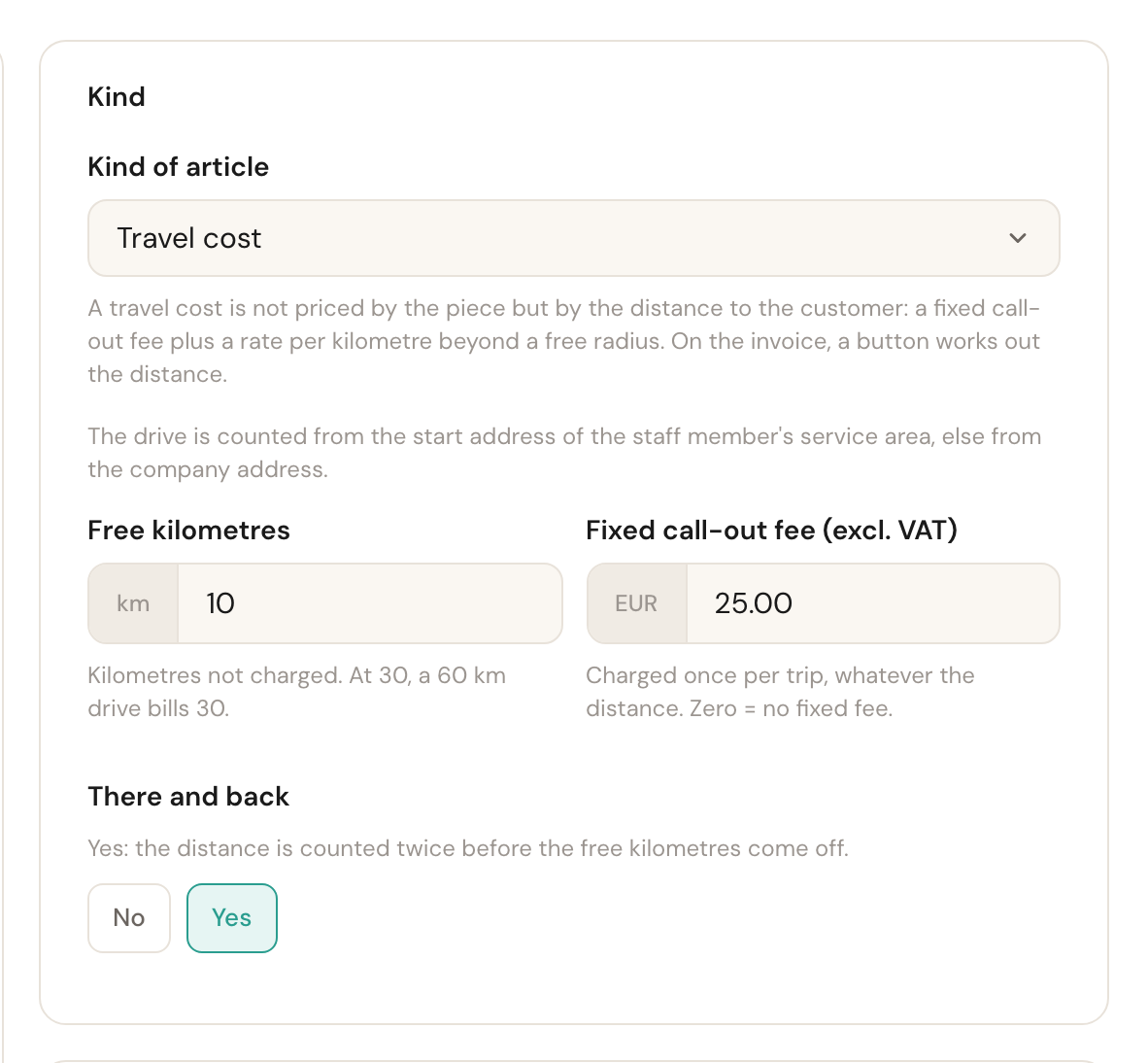
Free kilometres
Default: 0The kilometres you do not charge. Anything above them is billed.
This lets you charge customers round the corner nothing and customers further out something — without two articles. With 10 here and a 32-kilometre drive, 22 go on the invoice.
Fixed call-out fee (excl. VAT)
Default: 0One amount per trip, whatever the distance. Zero means: no fixed fee.
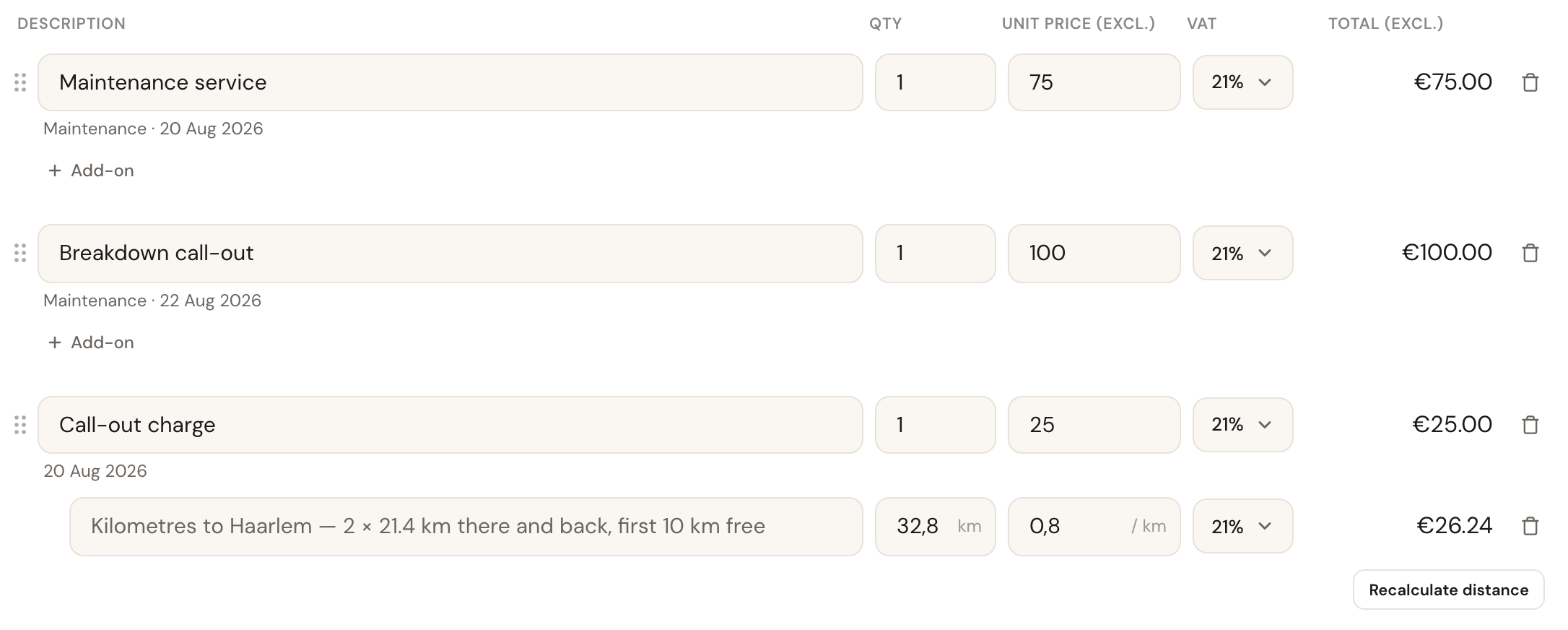
The fixed fee becomes its own line on the invoice, carrying the article's name; the kilometres follow as a second line underneath. That way the customer sees what the call-out costs and what the distance costs. If you only work with a fixed fee, leave the rate per kilometre at zero: then there is never a kilometres line.
There and back
No or YesOn Yes, the distance counts twice before the free kilometres come off.
With 21.4 kilometres one way and 10 free kilometres, No bills 11.4 kilometres and Yes bills 32.8. The customer sees which of the two you chose on the invoice line: 2 × 21.4 km there and back is spelled out.
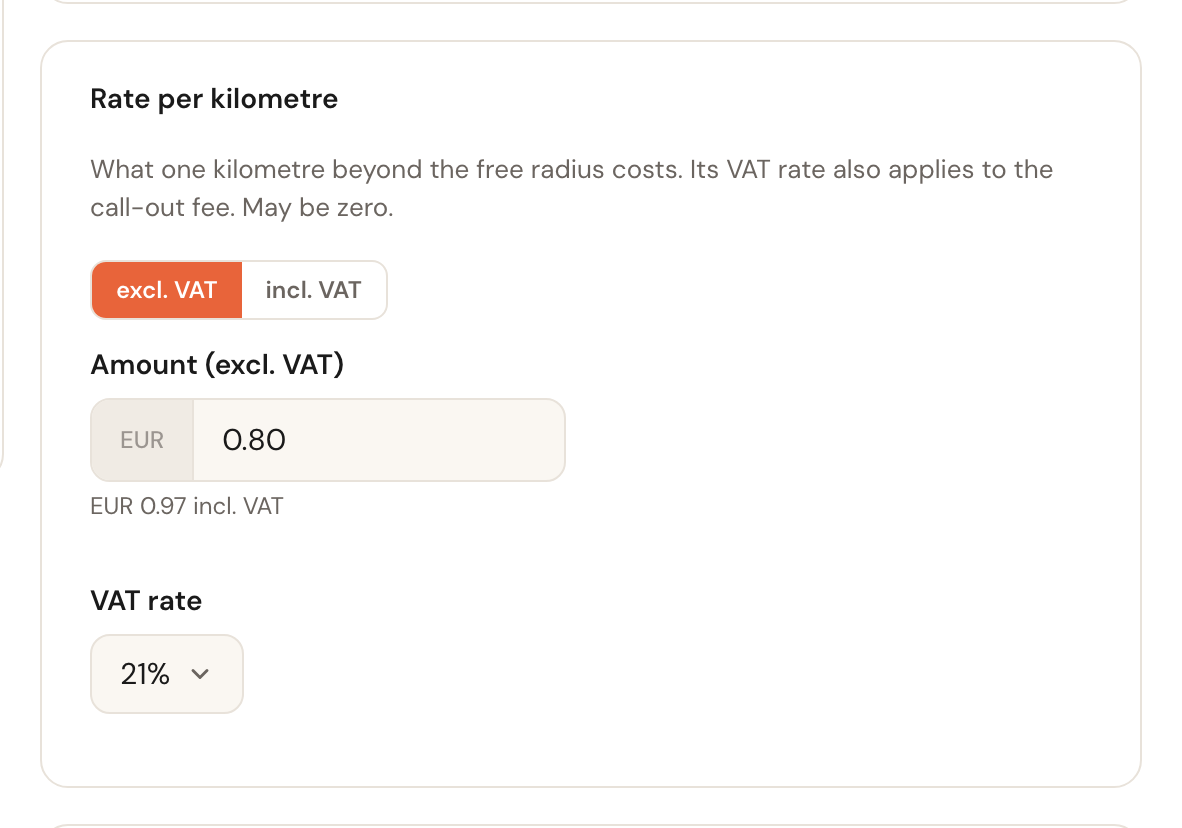
Rate per kilometre
Required for a travel costMay be € 0.00What one kilometre beyond the free radius costs, with its VAT rate.
The VAT rate you choose here also applies to the fixed call-out fee — which is why this card is required even if you only charge a fixed fee and set the rate to zero.
Bands
Bands
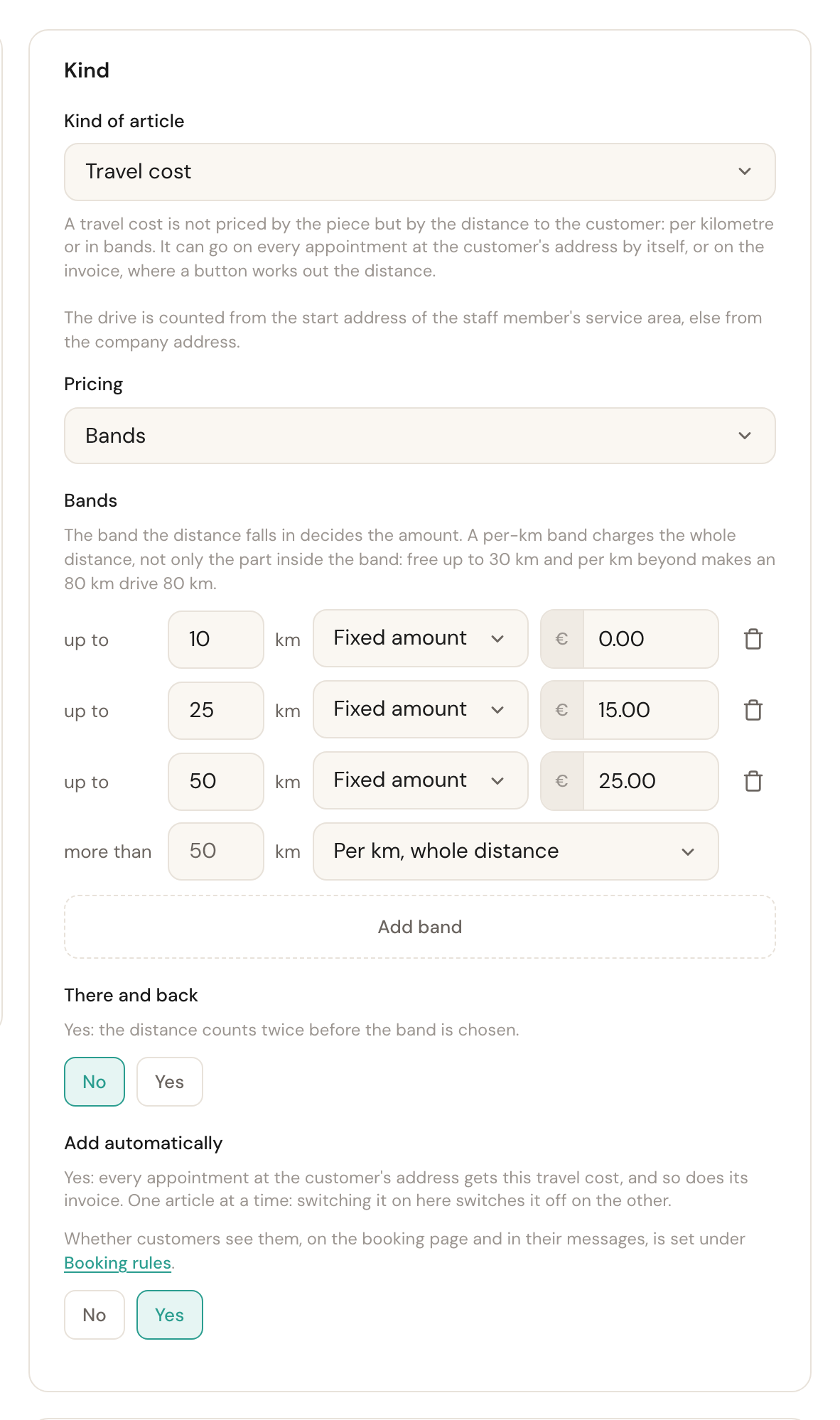
The last band is openEvery band has an upper limit — up to 25 km — and an amount: a Fixed amount, or Per km, whole distance. The last band has no upper limit: more than the one before, so every distance falls somewhere. Add band adds one; remove a band with the bin at the end of its row.
The band the distance falls in decides the amount. A band priced per km charges the whole distance, not only the part within the band: up to 30 km €0 and per km beyond makes an 80 km drive simply 80 km. That is how you give your business a free radius: a first band of €0. Every band has to reach further than the one before; otherwise the form says so under the bands.
There and back works with bands too: on Yes the distance counts double before the band is chosen. If one of your bands is priced per km, its rate is on the Rate per kilometre card; if they are all fixed amounts, that card is called VAT and you only choose the VAT rate on the amounts. On the invoice a band with a fixed amount names only the band, in numbers: Call-out charge — 10 - 25 km.
Surcharges: on top of an appointment's price
A surcharge bills no service of its own but comes on top of an appointment's price: an evening surcharge, a weekend rate, something extra on public holidays.
When
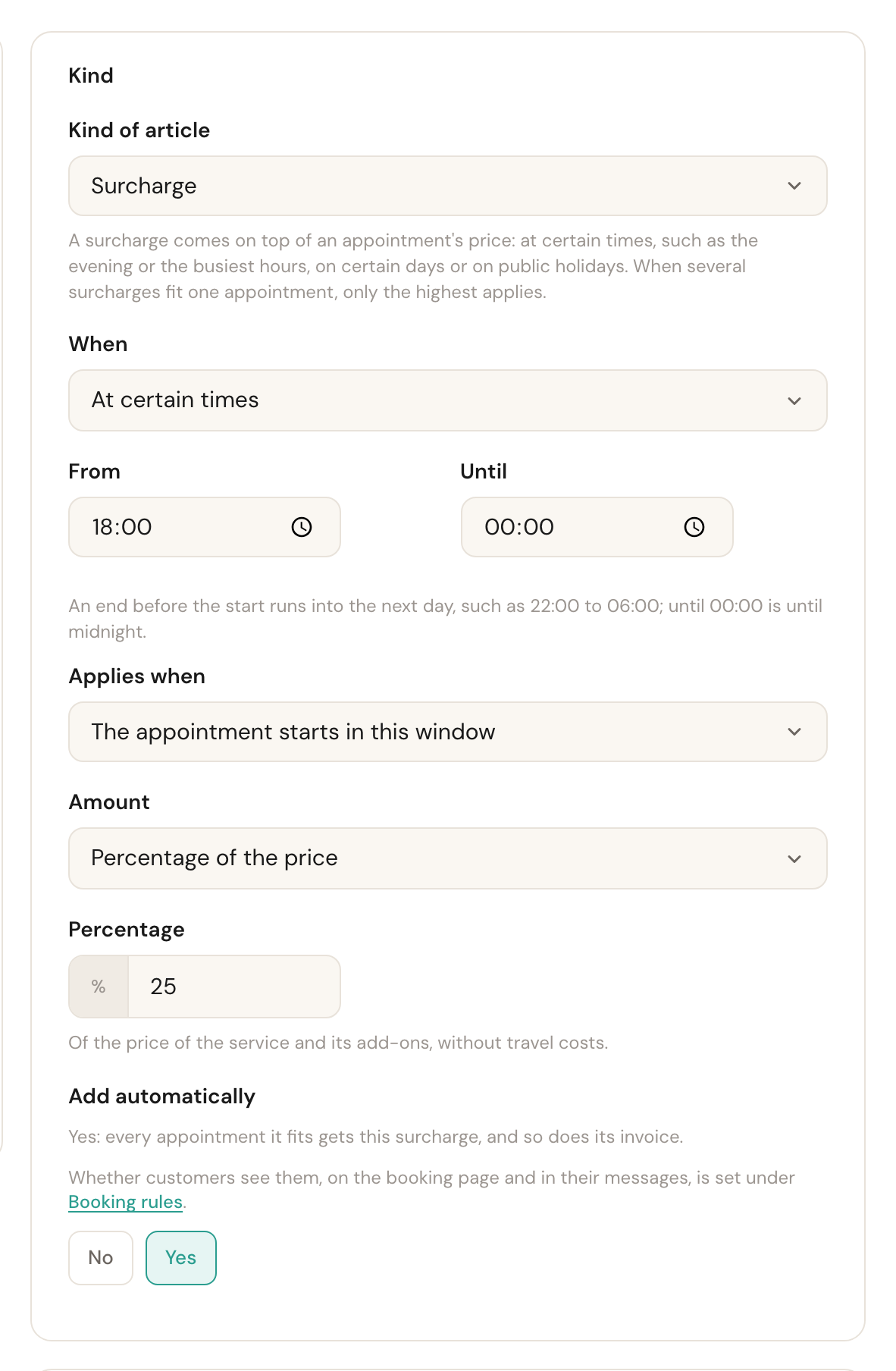
At certain times, on certain days or on public holidaysOn a priority bookingAt certain times: a window of the day, with From and Until. An end before the start runs into the next day, such as 22:00 to 06:00; until 00:00 is until midnight. On certain days: tick the days of the week. On public holidays: tick the holidays that count, from the Dutch and Belgian public holidays. On a priority booking: on an appointment a priority client books at a time outside your regular schedule, in the customer portal or through an invitation. It comes on top of a time surcharge; an ordinary time does not get it. The overview shows such a surcharge as Surcharge · priority booking.
The times are on your business's clock. A morning, an evening, the busiest hours between 12:00 and 15:00 — each is a surcharge of its own.
Applies when
Only with a time windowThe appointment starts in this window, or Any part of the appointment falls in this window.
An appointment from 17:30 to 18:30 does not start in an evening from 18:00, but part of it does fall in it. With the first choice it gets no surcharge, with the second it does.
Amount
Percentage of the price or Fixed amountA percentage of the price — of the service and its add-ons, without travel costs — or a fixed amount per appointment, which you fill in on the Amount card.
A percentage grows with the job; a fixed amount is the same for a short and a long appointment. A percentage surcharge has no price of its own, so it is not in the invoice editor's search list: the appointments it belongs to already carry it.
When several surcharges fit one appointment — an evening on a Saturday — only the highest applies. A surcharge applies to every appointment that fits its rule, at a location or as a call too.
Articles that add themselves
You can put travel costs and surcharges on an invoice by hand, but they can also land on your appointments by themselves. You switch that on per article.
Add automatically
Default: NoOnly for travel costs and surchargesYes on a travel cost: every appointment at the customer's address gets this travel cost, and so does the invoice. One travel cost article at a time: switch it on here and it goes off on the other. Yes on a surcharge: every appointment that fits the rule gets this surcharge, and so does the invoice. Yes on an On a priority booking surcharge: this is your default priority surcharge, on the invoice too. There is one of those at a time as well, and you can choose another per priority client.
A customer who books in Breda while you drive from Rotterdam pays for the trip — and you no longer have to remember it when you invoice. Whether the customer also sees it, on the booking page and in their messages, is a separate setting in Booking rules. A priority surcharge the customer always sees, even when Surcharges is off there: they choose a time outside the schedule themselves, and should know what it costs.
What then happens:
- The appointment gets the amounts when it is booked, as a snapshot, just like its price. They are on the appointment under Price: the total, and under it Appointment €105.00, the travel cost with its kilometres and the surcharge with its percentage. See What the appointment is worth.
- Travel costs once per visit. When a customer books three services at the same address, only the first one carries the trip. An appointment at a location or as a call never gets travel costs. An appointment at the start address itself is 0 km, so it gets the amount of your first band or your fixed call-out fee.
- When the appointment changes — another time, service, length, add-ons, place or staff member — Schedulinq works the amounts out again when you save; the form says so too. An appointment moved to the afternoon loses its evening surcharge that way. A price change on the article leaves existing appointments as they are.
- On the invoice they come along with Add from appointments: a surcharge as a line under the appointment, the travel cost as a group of its own with the kilometres. An appointment booked before the article added itself gets the amounts after all as soon as you put it on an invoice.
On the invoice
You put an article on an invoice by typing its name or code into an empty line; the invoice editor searches as you type. How that works exactly is in Create an invoice. A travel cost deserves its own explanation here, because something happens the moment you pick it.
Pick the customer first
The distance is worked out to the customer's address, or to the address of the appointment you are invoicing. Without a customer Schedulinq cannot calculate, and says so.
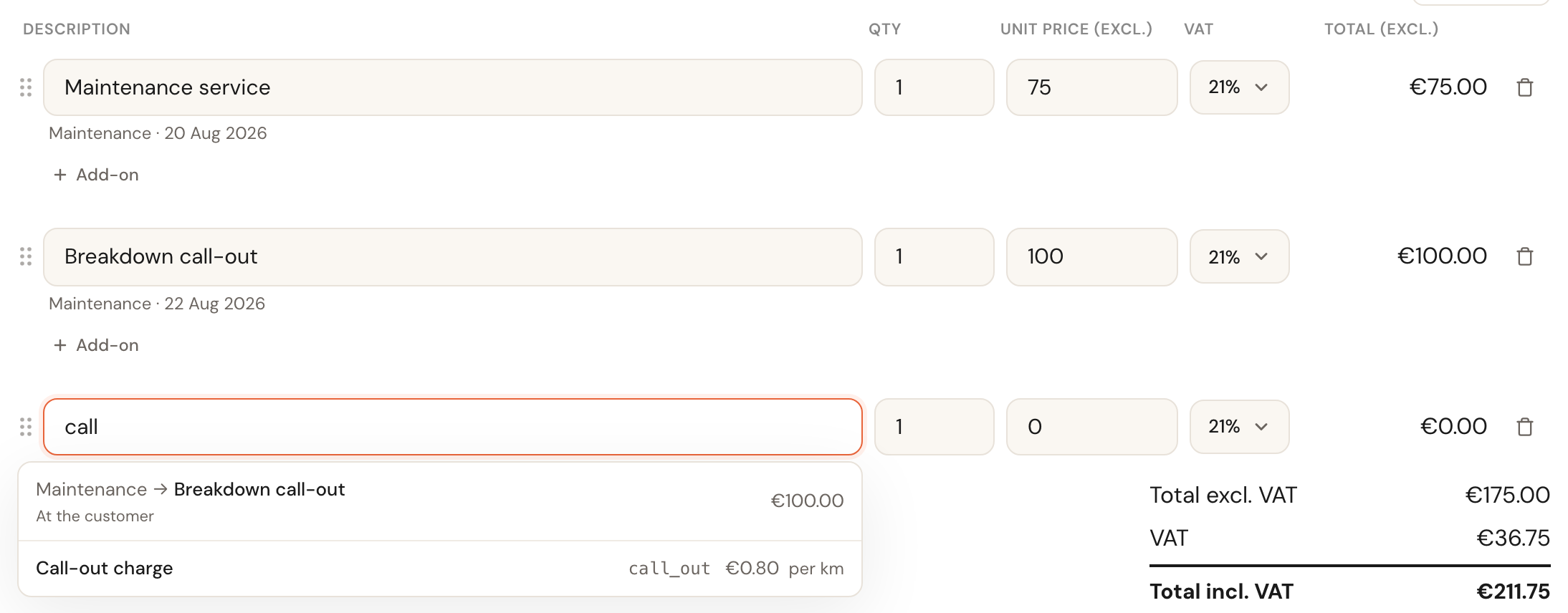
Type the name into an empty line and pick the article
In the list you recognise a travel cost by per km after its rate. Pick it and the line briefly reads Working out the distance….
Choose where to drive to — only when needed
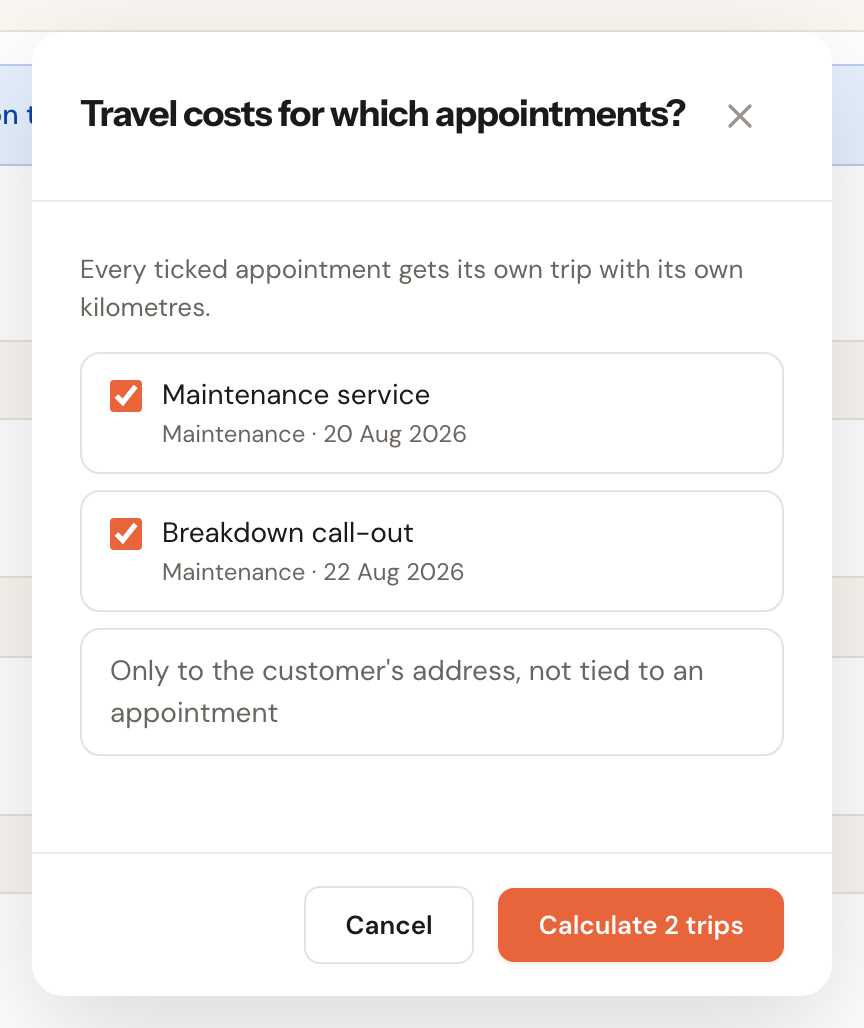
With one appointment on the invoice, Schedulinq drives to that appointment's address. With none, to the customer's address. Only with several appointments do you get a question: which visits do you want to charge travel for? Every ticked visit becomes its own trip with its own kilometres. Tick a video or phone call and Schedulinq says Nothing to charge for a video or phone call: nobody drives to it. — the other visits get their trips as usual.
Check the lines
The result is two lines together: the fixed call-out fee, and underneath it the kilometres with the arithmetic in the description. The quantity reads km, the unit price / km.
Deleting and restoring an article
Open the article and choose Actions → Delete, or tick several articles in the overview. The article disappears from the invoice editor's search list; invoices that already carry it keep their lines.
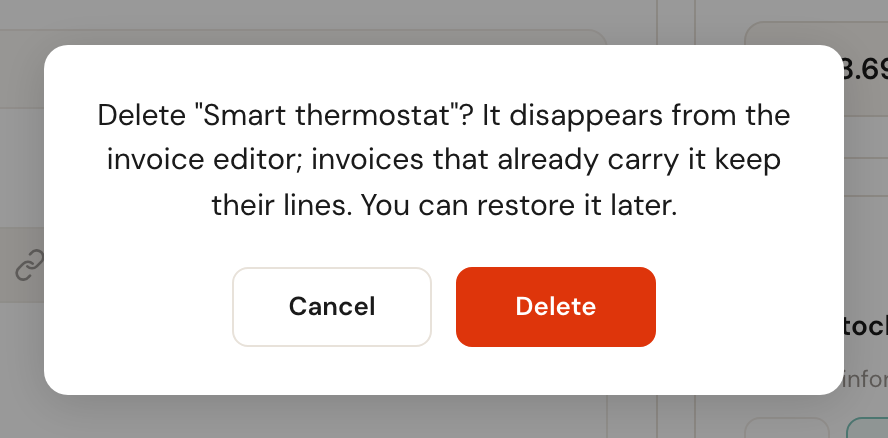
If the article is a part of an object, it stays there, with archived after its code. You can no longer pick it for a new part.
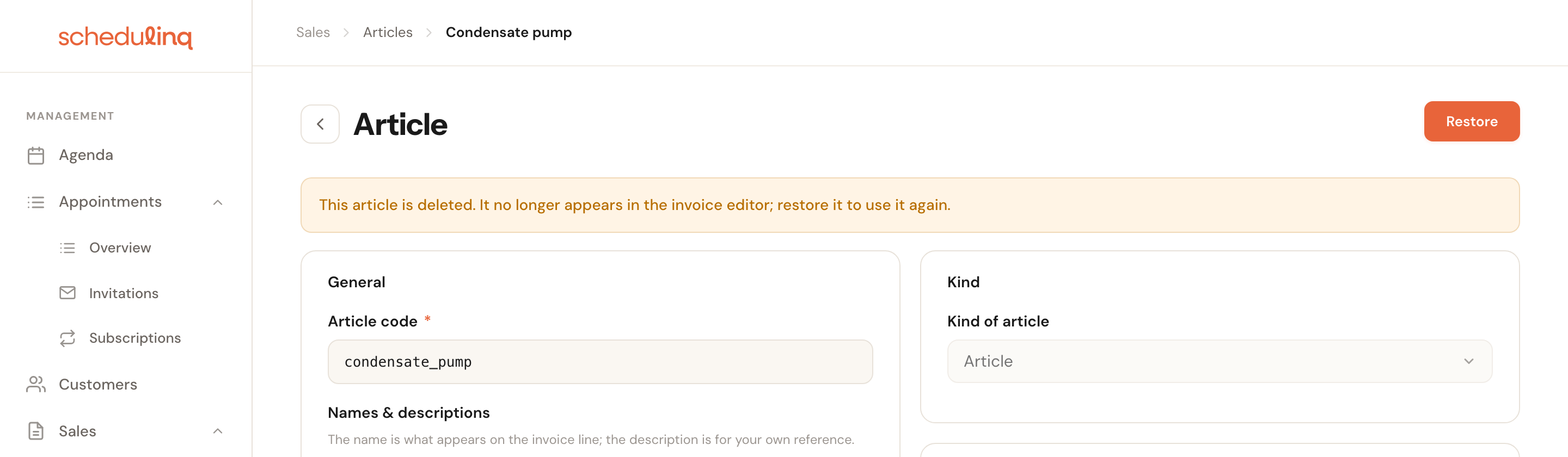
Deleting is reversible. Set the filter in the overview to Deleted, open the article and click Restore. It is back in the search list, with the same code, name and price.
Frequently asked questions
I do not see Articles in the menu. The Articles area has its own permissions. If your role existed before articles did, it stays off until an administrator switches it on under Team → Roles. Putting articles on an invoice already works with the Sales invoices permission — only managing the catalogue needs the new area.
I changed a price, but the invoice still shows the old amount. Correct: a line is a copy of the article at the moment you added it. To get the new price onto a draft, remove the line and pick the article again.
Can I link an article to an appointment type so it comes along automatically? No. Something that belongs to a service and may be booked online with it is an add-on. An article is for what you only know at invoice time: material you used, or the drive.
The stock is wrong. Invoices never change the stock; the number only changes when you change it. Think of it as a tally, not a warehouse system.
Why does Schedulinq count the distance from a different address than I expect? The drive starts where the scheduling algorithm starts it too: at the start address of the service area of the staff member on the appointment, and otherwise at your company address. If you want a different departure point, change the service area's start address.