

Teamleader Focus
Connect Teamleader Focus to Schedulinq — contacts, companies, appointments, deals and team members, in both directions.
The Teamleader integration keeps your customer records in one place, whichever of the two systems you happen to be working in. New and changed contacts, companies and appointments then travel back and forth on their own.
This guide covers the integration as it stands in Schedulinq today: connecting, what syncs, the one-off import and export, raising deals, linking team members, and disconnecting again.
Connecting
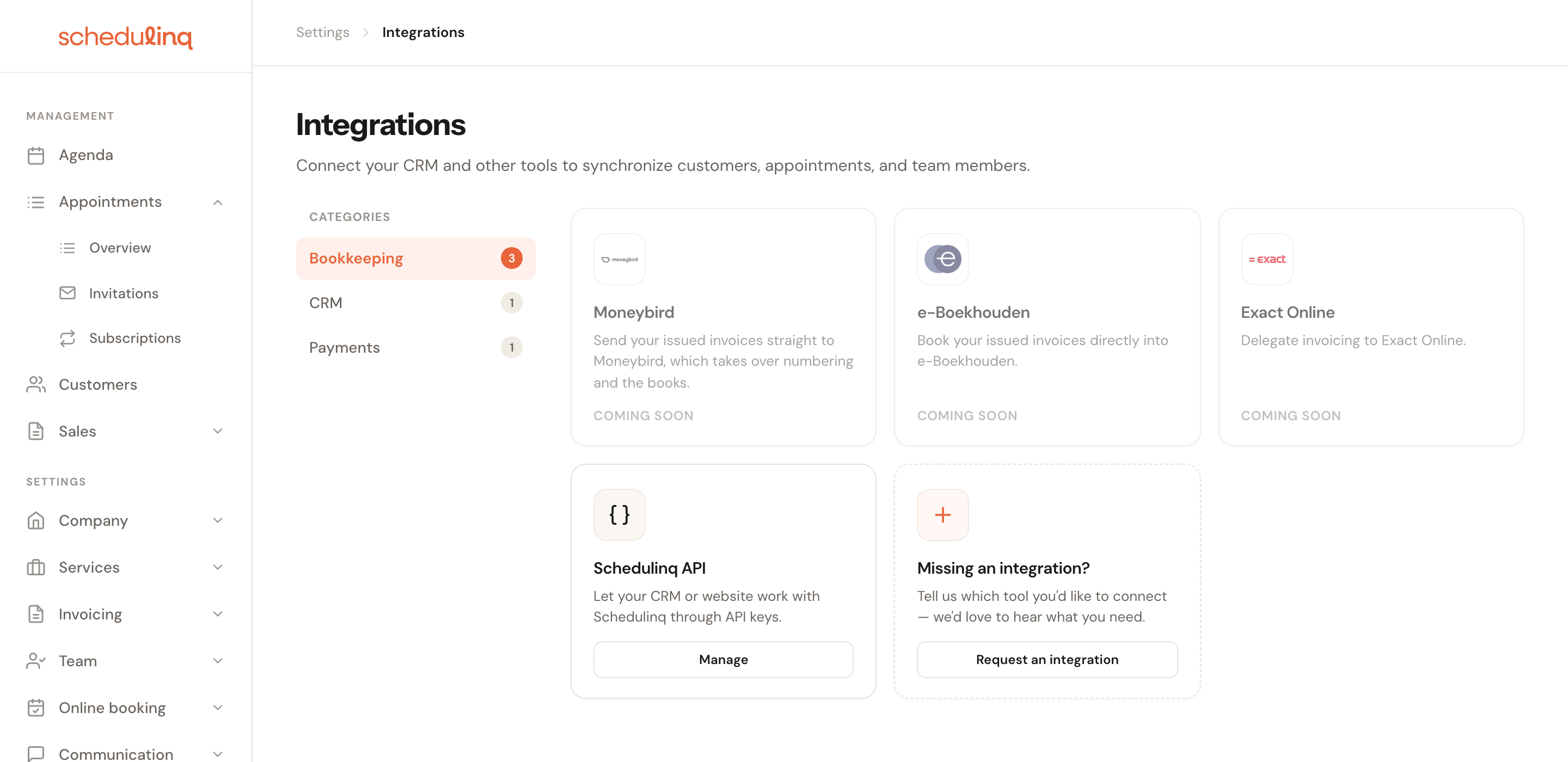
You'll find Teamleader under Settings → Integrations, in the CRM category. The page opens on Bookkeeping, so click CRM first.
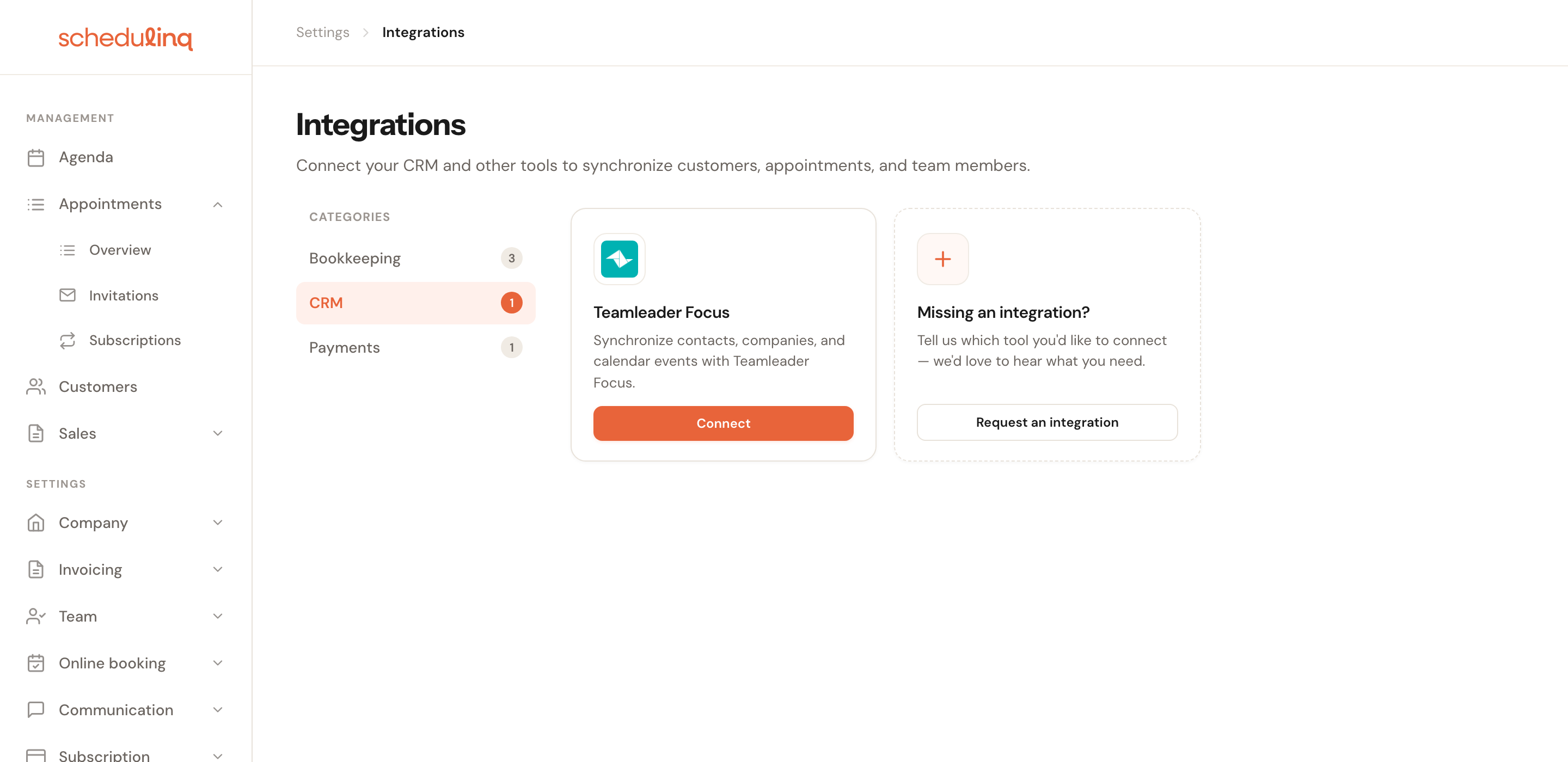
The categories on the left count how many integrations each kind holds. Teamleader is the only CRM integration.
Click Connect
Schedulinq sends you to Teamleader to grant access. You sign in there with your own Teamleader account.
Give Schedulinq access
The consent screen belongs to Teamleader, not to Schedulinq. You grant access on behalf of the Teamleader account you are signed in with — so sign in with the account that holds the contacts and companies you want to connect, not a personal trial account.
You land back in Schedulinq
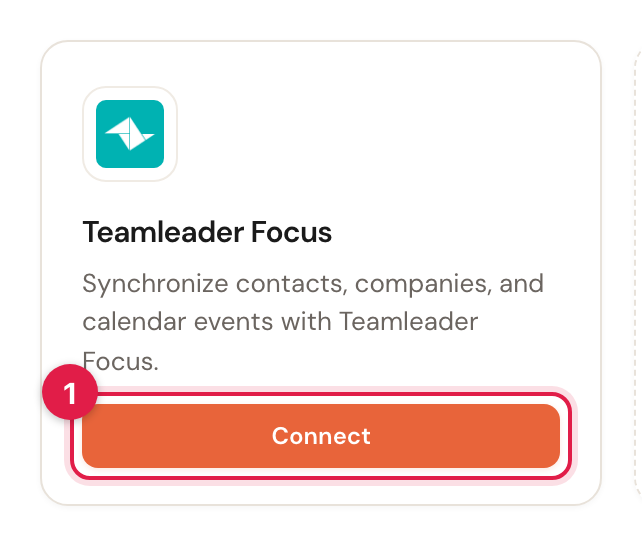
After granting access you return automatically, and Schedulinq opens the integration's settings page straight away. From now on the card in the overview carries a Connected label.
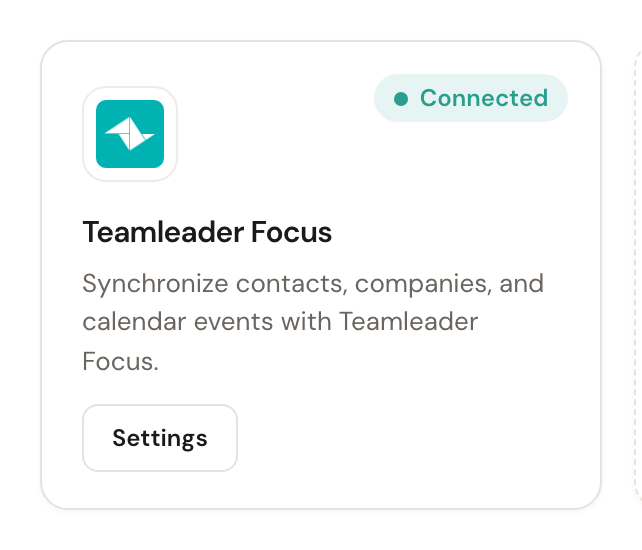
Installing from the Teamleader Marketplace
You can also start on Teamleader's side, by installing Schedulinq from the Teamleader Marketplace. Then the order is reversed: you give access on Teamleader's consent screen first, and only then arrive in Schedulinq.
- Signed in to Schedulinq, with a company? The connection is made straight away and the settings page opens.
- Not signed in? A page asks you to finish the job: Create a free account or I already have an account. Schedulinq remembers the install while you register, confirm your email address and set up your company, and connects Teamleader as soon as your company exists.
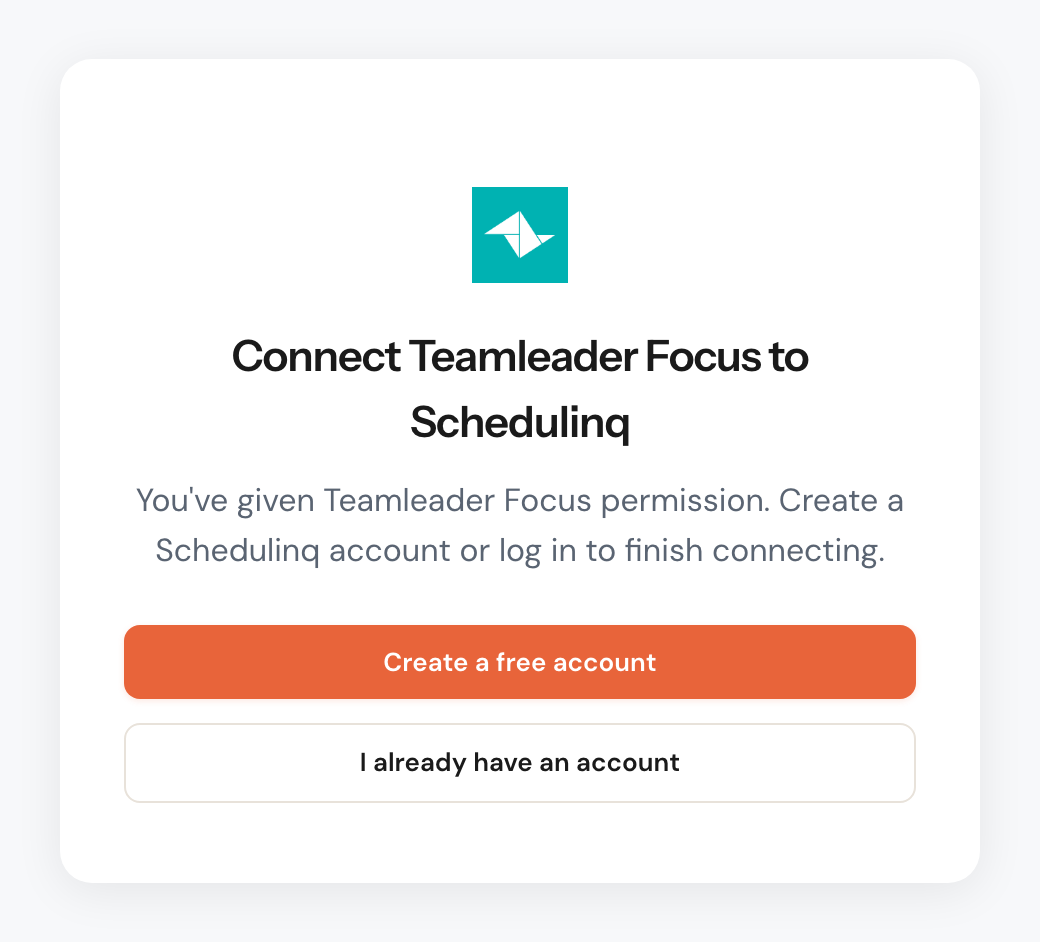
Three other screens can appear along the way:
| Screen | What it means |
|---|---|
| Connect Teamleader Focus? | Schedulinq could not confirm that you finished in the browser you started in — you opened the confirmation email in another browser, say. Check that this is the connection you meant and click Yes, connect it. |
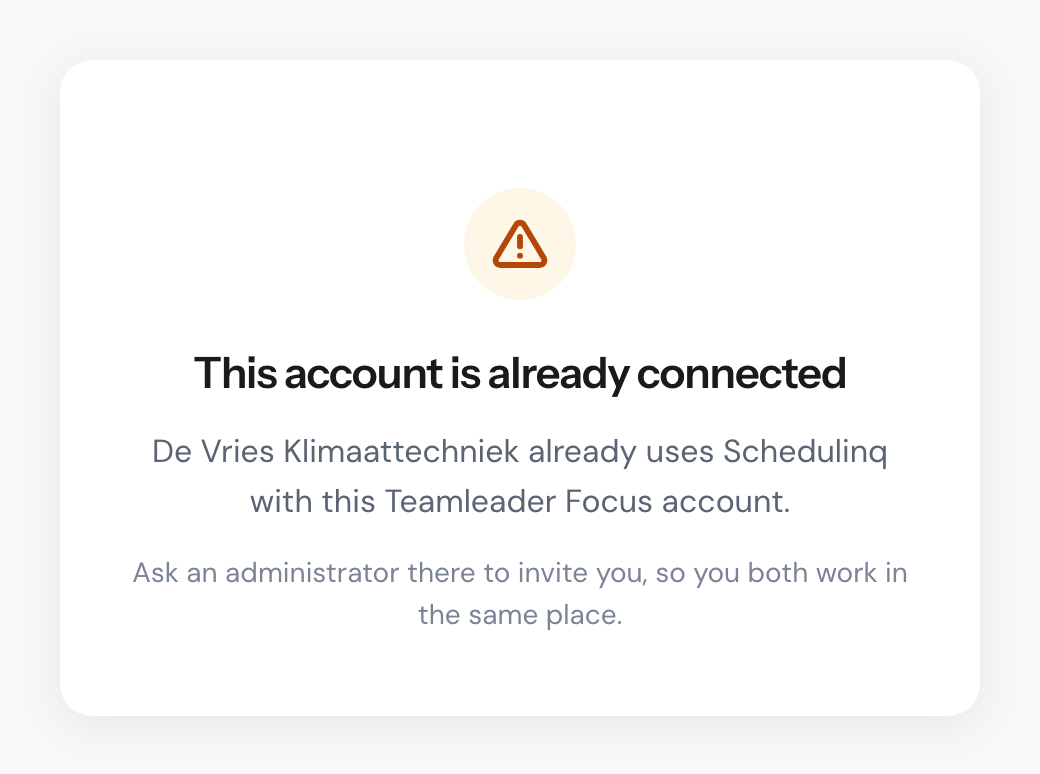
| This account is already connected | That Teamleader account is already connected to another Schedulinq organisation, which the screen names: usually your own company, set up by a colleague. One Teamleader account goes with one organisation, so ask an administrator there to invite you instead of setting up a second one. |
| That took a little too long | The install expired before it was finished; it is kept for two hours. Click Go to integrations and connect from there with Connect. |
What else is on the Integrations page
Besides Teamleader, the page holds:
- Bookkeeping — Moneybird, e-Boekhouden and Exact Online. All three are marked Coming soon: you cannot connect them yet.
- Payments — Mollie, also Coming soon.
- Missing an integration? — Request an integration opens an email to our support in your own mail program, so you can tell us which tool you would like to connect.
- Schedulinq API — a card only admins see. Manage leads to your API keys and webhooks; see the API section.
The settings page
Everything you can configure sits on one screen: Settings → Integrations → Teamleader Focus, or via the Settings button on the card.
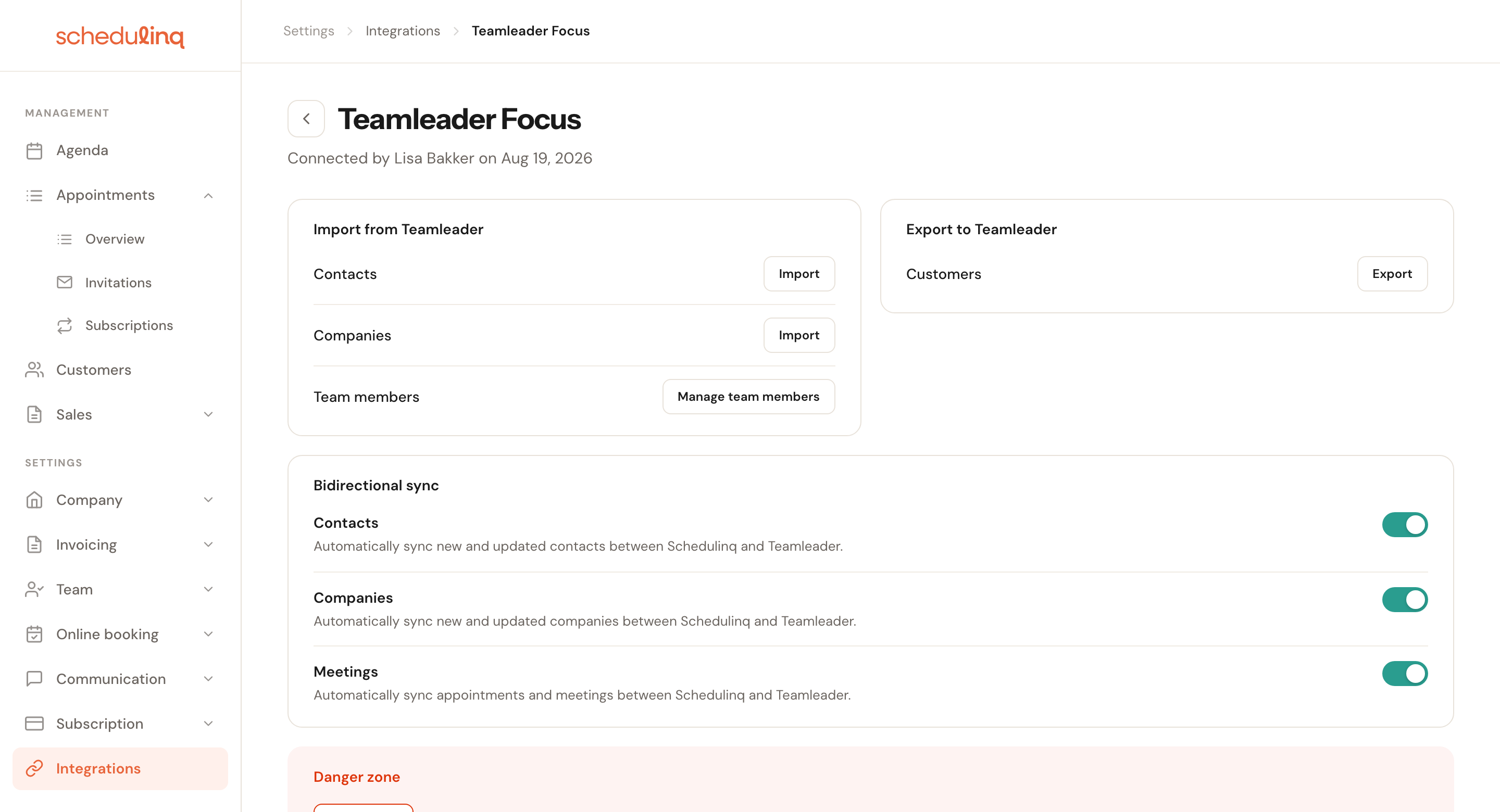
The screen falls into five parts, and they genuinely do different things:
- Import from Teamleader — a one-off action you start yourself.
- Export to Teamleader — the same, in the other direction.
- Bidirectional sync — the ongoing connection, which runs by itself.
- Deals — raise a deal in Teamleader when a service is booked.
- Danger zone — disconnecting.
The distinction between the first two and the third is the most important thing on this page. Import and export are catch-up runs for what is already there; the sync handles everything that happens afterwards.
Bidirectional sync
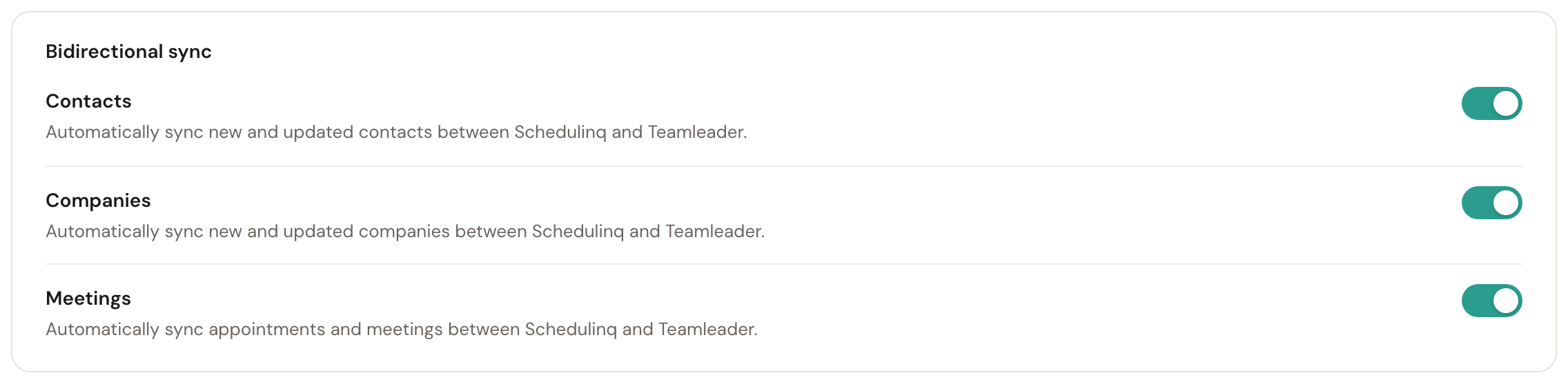
These three switches decide what is kept in step continuously, without you doing anything.
Contacts
Default: onNew and changed private customers travel in both directions.
This is the switch to keep on if Teamleader is your customer administration. Turn it off and an address change you make in Schedulinq stays in Schedulinq — which you only notice when you see the old address in Teamleader.
Companies
Default: onThe same, but for business customers. In Schedulinq that is a customer of type Business; in Teamleader it is a company.
Private and business customers follow separate routes, so these two switches are independent. If you only work for consumers this switch changes nothing — but turning it off is tidier than leaving it on "just in case".
Meetings
Default: onAppointments from Schedulinq appear as meetings in Teamleader and stay updated afterwards.
Useful when colleagues use Teamleader as their calendar and never open Schedulinq. An appointment without a start or end time is not pushed — there is no meeting to make of it.
Flipping a switch saves immediately; there is no save button.
The one-off import
Importing pulls what is already in Teamleader into Schedulinq. You use it once, right after connecting, to catch up on what you have; everything that happens afterwards is the sync's job.
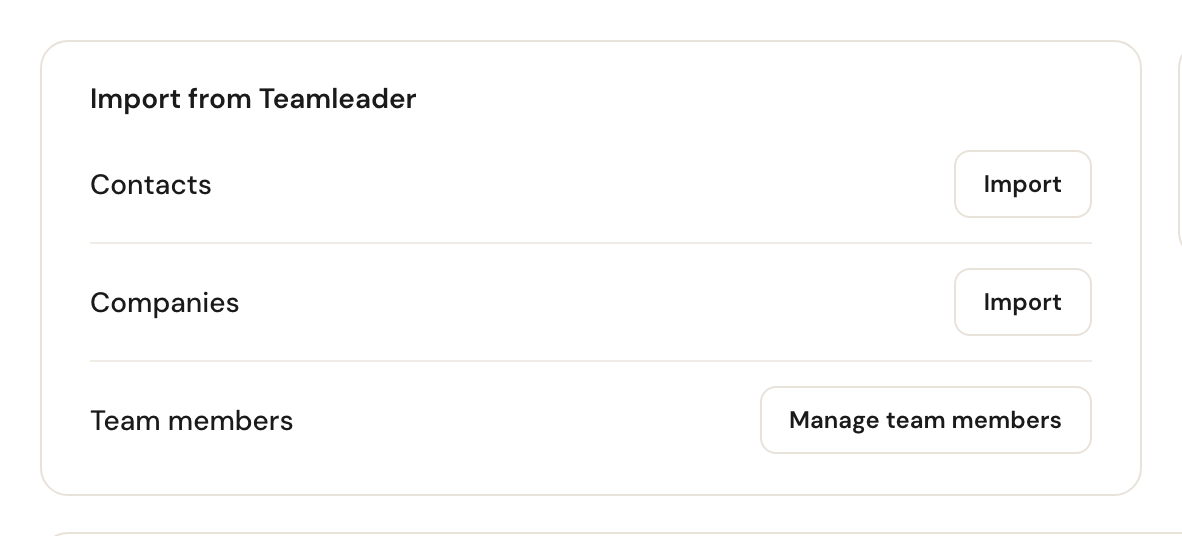
Three rows, each with its own button, so you can start with one and leave the rest. Team members sits underneath and leads somewhere else — see Linking team members.
Watching it run
A few thousand contacts take minutes rather than seconds, so the work happens on the server and not in your browser. A panel appears under the rows and counts up, step by step.
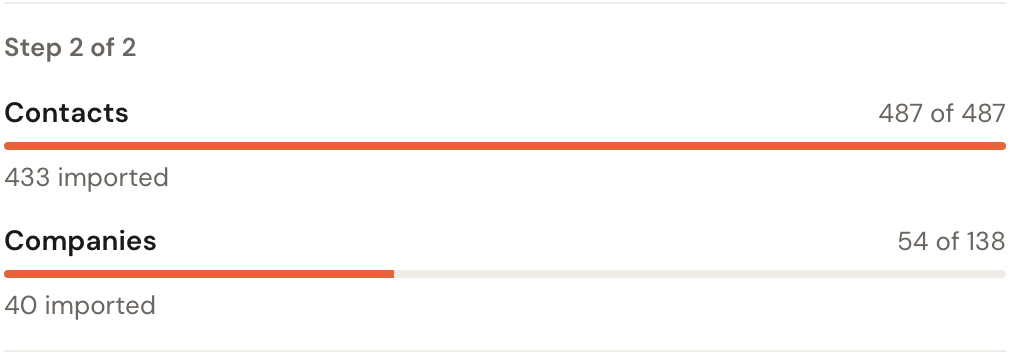
You can close the page, or the whole tab. The import carries on, and the panel is there again when you come back.
Starting more than one
You don't have to wait for one to finish. Press a second button while the first is running and it joins a queue: that row swaps its button for its place in line and an × that takes it out again.
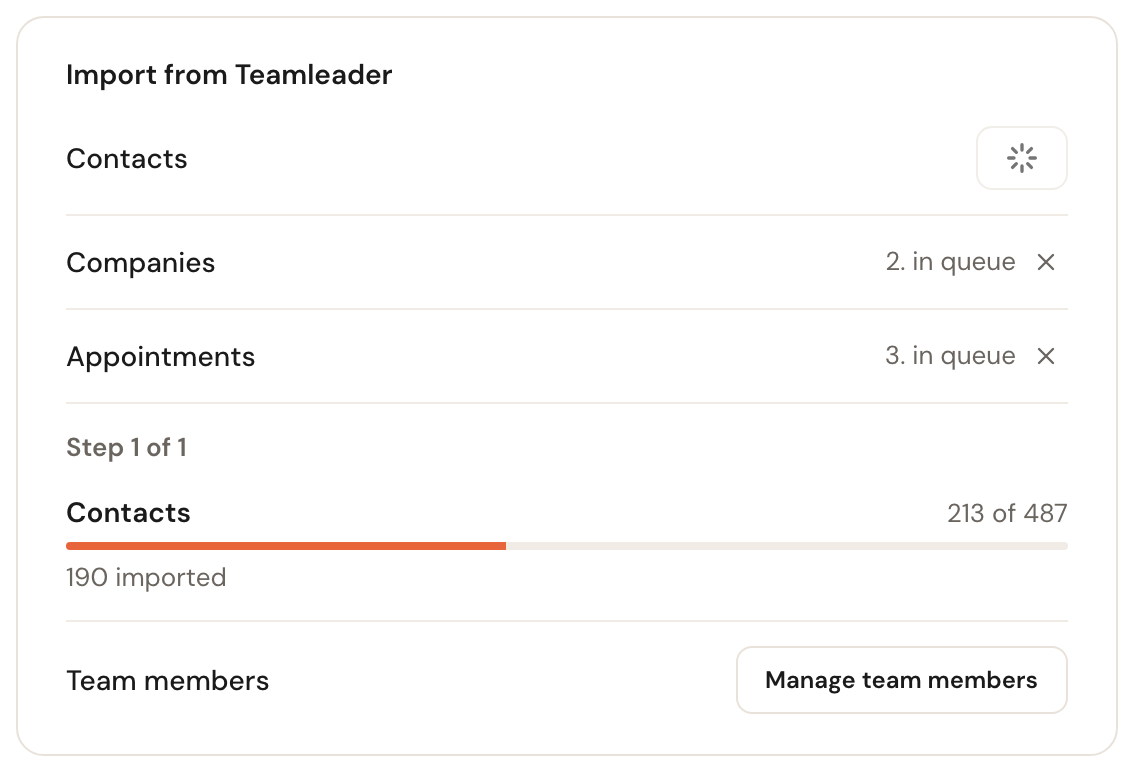
One job runs at a time whichever direction it goes in, because both directions spend the same Teamleader rate limit. A job that has already started cannot be cancelled — it is mid-conversation with Teamleader — which is why the × only ever appears on a row that is still waiting.
Reading the result
Once nothing is running the panel stops being a readout and becomes a record. It says Last import with the time it finished, and carries an × to put it away.
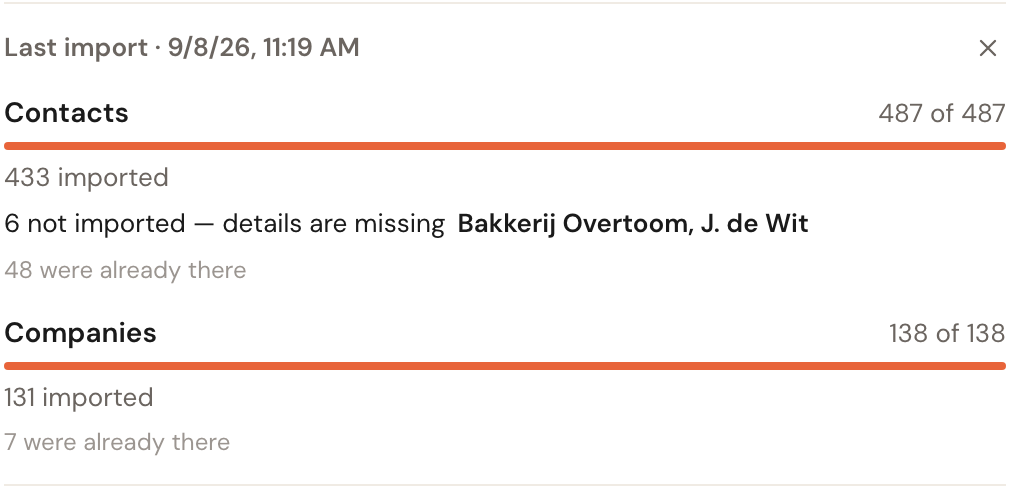
There are three kinds of line, and the difference between them matters:
| Line | What it means |
|---|---|
| … imported | Created in Schedulinq, or linked to a customer that was already there. |
| … not imported — reason | Worth acting on. Details are missing, or the attendee is not linked to a Schedulinq user — with the names, and a button to the screen where that is fixed. |
| … were already there (greyed) | Nothing to do. Run the same import twice and everything lands on this line. |
The one-off export
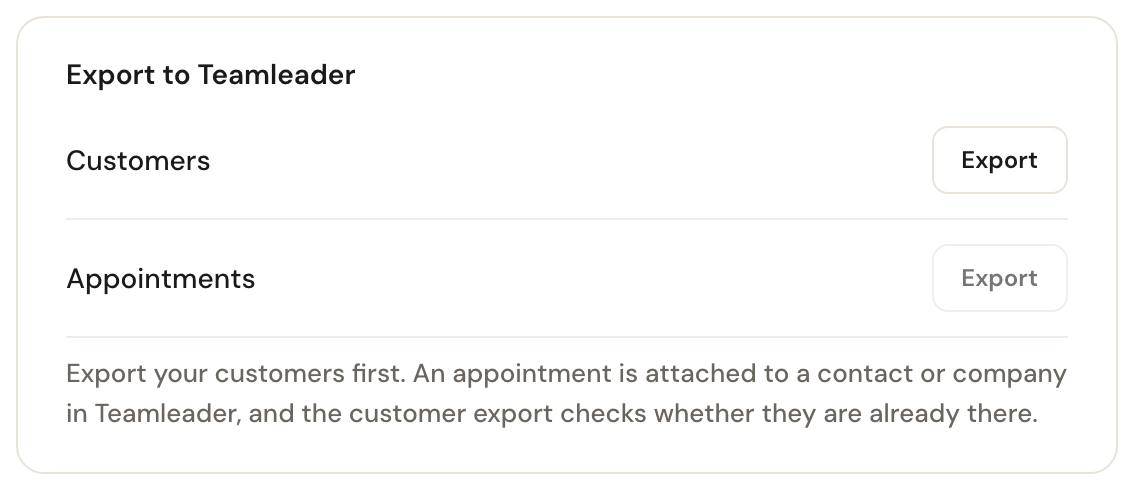
The other direction — what is in Schedulinq, put into Teamleader. Two rows, Customers and Appointments, with the same queue, the same progress panel and the same three kinds of result line as the import.
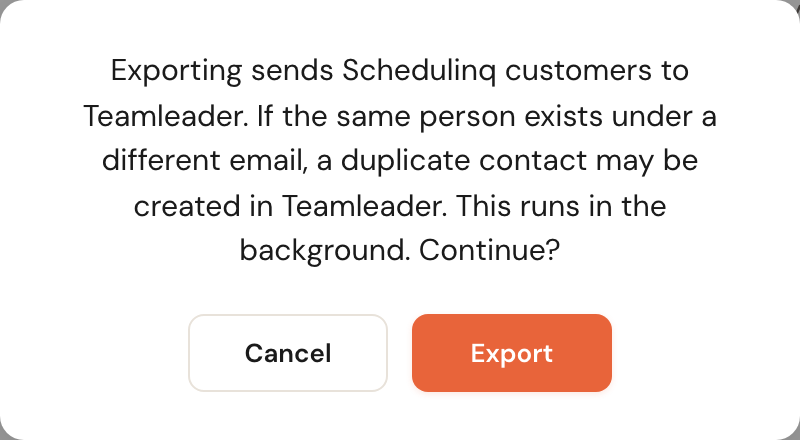
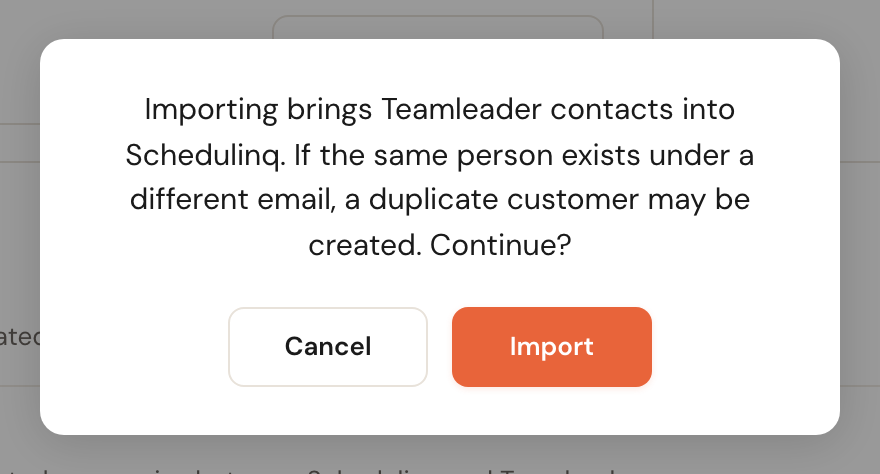
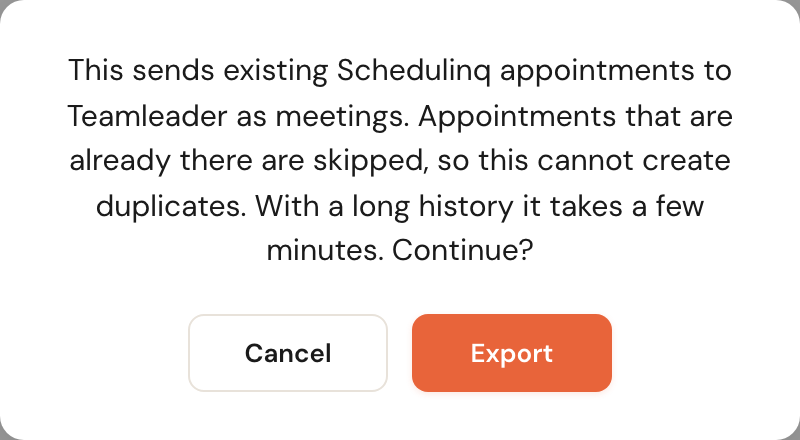
Exporting appointments has a confirmation of its own, and it says something the customer one cannot: this export is safe to repeat.
Avoiding duplicates
This is the part worth understanding, because it is the one step no switch undoes.
Schedulinq links an existing record to an existing customer by email address, using a single rule:
| Records sharing the email address | What happens |
|---|---|
| Exactly one | Linked to that record. Nothing is added. |
| None | A new record is created. |
| More than one | A new record is created. |
That last row surprises people. Schedulinq deliberately does not pick from
several candidates: two customers are allowed to share an email address (a couple,
or a general info@ address), so choosing one of them would be a guess. A guess
that goes wrong is worse than a duplicate you can see.
A customer or contact without an email address has nothing to match on, and so always produces a new record.
This rule is not limited to the manual import and export. The ongoing sync uses it too: edit a customer that has no counterpart in Teamleader yet, and Schedulinq first looks for one by email address. If nothing is found, that edit creates a new record.
Deals
A booking can raise a deal in Teamleader: one deal per appointment, in the pipeline phase you choose. It is off until you turn it on.
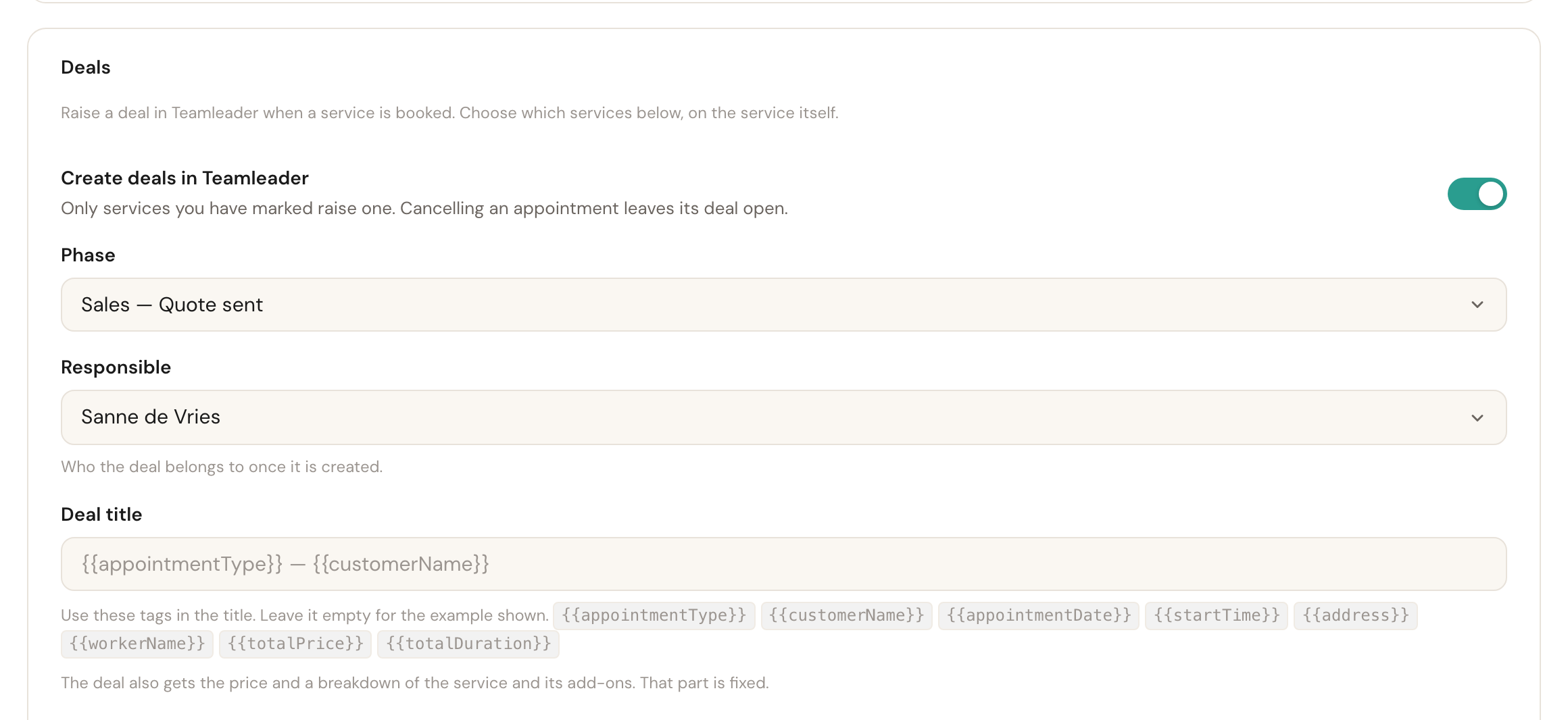
Create deals in Teamleader
Default: offThe master switch. The rest of the card only appears once it is on.
On its own it does nothing: a deal is raised only for the services you tick further down. Switching it on and stopping there is the one combination that looks configured and produces nothing, which is why the card tells you when no service has been ticked yet.
Phase
RequiredWhere a new deal lands. The list is your own Teamleader pipelines and their phases, written as pipeline — phase.
A deal has to land somewhere, so this is the one field you cannot leave empty — saving with the switch on and no phase chosen is refused. An empty list is not an empty pipeline: it means this connection cannot read deals from your Teamleader account, and reconnecting is the fix.
Responsible
OptionalWho the deal belongs to once it is created. Leave it empty to let Teamleader decide.
This is a Teamleader user, not a Schedulinq one — whoever works that pipeline. They do not need a Schedulinq account at all.
Deal title
OptionalWhat the deal is called. Leave the box empty and you get the example shown greyed inside it: the service, an em dash, the customer.
To write your own, type any of the tags listed under the box —
{{appointmentType}}, {{customerName}}, {{appointmentDate}},
{{startTime}}, {{address}}, {{workerName}}, {{totalPrice}} and
{{totalDuration}}.
Price and duration here count the add-ons in, and that is deliberate: the deal's own value counts them too, so a title carrying the price agrees with the amount sitting next to it.
Every deal also gets the price and a breakdown of the service and its add-ons. That part is fixed and there is nothing to set.
Which services raise a deal
Under the title sits your service list, and only the ticked services raise anything at all. Search it, or use Select all.
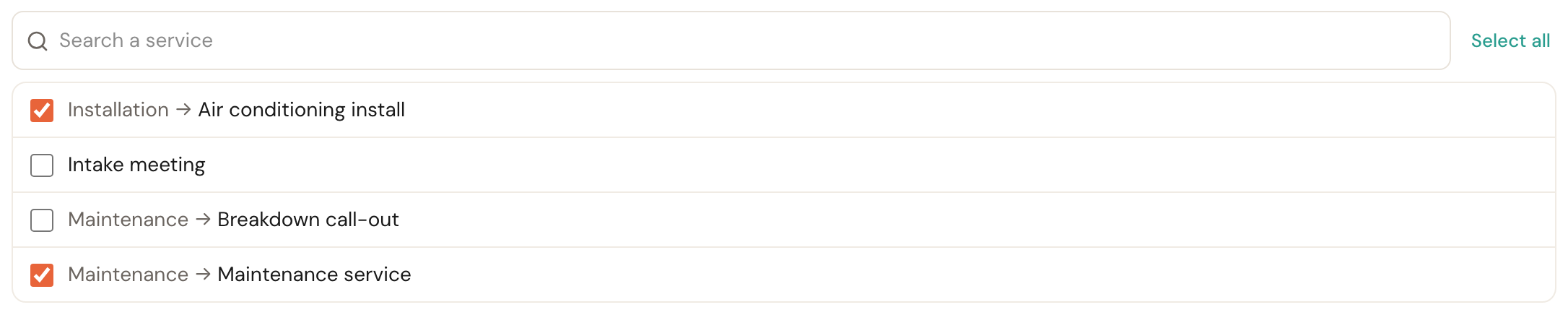
Services are labelled with their category path — Maintenance → Maintenance service — because a bare name stops being an answer the moment two categories both hold a service of the same name.
Linking team members
Contacts are your customers; team members are your colleagues. They get their own screen, via Manage team members in the import block.
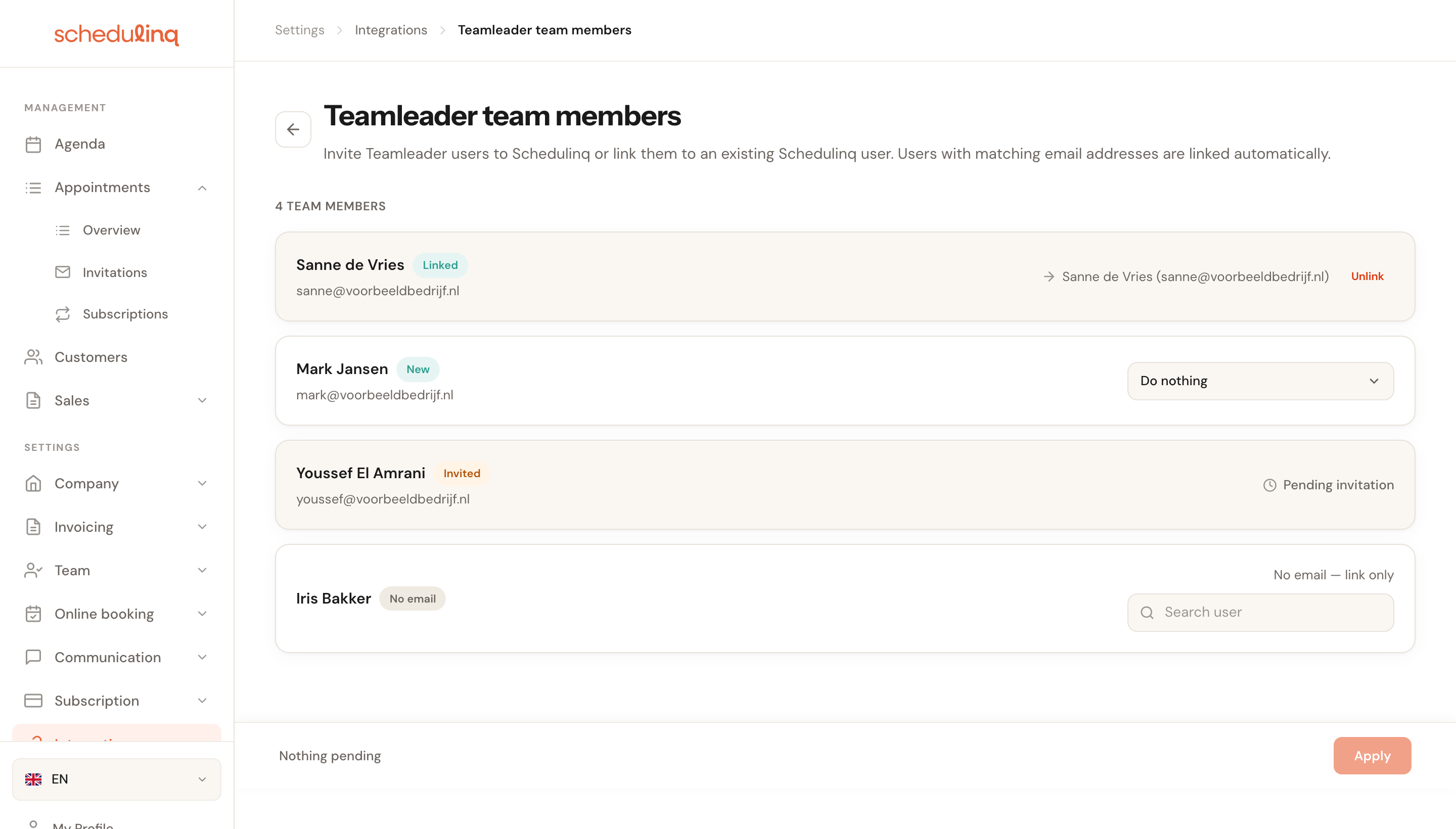
Every Teamleader user gets a row, with a status that decides what you can do:
Linked
This Teamleader user and a Schedulinq user are paired. Users with the same email address in both systems are linked automatically — nothing to do.
The link decides whose appointment it is when one arrives from Teamleader. Without it, Schedulinq does not know which staff member it belongs to.
New
Default: Do nothingThis Teamleader user is not known in Schedulinq yet. You choose per row: Invite (that person gets an invitation to Schedulinq) or Link to existing user (for someone who already has a Schedulinq account under a different email address).
The default is deliberately Do nothing, so you can never accidentally invite your whole Teamleader address book. Note that every invited colleague who accepts counts towards your Schedulinq subscription.

Invited
An invitation is already outstanding for this person. There is nothing to do until they accept it.
No email
This Teamleader user has no email address, so inviting is impossible — linking to an existing Schedulinq user is the only option, which is why the search field is ready and waiting.
Your choices are only carried out when you click Apply at the bottom. Until then you can change them freely. One Schedulinq user can be linked to only one Teamleader user: someone already linked, or picked in another row, no longer appears in the search list.
Unlink works differently: it happens immediately, outside Apply, after a confirmation.
Disconnecting
The danger zone sits at the bottom of the settings page.

Disconnecting stops the sync and takes away Schedulinq's access to your Teamleader account. What you hold in either system — customers, appointments, contacts — stays exactly where it is.
Schedulinq also keeps which records belong together, and your settings on this page. Reconnect the same Teamleader account with Connect on the card and the sync carries on where it stopped: the same pairings of customers, appointments and team members, the same switches, the same Deals settings. The confirmation speaks of removing all integration data, but only the access goes. A different Teamleader account starts fresh — see Avoiding duplicates.
Frequently asked questions
I imported and now I see duplicate customers. Those customers had either no email match or more than one. Merge the duplicates in Schedulinq and fill in the email addresses, so a later import does recognise them.
A colleague is missing from the team members list. The list comes straight from Teamleader. If someone is not a user there, they will not appear here either.
My appointments are not reaching Teamleader. Check that the Meetings switch is on, and that the appointment has a start and end time. Appointments without a time are skipped.
Can I sync only contacts and nothing else? Yes. The three switches are independent; turn the other two off.
I closed the tab while an import was running. It carried on. The work runs on the server, not in your browser — open the settings page again and the panel shows where it got to, or what it finished with.
Teamleader disconnected itself. When Teamleader no longer accepts Schedulinq's access — it was revoked on Teamleader's side, for instance — Schedulinq disconnects the integration and shows a bar at the top of the page to the person who connected it, with Reconnect. That button leads to Integrations: under CRM, click Connect on the Teamleader card and connect the same Teamleader account, and everything carries on with its pairings and settings intact.
The Appointments button is greyed out. Import contacts and companies first, or for the export, export your customers first. The note under the row says which of the two applies. Queueing the prerequisite is enough — you don't have to wait for it to finish before pressing Appointments.
I turned Deals on and nothing happens. Deals are raised only for the services you ticked under For which services. With none ticked the card says so, and no booking raises anything.
A deal has the wrong title. The title comes from the Deal title box on the Deals card, and it applies to deals raised from then on — deals already in Teamleader are not rewritten.