

Recurring appointments
Let Schedulinq offer a repeating appointment on its own — from a yearly service to a fortnightly check-up.
A subscription is a repeating appointment with one customer: a yearly service, a quarterly inspection, a fortnightly treatment. You set it up once and Schedulinq sends the customer an invitation each time it comes round.
What a subscription does, and does not do
The most important thing to know up front: a subscription never books anything by itself. On the agreed date it sends an invitation, and the customer picks a time that suits them.
You set the recurrence
For example: every year, starting 2 March.
Schedulinq sends an invitation when it is due
Once a day it checks which subscriptions are due. If one is, an invitation goes out to the customer that day.
The customer picks a time
They open the invitation and book a slot that fits your availability. Only then does the appointment appear in the calendar.
The overview
Appointments → Subscriptions lists every running subscription, with the customer, the appointment type, the date of the next invitation and the status.
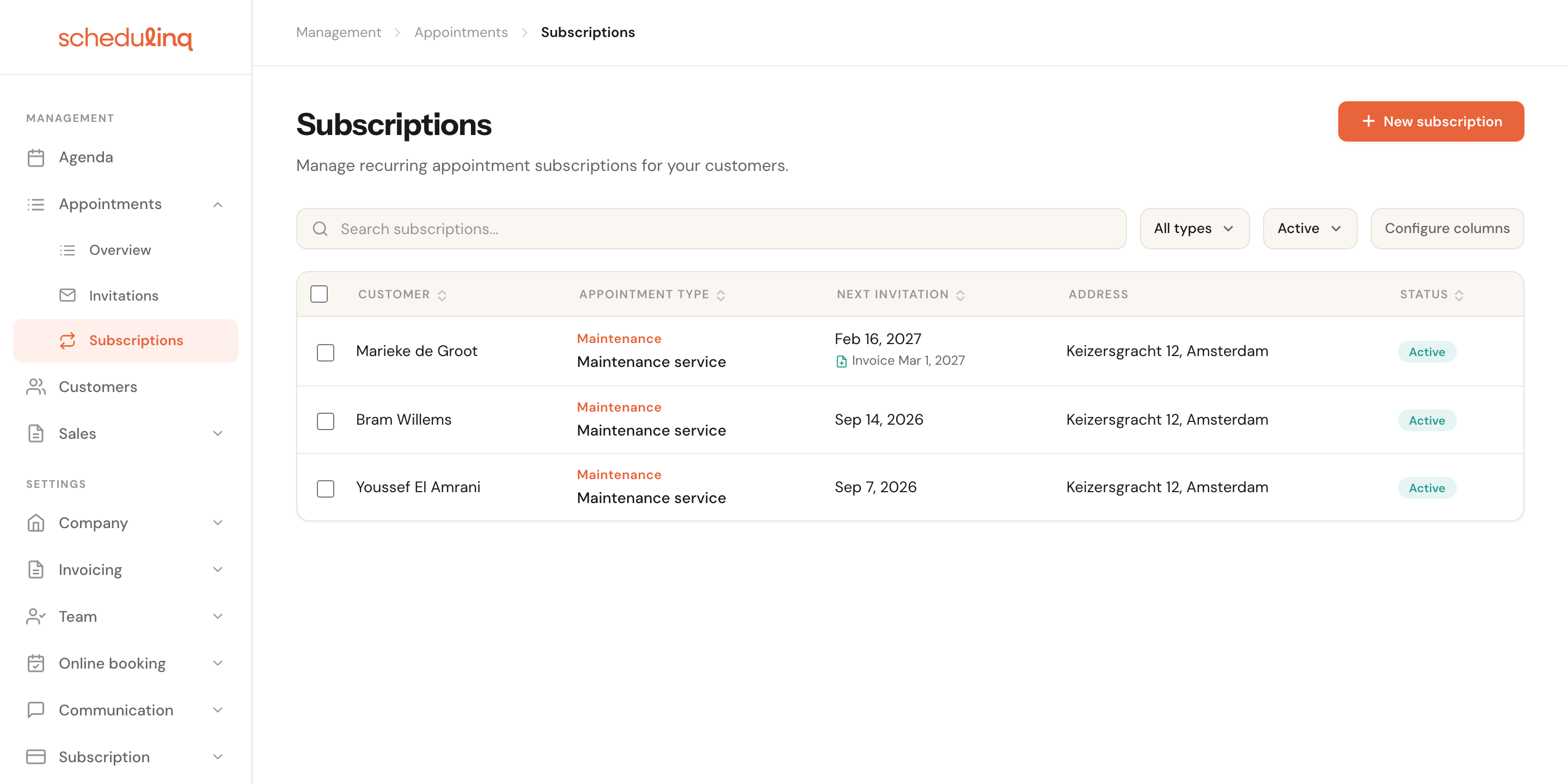
A billing line under the date means that subscription invoices on a set date — more on that below.
The status filter starts on Active, so paused subscriptions only appear once you change it.
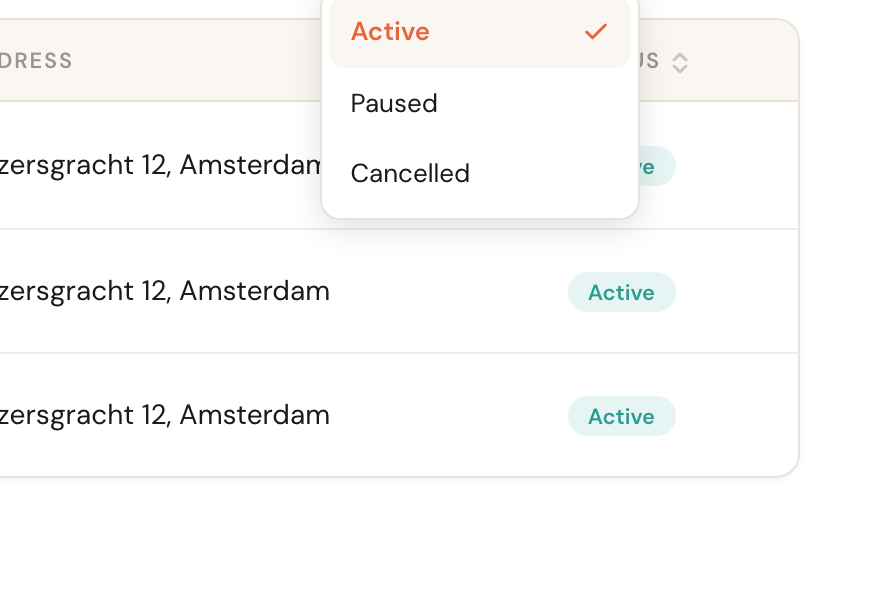
Cancelled shows the subscriptions that stopped by themselves: their end date has passed, or their customer was deleted. A subscription you delete is not among them: it leaves the overview altogether.
Beside the status filter you narrow the list to one appointment type. The search box finds a subscription by the customer's name, by the category of its service, or by Video call or Phone call. Configure columns decides what the list shows — the place, the address or the customer's object, for instance — and in what order; the layout is yours alone, as on the appointments overview.
To delete several subscriptions at once, tick them: a bar appears above the list with Delete, which asks you to confirm first. It does to each of them what Actions → Delete does to one — see Changing a running subscription. The checkboxes are only there if your role may edit subscriptions.
Creating a subscription
Click New subscription
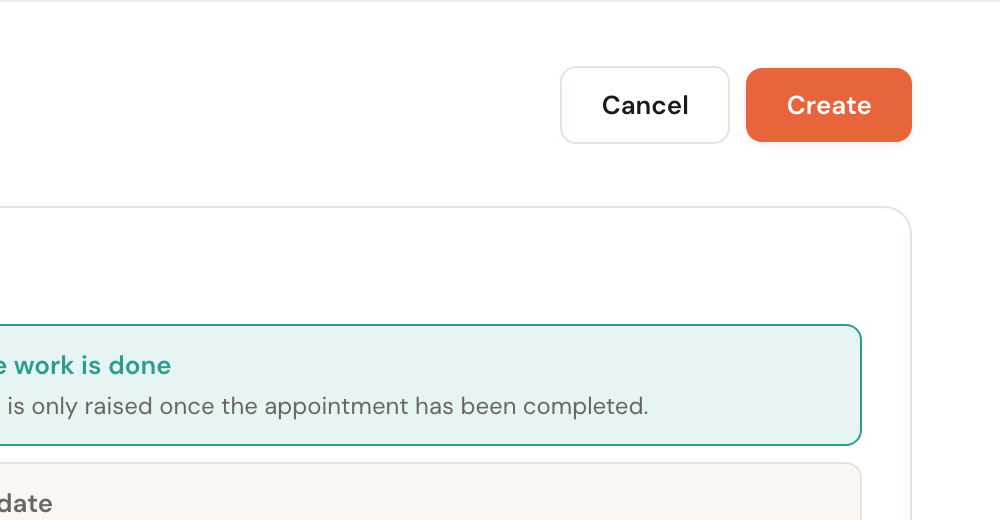
Fill in the details
Customer, appointment type, duration and recurrence together are the whole subscription. Once you pick an appointment type, the Invitation validity card appears too — and, when the service has add-ons, Add-ons.
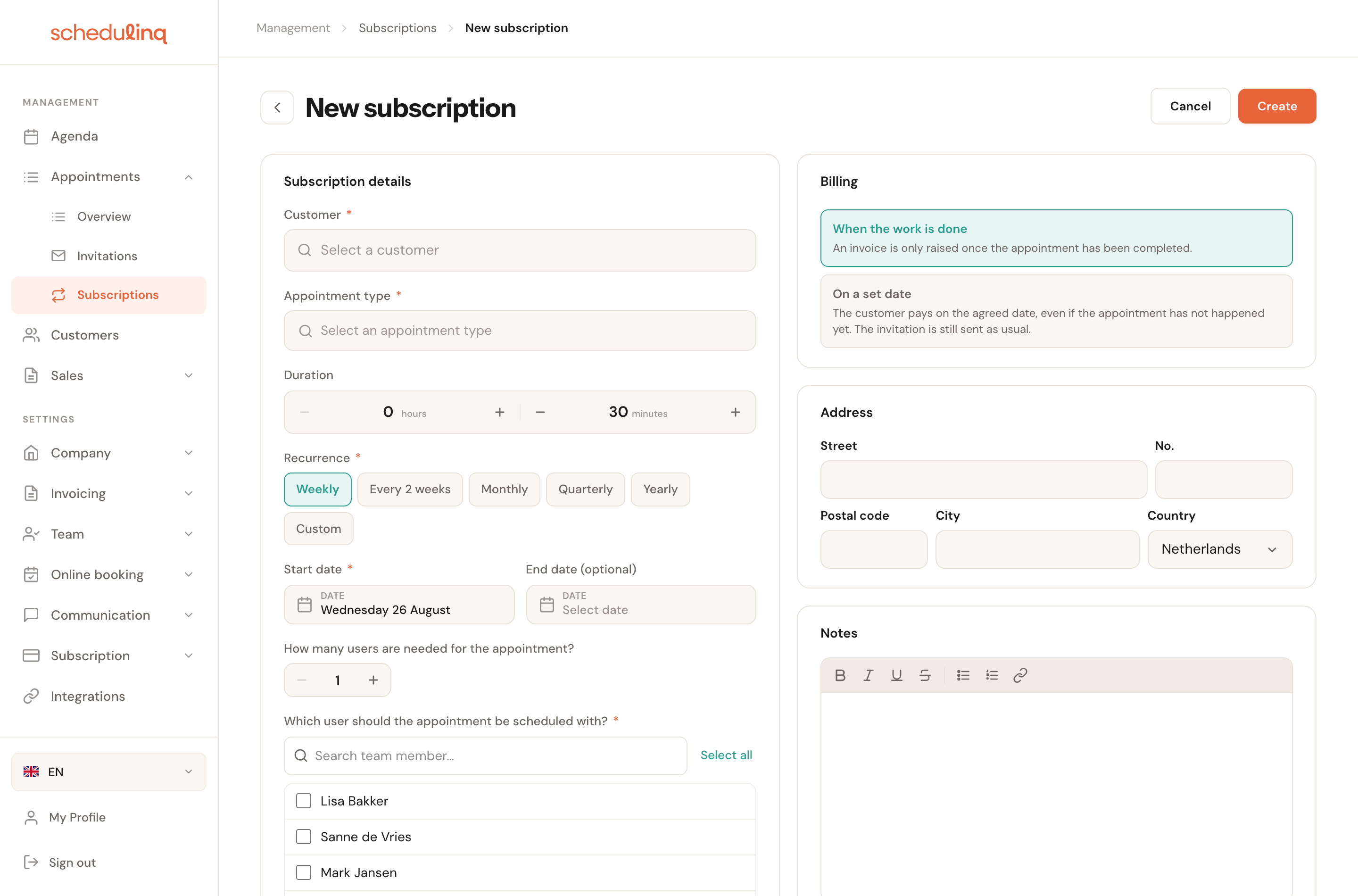
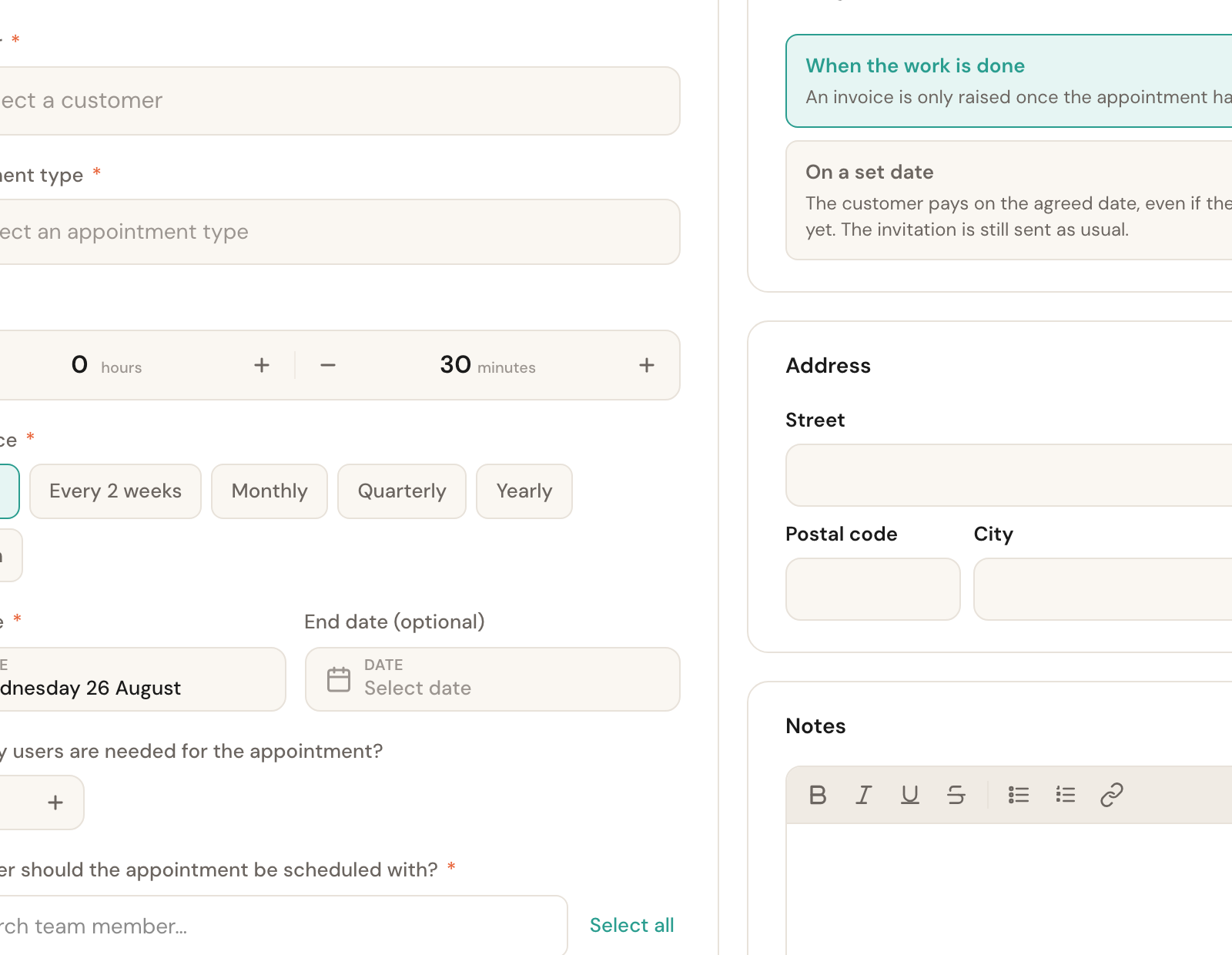
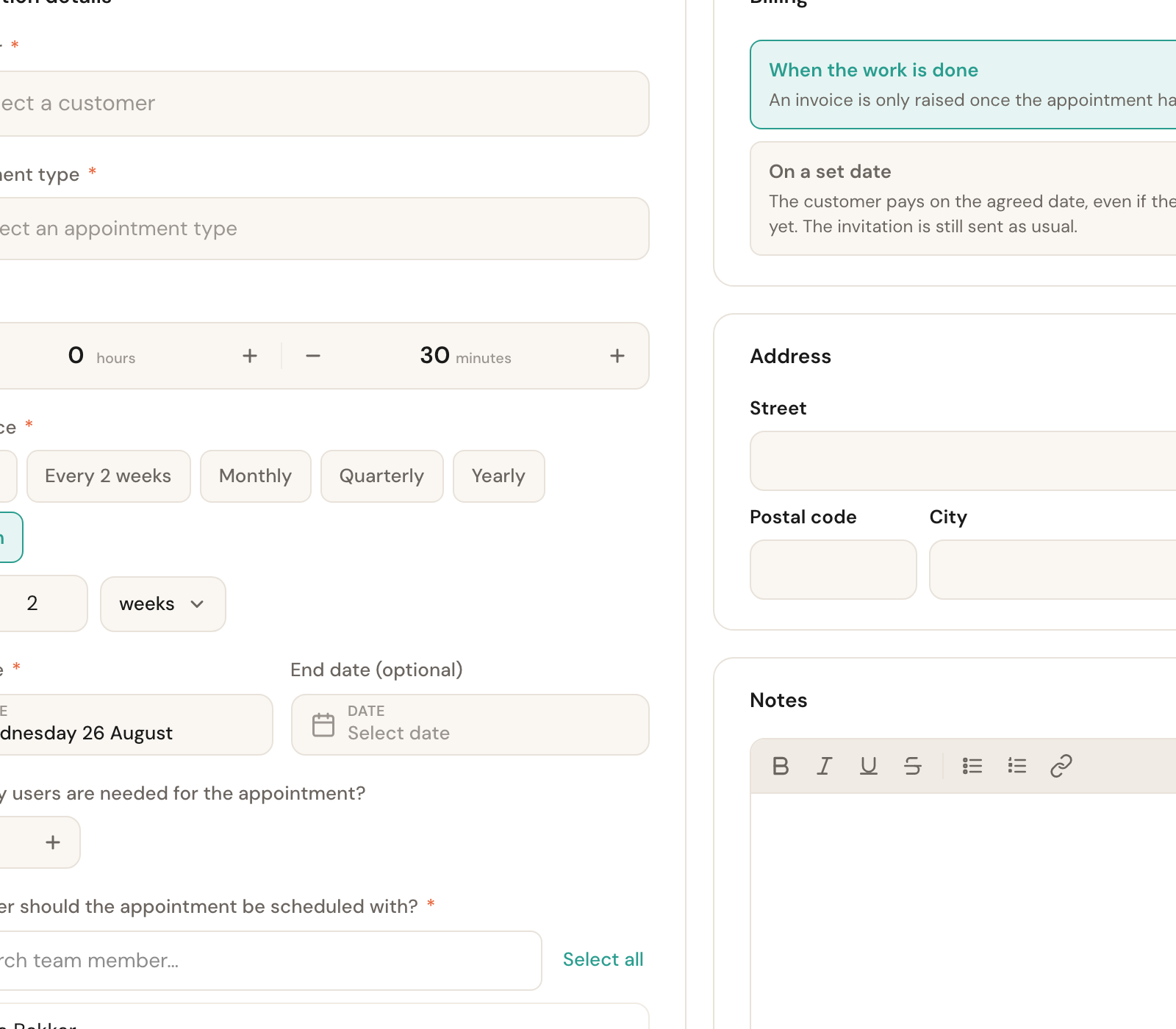
Choose the recurrence and start date
Save
Want the first invitation to go out now rather than waiting for the start date? Switch on Send invitation immediately after saving before you save.
The fields
Customer
RequiredCannot be changed laterThe customer who gets this repeating appointment. Search by name or email.
Once created, this field is fixed — a subscription cannot be moved to another customer. If it belongs to someone else, create a new one and delete the old.
Object
Only with object typesOptionalThe object this subscription is about — the horse, the car, the installation. The field carries whatever name you gave your objects, and only appears when you have set up object types and the customer has an object that fits the service.
Every invitation from the subscription carries the object, as long as the customer owns it. If the customer sells it, it stays on the subscription (marked other owner), but the next invitations go out without an object.
Appointment type
RequiredThe service offered each time. It also sets the default duration and, with billing on a set date, the amount.
Change it later and the next invitation date is recalculated. See Changing a running subscription.
Duration
How long the appointment takes. Taken from the appointment type plus the add-ons you pin, and adjustable per subscription.
Useful when this one customer routinely needs more time than the service normally takes — a bigger installation, an awkward site.
Recurrence
RequiredWeekly, every 2 weeks, monthly, quarterly, yearly — or Custom for any other interval, such as every 5 weeks.
This is the engine of the subscription: after each invitation goes out, Schedulinq adds this interval to the previous date and sets that as the next one.
Start date
RequiredThe anchor of the series. The first invitation is calculated from it.
If the start date is in the past, Schedulinq counts forward from it to the next date in the future. You will not suddenly receive a pile of missed invitations.
End date
OptionalLeave empty for an open-ended subscription.
With an end date the subscription stops itself once that date has passed — useful for a contract with a fixed term.
How many users are needed
One by default. Raise it when several colleagues are needed at once.
The customer is only offered slots where the required number of staff are free at the same time.
Which user
RequiredThe staff this appointment may be scheduled with.
Regular customers often prefer the same engineer. Ticking several people widens the available slots but gives up that continuity.
Add-ons
If the service has themOptionalThe add-ons every invitation from this subscription already has picked — with the quantity, for an add-on with Multiple units.
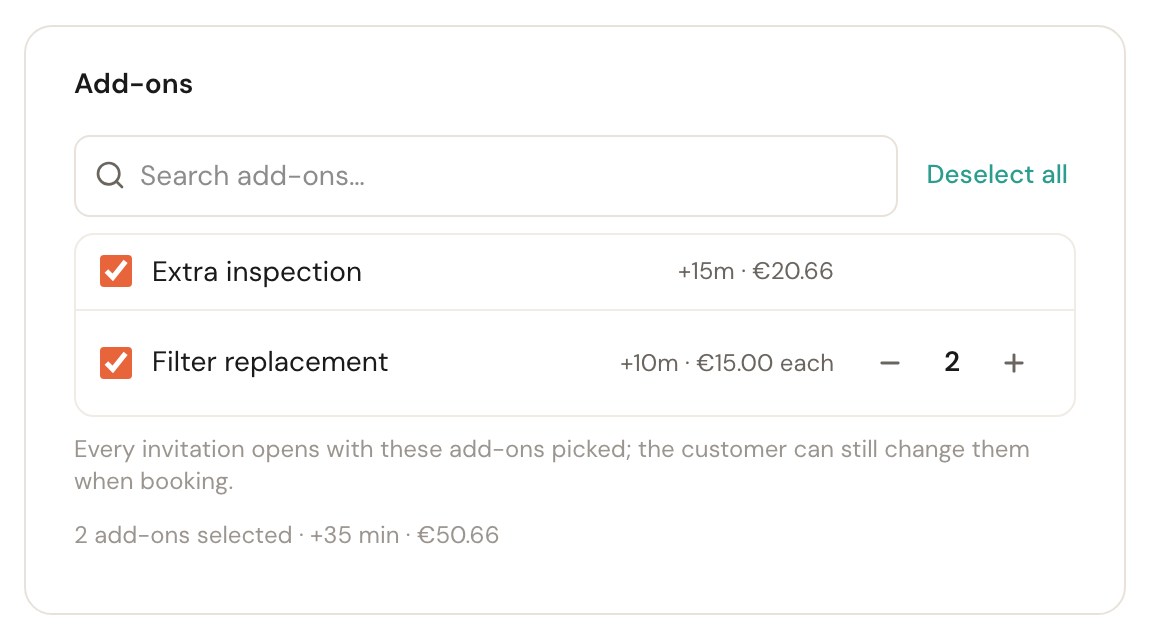
When this contract includes a filter change every year, the customer does not have to remember it: the invitation opens with the add-ons picked, and they can still change them when booking. The duration follows what you pin, as long as you have not changed it yourself, and Which user keeps only people who can perform every pinned add-on.
Address
PrefilledMay stay blankWhere the appointments take place, taken from the customer. Every invitation from this subscription carries this address: the customer sees it filled in and can change it for that one appointment when booking. Leave it blank and the customer fills it in on every invitation.
The subscription looks nowhere else for the address: not at last year's appointment, not at the customer record. With nothing here, every invitation asks for it again. When the work is at the same place every time, fill it in — it saves your regular customer the typing. If the customer changes the address for one booking, that applies to that appointment only; the subscription stays as it is.
If the subscription is a series of calls — a monthly phone check-in, a quarterly Teams meeting — choose Video call or Phone call with the service. The card is then called Location and there is no address; every invitation from the subscription is then an invitation for that call.
Notes
OptionalInternal notes; the customer does not see them.
The note travels with every appointment this subscription produces — the place for "boiler is in the loft" or "key with the neighbours".
Until when the customer can book
Every invitation from the subscription has an expiry date of its own, just like a regular invitation. How that date is chosen is set on the Invitation validity card.
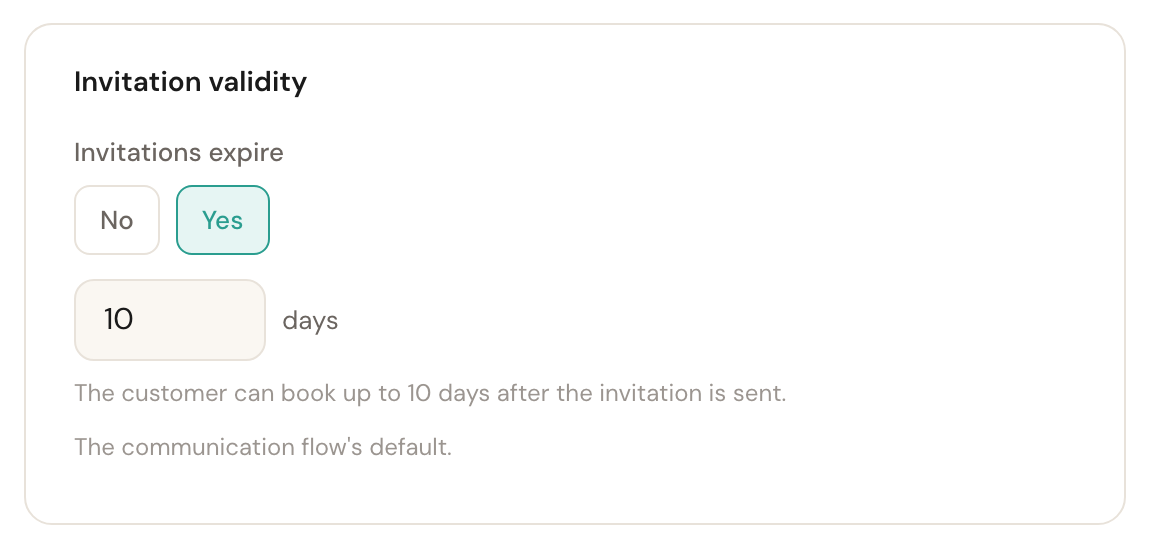
Invitations expire
Default: the communication flowYes with a number of days (1 to 365) lets the customer book up to that many days after each invitation is sent. No means the invitations never expire.
A new subscription follows your communication steps: the form shows what they give now, with The communication flow's default. underneath, and as long as you leave it the subscription keeps following if you change those steps later. Change the number of days or choose No, and your choice holds for this subscription. It applies to the next invitation; one already sent keeps its own date, which you change on the invitation itself.
Choose No and the form adds that the Invitation expired message is then not sent — without an expiry date nothing expires. On a saved subscription, Invitation expiry shows what applies: Expire after 30 days, Do not expire, or Communication flow default (10 days).
Billing
By default you invoice only after the work is done. For maintenance contracts that can be wrong: a yearly contract is owed for the year, not for the visit. That is what the second setting is for.
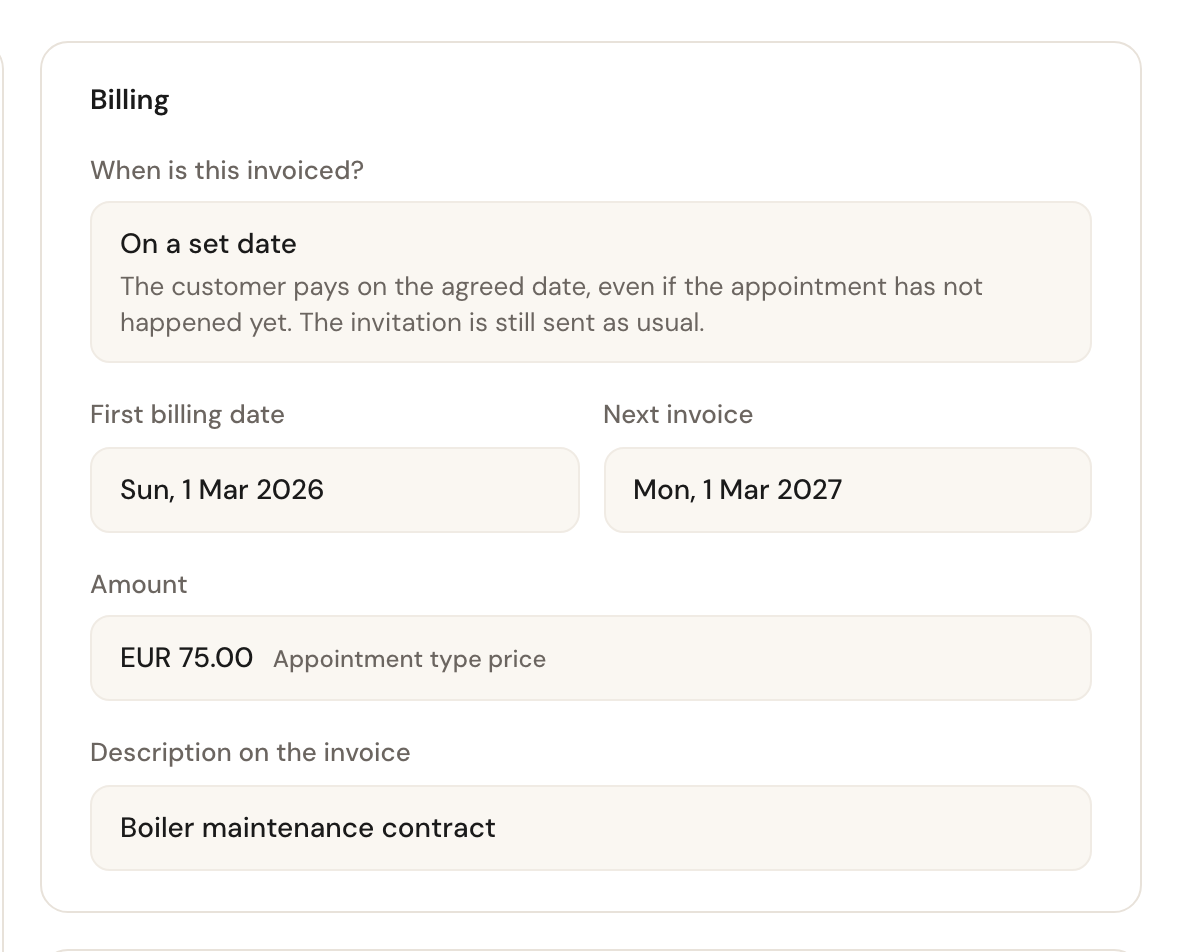
When is this invoiced?
When the work is done — an invoice is only created after the appointment is completed. On a set date — a draft invoice is raised on the agreed date, whether or not the appointment has happened.
The invitation is sent either way. The only difference is when the money is invoiced.
First billing date
With billing on a set dateThe anchor of the billing series. After that it invoices again on the same recurrence as the subscription.
This is independent of the subscription's start date, so you can invoice in January for a service carried out in March.
Amount
The appointment type's price, or your own amount for this customer. With pinned add-ons, they go on the invoice as lines of their own next to the appointment type's price. A Custom amount is excluding VAT, with a VAT rate beside it: your country's standard rate until you pick another.
Use your own amount when this customer has a contract price that differs from your standard rate.
Description on the invoice
OptionalLeave empty to use the appointment type's name.
"Boiler maintenance contract" reads better on an invoice than "Maintenance service", especially when the customer knows the contract by that name.
Changing a running subscription
Click a subscription to open it. You see the details, the billing, and at the bottom the appointments and invitations it has produced.
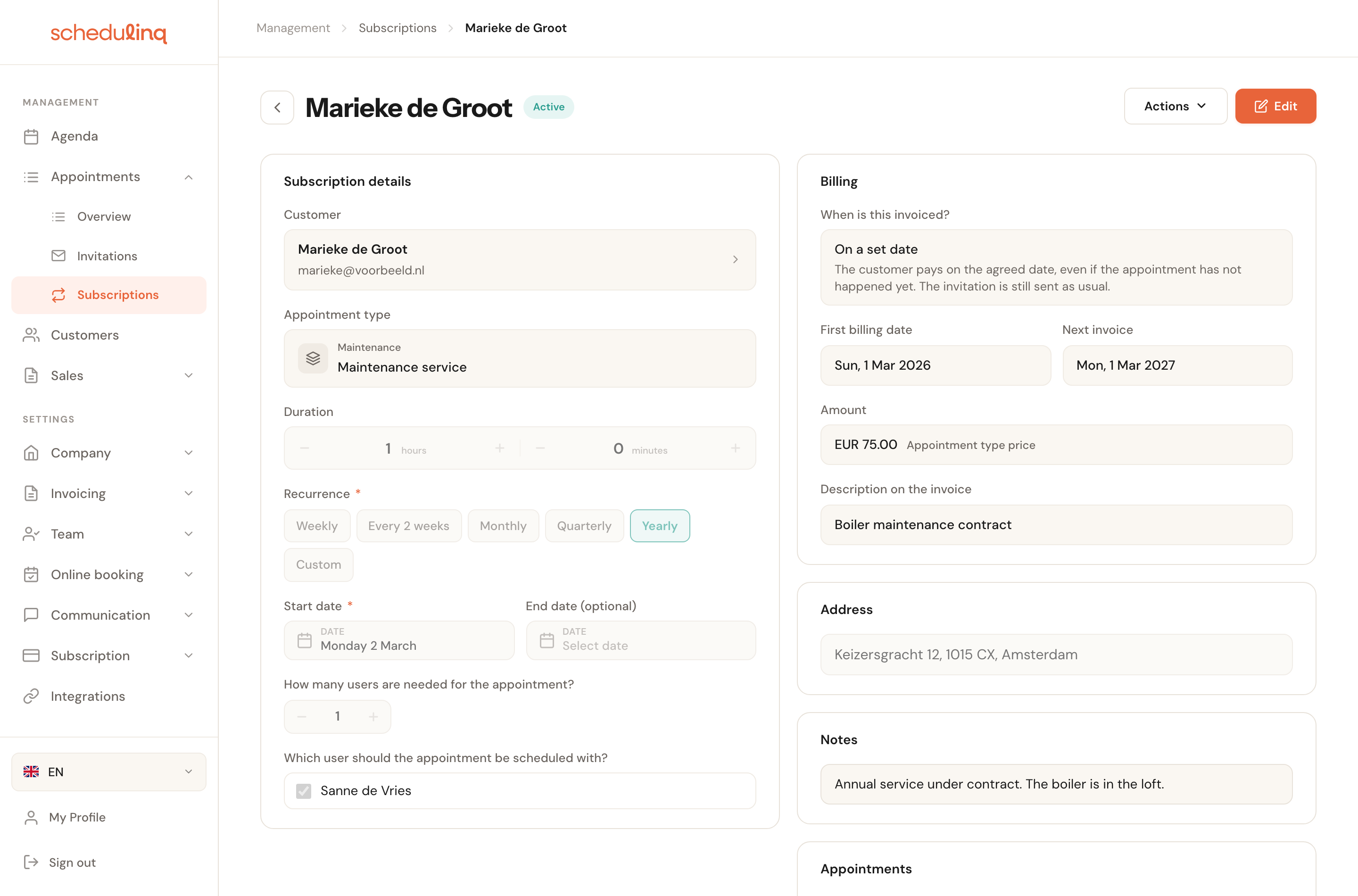
Actions is where you manage the series.
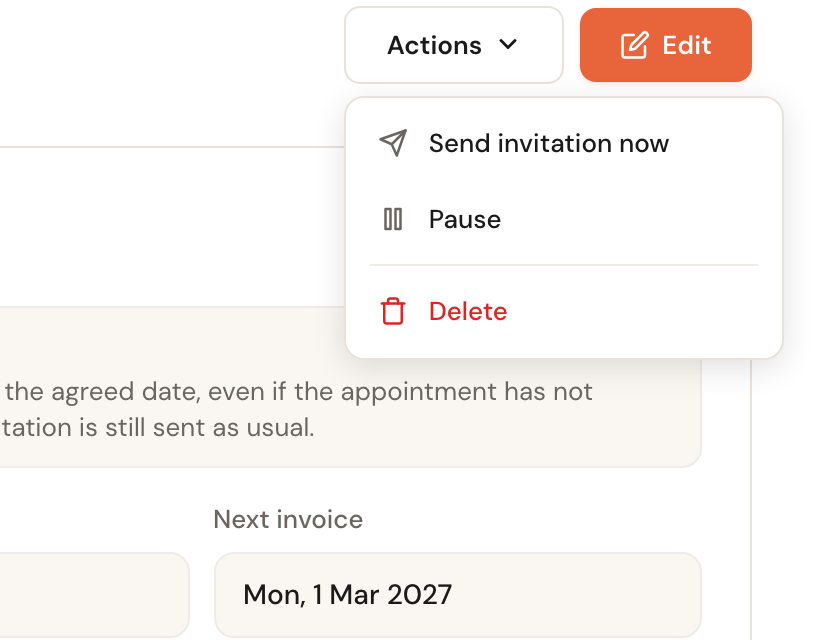
Send invitation now
Sends an invitation straight away, without waiting for the next date.
For when a customer rings to say sooner would suit them. The regular schedule carries on unchanged.
Pause and resume
Pausing stops new invitations. Resuming starts them again.
Resuming does not deliver a backlog. Schedulinq picks up from today, so six months of pause produces one next invitation, not six.
Delete
Removes the subscription from your overview.
Appointments already booked stay exactly as they are and remain readable — only the sending of new invitations stops. An invitation it already sent stays open: the customer can still book with it, but its reminders stop. The customer is not told.
Appointments the customer has already booked do not change with it. To adjust those, edit them individually in the calendar.
What the customer sees
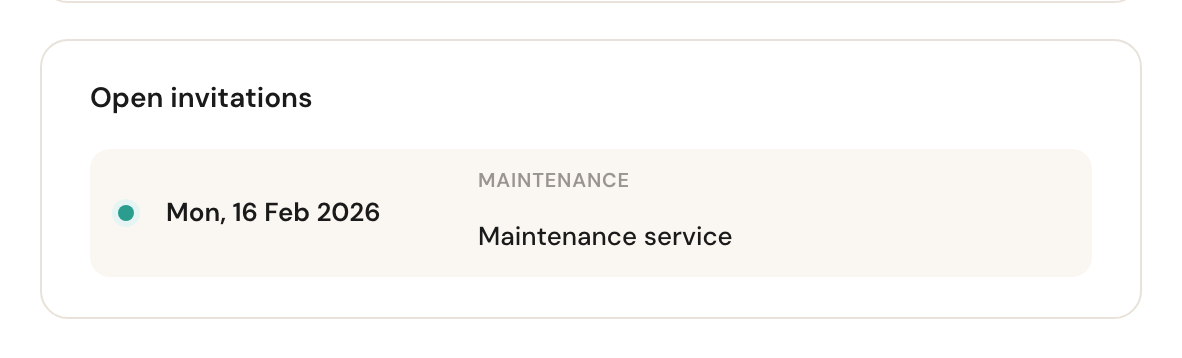
The customer receives an invitation in the language on their customer record, naming the service and linking to a page where they pick a time. That invitation opens with the add-ons you pinned and the subscription's address — or an empty address box when the subscription has none. At the bottom of the subscription you can see which invitations are open and which appointments came out of them.
Frequently asked questions
Is the appointment booked automatically? No. An invitation goes to the customer and they choose a time. To schedule it yourself, simply create an appointment in the calendar.
Why has my customer not had an invitation? Check three things: is the subscription Active, is the customer still active, and do the appointment type and assigned staff member still exist? If the customer or service has been archived, Schedulinq skips the subscription silently.
Send invitation now says the invitation was not sent. Then your booking page is not taking bookings right now, for example because your trial has ended and you have not chosen a Schedulinq plan yet. The subscription waits until it can; nothing is lost.
Can I move a subscription to another customer? No — the customer is fixed once created. Create a new subscription and delete the old one.
What happens after the end date? The subscription stops sending invitations by itself once that date has passed.