
Authentication and API keys
Create an API key under Integrations → API, choose its scopes, send it as a Bearer token — and keep it out of browsers, URLs and repositories.
Every call to the API carries an API key. An admin creates the key in Schedulinq, chooses what it may do, and hands it to whoever builds the connection. This guide covers both halves: making the key, and sending it.
Create a key
Open Integrations → API
Only admins see this page. Under Keys, press New key.
Fill in the key
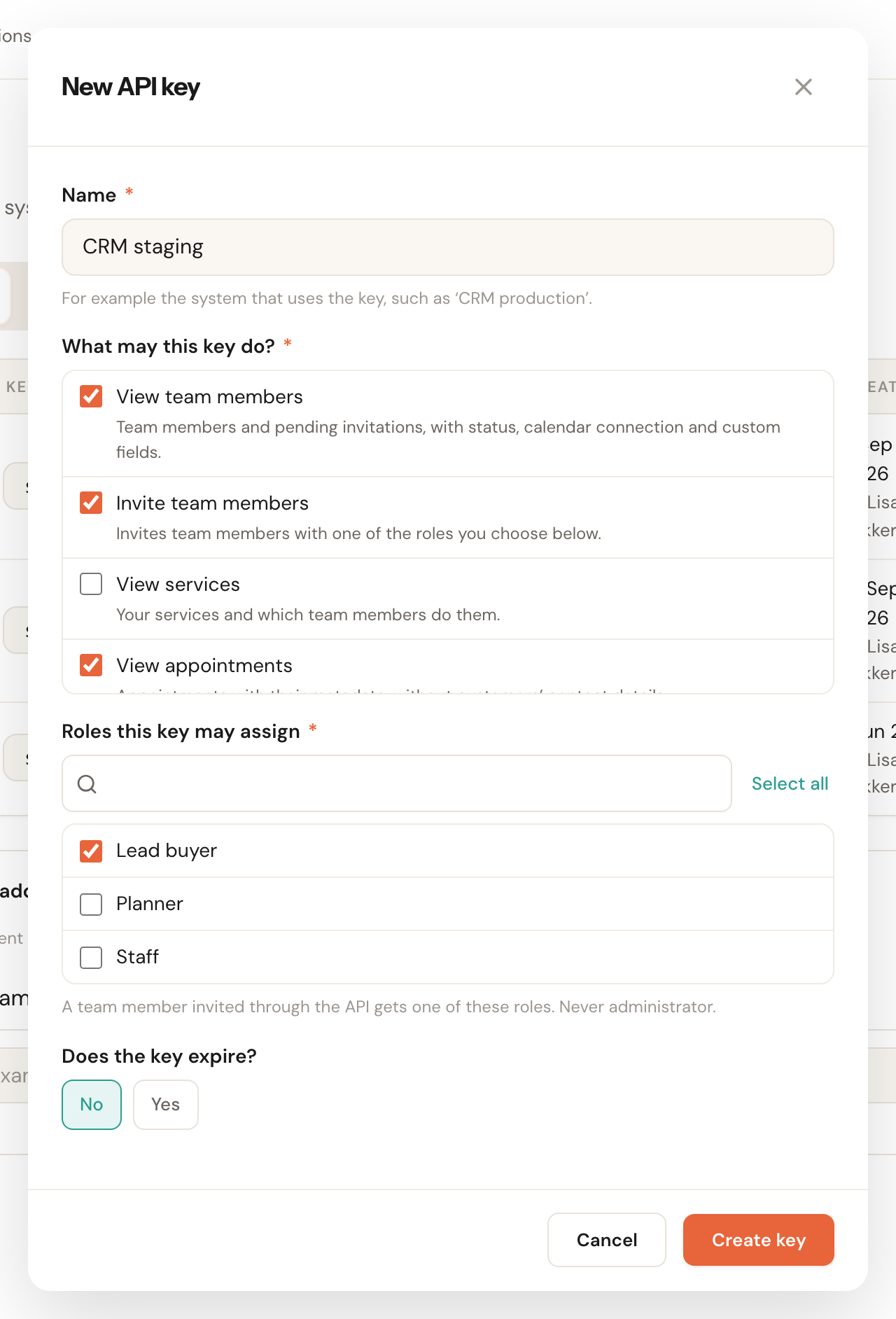
Give it a Name — the system that will use it, such as "CRM production". Under What may this key do?, tick the scopes it needs (below). With Invite team members, also choose the Roles this key may assign. Under Does the key expire?, choose a Valid until date or none.
Copy the key now
After Create key, the key is shown once. Copy it and store it somewhere safe, such as your server's secret store. You will not see it again.
An organisation has at most five active keys. Every admin gets an e-mail whenever a key is created or revoked.
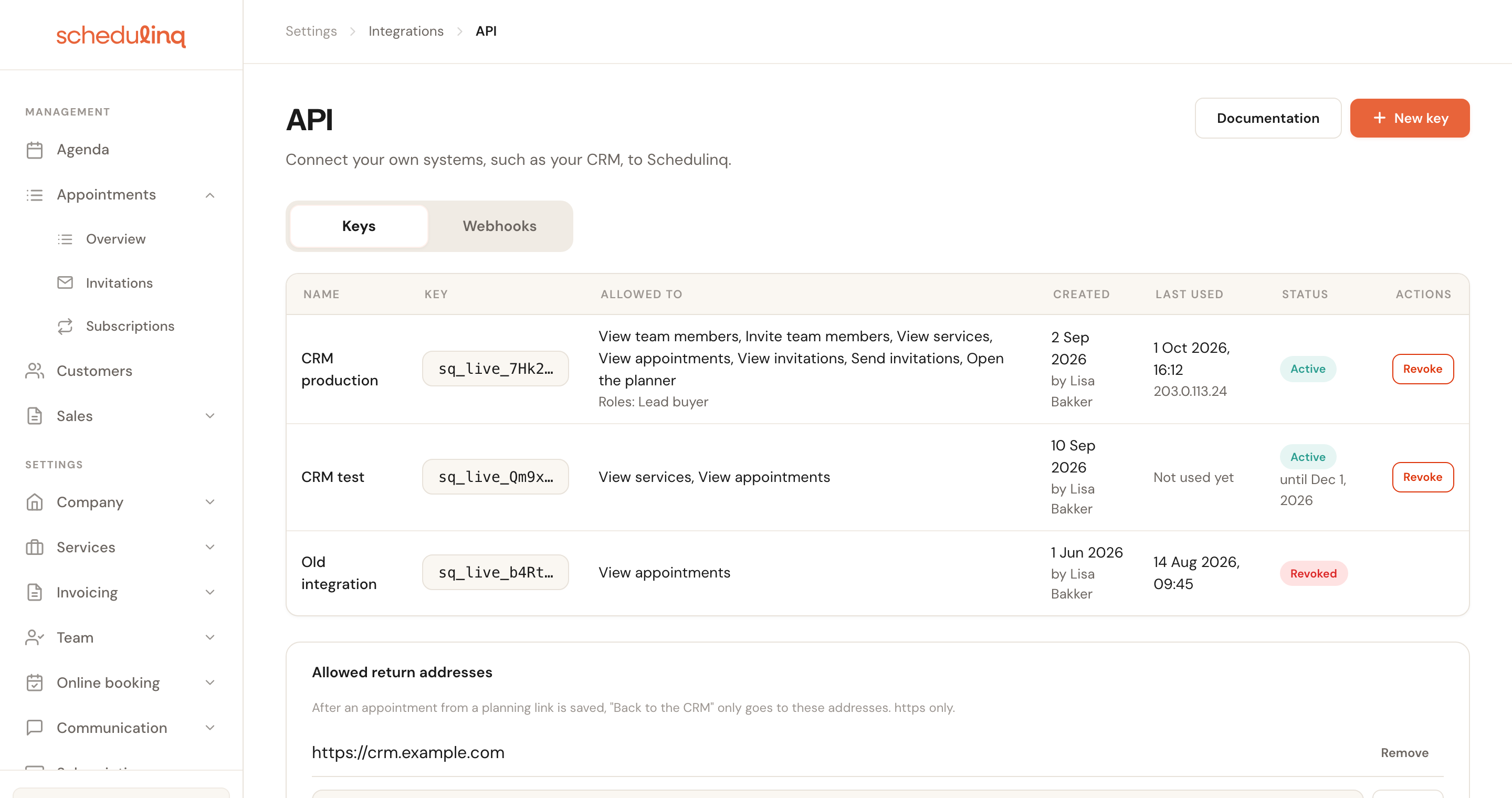
You only ever see the start of a key here, never the whole key. A revoked key stays in the list.
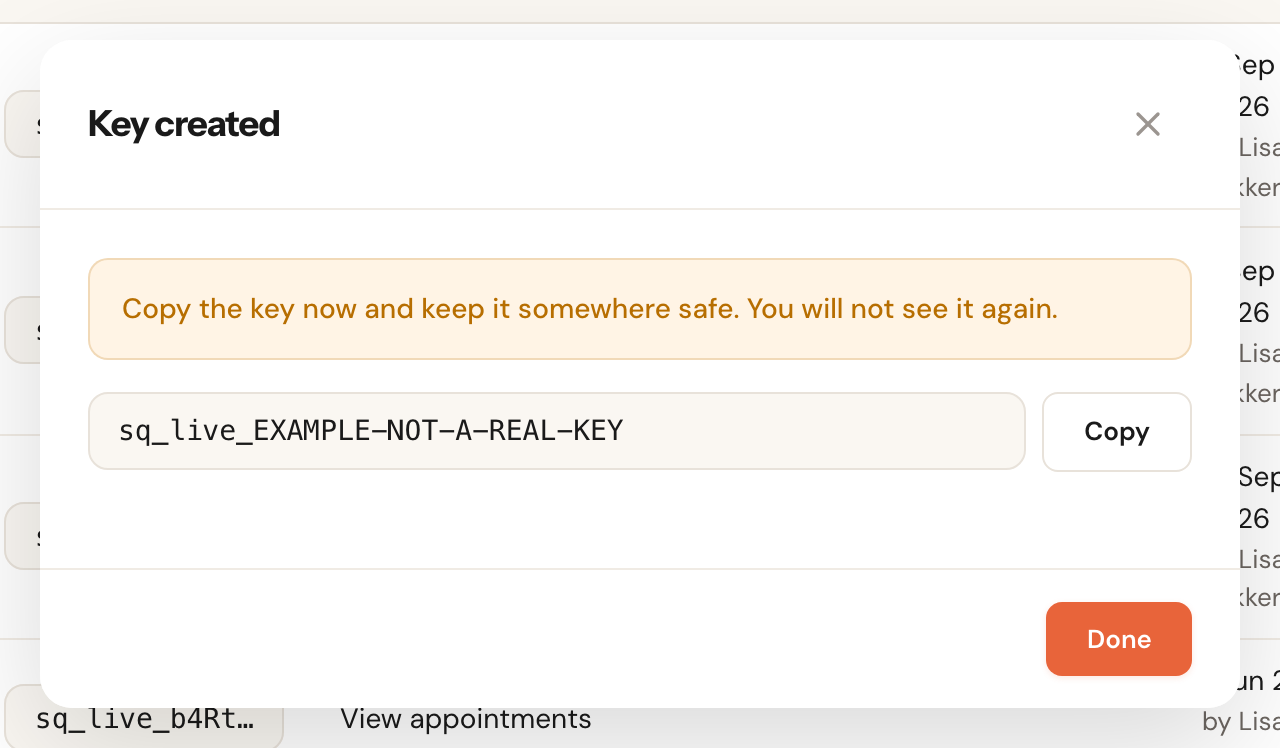
This is the only time you see the whole key.
Send it
Send the key in the Authorization header, as a Bearer token:
curl https://api.schedulinq.com/api/v1/services \
  -H "Authorization: Bearer $SCHEDULINQ_API_KEY"
- Always in the header, never in a query string.
- A key is
sq_live_followed by 64 lower-case hexadecimal characters. Thesq_live_prefix lets secret scanners recognise a key that leaked into a repository. - The examples in this chapter use
sq_live_EXAMPLE-NOT-A-REAL-KEY, which is not a key and never works.
Scopes
A key may do only what its scopes allow. Each endpoint needs exactly one scope; the reference names it.
users:read
Read your team members and the open invitations for new ones, with their status, calendar connection and custom fields. In the dashboard: View team members.
Endpoints: GET /api/v1/users
users:write
Invite team members, and list the roles this key may give them. In the dashboard: Invite team members.
- The roles the key may assign are chosen when the key is created; at least one is required.
- Admin is never assignable.
- A role deleted since then drops out of the key's set.
GET /api/v1/roleslists the roles the key may assign.
Endpoints: POST /api/v1/users, POST /api/v1/users/invitations/{id}/resend, GET /api/v1/roles
services:read
Read your live services and which team members perform them. In the dashboard: View services.
Endpoints: GET /api/v1/services
appointments:read
Read appointments, with their metadata and without customer contact details. In the dashboard: View appointments.
Endpoints: GET /api/v1/appointments, GET /api/v1/appointments/{id}
invitations:read
Read the invitations to book and their status. In the dashboard: View invitations.
Endpoints: GET /api/v1/invitations, GET /api/v1/invitations/{id}
invitations:write
Send a customer an invitation to book an appointment. In the dashboard: Send invitations.
Endpoints: POST /api/v1/invitations
planning_links:write
Mint a link that opens the planner for a customer from your CRM. In the dashboard: Open the planner.
Endpoints: POST /api/v1/planning-links
One key per system, only the scopes it calls
Give each system that calls the API its own key, with only the scopes it calls. Put
users:write only on the key of the system that creates team members, and give that
key only the roles it may hand out. A key that leaks can then do no more than its one
system needed.
What a key cannot do
A key works only on /api/v1, never on the dashboard. Keys and webhooks themselves
are managed only in the dashboard, by an admin; no key can create, change or revoke
another key.
Revoking, expiry and rotation
- A revoked or expired key is refused with a 401 on its next request.
- The expiry is a date: the key's last valid day, in your organisation's time zone, at most five years ahead.
- The key page shows when each key was last used, and from which IP address.
- A key belongs to the organisation, not to the admin who made it: it keeps working when that admin leaves. Revoke the keys an admin made when they go.
To rotate a key:
Create the next key and deploy it
The five-key limit leaves room for the old and the new key side by side.
Let retries on the old key finish
An
Idempotency-Keybelongs to the API key it was sent with, so a retry sent with the new key runs again instead of replaying. See Idempotency.Revoke the old key
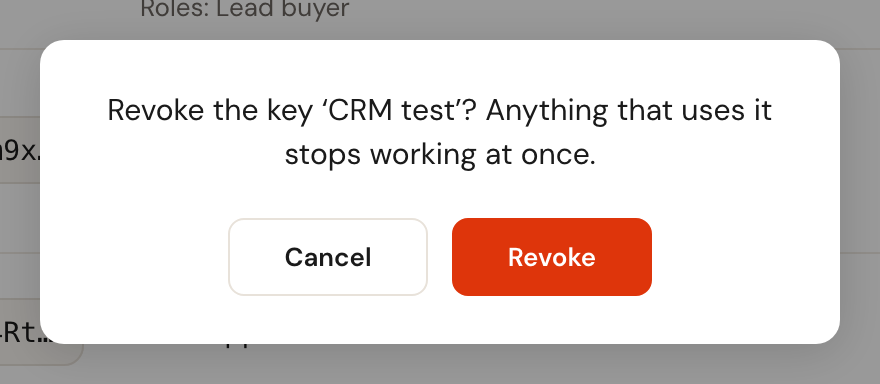
Under Integrations → API, Revoke. Everything still using it stops at once.
Where a key must never go
Not in browser code, not in a URL, not in a repository and not in a log line. Never log
the Authorization header. If a key leaks anyway, revoke it straight away and create a
new one.
401, 403 and 429
- A 401 means the key is missing, invalid, revoked or expired. The
codesays which:errors.api.apiKeyMissing,errors.api.apiKeyInvalid,errors.api.apiKeyRevokedorerrors.api.apiKeyExpired. - A 403
errors.api.insufficientScopenames the missing scope inrequiredScope. - Too many failed attempts from one address give a 429
errors.api.tooManyFailedAuthentications.
Every code is explained under Errors.
Frequently asked questions
I lost a key. Can I see it again?
No: a key is shown only once, when it is created. Create a new one, deploy it, and revoke the old one.
Can a team member who is not an admin manage keys?
No. A key acts for the whole organisation, so only admins can create, see or revoke keys.