
Planning links
The Plan button — mint a link when the caller clicks, send them to Schedulinq's planner with the lead already filled in, and come back to your CRM.
A planning link is the Plan button in your CRM. The person on the phone with the lead clicks it, and Schedulinq's planner opens with the customer, the team member, the service and the address already filled in. They pick a time, save the appointment, and go back to the CRM. What they see in Schedulinq is described in Find appointment options.
How it works
- When the caller clicks Plan, your backend creates a planning link with
POST /api/v1/planning-links(scopeplanning_links:write). The answer is a 201 withid,url,expiresAt,customerIdand — when you named a team member —userId. - Your backend sends the caller's browser to
url, for example with an HTTP 303. If they are not signed in to Schedulinq, they sign in first and land back on the link. - The planner opens on the customer, the service, the team member (or everyone who does the service) and the address from your request.
- The caller picks a time and saves the appointment. It carries your metadata.
- Back to the CRM takes them back to the address you gave.
Example request · POST /api/v1/planning-links
IDEMPOTENCY_KEY=$(uuidgen)   # once per action; to retry, run only the curl line again (same key)
curl -X POST https://api.schedulinq.com/api/v1/planning-links \
  -H "Authorization: Bearer $SCHEDULINQ_API_KEY" \
  -H "Idempotency-Key: $IDEMPOTENCY_KEY" \
  -H "Content-Type: application/json" \
  -d '{
  "appointmentTypeId": "3f0c8a52-6b1e-4d7a-9c3e-1a2b3c4d5e01",
  "customer": {
    "id": "3f0c8a52-6b1e-4d7a-9c3e-1a2b3c4d5e06"
  },
  "metadata": {
    "campaignId": "C-42",
    "dealId": "D-123"
  },
  "returnUrl": "https://crm.example.com/deals/D-123"
}'
Response · 201
{
  "customerId": "3f0c8a52-6b1e-4d7a-9c3e-1a2b3c4d5e06",
  "expiresAt": "2026-10-14T09:15:00+02:00",
  "id": "3f0c8a52-6b1e-4d7a-9c3e-1a2b3c4d5e07",
  "url": "https://app.schedulinq.com/plan-link#EXAMPLE-TOKEN",
  "userId": "3f0c8a52-6b1e-4d7a-9c3e-1a2b3c4d5e03"
}
Mint on click, never in advance
The url is a secret that opens the planner once, within 15 minutes. So create the
link at the moment of the click, and send the browser there straight away.
- Never put it in an e-mail, an SMS or a page rendered ahead of time, and never log it.
- The token travels after the
#of the URL, so it never reaches a server log or aRefererheader. - Need the planner again later? Create a new link. Each request with a new
Idempotency-Keymakes a new link; see Idempotency.
At most 120 planning links a minute can be created per organisation, whatever the number of keys. See Rate limits.
The request
Request body · POST /api/v1/planning-links
{
  "appointmentTypeId": "3f0c8a52-6b1e-4d7a-9c3e-1a2b3c4d5e01",
  "customer": {
    "id": "3f0c8a52-6b1e-4d7a-9c3e-1a2b3c4d5e06"
  },
  "metadata": {
    "campaignId": "C-42",
    "dealId": "D-123"
  },
  "returnUrl": "https://crm.example.com/deals/D-123"
}useris optional: the team member the planner opens on,{"id": …}or{"email": …}, exactly one of the two. They must be active and schedulable. Withoutuserthe planner opens on every team member who does the service, and the answer has nouserId. Either way the caller may still pick another team member in the planner.appointmentTypeIdis the service the planner opens on (GET /api/v1/services). It is optional; the team member, when you name one, must be able to do it.customercomes in one of two forms. By id —{"id": …}and no other field — it is one of your customers: one that was merged into another is followed to that one, and an id that is unknown, archived or another organisation's gives a 404errors.api.customerNotFound. An id together with any other customer field gives a 400errors.validation.customerIdOrDetails. By its details,emailis required and the customer is found by that address, whatever its case, among your live customers; a customer that was merged into another is followed to that one. With several matches, a customer that is not deactivated wins, then the one changed most recently. On a customer that already exists, only empty names, company name and an empty phone number are filled in; nothing is overwritten. A new customer is created with the e-mail address in lower case. APERSON(the default) needslastName, aBUSINESSneedscompanyName.phoneis E.164 (a + and the country code) or a national number in your organisation's country.addressis where this appointment happens, when it is at the customer's. It never replaces the customer's billing address and is not stored on the customer.line1holds the street and the house number.metadataare your metadata, such as a deal id. They are copied onto every appointment booked from the link. See Metadata.returnUrlis where Back to the CRM goes; see below.
A customer you already know, by id, and no team member:
Request body · POST /api/v1/planning-links
{
  "appointmentTypeId": "3f0c8a52-6b1e-4d7a-9c3e-1a2b3c4d5e01",
  "customer": {
    "id": "3f0c8a52-6b1e-4d7a-9c3e-1a2b3c4d5e06"
  },
  "metadata": {
    "campaignId": "C-42",
    "dealId": "D-123"
  },
  "returnUrl": "https://crm.example.com/deals/D-123"
}
Who can open it
The link works for a team member of your organisation who may create appointments for everyone and see every customer. The first one who opens it owns it: if the same person opens it again within the 15 minutes — after a reload, or a lost connection — they get the same planner. Anyone else sees that the link has already been used. Someone from another organisation sees that the link does not exist.
Your CRM does not have to know the caller's Schedulinq account: whoever opens the link signs in to Schedulinq as themselves.
What the caller sees when it fails
Schedulinq shows one message per reason: the link has expired (after 15 minutes), has already been used, does not exist (another organisation, or a URL that arrived incomplete), or the caller lacks the rights to plan from the CRM. In every case the answer is the same: click Plan in the CRM again, so your backend mints a new link. See Find appointment options.
Back to your CRM
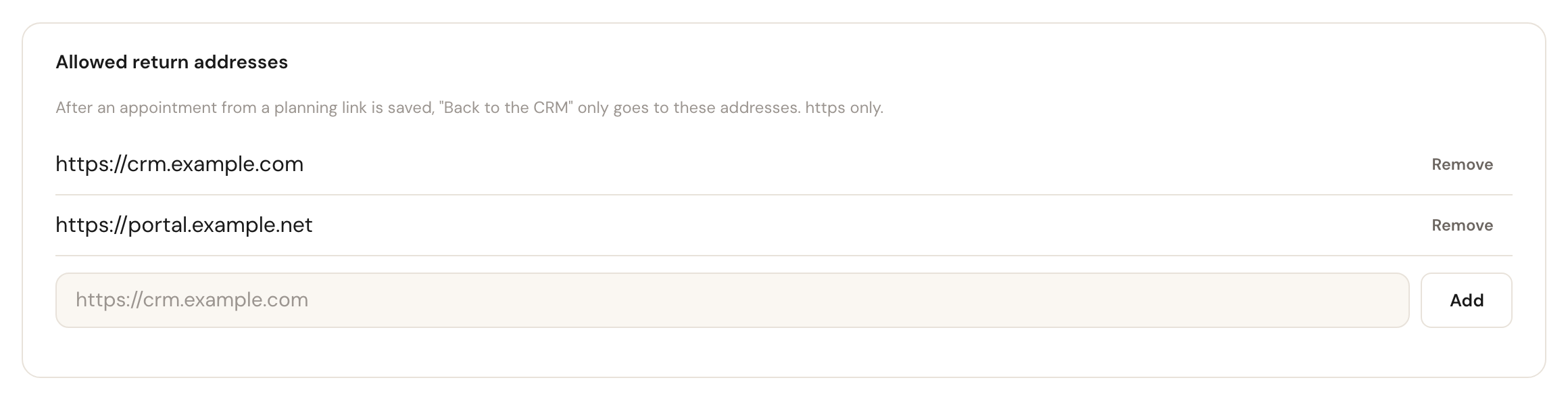
returnUrl must be an https URL whose origin is on your organisation's list of
allowed return addresses. An admin keeps that list under Integrations → API, in
the Allowed return addresses card below the keys. Any other URL is refused when the
link is created, with a 400
errors.validation.returnUrlOriginNotAllowed.
While the list is empty, every planning link with a returnUrl is refused.
Back to the CRM appears in the planner's banner and, after saving, at the top of the appointment's page — also after a reload. It is shown to whoever may plan, and only while the origin is still on the list: remove the origin and the button disappears.
Several bookings from one link
Allowed. Every appointment created from the link — one, or several in a row — carries
the link's metadata and its id as planningLinkId. They can be saved for up to 24
hours after the link was opened, and only for the link's customer.
Errors
The ones a CRM meets most:
- 404
errors.api.colleagueNotFound: no team member of your organisation has this id or address. - 404
errors.api.serviceNotFound: the service does not exist or was archived. - 404
errors.api.customerNotFound: no customer of your organisation has this id. - 409
errors.api.colleagueNotActive: the team member is deactivated, archived, not schedulable, or has not accepted their invitation yet. - 422
errors.validation.userCannotDoEveryService: the team member does not do this service.
Every code is listed under the operation in the reference.
Frequently asked questions
Can a customer use the link?
No. It opens Schedulinq's planner, which needs a signed-in team member of your organisation who may plan. To let the customer choose a time themselves, send an invitation.
The caller closed the tab. What now?
Click Plan again: your backend mints a new link. Reopening the same link only works for the same person, within its 15 minutes.
Is the team member locked in the planner?
No. The planner opens on the team member you named, but the caller can pick someone
else. Reads and webhooks then show who was really booked. Leave user out and the
planner opens on everyone who does the service.