

Answers and history
Where filled-in forms end up — in the customer's file, next to last time, by e-mail to the customer — what happened to a form, how to delete one for good, and how the appointments overview shows what is still open.
A filled-in form is not a loose piece of paper: it stays with the customer, you can put it next to last time, you can trace who did what and when, and the customer can get it by e-mail. This guide goes through all of those places. How a form is filled in is in Fill in a form.
In the customer's file
Every form of a customer is in their Notes, between your own notes, newest first.
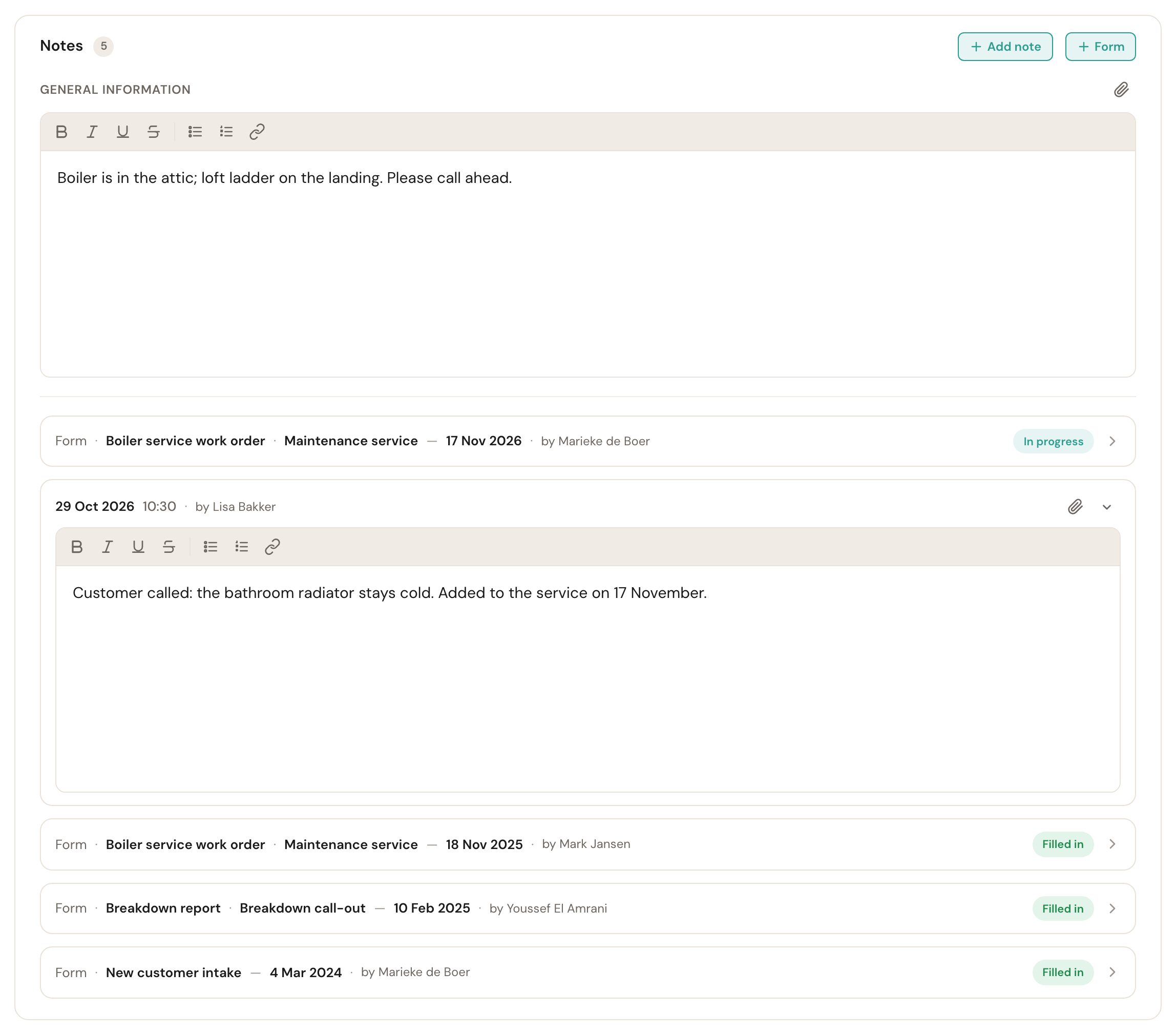
For each form you read its name, the appointment and the date, who filled it in and how far it has got. Click a row to open the form; you always read it on its own page, not in the note. If your role may not read the answers, it says Your role may not view the answers.
- The form follows the appointment. Put an appointment on another customer and the form moves along to their notes.
- An object has its own list. The page of an object lists the forms of the appointments for that object, including those of a previous owner.
- + Form in the header of the notes adds a form that belongs to the customer and not to an appointment — an inspection between two visits, a job that was never planned as an appointment. On an object's page it then belongs to that object. The menu offers all your forms except the intake, and the same form can be added as often as you like. Such a form never holds an appointment open. Your role needs Fill in and view for this.
Show last time
On a recurring job you want to know what was measured last time. If there is an earlier filled-in copy of the same form for this customer, the Show last time button sits under the title.
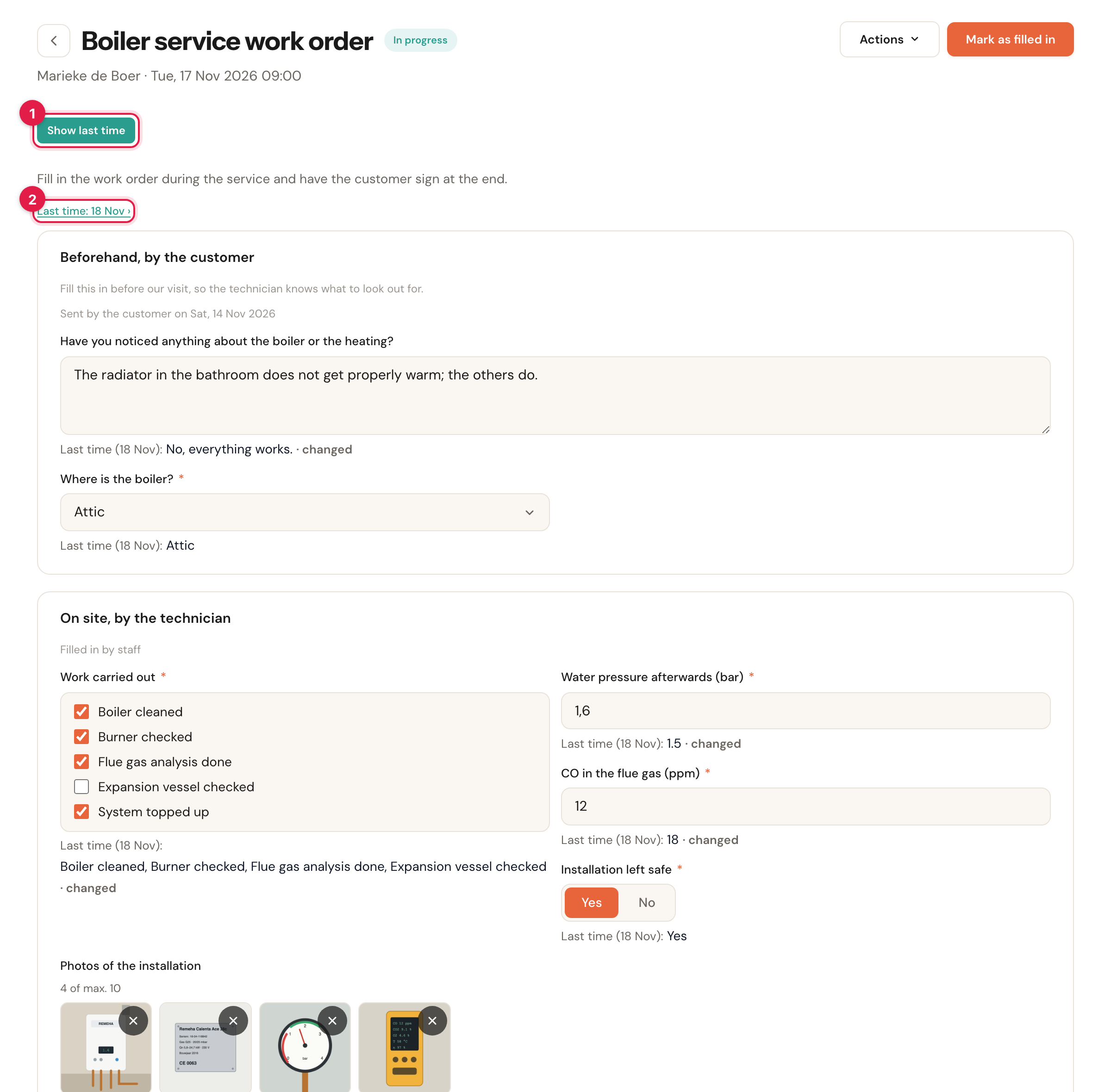
- Show last time puts last time's answer, with its date, under every question. If it differs from what is there now, it adds changed.
- Last time: … opens that earlier form.
Last time is the most recent filled-in copy of the same form for the same customer — and for the same object, if the form belongs to an object. If the questions have since been renamed or got other choices, Schedulinq still recognises them. For a photo question you see how many photos there were.
Nothing is copied over: you see the answer of then, and fill in yourself what is there now. The next time you open the form the button is off again.
History
Actions → History shows everything that happened to a form. It opens as a card at the bottom of the form.
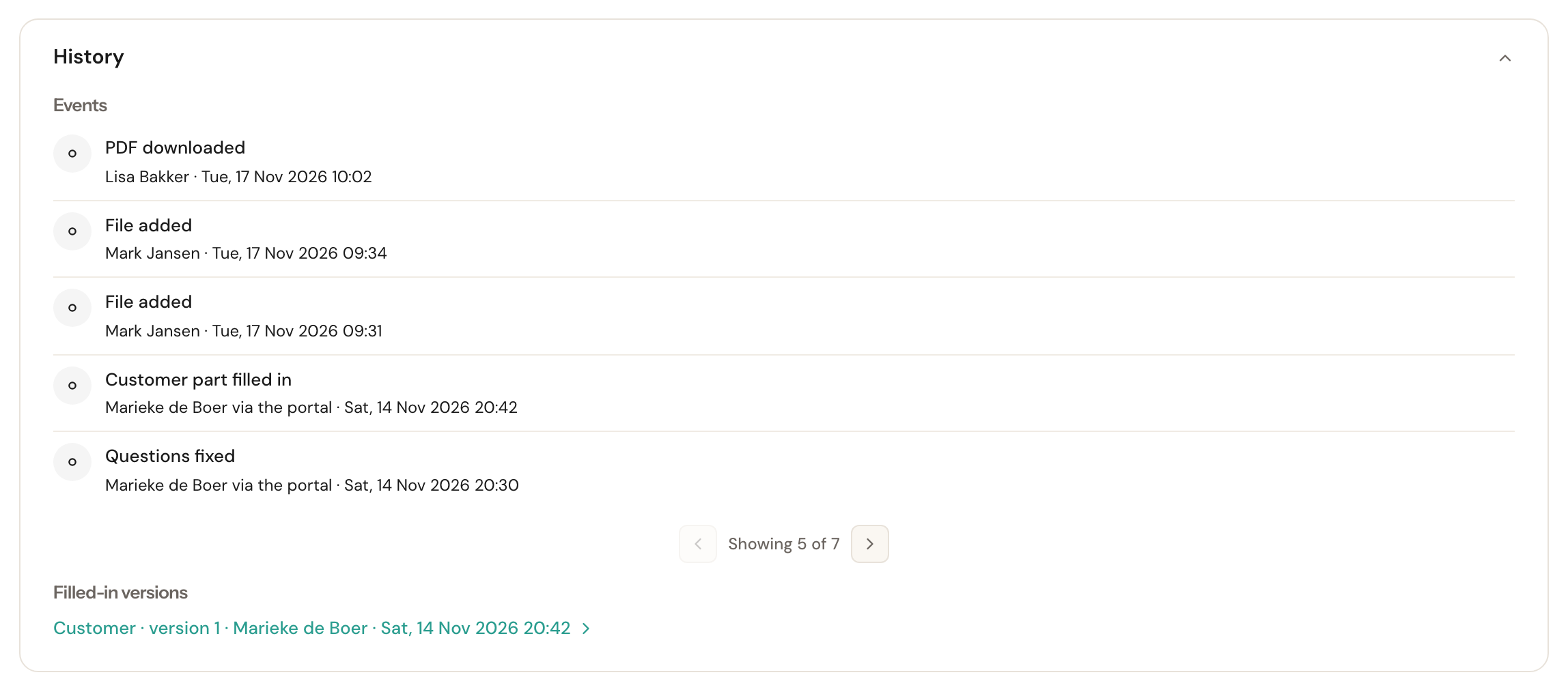
- Events — who did what and when, newest first, five per page: added, a part filled in or reopened, a photo added or removed, signed, a signature voided (with the reason), marked as not needed, the customer asked, a PDF downloaded or sent with an e-mail, moved to a new appointment. What the customer did themselves says via the portal.
- Filled-in versions — every time a part was finished, that state is kept. Click a version to read it as it was then. That way you also see what was there first after a correction.
The answers themselves are never in the events; open a version for those.
Emailing the completed version to the customer
The customer can get a filled-in form by e-mail, with the PDF attached — the signed work order, for example. This does not happen by itself: you switch it on once.
Share the form with the customer
Set The customer sees the completed form to Yes on the form. See Build a form. This applies to upcoming appointments; what was already filled in stays as it was.
Set up the e-mail
Go to Communication → Steps, choose the Form flow and add a step at When a form is completed: an e-mail to the Customer, with Attach PDF on. How to make a step and what to put in it is in Edit a step.
From then on, as soon as a shared form is filled in — after the last signature, or when the last part is done — the customer gets an e-mail with the customer's copy as a PDF. In the customer portal the form is then under Completed, also to download.
- After a correction another e-mail goes out. Reopen a signed form and complete it again, and the customer gets the corrected version.
- Your team never gets the PDF. A step to your organisation or to the appointment's colleagues holds a link to the form in Schedulinq.
- What was sent is in the Messages card on the form. If an e-mail could not go, because the customer has no e-mail address or the PDF could not be made, it says why there. The history shows PDF sent with a message to the customer for every e-mail that carried the PDF.
The e-mails asking the customer to fill something in are in the same flow — see Your customer fills in a form and How communication works.
Deleting a filled-in form
A filled-in form is kept, even when the appointment or the form goes away. If it really has to go — the customer asks for their data to be deleted, or something is in it that should not be — delete it for good with Actions → Delete.
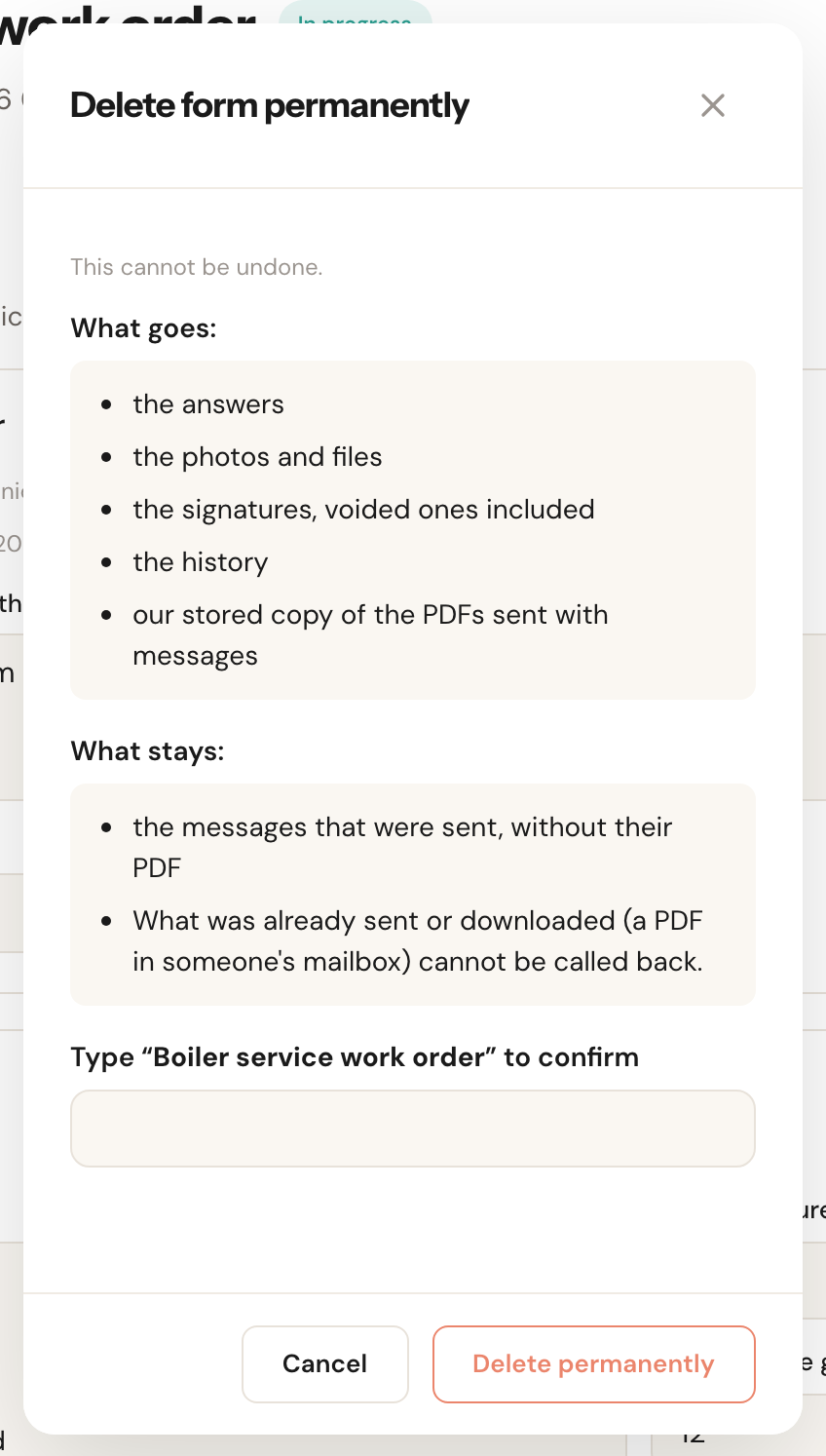
Type the form's name to confirm. The window lists what goes and what stays. A PDF that is already in someone's mailbox or has been downloaded cannot be called back by anyone.
Delete is only there when:
- your role may mark forms as not needed and sees all customers;
- there is no valid signature on it — void that first with Reopen;
- it is not a work order still holding an appointment open — complete or cancel the appointment first.
If a request to the customer was running, the link in their e-mail stops working.
In the appointments overview
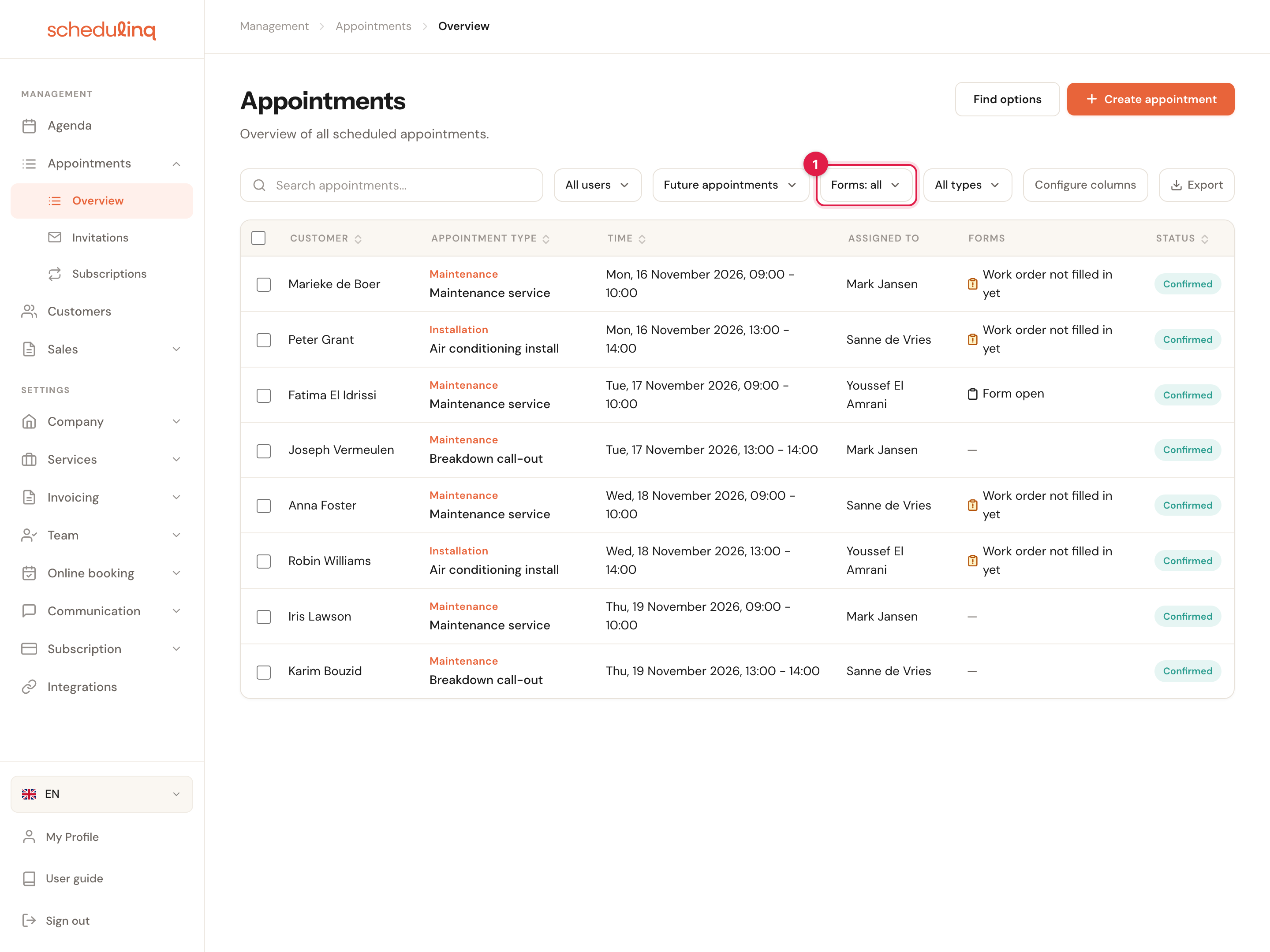
Under Appointments → Overview you find the appointments that still have an open form.
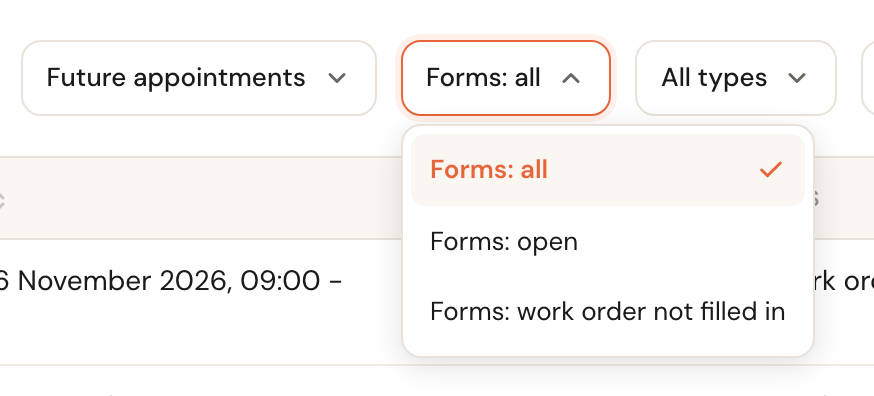
| Filter | Shows |
|---|---|
| Forms: all | Everything, as without a filter. |
| Forms: open | Appointments where your team still has a form to fill in. |
| Forms: work order not filled in | Only appointments a work order is holding back. |
Switch on the Forms column with Configure columns to see it per appointment: Work order not filled in yet, Form open, or a dash. These are the same marks as in the calendar. A form that is only waiting for the customer gets no mark: your team cannot do anything about it. The filter and the column are only there if you have forms that belong to appointments. See also The appointments overview.
When something changes about the appointment or the customer
| What happens | What happens to the form |
|---|---|
| You move the appointment, or the customer picks a new time through Reschedule | It moves along, with what was already filled in. |
| You cancel the appointment | A form that was still open becomes Void. What was in it stays readable. A filled-in work order stays filled in. |
| You put the appointment on another customer | It goes along to that customer. |
| You take the customer off the appointment | What was already filled in stays with the customer in their notes; what was still empty becomes void. |
| You merge two customers | All forms go to the customer that remains. |
| You archive the customer | Forms in their file that were still open become void. Filled-in ones stay. |
| The appointment gets another service | An empty form that no longer fits becomes void; a form that already holds something stays. |
Frequently asked questions
Can I download all of last month's work orders at once? No, the PDF is made per form, under Actions → Download PDF.
Can I get a form's answers in an export or a column? No. Answers are only on the form itself and in the PDF, not in lists, exports or the customer's data.
A colleague added the wrong form by mistake. Choose Actions → Declare void on that form. That works for a form someone added by hand.
I don't see Delete. See the three conditions above. Usually there is still a signature on it, or the form is still holding the appointment open.