

Fill in a form
How your team fills in a work order or questionnaire on the appointment — on a phone too, with photos — has the customer sign, completes the appointment and downloads or shares the PDF.
This guide is for whoever fills in the forms: the technician with the work order, the therapist with the report, the planner checking that everything is in. The example is the work order for the annual maintenance service: the customer already filled in at home where the boiler is, the technician fills in the rest on site, takes photos and has the customer sign. How to build such a form is in Build a form.
To fill in forms, your role needs the Fill in and view toggle under Forms — see Roles and permissions.
Where to find the form
A form belongs to an appointment, and that is where you find it.
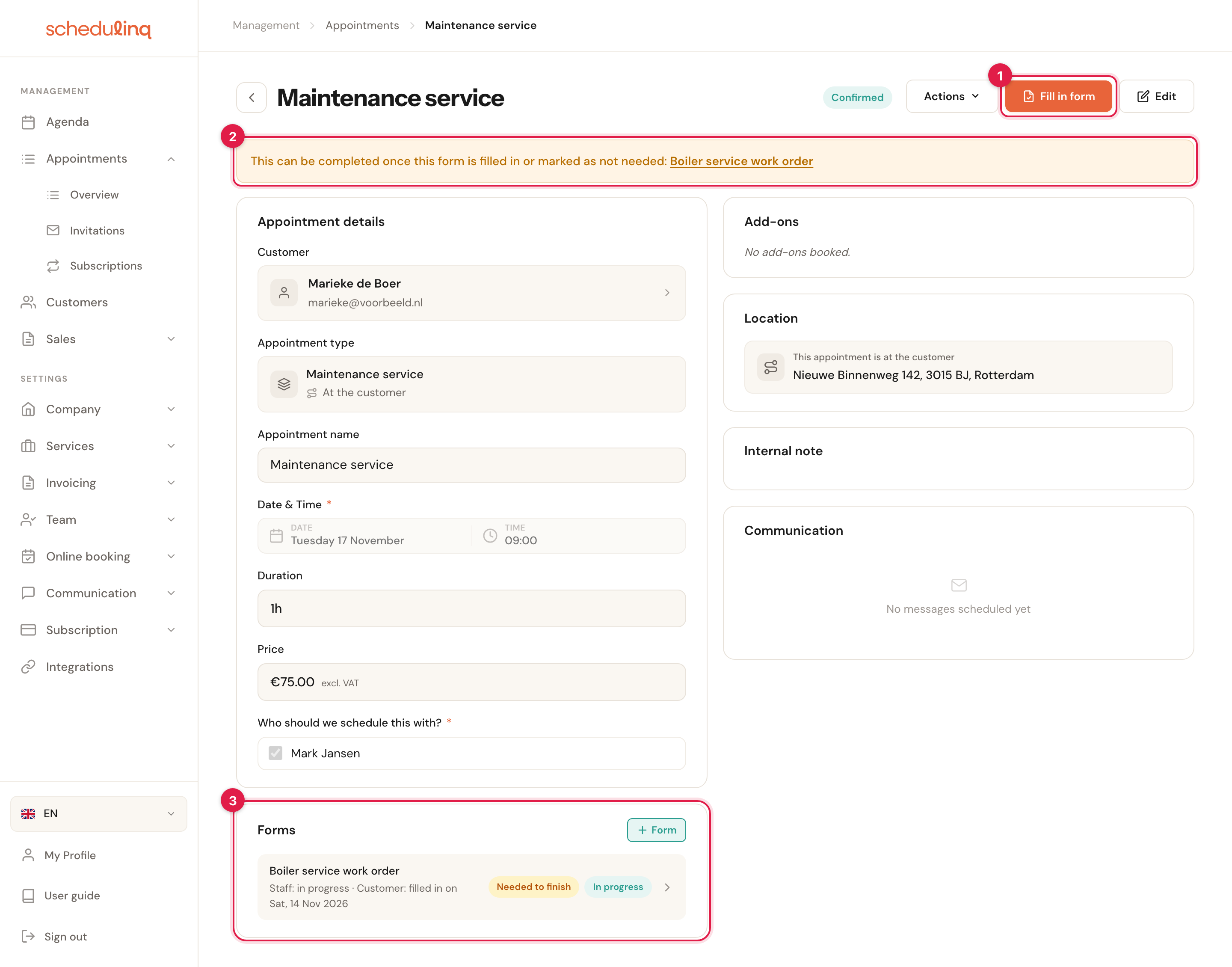
- Fill in form — the main button while there is something for you to fill in. With one form it opens that form; with more it scrolls to the card. Edit then becomes an ordinary button beside it.
- The message at the top — only there when a work order is holding the appointment back, with the form's name as a link.
- The Forms card — right under the appointment details, so the second card on a phone. For each form its name, who has already filled in their part and how far it has got. Click a row to open the form.
If your role may not read the answers, you still see the rows, but they do not open: they say Your role may not view the answers. More about the appointment screen is in The appointment screen.
Outside the appointment you also see where a form is still open:
- In the calendar a small clipboard follows the appointment's name; orange with an exclamation mark if it is a work order holding back completion. Right-click and the menu shows Fill in form instead of Mark as finished. See Using the calendar.
- In the appointments overview you filter on open forms and switch on a column for them — see Answers and history.
Adding a form
A form that belongs at every appointment is there by itself. Any other form you add yourself, with + Form on the card.
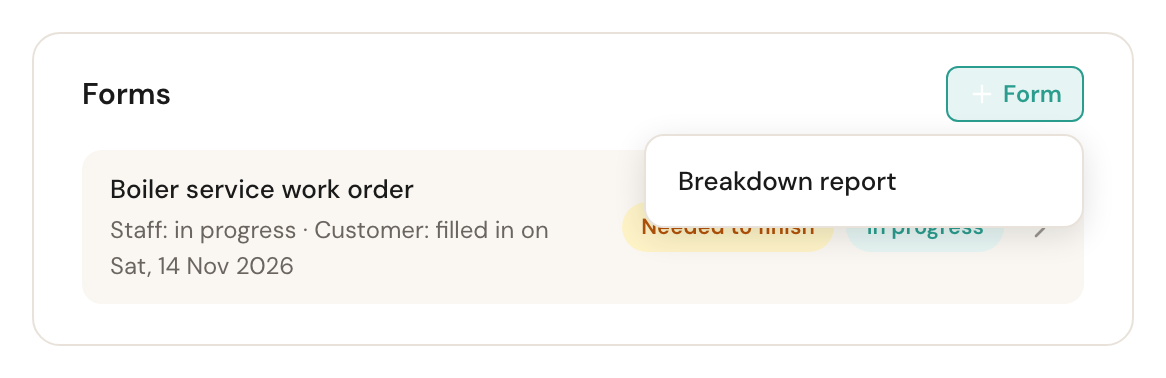
The menu only offers forms that fit this appointment: a form you add by hand, and a form for certain services only on an appointment for that service. What is already on the appointment is not offered again. Once you pick one, the form opens straight away.
+ Form needs Fill in and view. A form without an appointment — on the customer themselves — you add in the customer's notes; see Answers and history.
Filling in
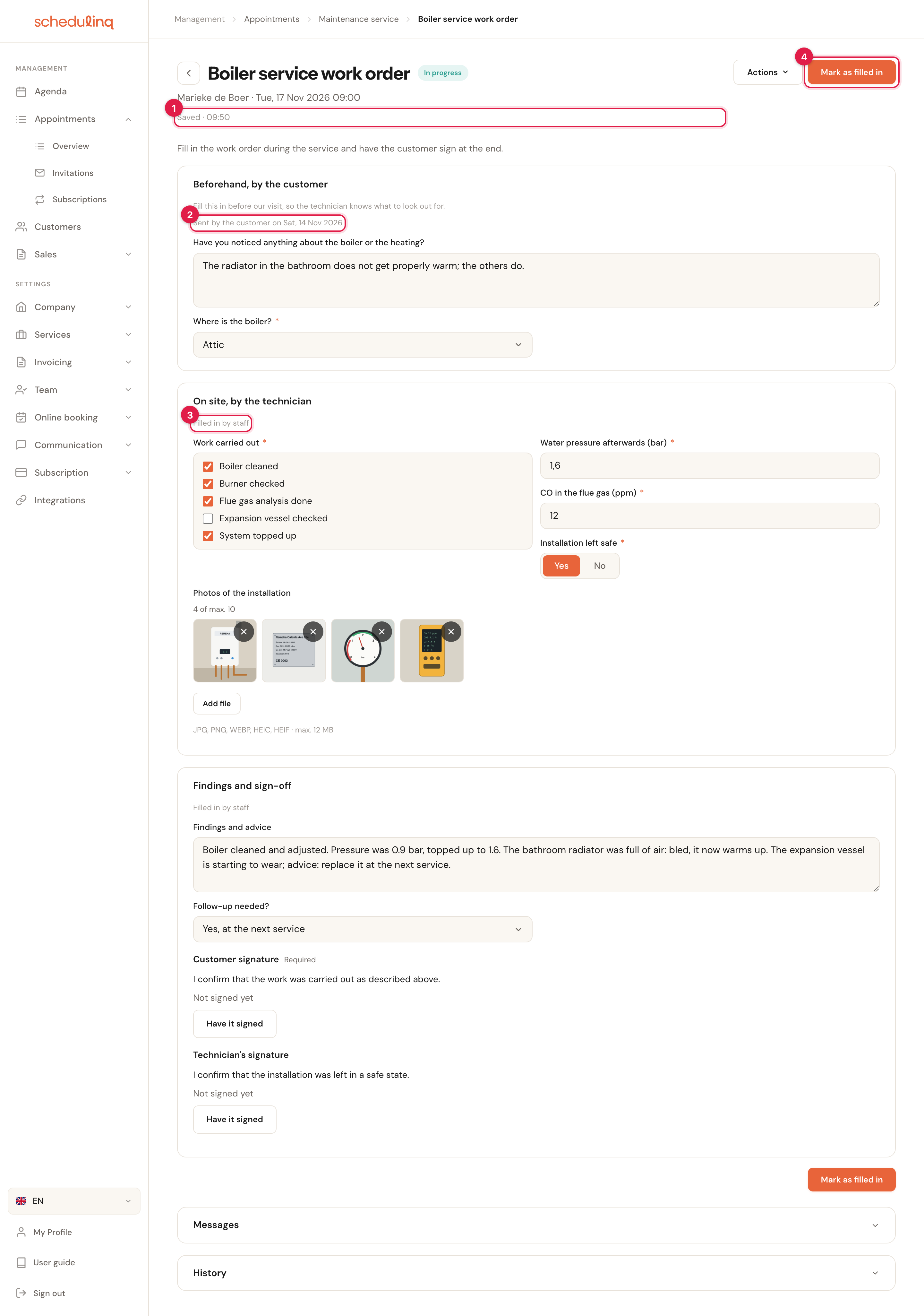
The form is one column, section under section, as you built it.
- Everything is saved by itself. There is no Save button: an answer is kept as soon as you pause typing or move to the next field. The line under the title says Saving…, Saved · 09:50 or, without a connection, Not saved: no connection, trying again. What you fill in without signal goes along as soon as you are back online.
- Each section says who fills it in, or who already did and when.
- A section you may fill in is open. A section that is already done, or that belongs to the customer, is greyed out and read-only.
- Mark as filled in finishes your part. If a required answer is missing, the page goes to that question and says what is missing; nothing is finished then.
After that your part is done and the section is read-only. If something still has to change, click Edit — at the top or at the section — and it is open again.
The customer's part
A section the customer fills in is filled in one of three ways:
- Together at the visit — if it says Filled in by the customer · together at the visit, you fill it in with the customer, on the page. Mark as filled in then finishes that part too.
- At home, and already sent — then it says Sent by the customer on … and you read what they wrote.
- At home, but not sent yet — then it is waiting for the customer. With Fill in for the customer you fill it in yourself, for example when they tell you over the phone. See Your customer fills in a form.
On a phone
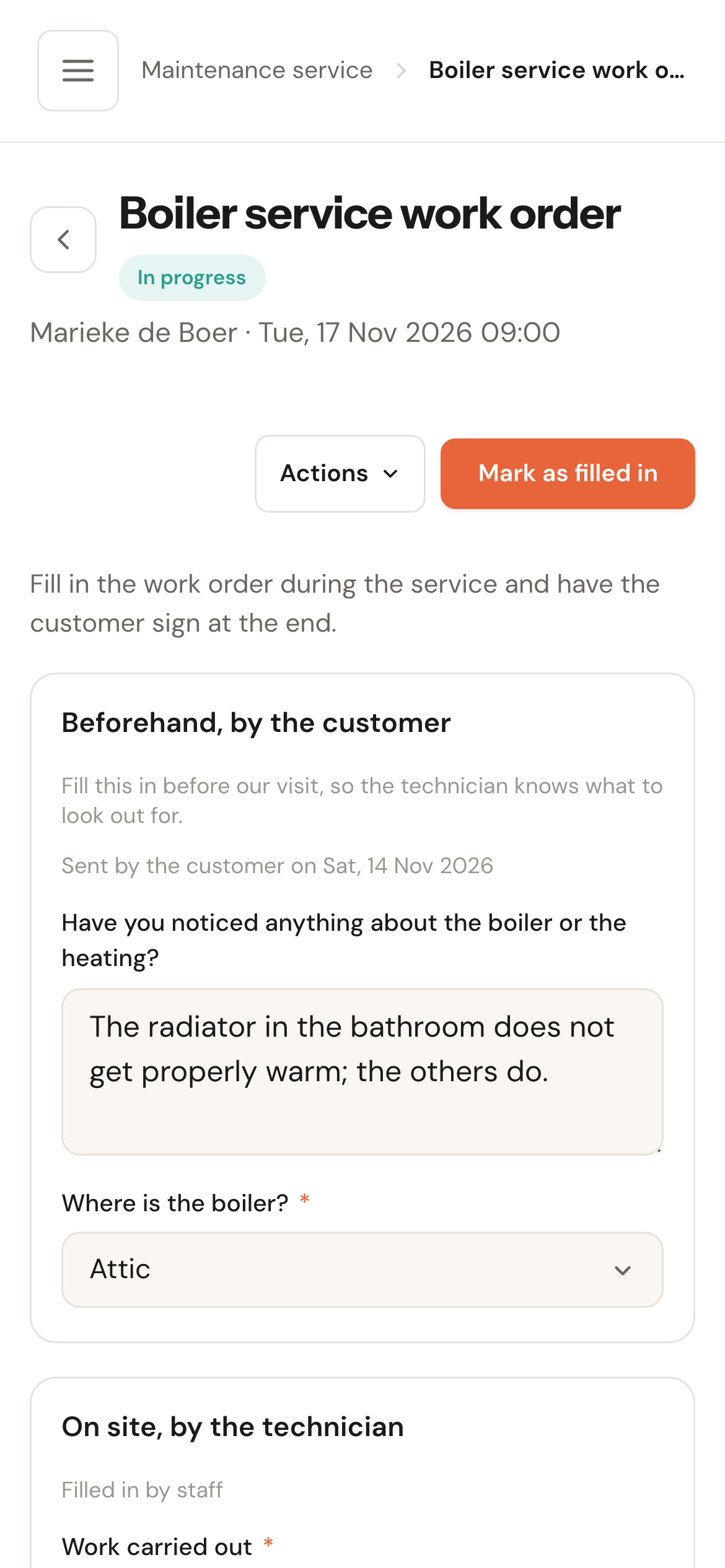
The page is made to be filled in on a phone, one-handed, in a cellar or an attic.
Photos
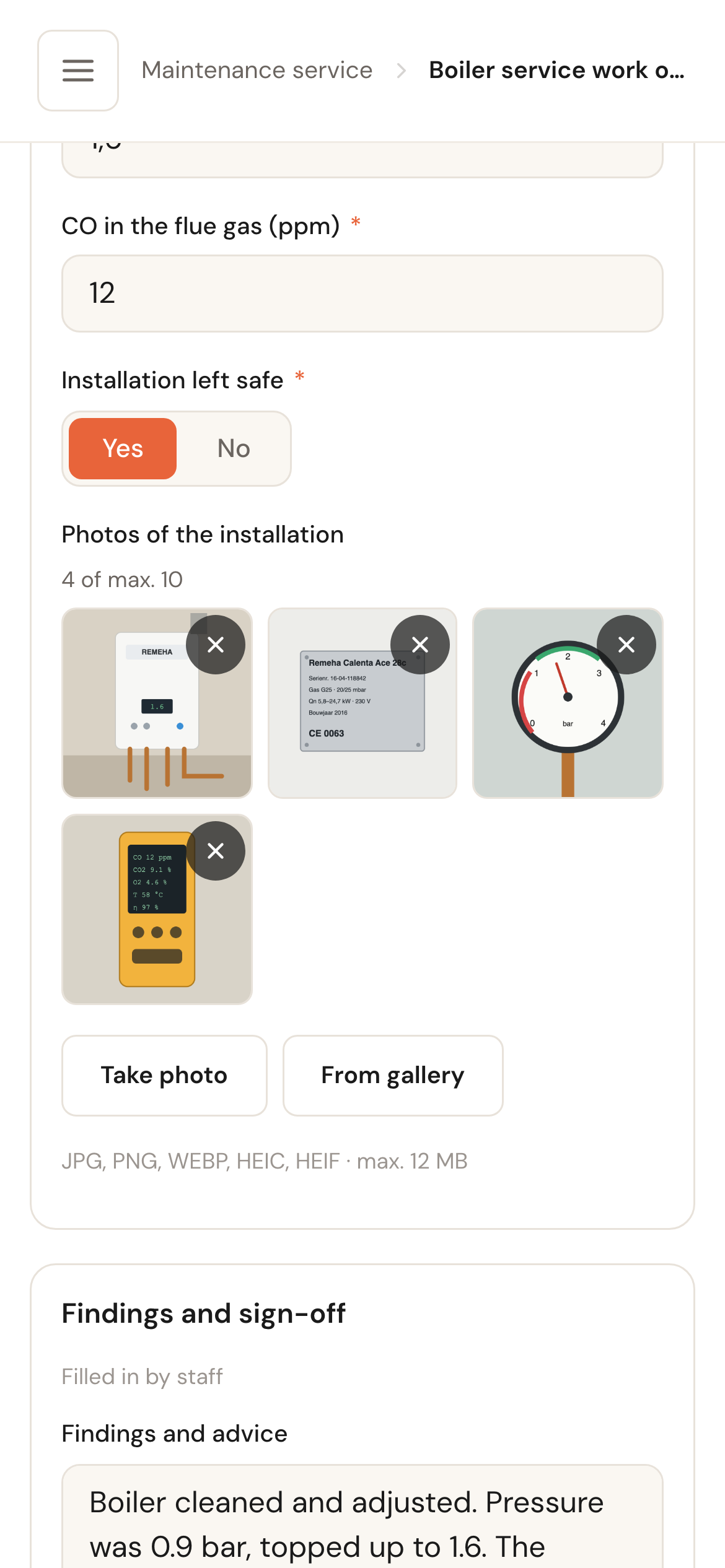
- Take photo opens the camera; From gallery picks a photo you already have. On a computer there is one button, Add file.
- A photo appears as a tile and is saved at once. Schedulinq shrinks a large photo first, so it gets through quickly even on a weak connection.
- Tap a tile to see the photo large. There you browse with the arrows, move it with Move earlier and Move later, save it with Download, or remove it with Delete.
- If sending fails, the photo stays with the reason under it and the buttons Retry and Delete. A photo that is too large to send gets no Retry.
- On screen a photo is called Photo 1 of 4, never by its file name.
An Attachments question takes photos up to 12 MB, and how many per question is set on the question, up to 20. A question that also takes other files or video works the same way.
Having it signed
If the form has a signature, it comes last. The customer signs on your phone or tablet.
Fill in your part
Once every part is done, the main button becomes Have it signed and the badge Awaiting signature. An optional signature, or one you want to collect earlier, is made with Have it signed at the signature itself.
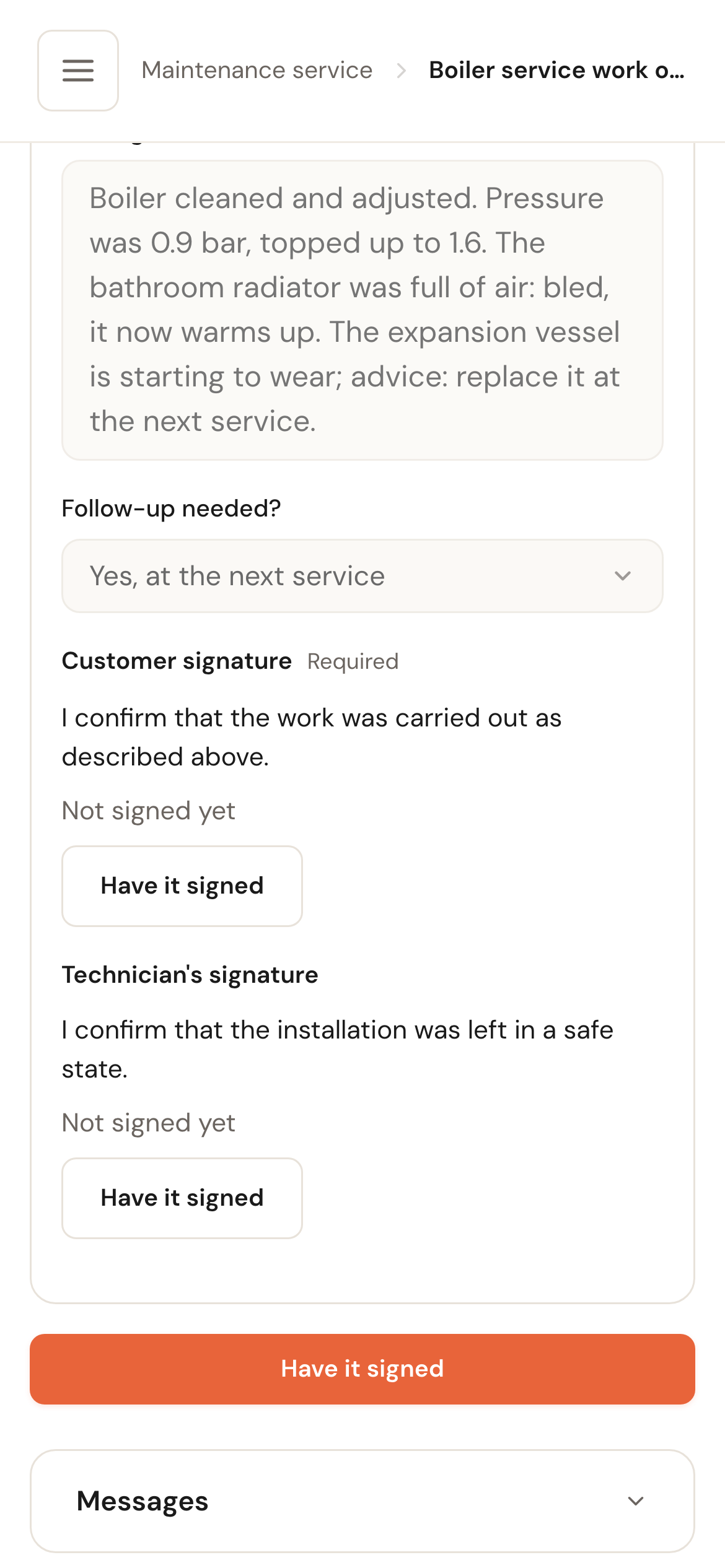
Hand the device to the customer
The signing pad fills the screen, with the title and the statement above it. The name is already filled in: the customer's for the customer, yours for a staff member. If it is wrong, change it.
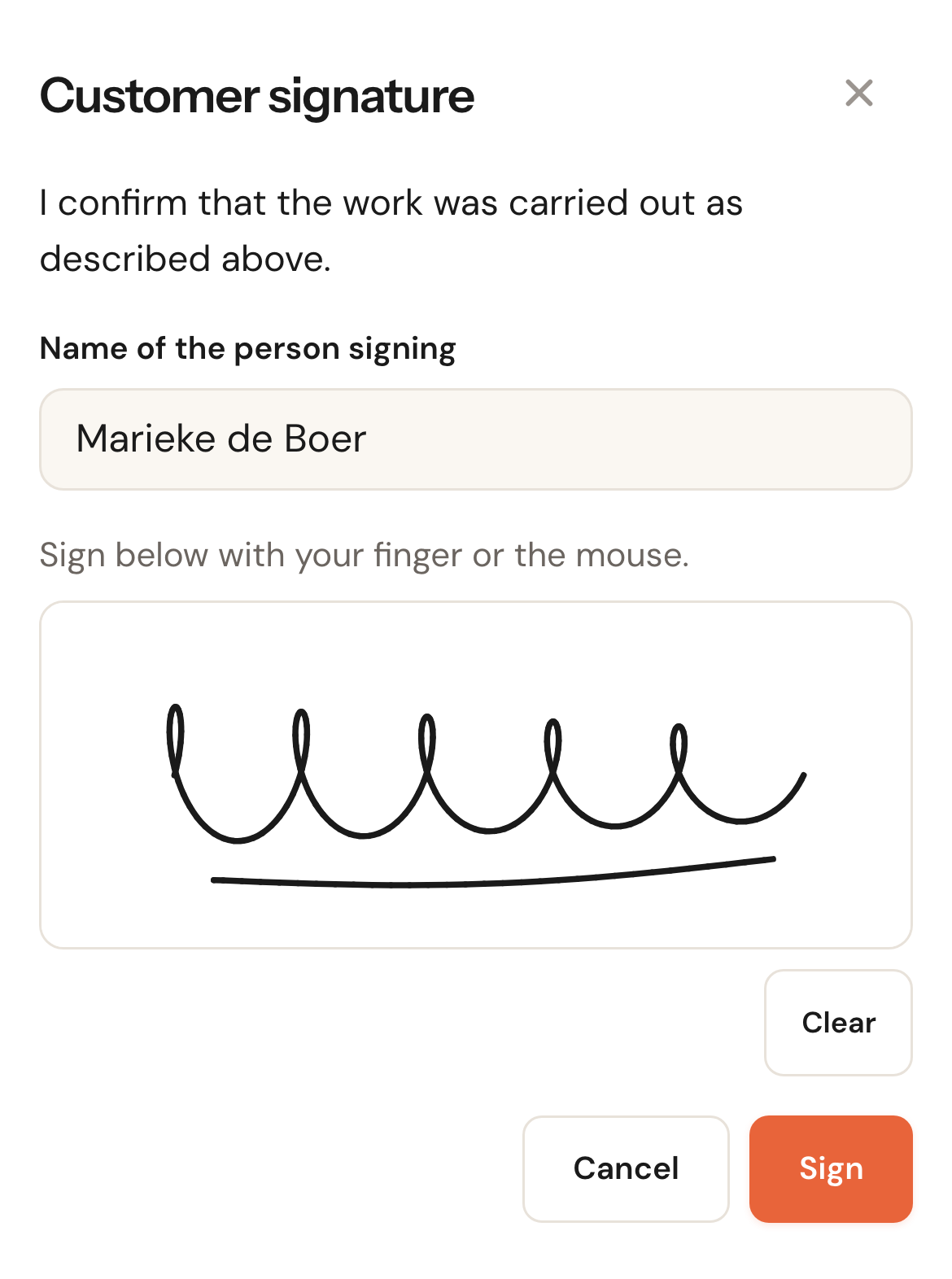
Have them sign and click Sign
Clear starts again. A tap or a dot does not count as a signature. After Sign the page says Signed. and the signature is on the form.
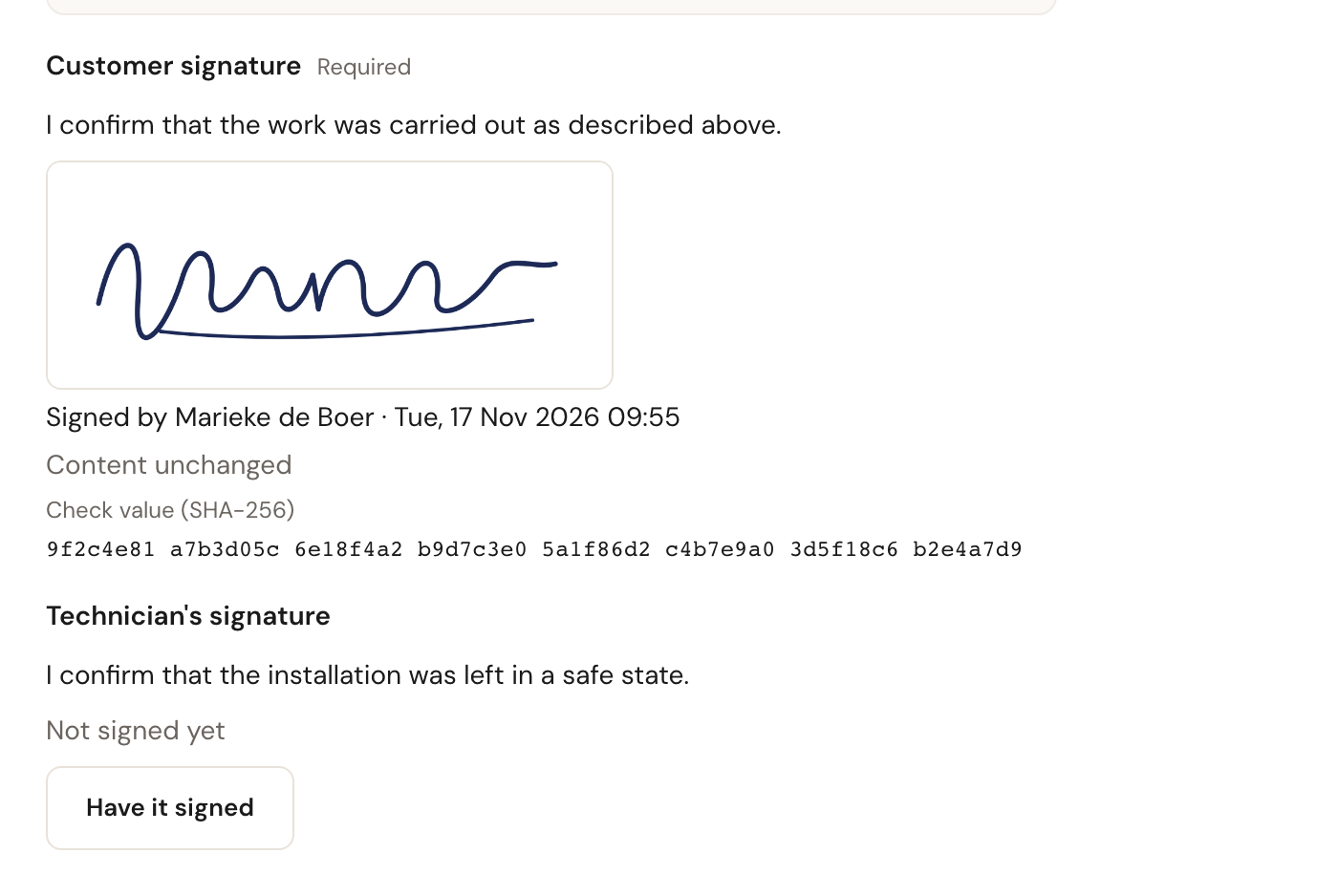
A staff member who signs can also choose Sign without drawing: their typed name and their login then count as the signature. A customer always signs by hand.
If something has to change after signing after all, choose Reopen. You give a reason — the customer does not see it — and the signatures are voided. They are kept, struck through with the reason, and you can change the form and have it signed again. Reopening is for whoever may mark forms as not needed, or the colleague who captured the signature, as long as the appointment is not completed.
Completing the appointment
A form with Required to complete the appointment keeps the appointment open until it is filled in or marked as not needed. Meanwhile:
- the top of the appointment says which form is holding it back;
- Mark as finished under Actions becomes Fill in form;
- the calendar shows an orange clipboard with an exclamation mark.
Once the last form is done, the form's main button becomes Complete appointment. One click and the appointment is completed — you do not have to go back to the appointment screen. The same button is there too.
Complete appointment is available to whoever may edit appointments, and also to a colleague who is on the appointment and has Fill in and view, once the appointment has started. That way a technician without the Actions menu completes their own work.
Not needed, or void
Sometimes a form is not needed. Under Actions on the form:
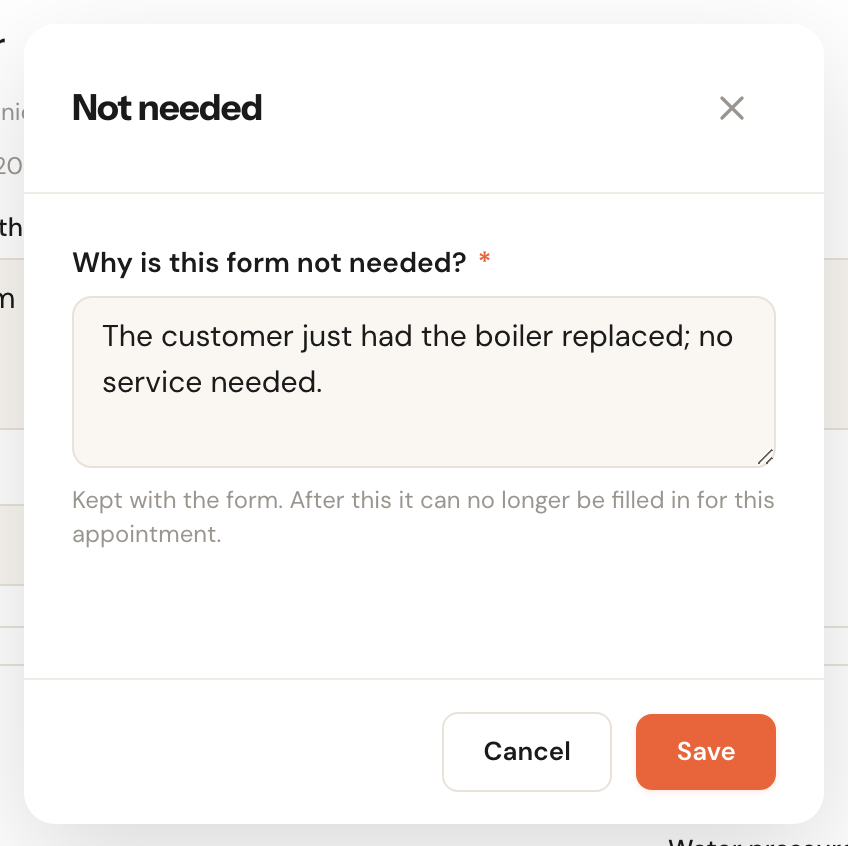
- Not needed… — with a reason, which is kept with the form. The form becomes Not needed and no longer holds the appointment open. This is final: afterwards it can no longer be filled in for this appointment. Your role needs Mark as not needed for this.
- Declare void — only for a form someone added by hand, when that was a mistake. The answers stay readable. If you add it to the same appointment again later, you continue with these answers.
The PDF and sharing

- Download PDF — the copy for your own records, with every section, the names of who filled in what, photos, signatures and check values. Works in any state, even when the form is not done yet (it then says Draft — not finished yet).
- Share — only on a phone or tablet. It opens your device's share menu with the customer's copy, so you can e-mail or message it on the spot. On a computer Share is not there.
The customer's copy has no colleagues' names and no internal reasons. It holds the customer's part; the whole form only once you share it with the customer and it is filled in. If a form has no part for the customer and you do not share it, there is no customer copy and no Share.
If you want the customer to get the PDF by e-mail after completion, set up a message for it — see Answers and history. What has been sent about this form is in the Messages card on the form.
Frequently asked questions
I have no signal. Is my work lost? No. The line under the title says Not saved: no connection, trying again, and as soon as there is signal it goes along. Only leave once it says Saved; if you try to leave earlier, the page warns you.
A colleague is filling in the same form at the same time. That works, each in their own fields. If you both touch the same answer, you see the other's change and click again.
Why can't I finish? A required answer is missing — the page goes to it — or a customer section has not been sent yet. Fill it in yourself with Fill in for the customer, or mark the form as not needed.
The customer wants to change something afterwards. Choose Reopen (on a signed form) or Edit, change it and have it signed again if needed. The history keeps showing what was there first.
Can I add the photos afterwards, at the office? Yes, as long as the form is open, on any computer. On a computer you choose a file instead of the camera.