

Service finder
Ask customers a few questions first, so they end up at the service that fits — or hear politely that you can't help them — and let their answers fill in your own fields on the way.
Not every customer knows which of your services they need. A breakdown call-out or a maintenance service? An installation, or an advice call first? The service finder asks them a few questions first. Each answer leads to a next question, to the services that fit, or to a polite stop: "We can't help you with that, give us a call."
You build the service finder under Online booking → Service finder. Below it sits a preview of your booking page, where you walk through the questions yourself straight away.
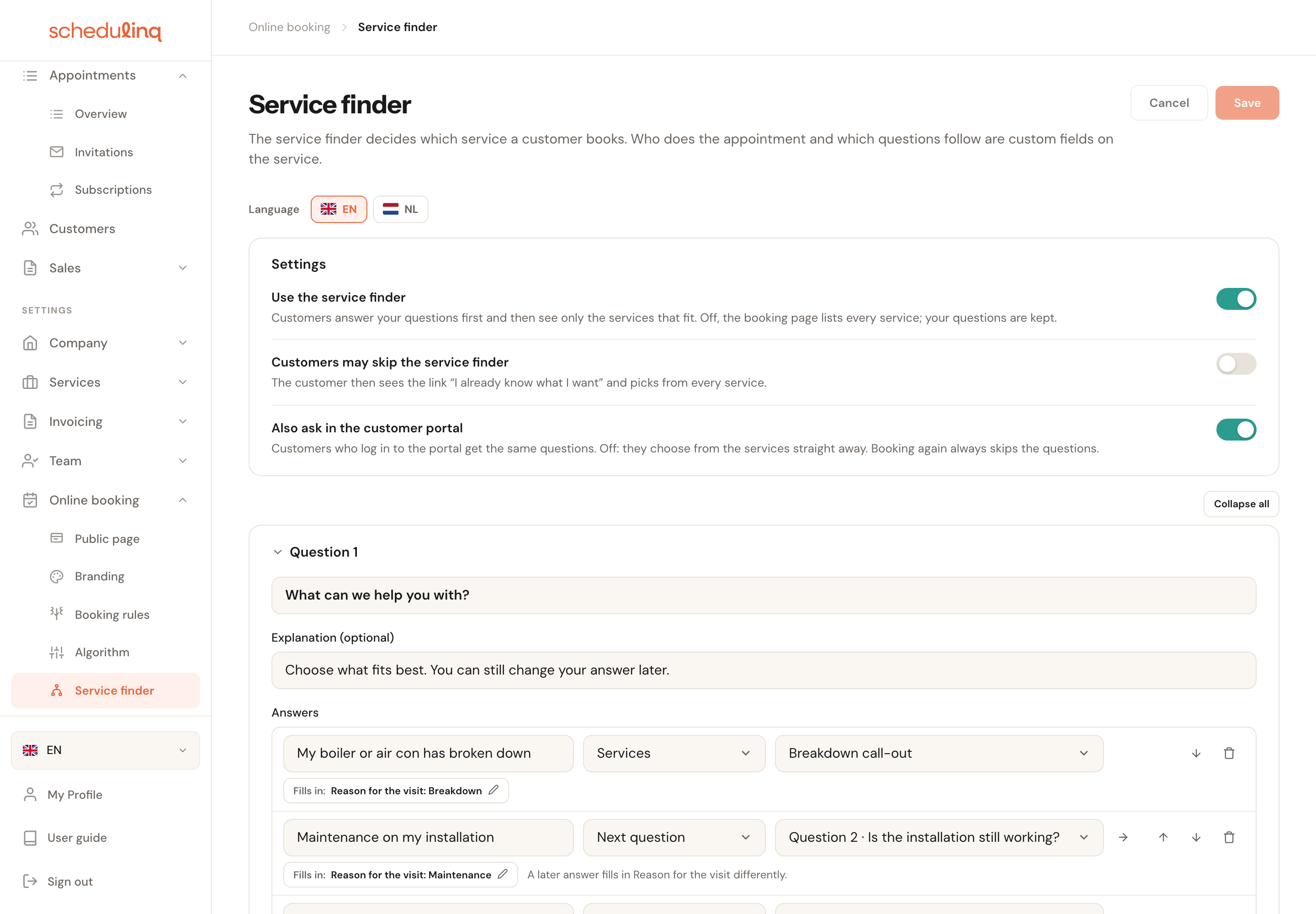
The settings
Use the service finder
On: customers answer your questions first and then see only the services that fit. Off: the booking page lists all your services, as before. Your questions are kept. You can only switch it on once there is at least one question.
So you can build the service finder at your own pace and try it in the preview while it is off. Only when you Save with the switch on do your customers see it.
Customers may skip the service finder
Default: offUnder the first question the customer sees the link I already know what I want and picks from all your services. Whoever skips also gets no fields filled in.
Off by default, because the point of the service finder is that nobody gets past it. Switch it on if you have many regular customers who know exactly what they want to book.
Also ask in the customer portal
Default: onCustomers who book in the customer portal get the same questions. Off: they choose from the services straight away. Book again in the portal always skips the questions.
A customer who has been with you before often doesn't need the screening any more. With this switch you keep the questions for new customers on your booking page and let known customers in the portal straight through.
The switches and the questions are kept together with Save at the top right. Until then nothing changes on your booking page; Cancel puts everything back as it was.
Making a question
Add the first question
With an empty service finder you click Add the first question. Start with the question a customer answers first — that is always Question 1.
Type the question and, if you like, an explanation
The question sits at the top of the card. Under Explanation (optional) you add a short note the customer reads under the question.
Add the answers
With Add an answer. Each answer is one line: the text, then What follows?, and next to it what belongs to that choice. The arrows put answers in a different order; the bin removes one.
Choose what follows each answer
Next question, Services or Stop — see below.
Click Save
At the top right. As long as something is wrong, nothing is kept and the page points you to the problem.
A customer picks one answer per question. Typing a number or ticking several answers is not possible: so you ask for a budget as Under €1,500 and €1,500 or more.
What comes after an answer
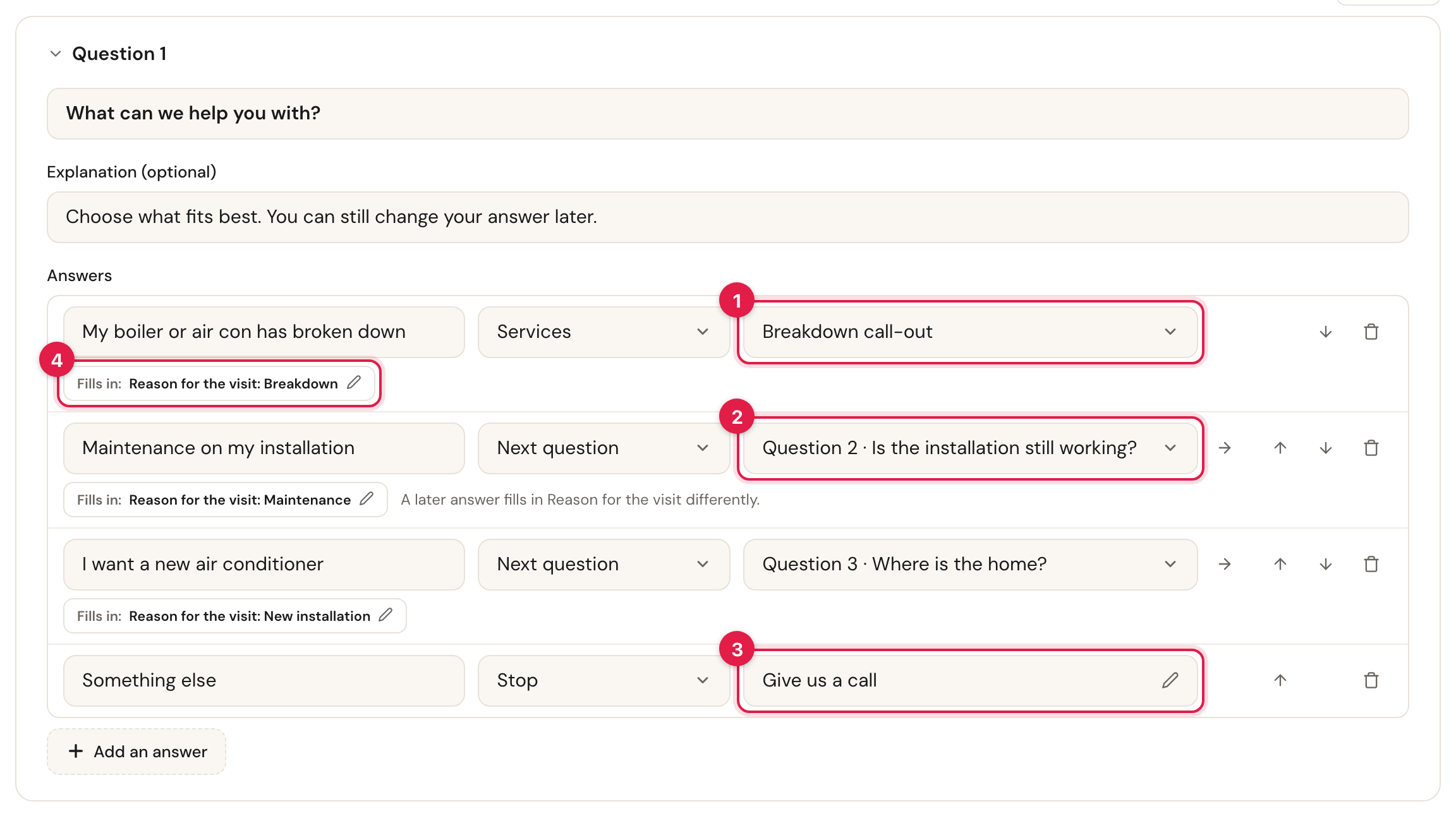
- Services — the customer then sees only these services.
- Next question — the customer gets another question.
- Stop — the customer lands on a stop page you write.
- Fills in — the fields this answer fills in for them; see Answers that fill in fields.
Services
Click the box next to Services and tick where this answer leads. Closed, the box shows the names of what you ticked; hover over it and you see them all, one per line.
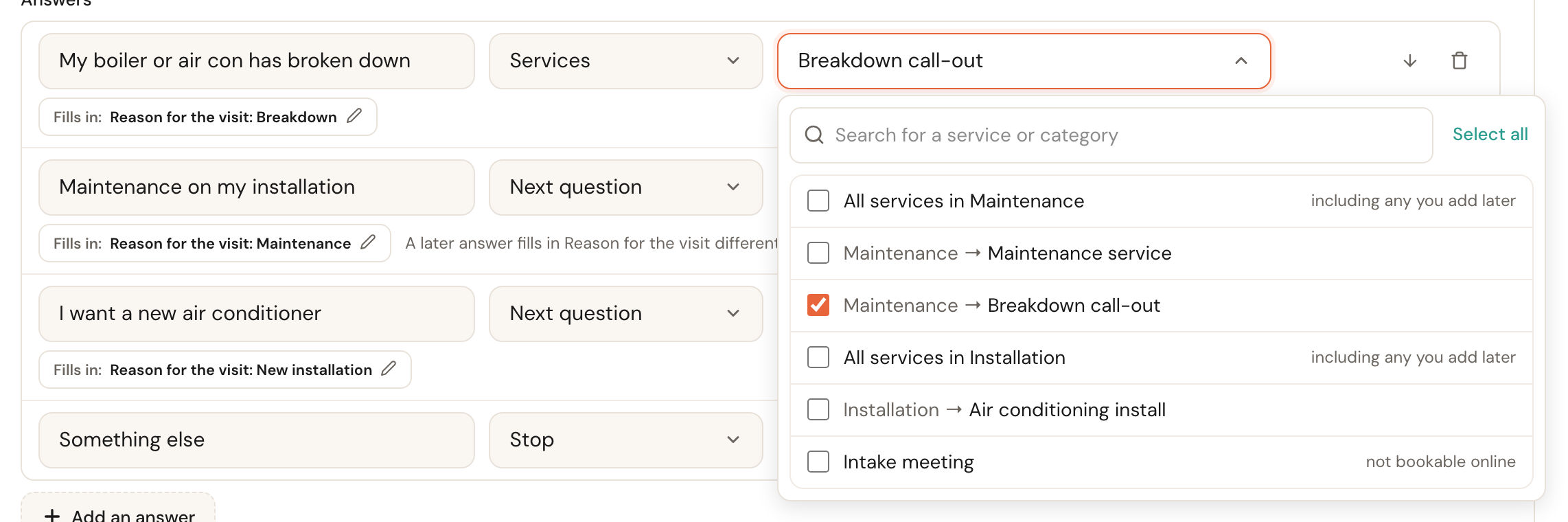
- All services in … — a whole category, subcategories included. A service you add to it later counts as well. When the number of services the customer actually gets differs from what is shown, the box says so: · 3 services.
- A single service — shown with its category in front.
- not bookable online — you can pick that service, but your customer won't see it. If an answer leads only to such services, the line underneath warns you: the booking page then says there are no services.
The service finder looks at each channel. A service you only let customers book in the customer portal carries the note only in the customer portal, and the warning under an answer says which channel gets nothing out of it.
Above your questions there is also a yellow notice as long as some services are reached by no answer: These services cannot be booked through the service finder. A direct link or an invitation still reaches them.
So you see at once whether you forgot a service while building. Sometimes that is on purpose — an intake meeting you only schedule yourself — but usually it isn't.
If you later archive a service an answer leads to, it stays in your service finder. On your booking page it drops out; restore it and it's back.
Next question
In the second box, choose which question follows, or + New question: the page then makes a new question and jumps to it. The arrow to its right takes you to that question.
- A question may follow several answers. "Where is the home?" can follow both New air conditioner and New heat pump; you write it once.
- Loops are not possible. An answer that leads back to an earlier question is refused when you save.
- Every question must be reachable. A question no answer leads to fades and says No answer leads here. You can't save until that is fixed.
If you delete a question that answers lead to, the page names those answers first: they have nothing to follow them afterwards and need setting up again. You can only delete Question 1 when it is the only one.
Stop
Choose Stop and the Stop page opens: what the customer sees after this answer. Type a Title and a Text (with formatting and links) and click Save in the window.
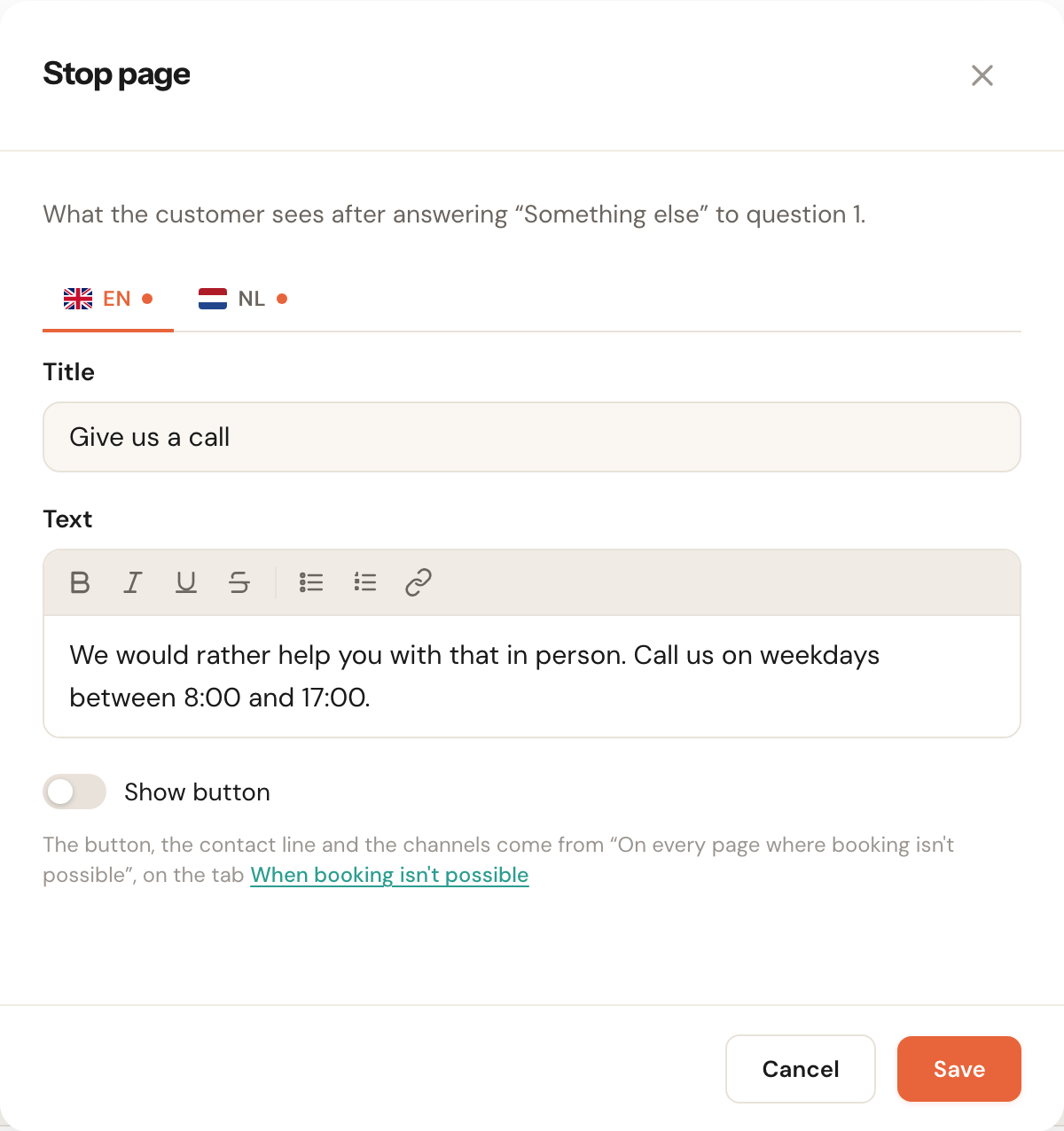
Your customer then sees your title and text, the Change answer button to go back, and your contact details:
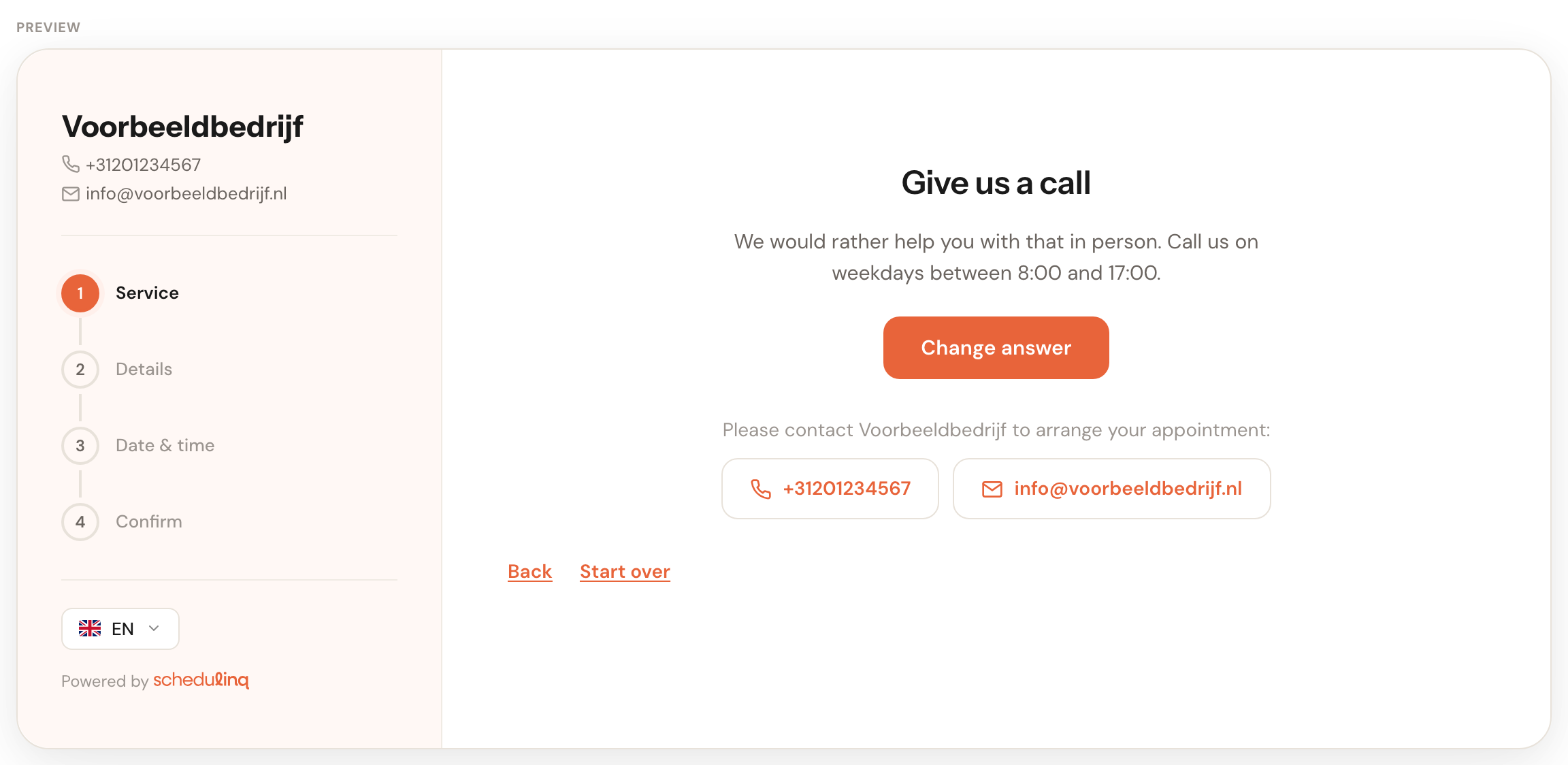
The contact line and the channels under it come from On every page where booking isn't possible, on the When booking isn't possible tab of your booking page. Switch Show button on and that tab's Extra button on every page appears on the stop page too — handy for a link to your contact form. A stop has no button of its own, and does not itself appear in the list on the When booking isn't possible tab: you write its words here.
Closed, the stop shows its title, with · not in: NL when a language has no text yet. Click Cancel on a stop you just chose, and the answer gets its previous outcome back.
In more languages
If your company speaks more languages, Language sits under the title, with a button per language. Every box on the page edits the language chosen there. A question without text in the customer's language is shown in your company's language, and otherwise in the first language that does have a text. See also Set up languages.
If saving finds a fault in another language, the page switches to that language by itself. Go back, and that language's button is red, with a line underneath saying what's wrong; clicking it takes you there again.
Keeping a long service finder in view
Click Question 2 in a card's header and the question folds to one line: the question and its number of answers. Collapse all above the first question does that for every question at once.
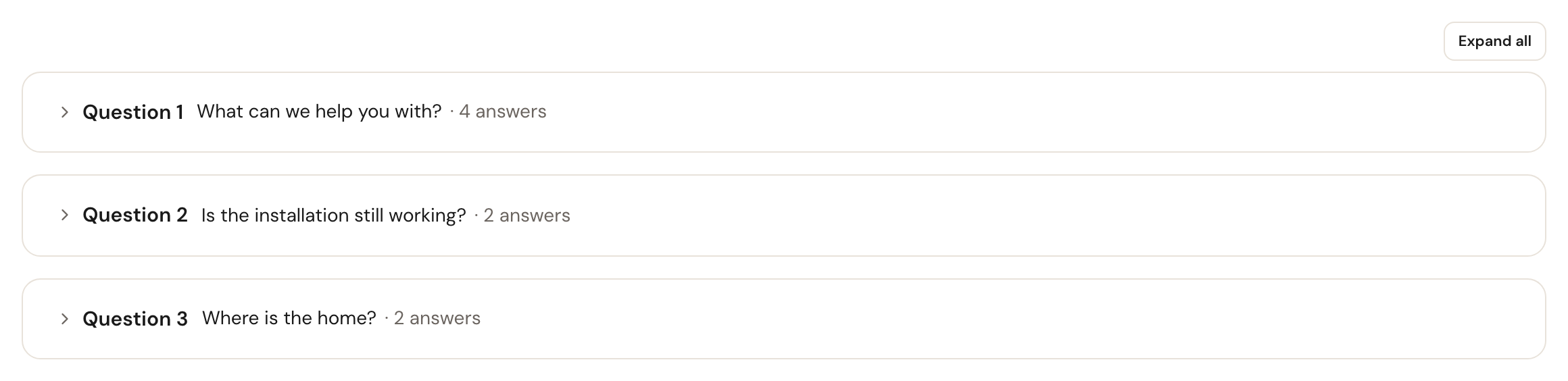
Jump to a folded question with the arrow and it unfolds by itself. After reloading the page, everything is open again: what you fold is not remembered.
Saving, and what can be wrong
The page never opens in red. A fault shows when you leave a box or click Save. Then nothing is kept: the box with the fault turns red, with the reason underneath, and the cursor is on it.
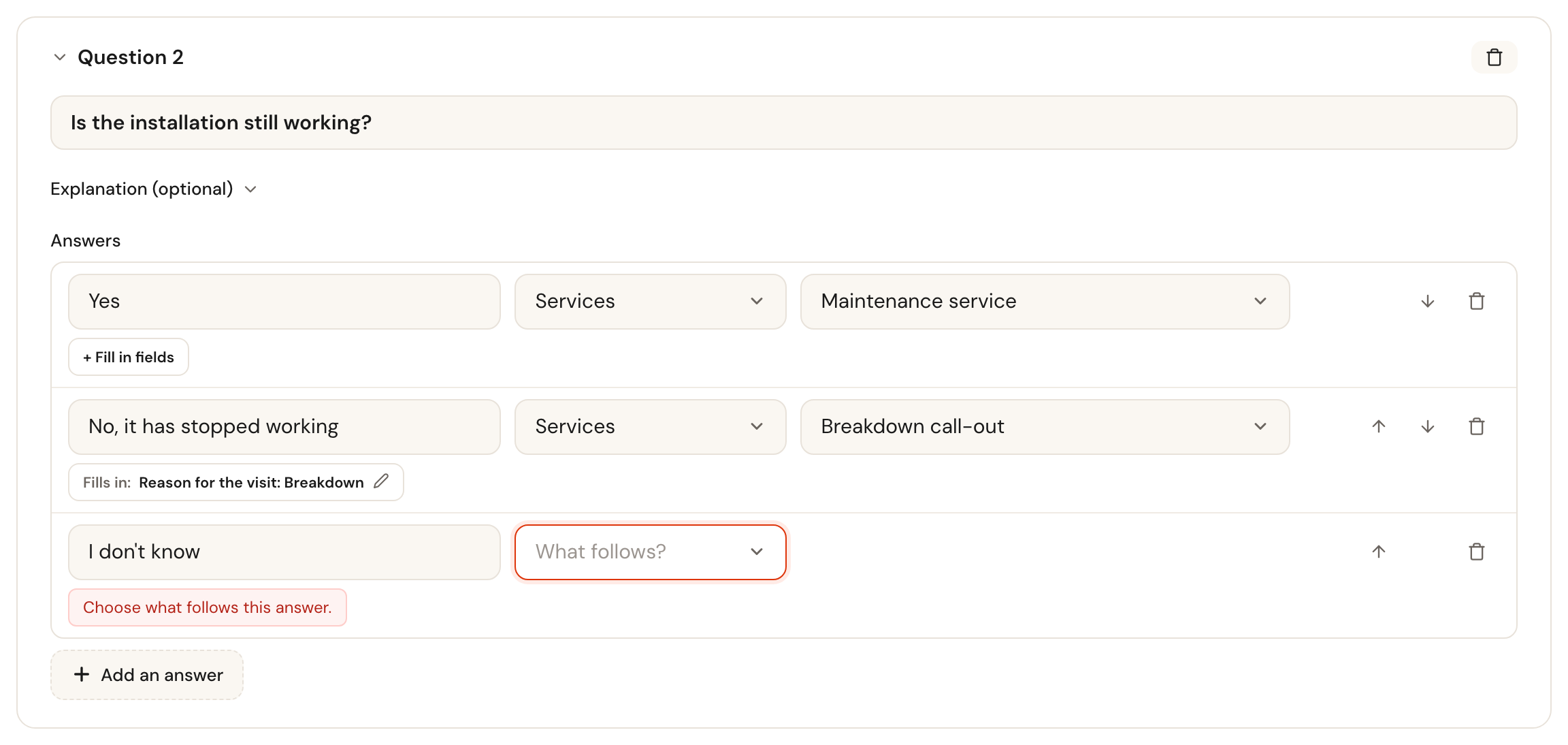
If the fault is in a folded question, it unfolds by itself. Fold it again and the header says Check this question.
Limits you may run into:
- at most 50 questions, and 10 answers per question;
- a question, an answer and a stop's title: 200 characters; an explanation 500; a stop's text 2000, formatting included;
- a question and an answer need a text in at least one language, a stop a title or a text;
- an answer with Services needs at least one service or category.
The preview
Below your questions is the real booking page, walking your service finder as it stands on your screen — including what you haven't saved yet. Click the answers as a customer would.
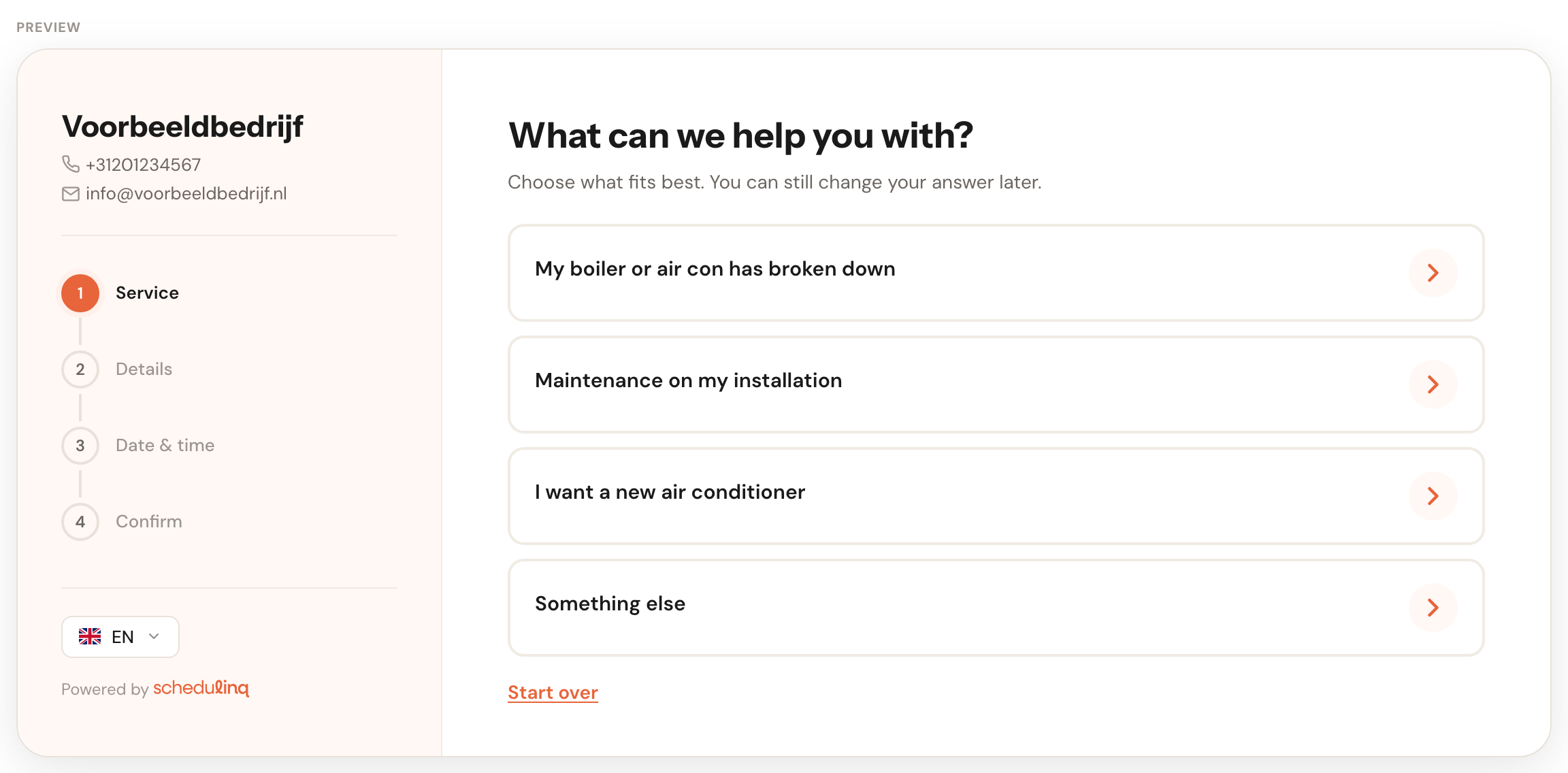
After the last answer you see the services it leads to, with Your answers above them: the questions, the answers and where they led.
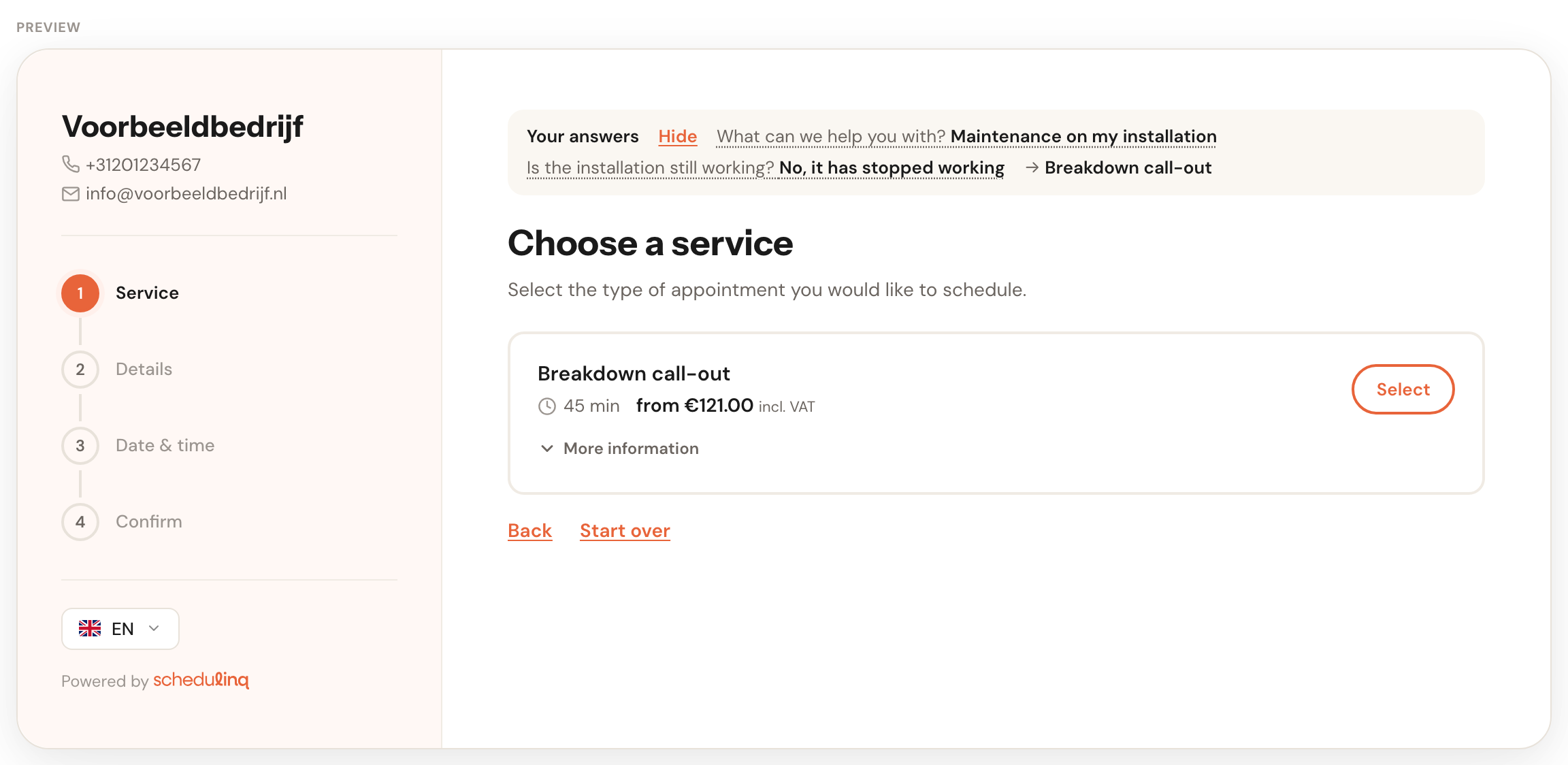
- Back and Start over only exist in the preview, so you can quickly try another branch. Your customer goes back through Your answers or the Change answer button.
- The preview stays with the service finder: it doesn't go on to the details or a time, and it fills in no fields.
- A stop only changes the preview once you have saved the stop's window.
What your customer sees
On your booking page the service finder is the first thing your customer sees, even before the choice of where the appointment takes place. The answers are cards; a click goes straight on to what follows.
- Your answers sits above every following step, folded to the number of answers and Show. Clicking an answer takes them back to that question, with their other answers kept.
- When an answer leads to one service, that service is already selected. The customer presses Next themselves, so they see what they are booking.
- When they change an answer while services are already in their booking, the services that no longer fit disappear, with a message: Removed from your booking based on your answers: …
- Add another appointment opens the service finder again, for the next service. What is already in the booking stays.
- An answer that leads to nothing bookable — say because the service has since been archived — shows the page Online booking isn't available right now, with a button back to the questions.
The service finder doesn't stand in front of everything. It is skipped on a link to one service or one category, on a colleague's own link, on an invitation and when an appointment is rescheduled. In the customer portal it depends on Also ask in the customer portal.
Answers that fill in fields
An answer can also fill in your own fields ahead of time. If the customer picks My boiler has broken down, the appointment field Reason for the visit is already set to Breakdown; if they answer In the Netherlands, the customer field Owner-occupied home is already Yes. You don't have to ask them again, and the engineer sees it on the appointment.
Click + Fill in fields under the answer
That line sits under every answer that leads to a question or to services. A stop doesn't have it: nothing gets booked there.
Click Add field and choose the field
The list has two groups: Customer fields and Appointment fields.
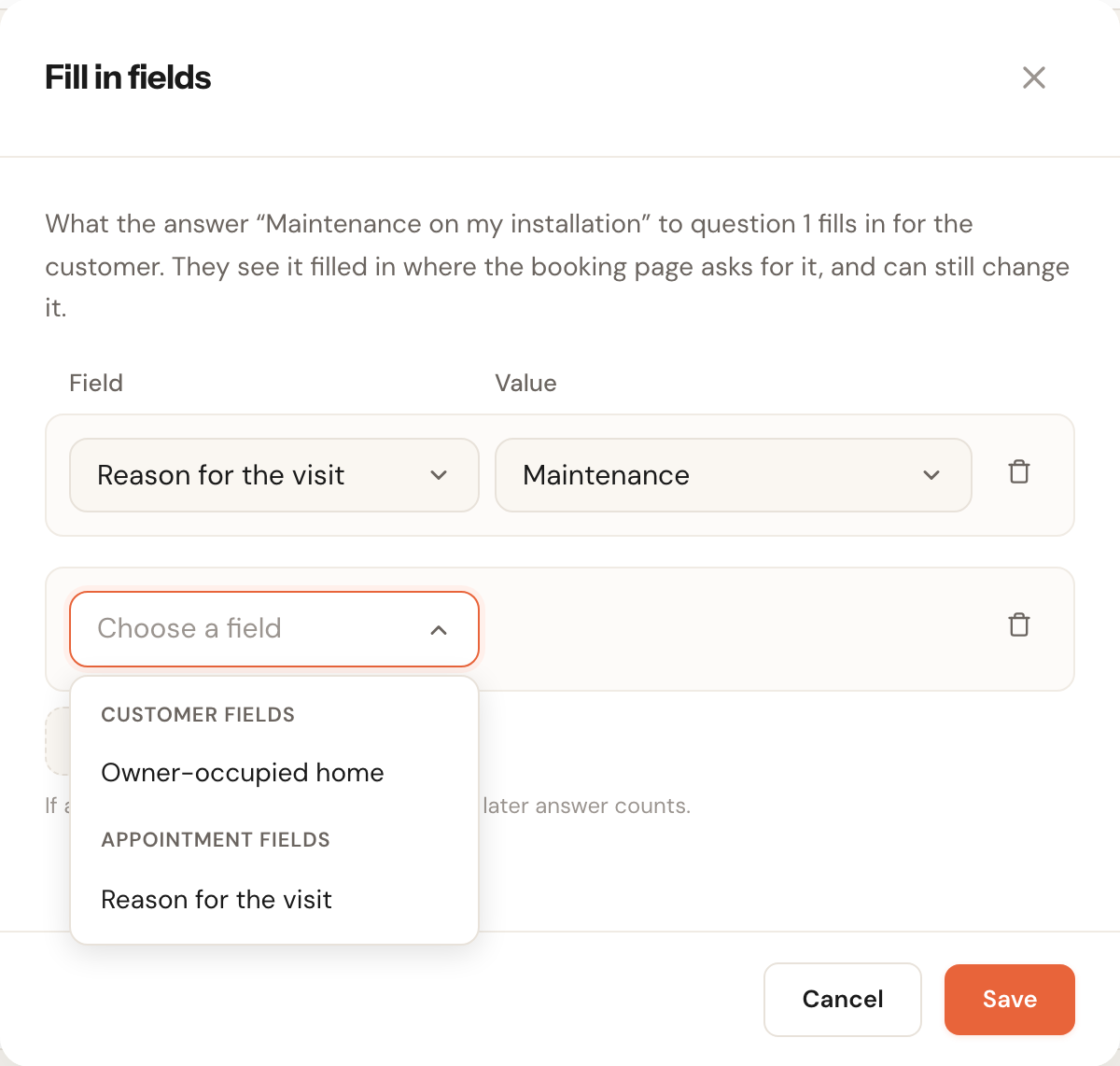
Choose the value
Next to the field appears the box that belongs to it: a list, a text box, a date. A yes/no field starts on Yes.
Click Save in the window, then at the top right
Under the answer it now says Fills in: Reason for the visit: Maintenance. The pencil opens the window again.
Which fields you can choose:
- Only fields the booking page asks for — a customer or appointment field with Ask on booking on. A field for internal use only isn't offered; see Add your own fields.
- No attachments — an answer doesn't fill a field for photos or files.
- At most 10 fields per answer, each field once (This field is already listed.).
The last answer counts
If two answers on the same route fill in the same field, the last one wins. In the example above, Maintenance on my installation fills Reason for the visit with Maintenance, but if the customer then says No, it has stopped working, it becomes Breakdown. That's why the first answer says: A later answer fills in Reason for the visit differently.
So a general answer early in the tree can fill a field in, and a more precise answer further on can adjust it — without setting everything up again on every answer.
The customer decides
The booking page fills the fields in where it asks for them: a customer field with the details, an appointment field with the service — only when that field belongs to that service. Your customer sees the value and can still change it.
- What the customer changed themselves stays, even if they give a different answer afterwards.
- If they skip the service finder, nothing is filled in.
- If they add a second service through the service finder, that second service gets what its own answers fill in; the first keeps what it had.
- The preview under the service finder fills nothing in. To see it, open your own booking page.
When the field changes later
- If you remove an option from a field an answer refers to, the booking page no longer fills that field in; the booking still goes through. In the service finder you can only save again once you change or remove that row: This value does not fit the field.
- If you archive the field, or switch Ask on booking off, the row is kept and blocks nothing. In the window it says no longer exists or is not asked. On the booking page it isn't filled in.
The answers on the appointment
When a customer books through the service finder, Schedulinq keeps their answers with the appointment. On the appointment screen, Appointment details has a Service finder field with a single button (1).
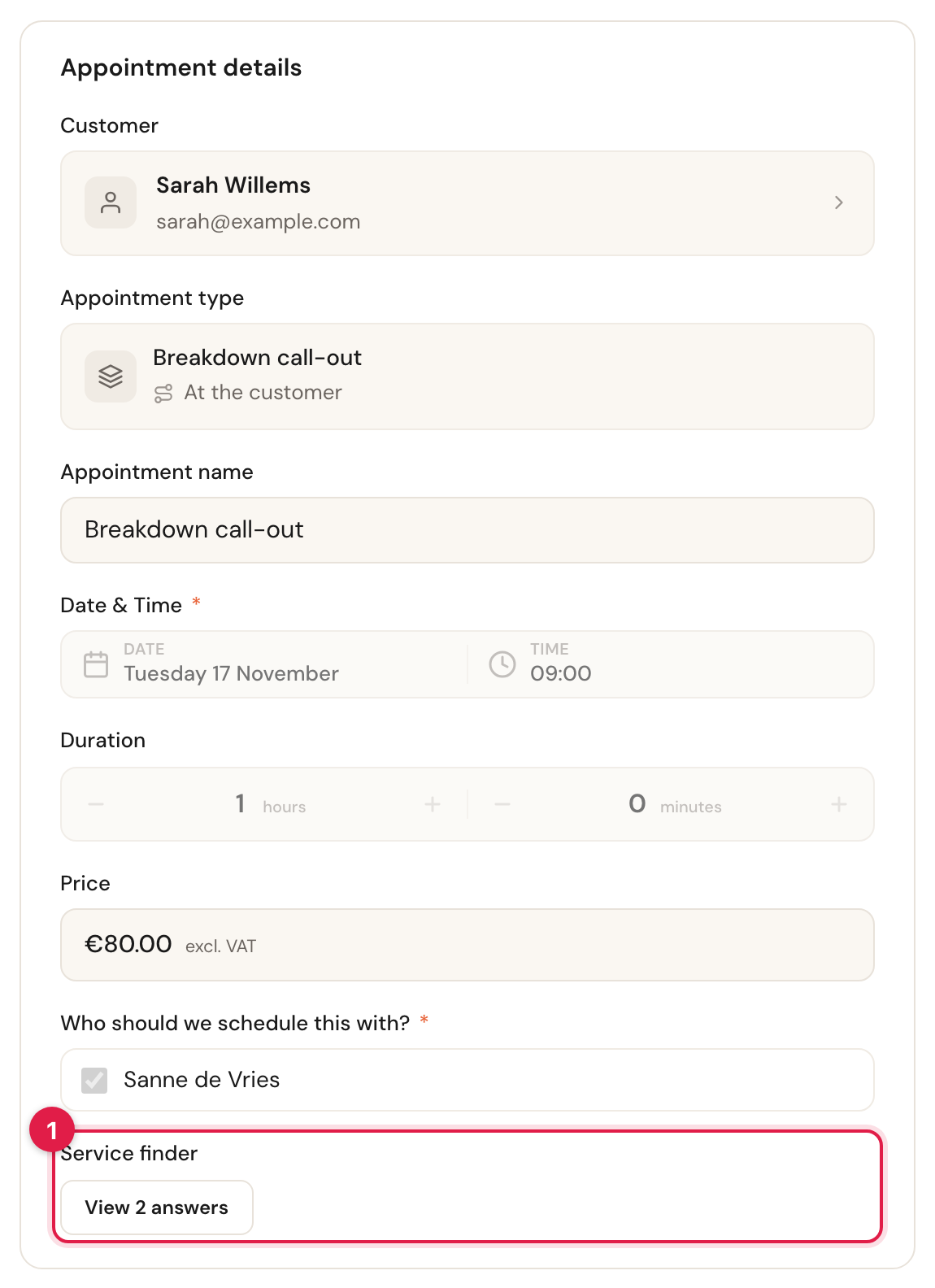
The button opens the questions and answers, exactly as the customer read them:
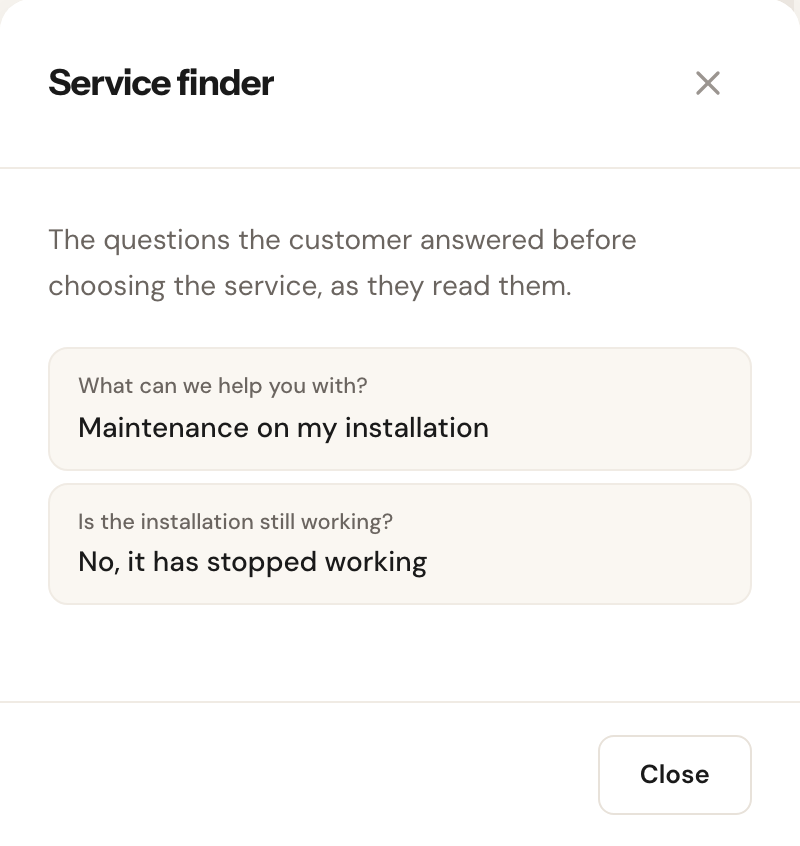
- In the customer's language. If they booked in Dutch, the answers are in Dutch.
- As it was then. If you change a question afterwards, the appointment keeps showing the old words: this is a record of the booking.
- Per service. If the customer booked two services along two routes, each appointment keeps the route its own service came from.
- Not always. An appointment you scheduled yourself, one booked through an invitation or the planner, or one where the customer skipped the service finder has no Service finder field. Nor does one where the service finder changed during the booking and the route no longer exists.
- The button is only there in read mode, not while you Edit.
Leaving without saving
The whole service finder is kept in one go. If you leave with changes that haven't been saved — through the menu, your browser's back button or Sign out — the page asks first:
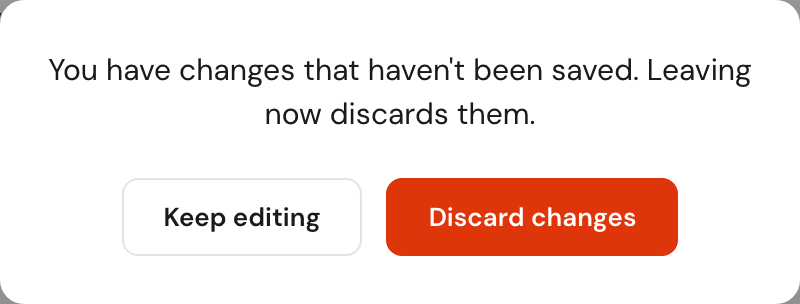
Keep editing keeps you on the page, with your changes. Discard changes goes on and throws them away. Close the tab or reload the page, and your browser asks itself.
Who can edit the service finder
The service finder falls under Organisation settings in Roles and permissions. With View you see the page but can't change anything: there is no Save or Cancel, and the boxes are greyed out. Folding, jumping to a question and walking the preview still work, and you can open a stop's window and the filled-in fields to read them. To edit you need Edit.
Frequently asked questions
I built the service finder, but my customers don't see it. Is Use the service finder on, and did you click Save? If the customer comes through a link to one service, an invitation or a colleague's link, the booking page skips the questions on purpose.
Can a customer book a service the service finder doesn't send them to? Yes, through a direct link or an invitation. Not on the regular booking page, unless they're allowed to skip the service finder.
Can I let customers type a number, like a floor area? No. A question has fixed answers; make ranges of them (up to 100 m², 100 m² or more). If you need the exact figure, make it a custom field on the service.
I don't see the filled-in fields in the preview. Right: the preview fills nothing in. Open your own booking page in a private window to see it.
Can I see how often customers end up at a stop? Not yet. On the appointment you can see which route the customer took.