

Priority clients
Give a customer priority — when booking in the portal and through invitations he also sees times your schedule normally hides, for a priority surcharge if you like.
Your scheduling algorithm does not show a customer every free moment: a time that makes your route worse drops out. That is exactly right for most customers. But some customers you want to help even when it costs you a detour — a regular business customer, a contract with fast service, a customer who is willing to pay for it.
A priority client also sees, when booking, the times the cutoff strictness normally filters out. Those times are marked, and an appointment at such a time can carry a priority surcharge. An ordinary time he books like anyone, without a surcharge.
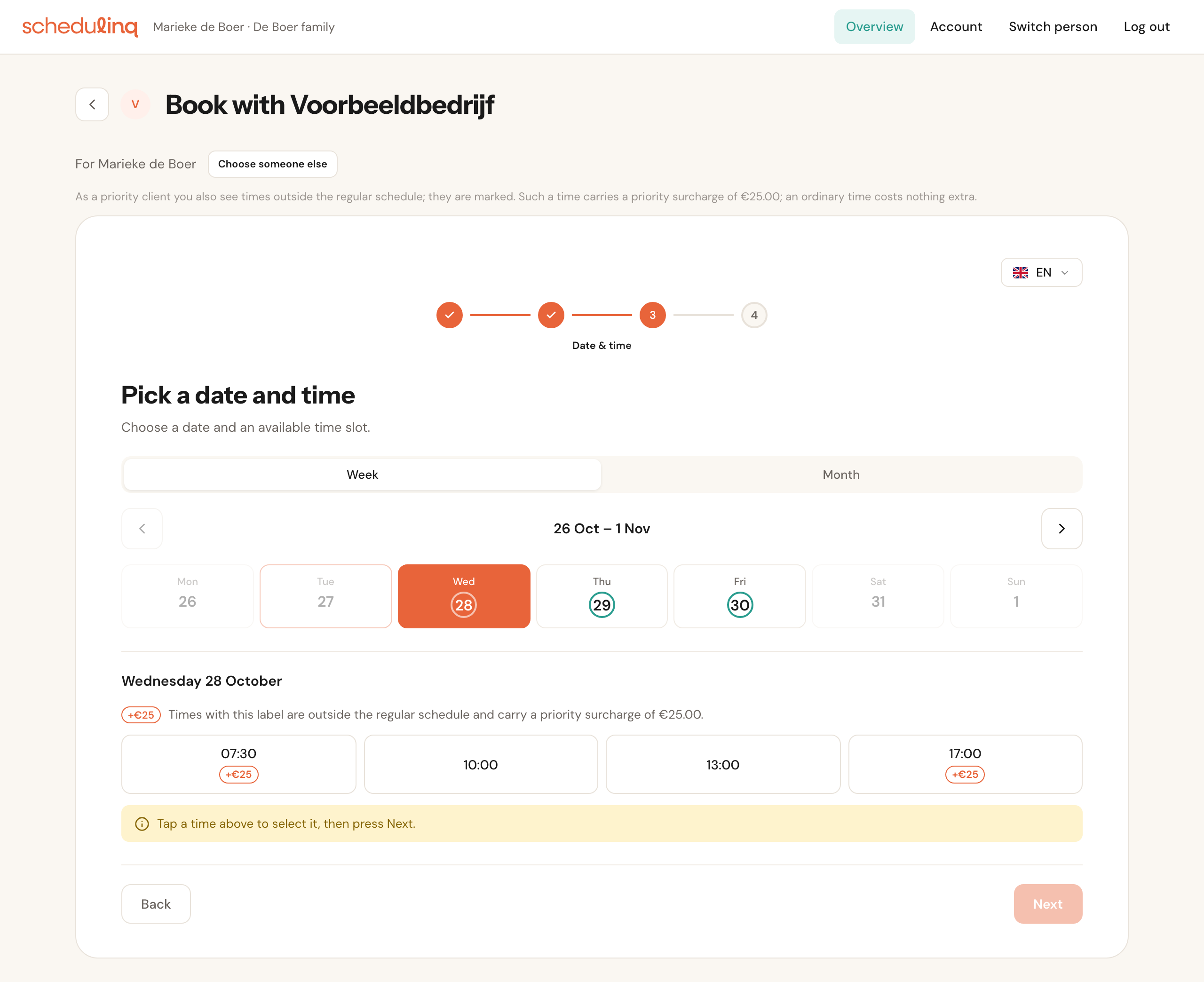
For a priority client there are extra times in between, with the surcharge on them. Anyone would have got 10:00 and 13:00; 07:30 and 17:00 only he does.
Where it applies
- Booking in the customer portal — so the customer has to be in the portal.
- Invitations to that account's customer records, including invitations from a subscription, and Reschedule of an appointment that was booked at such a time.
- An appointment the customer moves himself through the link in his email, if that appointment was at a priority time.
Not on your public booking page, and not in your own planner (Find appointment options): those work as always.
What priority does and does not lift
Priority removes only the strictness. Everything else still applies:
- your colleagues' working hours and time off;
- appointments already booked;
- your service areas and the maximum drive between appointments;
- how short-notice and how far ahead bookings may be made.
Extra times only ever add: a priority client never sees fewer than an ordinary customer. If a day is already full of ordinary times, nothing is added. Recommended times and the suggestions for another day or location stay as they were.
Making a customer a priority client
Priority belongs to the portal account at your business — the whole household or company — not to one customer record or one person. Every customer record that account sees with you gets it at once.
Open Actions → Customer portal on the customer record
The customer must already be connected. See Invite a customer.
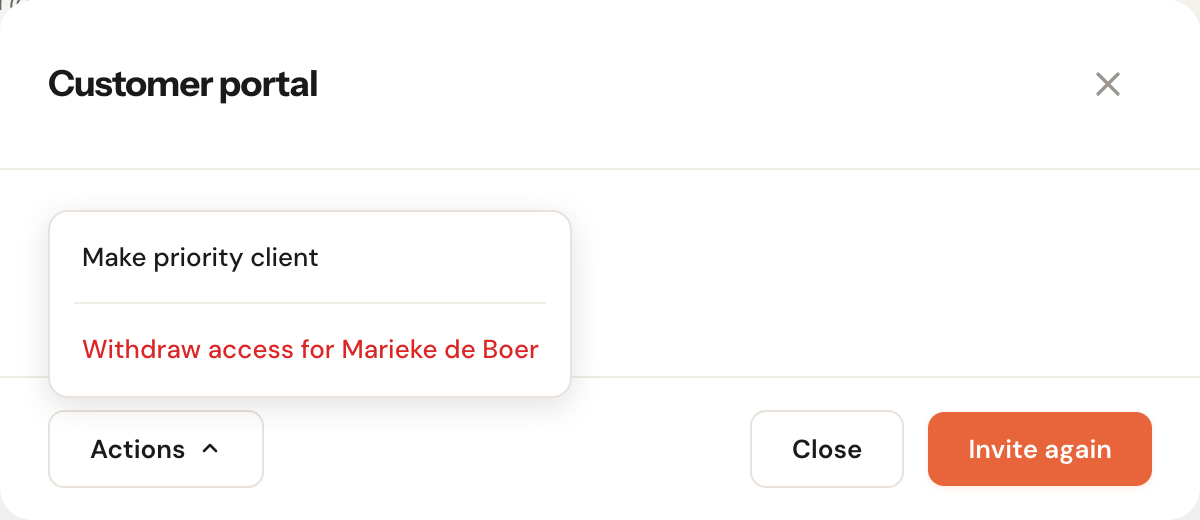
Choose Actions → Make priority client
At the bottom left of the window is an Actions of its own. When several accounts see this customer, there is a line per account, with its name.
Choose the surcharge and confirm
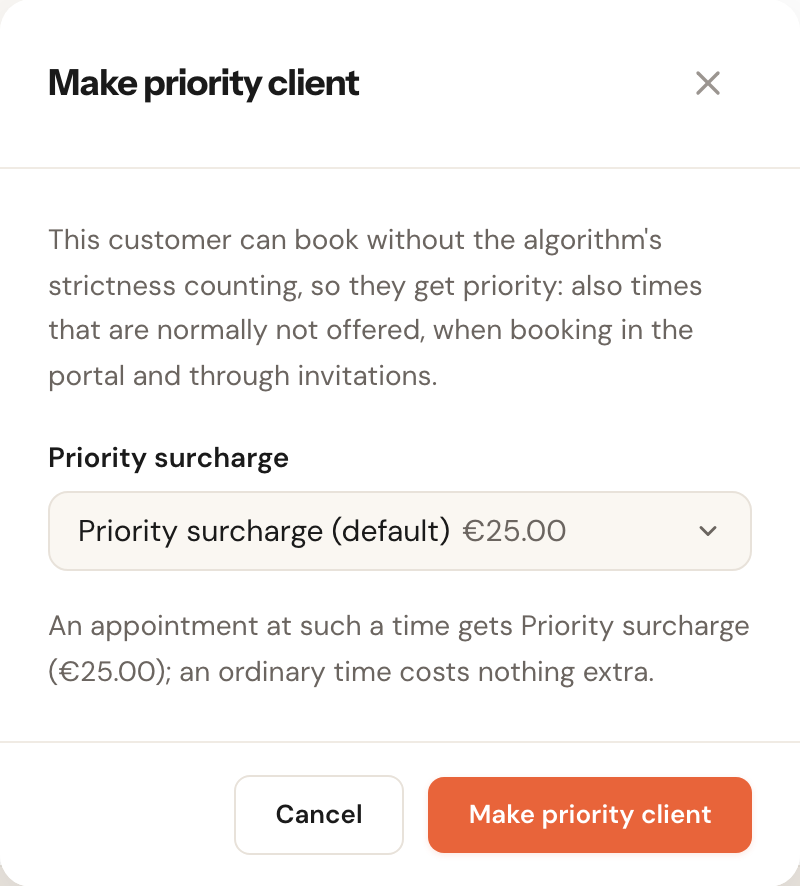
The window says in one sentence what priority does. If you have more than one priority surcharge, you choose which one this account pays; the automatic one is marked (default). Below it is what an appointment at such a time costs.
Click Make priority client.
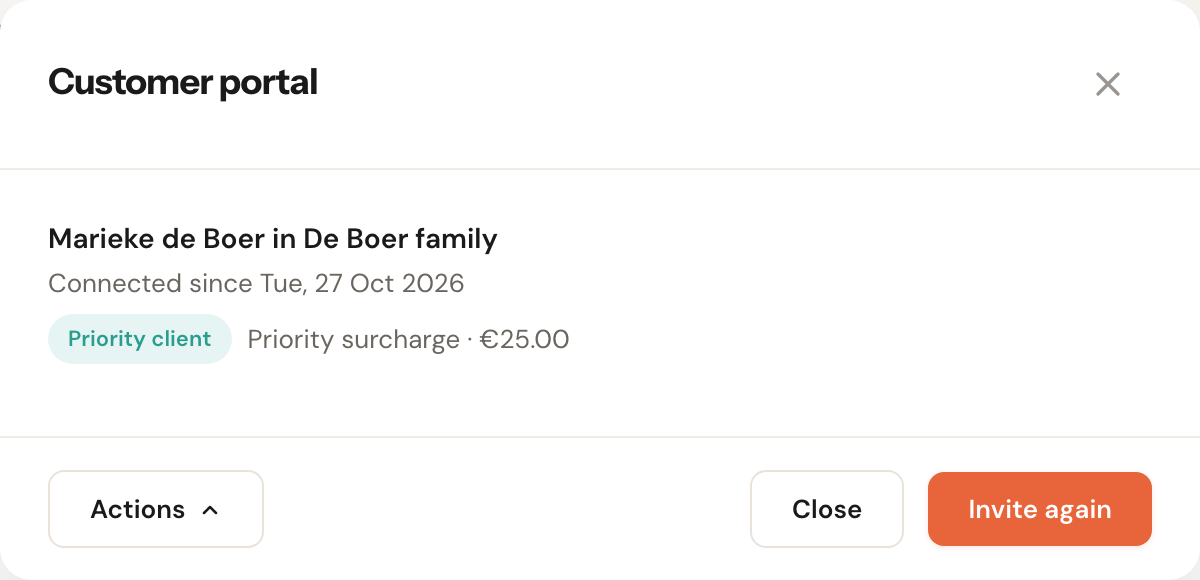
From now on every connection of that account carries the label Priority client, with the surcharge next to it. Hover over the label to see since when, and who switched it on.
Actions → No longer a priority client switches it off again. Existing appointments keep their surcharge; new ones get no priority and no surcharge. With Actions → Change priority surcharge you choose another surcharge for this account; it applies from the next time an appointment is priced.
The priority surcharge
A priority surcharge is an ordinary article of the kind Surcharge, with the rule On a priority booking. That rule asks nothing else: no times, no days. In your article overview the kind reads Surcharge · priority booking.
Add automatically
One at a timeThe automatic priority surcharge is the default: every priority account pays it unless you choose another per account. There is one at a time; switch one to automatic and the previous one goes off.
A fixed amount or a percentage of the price of the service and its add-ons — pick what suits your customers. A percentage is the way to keep a basket of three services from paying a fixed amount three times.
How it charges:
- Only on a priority time. If a priority client picks a time anyone could have booked, he pays nothing extra.
- Per appointment. If he books three services at once at priority times, each appointment gets a surcharge.
- On top of a time surcharge. If the appointment also falls in your evening or weekend surcharge, the priority surcharge comes on top.
- Always visible to the customer, even if you hide surcharges in Booking rules. At a priority time the confirm step waits until the price with the surcharge is known.
- No surcharge set up? Then priority simply works without one. In the portal only the first sentence of the explanation shows.
What the customer sees
On your business page in the portal and above the booking flow it says:
As a priority client you also see times outside the regular schedule; they are marked. Such a time carries a priority surcharge of €25.00; an ordinary time costs nothing extra.
In the flow every extra time has a label with the amount (+€25, or +15%). Switch priority off and the extra times disappear at the next search. Switch it on and the customer sees it once he opens the booking page again.
On the appointment and in your own forms
Priority booking
On the appointmentAn appointment at a priority time carries the label Priority booking on its page. For a priority client the edit window has a Priority booking No/Yes switch: that is how you switch it on or off yourself, and Schedulinq works out the surcharge again.
What you or a colleague schedule yourselves never gets priority or a surcharge by itself — not even for a priority client. Want to charge it anyway? Set the switch to Yes. Once the appointment is on an invoice, a draft included, it can no longer change: This appointment is already on an invoice; its priority surcharge can no longer change. On the screen for several services one switch covers the whole row.
Priority client
On an invitationAn invitation to a priority client follows him by itself: he sees the extra times. When you create it there is a Priority client Yes/No choice. With No it is Off for this invitation: ordinary times, no surcharge.
Good to know
- Priority survives the customer's own withdrawal. If the account withdraws its last connection with you and connects again later through your invitation, it is a priority client again straight away. If the connection is broken by you (you withdraw the last access) or the customer disconnects you entirely, a new connection starts without priority.
- A booking from before your surcharge does not get it afterwards. If a priority client booked before you had a priority surcharge, it is not added on the invoice — only when you change the appointment yourself does it take the surcharge of that moment.
- If the customer moves an appointment at a priority time himself, he sees the extra times again. If he picks an ordinary time, the surcharge goes; moving never adds one.