

Booking from the portal
How a logged-in customer books with you, what differs from your booking page, which services he sees, who gets the appointment — and what to do with a new customer record that comes from the portal.
A customer who is logged in to the portal books with you through your own booking flow — the same steps, services, prices and times as on your booking page. The difference: the portal already knows who he is.
Where the customer clicks
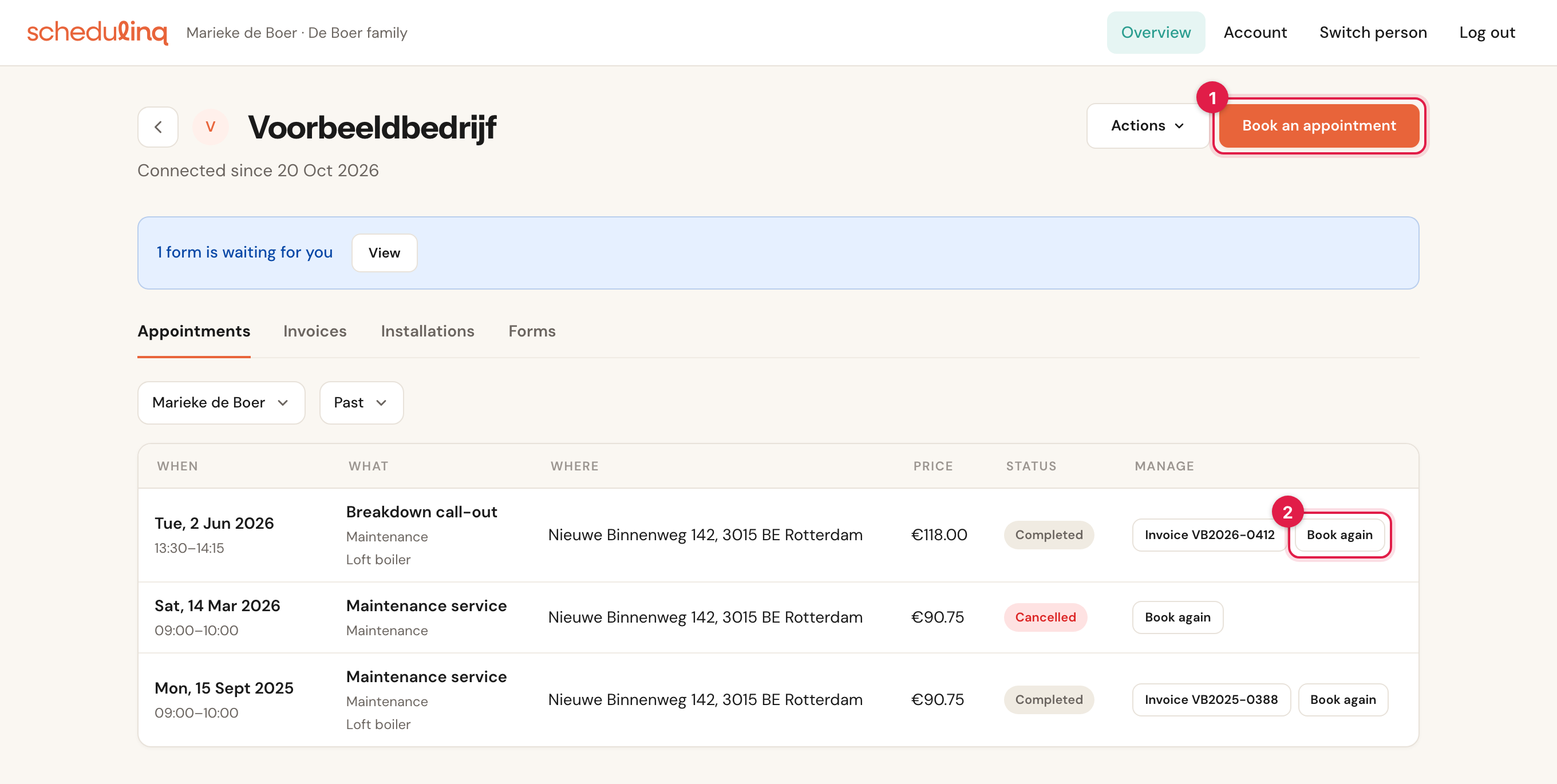
- Book an appointment, at the top right of your business page. The button is there only while your business takes online bookings.
- Book again, on a past appointment under Past. The booking opens with that service already chosen and skips the service finder. The button is there only while the service can still be booked in the portal.
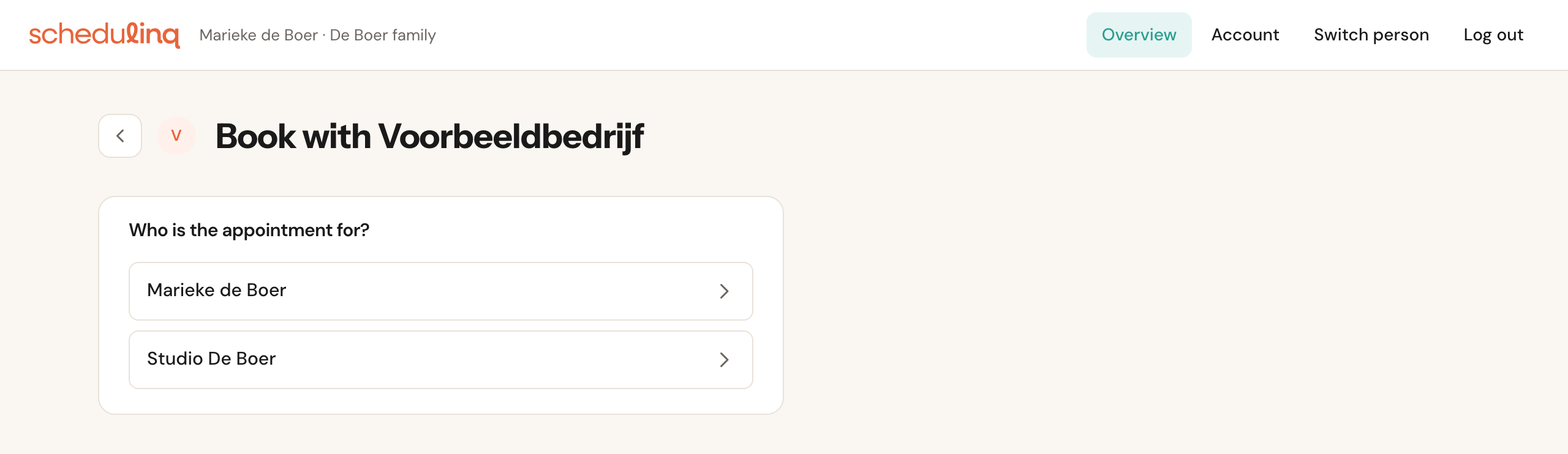
Who is the appointment for?
The portal always books on a customer record. Which one depends on what the logged-in person has with you:
One customer record
The portal picks it by itself. The customer goes straight into the booking flow.
More than one customer record
The portal asks Who is the appointment for? — the customer himself or his company, for example. Above the flow it then says For Marieke de Boer, with Choose someone else.
No customer record yet
Jeroen, for example, who is in the same account as Marieke but has no record with you yet. The booking creates a new customer record for him. See below.
Only a deactivated customer record
No booking, and no new record either: the customer sees Booking online isn't possible right now. Please contact the business. That way nobody gets around a block you set.
He does not book on someone else's record in the account: for that he switches person. So Marieke does not book on Jeroen's record, even though they share a login.
What differs from the booking page
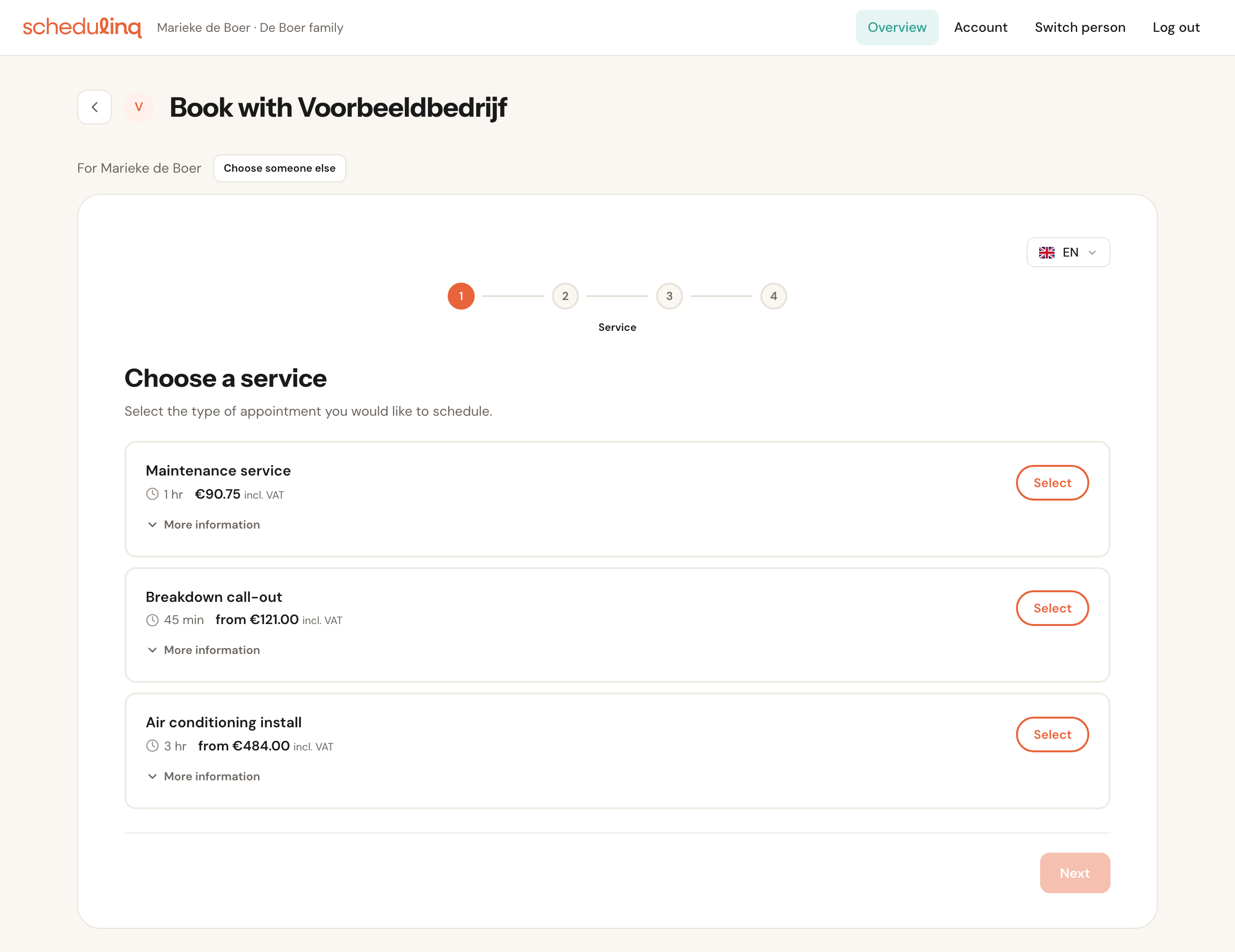
- No name, email address or phone number to fill in, no email code. When the customer books on an existing customer record, those details are fixed: the portal has proved who he is. The details step appears only for what is still missing — an address if the record has none, a phone number for a phone call, or custom fields you ask when booking.
- Your customer record does not change. Whatever the customer fills in at that point never overwrites his name, email address or phone number on your record.
- Other services, if you like. Every appointment type has two switches: Bookable on the booking page and Bookable in the customer portal. That way you offer regular customers a service you do not put on your public page — or the other way round. In your list of services the status shows it: Booking page only or Customer portal only; with both on, it is simply bookable. A new appointment type has both on. Add-ons follow their appointment type, and Book again appears only for services that can be booked in the portal. If an answer in your service finder leads only to services on one side, the service finder warns you about it. See Create an appointment type.
- The service finder is optional. With Also ask in the customer portal you decide whether logged-in customers get the same questions. See Service finder.
- No thank-you page. After booking, the customer sees the flow's own confirmation — never your own thank-you page — and above it Your appointment is booked. with the link Go to your appointments. With Create another appointment he starts the next one straight away.
Everything after that is as usual: the same price, the same confirmation email and reminders, the same calendar, your integrations and webhooks. On the appointment in your dashboard it says Through the customer portal under Created.
Who gets the appointment: stored answers decide
If you use skills to decide which colleague gets an appointment — a choice field whose every answer belongs to a team — the portal is stricter than the booking page:
- What is already on the customer record or the object decides. If this customer has Heat pump brand: Daikin, he only gets times of colleagues who do Daikin — even if that field has Also apply when the customer books themselves switched off. The customer cannot overrule that answer in the portal.
- What is not stored yet, the customer fills in — and that only counts for fields with Also apply when the customer books themselves switched on, as on the booking page.
An answer you or your colleagues once recorded is more reliable than what someone clicks in a booking form. On the public booking page you do not know who is booking, so only fields you release for it count there. In the portal you do know. A customer who had no record yet books as on the booking page: nothing is stored then.
A new customer record from the portal
When someone who has no customer record with you books:
- the portal fills in the details with what he has on his person — name, phone number, address — and he can still change everything except the email address: that is his login, and it says so;
- the booking creates a new customer record with that email address and connects it to his person in the portal straight away. When he books again, the portal uses that record: never a second one.
The portal never merges such a record with an existing customer by itself, not even when the email address is the same. Instead you get a heads-up on the customer record when a customer with the same email address exists:

This is …
Opens that customer's record with the merge ready, the new record as the one that goes into the existing one. The portal access comes along: after the merge the customer also sees the existing record's appointments and invoices, and the merge window says so. See The customer record.
Not the same customer
The message goes, for good. The records stay separate.
The heads-up looks at the email address only, never at the phone number, and leaves out customers who are already in the same portal account. Jeroen and Marieke share an email address, but the account already says they are two people; merging would actually break Jeroen's access. Only colleagues who may see all customers get the message: it names another customer.
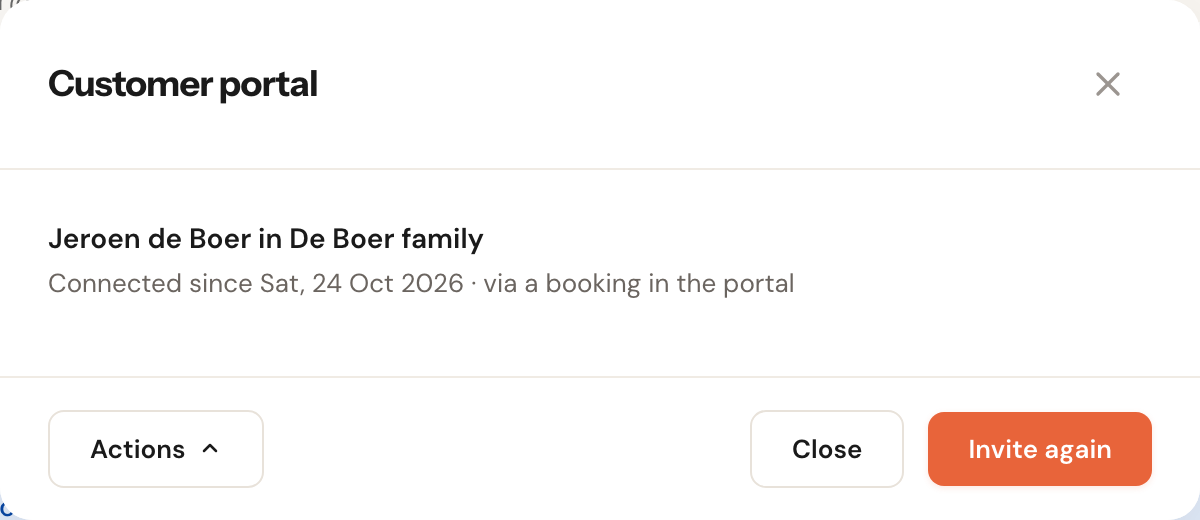
In Actions → Customer portal such a record reads via a booking in the portal.
When booking does not work
| The customer sees | Why |
|---|---|
| No Book an appointment button | Your business is not taking online bookings right now. |
| Booking online isn't possible right now. Please contact the business. | The customer record is deactivated. |
| Something changed in your connection to … with Start again | The access was withdrawn or changed while booking. Nothing was booked. |
| This business is not (or no longer) connected to your account. | The connection is gone. Inviting again restores it. |
| The service finder or the service list says there is nothing to book | No service has Bookable in the customer portal switched on. |
If the customer is a priority client, he also sees times outside your regular schedule when booking.