

Manage and withdraw access
Who sees what, and how to undo it — withdrawing access, the question on a new email address, merging, what the customer can disconnect himself and what remains when he deletes his account.
Access to the portal always goes through a connection: one customer record of yours, seen by one portal account (or one person in it). You see them all in Actions → Customer portal on the customer record. This page is about removing them — by you, by the customer, or by itself.
Withdrawing access
You withdraw access when a customer no longer belongs with an account: a housemate connected by mistake, an employee who left a company, an invitation that reached the wrong person.
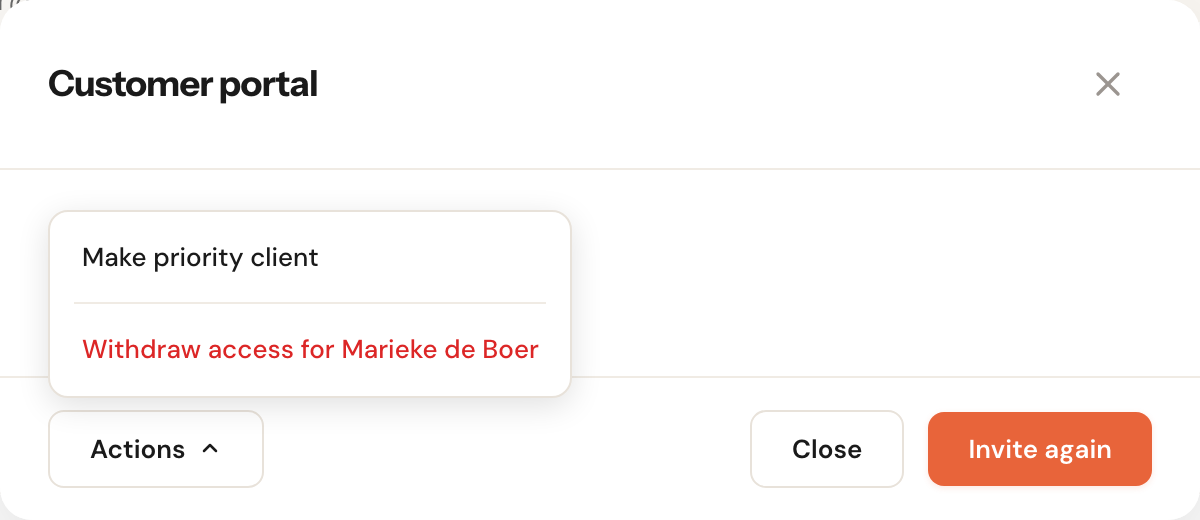
Open Actions → Customer portal and then the Actions menu at the bottom left
Per connection there is Withdraw access for …, with the person's name (or the account's, if the connection is for the whole account).
Confirm
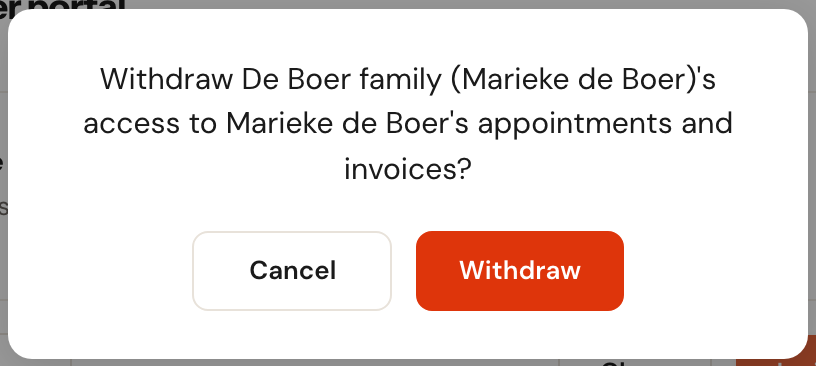
You see Access withdrawn. The connection disappears from the window.
What happens then:
- The customer immediately stops seeing the appointments, invoices, objects and forms of this customer record. A booking he was just making is refused.
- If the connection named one person, that person is logged out within a quarter of an hour.
- If it was that account's last connection with you, the account is disconnected from you entirely: your business no longer appears in his portal, and whoever has the page open sees This business is not (or no longer) connected to your account. Any priority lapses with it.
- To undo it, invite again. See Invite a customer.
Withdrawing needs Edit for Customers; the window itself is in Actions, and that menu also needs visibility All. See Roles and permissions.
Changing a customer's email address
If a portal account sees this customer and you change the email address on the customer record, Schedulinq asks on Save what should happen to that access:
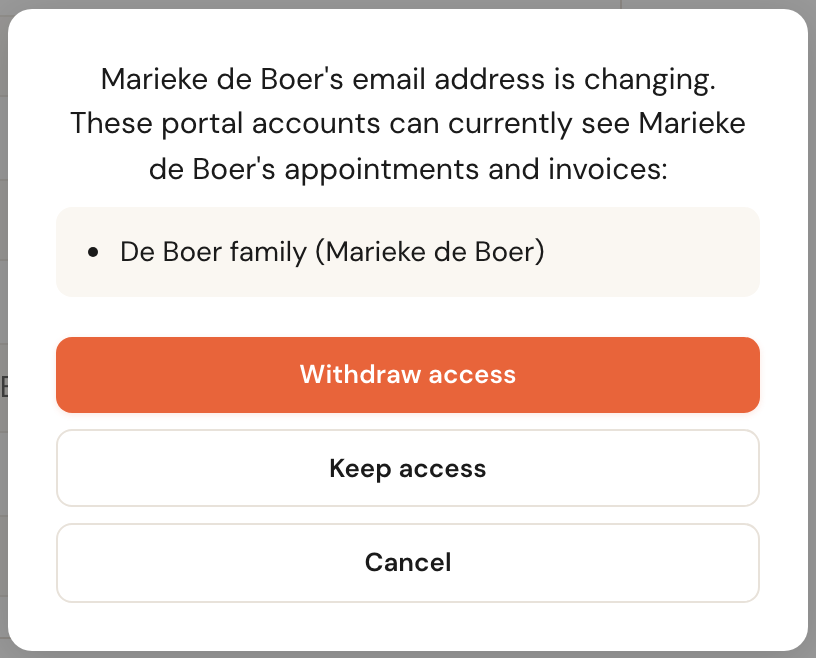
Withdraw access
DefaultSave, and every account in the list loses access to this customer record.
A new email address often means a new owner: a house that was sold, a company with a new contact person. Then the old login should no longer get in. That is why this is the default. You invite the customer with the new address again afterwards.
Keep access
Save, and the accounts keep their access.
For a typo, or a customer who merely switches provider. Note: in the portal people log in with the account's address, not the address on your record — so the customer keeps logging in as he is used to. Only colleagues who may see all customers get this button; others can only withdraw or cancel.
Cancel
Nothing is saved, not the new email address either.
An open invitation always lapses with a new email address: it went to the old one. If you only change capitals or spaces, Schedulinq asks nothing.
Merging
When you merge two customer records, the access comes along: every account that saw one of the two sees the merged record afterwards, with the appointments and invoices of both. The merge window says beforehand who will see what, for example After the merge, De Boer family (Jeroen de Boer) also sees J. de Boer's appointments and invoices. An open invitation of the record that is merged away lapses.
Deactivating and deleting
| You do on the customer record | In the portal |
|---|---|
| Set inactive | The customer still sees everything, but can no longer book on this record: Booking online isn't possible right now. Please contact the business. |
| Delete | Everything of this record disappears from the portal: appointments, invoices, objects. Inviting is no longer possible. If support restores the record, it all comes back. |
See The customer record for what these actions do otherwise.
What the customer can do themselves
The customer does not have to phone you to disconnect something. On your business page in the portal there is Actions at the top right:
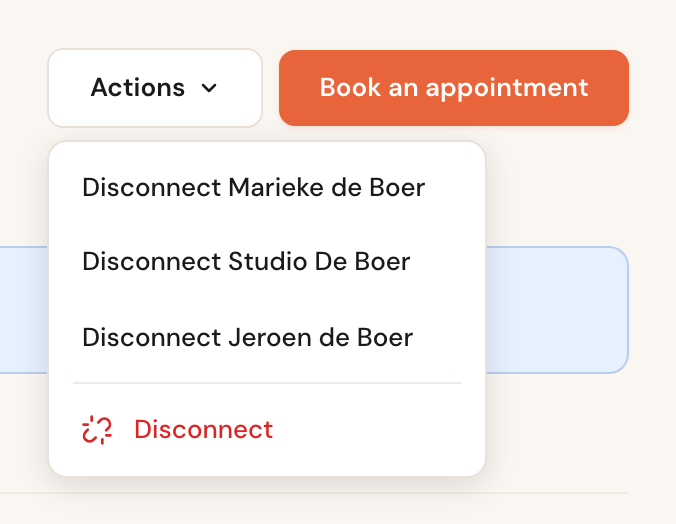
Disconnect …
Let go of one customer record, for example the company someone no longer works for. If there is only one record with you, there is only Disconnect.
Disconnect
Disconnect the whole account from your business. The portal first names who will no longer see anything of yours.
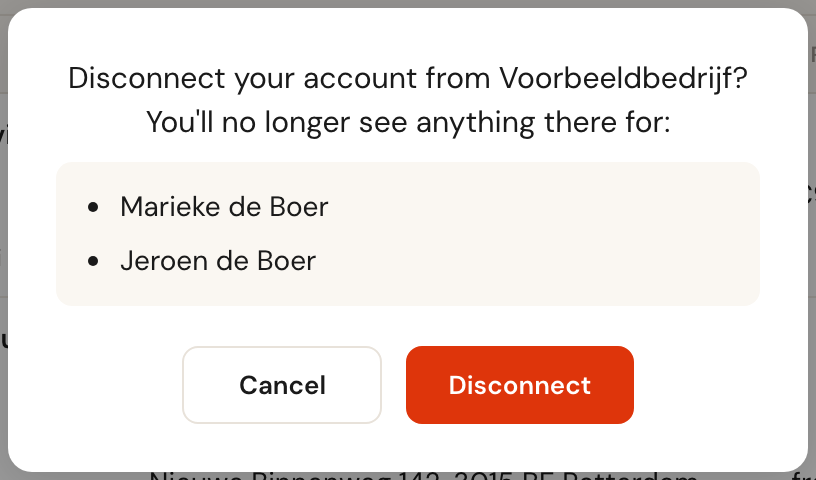
Besides that, under Account the customer can remove a person (their connections go with them) or delete the whole account:
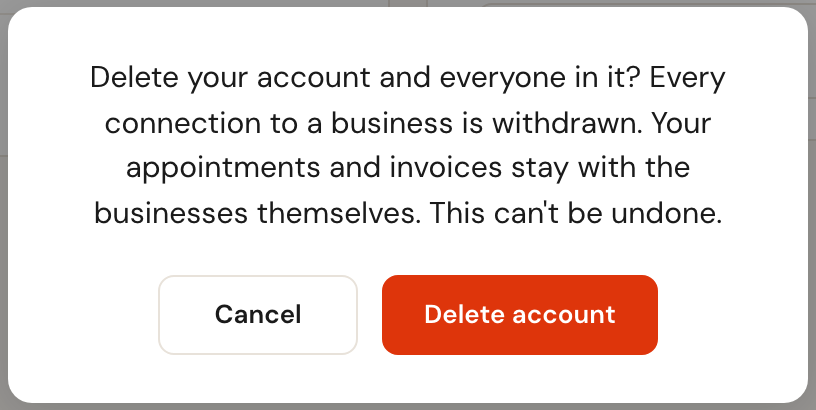
In all those cases the connection no longer shows in Actions → Customer portal. If the customer wants back in later, you invite again; if he logs in with the same address after deleting his account, he starts with a new, empty account.
What stays with you
Nothing the customer does in the portal removes anything from your dashboard. Appointments, invoices, objects, forms and the customer record itself remain when he disconnects or deletes his account. Appointments he booked through the portal keep Through the customer portal.
An account that was never connected to a business and has not been used for a year is cleaned up by Schedulinq itself. An account that was ever connected stays until the customer deletes it himself.