

Build a form
The form builder field by field — when the form is filled in, who fills in which section, the questions and signatures, and what happens when you change a form that is already in use.
You build forms under Company → Forms. This guide walks through the builder using a work order for the annual service of a boiler: a part the customer fills in at home beforehand, a part for the technician, and a signature from the customer. How it all fits together — sections, versions, when a form lands on an appointment — is in How forms work.
Building forms is work for whoever may manage the organisation settings, usually the admins. Anyone who may not does not see the menu item.
The overview
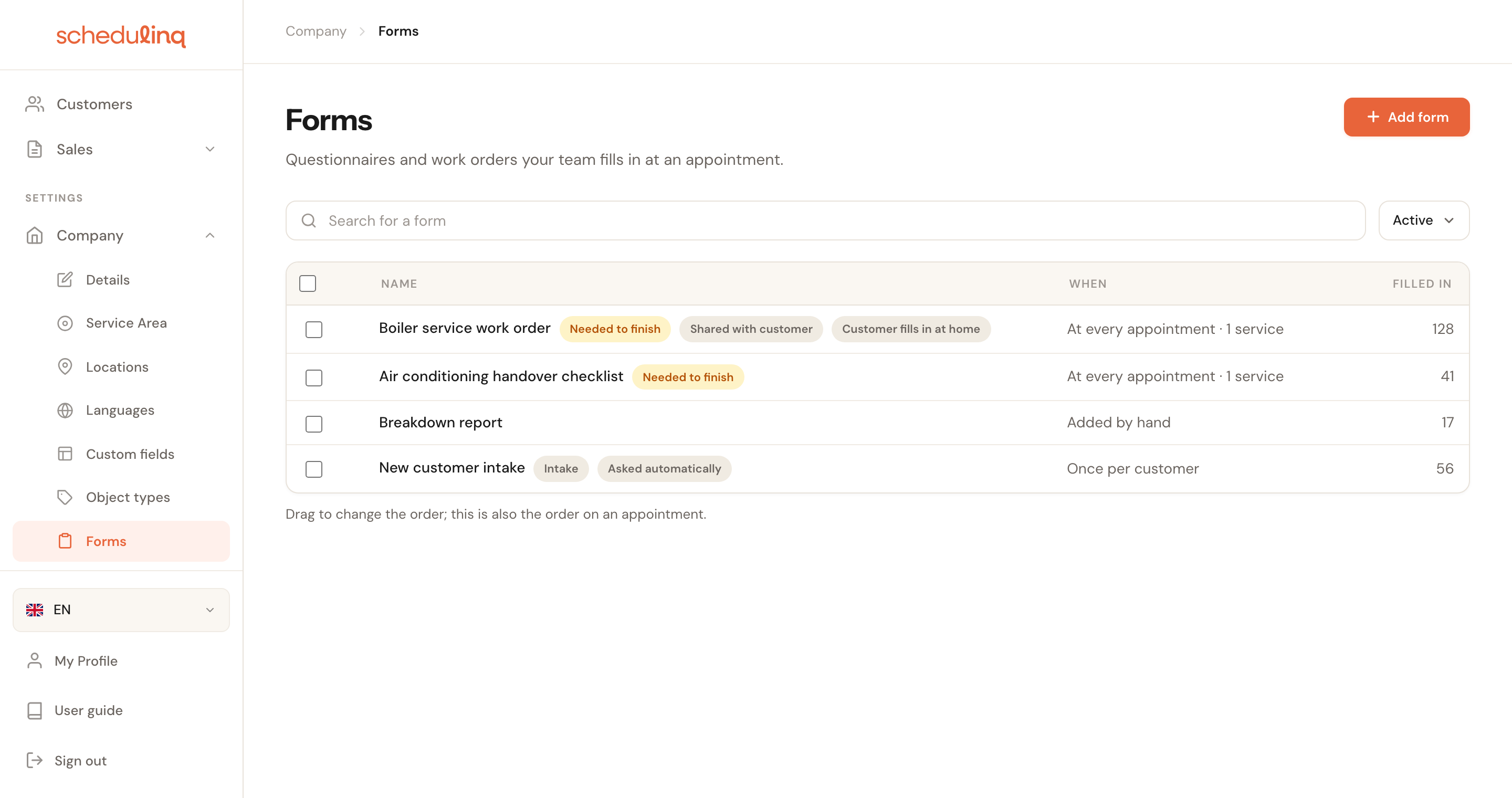
For each form you see its name, When it is filled in and how often it has been Filled in. The badges after the name sum up its settings:
| Badge | Meaning |
|---|---|
| Needed to finish | An appointment with this form can only be completed once it is filled in or marked as not needed. |
| Shared with customer | The customer can get the filled-in form, as a PDF. |
| Customer fills in at home | You request the customer's part, and the customer fills it in at home. |
| Intake | The form is filled in once per customer. |
| Asked automatically | An intake that goes to new customers by itself after a booking. |
| Archived | The form is no longer set out. Only visible with the Archived or All filter. |
Drag a row to change the order. That is also the order of the forms on an appointment: put the work order at the top and it is at the top there too. Tick one or more rows to archive them in one go.
Creating a form
Click Add form
A new form starts empty: a name, the usage settings, and an empty Questions card.
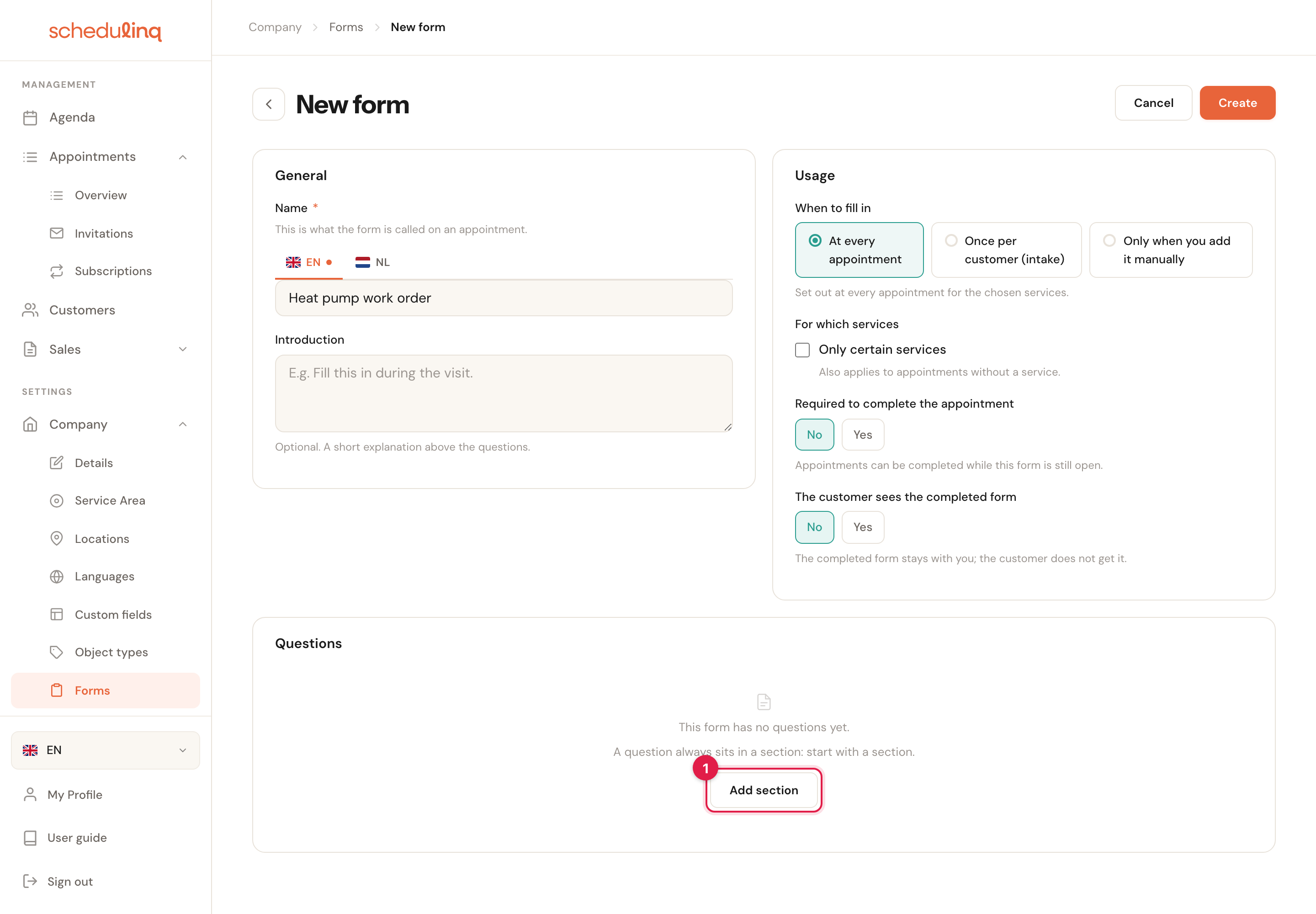
Give it a name and choose when it is filled in
In the General and Usage cards, field by field below.
Start with a section
Click Add section (1), give the section a title and choose who fills it in. A question always sits in a section, so a form always starts with one.
Put questions in it
With Add question under the section you pick an existing question or make a new one. Add more sections and a signature as needed.
Click Create
Schedulinq first tells you what saving means for appointments already planned — see Saving. Then the form is ready.
An existing form opens read-only. Edit lets you change it; Actions lets you archive it.
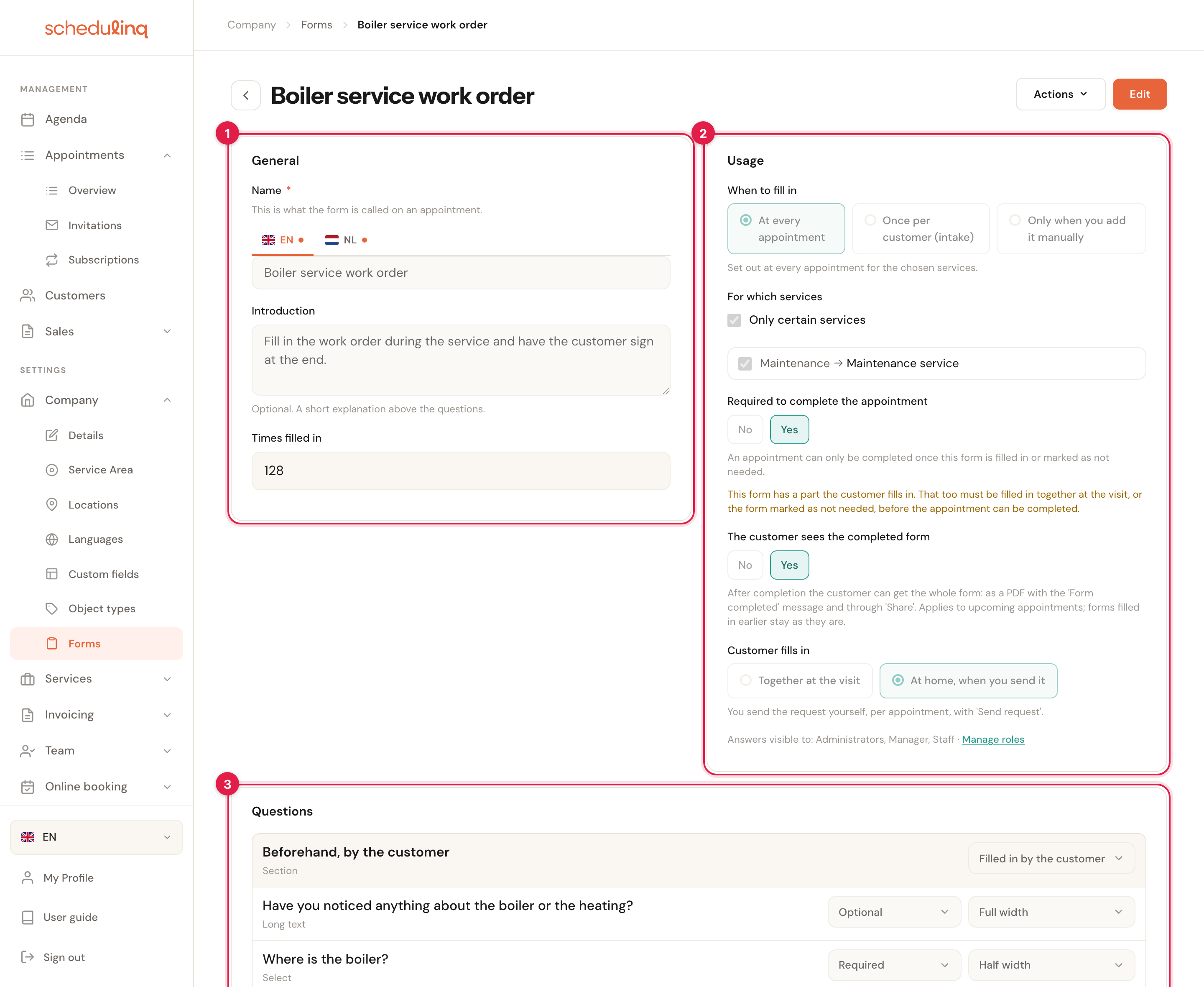
Three cards: (1) General, (2) Usage and (3) Questions.
General
Name
RequiredPer languageThis is what the form is called on an appointment, in the customer's file and in the e-mail to the customer. The language tabs give it a name per language; your organisation's default language is required.
The customer sees the name in their own language, in the portal and in the e-mail subject. Your colleagues see it as a row on the appointment — keep it short and recognisable: Boiler service work order, not Form 3.
Introduction
OptionalPer languageMax. 1000 charactersA short explanation shown above the questions, for whoever fills in the form.
This is the place for a work instruction (Fill in the work order during the service and have the customer sign at the end) or, on a questionnaire for the customer, a friendly opening. An explanation for one part of the form is better placed in that section's explanation.
Times filled in appears only when reading: how many filled-in forms there are of this form.
Usage
When to fill in
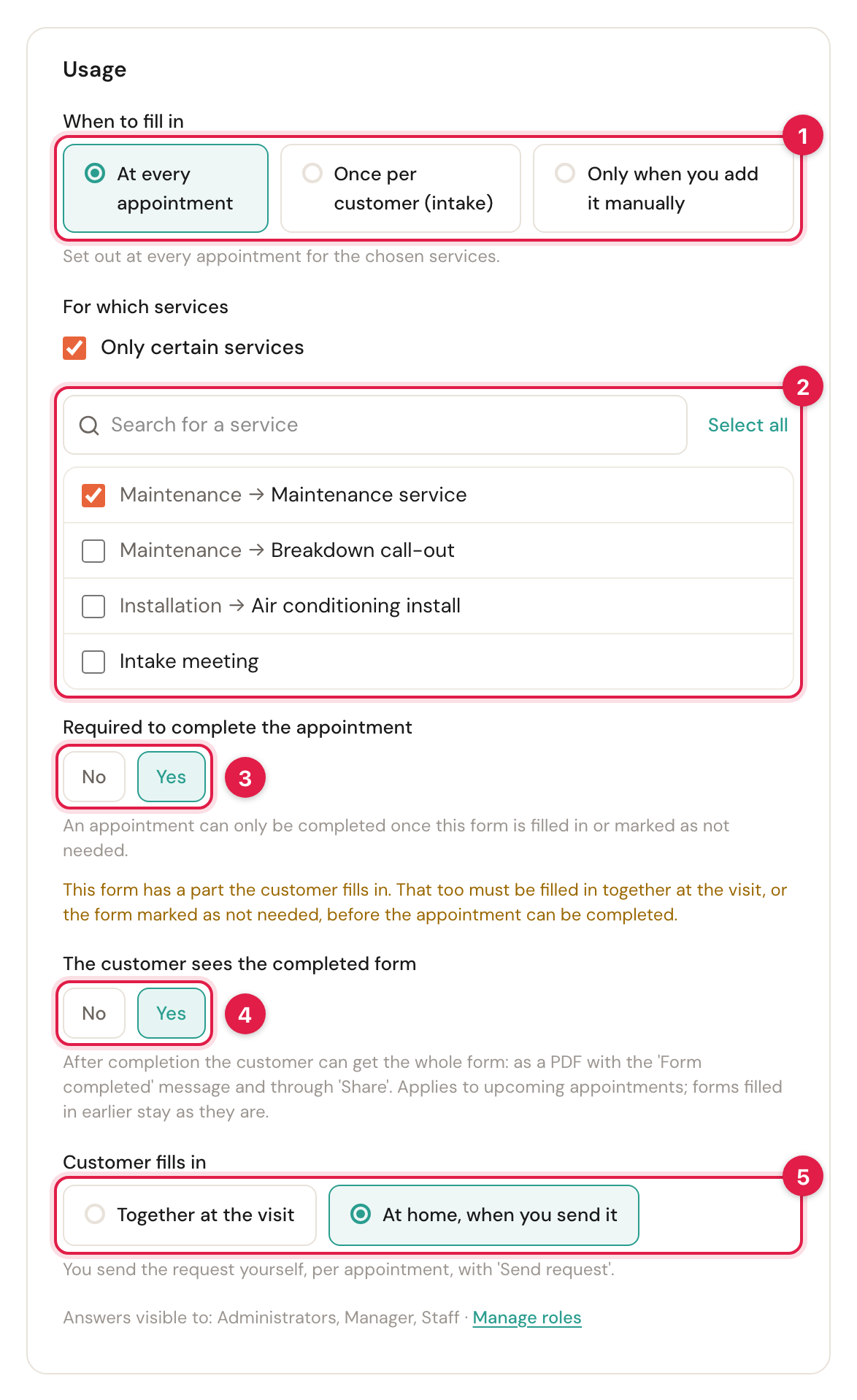
RequiredThree choices (1):
- At every appointment — set out at every appointment for the chosen services.
- Once per customer (intake) — the customer fills it in once, not at every appointment. Only sections the customer fills in.
- Only when you add it manually — never set out by itself; you add it on an appointment or on the customer, with + Form.
A work order you want at every service is best set out by itself: then nobody can forget it. A breakdown report you only write when something is wrong — add it when it is needed. The intake is in Your customer fills in a form.
For which services
At every appointment and for an intakeWith Only certain services off, the form applies to every service — including an appointment without a service. Tick it to choose the services (2). With the box ticked and no service chosen you cannot save.
A boiler work order does not belong to an air conditioning install. A service's page shows the forms that belong to it in its Forms tab — see Create an appointment type. For an intake, the services only decide which bookings ask for the intake automatically.
Required to complete the appointment
Default: NoNot for an intakeOn Yes (3), an appointment with this form can only be completed once the form is filled in or someone has marked it as not needed. This is what makes a form a work order.
No work order, no completed appointment: that way you know every visit has a report. An invoice works differently: Create invoice simply makes a draft, but the appointment stays open until the work order is done — you never have to wait for a work order to invoice. What that looks like for your team is in Fill in a form.
Two warnings can appear under the switch:
- Only administrators can fill in this form — no other role may fill in forms and view appointments, so only an administrator can complete these appointments. Change your technicians' role, with Manage roles.
- This form has a part the customer fills in — that part must be done too before the appointment can be completed. So request it in time, or fill it in together with the customer.
The customer sees the completed form
Default: NoOn Yes (4), the customer can get the whole form after completion: as a PDF with the Form completed e-mail and through Share on your colleague's phone. On No, the filled-in form stays with you; the customer sees at most their own part.
A work order the customer signed is something they often want to keep. A treatment report or an internal checklist you would rather keep to yourself. Note: the choice applies to upcoming appointments. What was filled in already stays as it was. The e-mail with the PDF is switched on separately — see Answers and history.
Customer fills in
Only with a section the customer fills inHow the customer's part is filled in (5):
- Together at the visit — your colleague fills it in, together with the customer.
- At home, when you send it — you send the customer a request per appointment, with Send request, and they fill it in in the customer portal.
- At home, asked automatically — only for an intake: new customers get it by itself after their first booking.
What the customer fills in at home, your colleague does not have to ask on the spot, and they know what to look out for when they arrive. When you add the first customer section to a form, this choice is set to At home, when you send it. See Your customer fills in a form.
At the bottom of the card, Answers visible to lists the roles that can read this form's answers. Administrators always can. Manage roles takes you to Roles and permissions.
Questions
The Questions card is the form itself: the sections, with their questions and signatures under them, in the order they are filled in. Drag a row by its dotted handle to move it.
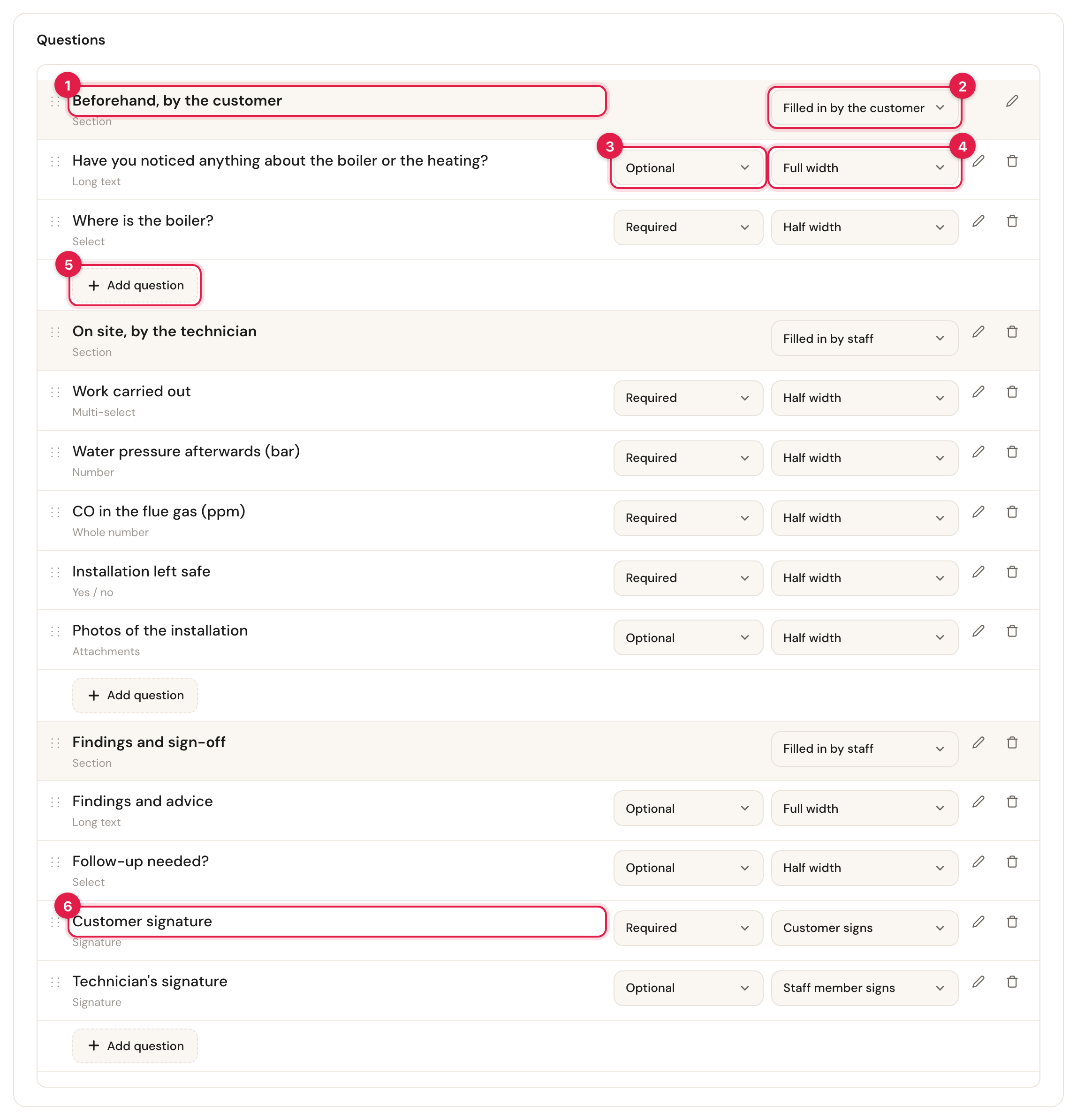
- A section — its title, with Section under it.
- Who fills in the section — Filled in by staff or Filled in by the customer.
- Required or Optional — per question and per signature, always in the first column.
- The width — Half width or Full width.
- Add question — under every section.
- A signature — with who signs in the second column.
The pencil edits a row, the bin takes it off the form. A question you take off the form still exists: it stays under Form questions and on other forms. Between two rows, + Question, + Section and + Signature appear to insert something right there.
Sections
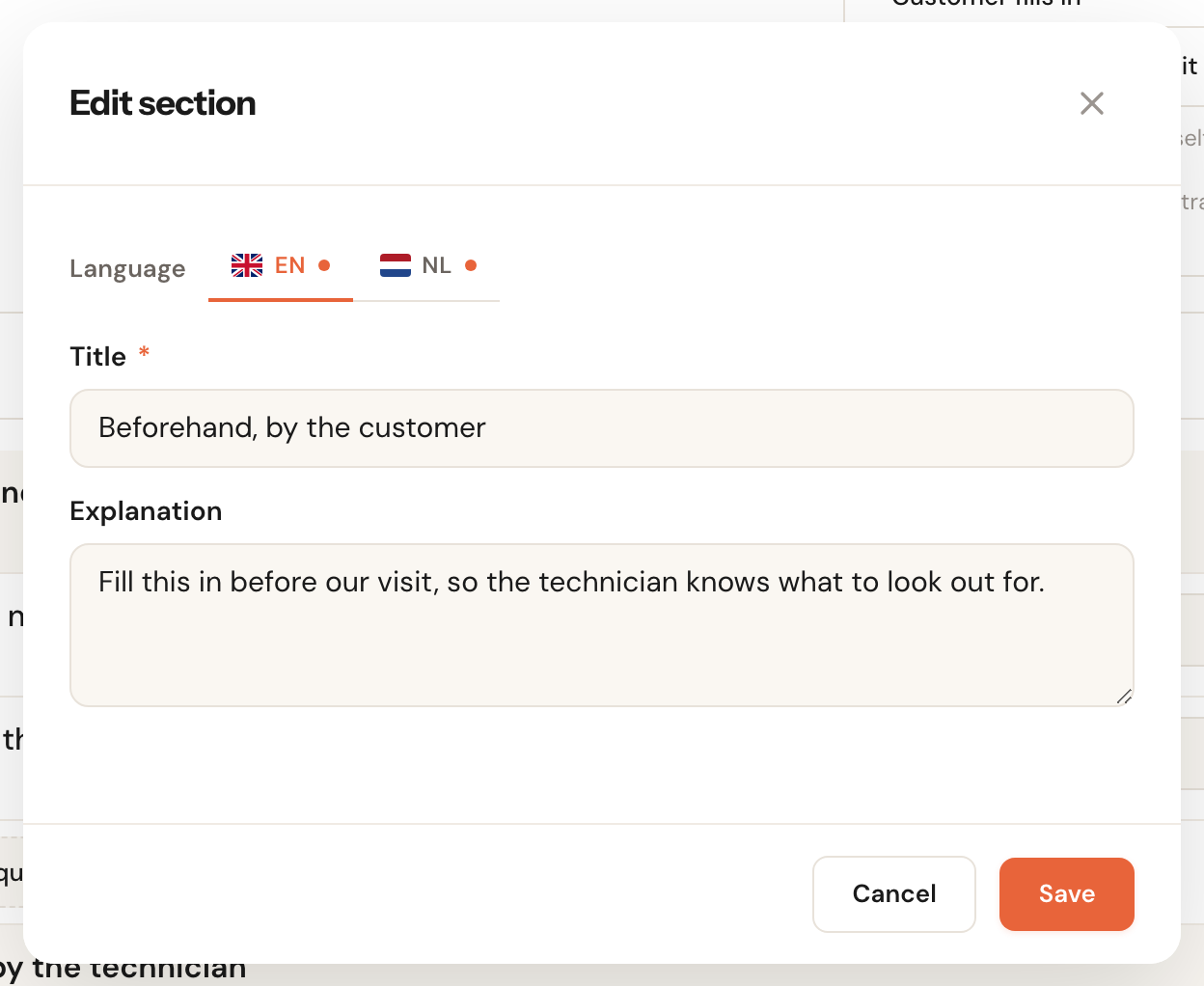
Title
RequiredPer languageThe heading above the section, on the form and in the PDF.
A title that says who and when — Beforehand, by the customer, On site, by the technician — helps everyone who opens the form find their own part at once.
Explanation
OptionalPer languageText shown under the title, for example what you expect from the customer.
This is the only place for an explanation between questions: there is no separate text block. Write here what someone needs to know before starting this section.
Who fills it in
Staff or CustomerBeside the sectionYou do not choose this in the window but in the section's row: Filled in by staff or Filled in by the customer.
A customer section cannot ask for photos or files yet and cannot hold a signature. Switch a section with such a question to the customer and the row says what is wrong, and you cannot save. A section with no questions under it is allowed but not shown — the row warns you about it.
Adding questions
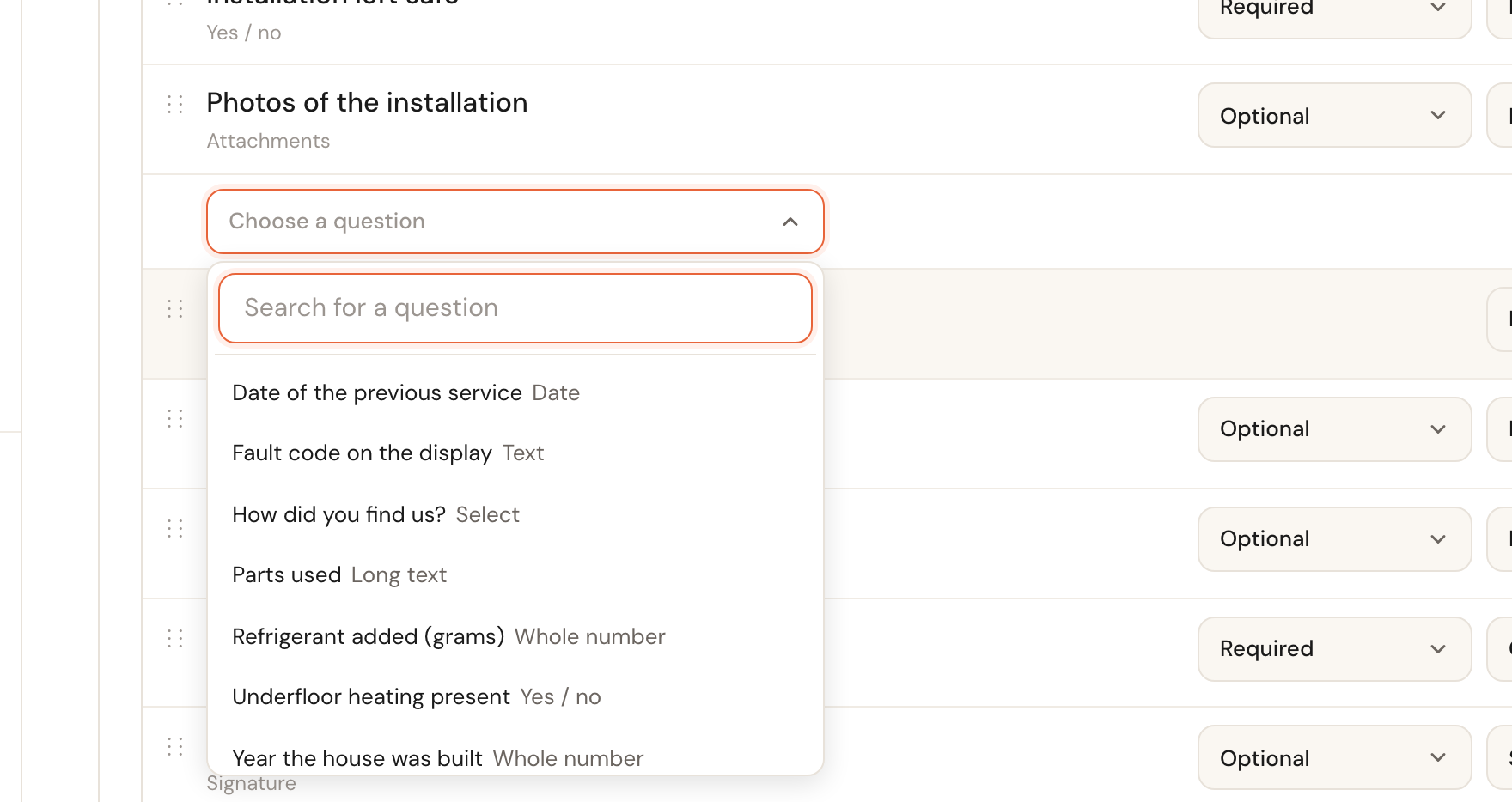
Add question opens a list of the questions not yet on this form, with their type. Type to search. At the bottom is New question…, for a question that does not exist yet. Customer sections are not offered questions of the Attachments type.
Required / Optional
Per formNew: OptionalA required question must be answered before someone can finish their part. A new question on the form starts as Optional.
The same question can be required on the work order and not on the intake — that is why it lives here and not on the question itself. Start optional and make required what you really need: a required question nobody asked for holds up Mark as filled in at a moment that does not suit your colleague.
Width
OptionalHalf width or Full width. Leave it and a long text gets the whole width and the rest half — on a phone everything sits one under the other.
Two short numbers side by side (water pressure and CO reading) read more easily than two narrow fields stacked. A comments field gets the room it needs.
A question you archive under Form questions stays on the form, greyed out, with archived — no longer asked. New forms no longer ask it; filled-in ones keep it. Take it off the form with the bin, or restore it.
A new question
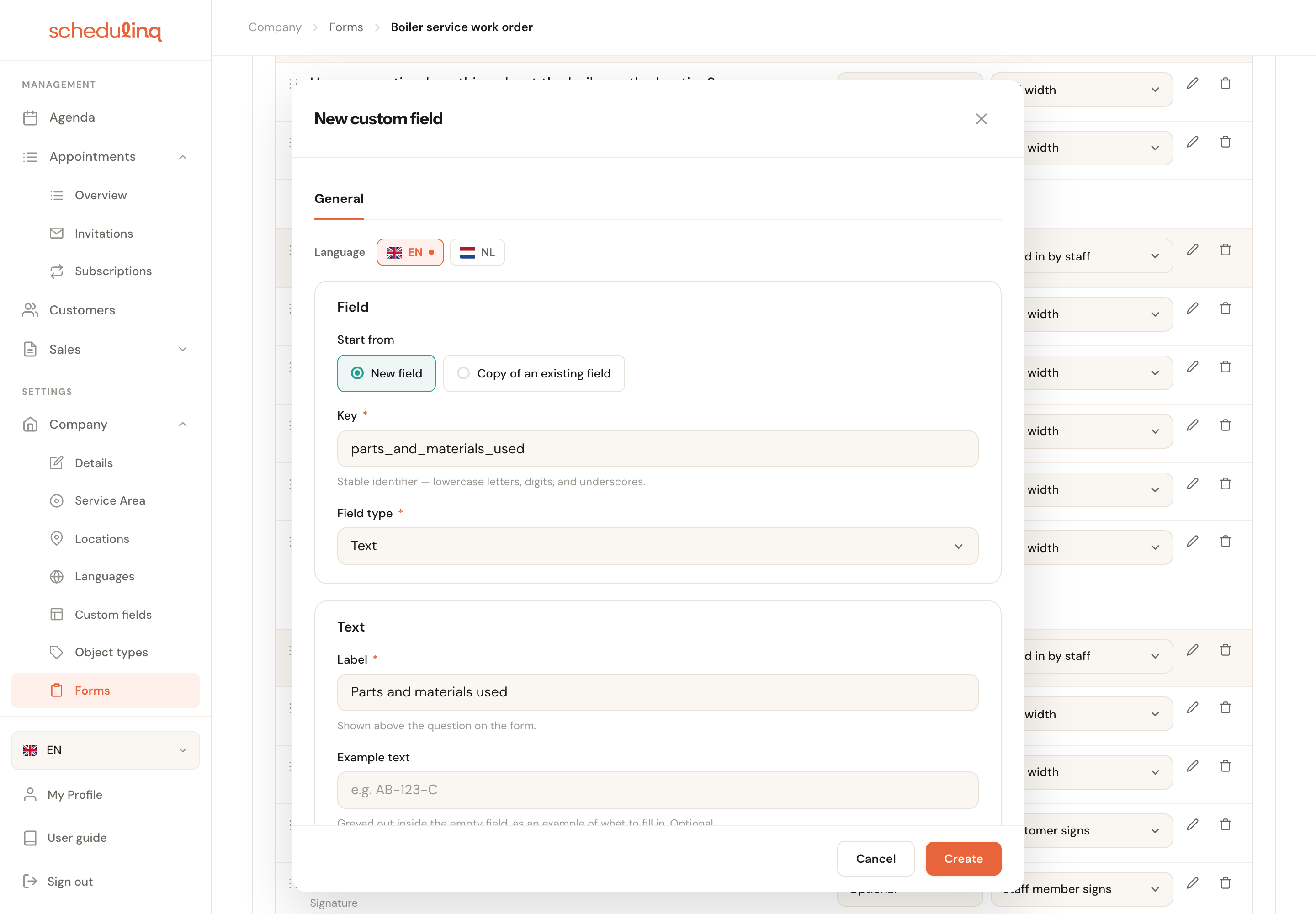
New question… opens the custom field editor, as a form question. What you fill in there works as for any custom field — see Add your own fields. A few things differ for a form question:
- Start from — New field, or Copy of an existing field: you pick a field of a customer, appointment or object, and the new question takes its label, type and choices. It is a copy: what is filled in on the work order does not go into that field.
- No required box — that is set per form.
- No booking page options — a form question is not on the booking page.
- Reference images are available: a picture above the question, for example showing where the boiler's rating plate is.
- Attachments — up to 20 files per question, instead of 5. Video works too.
After Create, the question is on the form, where you added it, and under Company → Custom fields → Form questions.
Signatures
You add a signature with + Signature between two rows of a section your team fills in. That button is not offered in a customer section or on an intake.
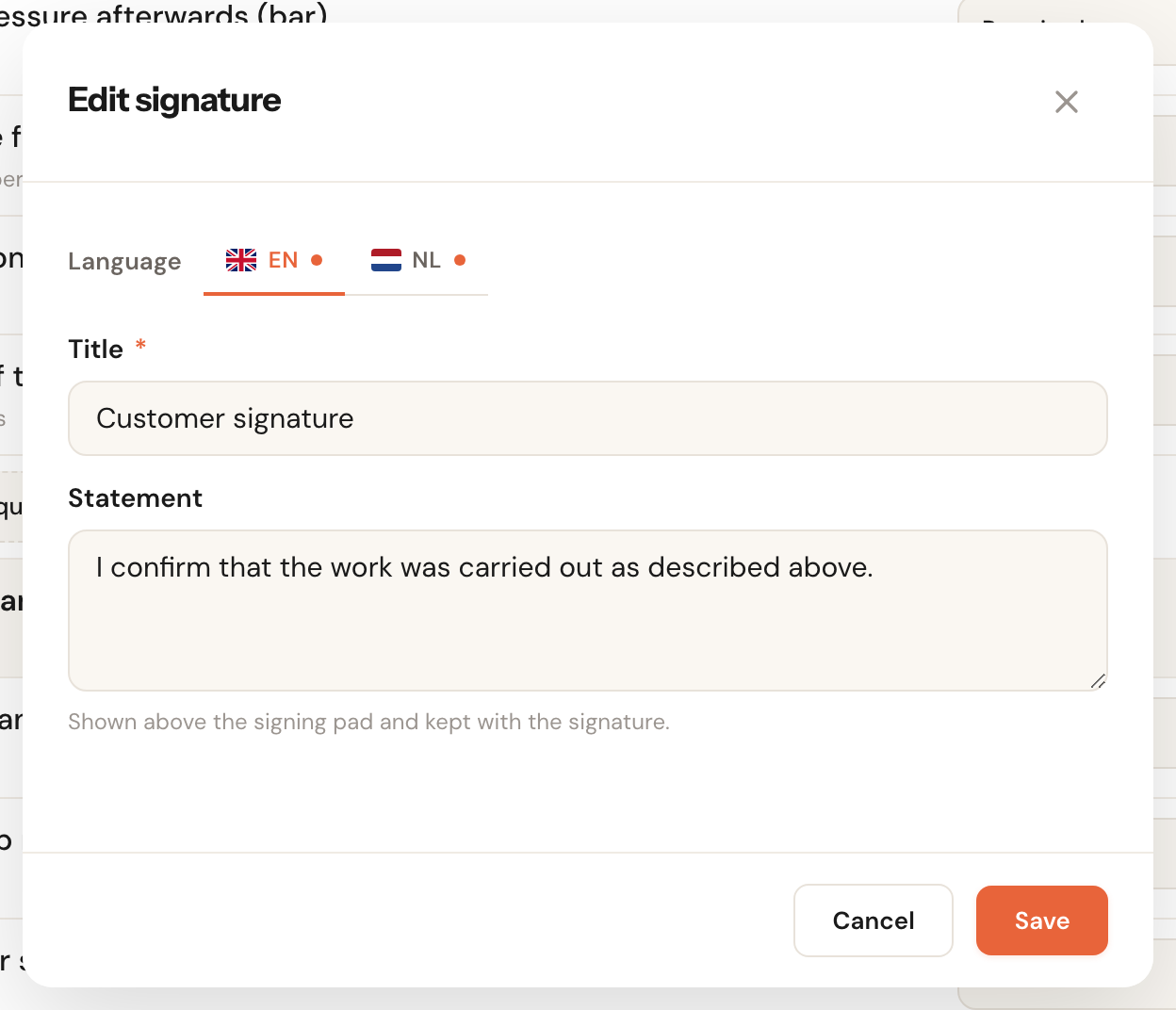
Title
RequiredPer languageMax. 200 charactersAbove the signature, on the form and in the PDF.
Statement
OptionalPer languageMax. 1000 charactersThe text the signer reads, above the signing pad. It is kept with the signature.
A signature under nothing proves little. With a statement — I confirm that the work was carried out as described above — it is clear what the customer signed for. If you change the statement later, earlier signatures keep the text that was read then.
Who signs
Customer signs or Staff member signsIn the signature's row. A new signature starts on Customer signs and Required.
The customer always signs with their finger or the mouse, on your colleague's device. A staff member may also sign by typing their name: their login then counts as the signature. A required signature must be in place before the form is Filled in; an optional one may be missing.
A form holds at most 4 signatures. A signature freezes the whole form as soon as it is made — see Fill in a form.
Saving
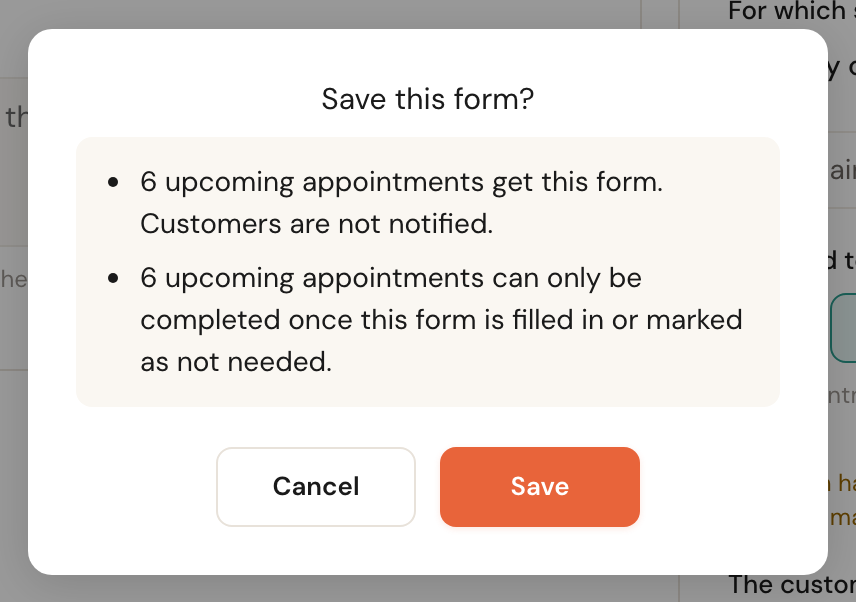
If saving changes anything about appointments already planned, Schedulinq first tells you what:
- … upcoming appointments get this form. Customers are not notified.
- … upcoming appointments can only be completed once this form is filled in or marked as not needed. When you switch Required to complete the appointment on.
- … appointments no longer wait for this form. When you switch it off, or remove a service.
- On … appointments, the form that has not been filled in yet becomes void. When you remove a service or set the form to manual. A form that already holds something stays.
If nothing changes for planned appointments, Schedulinq saves straight away. Leave with unsaved changes and it asks whether you want to discard them.
Changing a form that is already in use
You always can. What was filled in keeps the questions as they were asked then; what is still empty gets the new version. See Versions. So you never need to make a new form because the old one has been filled in.
Form questions
All the questions of all your forms are together under Company → Custom fields, in the Form questions tab.
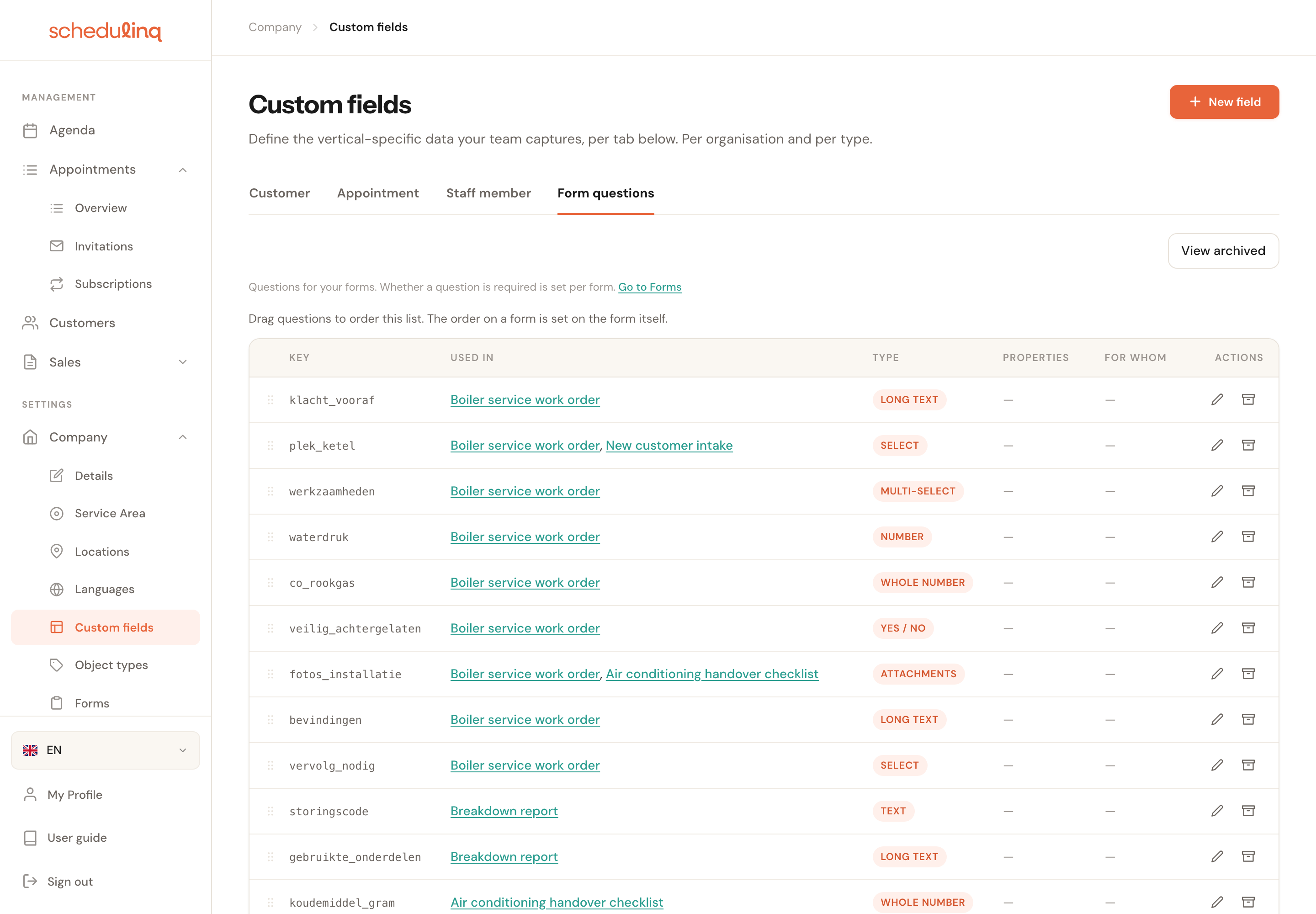
The Used in column names the forms a question is on, with a link to each. Archive a question that is on a form and the confirmation says which forms will no longer ask it; filled-in forms keep it. You can always restore it. A form question's key belongs to that question for good: even after archiving, no other question can take it.
Archiving and restoring
A form you no longer use is archived with Actions → Archive. You cannot delete it: filled-in forms still belong to it.
- Forms on appointments that have not been filled in yet become void.
- Forms that were filled in are kept and stay readable. A work order someone has started and that keeps an appointment open, keeps doing so until it is filled in or marked as not needed.
- Restore it later, with Restore, and it is set out again on upcoming appointments.
An archived form shows This form is archived and is no longer set out on any appointment. at the top. An intake works slightly differently — see The intake.
Frequently asked questions
Can I copy a form? No. Make a new form and pick the same questions from the list — you do not need to make the questions again.
Can a question have a different name on the form than under Form questions? No, the label belongs to the question. If you want different wording on two forms, make two questions.
Why can't I ask for photos in a customer section? The customer cannot send them from the portal yet. Put photos in a section your team fills in.
Why is Required to complete the appointment missing? It does not exist for an intake: an intake does not belong to an appointment.
I made a question required; do filled-in forms have to be redone? No. What is done stays done. Only whoever is still filling in the form gets the new rule.