

Jobs
Record what your colleagues do — Engineer, Planner, Office — and give each job its own additional fields and a suggested role.
A job says what someone does in your business: Engineer, Heat pump specialist, Planner. A colleague can hold more than one. The job decides three things:
- which additional fields that colleague has — a van licence plate for engineers, not for the office;
- which role Schedulinq suggests when you invite someone with that job;
- and, if you want, who may do a service or who fits a customer's answer. More on that below.
The overview
Go to Team → Jobs. You see every job with the role it suggests when inviting and how many colleagues hold it.
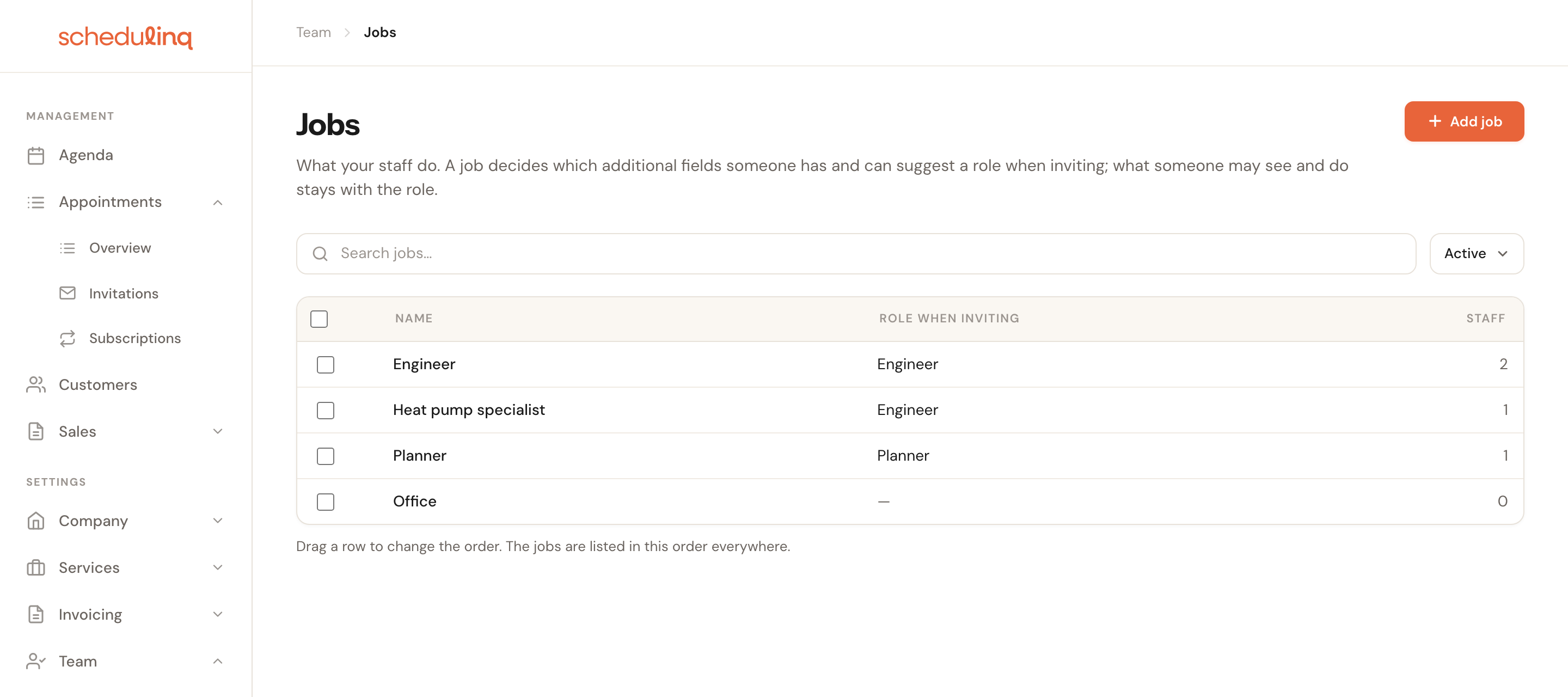
As long as you have no jobs, nothing about them shows anywhere in Schedulinq: no column in the team list, no choice when inviting. If you don't need jobs, you won't notice them.
Drag a row to change the order. The jobs are listed in that order everywhere: in the team list, on the profile and when inviting. Dragging only works while you see the whole list — not while you search or filter on Archived.
Adding a job
Click Add job
Top right on Team → Jobs.
Give the job a name
A name exists only once, ignoring capitals: next to Engineer you cannot create engineer. At most 100 characters. The name is not translated, just like a role's name.
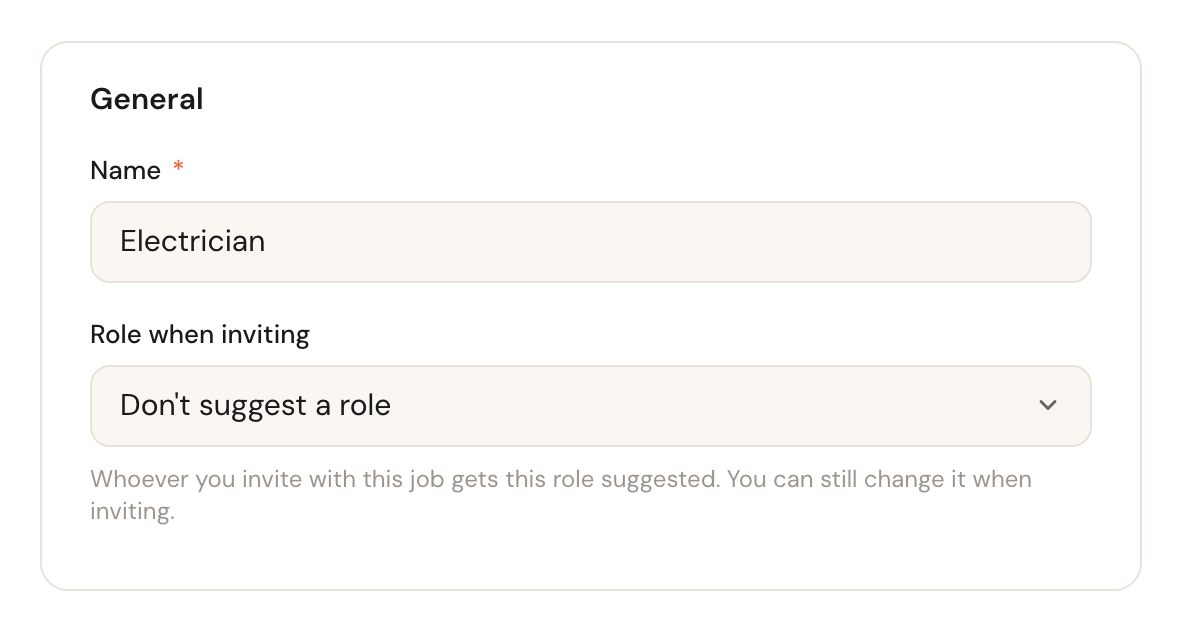
Optionally pick a role when inviting
When you later invite someone and tick this job, the invitation window's role jumps to this role. Choose Don't suggest a role if the job says nothing about permissions.
Click Create
You land on the new job's page, where you add its fields.
Role when inviting
OptionalThe role the invitation window suggests as soon as you tick this job.
It saves a click and a mistake: a new engineer gets the engineers' role by themselves. It stays a suggestion. If you pick a role in the window yourself, that one stays, even when you tick a job afterwards. Tick several jobs and the role of the first one that suggests a role applies. Someone who manages the team but is not an admin cannot pick a role here with more permissions than they have themselves: Schedulinq refuses that under the field.
A job's page
Click a job in the overview. The page opens read-only; with Edit you change the name or the role, and under Actions you archive it.
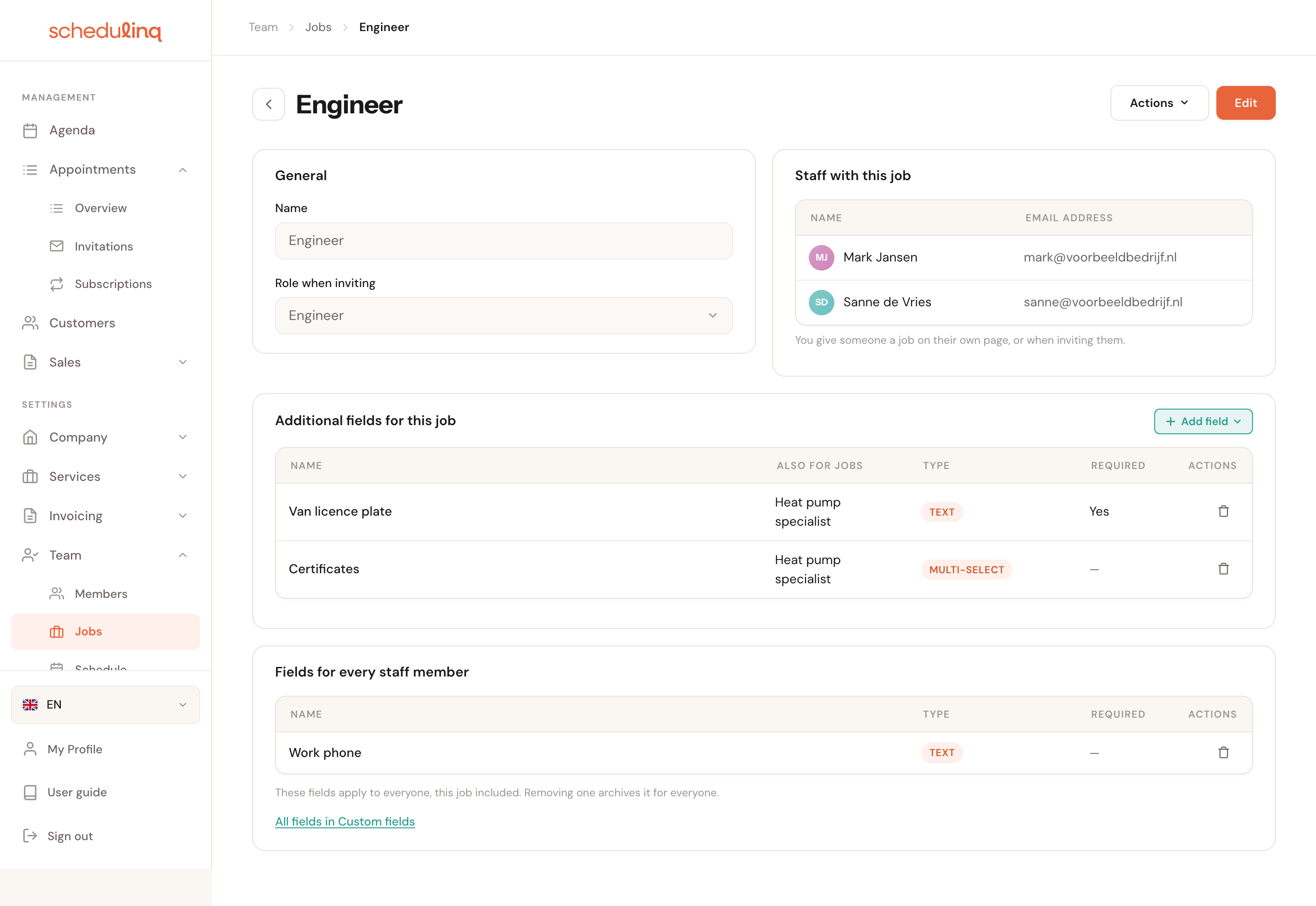
Staff with this job
Who holds the job, with their email address. Click a row to open that colleague's profile. You don't give someone a job here, but on their own page or when inviting — see Giving someone a job.
Additional fields for this job
The fields only colleagues with this job have, as a table:
| Column | What you see |
|---|---|
| Name | The field's name. Click a row to edit the field. |
| Also for jobs | Other jobs that have the same field, or This job only. |
| Type | Text, Multi-select, Date and so on. |
| Required | Yes when the field must be filled in in the dashboard. |
With Add field you create a New field that applies to this job straight away, or under Link an existing field you pick a field another job already has. A shared field is one field: what a colleague filled in stays the same when they move from one job to the other.
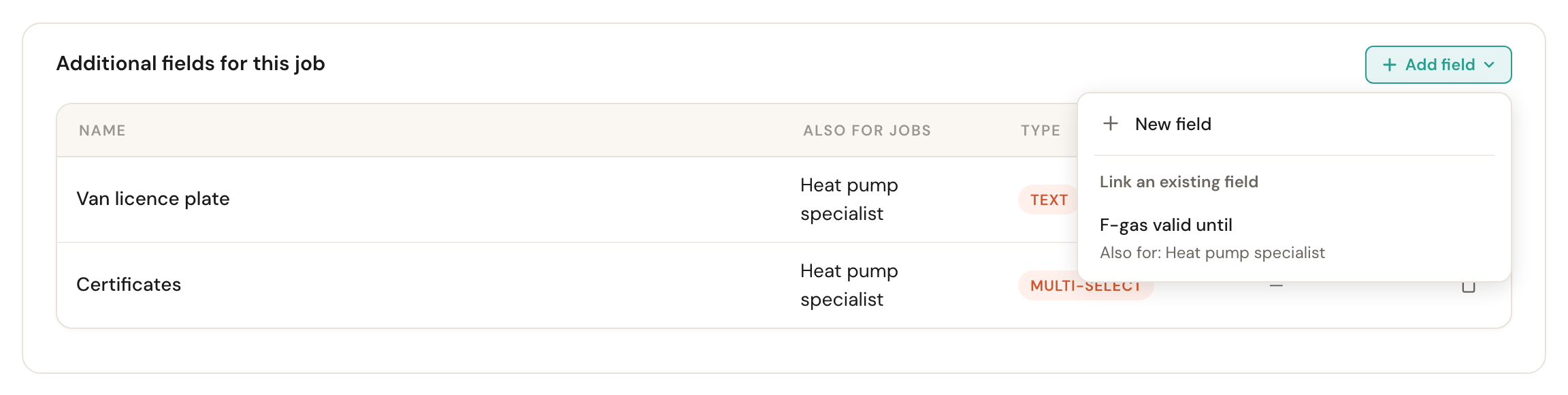
The bin at the end of a row removes the field from this job; it stays on the other jobs. If this is the field's last job, unlinking is not possible — a field without a job applies to every staff member — and Schedulinq asks whether you want to archive the field instead.
Fields for every staff member
Fields without a job apply to everyone, this job included. They have a card of their own, so you see what applies only here and what applies everywhere. Removing such a field archives it for everyone; Schedulinq asks first. All fields in Custom fields takes you to the complete overview.
Giving someone a job
On the profile
Open a colleague via Team → Members and click Edit. In the Job card, tick what that colleague does. The fields of those jobs appear straight away under Additional fields; a required field must be filled in before you can save.
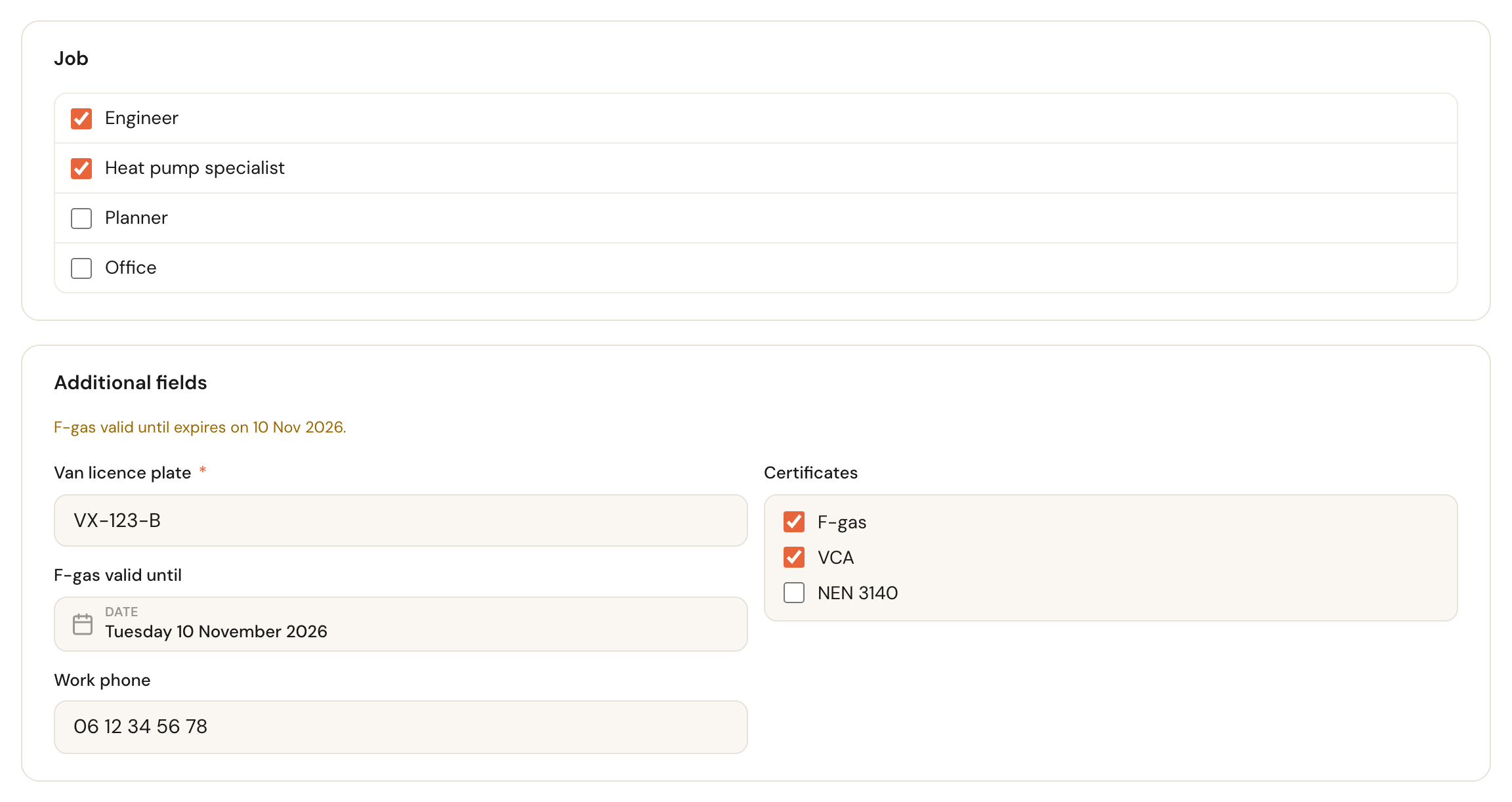
A colleague sees their own jobs and fields on My Profile but cannot change them: someone who manages the team does that.
When inviting
The Invite team member window has a Job list. Tick one and that job's fields appear below it, while the role jumps to the suggested role. Untick it again and the role goes back to the default role — unless you had picked a role yourself.
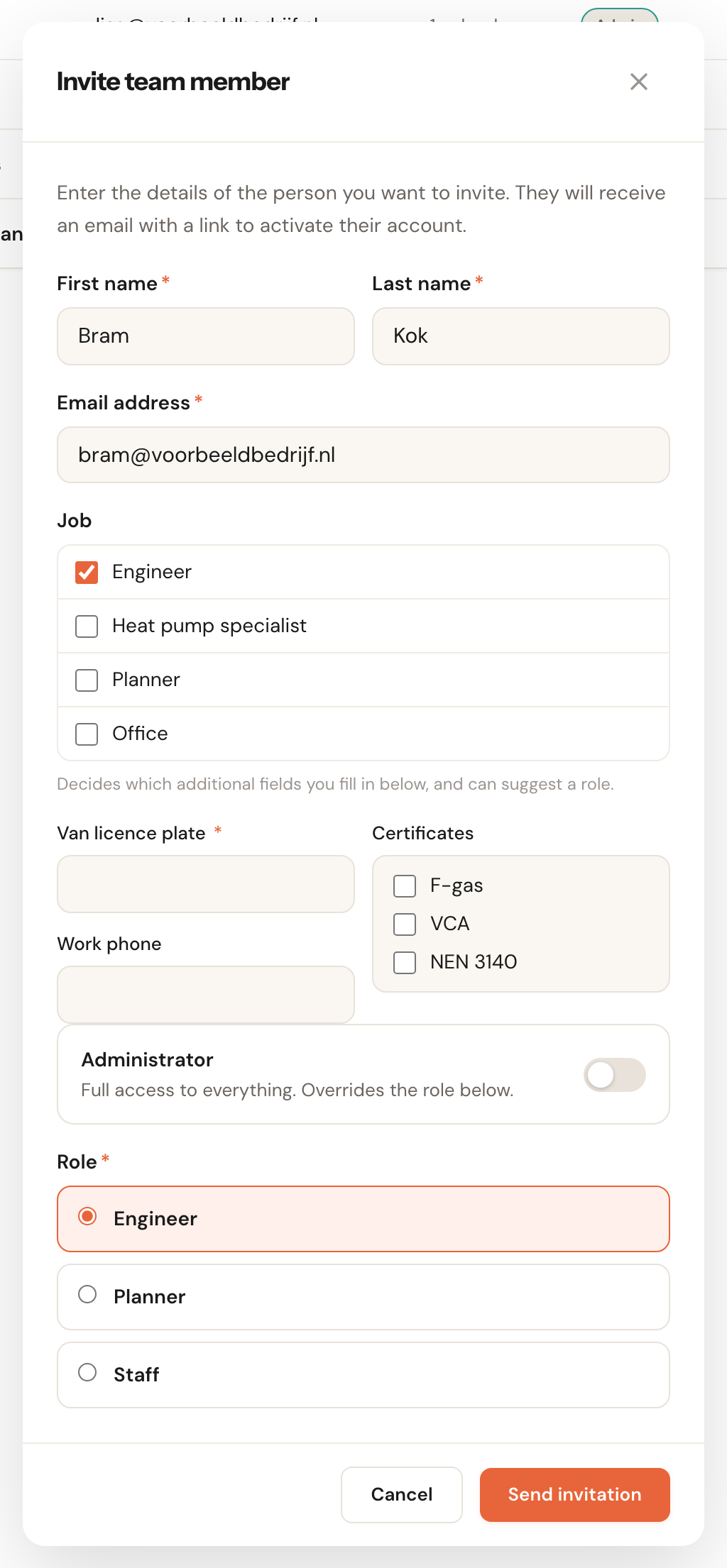
On a pending invitation you can still change the jobs; what is there when your colleague accepts ends up on the profile. More about inviting is in Invite your team.
The team list under Team → Members has a Job column with everyone's jobs, in the order of the overview.
What else a job can do
A job is also a way to name a group of colleagues in one go. Whoever is given the job later belongs to it automatically; you don't have to update anything when an engineer joins.
- Who does a service. Among an appointment type's staff you pick jobs next to individual colleagues (Search jobs or team members…). Everyone with the job can do the service, including people who join later.
- Who fits an answer. With skills you link a customer's answer to a job: Daikin goes to everyone with the job Heat pump specialist.
- The agenda. In the agenda's staff menu the jobs are buttons above the names, under Job. In the week view All 3 side by side puts the colleagues of a job of two to four people next to each other.
- Find appointment options. The planner has a Job choice: with no colleague chosen it only searches those who hold that job. A colleague you choose yourself takes precedence.
- Messages. The variable Staff member's job puts the job of whoever does the appointment in a message, for example Engineer. With several jobs they are listed one after the other; without a job it stays empty.
Archiving a job
On the job's page choose Actions → Archive, or tick several jobs in the overview and archive them together.
- Nobody can be given the job any more; it is no longer in the invitation window.
- Whoever holds the job keeps it, with its fields. On the profile it shows with archived after it. Untick it there and you cannot tick it again.
- The Archived filter on the overview shows it. Its page then only offers Restore.
Restoring fails when another job with the same name exists by then: rename one of them first.
Frequently asked questions
Do I have to use jobs? No. Without jobs Schedulinq works as before: every staff member field applies to everyone.
Can I make a field required for some jobs? A field is required or not, for everyone who has it. If you want a licence plate to be required for engineers but not for the office, link the field to the job Engineer only.
Does the API know about jobs? Not yet. The API returns a team member's additional fields as stored, including fields of a job that colleague no longer holds, and cannot give jobs.
Does someone with the job Planner get more permissions? No. A job never grants permissions. Even the role a job suggests is only really chosen in the invitation window or with Change role.